
You tap, swipe, or set a new watch face from your iPhone—yet your Apple Watch stays stubbornly stuck on the same design. Whether you’re trying to switch to a fitness-focused face before a workout or simply want a fresh look, the Apple Watch face won’t change issue can be incredibly frustrating. This problem affects users across models—from Apple Watch Series 4 to Ultra 2—especially after updates to watchOS 10 and later versions.
But here’s the good news: in most cases, this isn’t a hardware failure or permanent glitch. It’s usually caused by a changed gesture, a disabled setting, sync hiccups, or outdated software. The solution? A few targeted fixes that can get your watch face switching smoothly again—often in under five minutes.
In this guide, you’ll learn how to diagnose and resolve every variation of this issue. We’ll walk you through quick troubleshooting steps, advanced resets, and long-term prevention tips so your Apple Watch works the way it should—every time.
Fix the New Swipe Gesture in watchOS 10+
Apple changed the rules starting with watchOS 10, and many users didn’t get the memo. If you’re used to swiping left or right to cycle through faces, that gesture no longer works by default.
Press and Hold to Change Face (Default in watchOS 10)
Starting in watchOS 10.0, Apple replaced the swipe gesture with a press-and-hold method:
1. Press and hold the center of your watch screen.
2. Wait for the Face Gallery to appear.
3. Swipe left or right to browse your saved faces.
4. Tap the one you want to activate.
This isn’t a bug—it’s the new default behavior. Thousands of users think their watch is broken when they just need to use the updated gesture.
If nothing happens when you press and hold, make sure you’re pressing firmly on the display and waiting a full second. Also, clean the screen—dirt or moisture can interfere with touch sensitivity.
Re-enable Swipe to Switch Faces (watchOS 10.2+)
After widespread user complaints, Apple brought back the swipe feature in watchOS 10.2, but only if you manually enable it.
Turn On Swipe to Switch on Apple Watch
- Press the Digital Crown to return to the Home screen.
- Open Settings (gear icon).
- Tap Clock.
- Toggle on “Swipe to Switch Watch Face”.
Or Enable It via iPhone
- Open the Watch app on your iPhone.
- Go to My Watch > Clock.
- Toggle on “Swipe to Switch Watch Faces”.
✅ This setting syncs between devices. If it’s off on your iPhone, the swipe gesture won’t work—even if it looks enabled on the watch.
⚠️ After software updates, this setting may reset. If swiping stops working again, check this toggle first.
Face Not Syncing from iPhone? Try These Fixes

Even after selecting a new face in the Watch app and tapping “Set as Current”, your Apple Watch might not update. Here’s how to fix sync failures.
Confirm the Face Is in My Faces
First, verify the face actually exists on your watch.
- Open the Watch app on your iPhone.
- Tap My Watch > My Faces.
- Look for your chosen face (e.g., Photos, Modular, Chronograph).
❌ If it’s missing: the face never synced.
✅ If it’s listed: proceed to force the sync.
Force Sync with “Set as Current”
Just adding a face isn’t enough—you need to actively apply it.
Steps to Apply
- In My Faces, tap the face you want.
- Scroll down and tap “Set as Current Watch Face”.
- Keep your iPhone and Apple Watch close.
- Wait 10–15 seconds. You should feel a vibration when the change takes effect.
Tip: Avoid walking away during this process. Bluetooth range is limited, and movement can interrupt syncing.
Re-add the Face If Sync Fails
Sometimes, a face appears in the app but fails to install properly due to a corrupted download.
How to Re-add a Face
- In My Faces, swipe left on the problematic face and tap Remove.
- Tap Face Gallery.
- Choose the same face type (e.g., Photos).
- Customize it and tap Add to Watch.
✔️ This forces a clean reinstallation. Many users report success only after re-adding the face.
Restart Devices to Clear Glitches
A simple restart resolves many temporary software freezes that block face changes.
Restart Apple Watch
- Press and hold the side button until the power slider appears.
- Swipe to Power Off.
- Wait 30 seconds.
- Press and hold the side button to turn it back on.
Restart iPhone
- Press and hold the side button + volume button (or top button on older models).
- Slide to power off.
- Wait 15 seconds, then turn it back on.
⏱️ Total time: about 2 minutes.
✅ This is one of the most effective fixes after a software update or failed sync.
Update watchOS and iOS
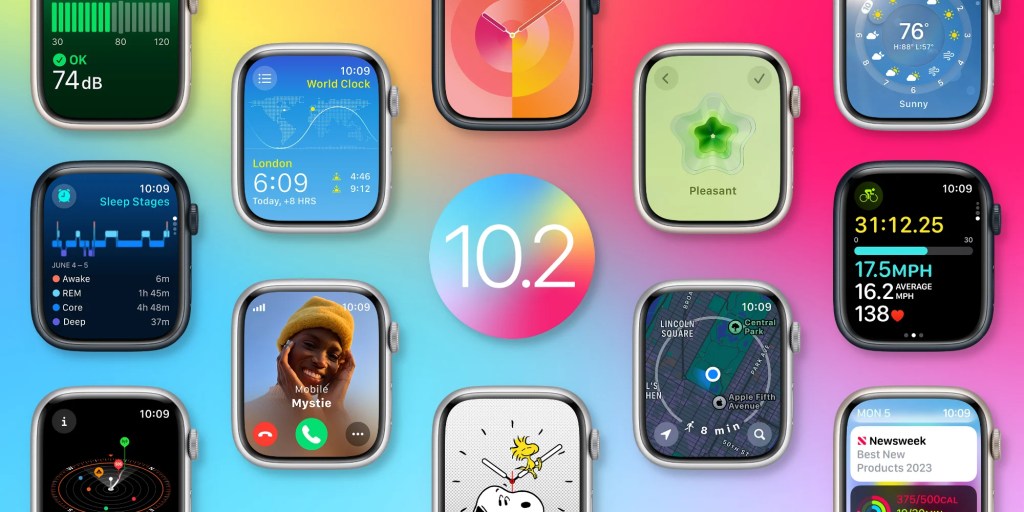
Outdated software is a top cause—especially if you’re on watchOS 10.0 or 10.1, where the swipe gesture is disabled and sync bugs are common.
Check for Updates
- On iPhone, open the Watch app.
- Tap General > Software Update.
- Install any available watchOS update.
- Also ensure your iPhone runs iOS 17 or later.
📌 Critical: watchOS 10.2+ restores swipe functionality. Upgrade if you haven’t.
🔄 Update both devices at the same time to prevent sync mismatches.
Toggle Airplane Mode to Reset Connection
A quick network reset can kickstart a stalled sync.
Force Reconnect
- On Apple Watch, swipe up to open Control Center.
- Tap Airplane Mode (turn it on).
- Wait 5 seconds.
- Tap again to turn it off.
This forces Bluetooth and Wi-Fi to reconnect—often triggering delayed face sync.
🔁 Repeat if the first attempt fails.
Unpair and Re-pair Apple Watch
When sync issues persist, corrupted data may be the culprit. Unpairing clears the cache and rebuilds the connection.
Steps to Unpair
- On iPhone, open Watch app.
- Tap My Watch > General > Reset.
- Select Unpair Apple Watch.
- Choose to back up (recommended).
- Wait for unpairing to finish.
Set Up Again
- Follow on-screen setup on Apple Watch.
- Reconnect to iPhone.
- Restore from backup or set up as new.
⚠️ Restoring from an old backup may bring back the same issue.
✅ Pro tip: For recurring problems, set up as new to eliminate legacy data conflicts.
Clean iPhone Setup for Deep Fixes
Some users carry years of iCloud data—apps, settings, duplicates—that corrupt sync behavior.
Case: Legacy Data Causing Failures
One user had 396 apps and 58 watch faces across backups. Face sync failed across multiple watches. The final fix? Setting up the iPhone as a new device. Result: Only 171 apps, 15 faces—sync worked instantly.
When to Try a Clean Setup
- You’ve tried unpairing, restarting, updating—nothing works.
- Your iPhone is slow to boot or sync.
- You restored from a very old backup.
🧼 A clean setup removes hidden conflicts from third-party apps, disabled services, or corrupted preferences.
Fix Face Reversion and Duplicates
Some users report that the face changes temporarily but reverts to an old one. Others see duplicate faces or scrambled order.
Delete Extra Faces
- On iPhone: Watch app > My Watch > My Faces.
- Tap Edit.
- Swipe to Remove duplicates.
Reorder Faces to Stabilize
- In My Faces, tap Edit.
- Drag faces into your preferred order.
- Sync to watch.
Tip: The first face in the list often becomes the default. Place your favorite there.
🔄 Reordering forces a full resync—can fix ghost faces and reversion bugs.
Check for Network and Wi-Fi Issues
Apple Watch syncs via Bluetooth and Wi-Fi. Unstable connections cause delays.
Ensure Same Wi-Fi Network
- Both iPhone and Apple Watch must be on the same Wi-Fi during setup.
- If your router uses dual bands (2.4GHz and 5GHz), make sure both devices are on the same one.
Fix Router Conflicts
User report: eero router and cable modem interference caused frequent disconnections.
Fix: Relocated modem—stability improved.
Workaround
- Turn Wi-Fi off and on on both devices.
- Move closer to the router during face changes.
Add and Change Faces the Right Way
Know the correct methods to avoid future issues.
Add Face from iPhone
- Open Watch app.
- Tap Face Gallery.
- Choose style (e.g., Photos, Infograph).
- Customize complications.
- Tap Add to Watch.
✔️ Becomes current face automatically if sync succeeds.
Add Face on Watch
- Press and hold current face.
- Swipe to end > tap +.
- Browse and tap Add.
- Customize on-screen.
Change Face on Watch
- Method 1 (Default): Press and hold > swipe > tap.
- Method 2 (If enabled): Swipe left/right from screen edge.
Final Checklist: Quick Fixes That Work
Run through these in order:
- ✅ Update to watchOS 10.2 or later
- ✅ Enable “Swipe to Switch Watch Face”
- ✅ Restart both devices
- ✅ Verify face is in My Faces
- ✅ Tap “Set as Current” and wait
- ✅ Re-add the face
- ✅ Toggle Airplane Mode
- ✅ Unpair and re-pair
- ✅ Set up iPhone as new for chronic issues
Prevent Future Problems
Avoid recurring issues with these habits:
– Limit watch faces to 10–15 to reduce sync load.
– Avoid restoring from very old backups.
– Keep both devices updated.
– Use same Wi-Fi network during setup.
– Clean screen regularly—dirt blocks touch input.
Pro tip: If you change faces often, keep Swipe to Switch enabled for faster access.
Final Note: The Apple Watch face won’t change issue is rarely hardware-related. It’s usually a software setting, sync hiccup, or outdated OS. By following this guide—especially enabling the swipe gesture and updating to watchOS 10.2+—you’ll restore smooth face switching in minutes. For stubborn cases, a clean device setup may be the ultimate fix.




