If your Apple Watch 9 touch screen is not working, you’re likely frustrated—especially if you rely on it for workouts, messages, or health tracking. You’re not alone. A growing number of users report intermittent or total touchscreen failure, even on devices with no visible damage. The good news? Most cases can be resolved—if you know the right steps. Whether the issue is caused by a recent watchOS update, a minor drop, or water exposure, this guide delivers immediate fixes, accurate diagnostics, and clear repair options so you can get your Apple Watch back in action fast.
Fix Unresponsive Touchscreen Now
When your Apple Watch 9 stops responding to taps or swipes, start with these fast, easy solutions. Many users restore full functionality in under a minute.
Force Restart Your Watch
A force restart is the single most effective first step. It clears software glitches that can freeze the touchscreen.
How to do it:
1. Press and hold the Side Button and Digital Crown at the same time.
2. Keep holding for 10–15 seconds.
3. Release when the Apple logo appears.
✅ Success rate: High for temporary freezes
⏱️ Time required: Less than 30 seconds
🔄 Try up to 3 times if the screen flickers but remains unresponsive
Important: If the screen works for 3–5 seconds after restart and then dies again, this strongly suggests hardware damage—not a simple software bug.
Clean Screen and Hands
Capacitive touchscreens require direct skin contact. Oily fingers, dirt, or moisture can block input.
Immediate actions:
– Wipe the display with a dry, soft, lint-free cloth
– Wash and dry your hands thoroughly
– Remove gloves, wet sleeves, or soapy residue
– Avoid using while hands are damp
🛑 Avoid: Harsh cleaners, paper towels, or thick screen protectors that reduce sensitivity
✅ Best practice: Use an Apple-designed or precision-cut screen protector like the Ultra Armorite model
Even a thin layer of hand lotion can disrupt touch response—clean both your skin and the screen first.
Disable Water Lock Mode
After swimming or handwashing, Water Lock automatically disables the touchscreen to prevent accidental taps. If you forget to turn it off, your watch may seem broken.
How to disable:
– Tap the water droplet icon on screen
– Or, turn the Digital Crown until you hear a chime and the lock releases
🔍 Look for: A small water droplet symbol in the status bar
💡 Pro tip: If haptics still work (you feel taps) but the screen doesn’t respond, Water Lock is almost certainly on
This simple fix is often overlooked—don’t skip it.
Diagnose the Root Cause

Before diving into complex repairs, determine whether the problem is software-related or hardware-based. Your next steps depend on the answer.
Check for watchOS Update Issues
Several watchOS updates have triggered touchscreen bugs across Apple Watch models, including the Series 9.
Known problematic versions:
– watchOS 9.6.2: Caused intermittent touch failure on Series 7 and 9
– watchOS 11.4: Linked to touch dropouts on newer models
– Post-update symptoms:
– Touch works briefly after restart
– Double-tap needed to activate buttons
– White borders around app icons (sign of accidental accessibility mode)
🔄 Fix: Install the latest watchOS patch—Apple often releases fixes within weeks
How to check for updates:
1. Open the Watch app on your iPhone
2. Go to General > Software Update
3. Download and install any available update
📶 Requirements: Wi-Fi and at least 50% battery
Delaying updates increases the risk of compatibility bugs—stay current.
Test Accessibility Settings
Accidental activation of Touch Accommodations can mimic a broken screen.
Check on your watch:
1. Open Settings > Accessibility > Touch
2. Review:
– Tap Assistance: Requires longer presses
– Switch Control: Overrides normal touch input
Fix:
– Turn off any active settings
– Reboot and test responsiveness
🔎 User clue: If you must tap twice or see white outlines around icons, Tap Assistance was triggered accidentally
This setting is often turned on by mistake during accidental screen interactions.
Software Fixes That Work
If basic steps fail, try these deeper software solutions.
Update watchOS Immediately
An outdated or buggy OS version may be the root cause.
Steps:
1. Open the Watch app on your iPhone
2. Go to General > Software Update
3. Install any available update
✅ Success story: Users with Series 6 saw touch restored after patching watchOS 8.5.1—similar fixes apply to Series 9
If no update is available, check again daily—Apple often rolls out patches gradually.
Unpair and Re-pair Your Watch
This clears corrupted data and resets the connection between your iPhone and watch.
Steps:
1. In the Watch app, tap All Watches
2. Tap the “i” icon next to your Series 9
3. Select Unpair Apple Watch
4. Confirm (backup is optional)
5. Set up as new or restore from backup
⏳ Time needed: 15–30 minutes
💡 Expert tip: Try setting up without restoring backup first. If touch works, the issue was in your old data.
This fix resolves deep software conflicts that restarts can’t fix.
Close or Reinstall Problematic Apps
Touch issues may only affect specific apps.
To test:
1. Press the Digital Crown to open App Switcher
2. Swipe up to close suspicious apps
3. If problem persists, delete and reinstall the app
🧪 Diagnostic trick: If touch works in Clock or Messages but not in a third-party app, the app—not your screen—is the problem
Some poorly coded apps can freeze system resources and disrupt touch input.
Signs of Hardware Damage
When software fixes fail, hardware may be to blame.
Impact from a Recent Drop
Even a small fall can damage internal components.
Red flags:
– Touch works only briefly after restart
– No visible cracks
– Side button and Digital Crown still work
– Incident occurred within the last week
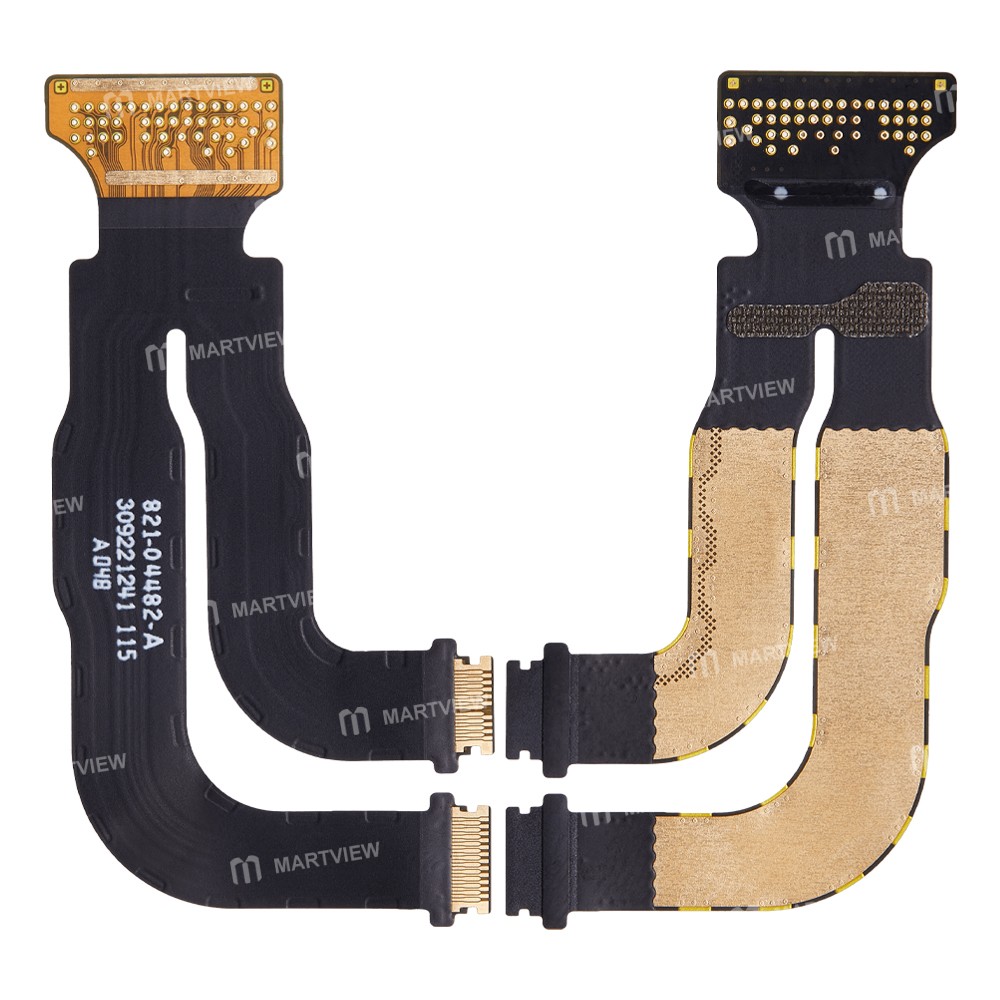
🔧 Likely issue: Damaged digitizer or flex cable connecting screen to logic board
👥 Community insight: Users like TS_Annabelle report this pattern often requires professional screen replacement
The Series 9 has no user-replaceable parts—don’t open it yourself.
Water or Moisture Exposure
Despite WR25 water resistance, liquid can seep in during hand washing or swimming.
Symptoms:
– Sudden touch failure after water contact
– Muffled speaker or microphone
– Discoloration near grilles
– Charging port won’t connect
❌ Warning: Water damage is not covered by standard warranty
🔄 What to do: Dry with a soft cloth—never use heat or compressed air
🛠️ If touch remains dead, professional service is required
Moisture under the display can short the digitizer—don’t delay repair.
Repair Options and Costs
If troubleshooting fails, it’s time to repair.
Contact Apple Support First
Always start with Apple—they can run remote diagnostics and guide you.
Ways to reach Apple:
– Phone: 1-800-MY-APPLE (1-800-692-7573)
– Online: support.apple.com
– In person: Visit an Apple Store or Authorized Service Provider
🧰 What to expect: Apple may ask for your serial number and run diagnostics—even if the screen is dead
Check Warranty and AppleCare+
Your repair cost depends on coverage.
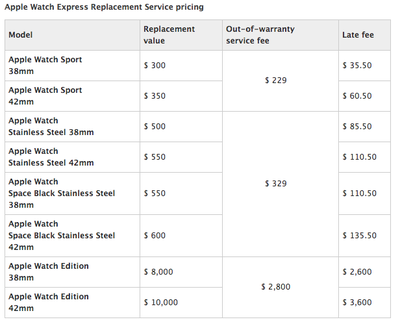
| Coverage Type | Screen Repair Cost | Notes |
|---|---|---|
| AppleCare+ | $69 | Covers accidental damage, including drops |
| Standard Warranty | Free | Only if defect—not damage—is confirmed |
| Out of Warranty | $349+ | Full replacement fee if not under AppleCare+ |
💡 Tip: If you’ve had a drop or water incident, AppleCare+ saves hundreds
Verify Eligibility for Service Programs
Apple sometimes offers free repair programs for known issues.
Example:
– Apple Watch Series 6 Blank Screen Program covers display failures—even out of warranty
🔍 Action: Enter your serial number on Apple’s support site to check for active programs that might apply to your Series 9
You could qualify for a free repair even if your device is out of warranty.
Prevent Future Touch Issues
Keep your Apple Watch 9 responsive with these habits.
Keep watchOS Updated
Apple patches touch bugs quickly—stay current.
Best practices:
– Enable automatic updates
– Install updates within a week of release
– Avoid skipping multiple versions
🔄 Why it matters: Delayed updates increase risk of compatibility bugs
Use a Protective Case
Even minor drops can damage internal components.
Recommended:
– Apple-designed cases or Spigen, OtterBox models
– Avoid metal or magnetic cases that interfere with sensors
💥 Fact: Series 9 has no user-serviceable parts—protection is your first defense
Handle Water Exposure Carefully
Water-resistant ≠ waterproof
Do:
– Rinse with fresh water after saltwater swims
– Dry thoroughly before charging
– Avoid showers, saunas, or water slides
Don’t:
– Press buttons underwater
– Submerge beyond 25 meters
– Use with soapy or chemically treated water
Final Fix Checklist
Use this step-by-step plan:
- Clean screen and hands
- Disable Water Lock
- Force restart
- Check Accessibility settings
- Update watchOS
- Unpair and re-pair (with or without backup)
- Test app-specific issues
- Contact Apple Support if no improvement
✅ If touch works after restart but fails again: Likely hardware damage—seek repair
✅ If fix is temporary: Monitor for recurrence—backup data now
Final Note: The Apple Watch 9 touch screen not working issue is usually fixable. Start with software—most cases respond to a force restart or update. If the problem persists, especially after a drop or water exposure, hardware repair is likely needed. Acting fast improves your chances of a full recovery—so don’t wait. With AppleCare+ and proper care, your watch can stay responsive for years.