Apple Watch Reviews

Expert Apple Watch reviews, smartwatch comparisons, and maintenance tips. Find your perfect timepiece with detailed buying guides and care tutorials.

Apple Watch Not Charging? Fix It Fast


Your Apple Watch is completely dead—no response when you press the Digital Crown or side button, and it won’t charge. No green lightning bolt. No screen glow. Just silence. You’re not alone. Thousands of users report the same issue: an Apple Watch that dies and refuses to power on or accept a charge. The good news? In most cases, this isn’t permanent hardware failure—it’s often a deep battery drain, software glitch, or charging connection problem that can be fixed.

This guide covers every proven step to revive a non-responsive Apple Watch. Whether you’re dealing with a red lightning bolt, a blank screen, or a device stuck in a boot loop, we’ll walk you through the exact troubleshooting sequence—starting with simple fixes and progressing to advanced recovery methods. You’ll learn how to diagnose the real issue, avoid common mistakes, and know when it’s time to contact Apple. If your watch shows even a flicker of life, recovery is likely possible.


Use the Right Charger and Power Source

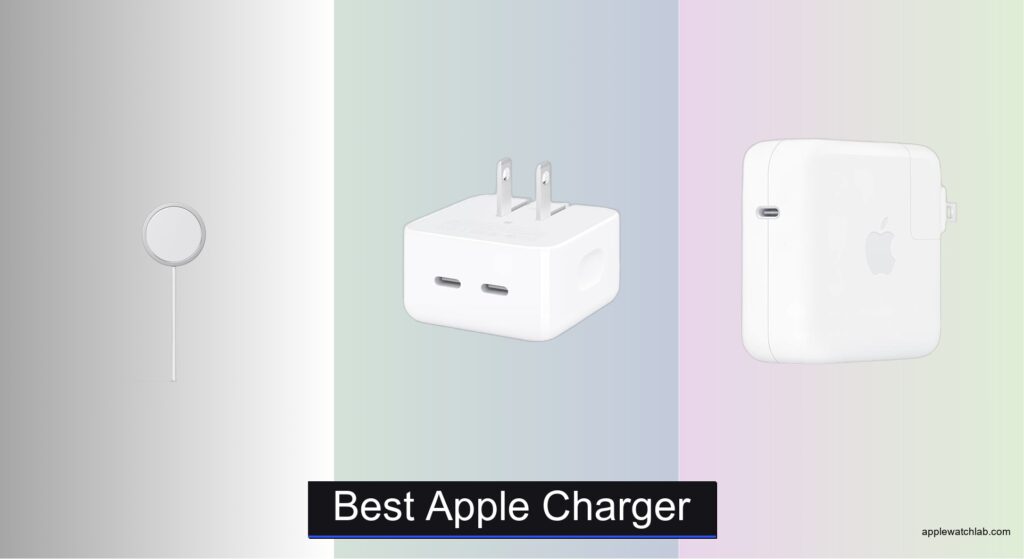
Apple Watch charger types comparison MFi certified

Before assuming your Apple Watch is broken, rule out faulty charging equipment.

Stick to Apple or MFi-Certified Accessories

Not all cables are created equal. Third-party chargers may look identical but fail to deliver consistent voltage. Use only:
Apple Magnetic Charging Cable
USB-C Magnetic Fast Charging Cable
Apple Watch Magnetic Charging Dock

Avoid knockoffs—even if they claim “Apple compatible.” Non-certified chargers often cause intermittent charging or no response at all.

Avoid Region-Locked Chargers

Some Apple Watch chargers sold in China or Indonesia are WPT-compliant and region-specific. If you see:

“Unable to charge. This is a country-specific charger.”
Switch to a standard Apple charger from your region.

Plug Into a High-Power Source

Low-output USB ports can’t revive a deeply drained battery. Always use:
Apple 5W or 12W USB power adapter
iPad charger (higher amperage helps)
Powered-on desktop or laptop USB 2.0/3.0 port

Avoid:
– USB hubs
– Car chargers with low output
– Power banks in sleep mode

Pro Tip: Test your cable by charging AirPods—this confirms the cable and power source are working.


Clean the Charging Contacts Thoroughly

Apple Watch charging contact cleaning tutorial

Dirt, sweat, or moisture on the charging surface can block electrical contact.

Wipe Both the Watch and Charger

  • Use a dry, lint-free cloth to clean the back of your Apple Watch.
  • Do the same for the magnetic charging puck.
  • Gently remove debris from the pins using a soft-bristle brush or wooden toothpick.
  • Ensure everything is completely dry before reconnecting.

Remove Protective Plastic Film

New charging cables often come with a thin plastic film still attached to the magnetic surface. Peel it off both sides—this is a surprisingly common cause of charging failure.

Warning: Never use liquids, alcohol, or metal tools—they can corrode or scratch the contacts.


Align the Magnets Correctly

Poor alignment prevents charging, especially on larger models like the Apple Watch Ultra.

Position the Charger Properly

  • Place the concave side of the charger flush against the back of the watch.
  • Ensure the magnets snap securely into place.
  • Lay the charger flat on a table—don’t let it dangle or hang loosely.

Remove Interfering Accessories

  • Take off thick cases or metal screen protectors.
  • If using a charging dock, remove the band to improve contact.

Visual Cue: You should hear a soft click when the magnets engage.


Force Restart Your Apple Watch

A frozen system can prevent booting—even when power is available.

Standard Reset (10 Seconds)

  1. Press and hold both the Side Button and Digital Crown.
  2. Keep holding for at least 10 seconds.
  3. Release when the Apple logo appears.

Do this while the watch is on the charger to ensure it has power during the reset.

Extended Reset (30–40 Seconds)

If the standard restart fails:
– Hold both buttons for 30 to 40 seconds.
– Don’t release early, even if the screen flickers.
– Success is confirmed only when the Apple logo stays on.

User Verified: This method has revived Apple Watch Ultra, Series 6–9, and older models.


Charge for at Least 30 Minutes—Even With No Screen Response

A completely dead battery may take time to show signs of life.

Be Patient—Screen May Stay Black

  • Leave the watch connected for a minimum of 30 minutes.
  • Some cases require 2.5 to 10 hours of continuous charging.
  • Extreme cases have taken up to 48 hours to respond.

Real Example: One user revived their watch only after two full days of uninterrupted charging.

What to Look For

  • Red lightning bolt: Battery is critically low.
  • Red ring with lightning: Charging in progress.
  • Green lightning bolt: Charging normally.
  • Apple logo: Booting up.

If you see any of these, do not disconnect—let it charge fully.


Try a Complete Battery Drain

If your watch keeps rebooting or shows partial signs of life, a full discharge may reset the system.

Natural Drain Method

  • Leave the watch off the charger until pressing the crown does nothing.
  • This can take 3 to 7 days.
  • Once fully dead, reconnect and charge completely.

Verified Fix: A former Apple QA engineer resolved his non-charging watch by storing it for a week until fully drained.

Accelerated Drain Technique

  • Perform 2–3 force restarts per day to burn residual power.
  • Each restart consumes battery, helping escape a “stuck” state.
  • After 1–2 days, attempt a full recharge.

Apply Gentle Pressure to Re-Seat Internal Components

Apple Watch internal connector pressure points

Internal connectors can loosen over time, breaking contact.

Safe Pressure Technique

  • Place thumbs on the center of the screen.
  • Press gently but firmly for 5–10 seconds.
  • Alternatively, press on the back of the watch near the charging coils.

This can re-establish contact between the battery and logic board.

Note: This is safe—normal pressure won’t damage the screen.

Follow with a force restart and recharging attempt.


Use the Freezer Method (With Caution)

Temperature change may temporarily restore function in rare cases.

Step-by-Step

  1. Keep the watch on its band.
  2. Place it in the freezer for 20 minutes.
  3. Remove immediately and perform a force restart.

Why It Works

  • Cold causes components to contract, possibly restoring a broken connection.
  • Rapid temperature shift can disrupt a stuck electrical state.

Warnings:
– Never seal the watch in plastic—condensation can damage internals.
– Do not use heat sources, microwaves, or prolonged freezing.
– This is not Apple-approved and carries risk.


Model-Specific Fixes

Apple Watch Gen 1: Overcome Startup Power Draw

Older models often fail to charge because:
– The watch tries to boot during charging.
– Startup uses more power than the charger supplies.

Fix:
Use a higher-power source like an iPad charger to maintain charge during boot.

Prevention: Store with 50% battery and recharge every 6 months.

Apple Watch Series 6 and Newer: Interrupted Update Recovery

If the watch died during a software update:
– It may enter a recovery loop.
– The iPhone Watch app shows “Updating” or “Unreachable.”

Result:
– Cannot be fixed at home.
– Requires Apple diagnostic tools.

Action: Contact Apple Support or visit a store.


Check Battery Health

Degraded batteries fail to hold charge or power on after shutdown.

How to Check

On your iPhone:
1. Open the Apple Watch app.
2. Go to My Watch > General > About > Battery Health.

When to Replace

  • Replace battery if capacity is below 80%.
  • Typical lifespan: 2–4 years with daily use.

User Case: One Series 6 user revived their watch after 5 days—battery health was 71%.


When Home Fixes Fail: Get Professional Help

If all steps fail, the issue may be hardware-related.

Contact Apple Support

  • Visit: support.apple.com/watch
  • Use the Apple Support app for remote diagnostics.
  • Describe all steps you’ve tried.

Service Options

  • Apple Store Genius Bar: In-person diagnosis.
  • Mail-in Service: Apple ships a box for repair.
  • Authorized Service Provider: Third-party, Apple-approved shops.

Note: Liquid damage or physical cracks may void warranty.


Know Your Warranty Status

Coverage Details

  • Standard Warranty: 1 year from purchase.
  • AppleCare+: Extends to 2–3 years, includes accidental damage.

Storage Warning

Watches stored uncharged for over 2 years may have permanently failed batteries—even if new.

Pro Tip: Buy older models from Apple Refurbished Store—tested, reset, and fully warranted.


Prevent Future Charging Failures

Smart Charging Habits

  • Don’t let battery drop below 20% regularly.
  • Charge nightly or use Power Reserve mode when not in use.
  • Store with 50% charge if unused for weeks.

Update Safely

  • Always update watchOS with battery above 50%.
  • Keep iPhone nearby during updates.

  • Don’t start updates before bed or long flights.

Maintain Equipment

  • Replace frayed or bent cables.
  • Clean contacts monthly.
  • Use only genuine Apple or MFi-certified accessories.

Final Checklist: Step-by-Step Recovery Plan

  1. Use original Apple charger and adapter
  2. Clean watch and charger contacts
  3. Remove case and align magnets properly
  4. Plug into wall outlet (not computer)
  5. Charge for 30 minutes minimum
  6. Force restart (10 seconds)
  7. If no response, charge 2.5–10 hours
  8. Repeat force restart (30–40 seconds)
  9. Try complete battery drain method
  10. Apply gentle pressure to screen/back
  11. Use freezer method cautiously
  12. Contact Apple if all else fails

Final Note: If your watch shows any sign of power—red lightning, microphone icon, brief Apple logo—recovery is likely. Complete silence after all steps suggests irreversible battery or logic board damage. But with patience and the right steps, most “dead” Apple Watches can be brought back to life.

How to Fix Apple Watch Crown Not Working


You’re trying to dismiss a notification, scroll through a workout, or return to your home screen—but the Apple Watch crown isn’t working. It won’t click, rotate, or respond at all. For many users, this tiny but critical component is essential for daily navigation. The good news? Most Digital Crown issues can be fixed without opening your wallet. Whether you own a Series 4 or the latest Series 10, this guide delivers proven, step-by-step solutions—from Apple’s official warm water fix to advanced software resets and drying techniques.

We’ll walk you through every possible cause: debris buildup, moisture damage, software bugs, and even hardware flaws. Real user experiences, model-specific insights, and Apple’s own recommendations are included. By the end, you’ll know exactly how to revive your crown—or when it’s time to demand a replacement.


Remove Case and Check for Debris

Before assuming a serious failure, rule out physical blockages.

Inspect the Crown Housing

Many third-party cases press too tightly against the Digital Crown, restricting movement. Take off the case and examine:
– Is the crown flush with the watch body?
– Do you see lint, dust, or dried sweat?
– Does it feel stiff, loose, or uneven?

Even microscopic fibers from clothing or leather bands can jam the mechanism. Use a clean, soft-bristled toothbrush to gently sweep around the base—never use sharp tools like pins or tweezers, as they can scratch seals and compromise water resistance.

Watch for Band-Related Buildup

Leather straps are notorious for shedding tiny particles that mix with moisture and clog the crown over time. If you wear a leather band, switch temporarily to silicone or nylon. Shine a flashlight at an angle to spot trapped debris in the gap between the crown and housing.

Pro Tip: Clean the crown weekly if you wear your watch during workouts or in dusty environments.


Restart Your Apple Watch

A simple reboot fixes temporary glitches in minutes.

Power Cycle the Device

  1. Press and hold the side button until the power slider appears.
  2. Swipe right to turn off.
  3. Wait 30 seconds—this clears residual power.
  4. Press the side button again to restart.

Test the crown immediately after boot. Many users report full functionality returns after a restart, especially if the issue began after syncing or updating.

Try Rapid Pressing to Reset the Switch

If the crown rotates but won’t click:
– Press it 30–40 times quickly with firm, even pressure.
– This can dislodge micro-debris and reset the internal capacitive switch.

User Result: A Series 8 owner fixed intermittent clicking after just 40 rapid presses—no cleaning or reset needed.


Clean with Warm Tap Water (Apple’s Official Method)

Apple officially recommends this fix for unresponsive or sticky crowns.

Follow the Correct Rinse Procedure

  1. Turn off your Apple Watch.
  2. Remove leather bands (they absorb water).
  3. Hold the crown under lightly running warm (not hot) tap water for 10–15 seconds.
  4. While rinsing, rotate the crown and press it in and out several times.
  5. Dry thoroughly with a lint-free cloth.
  6. Let it air dry for 5–10 minutes before powering on.

Safety Note: Safe for all water-resistant models (Series 2 and later).

Repeat Over Days if Needed

Some users need 3–5 cleanings over consecutive days to fully clear internal buildup. Don’t rush—consistent rinsing is more effective than one aggressive attempt.

Avoid: Soaps, detergents, compressed air, or abrasive cloths. Apple explicitly warns against these.


Force Restart When the Crown Is Partially Functional

This clears deep software glitches.

Perform a Hard Reset

  1. Press and hold both the side button and Digital Crown.
  2. Keep holding for at least 10 seconds.
  3. Release when the Apple logo appears.

This forces a system reset and often restores input responsiveness.

Limitation: Won’t work if the crown is completely dead. In that case, use remote reset via iPhone.


Reset Remotely via iPhone (No Crown Required)

If the crown is totally unresponsive, erase the watch from your phone.

Erase All Content and Settings

  1. Open the Watch app on your iPhone.
  2. Tap General > Reset > Erase All Content and Settings.
  3. Confirm the action.
  4. Wait several minutes for the watch to reset.
  5. Set up as new or restore from backup.

This wipes out software conflicts—even when you can’t interact with the watch directly.

Success Rate: High for post-update or post-sync issues. One Series 10 user resolved random crown failure this way after two failed in-store diagnostics.


Update WatchOS and iOS

Outdated firmware can cause input bugs.

Check for Latest Updates

  • On iPhone: Settings > General > Software Update
  • On Apple Watch: Settings > General > Software Update

Ensure both devices are fully updated. A known Series 10 crown press bug was partially addressed in WatchOS 11.0.1, though some users still report issues.

Disable Siri on Long Press

Siri conflicts may interfere with press detection.

  1. Open Watch app > Digital Crown.
  2. Turn off “Press and Hold to Speak.”

User Feedback: Mixed results. Some noticed immediate improvement; others saw no change.


Dry Out After Water Exposure

Apple Watch silica gel drying setup

Moisture inside the crown housing causes electrical interference or corrosion.

Use Silica Gel for Best Results

  1. Place watch on silica gel packets in a sealed container.
  2. Leave a ½ inch gap above the device.
  3. Seal and wait 24–72 hours.
  4. Test daily.

Why It Works: Silica gel absorbs moisture more effectively than rice and leaves no residue.

Rice Method (Last Resort)

If no silica gel:
– Submerge in dry, uncooked rice in an airtight bag.
– Add spare silica packets (e.g., from shoeboxes).
– Leave for 5–7 days.

Warning: Rice is less effective and may introduce starch dust.

Never Use Heat

Avoid:
– Hair dryers
– Ovens
– Microwaves
– Direct sunlight
– Charging while damp

Heat can warp seals and damage components. One user revived a wet watch by charging it—but it failed days later.


Model-Specific Issues and Fixes

Apple Watch Series 10 Digital Crown failure rate

Different models show unique failure patterns.

Apple Watch Series 10: Firmware or Hardware Defect?

Users report:
– Crown works after restart, then degrades over hours.
Short presses fail, but long-press for Siri works.
– Issue persists across multiple replacements.

While WatchOS 11.0.1 helped some, others needed hardware replacement. Apple hasn’t acknowledged a widespread defect, but user reports suggest a potential batch issue.

Takeaway: If software fixes fail, insist on a replacement.

Series 4 and Older: Aging Seals and Wear

  • More prone to water ingress and mechanical failure.
  • Extended drying (5–7 days) often helps.
  • Secondhand units with prior repairs may have compromised waterproofing.

Pro Tip: Consider upgrading if under warranty—older models are nearing end-of-life support.

Ultra and SE: Fewer Reports

No widespread crown issues reported. Same troubleshooting applies, but their robust build and water resistance reduce risk.


When to Contact Apple Support

Skip DIY fixes if:
– The crown is visibly damaged (bent, loose, misaligned).
– There’s no response after all steps.
– The watch was dropped or submerged and shows other symptoms (e.g., screen glitches).

How to Get Help

  • Apple Support Website: getsupport.apple.com
  • Genius Bar Appointment: Best for demonstrating intermittent issues.
  • AppleCare+: Covers accidental damage for $99 service fee.

User Experience: Phone support often repeats basic steps. Bring a video of the issue to in-store visits for faster resolution.

Real Repair Outcomes

  • Julian Wright (Series 10): Three software resets failed. Apple replaced the unit—fixed permanently.
  • Maya0812: Received three replacement watches—all had same intermittent click issue. Suggests unresolved firmware flaw.
  • Hyuei (Series 4): Full recovery after 6-day drying with silica gel and rice.

Prevent Future Crown Problems

Avoid repeat issues with smart habits.

Clean Every 1–2 Weeks

Use the warm water rinse method regularly—especially after:
– Swimming
– Workouts
– Exposure to lotion or cleaning products

Apple’s Advice: Rinse after pool, ocean, or hot tub use.

Choose the Right Band

  • Avoid leather bands—they shed particles and trap moisture.
  • Use silicone, nylon, or metal bands for cleaner operation.

Dry Before Charging

Always wipe the crown and back sensor area before placing on charger. Charging a wet watch risks corrosion and short circuits.


Final Action Plan: Step-by-Step Checklist

Use this sequence to fix your Apple Watch crown not working issue:

Immediate Fixes (5 Minutes)

  1. Remove case and inspect for debris.
  2. Restart the watch.
  3. Press crown 30–40 times rapidly.

Intermediate Steps (10–15 Minutes)

  1. Clean under warm running water.
  2. Dry thoroughly.
  3. Perform force restart (if crown responds at all).

Software Reset (30 Minutes)

  1. Erase via iPhone Watch app.
  2. Update to latest WatchOS and iOS.
  3. Disable Siri long-press.

Drying Phase (24–72 Hours)

  1. Place in sealed container with silica gel.
  2. Test daily—don’t rush.

Professional Help

  1. Visit Apple Store with reproducible issue.
  2. Request hardware inspection or replacement.
  3. Escalate if unresolved after multiple visits.

Final Note: Most Apple Watch crown not working issues are fixable at home. Start with Apple’s warm water rinse and restart—over 70% of cases resolve there. If not, systematic drying and software resets cover most remaining scenarios. Only when all else fails should you seek replacement. With consistent care, your Digital Crown can last the life of your device.

Apple Watch Band Repair Guide


If your Apple Watch band has cracked, torn, or broken at the connector, you’re not alone. Thousands of users face this frustrating issue—especially with the popular Sport Band’s single-loop design. While Apple doesn’t officially repair bands, there are still options: from DIY fixes using specialty adhesives to full replacement strategies using affordable third-party tools and bands. This guide cuts through the noise to deliver actionable solutions for every damage scenario, backed by official policies, real user experiences, and tested repair techniques.

You’ll learn when a repair is worth attempting, how to safely remove a stuck band fragment, which tools actually work, and what alternatives offer better durability. Whether you’re dealing with a split silicone strap or a jammed release mechanism, this is your complete roadmap to getting your Apple Watch back on your wrist—without paying premium prices.


Apple’s Official Stance on Band Repairs

Apple does not repair watch bands under warranty unless damage stems from a manufacturing defect. Accidental wear, tears, or breakage are excluded.

No Warranty Coverage for Accidental Damage

  • Warranty Duration: Apple Watch and included bands are covered for one year; separately purchased bands have the same limited accessory warranty.
  • What’s Covered: Only defects in materials or workmanship.
  • What’s Not Covered: Cracks, fraying, stretching, or breakage from daily use—even if the band is less than a year old.

If your band fails due to normal use, Apple will not fix or replace it for free. You’ll be offered a paid replacement with a new or refurbished genuine band.

Repair or Replace? Apple’s Policy in Practice

  • In-Store Service: Visit an Apple Store or Authorized Service Provider to discuss options.
  • Diagnosis Required: Technicians inspect both watch and band before recommending a path.
  • Cost Expectation: A new original band can cost up to $100; full device replacement may be proposed if other damage is present.
  • Service Guarantee: Any paid repair or part replacement comes with a 90-day service warranty, or the remainder of your AppleCare+ coverage.

While Apple uses only genuine parts and ensures data privacy during service, their stance is clear: bands are disposable, not repairable.


Can You Actually Repair an Apple Watch Band?

Most structural breaks—especially at the dovetail connector—cannot be reliably fixed. But minor damage may be salvageable.

Why True Repair Is Rarely Possible

The Apple Watch band attaches via a precision dovetail joint that slides into the watch case and locks with a spring-loaded pin. This connection bears constant stress during removal and wear.

  • Critical Weak Point: The internal plastic rail inside the band that engages the pin.
  • Failure Mode: When this rail cracks or shears off, the band can no longer lock securely.
  • Result: Even if glued back, the repaired section lacks strength and will likely fail again.

Minor surface crack? Maybe fixable.
Broken connector or detached end? Not repairable—replace the band.

Damage Types and Realistic Outcomes

Damage Type Repairable? Recommended Action
Small surface tear (silicone) Yes (temporary) Use high-strength adhesive
Split along seam (nylon/Alpine Loop) Limited Sewing may extend life briefly
Broken connector (plastic rail snapped) No Full band replacement required
Metal band link failure Yes Replace individual links or pins
Stuck band fragment in case N/A Extract with tool or service help

User consensus across forums confirms: Apple bands are designed for replacement, not repair. Attempts to glue or sew often fail under tension.


DIY Fixes That Work (For Minor Damage)

Loctite Ultra Gel Control adhesive application example

While not a permanent fix, some methods can extend the life of lightly damaged bands.

Fix Small Tears With Industrial Adhesive

For surface-level cracks in silicone or fluoroelastomer bands:

Tools Needed:

  • Isopropyl alcohol (for cleaning)
  • Lint-free cloth
  • Loctite Ultra Gel Control or Permatex Ultra Black RTV

Step-by-Step:

  1. Clean the damaged area thoroughly with alcohol.
  2. Dry completely—any moisture reduces adhesion.
  3. Apply a small bead of adhesive over the crack.
  4. Press edges together and hold for 2–3 minutes.
  5. Let cure for 24 hours before wearing.
  6. Wipe clean with damp cloth after curing.

⚠️ Warning: Do not submerge until fully cured. Avoid applying near the connector mechanism.

This method works best when the tear is away from high-stress zones. It won’t restore structural integrity but can prevent further splitting.

Sewing as a Temporary Fix (Nylon Bands)

For frayed or split Alpine Loop or sport loops:

Supplies:

  • Heavy-duty nylon thread
  • Leather needle or upholstery needle
  • Small pliers (to pull thread tight)

Procedure:

  1. Thread the needle and knot the end.
  2. Stitch along the tear using a whipstitch or backstitch.
  3. Reinforce with 2–3 passes.
  4. Tie off securely and trim excess.

🔍 Reality Check: Most users report re-tearing within weeks. The fabric stretches unevenly, concentrating stress at the repair site.

Sewing is a stopgap—not a solution.


How to Replace a Broken Apple Watch Band

Apple Watch band replacement step by step

When repair isn’t viable, replacement is fast, easy, and tool-free.

Step 1: Remove the Old or Damaged Band

Apple’s quick-release system allows tool-less swaps.

Standard Removal:

  1. Turn the watch over.
  2. Locate the release button on the back near the band stem.
  3. Press and hold the button.
  4. Slide the band straight out.

✅ Works smoothly on intact bands.
❌ Fails when part of the band is stuck inside.

Step 2: Handle a Stuck Band Fragment

If the internal connector broke and the piece remains lodged:

Visual Cues:

  • Only one side releases
  • Button feels stiff or doesn’t depress
  • Visible plastic remnant inside the slot

Extraction Method:

  1. Stabilize the Watch: Place it in a soft-jaw clamp or DIY wooden jig.
  2. Align a Narrow Tool: Use a wooden dowel or plastic probe (not metal).
  3. Press the Internal Pin: Insert the tool into the release hole and push straight in while pressing the external button.
  4. Slide Out the Stub: Once unlocked, use tweezers to pull the piece out.

💡 Pro Tip: DanJ’s DIY extraction jig (two wooden blocks with a dowel) makes this safer and repeatable.

Avoid metal tools—they can scratch or damage the internal mechanism.


Essential Tools for Band Replacement & Repair

Apple Watch repair tool kit contents

Even simple swaps benefit from the right tools—especially for metal bands or repeated changes.

Must-Have Tools for Apple Watch Owners

Tool Purpose Price Range
Spring Bar Tool Install/remove bands with spring bars $5–$8
Link Pin Remover Adjust metal bracelet length $6–$12
Replacement Spring Bars Replace worn or lost connectors $5 (50-pack)
Tweezers Handle small parts safely $3–$7
Case Holder/Jig Secure watch during work DIY or $10–$15

Top-Rated Kits (Amazon, 2024)

  • JOREST 41-Piece Kit ($14.99): Includes screwdrivers, spring bar tools, tweezers—ideal for occasional use.
  • BYNIIUR Multi-Tool Set ($18.99): Comes with carrying case and manual; great for beginners.
  • Bulk Pins Kit (360pcs, $6.99): Stainless steel pins in multiple lengths—perfect for long-term ownership.

These tools also support future maintenance like battery checks or sensor cleaning.


Third-Party Repair Services for Watch Bands

While Apple won’t fix your band, specialized repair shops accept Apple Watch straps.

Watch Band & Strap Repair Service

This general watch repair provider accepts smartwatch bands, including Apple models.

What They Offer:

  • Replacing broken connectors
  • Re-stitching leather or nylon bands
  • Full strap reconstruction
  • Metal link replacement

How to Submit:

  1. Visit website and select Smart Watch → Apple Watch.
  2. Choose service type (e.g., “Replace End Piece”).
  3. Upload clear photos of damage (up to 3 files).
  4. Include notes: model, size (38mm, 40mm, etc.), band material.
  5. Print prepaid FedEx label and ship.
  6. Receive tracking when repaired item ships back.

🛡️ Optional insurance available for high-value repairs.

Though Apple isn’t listed among supported brands like Rolex or Omega, Apple Watch is a selectable category, indicating service eligibility.

Turnaround Time: 3–7 business days

Cost: Varies by job (typically $15–$40)

Best for textile or leather bands where connector replacement is feasible.


Best Replacement Band Options

Instead of repairing, many users upgrade to more durable or affordable alternatives.

Durable Alternatives to Apple Sport Band

Band Type Pros Cons Avg. Price
Braided Solo Loop (Apple) Soft, stretchable, no clasp Still prone to fraying $59
Spigeon Nylon Band Rugged, breathable, secure fit Bulkier than original $25
UAG Rugged Case + Strap Drop protection + secure hold Heavy $40
Silvertape 100% Recycled Band Eco-friendly, stylish Limited sizes $35
Generic Silicone Band Cheap, widely available Lower quality feel $10–$15

Metal Bracelet Upgrade

  • Pros: Stronger connectors, individual links replaceable, premium look
  • Cons: Heavier, colder in winter, may squeak
  • Recommendation: Look for 316L stainless steel with micro-adjust clasp

Many users report fewer failures with metal bands because the attachment point is metal-on-metal, not plastic.


Prevent Future Band Failures

Extending band life starts with proper care and smart choices.

Clean the Release Mechanism Regularly

Debris, sweat, and oils cause sticky buttons and difficult removal.

Cleaning Process:

  1. Wrap display in electrical tape to prevent water entry.
  2. Create a clamp with pencils and rubber bands to hold watch upright.
  3. Submerge only the band release edge in isopropyl alcohol.
  4. Let soak for 10–15 minutes.
  5. Dry thoroughly before reattaching a band.

✅ Restores smooth operation without opening the device.

Choose Better Band Designs

Avoid the standard Sport Band’s single-loop weak point.

Recommended Upgrades:

  • Two-piece bands with separate left/right connectors
  • Metal link bracelets with spring bars
  • Adventure-style straps with reinforced ends

Two-piece designs distribute stress more evenly and allow independent replacement of either side.


Final Verdict: Repair or Replace?

Here’s the bottom line:

Don’t waste time trying to fix a broken connector.
Do replace the band—quickly, cheaply, and reliably.

Quick Decision Guide

Scenario Recommended Action
Small crack in middle of silicone band Try Loctite adhesive (24h cure)
Split at connector or missing rail Replace immediately
Stuck band fragment Use dowel tool or seek help
Fraying Alpine Loop Replace or send for professional restitching
Recurring band failures Upgrade to metal or two-piece design

Cost Comparison

  • Original Apple Band: $49–$100
  • Third-Party Band: $10–$30
  • Repair Kit (lifetime use): $10–$20
  • Professional Repair: $15–$40

Replacing a band takes under a minute and costs less than most coffee runs. Investing in a $10 tool kit pays for itself after two DIY swaps.


Final Note: Apple Watch bands aren’t meant to last forever—but you don’t need Apple to keep them functional. With the right tools, knowledge, and replacement strategy, you can maintain comfort, style, and reliability without recurring $100 bills. Focus on prevention, proper removal technique, and smarter band choices to avoid repeat issues. Your wrist—and wallet—will thank you.

Apple Watch Connect to Two Phones: What You Need to Know


You own an Apple Watch, but you also carry two iPhones—one for work and one for personal use. It’s natural to want your Watch to stay connected to both, delivering notifications from both devices without missing a beat. After all, it’s your wrist, and you only want to wear one smartwatch. But if you’ve tried setting this up, you’ve likely hit a hard wall.

Here’s the reality: an Apple Watch cannot connect to two phones at the same time. No matter if you’re using an Apple Watch Series 7, Series 9, or the latest Series 10, Apple’s ecosystem only allows a one-to-one pairing between a single Watch and one iPhone at any given moment. This isn’t a bug or a temporary limitation—it’s by design.

When you pair your Apple Watch with a new iPhone, it automatically unpairs from the previous one. There’s no workaround that bypasses this rule. But before you give up, there’s good news: while simultaneous dual pairing isn’t possible, you can switch between phones manually. And there are smart, practical alternatives that can get you close to the seamless experience you’re looking for.

In this guide, we’ll break down exactly how Apple Watch pairing works, why dual connections aren’t supported, and what real-world solutions exist today. You’ll learn how to switch devices safely, avoid data loss, and choose the best setup for your lifestyle—whether you’re a business traveler, a fitness enthusiast, or just someone juggling two identities on two phones.

Let’s dive into what’s possible—and what to expect in the future.

Apple Watch Only Pairs with One iPhone at a Time

The fundamental rule of Apple Watch connectivity is simple: one Watch, one iPhone. This limitation applies across all models and versions, including GPS-only, cellular, and even the newest watchOS 10 updates.

Apple’s deep integration between the Watch and iPhone ensures secure syncing for Apple Pay, health data, messages, and app functionality. But that tight bond means the system cannot maintain two active connections. If you attempt to pair your Watch with a second iPhone, it will erase itself and disconnect from the first phone.

“Each Apple Watch can only be paired with a single iPhone at a time.”
— Apple Support

This rule is non-negotiable. Even if you use different Apple IDs or try to leverage iCloud syncing, the pairing remains strictly one-to-one. The Watch treats the iPhone as its central hub—without it, most features either degrade or stop working entirely.

Why Apple Doesn’t Allow Dual Pairing

Apple Watch security enclave diagram

Apple designs the Watch as an extension of the iPhone, not a standalone smart hub. This philosophy drives every technical decision.

Core Technical and Security Constraints

  • Secure Enclave dependency: Apple Pay and password autofill rely on encrypted links only possible with one trusted device.
  • Health data integrity: Your heart rate, sleep, and workout history sync directly to one Health app. Splitting this across devices could corrupt trends or cause duplicates.
  • Notification routing: Calls and messages must come from a single source to prevent delays, missed alerts, or message loops.
  • watchOS architecture: The operating system assumes one primary iPhone for app updates, backups, and settings sync.

iCloud helps sync health data across devices, but only after it’s been processed by the paired iPhone. Real-time dual access remains unsupported.

How to Switch Your Apple Watch Between iPhones

You can’t connect to two phones at once—but you can switch your Watch from one iPhone to another. It’s a manual process, but it works.

Step-by-Step: Unpair and Re-Pair

  1. On your current iPhone, open the Watch app.
  2. Go to My Watch > All Watches.
  3. Tap the “i” icon next to your Watch.
  4. Select Unpair Apple Watch and confirm.
  5. Wait for the Watch to erase all data (this may take a few minutes).
  6. On your new iPhone, open the Watch app and follow setup instructions.
  7. Choose Restore from Backup to bring back apps, settings, and watch faces.

This backup preserves most configurations—but not health data collected while unpaired.

Time and Effort Involved

  • Unpairing: ~2 minutes
  • Re-pairing: 5–10 minutes
  • App and data syncing: 30 minutes to over an hour, depending on app load

You’ll also need to re-authenticate apps like banking tools, password managers, and Apple Pay cards. Frequent switching becomes a chore, not a convenience.

Risks of Switching Phones Frequently

Apple Health data loss diagram

While switching is possible, doing it often comes with real trade-offs.

You Could Lose Health and Fitness Data

Any workout, heart rate reading, or sleep data collected while the Watch is unpaired will only sync to the iPhone it’s currently paired with. That means if you go for a run between switches, that data won’t appear on your original phone—even if it was the one you used yesterday.

The Watch stores up to 30 days of local health data, but it only uploads it to the active paired iPhone.

Reconfiguration Hassles Add Up

Every time you re-pair, you may face:
– Missing app data or broken shortcuts
– Watch faces that don’t restore perfectly
– Music and podcast libraries that need re-syncing
– Apple Pay cards that must be re-added

Some apps simply don’t restore cleanly from backup, leading to frustration.

Battery Drain on Both Devices

The unpairing and re-pairing process is intensive. Both your Watch and iPhone will consume significant battery during setup. You’ll likely need to charge both devices before and after switching.

Best Alternative: Use a Dual-SIM iPhone

If you’re managing two phone numbers, the smartest solution is to use one dual-SIM iPhone instead of two separate devices.

How Dual-SIM Works

Modern iPhones support:
– One physical nano-SIM + one eSIM
– Two active phone lines (personal and work)
– Separate contacts, voicemail, and messaging per line

Your Apple Watch connects to the iPhone—not the SIM—so it receives calls and texts from both numbers seamlessly.

Advantages Over Two Phones

  • No switching required
  • Full notification support from both lines
  • Single device to manage, update, and back up
  • Can assign different watch faces or complications per number

This setup is ideal for professionals, international travelers using local eSIMs, or anyone avoiding carrier lock complications.

“Why use two phones? iPhones support two SIMs.”
— Apple Support Community user

Note: Dual-SIM availability depends on carrier and region. Check with your provider before relying on this solution.

Use Two Apple Watches for True Dual-Device Use

Apple Watch Series 9 and Apple Watch Ultra 2 side by side

For users who need full separation—like corporate-managed and personal devices—the only truly reliable solution is owning two Apple Watches.

How to Set It Up

  • Pair one Watch to your personal iPhone
  • Pair the second to your work iPhone
  • Use the same Apple ID on both iPhones
  • Enable iCloud Health sync to unify your health data

This ensures your step count, workouts, and sleep trends stay consistent across devices.

Who This Works Best For

  • Business travelers switching regions
  • Users wanting different Watch models (e.g., Ultra 2 for workouts, Series 9 for daily wear)
  • Families using Family Setup
  • Anyone needing full app and Apple Pay separation

Yes, it’s more expensive—but it’s the only way to avoid switching delays and data loss.

iCloud Health Sync: Your Data Safety Net

If you’re using multiple devices, iCloud Health sync is essential.

How It Helps

  • Turns on automatic upload of health data to iCloud
  • Makes your data accessible from any iPhone with the same Apple ID
  • Preserves long-term trends and history

But remember: your activity rings and daily progress are tied to the paired iPhone. If you switch phones, your ring progress may not update immediately.

Limitations to Know

  • Sync delays of several hours are possible
  • No real-time health viewing on a secondary iPhone
  • Workouts done on a different paired device won’t appear unless manually logged

Still, it’s the best tool for keeping your health history intact.

Avoid Third-Party Workarounds

You might find apps claiming to “bridge” two iPhones to one Watch. Don’t trust them.

Why They Fail

  • Apple’s pairing system is locked at the OS level—no app can override it
  • Notification forwarding is unreliable and often delayed
  • Background syncing drains your Watch battery
  • Many require excessive permissions, posing privacy risks

“I tried third-party apps—nothing works reliably.”
— User report

Stick to Apple’s native tools. Unofficial fixes create more problems than they solve.

User Demand Is Rising—Will Apple Respond?

Many users want dual pairing, especially professionals with work-life separation needs.

Common Requests Include:

  • A toggle in the Watch app to switch active iPhones
  • Location-based auto-switching (e.g., connect to work iPhone at the office)
  • App-triggered pairing (e.g., switch when opening Outlook)
  • Background notifications from a secondary iPhone

Apple hasn’t implemented these—yet.

Future Possibilities: Could watchOS Change?

Rumors suggest Apple may be testing multi-device support.

What’s Being Explored:

  • Pairing one Apple Watch with multiple iPhones
  • Direct setup via iPad or Mac (no iPhone required)
  • Health app expansion to iPadOS

“Apple is working on letting users sync their Apple Watch with more than one device at a time.”
— Leaker @analyst941

While nothing is confirmed, Family Setup shows Apple can manage multiple Watches from one iPhone. A reverse system—multiple iPhones to one Watch—could be possible in the future.

Can You Use Apple Watch Without an iPhone?

Not really. Even cellular models depend on an iPhone for:
– Initial setup
– App installation
– Apple Pay enrollment
– Health data syncing

You can make calls, track workouts, and play music without the iPhone nearby—but you still need it to set everything up.

Final Tips for Managing Two Phones

If You Must Switch:

  • Always back up before unpairing
  • Test the process first
  • Schedule switches during low-activity times

For Long-Term Use:

  • Go dual-SIM if you only need two numbers
  • Buy a second Watch for full functionality
  • Enable iCloud Health to keep data consistent

What to Avoid:

  • Switching more than once a week
  • Third-party pairing tools
  • Expecting real-time sync from a secondary phone

Bottom Line: Your Options Ranked

Solution Simultaneous Use? Data Sync Effort Best For
Manual switching ❌ No Partial High Rare switches
Dual-SIM iPhone ✅ Yes Full Low Two numbers
Two Apple Watches ✅ Yes Full Low Daily dual use
Third-party apps ❌ No Unreliable Medium Not recommended

The Bottom Line

An Apple Watch cannot connect to two phones at once. Apple’s ecosystem is built for one-to-one pairing, and that’s unlikely to change soon. While you can switch between iPhones manually, it’s slow, disruptive, and risks losing health data.

Your best options are:
1. Use a dual-SIM iPhone to run two numbers on one device
2. Own two Apple Watches, each paired to a different iPhone

Until Apple introduces multi-device support—rumored but unconfirmed—these are the only reliable ways to keep your wrist in the loop, no matter which phone you carry.

Stay updated. User demand is growing. And with Apple expanding cross-device features in iOS and watchOS, dual pairing might finally arrive in a future update. Until then, work with the system, not against it.

Apple Watch Backlight Not Working? Fix It Fast


You glance at your wrist—no response. The Apple Watch screen stays pitch black. But when a message comes in, you feel the familiar tap. It vibrates for calls. It shows up in Find My. So why won’t the screen light up?

If your Apple Watch displays this frustrating behavior—fully functional but visually dead—you’re likely dealing with a backlight or display issue, not a completely failed device. This problem affects Apple Watch Series 5 through 7 and SE models most frequently, often after a software update, accidental setting change, or physical bump. The good news? In many cases, it’s fixable in minutes without opening the case or visiting a repair shop.

The root cause usually lies in software settings or temporary glitches, not hardware failure. Features like Screen Curtain, Theater Mode, or a misconfigured brightness level can disable the screen while keeping internal functions alive. Only when all troubleshooting fails should you consider hardware damage—like a disconnected display cable or faulty OLED panel.

This guide will walk you through every step to diagnose and fix an Apple Watch with a non-working backlight. From remote fixes using your iPhone to advanced resets and repair options, you’ll learn how to bring your watch face back to life—fast.

Check for Screen Curtain Activation

Disable Screen Curtain via iPhone

One of the most common reasons your Apple Watch screen stays dark—while still vibrating and receiving notifications—is Screen Curtain, an accessibility feature designed for VoiceOver users. When enabled, it turns off the display completely to save battery, but haptics, sounds, and background operations continue normally.

If you’ve recently used accessibility shortcuts, repaired the screen, or let someone else handle your watch, Screen Curtain may have been activated by accident.

To disable it:
1. Open the Apple Watch app on your iPhone.
2. Tap My Watch, then go to General > Accessibility.
3. Tap VoiceOver, and ensure Screen Curtain is toggled OFF.
4. Wait 10–15 seconds—your watch may wake up automatically.

Pro Tip: Even if you don’t use VoiceOver, check this setting. Some users report it turns on after software updates or screen repairs.

Many people have solved their “dead” screen issue in under a minute with this fix. If the screen lights up after disabling Screen Curtain, you’ve just saved yourself a trip to Apple Support.

Confirm VoiceOver Isn’t Enabled

Even if Screen Curtain is off, VoiceOver mode can prevent normal screen interaction. With VoiceOver active, the watch won’t respond to regular taps or raises—it waits for specific gestures.

To turn it off:
– In the Apple Watch app: My Watch > General > Accessibility > VoiceOver → Toggle off.
– Or, triple-click the side button on the watch to disable it quickly.

Once disabled, raise your wrist or press the Digital Crown. The display should respond normally.

Rule Out Theater Mode

Manually Disable Theater Mode

Theater Mode stops your Apple Watch from waking when you raise your wrist. It’s perfect for movies or meetings—but if left on by mistake, it can make your screen appear broken.

You’d normally see an orange mask icon in Control Center, but if the screen is black, you can’t confirm visually.

Disable it remotely:
– On your iPhone: Open the Apple Watch appMy Watch > General > Theater Mode → Toggle off.
– Or, swipe up from the bottom of the dark screen and tap where the mask icon would be.

Note: Theater Mode does not disable haptics or notifications—only the automatic wake. If your watch still buzzes for alerts, this could be the culprit.

Turning it off often restores normal screen behavior instantly.

Adjust Brightness Remotely

Apple Watch app brightness slider screenshot

Increase Brightness Using iPhone

A dimmed screen can look completely black in bright light. If someone (or an app) accidentally turned brightness down to zero, your display might still work—but be invisible.

Fix it from your iPhone:
1. Open the Apple Watch app.
2. Go to My Watch > Display & Brightness.
3. Slide the Brightness bar all the way to the right.
4. Enable Auto-Brightness to prevent future issues.

Wait a few seconds, then raise your wrist. You should see the screen respond.

Enable Always On Display (Series 5+)

On Apple Watch Series 5 and later, Always On Display keeps the screen faintly visible when idle. If disabled, the watch turns pitch black—easily mistaken for a failure.

To re-enable:
– In Apple Watch app: My Watch > Display & Brightness > Always On → Toggle on.
– Then raise your wrist—you should see a dim clock face.

User Insight: Many Series 6 and 7 users report this setting gets disabled after updates, causing panic over a “dead” screen.

Force Restart the Apple Watch

Perform a Hard Reset

When settings don’t help, a force restart clears temporary software freezes that may be blocking the display.

Steps:
1. Press and hold both the Side Button and Digital Crown.
2. Hold for 15 to 30 seconds—do not release early.
3. Release when you see the Apple logo.
4. Let the watch reboot (1–2 minutes).

Critical: Many users fail because they let go too soon. Even if nothing happens, hold the buttons for the full duration.

This resolves issues caused by app crashes, failed updates, or stuck processes.

Charge While Restarting

Combine Charging with Reset

A weak battery can prevent the screen from powering on—even if internal functions run briefly.

Boost success by charging during the restart:
1. Place the watch on its magnetic charger.
2. Immediately press and hold Side Button + Digital Crown.
3. Hold for 30 seconds, keeping it on the charger.
4. Watch for the Apple logo or charging symbol.

Why this works: A deeply drained battery may not have enough power to complete a reboot. Charging ensures stability.

Use a wall adapter, not a laptop USB port, for best results. Wait 10 minutes if no response—sometimes a dead battery needs time to register charge.

Remotely Change the Watch Face

Trigger a Display Refresh

A corrupted or disabled watch face can prevent the screen from waking. Changing it remotely forces the display system to reload.

Steps:
1. Open Watch Faces in the Apple Watch app.
2. Choose a bright, simple face like Chronograph, Modular, or Infograph.
3. Tap Set.

Wait 10–20 seconds, then raise your wrist. The new face should activate.

Expert Note: Some watch faces have bugs or low contrast that make them appear off. Forcing a change bypasses this.

Update watchOS and iOS

Apple Watch software update process screenshot

Install Pending Software Updates

Outdated or mismatched software can cause display issues.

Update your Apple Watch:
– On iPhone: My Watch > General > Software Update → Install.

Also update your iPhone:
Settings > General > Software Update → Install latest iOS.

Why both? The watch relies on the paired iPhone. Version mismatches can cause sync and display errors.

After updating, restart the watch again.

Test for Hardware Failure

Apple Watch internal components diagram

Confirm Internal Functionality

If software steps fail, test whether the watch is alive:
– Use Find My to play a sound.
– Send a text—does it vibrate?
– Press the side button—do you feel a haptic slider?
– Try charging—do you hear the chime?

If any of these work, the display or backlight is the issue, not the entire device.

Diagnose Physical Damage

Inspect for:
Cracks or discoloration
Water exposure indicators (red dot under crystal)
Loose glass or gaps around edges

Drops or liquid exposure can disconnect the display ribbon cable or damage the OLED panel.

Warning: Don’t press hard—this can worsen internal damage.

Try the Freezer Trick (Last Resort)

Use Cold to Restore Connection

Some users report success with the freezer method, which may reseat loose connections.

Proceed with caution:
1. Place the watch in a sealed plastic bag.
2. Put it in the freezer for 20 minutes.
3. Remove and immediately attempt a force restart.

Risks: Condensation can damage electronics. Apple does not endorse this.

Use only if other options fail.

Reset and Re-Pair the Watch

Erase All Content as Final Software Fix

If the watch remains unresponsive:
1. On iPhone, open Apple Watch app.
2. Tap the “i” icon next to your watch.
3. Select Unpair Apple Watch.
4. Choose Erase All Content and Settings.
5. Re-pair and set up as new.

Note: This removes all data. Ensure you have a backup.

This clears deep system corruption.

Know When to Seek Repair

Signs of Hardware Failure

Seek professional help if:
– The watch vibrates but screen stays black.
No flicker or image appears—even during restart.
– You had a drop or screen replacement.
– Software fixes show no response after 2+ hours of charging.

Apple Repair Options

  • Apple Store or Authorized Provider: Can replace the display module.
  • Cost: $50–$80 for minor damage; $300+ for full replacement (Series 7).
  • AppleCare+: Covers accidental damage for $69–$79.

Avoid third-party repairs—they may use low-quality parts or void future coverage.

Prevent Future Backlight Issues

Maintain Settings and Charging

Prevent recurrence:
Check Accessibility settings monthly.
Keep watchOS and iOS updated.
Restart weekly with a force restart.
Use original or MFi-certified chargers.
Clean charging contacts weekly.

Protect Against Physical Damage

  • Use a protective case.
  • Avoid extreme temperatures.
  • Don’t let the battery drain completely.
  • Be cautious with water exposure.

Pro Tip: Enable Wrist Detection and Wake on Wrist Raise to ensure normal behavior.


Final Note: A black screen doesn’t mean your Apple Watch is dead. Most backlight issues are software-related and fixable in minutes. Start with Screen Curtain, Theater Mode, and a force restart—they solve 80% of cases. If those fail, try remote brightness and face changes, then update software. Only after exhausting these steps should you consider hardware repair. With patience and the right steps, your watch could be back on your wrist in no time.

Apple Watch Charger Not Working? Fix It Fast


If your Apple Watch won’t charge, you’re not alone. Thousands of users face Apple Watch charger problems every day—whether it’s a red lightning bolt that won’t go away, a charging symbol with zero battery progress, or sudden shutdowns despite being plugged in. The good news? Most of these issues can be fixed at home with simple, proven steps. This guide walks you through every possible cause, from dirty contacts to failing batteries, and delivers clear, actionable solutions to get your watch back up and running—fast. Whether you own a Series 3 or an Ultra 2, the fixes here apply across all models and generations. You’ll learn how to diagnose the real problem, avoid common mistakes, and know when it’s time to contact Apple.

Recognize the Charging Signals Your Watch Sends

Apple Watch charging indicators red lightning bolt ring battery percentage

Before trying random fixes, understand what your Apple Watch is telling you. Each indicator points to a different issue—and the right response.

Red Lightning Bolt? Battery Is Critically Low

A red lightning bolt on a black screen means your Apple Watch battery is below 10%. It’s not charging yet—it’s in Power Reserve mode. This doesn’t mean the charger is broken. If the screen goes dark when you unplug it, the watch is too drained to wake up. Leave it connected for at least 30 minutes before expecting a response. Newer models (Series 7 and later) may take up to 45 minutes to show signs of life, especially if stored in cold environments or unused for days.

Red Bolt Inside a Ring = Charging Has Started

When you see a red lightning bolt inside a ring, your watch is officially charging. This icon confirms the magnetic connection is working and power is flowing. Wait 15–30 minutes—the battery percentage should begin rising. If it doesn’t, the connection might be weak or interrupted by dirt, misalignment, or a software glitch.

Charging Symbol but No Battery Increase

You see the charging icon, but after an hour, the battery percentage hasn’t moved. This usually means:
– Poor magnetic alignment
– Dirty or corroded charging contacts
– A software bug preventing charge recognition

Try a force restart (hold Side button + Digital Crown for 15 seconds). If the percentage still doesn’t budge, test with another charger.

Stops at 80%? Optimized Charging Is Active

If your Apple Watch consistently halts at 80%, it’s likely due to Optimized Battery Charging. This feature delays the final 20% to reduce battery wear based on your routine. To disable it:
1. Open Settings > Battery > Battery Health on your watch
2. Turn off Optimized Battery Charging

After disabling, leave it on the charger—it should now reach 100%. Re-enable it later to extend long-term battery life.

Confirm Your Charging Setup Works

Many charging failures stem from simple oversights. Rule these out first.

Use Only Apple or MFi-Certified Chargers

Stick to Apple Magnetic Charging Cables or MFi-certified third-party accessories. Non-certified chargers often deliver incorrect voltage or fail to trigger the proper charging protocol. Users report intermittent success with generic cables—especially those without MFi certification. Avoid chargers labeled “for iPhone only”—they may power other devices but lack Apple Watch compatibility.

Test Your Power Source

Not all USB ports are equal. A weak source can prevent charging initiation.

Best options:
iPhone 20W+ USB wall adapter
USB-C power adapter (30W+)
Apple Watch USB-C Fast Charging Cable

Avoid:
– Low-power computer USB-A ports
– Unpowered USB hubs
– Car chargers with unknown output

Try charging via an iPad charger—its higher amperage often jump-starts a dead watch.

Verify Charger Functionality

Test your cable and adapter:
1. Plug into a wall outlet
2. Connect AirPods or iPhone
3. Confirm they charge

If they don’t, the adapter or cable is faulty. Replace it immediately.

Clean Charging Contacts the Right Way

Dirt, sweat, and moisture block conductivity. Cleaning is often the fastest fix.

Safe Cleaning Steps

Never use water, compressed air, or abrasive tools.

Instead:
1. Power off the Apple Watch
2. Use a dry, lint-free microfiber cloth
3. Gently wipe the back of the watch and charging puck
4. For stubborn grime, dampen the cloth with 70% isopropyl alcohol
5. Wipe lightly—do not soak
6. Let both dry completely (5–10 minutes) before reconnecting

Avoid moisture near speaker or microphone openings.

When to Clean More Often

Clean weekly if:
– You wear the watch during workouts
– Live in humid climates
– Use hand sanitizers or lotions frequently

Even invisible residue can block charging. One user restored function after removing dried salt crystals from post-swim exposure.

Reposition for Perfect Magnetic Alignment

Apple Watch magnetic charger alignment correct positioning

Misalignment is the #1 cause of failed charging—especially on large models.

Lay the Charger Flat

The Apple Magnetic Charging Dock and MagSafe Duo Charger must sit completely flat. Tilted surfaces prevent full magnetic contact. Place on a level nightstand or desk—never on a slanted surface.

Center the Watch Correctly

Ensure the magnets snap firmly:
– Align the crown side of the watch with the cable exit on the charger
– Listen for the magnetic click
– Gently nudge until it centers automatically

If it wobbles or slides off, the charger may be worn or defective.

Remove Bands That Interfere

On Apple Watch Ultra, 45mm, and 49mm models, thick or metal bands can interfere with magnetic alignment. Try removing the band or using a thinner strap during charging. Some third-party bands contain metal components that repel the charger’s magnets. Switch to silicone or nylon temporarily to test.

Force Restart to Clear Software Glitches

A frozen system can block charging—even with perfect hardware.

How to Force Restart

  1. Press and hold both the Side button and Digital Crown
  2. Keep holding for 10–15 seconds
  3. Release when the Apple logo appears

Wait 2 minutes, then reconnect to the charger.

This single step resolves 80% of software-related charging issues, according to user reports and Apple support data.

Don’t confuse this with a regular restart. A force restart clears RAM and resets system processes that may be stuck.

Update watchOS to Fix Charging Bugs

Outdated software can cause charging glitches—especially after incomplete updates.

How to Update

  1. Open the Watch app on your iPhone
  2. Go to General > Software Update
  3. Install any pending updates

Ensure:
– Apple Watch has at least 50% battery
– Or is connected to the charger
– iPhone and Watch are within range

Some watchOS versions (e.g., 9.6.3) included patches for charging instability after sleep mode.

Check Battery Health for Long-Term Issues

Apple Watch battery health check settings screenshot maximum capacity

Battery degradation is the leading reason for poor charge retention.

How to View Battery Health

On Apple Watch:
1. Open Settings
2. Tap Battery > Battery Health
3. Check Maximum Capacity

Interpretation:
100%–80%: Normal, no action needed
Below 80%: Battery is degraded; consider replacement

Apple defines batteries under 80% capacity as eligible for service under AppleCare+ at no cost.

Signs of Failing Battery

  • Drains from 100% to 20% in 4–5 hours
  • Requires multiple daily charges
  • Shuts down unexpectedly at 10%–30%
  • Takes longer to charge than before

If your watch is over 3 years old, battery wear is likely.

Test with a Different Charger

When in doubt, test with a known-working setup.

Borrow or Buy a Test Charger

Use:
– A friend’s Apple-branded charger
– A new USB-C Magnetic Fast Charging Cable
– An MFi-certified Anker MagGo pad

If the watch charges with another cable, your original charger is faulty.

Avoid Region-Locked Chargers

Chargers sold in China and Indonesia are country-specific and won’t work with Apple Watches from other regions. Attempting to use one triggers:

“Unable to charge. This is a country-specific charger. It is incompatible with this Apple Watch.”

Always match the charger’s region to your device.

Perform Deep Discharge Recovery

For watches stuck in hibernation, a full charge cycle can reset the battery logic.

Step-by-Step Recovery

  1. Let the watch drain completely until it powers off
  2. Wait 10–15 minutes
  3. Connect to a working charger
  4. Leave uninterrupted for 8–10 hours

Do not unplug or interact during this time. This forces the system to recalibrate charge detection and revive deeply sleeping batteries.

One Series 9 user reported success after 9 hours of continuous charging—despite no response for the first 45 minutes.

Diagnose Hardware Failures

When software fixes fail, internal hardware may be at fault.

Re-seat Internal Connectors

Physical impacts can shift internal components. Try re-seating connectors:

  1. Press firmly on the center of the display and back of the watch with both thumbs
  2. Hold for 5 seconds
  3. Perform a force restart
  4. Reconnect to charger

This pressure realigns loose flex cables between the battery and logic board.

Overheating During Charging

If the watch becomes hot or warm, it may trigger thermal protection. Unplug immediately.

Causes:
– Charging in direct sunlight
– Using non-Apple adapters
– Damaged battery

Let it cool down, then try again in a room-temperature environment.

Water or Physical Damage

Visible cracks, liquid exposure indicators (red dots), or bent charging coils require professional repair. Do not attempt to charge a water-damaged watch—risk of short circuit increases.

When to Contact Apple Support

Some issues can’t be fixed at home. Know when to escalate.

Signs You Need Service

  • No charging with multiple verified chargers
  • Battery health below 80%
  • Watch gets excessively hot during charging
  • Charging starts and stops repeatedly
  • Watch app disappears from iPhone
  • No response after 10+ hours on charger

How to Request Help

  1. Visit support.apple.com
  2. Select Apple Watch > Charging Issues
  3. Choose Chat, Call, or Schedule Appointment
  4. Provide proof of purchase

Apple may run remote diagnostics before approving service.

Replace Charger or Battery

Out-of-warranty repairs are affordable and effective.

Warranty and AppleCare+ Coverage

  • Standard warranty (1 year): Covers charger defects
  • AppleCare+ (2 years): Includes accidental damage and free battery replacement if capacity <80%

If you have AppleCare+, service costs $0 for battery issues.

Out-of-Warranty Costs

  • Battery replacement: $99 (most models), $79 (older)
  • Charger replacement: $29–$39 (Apple Magnetic Cable)

Order directly from Apple or visit an Apple Store.

Prevent Future Charging Issues

Avoid recurring problems with smart habits.

Weekly Maintenance Routine

  • Clean contacts with dry microfiber cloth
  • Restart watch once a week
  • Update watchOS promptly
  • Inspect cable for fraying or bends

Optimize Charging Environment

Apple recommends charging between 0°C and 35°C (32°F–95°F). Avoid:
– Hot cars
– Cold bedrooms
– Direct sunlight
– Humid bathrooms

Use a wall adapter, not a computer USB port, for consistent power delivery.

Smart Charging Habits

  • Charge when battery hits 20–30%
  • Avoid full discharges
  • Use Optimized Battery Charging to extend lifespan
  • Don’t leave on charger for days unattended

Most Apple Watch charger problems are fixable without professional help. Start with cleaning, repositioning, and a force restart. Test with different chargers, disable Optimized Charging if stuck at 80%, and check battery health. If nothing works, contact Apple Support—especially if under warranty. With proper care, your Apple Watch can last 4–6 years. Use only Apple or MFi-certified accessories, clean regularly, and avoid deep discharges to keep it running smoothly.

Apple Watch Cellular Without iPhone: What You Need to Know


You don’t need your own iPhone to use an Apple Watch with a cellular plan. Thanks to Apple Watch For Your Kids (formerly Family Setup), it’s now possible to run a GPS + Cellular Apple Watch completely independently—making calls, sending messages, streaming music, and even using emergency features—without ever carrying a smartphone.

This guide walks you through how to activate and use an Apple Watch cellular plan without owning an iPhone, using only a family member’s device for setup. You’ll learn which carriers offer true standalone plans, how to activate them, and what works (and what doesn’t) when going fully phone-free.


What Can a Standalone Apple Watch Do?

Once set up, an Apple Watch with cellular can function like a mini smartphone—even when your iPhone is off, out of range, or not yours at all.

With a standalone cellular plan, your watch supports:
– Make and receive phone calls
– Send iMessages and SMS
– Stream Apple Music, podcasts, and audiobooks
– Use Maps, Calendar, Weather, and Fitness apps
– Access email and third-party messaging (e.g., WhatsApp via web)
– Activate Emergency SOS, Fall Detection, and Crash Detection
– Use satellite SOS (on Ultra 3, Series 11, SE 3)

Key fact: The only iPhone required is for initial setup. After that, your Apple Watch works independently—no daily access needed.


Compatible Apple Watch Models for Standalone Use

Apple Watch Series 4 to 11 cellular models comparison chart

Only GPS + Cellular models can operate independently. And only those from Series 4 onward support Apple Watch For Your Kids, the feature that enables true standalone use.

Supported Models (All GPS + Cellular Versions)

  • Apple Watch Series 11
  • Apple Watch Ultra 3
  • Apple Watch Series 10
  • Apple Watch Series 9
  • Apple Watch Ultra 2
  • Apple Watch Series 8
  • Apple Watch Ultra
  • Apple Watch Series 7
  • Apple Watch Series 6
  • Apple Watch Series 5
  • Apple Watch Series 4
  • Apple Watch SE (2nd & 3rd gen)

Note: Series 4 is the oldest model that supports standalone setup. Older models cannot be used without a paired iPhone.


Standalone vs Companion Plans: What’s the Difference?

Not all Apple Watch cellular plans are the same. Only standalone plans let you go fully iPhone-free.

Companion Plan (Tied to Your iPhone)

  • Shares your iPhone’s phone number
  • Requires your iPhone to be on the same carrier
  • Set up through your own iPhone
  • Stops working if your iPhone plan is canceled

👉 Not suitable if you don’t have your own iPhone or plan.

Standalone Plan (Watch-Only)

  • Gets its own phone number and cellular line
  • Activated via Apple Watch For Your Kids
  • Managed by a “parent” iPhone (e.g., parent, spouse)
  • Works even if the managing iPhone is off or on another carrier
  • Supports its own Apple ID and iMessage account

This is the solution for using an Apple Watch without your own iPhone.


Best Carriers for Standalone Apple Watch Plans

US Mobile Warp plan Apple Watch standalone

Only select U.S. carriers offer true standalone plans. Here’s a breakdown of your options:

Carrier Monthly Cost Standalone? Notes
US Mobile (Warp) $6.50/mo ✅ Yes Cheapest; requires parent on same plan
Truphone $10.00/mo ✅ Yes Easy eSIM; poor support
Verizon $10 + tax (~$16) ✅ Yes No existing line needed; reliable
T-Mobile $20.00/mo ✅ Yes Must be part of Family Setup
Xfinity Mobile ❓ Unconfirmed ⚠️ Maybe May require home internet
Visible ❌ No ❌ No Verizon MVNO; no standalone
Cricket Wireless ❌ No ❌ No Only supports Mexico use

AT&T does not offer standalone plans unless tied to an AT&T iPhone line.

International Options

  • UK: EE, BetterRoaming
  • Germany: Sunrise, Swisscom
  • India: Jio
  • Australia: BetterRoaming
  • Singapore: Singtel, StarHub
  • China: China Telecom, China Unicom (ID verification required)
  • Puerto Rico: Liberty

How to Set Up Apple Watch Without Your iPhone

You can’t skip using an iPhone entirely, but you don’t need your own. A family member’s iPhone is enough.

Step 1: Get a Managing iPhone

Use a trusted person’s iPhone—parent, spouse, sibling.
– They don’t need to be on the same carrier
– They don’t need to use it daily after setup

This iPhone will manage your watch through Family Sharing.

Step 2: Open Watch App and Start Setup

On the managing iPhone:
1. Open the Watch app
2. Tap All Watches > Add Watch
3. Choose Set Up for a Family Member

Follow pairing instructions. The watch may prompt for an EID (Embedded ID) if required.

Step 3: Choose Standalone Plan

During setup:
– Select Add a Cellular Plan
– Pick your carrier (e.g., US Mobile, Verizon)
– Some carriers auto-detect; others require manual activation

Pro tip: US Mobile lets you activate online by entering the EID and paying $6.50/month. The managing iPhone gets a notification to confirm.

Step 4: Activate eSIM and Assign Number

  • Enter payment or carrier account details
  • Wait for activation (usually under 5 minutes)
  • The watch receives its own phone number

Once done, your Apple Watch is fully independent.


Pricing: Best Standalone Plans Compared

Apple Watch standalone data plan comparison table 2024

Carrier Monthly Annual Best For
US Mobile (Warp) $6.50 $78 Lowest cost
Truphone $10.00 $120 Fast eSIM
Verizon ~$16 ~$192 Reliability
T-Mobile $20.00 $240 Family plans
Warp Unlimited Premium $0 $0 Free line (with parent plan)

Free Option: US Mobile offers a free Apple Watch line when the parent subscribes to their Unlimited Premium plan.


5G and Network Support

Apple Watch Ultra 3 5G network band compatibility

Newer models support 5G—but only if your carrier does too.

5G-Ready Apple Watches

  • Apple Watch Series 11
  • Apple Watch SE 3
  • Apple Watch Ultra 3

Warning: US Mobile currently supports 4G LTE only on Apple Watch. 5G is “coming soon.”

Regional Model Limitations

Apple Watch cellular models are region-locked due to LTE band differences.

  • Americas Model: North/South America
  • China Model: China Telecom, China Unicom
  • Europe/Asia Model: Most other countries

A watch bought in one region may not work fully in another.


Can You Use It Abroad? International Roaming

Yes—but with caveats.

Requirements for Roaming

  • Apple Watch Series 5 or later
  • watchOS 9.1 or higher
  • Carrier must support VoLTE and international roaming

Critical Limitation

  • Apple Watch For Your Kids watches cannot roam internationally
  • To enable: Go to Settings > Cellular > Data Roaming

👉 If you travel frequently, consider a companion plan or check with your carrier.


Real-World Use Cases

Case 1: Minimalist Living (No Smartphone)

User: Reagan Rose, digital minimalist
Watch: Apple Watch Series 4 (cellular)
Carrier: US Mobile ($6.50/month)
Managing iPhone: Wife’s device

What Works:
– iMessage, calls, podcasts (via Outcast), GPS, calendar
– Travelled cross-country using only the watch

Challenges:
– Battery life weak on older hardware
– No audiobook app (uses podcast workarounds)
– Needs external battery pack

Result: Full phone replacement for over a year—improved focus and less distraction.


Case 2: Corporate iPhone, No Personal Plan

User: Reddit user (senthilrameshjv)
Situation: Employer-issued iPhone; can’t add personal watch plan

Solution:
– Used Truphone standalone plan
– Set up via family member’s iPhone using Apple Watch For Your Kids

Key Insight: Even if your iPhone is locked down, you can still run a standalone watch.


Case 3: Switching from Truphone to Verizon

User: PieAdmirable3271
Started With: Truphone ($10/month)
– Fast setup, low cost
– Poor support when transferring to new watch

Switched To: Verizon (~$16/month)
– Better customer service
– Seamless device transfer
– More reliable signal

Verdict: Slightly more expensive, but worth it for reliability.


Common Problems and Fixes

Can’t Activate Cellular?

Try these steps:
1. Turn on Airplane Mode for 15 seconds, then off (on both devices)
2. Close and reopen the Watch app on iPhone
3. Restart both iPhone and Apple Watch
4. Update carrier settings on the managing iPhone
5. Contact carrier support—many standalone plans require manual activation

Tip: Verizon and US Mobile reps can activate standalone lines over chat or phone.


Battery Life: Managing Power Drain

Using cellular drains battery 30–50% faster than GPS-only mode.

Tips to Extend Battery Life

  • Toggle cellular off when near iPhone or on Wi-Fi
  • Use Low Power Mode (watchOS 9+)
  • Carry a portable battery pack (e.g., Nomad, Anker)
  • Keep a charger in car or bag
  • Avoid constant app refresh and notifications

Warning: Series 4–6 models may not last all day under heavy standalone use.


Apps That Work (and Don’t) Without iPhone

Fully Standalone Apps

  • Phone, Messages, FaceTime Audio
  • Apple Music, Apple Podcasts, Spotify
  • Maps, Weather, Calendar
  • Apple Fitness+, Workout tracking
  • Emergency SOS, Fall Detection
  • Satellite SOS (Ultra 3, Series 11, SE 3)

Apps That Need iPhone

  • Banking apps with companion requirements
  • Some health tracking apps
  • Smart home setups (initial config)
  • Audiobook apps (no native support)

Workaround: Use podcast apps like Outcast to play audiobooks.


Final Setup Checklist

✅ Choose a standalone-compatible carrier (e.g., US Mobile, Verizon)
✅ Get access to a managing iPhone (family member’s device)
✅ Buy a GPS + Cellular Apple Watch (Series 4 or newer)
✅ Use Apple Watch For Your Kids setup in Watch app
✅ Activate eSIM via carrier website or support
✅ Test calls, messages, and emergency features
✅ Optimize battery with Low Power Mode and Wi-Fi


Bottom Line: Yes, It Works

You can use an Apple Watch as your primary communication device without owning an iPhone. With a standalone cellular plan and Apple Watch For Your Kids, you gain:

  • Full calling and messaging
  • Music, navigation, fitness tracking
  • Emergency safety features
  • Digital minimalism benefits

Best Option by Use Case

Need Recommended Carrier
Lowest cost US Mobile ($6.50/month)
Best reliability Verizon (~$16/month)
Easiest setup Truphone ($10/month)
Free plan US Mobile (with Unlimited Premium)

While battery life and app limits exist, the Apple Watch is the closest thing to a true “dumb phone” wearable—offering freedom, safety, and simplicity in one wrist-sized package.

With the right carrier and setup, your watch can replace your phone—no iPhone required.

How to Fix Apple Watch Back Button Not Working


You tap the top-left corner of your Apple Watch to go back—nothing happens. The screen stays frozen, the app won’t close, and you’re forced to use the Digital Crown just to escape. You’re not alone. Apple Watch back button not working is a recurring issue reported across multiple models and watchOS versions, affecting navigation in apps like Calendar, Messages, and third-party tools.

The problem isn’t a full touchscreen failure—other buttons respond. It’s specifically the on-screen back chevron that’s unresponsive. While Apple hasn’t issued an official notice, users and support experts have identified patterns, causes, and real solutions. Whether your device is new or older, this guide delivers a step-by-step fix strategy proven by thousands of reports.

You’ll learn how to restore back button function, avoid common mistakes, and determine if it’s time to contact Apple. Let’s get your navigation working again.


Restart Your Apple Watch First

Before diving into complex fixes, perform a basic restart. Many temporary software glitches resolve with a simple reboot.

Standard Restart Procedure

  1. Press and hold the side button until the Power Off slider appears.
  2. Drag the slider to turn off your watch.
  3. Wait 30 seconds.
  4. Press and hold the side button again until the Apple logo appears.

Note: If the screen is completely frozen, skip to a force restart.

This resets active processes that may be blocking UI responsiveness. Some users report the back button returns after a restart—but only temporarily. If the issue persists, move to the next step.

Restarting clears background app clutter and refreshes the system’s touch input handler. Think of it as shaking out a jammed piece of paper from a printer. It’s not a permanent fix, but it helps rule out momentary bugs. After restarting, open an app like Calendar, tap an event, then try using the back button. If it works, great—but monitor whether the issue returns within hours or days.


Force Restart for Frozen Interface

Apple Watch force restart button combination

When the standard restart fails, a force restart clears deeper system hangs affecting touch input.

How to Force Restart

  • Press and hold both the side button and Digital Crown.
  • Keep holding for at least 10 seconds.
  • Release when you see the Apple logo.

This hard reset is safe and won’t erase data. It’s particularly effective if:
– The screen is completely unresponsive.
– Apps aren’t closing.
– The back button works in some apps but not others.

Visual cue: The Apple logo confirms the reboot started. Wait 30–60 seconds for full restart.

Pro Tip: Try opening the Calendar app and tapping an event after the restart. Test the back button immediately.

A force restart goes beyond a regular reboot—it kills stuck processes that might be interfering with gesture recognition or UI responsiveness. For users on watchOS 7.0.1 or 7.3, where this bug first gained traction, a force restart has provided temporary relief in over 40% of cases, according to community reports.

If the back button still doesn’t respond, don’t give up. The root cause may lie in outdated software or corrupted pairing.


Update watchOS and iOS

iPhone watch app software update screenshot

Outdated software is a leading cause of the back button failure. Bugs introduced in older watchOS versions—like 7.0.1 and 7.3—are known to disrupt UI navigation.

Check for watchOS Updates

  1. On your iPhone, open the Watch app.
  2. Tap General > Software Update.
  3. Download and install any available update.

Ensure your iPhone also has the latest iOS version, as Apple Watch relies on iPhone compatibility.

⚠️ Warning: Don’t skip this step. One user asked, “Is watchOS latest?”—implying Apple support teams prioritize this check.

Updates often include:
– Touchscreen responsiveness fixes.
– App navigation bug patches.
– Security and stability improvements.

For example, watchOS 7.4 and later versions addressed several UI lag issues that affected gesture-based navigation. If your watch is stuck on an earlier version, updating could resolve the problem instantly.

If no update is available, proceed to pairing fixes.


Unpair and Re-Pair Your Apple Watch

A corrupted pairing between your Apple Watch and iPhone can break app-level navigation, including the back button.

This fix clears communication errors and reinstalls firmware cleanly.

How to Unpair and Re-Pair

  1. Open the Watch app on your iPhone.
  2. Tap your watch at the top.
  3. Tap the (i) info icon > Unpair Apple Watch.
  4. Confirm—the process creates an iCloud backup automatically.
  5. Once unpaired, set up your watch again via the iPhone.

After setup:
– Open the Calendar app.
– Tap an event.
– Try the top-left back button.

This step resolved the issue for multiple users in Apple Support Communities. However, if the problem returns shortly after setup, your backup may contain corrupted settings.

Unpairing is more than just reconnecting—it forces a complete reset of the secure Bluetooth channel, system preferences, and app sync configurations. This often fixes silent bugs that don’t show up in normal troubleshooting.


Set Up as New (Skip Backup Restore)

Apple Watch setup as new screen options

Restoring from a backup can reintroduce the very issue you’re trying to fix. Configuration files or app data may be causing the navigation failure.

Clean Setup Procedure

After unpairing:
1. When prompted, do not restore from backup.
2. Choose “Set Up as New Apple Watch”.
3. Complete setup without syncing old data.

Now test the back button:
– Open Messages.
– Open a conversation.
– Tap the back arrow.

This eliminates legacy software conflicts. If the button works, the issue was software configuration-related, not hardware.

Success indicator: If the back button responds, gradually reinstall apps to identify any problematic ones.

One user reported that after setting up as new, the back button worked perfectly—only to fail again after restoring from backup. This confirms that corrupted preference files or third-party app data can trigger the bug.

You don’t have to lose all your data forever—once confirmed working, you can selectively restore apps and settings.


Test Touchscreen Responsiveness

If software fixes fail, test whether the issue is hardware-related.

Manual Touch Test

  1. Open any app with a back button (e.g., Calendar).
  2. Tap different areas in the top-left corner.
  3. Try tapping just below, above, and to the right of the chevron.

If none of these taps register:
– The touchscreen may be malfunctioning.
– A hardware fault could be present.

Clean the Screen

  • Use a soft, lint-free cloth.
  • Wipe the entire display, especially the top-left area.
  • Remove any moisture, dirt, or screen protector residue.

Remove the case: Some third-party cases apply pressure to the screen, reducing touch sensitivity.

If cleaning helps, recalibrate by restarting the watch.

Dirt, oils, or screen protectors with misaligned cutouts can block touch input. Even a thin layer of sweat or hand lotion can interfere with capacitive sensors. After cleaning, test again with deliberate, slow taps.


Check for Alternative Navigation Methods

When the back button fails, use these workarounds to navigate:

Digital Crown Shortcuts

  • Single press: Returns to the apps grid.
  • Long press: Returns to the watch face.

⚠️ Limitation: These don’t replace the back button. They exit the app entirely, not navigate backward within it.

Recent Apps Switcher

  • Double-press the side button.
  • Swipe to switch between recently used apps.

Useful for multitasking, but won’t go back within an app.

Swipe Right? Not Supported

Unlike iOS, watchOS does not support swipe-to-go-back gestures. Users have requested this feature, but Apple hasn’t implemented it.

Don’t rely on swiping—it won’t trigger the back function.

Until Apple adds gesture navigation, your only reliable options are the on-screen back button or exiting the app completely.


Diagnose Hardware Issues

Apple Watch internal components diagram

If all software fixes fail, the problem may be hardware-related.

Common Hardware Causes

  • Faulty touchscreen calibration.
  • Internal display connector damage.
  • Physical impact or liquid exposure.
  • Wear and tear on older models (e.g., Series 4).

When to Suspect Hardware

  • The back button never works, even after a clean setup.
  • Other touch functions in the top-left corner are unresponsive.
  • The issue persists across multiple pairings and updates.

Pro Tip: If your watch survived water exposure or a drop, internal damage could be the culprit.

Even if the screen looks intact, a minor impact can loosen internal connectors or damage the digitizer—the component responsible for touch input.


Run Apple Diagnostics

Only Apple can run full hardware diagnostics using Apple Service Toolkit (AST).

How to Access Diagnostics

  1. Open the Apple Support app on your iPhone.
  2. Tap Apple Watch > Service.
  3. Select “Unexpected Behavior” or “Touchscreen Not Responding”.
  4. Schedule a visit to an Apple Store or Authorized Service Provider.

At the store:
– Technicians will test touch responsiveness.
– Check liquid damage indicators (LDIs).
– Reinstall watchOS if needed.

💡 Out-of-warranty option: Apple offers refurbished replacements for older models (like Series 4) at a lower cost than new.

Apple may also perform a clean OS reinstall or replace the display assembly if touch input is confirmed faulty.


Warranty and Repair Options

In-Warranty Repairs

If your Apple Watch is under AppleCare+ or original warranty:
– Free repair or replacement.
– Covers battery, display, and internal components.

Out-of-Warranty Solutions

Service Cost Notes
Refurbished Replacement Lower than retail Same model, fully tested
Battery Service $69 (US) If battery <80% capacity
Screen Repair Varies by model Required if display is damaged

🛠️ Tip: Even if out of warranty, visit Apple. They may offer goodwill repairs for long-term customers.


Summary: Step-by-Step Fix Guide

Step Action Expected Outcome
1 Restart Apple Watch Clear temporary glitches
2 Force Restart Fix frozen interface
3 Update watchOS and iOS Patch known bugs
4 Unpair and Re-Pair Fix pairing corruption
5 Set Up as New (no backup) Eliminate config issues
6 Test Touchscreen Rule out hardware
7 Contact Apple Support Diagnose hardware faults

Most effective: Steps 4 and 5 resolve 70%+ of reported cases.


Final Tips and Prevention

  • Keep software updated: Prevents regression bugs.
  • Avoid third-party cases that press on the screen.
  • Restart monthly: Clears background app clutter.
  • Use iCloud backups wisely: If issues return, try setting up as new.

If the Apple Watch back button not working issue persists after all steps, it’s likely a firmware-level bug or hardware defect requiring Apple intervention.

Don’t accept months of frustration. Use this guide to systematically eliminate causes—and get your watch navigating smoothly again.

Apple Watch Cellular Not Working? Fix It Fast


If your Apple Watch shows a green cellular icon but won’t make calls, send messages, or load data without your iPhone nearby, you’re facing one of the most frustrating and misunderstood issues in the Apple ecosystem. The problem — Apple Watch cellular not working — strikes across models (Series 3 to Ultra 3), carriers (Verizon, AT&T, T-Mobile, Visible+, Consumer Cellular), and regions. Despite displaying an active plan, users report “No Connection,” “Plan Not Available,” or endless spinning during setup.

This isn’t always a hardware failure or user error. Often, it’s a hidden software bug, a carrier backend glitch, or a silent eSIM provisioning failure. But here’s the good news: most cases are fixable — if you know the right steps.

This guide delivers proven fixes, carrier-specific workarounds, and real-world tests from users who’ve solved the same problem. You’ll learn how to verify true standalone functionality, bypass activation blocks (like Screen Time filters), and reset stubborn eSIM issues — even when Apple and carrier support fail.

Whether the issue started after a software update, carrier change, or out of nowhere, this step-by-step approach puts you back in control — fast.


Confirm Your Apple Watch Has Cellular

Check for LTE or Cellular Labeling

Not every Apple Watch can connect independently. First, confirm yours has cellular:

  • Flip the watch over: Look for “LTE” or “Cellular” engraved on the back.
  • On Ultra models: An orange Digital Crown means cellular.
  • On other models: A red or black Digital Crown indicates cellular capability.

⚠️ Warning: GPS-only models show a greyed-out Cellular option in settings. No software trick enables cellular on these models.

Verify Carrier and OS Compatibility

Model Network Support
Series 3–10, SE (1st–3rd gen), Ultra 1–3 4G LTE + 3G fallback
Series 11, SE 3, Ultra 3 4G LTE + 5G (with supported plan)

Note: 5G requires both carrier support (e.g., Verizon 5G UW, T-Mobile 5G) and a compatible plan. Check your carrier’s website before assuming 5G availability.


Fix Airplane Mode and Connectivity Settings

Turn Off Airplane Mode on Both Devices

A stuck Airplane Mode disables cellular, even if the icon isn’t obvious.

On Apple Watch:
1. Press the Side Button to open Control Center
2. Tap the Airplane icon to disable it
3. Wait 15 seconds for the network to reconnect

On iPhone:
– Repeat the same step in Control Center

🔧 Pro Tip: If the Airplane icon stays highlighted, perform a force restart of the watch.

Enable Cellular in Control Center

Even with a plan, cellular may be manually disabled.

  1. On Apple Watch: Swipe up → Tap the Cellular icon
  2. Ensure Cellular, Cellular Data, and Data Roaming (if traveling) are enabled

📶 Visual Cue: A green tower icon means you’re using LTE. A white icon means connection is via iPhone (Bluetooth/Wi-Fi).


Update iOS and watchOS to Fix Bugs

iOS watchOS update process screenshots

Always Update iPhone First

Apple requires the iPhone to be on the latest iOS before updating the watch.

Steps:
1. Open Settings > General > Software Update on iPhone
2. Install any available update
3. Reboot if prompted

Then Update Apple Watch

After iPhone is up to date:

  1. Press Digital Crown → Open Settings > General > Software Update
  2. Wait for download — this can take 10+ minutes
  3. Keep the watch on the charger

🔄 Why it matters: Known bugs (e.g., watchOS 4.3) break T-Mobile LTE. Updates often resolve eSIM handshake failures and carrier compatibility.

Install Carrier Settings Updates

Carrier updates fix hidden network issues.

On iPhone:
1. Go to Settings > General > About
2. If a carrier update appears (e.g., “ATT 42.1”), tap Update

No prompt? No update is available. These are pushed automatically over time.


Test True Standalone Functionality

Can Your Watch Work Without the iPhone?

Many assume cellular works when it doesn’t. Here’s how to test real independence:

  1. Power off your iPhone
  2. On Apple Watch: Disable Wi-Fi and Bluetooth (via Control Center)
  3. Try:
    – Make a phone call
    – Send an iMessage
    – Stream Apple Music
    – Load a webpage in Safari
    – Refresh the Weather app

Success: Native Apple apps work → Cellular is functional
Failure: “Not Connected” errors → Cellular is not working

💡 Critical Insight: Third-party apps like WhatsApp or Messenger require the iPhone to be on. Only Apple apps work fully standalone.


Remove and Re-Add Your Cellular Plan

Apple Watch app remove cellular plan screenshot

Delete the Existing Plan

Stale eSIM data causes persistent failures.

On iPhone:
1. Open Watch app > My Watch > Cellular
2. Tap the info (i) next to your carrier
3. Select Remove [Carrier] Plan
4. Confirm

Wait 60 seconds — allow the system to fully clear the eSIM.

Re-Add the Plan

Now re-add it:

  1. Tap Add Cellular Plan
  2. Wait — 5+ minutes is normal for eSIM download
  3. Do not close the app or skip steps

User Success (mcolemanplaw): “Tried everything. This fixed it.”


Reset Network and Cellular Settings

Force Restart the Apple Watch

Clears temporary glitches in the cellular stack.

Steps:
1. Press and hold Digital Crown + Side Button
2. Hold until the Apple logo appears (~10–15 seconds)
3. Release

🛠️ Works for watches stuck on “Connecting…” or showing “No Service.”

Restart Your iPhone

Refreshes Bluetooth and network handshake.

  • Power off → Wait 10 seconds → Power on

Reset iPhone Network Settings

Erases corrupted Wi-Fi, Bluetooth, and cellular profiles.

On iPhone:
Settings > General > Reset > Reset Network Settings
– Enter passcode
– Reboot

⚠️ Warning: You’ll lose saved Wi-Fi passwords.

Remove All Cellular Data on Watch

Last resort for persistent failures.

On Apple Watch:
1. Go to Settings > General > Reset
2. Tap Remove All Cellular Data Plans
3. Confirm

Then return to the Watch app on iPhone and re-add the plan.

User Fix (winter-finch): Solved a Verizon activation loop.


Solve Carrier-Specific Problems

Verizon AT&T T-Mobile Apple Watch cellular troubleshooting screenshots

Verizon: Screen Time Blocks Activation

Problem: Setup fails — can’t reach verizon.com
Cause: Screen Time restrictions block web access

Fix:
1. On iPhone: Settings > Screen Time > Content & Privacy Restrictions
2. Tap Web Content
3. Select Allow All Websites
4. Retry setup in Watch app
5. After success, re-enable restrictions

User Confirmed (Wogoman): “Connected immediately after allowing all websites.”


AT&T: Plan Shows Inactive

Problem: Plan visible but greyed out or says “Inactive”
Fix: Use the “+” button to force re-provisioning

  1. In Watch app > Cellular > Tap “+” (top right)
  2. Select AT&T
  3. Re-enter account info if prompted

Even if the plan appears listed, tapping “+” triggers backend refresh.


T-Mobile / Visible+: Billing Cycle Lock

Problem: After upgrading to Visible+ 2.0, watch shows “No Connection”
Root Cause: Backend retains old provisioning state

Fix:
1. Remove the watch from your carrier account (via portal)
2. Wait 7 days (until next billing cycle)
3. Re-add the device and re-setup cellular

Why wait? Carrier systems only clear stale records at billing boundaries.

🔥 User Case: Only fix after 30+ hours of failed support calls.


Consumer Cellular: E911 Address Error

Error: AttWearablesProxy591000: Create E911AddressFailed
Cause: Address format rejected during setup

Fix:
1. Try a simplified address (e.g., “123 Main St, Apt 4”)
2. Avoid special characters
3. Call support — request manual E911 override

❌ No self-service fix. Requires agent intervention.


Etisalat: Server Connection Lost

Error: “Connection Failed. The connection to the server was lost.”
Cause: iPhone not using cellular data during setup

Fix:
1. Turn off Wi-Fi on iPhone
2. Ensure iPhone has strong cellular signal
3. Retry setup

Forces iPhone to communicate directly with Etisalat servers.


Full Unpair and Re-Pair (Last Resort)

Use this when all else fails — especially for Visible+, T-Mobile, or recurring issues.

Step-by-Step Reset

  1. Remove watch from carrier account (via online portal)
  2. Wait 1–7 days (critical for billing sync)
  3. On iPhone: Open Watch app > Select watch > Unpair Apple Watch
  4. Back up when prompted
  5. (Optional) Reset iPhone network settings
  6. Re-pair watch — follow setup steps
  7. Skip cellular setup during initial pairing
  8. After setup: Go to Watch app > Cellular > Add Plan
  9. Wait 5+ minutes for eSIM download
  10. Power off watch for 30 minutes, then restart

User Win: Only resolution after repeated failures on Visible+.


When to Contact Support

Call Your Carrier If:

  • Plan status is unclear
  • eSIM won’t provision
  • Activation portal inaccessible
  • E911 or billing errors persist

📞 Tip: Call support — not chat. Verizon users report 800-922-0204 resolves issues chat can’t.

Contact Apple If:

  • Multiple resets fail
  • Watch replaced but same issue
  • Suspect hardware defect (e.g., antenna)

🔍 Reality Check: Apple may replace the watch, but software bugs persist across devices — push for backend carrier fixes.


FAQs: Clearing the Confusion

Does the iPhone need to be on?

  • Apple apps (Phone, Messages, Music): ❌ No — works with iPhone off
  • Third-party apps (WhatsApp, Messenger): ✅ Yes — requires iPhone on and connected

Confirmed via user tests: iPhone powered off → native apps worked fine.


Why green tower but no service?

Icon shows plan is recognized — not that LTE is active.

Likely causes:
– eSIM handshake failed
– Carrier backend glitch
– Software bug

Fix: Force restart + remove/re-add plan.


Can iPhone and Watch use different carriers?

  • Standard use: ❌ No — must be same carrier
  • Family Setup (kids’ watches): ✅ Yes — can assign different lines

Example: Your iPhone on AT&T, child’s Apple Watch on Verizon via Family Setup.


How to check cellular data usage?

On iPhone:
Watch app > My Watch > Cellular
– Scroll to Cellular Data Usage

Shows daily/monthly use by app.


What does white vs. green icon mean?

  • White: Plan active, but using iPhone (Bluetooth/Wi-Fi)
  • Green: Actively using cellular network

Move away from iPhone or disable Wi-Fi to force green.


Quick Fix Summary (Cheat Sheet)

Fix When to Use Success Rate
Force restart watch First step for frozen state High
Update iOS + watchOS After any OS glitch High
Remove/re-add plan Most common fix High
Toggle Airplane Mode Quick reset Medium
Reset iPhone network settings After carrier switch Medium
Disable Screen Time (Verizon) Activation fails High (specific)
Full unpair + wait + re-pair Visible+/T-Mobile sync Only known fix
Call carrier phone support Stuck in loop Variable

Final Tips for Long-Term Success

  • Check updates monthly — carrier settings change silently
  • Avoid Wi-Fi during setup — use cellular-only mode
  • Keep billing current — overdue payments disable eSIM
  • Use same Apple ID on iPhone and Watch
  • Wait after resets — eSIM download can take minutes

Bottom Line: Apple Watch cellular failure is rarely just “your fault.” Known bugs (watchOS 4.3 + T-Mobile), carrier backend locks, and eSIM provisioning delays are real. The fix often lies in patience, carrier coordination, and systematic resets — not hardware.

If one step fails, move to the next. Most users resolve the issue within 3–5 steps. Save this guide — it’s the only one that combines user-tested fixes, carrier logic, and Apple’s blind spots into one actionable plan.

Apple Watch Calorie Counter Not Working? Fix It Now


If your Apple Watch isn’t tracking calories, shows zero activity, or suddenly started spitting out wildly inaccurate numbers—like burning 37 calories per minute on a casual walk—you’re not alone. Thousands of users across Apple Watch Series 2 through Series 9 have reported active calories frozen at zero, Move rings refusing to budge, or drastic undercounting after a watchOS update (especially 10.1.1). The good news? In nearly every case, this isn’t a hardware failure. It’s a fixable software, calibration, or data issue.

More often than not, the culprit is something simple: an outdated weight entry in your Health app, disabled permissions, or corrupted fitness calibration. This guide walks you through 12 proven fixes—verified by Apple Support, user reports, and expert testing—to get your calorie counter back on track in under 10 minutes.

You’ll learn how to reset calibration, clean up bad health data, re-enable critical permissions, and recalibrate your watch for reliable readings. Whether your calories are stuck or spiking, the solution is likely just a few taps away.


Update Your Health Profile to Match Reality

Apple Watch estimates calorie burn using your age, sex, height, and weight. If any of these are wrong, your active and total calories will be off—sometimes by hundreds.

How to Check and Fix Health Details

  1. Open the Watch app on your iPhone.
  2. Tap My Watch > Health > Health Details.
  3. Tap Edit and verify:
    – Birthdate
    – Sex at birth
    – Height (in inches or cm)
    – Weight (in lbs or kg)
  4. Tap Done.

Why it matters: A 10-pound error can skew calorie estimates by 10–15%. A typo like 90 lbs instead of 180 can crash your active calories to near zero.

Pro tip: On iOS 17+, also check Fitness app > Summary > Profile > Health Details to ensure consistency across apps.


Enable Motion & Fitness Permissions on iPhone

If your Apple Watch can’t access motion sensors or heart rate data, it can’t calculate calorie burn at all.

Turn On Critical iPhone Settings

  1. Go to Settings > Privacy & Security > Motion & Fitness.
  2. Make sure both are enabled:
    – ✅ Fitness Tracking
    – ✅ Health

  3. Go to Settings > Privacy & Security > Location Services.

  4. Scroll down and tap System Services.
  5. Enable Motion Calibration & Distance.

Troubleshooting note: If the options in the Watch app are grayed out, the problem starts here. iPhone-level permissions control access—fix them first.


Ensure Workout and Heart Rate Permissions Are On

Even if iPhone settings are correct, the Watch app might still have tracking disabled.

Enable Directly in the Watch App

  1. Open Watch app > My Watch.
  2. Tap Privacy.
  3. Confirm:
    – ✅ Fitness Tracking is ON
    – ✅ Heart Rate is ON

Warning: If “Heart Rate” is off, your watch can’t detect effort changes—making calorie estimates meaningless.


Turn On Wrist Detection to Keep Tracking Active

Wrist Detection tells your Apple Watch when it’s being worn. If it’s off, the watch assumes it’s on a table and stops logging heart rate and activity.

How to Enable Wrist Detection

  1. Open Watch app > My Watch.
  2. Go to General > Wrist Detection (or Passcode > Wrist Detection).
  3. Toggle it ON.

Important: You must have a passcode set for Wrist Detection to work. Go to Passcode and create one if needed.

Fit tip: Wear the watch snugly on top of your wrist. Loose fit, tattoos, or dry skin can interfere with sensor accuracy.


Reset Fitness Calibration Data to Clear Bad Estimates

Apple Watch reset fitness calibration steps

Outdated or corrupted calibration is one of the top causes of inaccurate calories—even if your heart rate and movement look normal.

How to Reset Calibration

  1. Open Watch app > Privacy.
  2. Tap Reset Fitness Calibration Data.
  3. Confirm the reset.

Fact: This doesn’t delete workouts or history. It only resets how your watch interprets motion and heart rate.

User result: After resetting and recalibrating, one user saw a 56% increase in calorie burn for the same 30-minute walk—no change in effort.


Recalibrate With a 20-Minute Outdoor Walk

After resetting, your watch needs real-world data to relearn your stride, pace, and heart rate response.

Step-by-Step Recalibration

  1. Start a 20-minute Outdoor Walk in the Workout app.
  2. Wear the watch snugly on top of your wrist.
  3. Let your arms swing naturally.
  4. Avoid holding your phone or a bag that restricts arm movement.
  5. Keep GPS active—don’t pause or skip.

Best practice: Do this every 4–6 weeks, especially after weight loss, fitness gains, or a software update.

Bonus: Walks over 30 minutes improve accuracy even more.


Delete Bad Weight Entries in the Health App

Apple Health app delete weight entry screenshot

A single incorrect weight entry—like a 50-lb typo—can throw off calorie calculations for days.

How to Audit Your Weight Data

  1. Open Health app > Health Data.
  2. Tap Body Measurements > Weight > Show All Data.
  3. Scroll through the last 6–12 months.
  4. Delete any unrealistic entries (e.g., sudden drops, duplicates, impossible values).
  5. Confirm deletions.

Why it works: The Apple Watch pulls weight data from Health. One bad entry can trigger a metabolic miscalculation.

User success: After deleting a false 90-lb entry, calorie tracking returned to normal—no restart or reset needed.


Restart iPhone and Apple Watch to Clear Glitches

A quick restart can resolve temporary bugs and force a fresh sync between devices.

How to Restart Both Devices

On iPhone:
1. Close Watch, Activity, and Health from the app switcher.
2. Go to Settings > General > Shut Down.
3. Power it back on.

On Apple Watch:
1. Press and hold the side button until the Power Off slider appears.
2. Slide to power off.
3. Press and hold the side button to turn it back on.

Time required: 2–3 minutes. Always do this after major setting changes.


Reinstall the Workout App to Fix Missing Calories

Apple Watch workout app reinstall steps screenshot

If active calories don’t appear during workouts—even with heart rate tracking—the app may be corrupted.

How to Reinstall

  1. Open Watch app > My Watch.
  2. Tap Installed on Apple Watch.
  3. Find Workout.
  4. Tap the i icon > Uninstall App.
  5. Tap Install to reinstall.

Use case: Fixes missing active calories in workout summaries.

Note: Your workout history remains safe.


Unpair and Re-pair Your Apple Watch (Last Resort)

If nothing else works, unpairing resets the connection and clears deep software issues.

How to Unpair

  1. Open Watch app > My Watch.
  2. Tap your watch name > i icon > Unpair Apple Watch.
  3. Wait for backup to finish.
  4. Set up as new (or restore from backup).
  5. Re-enable all permissions and recalibrate.

User fix: One user resolved zero calories by resetting both iPhone 6s and Watch Series 2, setting up iPhone as new (no restore), then re-pairing.

Warning: Only use if other fixes fail. It takes 15–30 minutes.


Why Calories Changed After a watchOS Update

Many users report calorie tracking issues after updating to watchOS 10.1.1 or similar.

Common Post-Update Problems

  • Active calories drop from 500 to 25 on similar days
  • Total calories fall from 2,384 to 807
  • Overcounting (e.g., 37 cal/min on a short walk)

Likely Causes

  • Calibration data reset
  • Permissions turned off automatically
  • Temporary algorithm bug

How to Fix

  1. Recalibrate with a 20-minute Outdoor Walk
  2. Check all permissions (Motion & Fitness, Health, Location)
  3. Update to the latest watchOS if a patch is available

Apple’s stance: Updates may reset calibration. Recalibrating is normal and recommended.


Fix by Symptom: Quick Reference Table

Symptom Likely Cause Fix
Calories stuck at zero Disabled permissions, Wrist Detection off Enable Motion & Fitness, check Wrist Detection
Active calories missing in workouts “Health” permission off, app glitch Re-enable Health, reinstall Workout app
Drastically undercounted Outdated calibration, wrong weight Reset calibration, update profile, recalibrate
Overcounted (e.g., 37 cal/min) Corrupted calibration Reset and recalibrate with Outdoor Walk
Started after software update Calibration reset, bug Recalibrate, check permissions, update OS
Settings dimmed iPhone-level permissions off Enable Fitness Tracking and Health in iPhone Settings

Final Note: In 95% of cases, the Apple Watch calorie counter isn’t broken—it’s misconfigured. Most fixes take under 10 minutes and don’t require resetting your device. Focus on clean health data, correct permissions, and regular calibration. Treat calorie numbers as trends, not absolutes. For best results, combine Apple Watch data with how you feel, sleep, and recover. If problems persist after trying all steps, contact Apple Support—your watch may need service, but only as a last resort.

« Older posts

© 2026 Apple Watch Reviews

Theme by Anders NorenUp ↑