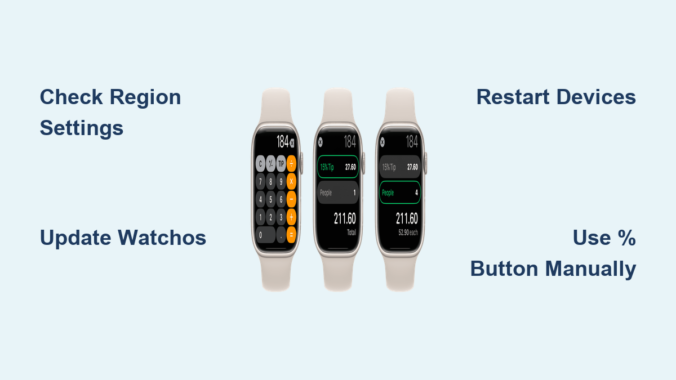
You’re at a restaurant, the meal is over, and it’s time to calculate the tip—only to realize the Apple Watch tip calculator isn’t working. You open the Calculator app, but the Tip button is missing. No matter how many times you tap or swipe, there’s no way to quickly add gratuity. You’re not imagining it—this is a real issue affecting users worldwide. While Apple designed the tip calculator for fast, wrist-based math, many find it simply not available or not functioning as expected. The good news? Most cases can be resolved with simple troubleshooting or smart workarounds. Whether it’s a regional restriction, outdated software, or a hidden glitch, this guide will help you diagnose, fix, and bypass the problem—so you can calculate tips in seconds, right from your Apple Watch.
Confirm Your Region and Device Support
Check If Your Apple ID Region Enables the Tip Button
The most common reason the Apple Watch tip calculator not working is geographic restriction. Apple only enables the Tip button in regions where tipping is standard, such as the U.S. If your Apple ID is set to Canada, the UK, Australia, or most European countries, the feature may be completely hidden—even on the latest watchOS.
To verify your region:
1. On your iPhone, go to Settings → tap your name → Media & Purchases → View Account.
2. Sign in if prompted, then check the Country/Region field.
3. If it’s not the U.S. or another tipping-supported region, that’s likely why the Tip button is missing.
Important: Changing your region might restore the tip feature, but it affects your App Store purchases, subscriptions, and payment methods. Proceed with caution.
Verify Your Watch Model and Software Version
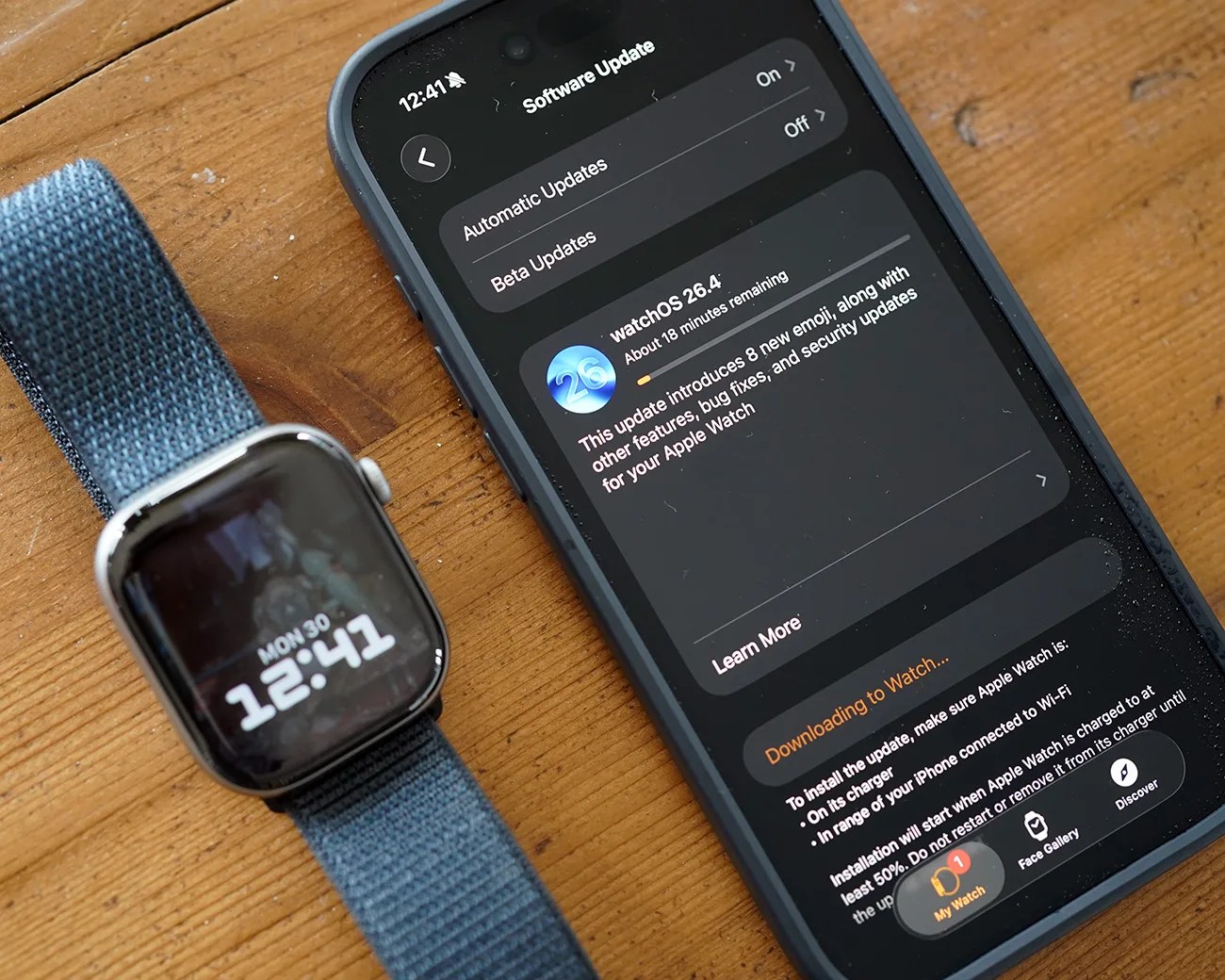
Even if you’re in the right region, your device must meet minimum requirements:
- Apple Watch Series 3 or later
- watchOS 6 or newer
- iPhone with iOS 13 or later
Older models or outdated software won’t support the tip calculator. Some users on watchOS 6.2.8 (Apple Watch Series 4) have reported the Tip button missing—proving that just having watchOS 6 isn’t always enough. Apple may have rolled out the feature gradually or tied it to later sub-versions.
Update both devices:
– iPhone: Settings → General → Software Update
– Apple Watch: Open Watch app → General → Software Update
After updating, restart both devices and open the Calculator app. Enter a number (e.g., 50) and look for the Tip button below the display. If it’s still gone, move to the next fix.
Restart Apple Watch and iPhone
Perform a Soft Restart to Clear Glitches
A temporary software bug can prevent the Tip button from appearing. A simple restart often resolves this.
Restart Apple Watch:
1. Press and hold the side button until the Power Off slider appears.
2. Drag the slider to turn off the watch.
3. Wait 30 seconds, then press the side button again to power it back on.
Restart iPhone:
– iPhone 8 and later: Quickly press Volume Up, then Volume Down, then hold the Side button until the Apple logo appears.
– iPhone 7/7 Plus: Hold Side + Volume Down.
– iPhone 6s and earlier: Hold Home + Side.
Wait for both devices to fully reboot. Then, open the Calculator app on your Apple Watch and test for the Tip button.
Force Restart If Devices Are Unresponsive
If your Apple Watch is frozen or not responding:
1. Press and hold the side button + Digital Crown for at least 10 seconds.
2. Release when the Apple logo appears.
This clears deeper system hiccups that might block app functions. After rebooting, retest the calculator.
Pro Tip: After restart, enter a test amount (like
100), then look for the Tip button. If it appears, scroll with the Digital Crown to adjust the percentage (1% to 100%) and see real-time updates to tip and total.
Re-pair Your Apple Watch to Reset App Settings
Unpair to Fix Corrupted System Data
If the Tip button still doesn’t show up, corrupted settings may be to blame. Re-pairing your Apple Watch forces a full reset of its app environment and can restore missing features.
Steps:
1. Open the Watch app on your iPhone.
2. Go to My Watch → tap your watch at the top.
3. Tap the i icon → select Unpair Apple Watch.
4. Confirm the action—this will erase all data on your watch.
⚠️ Backup first: Ensure your Apple Watch is backed up via iPhone or iCloud. Go to Watch app → My Watch → General → Reset → Erase All Content and Settings (if unpairing fails).
Restore From Backup and Re-enable Calculator
After unpairing:
1. Set up your Apple Watch again.
2. Choose Restore from Backup.
3. Wait for the sync to complete (20–40 minutes, depending on data size).
Once set up, open the Calculator app. The Tip button should now appear—if your region and OS support it.
Note: This is a last-resort fix. Only use it if simpler steps fail. It’s especially effective for users who’ve had their watch for years and suspect software bloat or corruption.
Use Manual Tip Calculation as a Workaround
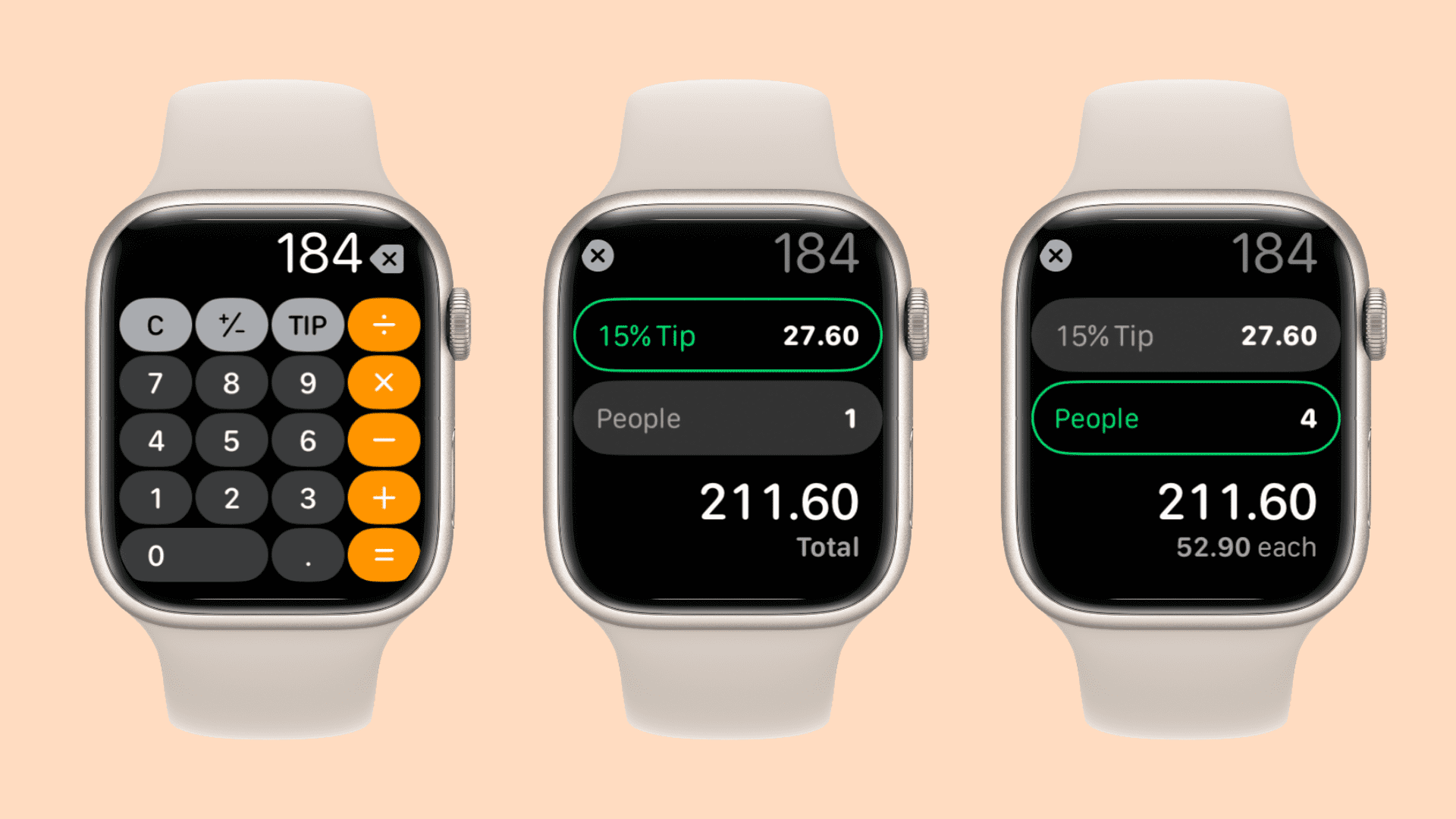
Calculate Tips Using the % Button
If the Tip button remains missing, you can manually calculate tips using the percentage function—available on all Apple Watch models.
Steps:
1. Enter the bill amount (e.g., 80).
2. Tap ×.
3. Enter the tip percentage (e.g., 15).
4. Tap % → result is the tip amount (e.g., 12).
5. Tap +, then enter the original amount → total is $92.
Example: $60 bill, 20% tip
→ 60 × 20 % = 12 (tip)
→ 60 + 12 = 72 (total)
This method works instantly and doesn’t rely on the Tip button.
Speed Up Future Calculations
To save time:
– Swipe up in the Calculator app to view your history.
– Tap a previous result to reuse it.
– Memorize quick mental math:
– 10%: Move decimal one place left ($50 → $5)
– 15%: 10% + half of 10% ($50 → $5 + $2.50 = $7.50)
– 20%: Double 10% ($50 → $10)
You’ll be calculating like a pro—no extra app needed.
Install Third-Party Tip Apps for Better Functionality
Find Reliable Alternatives on the App Store
If the built-in calculator won’t cooperate, third-party tip apps offer more features and reliability.
Top apps to try:
– Tip Calculator: Clean design, split bills, round-up option
– Quick Tip: Voice feedback, customizable defaults, haptic alerts
– Splitwise: Track shared expenses, group dining, multi-bill support
Install on Apple Watch:
1. Open the App Store on your watch.
2. Search “tip calculator.”
3. Tap Get to download your choice.
Most are free with optional premium upgrades.
Why Third-Party Apps Beat the Built-In Option
Even if the Apple tip calculator works, third-party apps often do it better:
– Set default tip percentages (18%, 22%, etc.)
– Add watch face complications for one-tap access
– Split bills by name (e.g., “Anna: $28.50”)
– Work offline and in dark mode
– Include vibration feedback for confirmation
These apps are ideal for frequent diners, travelers, or anyone tired of missing features.
Prevent Future Tip Calculator Issues
Keep watchOS and iOS Updated
Apple occasionally enables or improves regional features through software updates. Staying on the latest watchOS ensures you don’t miss out.
Enable automatic updates:
– Open Watch app → General → Software Update → Automatic Updates
– Toggle on Install New Versions Automatically
Your watch will update overnight while charging—no effort required.
Avoid Region Conflicts When Traveling
If you travel often:
– Keep your Apple ID region set to a tipping-enabled country (e.g., U.S.).
– Use local payment methods separately if needed.
Changing regions temporarily may restore the Tip button, but it can disrupt app availability, subscriptions, and in-app purchases.
Monitor Apple’s Official Support Pages
Apple’s support documentation confirms the feature exists:
– Use Calculator on Apple Watch
Check here if the Tip button disappears after an update—Apple may list known issues or regional changes.
Final Note: The Apple Watch tip calculator not working is usually due to region settings, outdated software, or system glitches. Start by checking your Apple ID region and updating both devices. If the Tip button still doesn’t appear, restart or re-pair your watch. When all else fails, use the % button manually or install a dedicated tip app. With the right fix, you’ll be calculating tips in seconds—right from your wrist. Don’t let a missing button ruin your dinner plans; the solution is just a tap away.
Leave a Reply