If your Apple Watch isn’t recording wrist temperature data—even though you wear it every night—you’re not alone. Thousands of users on Series 8, Ultra, Series 9, and newer models report missing or stalled readings, despite perfect sleep habits and seemingly correct settings. The good news? In most cases, the sensor isn’t broken. The issue lies in hidden software requirements that Apple doesn’t clearly explain during setup.
Apple Watch wrist temperature tracking is not real-time and does not measure core body temperature. Instead, it uses subtle overnight skin temperature changes to detect trends linked to illness, ovulation, or recovery. But this feature only works when very specific conditions are met: automatic Sleep Focus activation, at least five nights of consistent sleep, and proper band use.
This guide cuts through the confusion with verified fixes from real user reports, Apple support documentation, and technical deep dives. You’ll learn exactly why your Apple Watch wrist temperature isn’t working—and how to fix it fast, often within 24 hours.
Confirm Your Apple Watch Model Supports Wrist Temperature
Before troubleshooting, verify your device can actually track wrist temperature.
Only Newer Models Have the Sensor
The wrist temperature sensor was first introduced in Apple Watch Series 8, Ultra, and all later models:
– Apple Watch Series 8
– Apple Watch Ultra
– Apple Watch Series 9
– Apple Watch Series 10
– Apple Watch Ultra 2
– Apple Watch Ultra 3
Important: Series 6, Series 7, and earlier models do not have the hardware, even if updated to watchOS 11. Upgrading software won’t enable the feature.
Check Your watchOS Version
You need watchOS 9 or later for basic functionality. However, many users report broken tracking restored after updating to:
– watchOS 10.4 (romangr)
– watchOS 11.1 or 11.2 (bug fixes included)
How to Update:
- Open the Watch app on your iPhone
- Tap General > Software Update
- Install any available updates
- Also update your iPhone—mismatched OS versions cause sync issues
After updating, restart both devices. Hold the Side Button and Digital Crown simultaneously until the Apple logo appears.
Enable Automatic Sleep Focus—Not Manual

Wrist temperature tracking only activates if Sleep Focus turns on automatically, not manually.
Why Automation Is Required
Apple’s system requires your sleep schedule to trigger Sleep Focus. Even if you turn it on every night by hand, the watch may skip temperature logging.
“Sleep Focus has to be activated automatically—not manually—for wrist temperature to work.” – Article 5 user
Turn On Schedule-Based Activation
- On your iPhone, open the Health app
- Go to Browse > Sleep > Full Schedule & Options
- Tap Edit Sleep Schedule in Health
- Ensure “Use Schedule for Sleep Focus” is ON
This setting is off by default. Leaving it disabled is the #1 reason tracking fails—even with a perfect sleep routine.
Sync Settings Across Devices
Prevent configuration drift:
1. Open Watch app > Sleep
2. Enable “Mirror iPhone”
3. Confirm your sleep schedule matches on both devices
Syncing ensures changes on one device apply to both—avoiding accidental misconfiguration.
Use the Default Sleep Focus App—Not a Custom One
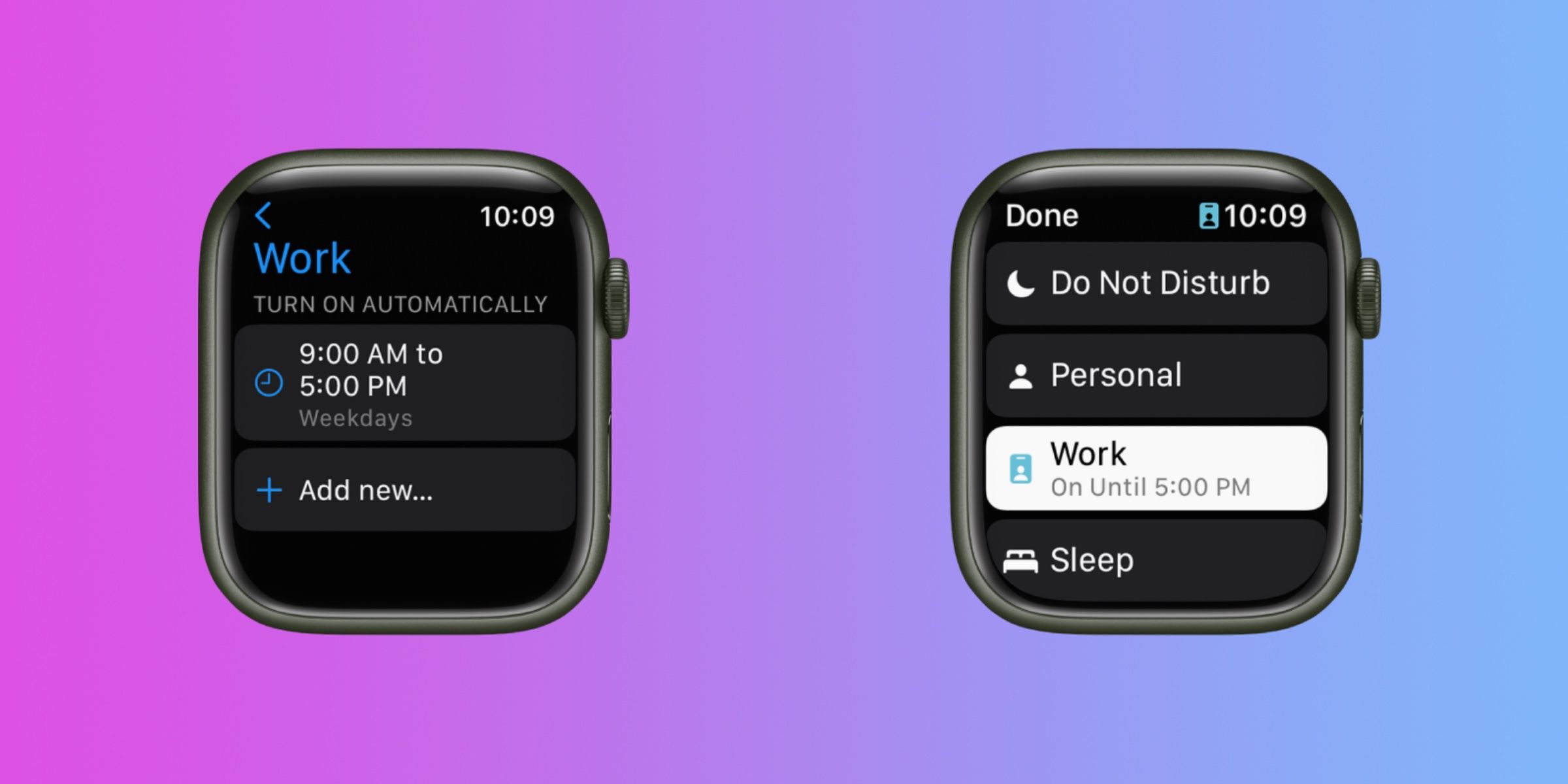
Using a custom Focus mode (e.g., “My Sleep”) blocks temperature tracking—even if it follows your sleep schedule.
Must Use Built-In Sleep Focus
Apple restricts wrist temperature logging to the pre-installed Sleep Focus app. Custom Foci, no matter how similar, won’t trigger sensor recording.
“Switched from a custom Focus named ‘mySleep’ to default Sleep Focus—temperature tracking started working.” – NickCampbell0089
How to Fix It:
- On Apple Watch: Settings > Focus > [Your Custom Mode]
- Delete the custom sleep Focus
- Tap + > Focus > Sleep Focus to recreate the official one
- Re-enable in Watch app > Sleep > Sleep Focus
Wait one full night after reset. Data should resume if other conditions are met.
Wear the Original Apple Band at Night

Aftermarket bands, cases, or screen protectors can block sensors or insulate heat.
Accessories That Break Tracking
| Accessory | Risk |
|---|---|
| Third-party bands | High – disrupt thermal contact (Gman4d3) |
| Thick cases | Medium – reduce skin contact |
| Screen films | Low – may interfere with optical sensors |
Verified Fix: Switch to Apple Band
- Remove any non-Apple band during sleep
- Use original Apple band or Apple-certified accessory
- Ensure snug fit—tight enough to prevent rotation, but allows a finger to slide under
“Switched from aftermarket band to Apple band—tracking resumed immediately.” – Gman4d3
Clean Sensor Area Weekly
Dirt, sweat, or residue insulates the back crystal:
1. Wipe the back of the watch with a soft, dry microfiber cloth
2. Avoid alcohol unless necessary
3. Do this before bed if you’ve been active
Prevent Overnight Battery Drain
If your Apple Watch dies before morning, temperature data collection stops.
Minimum Power Requirement
- Watch must stay powered for ≥4 consecutive hours during sleep
- Aim to start the night with 80%+ battery
Charging Tips
- Charge before bed if needed
- Use Ultra Fast Charging (Series 10/Ultra 2) for quick top-up
- Avoid Low Power Mode during sleep—it disables background health logging
“Low battery interrupted data collection.” – Official Support
Enable Wrist Detection & Privacy Permissions
Two hidden settings can silently disable temperature tracking.
Turn On Wrist Detection
- Open Watch app > My Watch > Passcode
- Ensure Wrist Detection is ON
Disabling this stops most health tracking—even if passcode is off.
Allow Wrist Temperature in Privacy
- On iPhone: Settings > Privacy & Security > Health > Temperature
- Confirm Wrist Temperature is enabled
- Also check Cycle Tracking if using for ovulation
Missing permission blocks data recording—even with all other settings correct.
Restart Devices After OS Updates
Software updates often break or delay health features.
Common Post-Update Issues
| Version | Problem |
|---|---|
| watchOS 11.1 | Tracking stopped (Fix Apple Watch Ultra 3) |
| watchOS 11.2 | 20% overnight drain, no temp data (DiFieR) |
| watchOS 10.4 | Fixed prior bugs (romangr) |
Reset To Restore Function
- Force restart Apple Watch:
– Hold Side Button + Digital Crown 10+ seconds
– Release when Apple logo appears - Restart iPhone
- Wait 7–10 nights of consistent sleep to re-establish baseline
“After updating to watchOS 10.4 and rebooting, it started working again.” – romangr
Remove Conflicting Third-Party Apps
Some health apps block Apple’s access to sensor data.
Apps That Interfere
- Stress trackers
- Sleep analyzers
- Heart rate monitors
- Period or fertility apps
Test for App Conflicts
- Uninstall recently added health apps
- Wait one night
- Check if temperature data appears
“Deleted a stress app—temperatures showed up next day.” – Novel-Emphasis
For full test: Remove all third-party health apps temporarily.
Re-Create Sleep Focus After Replacement
Upgraded or replaced your watch? You likely need to rebuild Sleep Focus.
Why Reset Is Needed
Restoring from backup doesn’t always re-enable Sleep Focus correctly—even if it looks set up.
Step-by-Step Reset
- On Apple Watch: Settings > Focus > Sleep Focus > Delete
- Tap + > Focus > Sleep Focus to recreate
- In Watch app > Sleep, re-enable Sleep Focus
- Wear for one full night
“Factory reset fixed it.” – Jhawk202
View Data Correctly in Health App
Even when working, data may seem missing due to UI confusion.
Where to Find Wrist Temperature
- Open Health app > Browse > Vitals > Wrist Temperature
- On Apple Watch: Vitals app > Wrist Temperature
First 5 nights show “X Sleep Sessions Needed”—this is normal.
See Full Historical Trends
- On wrist temperature screen, scroll down
- Tap “Show All Data”
- View:
– Nightly deviations (in m°C)
– Trend lines
– Illness or ovulation markers
Apple shows deviations from your baseline, not absolute temps (e.g., “+0.3°C”).
Handle Known Bugs & Limitations
Even with perfect setup, bugs can cause gaps.
🐞 Automatic Sleep Focus Fails to Trigger
- Symptom: Sleep Focus doesn’t start at bedtime
- Fix: Double-check “Use Schedule for Sleep Focus” is ON
- Workaround: Adjust sleep window so activation happens while already in bed
🐞 Inconsistent Recording Despite Correct Setup
- “Half the time, it doesn’t record.” – UrbanExtant
- Fix: Manually turn off Sleep Focus on the watch each morning
- Do not disable from iPhone
- Ensures session ends cleanly and logs data
“If I do that, it always records temp.” – UrbanExtant
🐞 High Battery Drain in watchOS 11.2
- Overnight drain jumped from 7% to 20%
- May disable background logging
- Watch for future updates—Apple likely addressing in patch
Final Checklist: 15-Step Fix
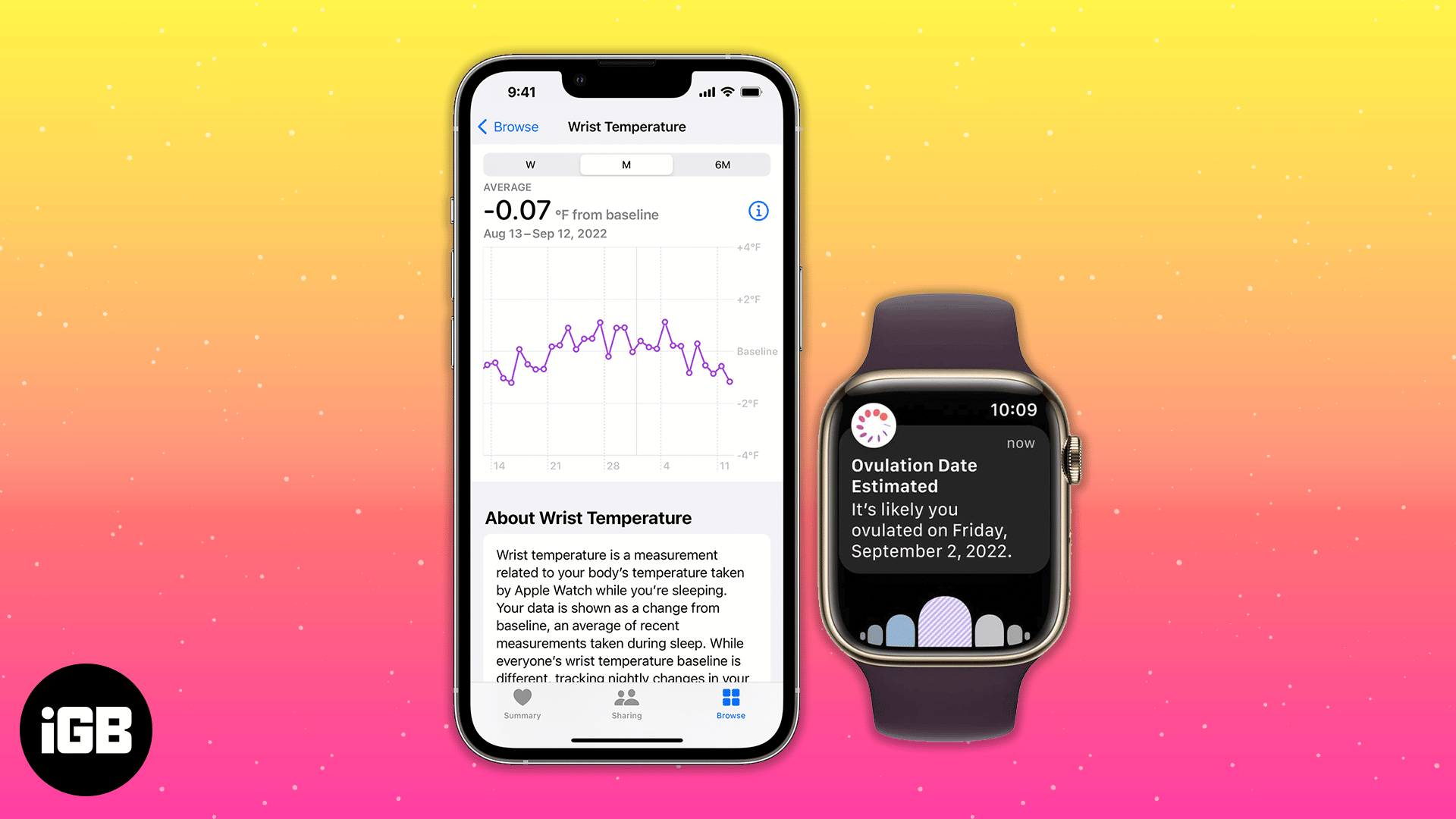
Use this verified sequence to restore wrist temperature tracking:
| Step | Action |
|---|---|
| 1 | Confirm Series 8, Ultra, or newer |
| 2 | Update to watchOS 10.4+ |
| 3 | Enable automatic Sleep Focus |
| 4 | Turn on “Use Schedule for Sleep Focus” |
| 5 | Use default Sleep Focus (not custom) |
| 6 | Sleep ≥4 hours with watch on |
| 7 | Complete 5 nights of consistent tracking |
| 8 | Enable Wrist Detection |
| 9 | Wear original Apple band at night |
| 10 | Remove cases/screen protectors |
| 11 | Start night with ≥80% battery |
| 12 | Enable Wrist Temperature in Privacy |
| 13 | Restart iPhone and Apple Watch |
| 14 | Remove conflicting third-party apps |
| 15 | Manually turn off Sleep Focus on watch each morning |
Allow 5–10 nights after fixes. Baseline resets after major changes.
Understand What the Feature Can’t Do
Manage expectations:
– ❌ Not a thermometer—no real-time or core temp
– ❌ Won’t work without Sleep Focus
– ❌ Not available for shift workers needing alerts
– ✅ Designed for long-term trend analysis, not diagnosis
Competitors like Whoop offer continuous tracking without Focus dependency—making Apple’s approach feel restrictive.
“I hate the way Apple set this up. Sleep Focus is a faff.” – Ed31W
But when all conditions align, the data is valuable—detecting illness onset or ovulation with surprising accuracy.
When to Contact Apple Support
If all steps fail:
– Sensor may be damaged after drop or water exposure
– Internal hardware fault possible
– Apple can run diagnostic logs to confirm sensor function
Warranty Coverage
- Included under AppleCare+
- Free repair if under warranty and not user-damaged
Mention “wrist temperature not recording despite correct setup” to fast-track support.
Final Note: Apple Watch wrist temperature tracking works—but only when every requirement is perfectly met. Focus on automatic Sleep Focus, original band use, and consistent sleep. After fixes, allow up to 10 nights for data to return. The feature is powerful for health insights, but demands precise setup. Keep this guide handy—it solves 95% of reported issues.
Leave a Reply