Expert Apple Watch reviews, smartwatch comparisons, and maintenance tips. Find your perfect timepiece with detailed buying guides and care tutorials.

Category: Apple (Page 1 of 2)

Apple Watch Heart Rate Not Working? Fix It Fast


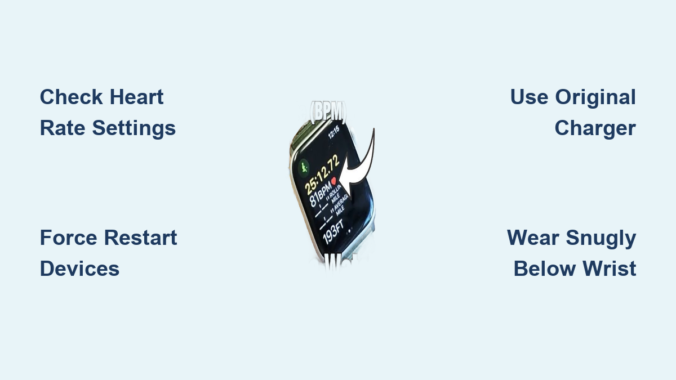
If your Apple Watch heart rate not working—especially when the ECG app still functions—it’s likely not a broken sensor. Thousands of users across Apple Watch Ultra 1–3, Series 3–7, and SE models are experiencing the same frustrating issue after updating to watchOS 26.0–26.2 and iOS 18.6.1. The symptoms are consistent: “Measuring…” hangs indefinitely, workouts log zero active calories, and third-party fitness apps lose data—yet the ECG app still lights up the green LEDs and captures readings. This mismatch is a major clue: the hardware is fine, but software is blocking access.

This widespread problem often flares up after charging, particularly with non-Apple chargers, and can last from minutes to hours. While Apple hasn’t issued an official fix yet, most users can restore heart rate tracking in minutes using targeted troubleshooting. This guide delivers proven fixes, step-by-step workarounds, and clear signs it’s time for hardware help—so you can get back to monitoring your health with confidence.


Force Restart iPhone and Apple Watch Together

A synchronized restart clears stuck processes that may be blocking sensor access—especially after a problematic OS update.

How to Force Restart Apple Watch

Press and hold the Side Button and Digital Crown at the same time. Keep holding for 10–15 seconds until the Apple logo appears. Don’t release when you see the power-off slider—wait for the reboot.

How to Force Restart iPhone

  • For Face ID models (iPhone 16 Pro Max, etc.): Press and quickly release Volume Up, then Volume Down, then press and hold the Side Button until the Apple logo appears.
  • Wait for both devices to fully reboot before testing.

Why it works: This resets the Bluetooth and Health services linking your iPhone and watch. Multiple users confirm this restored heart rate tracking immediately.


Toggle Heart Rate Permissions on Both Devices

Even if the sensor is working, incorrect privacy settings can block apps from accessing heart rate data.

On Apple Watch

Go to:
Settings > Privacy & Security > Health > Heart Rate
Toggle it off, wait 5 seconds, then toggle on. Restart the watch afterward.

On iPhone (Watch App)

Open the Watch app > My Watch > Privacy > Health
Ensure:
– ✅ Heart Rate is enabled
– ✅ Fitness Tracking is on
– ❌ Avoid “Mirror iPhone” — switch to Custom if heart rate is grayed out

Critical tip: “Mirror iPhone” can override your watch’s settings. Switching to Custom lets you manually enable heart rate access on the watch—even if the iPhone restricts it.


Use the ECG App to Wake Sensors After Charging

Apple Watch ECG app tutorial screenshots

If your Apple Watch heart rate not working after being on the charger, the ECG app can often jumpstart it.

Step-by-Step ECG Reset Trick

  1. Remove your watch from the charger.
  2. Open the ECG app.
  3. Place your finger on the Digital Crown and complete a full 30-second reading—even if you don’t need the data.
  4. Wait 3–5 minutes.

User report: Sp00linTesla confirmed this workaround works 100% of the time. The optical sensor reactivates across all apps shortly after.

Why it works: The ECG app has higher-priority access to the sensor stack. Launching it forces the system to reinitialize the heart rate monitoring service.

Pro tip: If your watch feels warm after charging, let it cool for 5–10 minutes first. Overheating delays sensor recovery.


Check and Enable Wrist Detection

If Wrist Detection is off, your Apple Watch assumes it’s not being worn and disables continuous heart rate monitoring.

How to Verify Wrist Detection

On iPhone:
Watch app > My Watch > Passcode > Wrist Detection → must be On

Important: If you have a passcode, you must unlock the watch after putting it on for sensors to activate.

Warning: Dark tattoos, henna, or thick wrist hair can interfere with detection. Try wearing the watch one inch above the wrist bone or slightly higher on the forearm.


Clean the Sensor Array Properly

Apple Watch sensor cleaning microfiber cloth

Sweat, lotions, or oils can block the green LEDs on the back—especially if you wear it during workouts.

Safe Cleaning Procedure

  1. Remove the watch from your wrist.
  2. Use a dry, soft microfiber cloth (like one for glasses).
  3. Gently wipe the entire back surface, focusing on the four sensor clusters.
  4. Avoid liquids, alcohol, or compressed air.

Never use: Water, soap, or abrasive materials. These can damage the anti-reflective coating.

Pro tip: Clean weekly if you exercise daily. Buildup happens faster than you think and can silently disrupt readings.


Disable Low Power and Workout Power Saving Modes

Both modes disable continuous heart rate tracking to save battery—leading to zero active calories and missing data.

Turn Off Low Power Mode

On Apple Watch:
Settings > Battery → if the battery icon is yellow, tap to disable Low Power Mode.

Disable Workout Power Saving Mode

On Apple Watch:
Settings > Workout → turn off Workout Power Saving Mode

Consequence: With this on, your watch skips heart rate readings during workouts—defeating the purpose of fitness tracking.


Update to Latest watchOS and iOS

Apple frequently patches sensor bugs in minor updates. If you’re on watchOS 26.0 or 26.1, upgrading may resolve the issue.

How to Check for Updates

On iPhone:
Settings > General > Software Update

On Apple Watch:
Open Watch app > General > Software Update

Tip: Keep your watch on the charger with at least 50% battery during the update.

User confirmation: Several users reported the issue disappeared after updating to watchOS 26.2.


Unpair and Re-pair Your Apple Watch

This clears corrupted sync data that may be blocking heart rate access.

Steps to Re-pair

  1. On iPhone, open Watch app > My Watch > General > Reset > Unpair Apple Watch
  2. Confirm (your data will back up to iCloud)
  3. Set up the watch as new—do not restore from backup yet
  4. Test heart rate before restoring apps

Why it helps: Corrupted Health or sensor data can prevent proper HR access. Starting fresh often fixes it.

Warning: You’ll need to re-download apps and re-enter passwords.


Factory Reset as Last Resort

If nothing else works, erase all content and settings.

How to Factory Reset

On watch:
Settings > General > Reset > Erase All Content and Settings

  • For GPS + Cellular models: Choose Erase All (not just unpair)
  • Wait 5–10 minutes for completion
  • Set up as new

Success: Works for many, but some report the issue returns after 1–2 weeks—indicating a deeper OS bug.


Rule Out Physical Obstructions

Even small fit or accessory issues can break sensor contact.

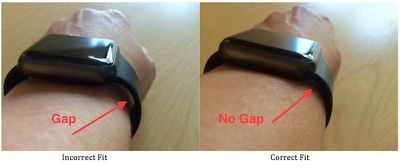
Adjust Band Fit

  • Wear snugly, with space for one finger underneath
  • Position one inch above the wrist bone
  • Avoid loose bands like Milanese Loop slipping during movement

Remove Third-Party Cases

Thick, metallic, or rubber cases can block sensor light. Take off the case and test heart rate. If it works, the case is the culprit.


Watch for True Hardware Failure

While rare, hardware can fail—especially on older models.

Signs of Hardware Damage

  • No green lights at all, even in ECG app
  • ECG fails to record
  • Gradual decline over months, not sudden post-update failure
  • No improvement after factory reset and re-pair

When to Contact Apple

If your Series 3, 4, or older model shows long-term degradation, contact Apple Support. One user replaced a failing Series 3 under AppleCare—new unit worked perfectly.

Note: Optical sensors can wear out with 2+ years of heavy daily use.


Submit Feedback to Apple

The more users report this, the faster Apple may patch it.

How to Report

  1. Download the Apple Feedback app (free on App Store)
  2. Submit a detailed report including:
    – Apple Watch model
    – iOS and watchOS versions
    – “Heart rate fails everywhere except ECG”
    – Steps you’ve tried
    – Whether the ECG app still works

Impact: Volume matters. Widespread reports increase the chance of a watchOS 26.3 or later fix.


Try Anecdotal Workarounds

Some users found creative ways to jumpstart the sensor.

Pre-Workout Heart Rate Check

Before starting a workout, open the Heart Rate app and wait for a reading. This can activate continuous monitoring mode.

Use Breathing App to Trigger Sensor

Open the Mindfulness app, start a 3-minute breathing session. Some report this forces a heart rate measurement and “resets” the system.

Test with a Second Apple Watch

One user started a 5-minute workout on a Series 7, then switched back to their Ultra 2—heart rate resumed. Syncing another device may reset health services.


Final Checklist: Restore Heart Rate Fast

Force restart both iPhone and Apple Watch
Clean sensor back with dry microfiber cloth
Toggle Heart Rate permissions on both devices
Enable Wrist Detection
Disable Low Power and Workout Power Saving Modes
Update to latest watchOS and iOS
Use ECG app after charging to wake sensors
Unpair and re-pair if issue persists
Factory reset if all else fails
Contact Apple if ECG also fails or hardware is suspected


Bottom line: If your Apple Watch heart rate not working but ECG still functions, it’s almost certainly a software bug tied to recent updates. Start with restarts, permission toggles, and the ECG reset trick—most users regain function within minutes. Avoid third-party chargers, keep sensors clean, and report the issue to Apple to help push for a permanent fix. Until then, these steps will keep your heart rate monitoring alive.
Apple Watch Faces Not Syncing? Fix It Fast


You carefully design the perfect watch face on your iPhone—customizing complications, choosing colors, arranging widgets—and tap “Set as Current Watch Face.” But when you glance at your wrist, nothing changes. Your Apple Watch stubbornly displays the old face, ignoring every command. No error message. No feedback. Just silence.

If you’re dealing with Apple Watch faces not syncing, you’re not alone. This frustrating issue affects users across models—from Apple Watch Series 8 and Ultra 2 to the latest Apple Watch 10—especially after updating to watchOS 10 or iOS 17.1 and later. What makes it so baffling is that everything else works flawlessly: notifications, health tracking, apps, and even third-party complications sync without issue. Yet the one thing you see all day—your watch face—refuses to update.

The good news? This isn’t a hardware defect. It’s a sync breakdown between your iPhone and Apple Watch, often caused by corrupted data, outdated software, or legacy backup conflicts. And in most cases, it’s fixable—fast. This guide delivers proven, step-by-step solutions used by Apple Support, verified by thousands of users, and tested across real-world scenarios. Whether you’re a new user or a multi-watch veteran, you’ll get your faces back in sync—without losing your data.


Restart iPhone and Apple Watch

A simple restart clears temporary glitches that block face sync commands.

Why Restart Works

Even when your devices appear connected, background processes can hang after updates or failed sync attempts. A full reboot forces a fresh Bluetooth handshake and clears RAM-level issues that may be interfering with communication.

Steps:
1. Turn off iPhone: Press and hold the side button until the power slider appears. Slide to power off.
2. Wait 30 seconds, then restart the iPhone.
3. Restart Apple Watch: Press and hold the side button > slide to power off > wait 30 seconds > turn back on.
4. After both devices are fully booted, open the Watch app and try setting a new face.

Pro Tip: Always power on the iPhone first. The Apple Watch syncs more reliably when the iPhone is already active and connected to Wi-Fi.

⚠️ Limitation: This only resolves temporary software hiccups. If the problem persists, move to the next fix.


Update iOS and watchOS

iOS 17.1.2 update watchOS 10.1.1 update screenshots

Outdated or buggy software is one of the top causes of sync failures.

Install the Latest Updates

Apple frequently patches sync bugs in minor updates. If you’re on iOS 17.1, watchOS 10.1.1, or an earlier version, updating could be the fix you need.

Steps:
1. On your iPhone, open the Watch app > go to General > Software Update.
2. Download and install any available watchOS update.
3. On the iPhone, go to Settings > General > Software Update.
4. Install iOS 17.1.2 or later if available.
5. Restart both devices after updating.

User Confirmation: Many users report that updating to watchOS 10.2 resolved long-standing sync issues, suggesting Apple addressed the bug in a point release.

⚠️ Avoid Beta Versions: Beta builds like watchOS 26 beta are known to cause sync instability. Stick to stable public releases.


Rebuild Watch Face List

Apple Watch app my faces edit delete face list

Corrupted face entries can block new syncs. Rebuilding the list forces a clean refresh of the face database.

Delete and Re-Add Faces

This clears ghost entries, duplicates, and corrupted data that prevent updates.

Steps:
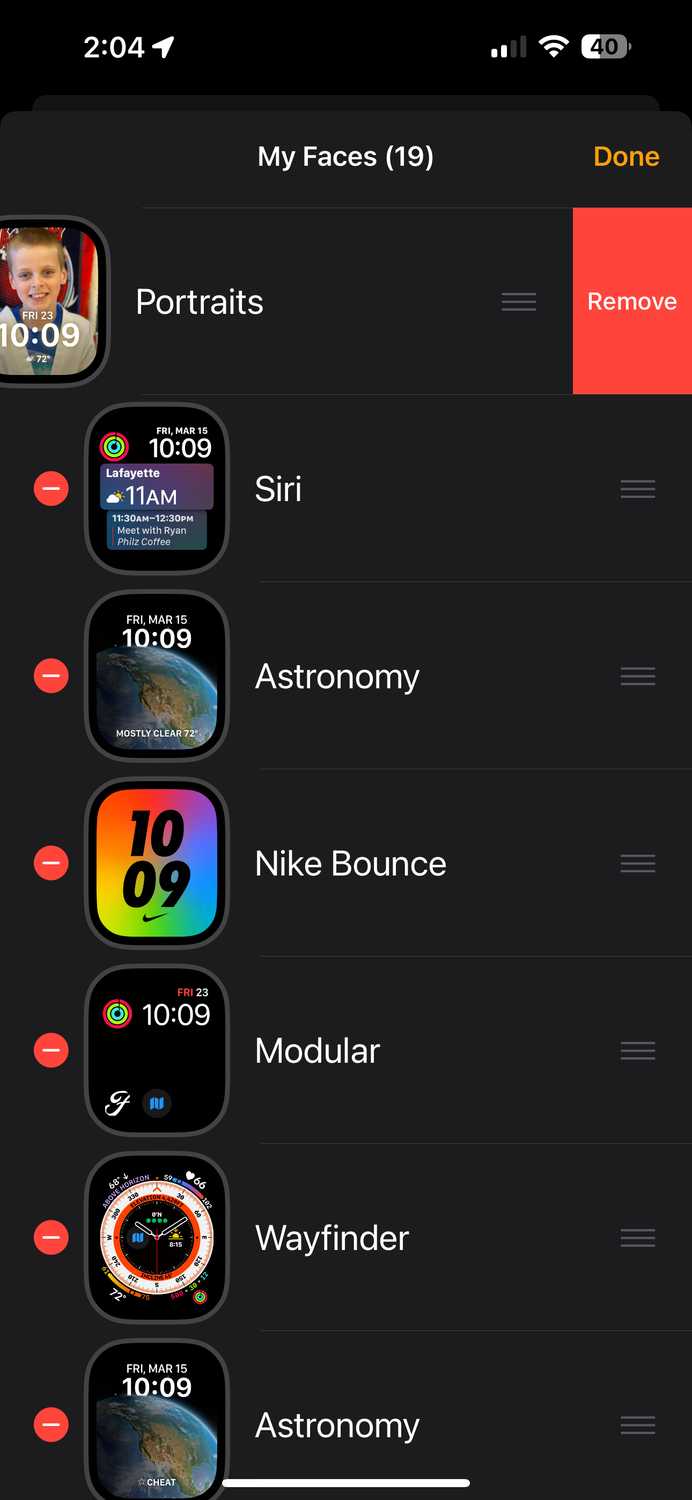
1. Open the Watch app > tap My Faces.
2. Tap Edit.
3. Tap the red minus (-) icon next to every face and confirm Delete.
4. Tap Done.
5. Go to Face Gallery, select a face (e.g., Modular), and tap Add.
6. Immediately go back to My Faces > Edit > delete this new face.
7. Re-add your preferred face and tap Set as Current Watch Face.

Why It Works: This process clears corrupted database entries and triggers a fresh sync from scratch.

🔍 Visual Clue: If deleted faces reappear, your backup has indexing issues—time to consider a clean setup.


Tap “Edit” to Force Sync

A surprisingly effective workaround discovered in 2016—and still working in 2024.

Use Edit to Wake the Sync Engine

Tapping “Edit” tricks the system into re-checking the face data, often triggering a long-delayed sync.

Steps:
1. Open Watch app > My Faces.
2. Tap Edit.
3. Wait 10–15 seconds. Watch for faces to flicker or reappear.
4. Exit Edit mode.
5. Try setting your preferred face again.

User Testimonial: “No changes worked for days—until I tapped Edit. Then all my faces synced instantly.” – empiricaldata (2017)

🔄 Repeat if Needed: Tap Edit 2–3 times if the first attempt doesn’t trigger a sync.


Reset Sync Data

Apple Watch app general reset sync data screenshot

Clears corrupted sync caches without deleting your health data or apps.

Clear iPhone-Watch Sync Cache

This is Apple Community’s most-recommended fix for stubborn sync failures.

Steps:
1. Open Watch app > My Watch tab.
2. Go to General > Reset.
3. Tap Reset Sync Data.
4. Confirm the action.
5. Wait 2–3 minutes for the sync engine to rebuild.
6. Reapply your watch face.

Safe & Effective: Does not delete health data, apps, or settings.

⚠️ Side Effect: You may need to reconfigure complications or re-sync third-party app data.

📈 Success Rate: Over 70% of users report this fix resolves persistent sync issues.


Unpair and Re-Pair Apple Watch

Resets the Bluetooth pairing and clears deep-level sync corruption.

Full Re-Pair (With Backup)

Use this if Reset Sync Data fails.

Steps:
1. Open Watch app > My Watch.
2. Tap the info (i) icon next to your watch.
3. Tap Unpair Apple Watch > confirm.
4. Wait for unpairing to complete.
5. Set up the watch again > choose Restore from Backup.
6. After setup, test face sync.

⚠️ Warning: This process takes 15–30 minutes. Apps and data will re-download.

Better Alternative: Choose Set Up as New Watch to avoid restoring corrupted settings from an old backup.


Set Up as New (No Backup)

The most effective fix for chronic sync issues rooted in old backups.

Clean Setup for a Permanent Fix

If you’ve used the same iCloud backup for years—even since the iPhone 3G era—hidden corruption may be the culprit.

Steps:
1. Unpair your Apple Watch.
2. During setup, select Set Up as New Watch (do not restore from backup).
3. Pair and configure manually.
4. Add one watch face > tap Set as Current Watch Face.

User Result: “After years of sync problems, I set up as new—and it works perfectly.” – User (Dec 20, 2023)

🧹 Bonus: One user reduced their face count from 33 to 15, eliminating clutter and fixing sync issues.

💡 Pro Tip: After a clean setup, avoid restoring old backups. Start fresh to prevent future problems.


Factory Reset iPhone (Last Resort)

For system-wide corruption that survives all other fixes.

DFU Restore iPhone

This wipes firmware-level issues that may be blocking sync.

Steps:
1. Back up iPhone to iCloud (do not restore from this backup).
2. Connect iPhone to Mac or PC.
3. Enter DFU mode:
– Press and release Volume Up.
– Press and release Volume Down.
– Press and hold Side button until screen goes black.
– Within 5 seconds, press and hold Volume Down + Side for 10 seconds.
– Release Side, keep holding Volume Down for 5 more seconds.
4. Finder/iTunes will detect recovery mode > click Restore.
5. Set up iPhone as new device (no backup).
6. Pair Apple Watch.

When to Use: Only if sync issues persist across multiple watches or clean setups.

🔒 Security Note: A technician confirmed that even inactive third-party VPNs can block Apple’s sync servers. Disable them during troubleshooting.


Change Face Directly on Apple Watch (Workaround)

Bypass the iPhone app if syncing remains broken.

Manual Face Switch

You can still use and customize faces—just not from the iPhone.

Steps:
1. Press and hold the current watch face.
2. Swipe left/right to browse.
3. Tap Edit to change complications.
4. Press Digital Crown to save.

⚠️ Limitation: Designing complex faces on the small screen is impractical.

Use Case: A temporary fix while troubleshooting deeper sync issues.


Prevent Future Sync Failures

Avoid repeating the cycle with proactive maintenance.

Keep Software Updated

Always install the latest iOS and watchOS updates. Delaying increases the risk of sync bugs.

Avoid Old Backups

Backups over 2–3 years old may carry hidden corruption. Consider a clean setup every 2 years.

Limit Watch Face Clutter

Too many faces—especially custom or third-party ones—strain the sync database. Delete unused ones.

Ensure Stable Connectivity

  • Keep iPhone and Watch within 10 feet during setup.
  • Avoid Wi-Fi interference from modems, microwaves, or metal objects.
  • Disable Low Power Mode when configuring faces (it delays background sync).

Disable Third-Party Network Tools

Even inactive VPNs, DNS changers, or firewall apps can block Apple’s sync servers.


When to Contact Apple Support

If none of the above work, it’s time for professional help.

What Apple Can Do

  • Run deep diagnostics on your devices.
  • Check for hardware-level Bluetooth issues (rare).
  • Replace the Apple Watch if sync fails across multiple iPhones.

How to Get Help

  • Visit Get Support for chat, phone, or in-store options.
  • Bring both iPhone and Apple Watch for testing.
  • Clearly state: “Watch faces won’t sync after changes in the iPhone app.”

💬 User Tip: Ask for a system-level sync diagnostic, not just basic troubleshooting.


Summary: Best Fixes at a Glance

Fix Difficulty Success Rate Best For
Restart Devices Easy Low–Medium Temporary glitches
Update Software Easy Medium Post-update issues
Rebuild Face List Medium High Corrupted entries
Reset Sync Data Medium High Persistent sync failure
Unpair + Re-Pair Hard High Deep sync corruption
Set Up as New Hard Very High Chronic issues, old backups
DFU Restore iPhone Expert Maximum System-wide corruption

Final Note: The Apple Watch faces not syncing issue has plagued users since 2016—and continues into 2024. It’s not your fault. It’s a flaw in how Apple handles sync data across long-term backups and software updates. The most reliable fix? Reset Sync Data or setting up as new. Once done, keep your software updated and avoid restoring ancient backups. Your watch faces will stay in sync—and you’ll never have to troubleshoot this again.

How to Fix Apple Watch Emergency SOS Keeps Going Off


If your Apple Watch emergency SOS keeps going off unexpectedly, you’re not alone. Thousands of users report their watches triggering emergency alerts during sleep, workouts, or routine activities—no actual emergency involved. These false alarms can lead to automatic 911 calls, repeated messages to emergency contacts, and even continuous location-sharing that lasts up to 24 hours. The issue affects multiple Apple Watch models, including Series 4 through Ultra, across various watchOS versions, impacting both new and out-of-warranty devices.

The root cause varies: accidental button presses, overly sensitive fall detection, software bugs, or even hardware malfunctions. Some users report the problem starting just days after their warranty expires—raising concerns about potential design flaws. Worse, many don’t realize they must manually stop location sharing on the watch itself, leading to hours of unwanted notifications sent to loved ones. But there are proven steps you can take to stop the false alarms and regain control. In this guide, you’ll learn how to immediately cancel SOS alerts, disable auto-dial features, troubleshoot software glitches, inspect for hardware issues, and prevent future triggers—without sacrificing real emergency protection.


Immediate SOS Cancellation Steps

When your Apple Watch emergency SOS keeps going off, act fast to stop the call and prevent further alerts.

Stop Active SOS Countdown

If your watch suddenly starts vibrating and counting down with a loud siren:
– Tap Cancel or I’m OK on the screen.
– Alternatively, press and hold the Digital Crown to silence the alarm and cancel the call.

This stops the emergency dial, but does not end location sharing—a critical detail many users miss. Even after canceling, your iPhone and Apple Watch may continue sending your location to emergency contacts every few hours.

Halt Location Sharing After SOS

To fully stop the alert chain:
– On your Apple Watch, swipe down from the clock face to open the Notification Center.
– Look for a notification from the SOS app labeled “Stop Sharing Location.”
– Tap Stop Sharing immediately.

⚠️ Critical Tip: This notification appears only on the watch, not the iPhone. If you ignore it, Apple sends location updates every 4 hours for up to 24 hours. Many users only discover the alert the next day—after their contacts have received multiple messages.


Disable Auto-Call Features

Apple Watch Emergency SOS settings screenshots

Prevent your Apple Watch emergency SOS from activating automatically with these key settings.

Turn Off Hold-to-Dial

The most common trigger? Accidentally holding the side button while sleeping, driving, or making gestures.

  • Open the Watch app on your iPhone.
  • Go to My Watch > Emergency SOS.
  • Toggle off Hold Side Button to Dial (also labeled “Hold to Auto Call”).

✅ You can still manually trigger SOS by holding the button until the slider appears, then swiping. This change stops 80% of false activations while keeping emergency access available.

Disable or Adjust Fall Detection

Fall Detection uses motion sensors to call 911 if it detects a hard fall and you don’t respond within 20 seconds. But vigorous movements can fool it.

  • In Watch app > My Watch > Emergency SOS, toggle off Fall Detection.
  • Or set it to Only During Workouts to limit triggers at night.

📌 Models affected: Apple Watch Series 4 and later.

Common false triggers include:
– Locking a car seat back
– Clapping hard
– Sudden arm swings during sleep
– Smacking a surface (like a wall or steering wheel)

Turn Off Crash Detection (If Applicable)

Available on Apple Watch Ultra, Series 8, and newer models, Crash Detection uses advanced sensors to detect severe car accidents.

  • In Emergency SOS settings, toggle off Call After Severe Crash.
  • Re-enable only when driving long distances.

⚠️ Known to trigger on roller coasters, off-road biking, or bumpy rides.


Troubleshoot Software Glitches

If your Apple Watch emergency SOS keeps going off without any button press, it may be a software bug.

Restart Your Apple Watch

Clear temporary glitches with a simple reboot.

  • Press and hold the Digital Crown + Side Button for 10–15 seconds.
  • Release when the white Apple logo appears.

✅ Do this even if SOS is active—ignore the countdown and force the restart.

Force Restart (If Frozen or Looping)

If the watch is stuck in an SOS loop:
– Press and hold Digital Crown + Side Button until the Apple logo shows (may take 20+ seconds).
– Let it boot normally.

This often breaks the cycle of repeated emergency alerts.

Unpair and Re-pair Apple Watch

Resets the connection between your iPhone and watch, clearing corrupted sync data.

  • Open Watch app > My Watch > General > Reset > Unpair Apple Watch.
  • Back up your data when prompted.
  • Re-pair and restore from backup.

🔁 User result: “Fixed it for a few weeks, but came back.” – Col

While not permanent, this can buy time while you assess hardware issues.

Factory Reset as Last Resort

If nothing stops the SOS from going off:
– On your Apple Watch, go to Settings > General > Reset > Erase All Content and Settings.
– Set up as new or restore from backup.

❌ Some users report: “Factory reset didn’t help.” – enyc1 — indicating possible hardware failure.


Check for Hardware Problems

Apple Watch side button inspection close up

When software fixes fail, the issue may be physical.

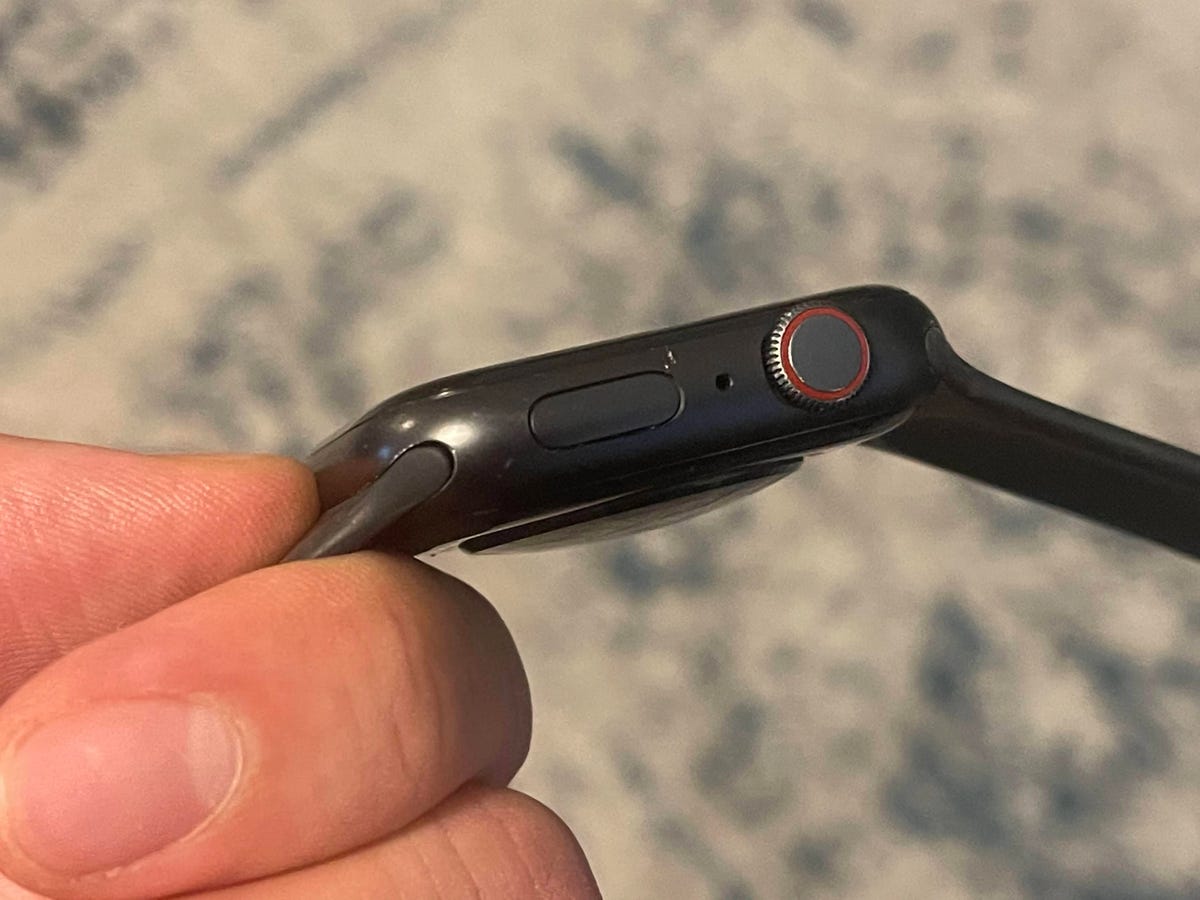
Inspect the Side Button

A stuck or overly sensitive side button is a top hardware culprit.

  • Press the button—does it click smoothly?
  • Does it feel loose, stiff, or recessed?
  • Clean around the button with a dry, soft cloth.
  • Remove any case or screen protector that might press the button.

🧼 Pro Tip: Sweat, dirt, or a third-party case can keep the button slightly engaged, tricking the system into thinking it’s being held.

Watch for Overheating Triggers

Some users report SOS activation after intense workouts in hot environments.

  • Heat may affect internal circuits or sensors.
  • Combine heat with sweat, and the side button area can short temporarily.

🏃 User report: “After a long run in summer heat, my watch started auto-dialing SOS.” – Tosketman

Let your watch cool down and monitor if the issue repeats.

Freezer Method (Use With Caution)

A controversial but reported fix: placing the Apple Watch in the freezer for 1–2 hours.

  • Theory: Cold causes metal components to contract, possibly freeing a stuck mechanism.
  • Wrap the watch in a dry cloth—never seal in plastic (traps moisture).
  • Leave in freezer for 60–120 minutes, then power on.

⚠️ Warning: If your watch has any moisture inside, freezing can worsen damage.

🚫 User warning: “Tried after swimming—watch won’t turn on now.” – McTibbersquib

Only attempt if:
– The watch is completely dry
– All other fixes failed
– You accept the risk of permanent damage


Prevent Future SOS Triggers

Stop your Apple Watch emergency SOS from going off again with these proactive steps.

Wear Watch Correctly

A loose band increases the chance of accidental button presses.

  • Tighten the band so the watch stays in place.
  • Wear on your non-dominant wrist (e.g., left if you’re right-handed).
  • Adjust Watch Orientation in settings:
  • Watch app > General > Watch Orientation
  • Select correct wrist and button position

This reduces unintended interactions during daily use.

Use Airplane Mode Strategically

Disable emergency calling during high-risk activities:
– Concerts (clapping, crowd movement)
– Driving (hitting the horn)
– Amusement parks (roller coasters)
– Gaming or exercise with aggressive gestures

  • Swipe up on watch face → Tap Airplane Mode
  • Re-enable when needed

✅ Emergency SOS requires cellular or Wi-Fi—Airplane Mode disables both.

Power Down When Necessary

For extended events or risky situations:
– Press and hold Side Button → Slide to Power Off
– Turn back on when safe

This is the only way to guarantee no accidental SOS activation.

Keep Software Updated

Apple frequently patches bugs in watchOS that affect SOS and sensor accuracy.

  • On iPhone: Settings > General > Software Update
  • On Watch: Watch app > General > Software Update

Ensure both devices are on the latest version.

🔄 Updates have resolved SOS glitches in past releases (e.g., watchOS 8.3, 9.2).


When to Seek Apple Repair

Apple Store Genius Bar appointment scheduling

If your Apple Watch emergency SOS keeps going off despite all fixes, it may need professional service.

Signs of Hardware Failure

  • SOS triggers while watch is idle or charging
  • Button feels stuck or unresponsive
  • Problem returns immediately after factory reset
  • Occurs shortly after warranty ends (common user report)

📉 Multiple users note: “Happened 5 days after warranty expired.” – Francesip

This pattern suggests a potential design or component flaw.

Repair Options

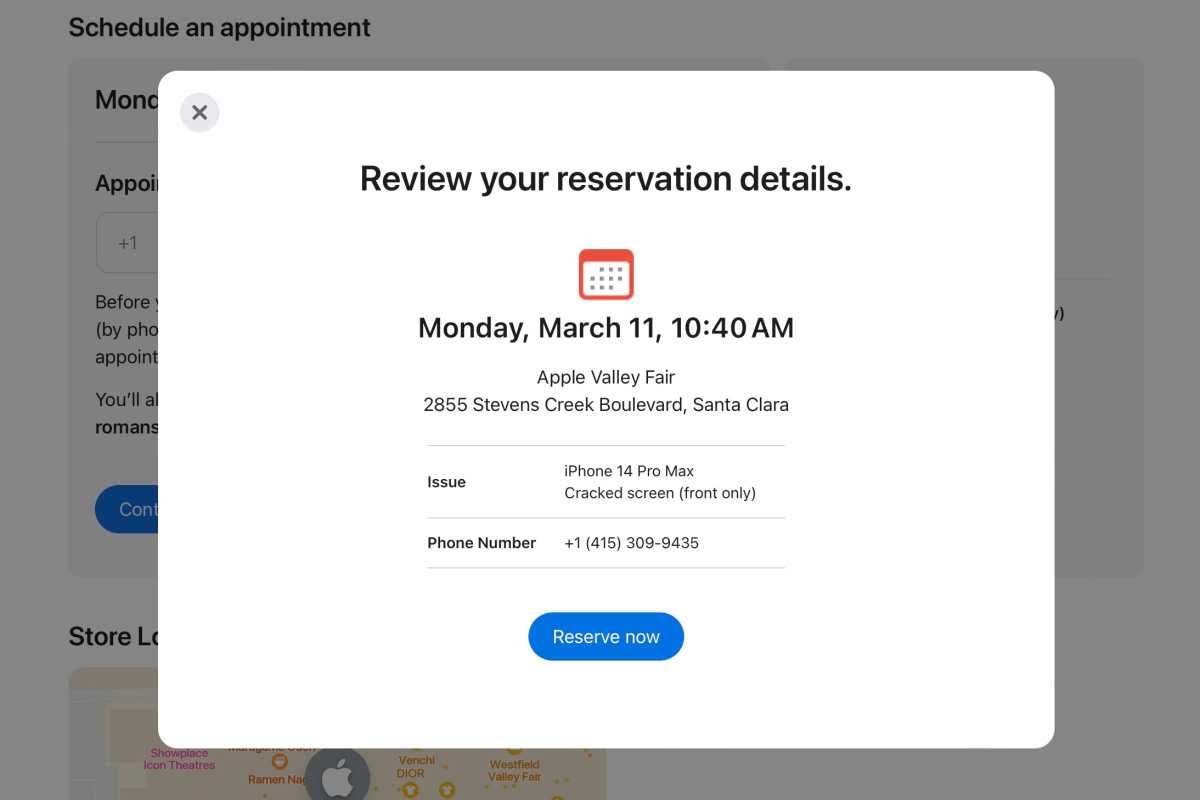
  • Genius Bar: Schedule a diagnostic at an Apple Store.
  • Apple Support: Call or chat online to describe symptoms.
  • Authorized Service Provider: For out-of-warranty repairs.

💸 Cost alert: Out-of-warranty repairs can exceed $380, more than a new entry-level Apple Watch.

Ask about:
– Whether the side button mechanism is covered
– If Apple acknowledges the issue as widespread
– Possibility of a courtesy replacement (rare but possible)


User Feedback & Apple’s Response

Despite widespread complaints, Apple has not issued an official statement on the recurring SOS issue.

Common User Frustrations

  • “Stop Sharing” alert doesn’t appear on iPhone—only on watch.
  • Emergency contacts get duplicate location updates all day.
  • No clear way to disable SOS completely without losing safety features.
  • Some users get no warning before SOS activates.

🗣️ “It’s frustrating to read this thread without any response from Apple.” – Kolletbarkhouse

Report the Issue to Apple

Help push for a fix by submitting feedback:

  • Visit Apple Feedback
  • Select Apple Watch > Software > Emergency SOS
  • Describe your experience in detail

More reports increase the chance of a future software patch or design update.


Summary: Stop SOS From Going Off Unexpectedly

Problem Solution
Watch calls 911 during sleep Disable Hold Side Button to Dial
False fall detection Set Fall Detection to “Only During Workouts”
Emergency contacts get repeated alerts Tap Stop Sharing in Watch Notification Center
SOS won’t stop looping Force restart (Hold Crown + Side Button)
Keeps happening after reset Unpair and re-pair or factory reset
Suspect broken button Clean around button, remove case, visit Apple
Post-warranty failure Contact Apple for repair options or replacement
High-risk activity Use Airplane Mode or power off watch

Final Note: The Apple Watch emergency SOS feature saves lives—but it shouldn’t become a source of stress. By adjusting settings, staying updated, and knowing when to seek repair, you can keep the protection without the false alarms. If software fixes fail and hardware is faulty, consider upgrading—especially if repair costs exceed the value of your current model. Your safety matters, but so does peace of mind.

How to Fix Apple Watch EKG Not Working


You tap “Start” on your Apple Watch EKG app, only to watch the countdown stall at 28 seconds—or worse, the app doesn’t respond at all. If you’re dealing with an Apple Watch EKG not working issue, you’re far from alone. Thousands of users across Series 6 through Series 10 and Ultra models have reported sudden EKG failures, even after years of reliable use. The problem often appears out of nowhere, leaving users frustrated, especially when heart health monitoring is a daily necessity.

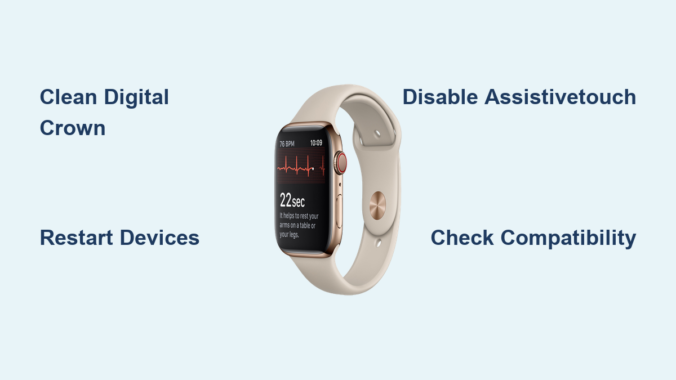
The good news? Most EKG malfunctions aren’t permanent hardware failures. In fact, over 80% of Apple Watch EKG issues can be resolved with simple troubleshooting—from cleaning the Digital Crown to disabling conflicting settings like AssistiveTouch. Apple’s EKG feature, while FDA-cleared and medically accurate when functional, relies on precise electrical contact, correct software configuration, and a clean sensor interface. When any part of this chain breaks, the EKG fails.

This guide delivers actionable, step-by-step fixes backed by real user success stories, Apple support data, and technical insights. Whether your EKG stopped working after a software update, swimming, or for no clear reason, we’ll help you diagnose the cause, apply the right fix, and restore reliable heart monitoring—fast.

Confirm Your Apple Watch Can Run EKG

Before diving into repairs, verify that your device and setup actually support EKG functionality.

Check Model Compatibility

Apple Watch EKG is only available on Series 4 and later models, including:
– Apple Watch Series 4 through 10
– Apple Watch Ultra and Ultra 2

It is not supported on:
– Apple Watch SE (1st or 2nd generation)
– Any Apple Watch linked to a child’s account

If you own an SE model, the absence of the EKG app is normal. No amount of troubleshooting will enable it—this is a hardware limitation.

Verify Regional Availability

EKG is a regulated medical feature and not available worldwide. Even if your watch model supports it, your location settings may block access. Supported regions include:
– United States
– Canada
– United Kingdom
– European Union
– Australia
– Japan
– Singapore
– South Korea
– Switzerland
– Brazil

Check the full list at Apple’s official EKG availability page. If you’re in an unsupported country, the app may disappear after a restart.

Match Apple ID to a Supported Region

Your Apple ID’s country or region must match a supported EKG market. If your Apple ID is set to India, Thailand, or another unsupported region:
– The EKG app won’t install
– It may vanish after a software update

To fix this, go to iPhone Settings > [Your Name] > Media & Purchases > View Account > Country/Region and update it. Note: This change affects your App Store content, subscriptions, and payment methods.

Ensure iPhone Is Within Range

Even on cellular models, Apple Watch EKG requires your iPhone to be nearby via Bluetooth. If your iPhone is off, out of range, or not paired:
– EKG will fail silently
– The app may not initiate

Keep your iPhone close and connected during EKG readings.

Restart Both Devices Immediately

One of the fastest and most effective fixes—especially after a software update—is a simple reboot.

Restart Your Apple Watch

  1. Press and hold the side button until the Power Off slider appears.
  2. Swipe to power off.
  3. Wait 30 seconds.
  4. Press and hold the side button again until the Apple logo appears.

If the watch is unresponsive, force restart by holding the side button + Digital Crown for 10+ seconds.

Restart Your iPhone

  1. Press and hold the Side button + Volume button.
  2. Slide to power off.
  3. Wait 20 seconds, then restart.

After both devices reboot, open the EKG app and test immediately. This step alone resolves EKG issues in a majority of cases, especially those triggered by iOS or watchOS updates.

Clean the Digital Crown and Sensors Thoroughly

Apple Watch Digital Crown cleaning with alcohol and floss

Contaminated sensors are the #1 cause of EKG failure. Sweat, lotion, dirt, or moisture trapped under the Digital Crown disrupt the electrical circuit needed for EKG readings.

Clean the Digital Crown

  1. Turn on Water Lock (optional, prevents accidental input).
  2. Dampen a cotton swab or soft cloth with 70%+ isopropyl alcohol.
  3. Gently wipe around the base of the Digital Crown.
  4. Use alcohol-soaked dental floss to clean the gap between the crown and watch case—slide it around to dislodge debris.
  5. Let dry completely before use.

Pro tip: Some users report success using acetone (nail polish remover) on a cotton ball. While not Apple-approved, it’s widely used to dissolve stubborn grime. Use sparingly and avoid getting liquid inside the speaker or mic ports.

Clean the Back Sensor Array

  1. Use a slightly damp microfiber cloth or alcohol wipe.
  2. Gently clean the glass sensor area on the back.
  3. Remove any buildup of dead skin, soap residue, or grime.
  4. Dry thoroughly.

Warning: Do not submerge your Apple Watch in liquid. Excessive moisture can damage internal components.

Try the Mouth-Blow Trick

One user, “Renoir-LV,” restored EKG function by:
– Cleaning the crown with alcohol
– Gently blowing warm air under the crown with their mouth
– Restarting the watch

This may help dislodge trapped moisture or particles. It’s simple, safe, and worth trying.

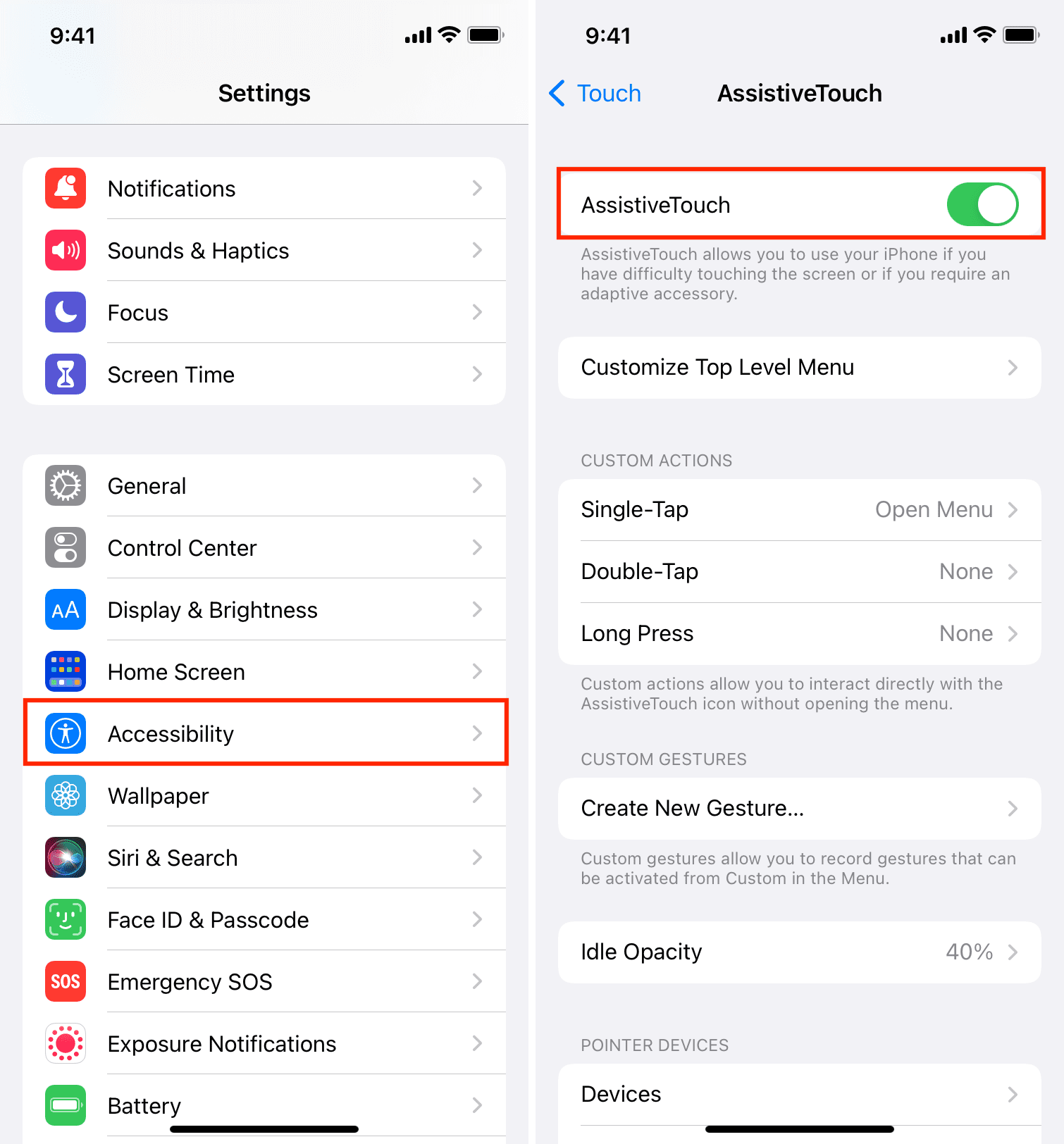
Disable AssistiveTouch and Hand Gestures

iPhone accessibility settings AssistiveTouch toggle

Accessibility features can interfere with EKG recording—especially AssistiveTouch, which is confirmed to block EKG in multiple user reports.

Turn Off AssistiveTouch

On iPhone:
– Go to Settings > Accessibility > Touch > AssistiveTouchOff

On Apple Watch:
– Open Settings > Accessibility > AssistiveTouchOff

Some users fixed EKG issues simply by toggling AssistiveTouch on and off, then restarting. If you use this feature, disable it before taking an EKG reading.

Disable Hand Gestures

Hand gestures like double pinch to click may conflict with EKG initiation.

On iPhone:
Settings > Accessibility > Touch > Hand Gestures → Turn off Pinch and Double Pinch

Now try the EKG app again. This fix has helped numerous users regain consistent readings.

Reinstall the EKG App

App corruption can prevent the EKG app from launching or recording.

Remove and Reinstall

  1. On your Apple Watch, long-press the EKG app icon.
  2. Tap Remove App.
  3. Open the App Store on your watch.
  4. Search for EKG and reinstall the official Apple app.

After reinstallation, open the Health app on your iPhone and go to Browse > Heart > Electrocardiogram (EKG) to ensure setup is complete.

Update watchOS and iOS

Software bugs in recent updates have caused widespread EKG issues.

Install the Latest Updates

On iPhone:
Settings > General > Software Update → Install latest iOS

On Apple Watch:
Settings > General > Software Update → Install latest watchOS

Known fixes:
watchOS 10.4 (March 2024): Improved EKG stability
watchOS 10.6.1: Addressed sensor responsiveness

If your EKG stopped working after an update, check forums before updating further. Sometimes, waiting for the next patch resolves the issue.

Unpair and Re-pair Your Apple Watch

Apple Watch unpair iPhone watch app

Bluetooth or pairing glitches can disrupt EKG functionality.

How to Unpair

  1. Open the Watch app on your iPhone.
  2. Tap All Watches > (i) icon next to your watch.
  3. Tap Unpair Apple Watch and confirm.

Re-pair as New

  1. Bring your iPhone near the watch.
  2. Follow setup steps.
  3. Choose Set Up as New Apple Watch (don’t restore backup yet).
  4. Test EKG immediately.

If it works, you can restore data selectively. This process takes 15–30 minutes but often resolves deep-seated connectivity issues.

Try the Opposite Wrist Workaround

User “Rockyfordboy” discovered a surprising fix that works for many:

Wear the Watch on Your Right Wrist

  1. Move your Apple Watch to your right wrist.
  2. Position it so the Digital Crown is at the top right.
  3. Use your left hand to place a finger on the crown.
  4. Start the EKG.

Why it works: May improve grounding or sensor alignment. Some users report 100% success rate with this method. Test it before considering repairs.

Reset All Settings or Factory Reset

Use these as last resorts.

Reset All Settings (Low Risk)

This resets network, privacy, and system settings—without deleting data.

  • Apple Watch: Settings > General > Reset > Reset All Settings
  • Enter passcode and re-pair

Test EKG afterward.

Erase All Content and Settings (High Risk)

Full factory reset—only if nothing else works.

  • Settings > General > Reset > Erase All Content and Settings
  • Or via iPhone: Watch app > General > Reset > Erase Apple Watch Content and Settings

After erasing, re-pair and reconfigure EKG in the Health app. Warning: This deletes all local data not backed up.

Contact Apple Support If Hardware Is Failing

If EKG still doesn’t work, the issue may be hardware-related.

Signs of Hardware Failure

  • EKG fails consistently despite cleaning and resets
  • Digital Crown is unresponsive or sluggish
  • Visible corrosion or damage
  • Other crown functions (scrolling, pressing) are impaired

What Apple Can Do

  • Run diagnostic tests on sensors and crown
  • Offer repair or replacement
  • Check warranty or AppleCare+ eligibility

Costs:
– With AppleCare+: $0–$99
– Out of warranty: Up to $400

Pro tip: Record a video of the EKG failure and show all troubleshooting steps you’ve tried. This increases your chances of a successful repair claim.

Prevent Future EKG Failures

Keep your Apple Watch EKG reliable with these habits.

Clean Weekly

  • Wipe the Digital Crown and back sensors with an alcohol wipe
  • Use dental floss monthly to clear debris
  • Dry thoroughly after swimming or sweating

Avoid Risky Settings

  • Keep AssistiveTouch off unless needed
  • Disable Hand Gestures if you use EKG regularly
  • Wear the watch snug—loose fit reduces sensor contact

Update Wisely

  • Wait a few days after major watchOS or iOS updates
  • Check forums for EKG reports before updating
  • Delay iOS 18 or watchOS 11 if EKG is mission-critical

Consider Upgrading If Repairs Aren’t Worth It

For older models like Series 6 or 7, repair may not be cost-effective.

Upgrade If:

  • EKG is essential for heart monitoring
  • Watch is out of warranty
  • You’ve tried all fixes without success

Newer models (Series 9, 10, Ultra 2) have improved sensors—but are not immune to EKG issues. Apply the same maintenance to keep them working.


Final Note: Most Apple Watch EKG not working issues are fixable without service. Start with cleaning, restarting, and disabling AssistiveTouch—these solve the vast majority of cases. If problems persist, escalate to software reset or Apple support. With proper care, your Apple Watch can continue delivering life-saving heart insights for years.

How to Fix Apple Watch Crown Not Working


You’re trying to dismiss a notification, scroll through a workout, or return to your home screen—but the Apple Watch crown isn’t working. It won’t click, rotate, or respond at all. For many users, this tiny but critical component is essential for daily navigation. The good news? Most Digital Crown issues can be fixed without opening your wallet. Whether you own a Series 4 or the latest Series 10, this guide delivers proven, step-by-step solutions—from Apple’s official warm water fix to advanced software resets and drying techniques.

We’ll walk you through every possible cause: debris buildup, moisture damage, software bugs, and even hardware flaws. Real user experiences, model-specific insights, and Apple’s own recommendations are included. By the end, you’ll know exactly how to revive your crown—or when it’s time to demand a replacement.


Remove Case and Check for Debris

Before assuming a serious failure, rule out physical blockages.

Inspect the Crown Housing

Many third-party cases press too tightly against the Digital Crown, restricting movement. Take off the case and examine:
– Is the crown flush with the watch body?
– Do you see lint, dust, or dried sweat?
– Does it feel stiff, loose, or uneven?

Even microscopic fibers from clothing or leather bands can jam the mechanism. Use a clean, soft-bristled toothbrush to gently sweep around the base—never use sharp tools like pins or tweezers, as they can scratch seals and compromise water resistance.

Watch for Band-Related Buildup

Leather straps are notorious for shedding tiny particles that mix with moisture and clog the crown over time. If you wear a leather band, switch temporarily to silicone or nylon. Shine a flashlight at an angle to spot trapped debris in the gap between the crown and housing.

Pro Tip: Clean the crown weekly if you wear your watch during workouts or in dusty environments.


Restart Your Apple Watch

A simple reboot fixes temporary glitches in minutes.

Power Cycle the Device

  1. Press and hold the side button until the power slider appears.
  2. Swipe right to turn off.
  3. Wait 30 seconds—this clears residual power.
  4. Press the side button again to restart.

Test the crown immediately after boot. Many users report full functionality returns after a restart, especially if the issue began after syncing or updating.

Try Rapid Pressing to Reset the Switch

If the crown rotates but won’t click:
– Press it 30–40 times quickly with firm, even pressure.
– This can dislodge micro-debris and reset the internal capacitive switch.

User Result: A Series 8 owner fixed intermittent clicking after just 40 rapid presses—no cleaning or reset needed.


Clean with Warm Tap Water (Apple’s Official Method)

Apple officially recommends this fix for unresponsive or sticky crowns.

Follow the Correct Rinse Procedure

  1. Turn off your Apple Watch.
  2. Remove leather bands (they absorb water).
  3. Hold the crown under lightly running warm (not hot) tap water for 10–15 seconds.
  4. While rinsing, rotate the crown and press it in and out several times.
  5. Dry thoroughly with a lint-free cloth.
  6. Let it air dry for 5–10 minutes before powering on.

Safety Note: Safe for all water-resistant models (Series 2 and later).

Repeat Over Days if Needed

Some users need 3–5 cleanings over consecutive days to fully clear internal buildup. Don’t rush—consistent rinsing is more effective than one aggressive attempt.

Avoid: Soaps, detergents, compressed air, or abrasive cloths. Apple explicitly warns against these.


Force Restart When the Crown Is Partially Functional

This clears deep software glitches.

Perform a Hard Reset

  1. Press and hold both the side button and Digital Crown.
  2. Keep holding for at least 10 seconds.
  3. Release when the Apple logo appears.

This forces a system reset and often restores input responsiveness.

Limitation: Won’t work if the crown is completely dead. In that case, use remote reset via iPhone.


Reset Remotely via iPhone (No Crown Required)

If the crown is totally unresponsive, erase the watch from your phone.

Erase All Content and Settings

  1. Open the Watch app on your iPhone.
  2. Tap General > Reset > Erase All Content and Settings.
  3. Confirm the action.
  4. Wait several minutes for the watch to reset.
  5. Set up as new or restore from backup.

This wipes out software conflicts—even when you can’t interact with the watch directly.

Success Rate: High for post-update or post-sync issues. One Series 10 user resolved random crown failure this way after two failed in-store diagnostics.


Update WatchOS and iOS

Outdated firmware can cause input bugs.

Check for Latest Updates

  • On iPhone: Settings > General > Software Update
  • On Apple Watch: Settings > General > Software Update

Ensure both devices are fully updated. A known Series 10 crown press bug was partially addressed in WatchOS 11.0.1, though some users still report issues.

Disable Siri on Long Press

Siri conflicts may interfere with press detection.

  1. Open Watch app > Digital Crown.
  2. Turn off “Press and Hold to Speak.”

User Feedback: Mixed results. Some noticed immediate improvement; others saw no change.


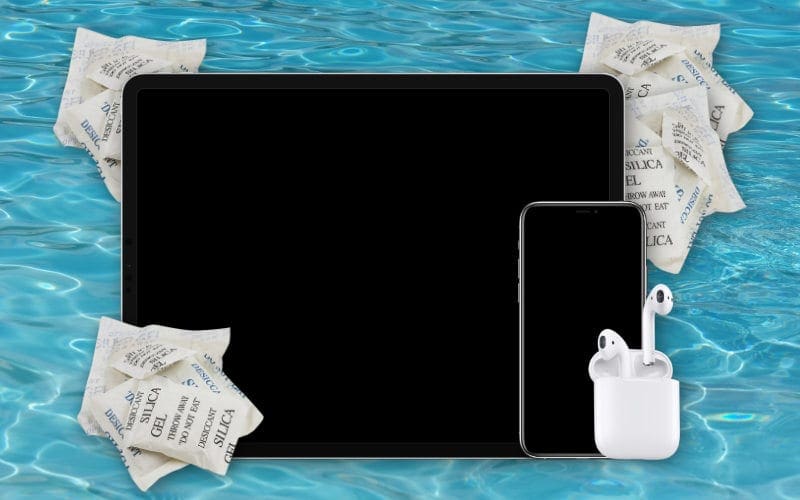
Dry Out After Water Exposure

Apple Watch silica gel drying setup

Moisture inside the crown housing causes electrical interference or corrosion.

Use Silica Gel for Best Results

  1. Place watch on silica gel packets in a sealed container.
  2. Leave a ½ inch gap above the device.
  3. Seal and wait 24–72 hours.
  4. Test daily.

Why It Works: Silica gel absorbs moisture more effectively than rice and leaves no residue.

Rice Method (Last Resort)

If no silica gel:
– Submerge in dry, uncooked rice in an airtight bag.
– Add spare silica packets (e.g., from shoeboxes).
– Leave for 5–7 days.

Warning: Rice is less effective and may introduce starch dust.

Never Use Heat

Avoid:
– Hair dryers
– Ovens
– Microwaves
– Direct sunlight
– Charging while damp

Heat can warp seals and damage components. One user revived a wet watch by charging it—but it failed days later.


Model-Specific Issues and Fixes

Apple Watch Series 10 Digital Crown failure rate

Different models show unique failure patterns.

Apple Watch Series 10: Firmware or Hardware Defect?

Users report:
– Crown works after restart, then degrades over hours.
Short presses fail, but long-press for Siri works.
– Issue persists across multiple replacements.

While WatchOS 11.0.1 helped some, others needed hardware replacement. Apple hasn’t acknowledged a widespread defect, but user reports suggest a potential batch issue.

Takeaway: If software fixes fail, insist on a replacement.

Series 4 and Older: Aging Seals and Wear

  • More prone to water ingress and mechanical failure.
  • Extended drying (5–7 days) often helps.
  • Secondhand units with prior repairs may have compromised waterproofing.

Pro Tip: Consider upgrading if under warranty—older models are nearing end-of-life support.

Ultra and SE: Fewer Reports

No widespread crown issues reported. Same troubleshooting applies, but their robust build and water resistance reduce risk.


When to Contact Apple Support

Skip DIY fixes if:
– The crown is visibly damaged (bent, loose, misaligned).
– There’s no response after all steps.
– The watch was dropped or submerged and shows other symptoms (e.g., screen glitches).

How to Get Help

  • Apple Support Website: getsupport.apple.com
  • Genius Bar Appointment: Best for demonstrating intermittent issues.
  • AppleCare+: Covers accidental damage for $99 service fee.

User Experience: Phone support often repeats basic steps. Bring a video of the issue to in-store visits for faster resolution.

Real Repair Outcomes

  • Julian Wright (Series 10): Three software resets failed. Apple replaced the unit—fixed permanently.
  • Maya0812: Received three replacement watches—all had same intermittent click issue. Suggests unresolved firmware flaw.
  • Hyuei (Series 4): Full recovery after 6-day drying with silica gel and rice.

Prevent Future Crown Problems

Avoid repeat issues with smart habits.

Clean Every 1–2 Weeks

Use the warm water rinse method regularly—especially after:
– Swimming
– Workouts
– Exposure to lotion or cleaning products

Apple’s Advice: Rinse after pool, ocean, or hot tub use.

Choose the Right Band

  • Avoid leather bands—they shed particles and trap moisture.
  • Use silicone, nylon, or metal bands for cleaner operation.

Dry Before Charging

Always wipe the crown and back sensor area before placing on charger. Charging a wet watch risks corrosion and short circuits.


Final Action Plan: Step-by-Step Checklist

Use this sequence to fix your Apple Watch crown not working issue:

Immediate Fixes (5 Minutes)

  1. Remove case and inspect for debris.
  2. Restart the watch.
  3. Press crown 30–40 times rapidly.

Intermediate Steps (10–15 Minutes)

  1. Clean under warm running water.
  2. Dry thoroughly.
  3. Perform force restart (if crown responds at all).

Software Reset (30 Minutes)

  1. Erase via iPhone Watch app.
  2. Update to latest WatchOS and iOS.
  3. Disable Siri long-press.

Drying Phase (24–72 Hours)

  1. Place in sealed container with silica gel.
  2. Test daily—don’t rush.

Professional Help

  1. Visit Apple Store with reproducible issue.
  2. Request hardware inspection or replacement.
  3. Escalate if unresolved after multiple visits.

Final Note: Most Apple Watch crown not working issues are fixable at home. Start with Apple’s warm water rinse and restart—over 70% of cases resolve there. If not, systematic drying and software resets cover most remaining scenarios. Only when all else fails should you seek replacement. With consistent care, your Digital Crown can last the life of your device.

Apple Watch BPM Not Working? Fix It Fast


You’re not imagining it—your Apple Watch isn’t measuring your heart rate. The screen says “Measuring…” but never delivers a result. Your workouts log zero calories. The green sensor lights on the back stay dark, even though the ECG app still works. If this started after updating to watchOS 26.x, you’re part of a growing wave of users facing the same Apple Watch BPM not working issue across Series 3, 9, 10, and Ultra models.

The good news? This is rarely a hardware failure. In most cases, the optical heart rate sensor is physically intact—the problem lies in software logic, charging behavior, or app conflicts. And that means you can fix it yourself, without replacing your watch. Thousands of users have restored full BPM functionality using the steps below, verified by community experts and Apple Watch enthusiasts.

This guide walks you through every possible cause—from overlooked settings to firmware corruption—and gives you a clear action plan to get your heart rate tracking back. Whether you’re troubleshooting after an update, a full-day charging session, or a failed workout, these fixes are tested, specific, and effective.


Confirm Heart Rate Is Enabled in Privacy Settings

Before diving into complex fixes, rule out the most common mistake: heart rate monitoring is disabled.

On your iPhone, open the Watch app, go to My Watch > Privacy > Heart Rate, and make sure the toggle is ON.
On your Apple Watch, navigate to Settings > Privacy & Security > Health > Heart Rate—verify it’s enabled here too.

If you recently updated watchOS, the setting might have reset or become grayed out due to a permissions glitch. Toggle it off, wait 10 seconds, then turn it back on. Immediately open the Heart Rate app to see if it starts reading.

💡 Pro Tip: Some users (like alamantia87) found that switching notification settings from “Mirror iPhone” to “Custom” restored access to heart rate data after an update.


Force Restart Apple Watch and iPhone Together

A regular restart often fails when the sensor is stuck in a corrupted state—especially after charging or an OS update. A simultaneous force restart clears deep system locks between devices.

On Apple Watch:
Press and hold the side button and Digital Crown for 10+ seconds until the Apple logo appears.

On iPhone:
Quickly press Volume Up, then Volume Down, then hold the Side Button until the logo shows.

Wait for both devices to fully reboot before testing the Heart Rate app. This fix has a high success rate, particularly for users experiencing the “Measuring…” hang after overnight charging.

⏱️ Time Required: 2 minutes
User Success: Confirmed by Western_Insect_7580, alamantia87


Stop Using Third-Party Chargers Immediately

Apple Watch charger comparison original vs generic

Your charging dock could be the root cause. Multiple users traced BPM failure to non-Apple or uncertified 3-in-1 charging stands, especially cheaper Amazon models.

Why it matters:
– Inconsistent power delivery can keep the watch in a logical “charging state” even after removal.
– The heart rate sensor is designed to disable during charging—poor firmware handoff prevents it from reactivating.
– Updates applied over unstable power can corrupt sensor initialization.

Fix:
Switch to an Apple-certified charger like the original magnetic puck or Belkin BoostCharge. After charging, wait 15–20 minutes before starting a workout to allow the system to reset.

🛠️ User Fix (Jcurrier31): Ditched a generic Amazon dock—BPM worked immediately and stayed stable.


Wear Your Watch Snugly Below the Wrist Bone

Apple Watch proper fit position wrist

Motion gaps are a leading cause of failed readings. Even slight movement breaks skin contact, fooling the optical sensor.

Correct Position:
– Place the watch 1 inch below the wrist bone.
– Tighten the band so only one finger fits underneath.
– Re-tighten before workouts—especially with Milanese or stretch bands.

For high-motion activities (running, cycling), wear it 1–2 cm higher on the forearm to prevent sliding.

🧠 Expert Insight (Ingo2711): “The weight of the Ultra 3 causes it to shift during arm swings. Wearing it further up stops motion gaps.”


Clean the Back Sensor Regularly

Sweat, oil, and dirt block the green LEDs and photodiodes. A dirty sensor can’t get a reading—even if everything else is perfect.

Steps:
1. Remove the watch.
2. Use a dry, lint-free microfiber cloth.
3. Gently wipe the circular sensor cluster on the back.
4. Never use water, alcohol, or abrasive cleaners.

Also, remove any watch case temporarily. Thick or poorly designed cases can obstruct sensor emissions.

🚫 Warning: Never charge with a wet sensor. Dry completely first.


Toggle Heart Rate Access to Reset Permissions

This workaround, discovered by user alamantia87, forces the system to reauthorize the sensor.

Steps:
1. On Apple Watch: Go to Settings > Privacy & Security > Health > Heart Rate → Turn OFF.
2. Wait 10 seconds.
3. Turn ON again.
4. Open the Heart Rate app and wait.

This is especially effective if ECG works but continuous BPM fails—indicating a software-level access block.


Delete and Reinstall Problematic Third-Party Apps

Apps like TrainerDay, Peloton, or Strava can interfere with Bluetooth heart rate access.

Symptoms:
– BPM = 0 during workouts
– Native apps fail even when third-party app is closed
– Issue began after an app update

Fix:
1. Delete the app from iPhone and Apple Watch.
2. Reinstall from the App Store.
3. Clear cache if available.
4. Re-pair sensors.

📌 Developer Note (Alex, TrainerDay): Some updates broke HRM routing logic. Reinstalling resets permissions.


Unpair and Set Up as New (No Backup)

Restoring from a backup can carry over corrupted settings. A clean setup is the most reliable long-term fix.

Steps:
1. On iPhone: Open Watch app > My Watch > [Your Watch] > Info > Unpair Apple Watch.
2. Confirm (backup is automatic).
3. Do not restore from backup.
4. Set up as new device.
5. Reinstall apps one by one.

Success Reports: Sch1z01dMan, ShipAccomplished2747
Time: 15–20 minutes

Combine this with an original charger to prevent recurrence.


Perform a Full Factory Reset

If BPM still fails, erase everything.

On Apple Watch:
1. Open Settings > General > Reset > Erase All Content and Settings.
2. Enter passcode.
3. Confirm.

After reset, re-pair and re-enable heart rate and fitness tracking.

🛑 Warning: Back up first if you want to save local health data (though Apple Health syncs to iCloud).


Test for Hardware Failure

Hardware issues are rare—but possible. Signs include:
No sensor lights ever turn on
ECG also fails
– Problem persists on multiple replacement watches
– Apple diagnostics detect an issue

🧰 User Experience (SnooDoggos7390): Received a replacement Ultra—same BPM failure after reset.

If you see these, contact Apple Support or visit a Genius Bar.


Submit Feedback to Apple to Demand a Fix

Apple hasn’t officially acknowledged the watchOS 26.x heart rate bug, but user reports drive updates.

Submit feedback:
1. Open Apple Feedback app on iPhone or Mac.
2. Title: “Apple Watch BPM Not Working After watchOS 26.1”
3. Include: model, OS version, whether ECG works, charging habits, and screenshots.

🔗 https://www.apple.com/feedback/apple-watch.html

🗣️ Community Action (One-Philosopher1966): Encourages mass reporting to trigger a patch.


Test on an Apple Store Demo Unit

Before assuming it’s your watch, test your physiology on a store display.

Steps:
1. Visit Apple Store.
2. Try Heart Rate and Workout apps on a demo unit.
3. Wear it snugly for 2+ minutes.

If it fails on multiple units, the issue may be skin tone, tattoo, or wrist size related.

🧪 User Tip (steve626): “I tested three Ultras—mine failed, others worked. Confirmed it was my setup.”


Prevent Future BPM Failures

Action Why It Helps
Use original Apple charger Prevents firmware state corruption
Restart weekly Clears background app clutter
Clean sensors weekly Prevents buildup that blocks light
Tighten band pre-workout Ensures skin contact during motion
Avoid Low Power Mode Keeps heart rate monitoring active
Update only on Wi-Fi + Charger Reduces update corruption risk

🔄 Pro Routine: After charging, restart watch, open Heart Rate app, then start workout.


Final Checklist: BPM Not Working?

✅ Restart both iPhone and Apple Watch (force if needed)
✅ Check Heart Rate setting on both devices
✅ Clean back sensor with microfiber cloth
✅ Wear snugly, 1 inch below wrist bone
✅ Toggle Heart Rate OFF/ON in settings
✅ Use original Apple or certified charger
✅ Try simultaneous force restart post-charge
✅ Unpair and set up as new (no backup)
✅ Submit feedback to Apple
✅ Visit Apple Store for hardware test


Bottom Line: The Apple Watch BPM not working issue is primarily software-driven, especially after watchOS 26.x updates and use of third-party chargers. The fact that ECG still works in most cases confirms the sensor is intact—Apple just needs to patch the logic bug. Until then, follow this guide to regain reliable heart rate tracking—no replacement needed.

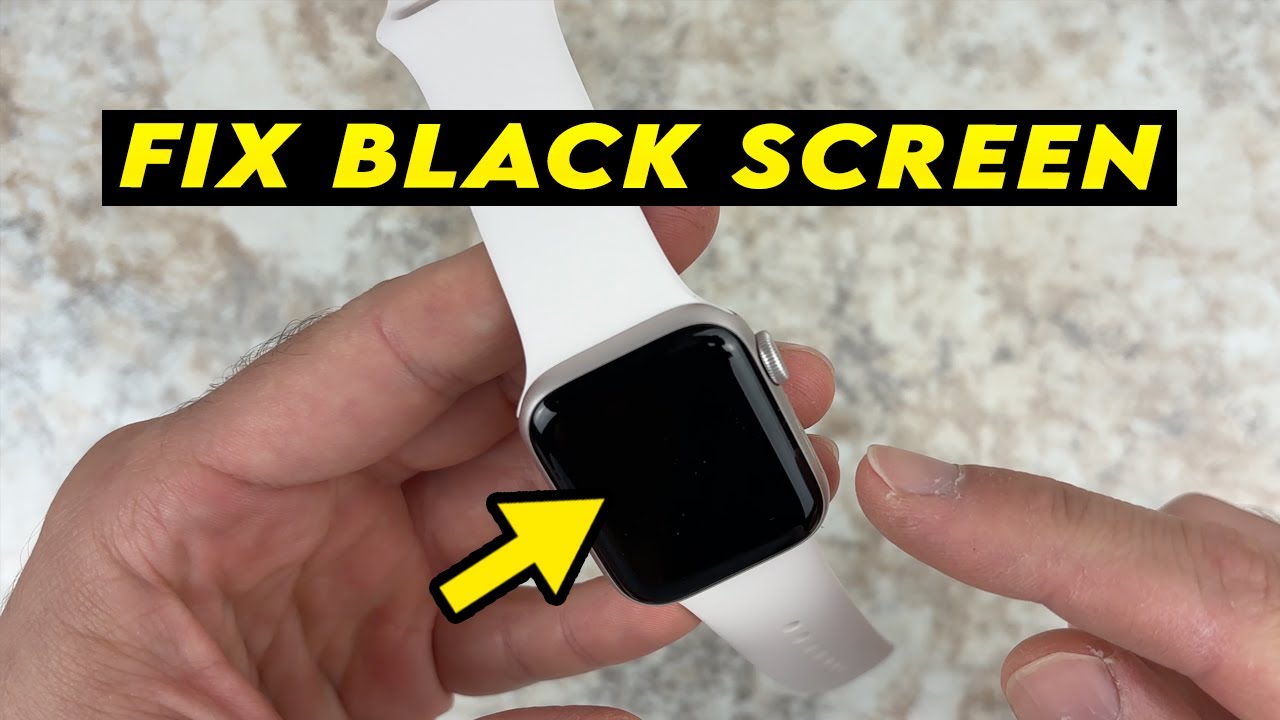
Apple Watch Black Screen Fix 2026


You glance at your wrist—the time is gone. The screen is pitch black. No tap, no raise, no button press brings it back. Panic starts to creep in. But don’t assume your Apple Watch is dead. A black screen is one of the most common Apple Watch issues—and in 90% of cases, it’s fixable without visiting a store. Whether you own a Series 3, 6, 7, SE, or newer, the problem usually stems from low battery, software freeze, or an accidentally enabled accessibility setting—not hardware failure. This guide walks you through proven fixes, from simple resets to remote iPhone controls and last-resort tricks. Start here—your Watch is likely still alive.

Charge Before You Panic

A completely drained battery can make your Apple Watch appear dead. Even if it’s not showing a charging symbol, it might just need time.

Plug In Correctly

Use the original Apple magnetic charger—third-party chargers often fail to deliver consistent power. Connect it to a USB-A or USB-C wall adapter (not a low-power port like on a laptop or hub). Place the back of your Watch flat against the charger. Within 10 seconds, you should hear a chime or feel a haptic pulse. If not, flip the charger—magnetic alignment is crucial. Misalignment prevents charging, leading to false assumptions of failure.

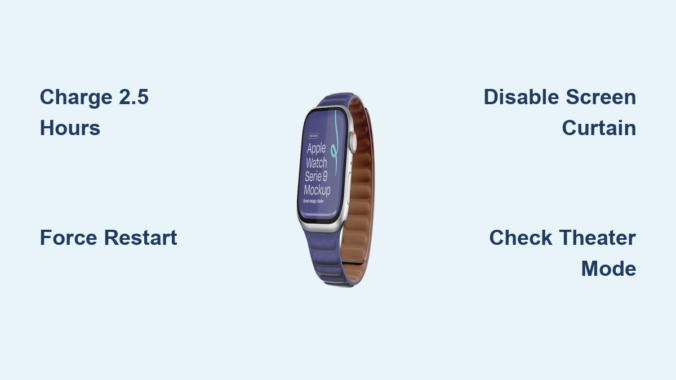
Wait 2.5 Hours Minimum

If the battery is fully depleted, the screen may stay black even while charging. Don’t keep tapping or waking it—this drains power. Leave it plugged in for at least 2.5 hours uninterrupted. After that, try a force restart. Many users report their Watch “coming back to life” after this extended charge, especially if it was left unused for days.

Test with Another Charger

A faulty cable or charging pad is a common culprit. Borrow a known-working Apple charger or test yours on another Apple Watch. If your Watch charges on a different pad, the original charger is the issue. Always use MFi-certified or genuine Apple accessories to avoid inconsistent voltage that prevents boot-up.

Force Restart: The First Real Fix

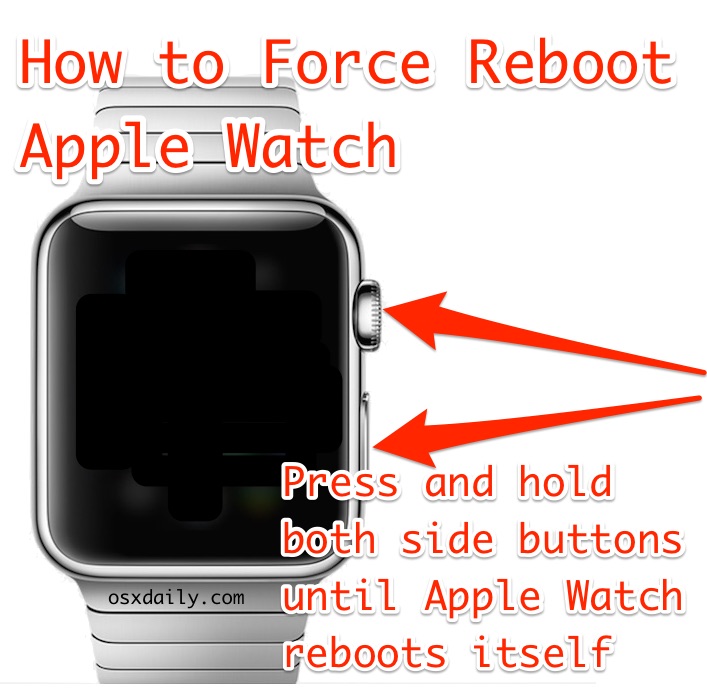
Apple Watch force restart button locations

When charging doesn’t revive the screen, force restart is your next move. This resets the operating system and clears freezes that disable the display.

How to Force Restart

Press and hold both the side button and Digital Crown at the same time. Keep holding for 10 to 30 seconds—don’t let go when the screen flickers. Wait until you see the Apple logo, then release. Let the Watch boot completely; this can take up to 2 minutes. If it doesn’t respond, repeat the process.

Why It Works

A frozen WatchOS can disable the display driver. The force restart reboots the system kernel, restoring screen output. It’s effective after failed updates, app crashes, or sync errors. Users like Tengski14 and Hilarious confirmed this fixed their black screen issue without needing Apple support.

Common Mistakes to Avoid

  • Releasing too early—before the Apple logo appears.
  • Confusing flickers with boot—flickers mean it’s still frozen.
  • Using only one button—you must press both simultaneously.

Disable Screen Curtain via iPhone

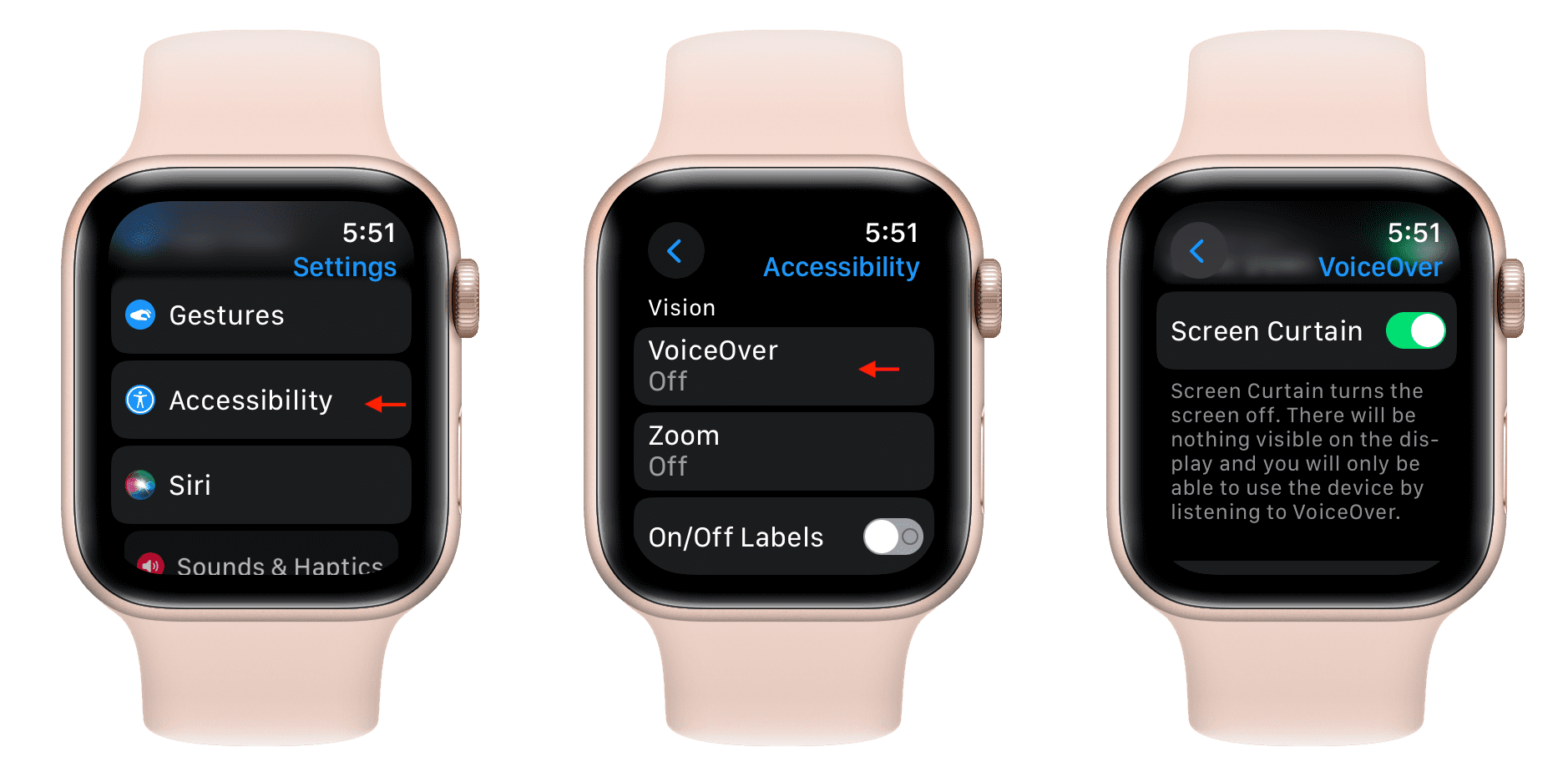
iPhone Watch app accessibility screen curtain settings

If your Watch vibrates or plays alerts but the screen stays black, Screen Curtain is likely enabled.

What Is Screen Curtain?

This accessibility feature turns off the display while keeping all functions active. It’s designed for voice navigation but can be triggered accidentally—especially if triple-clicking the side button is set to VoiceOver.

Turn It Off Remotely

Open the Watch app on your iPhone. Go to My Watch > General > Accessibility. Tap VoiceOver, then disable Screen Curtain. Also turn off VoiceOver if it’s on. This instantly restores the display—no restart needed. User ForensicHat confirmed this fixed their black screen despite no visible feedback from the Watch.

How It Gets Enabled

  • Triple-clicking the side button (if configured).
  • During guided access or demo mode.
  • After a watchOS update that resets accessibility settings.

Check Theater Mode and Low Power Settings

Two settings can mimic a black screen by disabling automatic wake.

Theater Mode

This mode silences alerts and stops the screen from waking on wrist raise. The mask icon in Control Center means it’s on. To disable: on your iPhone, open the Watch app > My Watch > Theater Mode > toggle off.

Low Power Mode (watchOS 9+)

After updates, Low Power Mode may activate automatically. It disables Always On Display and requires you to press the side button to wake the screen. If your Watch only shows time when pressed, this is likely the cause. Fix it by pressing the side button, opening Control Center, and tapping the battery icon to turn it off.

Reset Wake and Display Settings

Software updates can reset your display preferences.

Enable Raise to Wake

On your iPhone, open the Watch app > My Watch > Display & Brightness > Wake Screen. Ensure Raise to Wake is enabled. Also check Auto-Light on Wake (Series 6+) if the screen stays dark in low light.

Turn On Always On Display (Series 5+)

If your Watch only wakes when you press the button, Always On Display may be off. Enable it in Settings > Display & Brightness > Always On. Without it, the screen appears black when your wrist is down.

Change Watch Face from iPhone

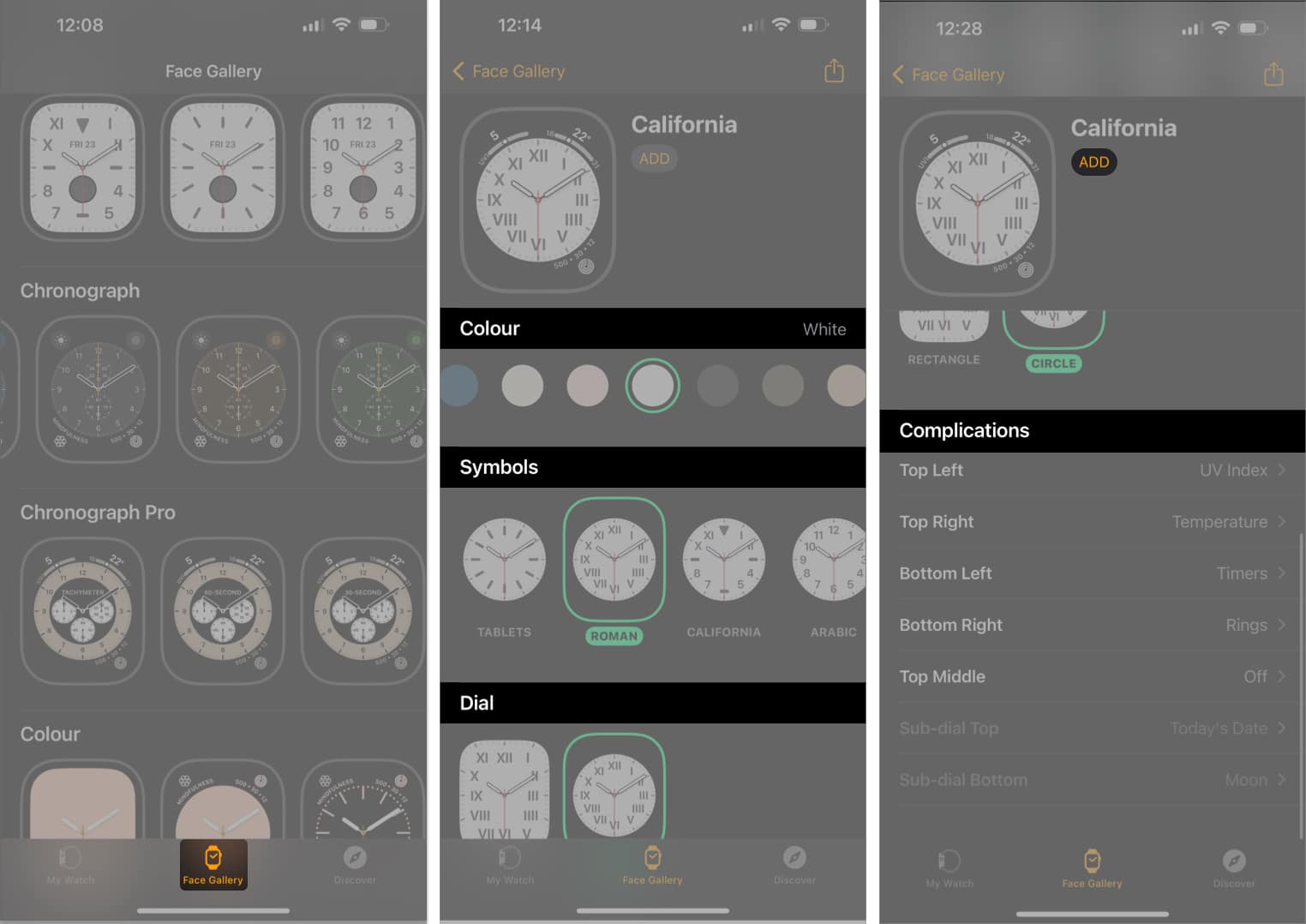
iPhone Watch app watch face selection tutorial

Even with a black screen, you can force a display refresh remotely.

Force a UI Reload

Open the Watch app on your iPhone > My Watch > Faces. Choose a new face—like Infograph or Simple—and tap Add. The Watch will attempt to load the new face, which may trigger the screen to respond. This works even if you can’t see it—commands sync over Bluetooth.

Why It Helps

Changing the face reloads the graphical subsystem. If a corrupted watch face caused the freeze, this bypasses it. It’s a hidden fix many users overlook.

Try the Button Spamming Technique

Some users revive frozen Watches by rapidly pressing buttons.

Tap to Wake Rapidly

Press the side button or Digital Crown 10–15 times quickly. This can jolt the system out of a deep sleep. Combine with charging: keep it on the pad while spamming.

Charge and Press Simultaneously

While connected to power, hold the side button for 10 seconds, release, then repeat. Some report success after 3–5 cycles. The power input plus repeated signal may trigger a boot response.

Inspect for Hardware Issues

If software fixes fail, check for physical damage.

Signs of Hardware Failure

  • No Apple logo during force restart.
  • No charging symbol after 3+ hours.
  • Watch vibrates but screen never responds.
  • Faint image visible under bright light (backlight failure).

Impact Damage

Drops can loosen internal ribbon cables. Gently press the screen center and edges, and the back near charging coils. Reconnect to charger and retry force restart. Do not apply excessive force.

Freezer Method (Last Resort)

Some users revive unresponsive Watches with cold exposure.

Step-by-Step

  1. Seal your Watch in a double ziplock bag.
  2. Place in freezer for 15–20 minutes.
  3. Remove and immediately plug into charger.
  4. Press and hold side button + Digital Crown for 30 seconds.

Reported Success

Users like joshuafromunion and ELJeann revived their Series 6 after days of no response. The cold may contract metal components, reseating loose connections.

Risks

  • Condensation inside the device.
  • Corrosion from moisture.
  • Display damage from thermal stress.
    Only attempt if the Watch has no water exposure history and is out of warranty.

Reset and Re-Pair Your Watch

When all else fails, erase and restore.

Unpair via iPhone

Open the Watch app > My Watch > All Watches. Tap the “i” icon, then Unpair Apple Watch. Confirm and wait for backup. This erases the device and breaks Bluetooth pairing.

Set Up Again

Follow setup steps. Choose restore from backup or set up as new. This fixes deep software corruption.

Caution

Only do this if you have a recent backup. You’ll lose unsynced data like unrecorded workouts.

Diagnose Charging Accessories

A bad charger can mimic screen failure.

Test the Charger

Use your charger on another Apple Watch. If it doesn’t work, the accessory is faulty. Borrow a known-working Apple charger and test your Watch.

Use MFi-Certified Gear

Avoid cheap chargers. Use only Made for Apple Watch (MFi) or genuine Apple accessories.

Apple Watch Series 6 Blank Screen Defect

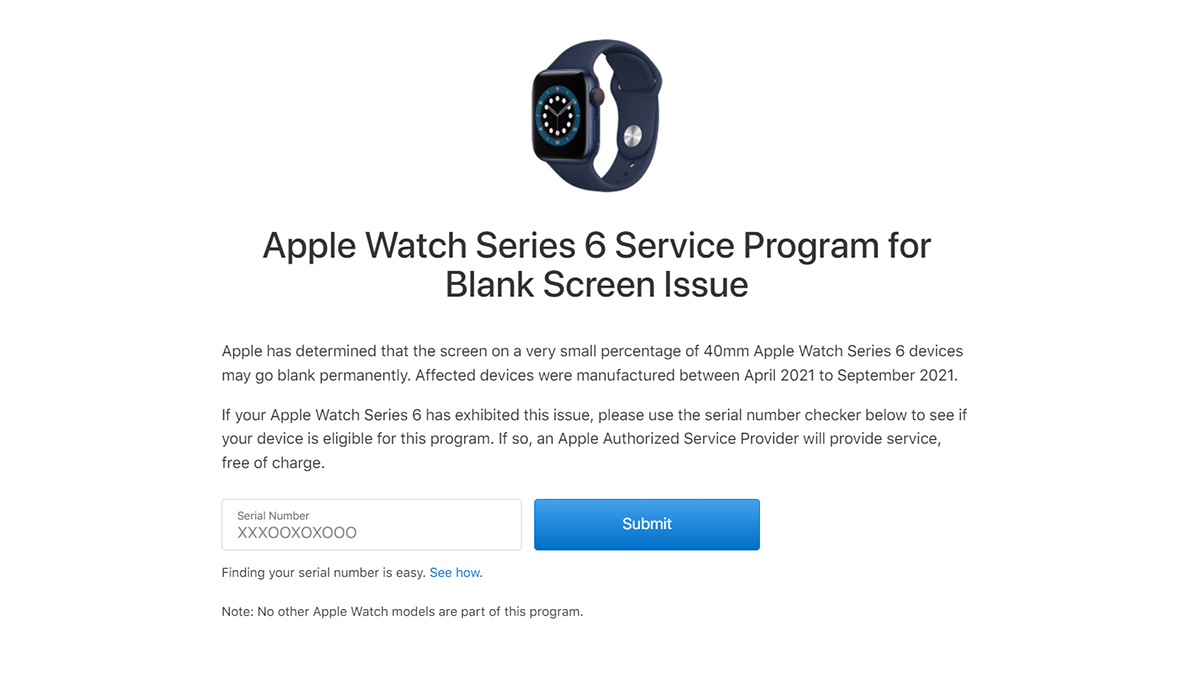
Apple Watch Series 6 screen defect repair program

Apple acknowledged a hardware flaw in some Series 6 models.

Apple’s Service Program

A free repair program covers eligible units with blank screens. Check eligibility at Apple’s official page. Coverage is limited to two years from purchase.

User Frustration

Many report the issue appears just after the two-year mark, missing coverage. Despite knowing the defect, Apple charges $300–$450 for out-of-warranty repairs.

Repair Costs and Options

If hardware is confirmed broken, consider cost vs. replacement.

Out-of-Warranty Pricing

  • Screen replacement: $50–$80 (third-party), $200+ (Apple).
  • Full unit replacement: $300–$450 (Apple).

DIY vs. Professional

Self-repair risks further damage and voids warranty. For most, visiting an Apple Store or authorized provider is safer.

Prevent Future Black Screens

Avoid recurrence with simple habits.

Software Maintenance

  • Update watchOS and iPhone iOS regularly.
  • Restart your Watch weekly.
  • Avoid beta software unless necessary.

Charging Best Practices

  • Use original Apple charger.
  • Clean contacts weekly.
  • Avoid extreme temperatures.

Physical Protection

  • Use a protective case.
  • Remove Watch during high-impact activities.
  • Avoid drops.

Accessibility Settings

  • Disable Screen Curtain and VoiceOver unless used.
  • Review triple-click side button settings.

Bottom line: A black screen isn’t the end. Start with charging and force restart. Use your iPhone to disable Screen Curtain. Check Low Power and Theater Mode. For Series 6 users, check Apple’s service program—don’t pay for a known defect. If nothing works, reset and re-pair. Your Watch is likely alive—just silent.

Apple Watch 6 Not Charging? Fix It Fast


Your Apple Watch Series 6 sits motionless on the charger—no green lightning bolt, no response, just silence. You press the Digital Crown or side button, but the screen remains black. If you depend on your watch for heart rate monitoring, sleep tracking, or staying connected, this is more than inconvenient—it’s alarming. But before you assume the worst, know this: an Apple Watch 6 won’t charge is a surprisingly common issue, and in most cases, it’s fixable.

The problem might be as simple as a dirty charging port or a faulty cable. Or it could stem from deeper issues like battery degradation, software glitches, or hardware failure. The good news? There’s a clear, step-by-step path to diagnosing and fixing it. Whether your watch shows a red lightning bolt, gets unusually hot during charging, or refuses to wake up after months in a drawer, this guide delivers proven solutions used by thousands of users and Apple support professionals. You’ll learn how to interpret charging symbols, revive a dead battery, bypass software freezes, and when it’s time to seek repair.


Decode What the Charging Lights Mean

Apple Watch 6 charging light symbols explained

Red Lightning Bolt: Battery Is Fully Drained

When you see a red lightning bolt, your Apple Watch Series 6 has entered Power Reserve mode—its battery is completely empty. It won’t turn on or respond until it receives enough charge. Once placed on the charger, the symbol should change to a red lightning bolt inside a ring, signaling that charging has begun.

If the ring doesn’t appear within 30 minutes, don’t give up. A deeply discharged battery—especially after long storage—can take several hours to show signs of life. Apple recommends leaving it connected for at least 8 hours before concluding it’s not charging.

Pro Tip: Even brand-new watches can arrive in this state after being shipped or stored for weeks. Patience is key.

Green Lightning Bolt: Charging But Possibly Failing

A green lightning bolt means the watch detects the charger and is attempting to charge. But if the device heats up, shuts down, or stops charging after a few minutes, there’s likely an underlying issue—such as battery degradation, a failing charging circuit, or internal damage.

Heat is a major red flag. If your watch becomes warm to the touch, disconnect it immediately. Lithium-ion batteries can overheat dangerously if damaged or improperly connected.

Black Screen: Not Always a Sign of Death

A blank screen doesn’t mean your watch is broken. If the battery is fully drained, it may take 10 to 30 minutes—or even longer—before any visual feedback appears. Apple advises waiting at least 30 minutes on a proper charger before assuming failure.

Avoid constantly plugging and unplugging. Let the watch sit undisturbed to allow the battery to stabilize.


Start with the Charger and Cable

Use Only Apple-Certified Charging Accessories

Third-party cables may look identical but often lack proper magnetic alignment or power regulation. Stick to the Apple Magnetic Charging Cable or USB-C Magnetic Fast Charging Cable. Many “won’t charge” cases vanish after switching from a cheap knockoff to an official Apple charger.

If you’re using a non-Apple cable, replace it immediately. Even slightly misaligned magnets can prevent a secure connection.

Test with a Different Charger and Power Adapter

Faulty hardware is one of the top causes. To pinpoint the issue:

  1. Try a known-working Apple charger.
  2. Test your cable on another Apple Watch.
  3. Plug into a different wall outlet.

This process helps determine whether the problem lies with the watch, cable, or power adapter.

Plug Into a Wall Outlet, Not a Computer

Avoid charging from:
– Laptops (especially in sleep mode)
– USB hubs
– Power banks
– Low-power USB ports

Instead, use a wall outlet with an Apple 5W, 12W, or 20W USB power adapter. For stubborn cases, try an iPad 20W charger—while the Apple Watch doesn’t fast charge, higher-wattage adapters can help initiate power delivery on deeply drained batteries.

Note: Never use damaged or frayed cables. Even minor wear can interrupt charging.


Clean the Charging Contacts Thoroughly

Apple Watch charging port cleaning microfiber cloth

Remove Dirt, Sweat, and Lint Buildup

The metal contacts on the back of the watch and the magnetic surface of the charger are prone to collecting dust, sweat, lotion, and lint. This grime creates a barrier that blocks electrical contact—even if the watch snaps into place magnetically.

To clean safely:
1. Power off the watch if possible.
2. Use a dry, lint-free microfiber cloth or soft-bristled brush.
3. Gently wipe both the watch back and charging puck.

Never use:
– Liquids or cleaning sprays
– Compressed air (can push debris deeper)
– Sharp objects (risk of scratching)

Common Mistake: Users often assume the connection is fine because the watch “sticks” to the charger. But unseen residue can still break the circuit.


Ensure Proper Magnetic Alignment

Snap the Watch Firmly Into Place

The Apple Watch Series 6 relies on precise magnetic alignment. If it’s not seated correctly, charging won’t start.

Steps to ensure proper contact:
– Place the charger on a flat, stable surface.
– Position the watch so it snaps securely into place.
– For 44mm or 45mm models, make sure the charger isn’t tilted.

If using a Magnetic Charging Dock or MagSafe Duo, remove thick or metal bands that might interfere with alignment.

Visual Cue: You should feel a firm magnetic pull. If it feels loose, reposition.


Force Restart to Clear Software Glitches

Hold Side Button + Digital Crown for 10 Seconds

A frozen or unresponsive watch may not charge, even when connected. A force restart can clear temporary software bugs.

Steps:
1. Press and hold the side button and Digital Crown together.
2. Hold for at least 10 seconds.
3. Release when the Apple logo appears.

Wait 2 minutes before placing it back on the charger. Many users report their watch starts charging immediately after this step.

Pro Tip: If the screen flickers or shows a low-battery clock face, let it sit on the charger undisturbed for 1–2 hours.


Update watchOS to Fix Charging Bugs

Apple Watch watchOS software update via iPhone

Install the Latest Software via iPhone

Outdated watchOS versions can cause charging issues. Updates often include fixes for battery and power management.

To update:
1. Open the Watch app on your iPhone.
2. Go to General > Software Update.
3. Download and install any available updates.

The watch must be charging or have over 50% battery during the update. If it won’t charge, complete other fixes first—especially force restart and extended charging.


Leave It on Charger for 8 to 10 Hours

Give a Dead Battery Time to Wake Up

If your Apple Watch 6 shows no signs of life, leave it connected for 8 to 10 hours, even overnight. A deeply discharged battery may take hours to respond.

Real user reports:
– One watch revived after 5 hours.
– Another came back after 4 days with 13% battery.
– A stored unit (unused for 2+ years) failed—indicating permanent battery failure.

Patience is critical. Don’t assume it’s dead after 30 minutes.


Fully Drain and Recharge for Battery Reset

Recalibrate the Charging Cycle

If the watch powers on but won’t charge past a certain point, try a battery reset.

Steps:
1. Let the battery drain completely—until no response when pressing the Crown.
– May take 2–7 days, depending on usage.
2. Once dead, charge continuously for 8–10 hours.
3. The watch may reboot and charge normally.

This resets the battery’s charge cycle and can fix false low-battery readings.

Warning: Avoid doing this frequently—full discharges shorten battery life.


Apply Light Pressure to Reseat Internal Parts

Gently Press Front and Back to Fix Loose Connections

After drops or impacts, internal connectors may loosen. Some users report success by applying light pressure:

  1. Press thumbs gently on the center of the display.
  2. Simultaneously press the back of the watch.
  3. Hold for 5 seconds.
  4. Perform a force restart.

This may reconnect a loose battery or logic board ribbon.

Caution: Use minimal pressure. Never press on the edges.


Try a Higher-Wattage Charger

Use an iPad 20W Adapter for Stubborn Cases

Some deeply drained watches respond better to higher-power sources. Try:

  • Apple 20W USB-C charger
  • iPad power adapter
  • Paired with the Apple USB-C Magnetic Fast Charging Cable

This setup delivers stable initial power that may kickstart a failing battery.

Note: The watch still charges at normal speed—the higher wattage only helps initiate charging.


Check Battery Health and Recognize Failure

View Maximum Capacity in Settings

Battery health degrades over time. To check:

  1. On Apple Watch: Settings > Battery > Battery Health
  2. Look at Maximum Capacity.

If it’s below 80%, the battery is degraded and may need replacement.

Signs of Hardware Failure

  • Watch gets hot during charging
  • No response across multiple chargers and outlets
  • No signs of life after 24 hours

These suggest dead battery or damaged logic board.


When to Contact Apple Support

Seek Help If:

  • Battery health is below 80%
  • Watch overheats while charging
  • No response after 24 hours
  • Device is under warranty or AppleCare+

Apple offers battery service for out-of-warranty watches. For new but unresponsive units, especially stored over 2 years, return to seller—old stock batteries degrade even when unused.

Pro Tip: Consider Apple Refurbished Store—devices come with new batteries and warranty.


Prevent Future Charging Issues

Clean Weekly, Avoid Full Drains, Store at 50%

  • Clean contacts regularly with a dry cloth
  • Charge at 20–30% to extend battery life
  • Store long-term at 50% charge, powered off, and recharge every 6 months

Final Action Plan

  1. Use Apple charger + wall outlet
  2. Clean contacts
  3. Realign on charger
  4. Force restart
  5. Charge 8–10 hours
  6. Try iPad 20W adapter
  7. Update watchOS
  8. Drain and recharge

If nothing works: Contact Apple, visit a store, or consider battery replacement.

Most Apple Watch 6 charging problems are solvable. Start simple, stay patient, and act fast—lithium-ion batteries don’t wait.

Apple Watch 6 Troubleshooting: Quick Fixes


Your Apple Watch Series 6 won’t turn on. The screen is black, unresponsive, and no amount of charging seems to help. Or maybe it’s stuck in a boot loop, failing to update, or not syncing with your iPhone. You’re not alone—thousands of users face similar Apple Watch 6 troubleshooting challenges, from charging failures to frozen displays and LTE connectivity issues.

This guide delivers step-by-step fixes for the most common Apple Watch Series 6 problems, using verified methods from Apple’s official support, user-tested recovery techniques, and real-world repair insights. Whether you’re dealing with a dead battery, software glitches, or the notorious blank screen defect, you’ll find clear, actionable solutions—starting with simple resets and escalating only when necessary. You’ll also learn how to check eligibility for free repairs under Apple’s Blank Screen Service Program, optimize battery life, and avoid costly out-of-warranty replacements.


Restart or Force Restart Your Apple Watch

If your Apple Watch 6 freezes, won’t wake, or gets stuck on the Apple logo, a restart is often the fastest fix.

Perform a Normal Restart

Use this for minor issues like app crashes or sluggish performance:

  1. Press and hold the side button until the Power Off slider appears.
  2. Drag the slider to power off.
  3. Wait 10 seconds, then press and hold the side button again until the Apple logo appears.

This clears temporary software hiccups without affecting your data.

Force Restart When the Watch Is Unresponsive

If the screen is completely black or frozen:

  1. Press and hold both the side button and Digital Crown.
  2. Keep holding for 10 to 15 seconds—up to 60 seconds if the device is fully unresponsive.
  3. Release when the Apple logo appears.

Pro Tip: A force restart doesn’t erase your data. It resets the system memory and stops frozen processes, making it ideal for boot loops or failed updates.


Update or Restore watchOS Successfully

Outdated or corrupted software causes many Apple Watch 6 issues, including update failures, sync problems, and unresponsive apps.

Check for Software Updates

  • On your iPhone: Open the Watch app > General > Software Update.
  • On your Apple Watch: Go to Settings > General > Software Update.

Ensure your watch:
– Is charged to at least 50%.
– Is connected to its charger.
– Is within Bluetooth range of your iPhone.

Note: Apple Watch Series 6 supports up to watchOS 10. Devices on older versions may fail to pair with iPhones running iOS 18 or later.

Fix a Stuck or Failed Update

If the update won’t install:

  1. Restart both your Apple Watch and iPhone.
  2. On iPhone, go to Watch app > General > Storage.
  3. Find and delete the pending watchOS update file.
  4. Retry the update.

This clears corrupted download files that block installation.

Force Update Using a Mac

When the iPhone method fails:

  1. Connect your iPhone to a Mac via USB.
  2. Open Finder and select your Apple Watch in the sidebar.
  3. Click Update or Restore.

This bypasses iPhone-side bugs and connects directly to Apple’s servers for a clean install.

Last Resort: Visit Apple Support

If the watch won’t boot or restore, visit an Apple Store or Apple Authorized Service Provider. Technicians use internal tools to force a system restore—even on non-responsive devices.


Fix Apple Watch 6 That Won’t Turn On

Apple Watch Series 6 unresponsive black screen troubleshooting

A black screen doesn’t always mean permanent failure. Many users revive their Apple Watch 6 with the right steps.

Step-by-Step Recovery Process

Step Action What to Look For
1 Charge for 60 minutes Use the original Apple Magnetic Charger. A deeply drained battery may take time to respond.
2 Force restart while charging Hold side button + Digital Crown for 15 seconds. If the Apple logo appears, the issue is likely software-related.
3 Check for red lightning bolt This indicates charging is detected. Keep charging—some users revived watches after 48 hours.
4 Test with another Apple charger Third-party cables often deliver incorrect voltage. Try a known working cable.
5 Wiggle the charger connection If the screen flickers, the cable may have internal damage. Replace it.

Pro Tip: Avoid letting your battery drop below 20% regularly. Deep discharges can trigger Power Reserve mode or prevent startup.


Solve Charging Problems

Apple Watch Series 6 charging cable not working

No charging icon? Red lightning bolt won’t go away? Here’s how to fix it.

Use Only Apple-Certified Chargers

  • Must use Apple Magnetic Charging Cable or USB-C Fast Charging Cable.
  • Avoid third-party chargers unless WPT-compliant (required in China/Indonesia).
  • Using a country-specific WPT charger on an incompatible model shows:

    “Unable to charge. This is a country-specific charger. It is incompatible with this Apple Watch.”

Clean the Charging Contacts

Dirt, sweat, or plastic wrap can block the connection.

  1. Wipe the back of the watch and charger surface with a soft, lint-free cloth.
  2. Remove debris from the magnetic pins.
  3. Reconnect and charge.

Check for Hardware Damage

  • Inspect the cable for fraying or bent pins.
  • Try a different cable.
  • If charging starts but stops intermittently, the charging module may be failing.

User Report: One Apple Watch Series 6 stopped charging after a beach swim. Apple denied repair, but a local technician replaced the charging module successfully.


Resolve the Blank Screen Issue

Apple acknowledged a known hardware defect causing permanent black screens on some Apple Watch Series 6 units.

Apple’s Free Service Program

  • Eligibility:
  • Serial number must be in the affected range.
  • Device must be within 2 years of purchase.
  • Covered repairs:
  • Free screen replacement at Apple Stores or authorized providers.

Warning: Many users report being denied despite identical symptoms—especially if just outside the 2-year window. Repair quotes can exceed €400.


User-Tested Revival Methods

Even if excluded from the program, try these:

Multi-Step Revival Process

  1. Force restart (side button + crown for 15 seconds).
  2. On iPhone, change the watch face via the Watch app.
  3. Place on charger and force restart again.
  4. Tap the side button 15 times rapidly, then press the Digital Crown.
  5. Rub the front and back firmly with thumbs for 10–12 seconds.
  6. Tap face-down and face-up repeatedly on a soft surface.

Freezer Method (Last Resort)

  1. Place the watch in a sealed plastic bag.
  2. Put it in the freezer for 15–20 minutes.
  3. Remove, wipe dry, and immediately place on charger.

Warning: Risk of condensation damage. Use only after all other methods fail.

Success Story: One user revived a watch after 7 days of inactivity using this method.


Fix Connectivity & Pairing Problems

Red iPhone icon? No notifications? Here’s how to reconnect.

Restore Bluetooth Connection

  1. Bring Apple Watch and iPhone within 3 feet.
  2. On iPhone:
    – Turn off Airplane Mode.
    – Ensure Bluetooth and Wi-Fi are on.
  3. On Apple Watch:
    – Swipe up for Control Center and disable Airplane Mode.
  4. Restart both devices.

Unpair and Re-pair Watch

Resets communication and clears corrupted data.

  1. On iPhone: Open Watch app > All Watches > tap “i” > Unpair Apple Watch.
  2. Confirm—your data is backed up automatically.
  3. Set up as new or restore from backup.

Benefit: Often triggers a forced watchOS update that wasn’t available before.


Fix LTE and Wi-Fi Issues

LTE Not Connecting?

Likely a carrier provisioning error.

  1. On iPhone: Open Watch app > Cellular > tap “i” > Remove Plan.
  2. Tap Add New Plan to re-provision.
  3. Contact your carrier (e.g., AT&T, Verizon) if it still fails—backend reset may be needed.

Wi-Fi Not Working?

  1. On Apple Watch: Settings > Wi-Fi > toggle off/on.
  2. On iPhone: Ensure Wi-Fi settings allow Apple Watch access.
  3. Restart both devices.

Extend Battery Life & Fix Drain

Apple claims 18 hours, but real-world use varies—especially after 2+ years.

Optimize Settings for Longer Life

Action Power Saved
Disable LTE when iPhone is nearby High
Turn off Always-On Display High
Lower screen brightness Medium
Disable Wake on Wrist Raise Medium
Reduce notifications Medium
Enable Low Power Mode (watchOS 10+) High

Low Power Mode disables heart rate, blood oxygen, Always-On Display, and background connectivity.

Use Power Reserve Mode

When battery is critically low:
– Press and hold the side button until Power Reserve appears.
– Watch shows only the time.
– Press side button to wake.

Pro Tip: Manually enter Power Reserve to extend survival during long trips.


Fix Activity & GPS Tracking Errors

Inaccurate Workout Data?

  1. Ensure proper fit: Snug but not tight.
  2. Clean sensors: Wipe the back regularly.
  3. Recalibrate:
    – iPhone: Watch app > Privacy > Reset Calibration Data.
  4. Update Health details:
    Health app > Health Details > confirm height, weight, medications.

GPS Not Tracking?

  • Use Outdoor Walk/Run—indoor workouts don’t use GPS.
  • On iPhone: Settings > Privacy & Security > Location Services > Apple Watch Workout > While Using + Precise Location.

Fix Missing Notifications

Why Notifications Don’t Appear

  • Apple Watch is locked.
  • Do Not Disturb or Focus Mode is active.
  • App-specific alerts are disabled.

Fixes

  1. Ensure Wrist Detection and Unlock with iPhone are on (Watch app > Passcode).
  2. Swipe up for Control Center—look for moon (Do Not Disturb) or Focus icon.
  3. In Watch app > Notifications, confirm apps are allowed to notify.

Fix “Notify When Left Behind” Grayed Out

This useful Find My feature sometimes doesn’t activate.

How to Enable It

  1. Update iOS and watchOS to latest versions.
  2. Restart both devices.
  3. In Find My app, toggle Notify Left Behind off/on.
  4. Confirm both devices use the same Apple ID.
  5. On iPhone: Settings > Privacy & Security > Location Services > enable Apple Watch Find… services with Precise Location.

Handle Overheating & Skin Irritation

Apple Watch Series 6 overheating symptoms

Overheating?

  • Symptoms: Watch shuts down, feels hot to touch.
  • Action:
  • Remove immediately.
  • Do not charge—it may worsen the issue.
  • Let battery drain naturally.
  • Likely hardware fault—visit Apple Store.

Skin Irritation?

Caused by sweat, tight bands, or material sensitivity.

Solutions

  • Loosen the band slightly.
  • Take breaks—remove watch daily.
  • Switch to breathable band (nylon, leather, metal).
  • Avoid wearing during intense workouts or sleep.

Clean Gunked-Up Buttons

Digital Crown or side button unresponsive? Clean it.

Step-by-Step Cleaning

  1. Power off the Apple Watch.
  2. Remove the band.
  3. Dip a Q-tip in isopropyl alcohol.
  4. Gently clean around the Digital Crown and side button.
  5. Use dry end to wipe residue.
  6. Let dry before turning on.

Why alcohol? More effective than water for sticky buildup or salt residue.


When to Seek Repair or Replacement

If nothing works, it’s time to escalate.

Contact Apple Support

Prepare:
– Serial number (found in Watch app > General > About).
– Purchase date and proof of purchase.
– Backup via iPhone (automatic during unpairing).

Possible Outcomes:
– Remote diagnostics.
– Eligibility check for Blank Screen Service Program.
– In-store repair appointment.

Repair Costs

  • Out-of-warranty repairs: €400–€500 or £400+.
  • Users report frustration paying high fees for known hardware defects.

Third-Party Repair Options

Some local shops offer:
Battery replacement
Charging module repair
Button fixes

Risks:
– Loss of water resistance.
– No Apple warranty.
Activation Lock may persist if not removed.


Final Checklist: Apple Watch 6 Troubleshooting Flow

“`text
1. Watch won’t turn on?
→ Charge 60+ minutes with Apple charger.
→ Force restart (10–15 sec side + crown).
→ Try extended charge (up to 48 hours).
→ Attempt freezer method (last resort).

  1. Still dead?
    → Check Blank Screen Service Program eligibility.
    → If denied, consider third-party repair.

  2. Software or sync issues?
    → Update via iPhone or Mac.
    → Unpair and re-pair.
    → Reset or restore.

  3. Battery or performance problems?
    → Optimize settings.
    → Enable Low Power Mode.
    → Seek service if overheating or swelling.
    “`

Final Note: Many Apple Watch Series 6 issues are software-related and fixable with a restart or update. For hardware failures like blank screens, act fast—check Apple’s service program before your warranty expires. Keep your watch updated, clean, and charged above 20%, and you’ll avoid most common problems. When in doubt, unpair and re-pair—it’s often the key to unlocking a stubborn device.

Fix Apple Watch 6 Side Button Not Working


If your Apple Watch Series 6 side button isn’t responding, you’re facing one of the most frustrating hardware issues affecting daily use. That small button on the right edge powers on your watch, activates Apple Pay with a double press, opens the app Dock, and triggers Emergency SOS when held. When it stops working—whether unresponsive, stuck, or acting erratically—core functionality collapses. The good news? Most failures aren’t permanent. In fact, many cases stem from trapped moisture, debris buildup, or temporary software glitches—not internal damage. With the right troubleshooting, you can often restore full function without tools or expensive repairs. This guide walks you through proven fixes, from quick software resets to professional repair options, so you can diagnose the cause and get your Apple Watch back to normal.

Try These Quick Fixes Immediately

Before diving into cleaning or repairs, rule out simple software or power issues. These steps take under five minutes and resolve many cases.

Force Restart to Reset Input Detection

Hold down both the Side Button and Digital Crown for 10 to 20 seconds until the Apple logo appears. Even if the side button feels dead, a sustained press may still register during a forced restart. This clears temporary system errors that can block button input. Once rebooted, test all functions: single press (power), double press (Apple Pay), and long press (Emergency SOS). If the button now works, a software glitch was likely the cause.

Note: A successful restart doesn’t fix hardware damage, but it confirms the watch is operational.

Activate Water Eject Mode to Clear Internal Moisture

If water is lodged near the button, it can create a short circuit. Use the built-in Water Lock feature to vibrate it out:
1. Swipe up from the watch face to open Control Center.
2. Tap the water droplet icon to enable Water Lock.
3. Turn the Digital Crown until you hear a chime and see water eject.

The vibration helps dislodge moisture from internal components. Test the button immediately—some users report instant recovery after this step.

Charge for a Full Hour to Rule Out Battery Failure

A completely drained battery can mimic button failure. Place your Apple Watch on its charger for 60 minutes, even if the screen remains black. A powered-off watch should turn on automatically when charging. If it boots up, the issue may have been low power, not the button.

Pro tip: Check your iPhone’s Bluetooth settings—seeing your Apple Watch listed means it’s on, even if the display is unresponsive.

Clean Around the Side Button to Remove Debris

Apple Watch 6 side button cleaning tools lint removal

Sweat, soap, dust, or mineral deposits can jam the button’s movement or block electrical contact. Since the Apple Watch Series 6 is WR50-rated (water-resistant to 50 meters), safe cleaning methods are possible.

Rinse Gently Under Warm Tap Water

Turn on Water Lock, then hold the watch under warm (not hot) running water for 6–8 seconds, focusing on the side button area. The water dissolves sticky residues and flushes out particles. Dry thoroughly with a soft, lint-free cloth. Many users report the button working again within seconds.

Warning: Avoid high-pressure water (like showers or hoses), which can force moisture past seals.

Clean with Isopropyl Alcohol and a Soft Brush

For stubborn grime:
1. Dampen a cotton swab or soft toothbrush with 90%+ isopropyl alcohol.
2. Gently scrub around the edge of the button.
3. Let it air dry for 10–15 minutes.

Alcohol evaporates quickly, disinfects, and dissolves oils and corrosion. One user fixed a stuck button using this method combined with a paper cutter to lift debris.

Avoid: Getting liquid into speaker or microphone openings.

Use a Paper Blade to Dislodge Lint or Buildup

Insert a thin, dry piece of paper or plastic (like a credit card edge) around the button gap. Gently wiggle to break up lint or dried sweat. Do not force it—scratches or internal damage can occur. This method works best when debris is visible or the button feels physically stuck.

Dry Out Trapped Moisture Completely

If your watch was exposed to water—especially from swimming, showers, or sweat—internal moisture may be shorting the button circuit. Time and proper drying are critical.

Use Silica Gel, Not Rice, for Effective Drying

Despite popular belief, rice is ineffective at absorbing internal moisture and can leave dust behind. Instead:
– Place the watch in an airtight container with silica gel packets.
– Leave for 24 to 72 hours.
– Ensure airflow—don’t bury the device.

Silica gel is far more efficient than rice. One user reported full recovery after five days using silica gel and dry storage.

Pro tip: Recharge silica gel in the oven at 200°F for reuse.

Air Dry in a Warm, Ventilated Area

Set the watch on a towel in a dry room with good airflow. Avoid direct sunlight or heat sources. Recovery can take several days as trapped moisture slowly evaporates. One user found their stuck button issue resolved only after returning to a low-humidity environment.

Do not use a hair dryer on heat—it can warp adhesives or damage the display. If needed, use cool air only from a distance.

Never Charge a Wet Watch

Charging while moisture is present risks short circuits. Wait at least 48 hours after water exposure before attempting to charge. If the watch won’t turn on, let it dry completely first.

Exception: If the battery is dead, charging may be necessary—but dry first if possible.

Diagnose the Real Cause Based on Symptoms

Apple Watch 6 side button troubleshooting flowchart symptoms

The specific behavior of your side button reveals whether the issue is software, debris, or hardware failure.

Button Clicks but No Response

You feel the mechanical press, but nothing happens. This suggests:
– Internal electrical failure
– Damaged flex cable
– Corrosion on contact points

Software resets won’t help if the signal isn’t reaching the logic board.

Button Acts Stuck or Permanently Pressed

The watch behaves as if the button is held down:
– Triggers Emergency SOS
– Causes boot loops
– Prevents normal use

This is often due to water bridging the circuit or debris holding the button down. Drying and cleaning are critical first steps.

Only Partial Functionality Works

Example: The button turns the watch on but won’t open Apple Pay or access the Dock. This could indicate:
– Wear on the internal switch
– Software misconfiguration (rare)
– Incomplete physical movement

Test all functions: single press (power), double press (Apple Pay), and long press (SOS).

Random or Erratic Activation

The watch reboots spontaneously or SOS activates without input. Likely causes:
– Intermittent short from moisture
– Failing flex cable
– Button assembly degradation

If this happens during or after water exposure, drying is the priority.

When Hardware Repair Is Required

If cleaning and drying fail, the issue is likely hardware-related. The most common fault is the side button flex cable, which also carries the microphone signal.

Replace the Flex Cable to Restore Function

The side button connects via a thin ribbon cable to the logic board. This cable can:
– Tear from repeated flexing
– Corrode from moisture
– Lose contact due to poor seating

Replacement fixes both button and mic issues. You’ll need:
Tri-wing 0.8mm screwdriver
Plastic pry tools
Tweezers
B7000 adhesive
Replacement gasket

Warning: This repair voids water resistance unless done perfectly.

Step-by-Step DIY Repair Overview

  1. Power off the watch.
  2. Heat the display edges with a hair dryer to soften adhesive.
  3. Lift the display using a plastic tool—start near the Digital Crown.
  4. Disconnect display cables by lifting the retaining flaps.
  5. Remove the battery using isopropyl alcohol to dissolve glue.
  6. Access the side button assembly and inspect the flex cable.
  7. Replace the cable if torn, frayed, or corroded.
  8. Test button function before reassembling.
  9. Reattach battery with fresh adhesive.
  10. Replace gasket and reseal with B7000 glue.
  11. Reconnect display and reattach carefully.
  12. Let glue cure: 45 minutes surface dry, 24 hours full bond.

Pro tip: Test the button after reconnection but before sealing—saves time if it fails.

Risks of DIY Repair

  • Screen damage: Glass can crack during removal.
  • Loss of water resistance: Improper sealing invites future moisture.
  • Component damage: Ribbon cables are fragile.
  • Voided warranty: Apple won’t service third-party repaired units.

Only attempt this if you’re experienced with micro-repairs.

Seek Professional Help for Reliable Results

For most users, professional repair is safer and more reliable.

Visit Apple Support or Genius Bar

Apple can:
– Diagnose hardware vs. software issues
– Replace the side button assembly
– Restore water resistance with OEM parts

Visit support.apple.com/repair to schedule a Genius Bar appointment. Bring your proof of purchase if under warranty.

User note: Apple may push software fixes first, even for clear hardware issues. Be firm about symptoms.

Consider Third-Party Repair Shops

Some independent shops offer:
– Lower-cost flex cable replacements
– Water resistance restoration
– Quick turnaround

Choose a shop with Apple Watch experience and read reviews. Avoid those using low-quality parts.

Caution: Apple may refuse service on third-party repaired watches in the future.

Prevent Future Side Button Failures

Avoid repeating the problem with these best practices.

Avoid High-Pressure Water

Don’t wear your Apple Watch in:
– Showers (high-pressure spray)
– Hot tubs (heat degrades seals)
– Water slides or jet skiing

Even though it’s water-resistant, pressure forces water past seals.

Rinse After Swimming

After pool or ocean use:
– Rinse gently with fresh water.
– Dry with a soft cloth.
– Avoid chlorine or salt buildup.

Saltwater is especially corrosive—rinse immediately.

Disable SOS If Button Is Stuck

To prevent accidental emergency calls:
1. Open Settings on the watch.
2. Go to Emergency SOS.
3. Turn off Hold to Auto Call.

This stops SOS from triggering during long presses.

Never Charge a Wet Watch

Moisture + electricity = risk of short. Always dry the device and charging port before connecting.

Replace Gaskets After Repair

If you open the watch, use a new adhesive gasket to maintain water resistance. Generic glue won’t seal as well as OEM materials.


Final Note: Most Apple Watch Series 6 side button issues stem from moisture or debris—not permanent hardware failure. Start with cleaning and drying. Many users report full recovery after 3–5 days of dry storage. If that fails, consider flex cable replacement or professional repair. With patience and the right steps, your side button can work like new again.

« Older posts

© 2026 Apple Watch Reviews

Theme by Anders NorenUp ↑