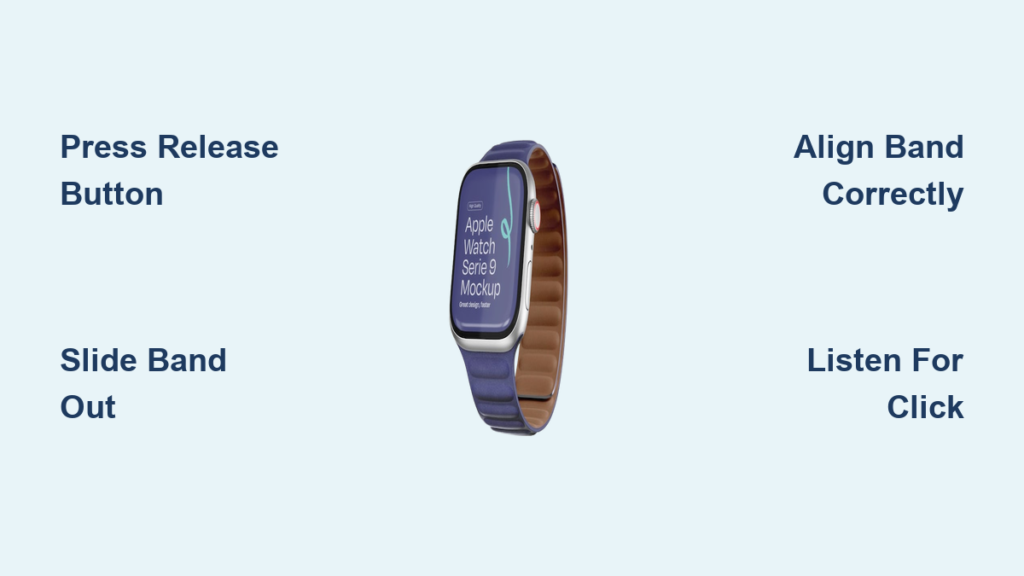
Changing the strap on your Apple Watch is one of the simplest yet most effective ways to personalize your device—whether you’re switching from a sleek Milanese Loop for the office to a rugged Ocean Band for weekend hiking. The entire process takes less than 10 seconds, requires no tools, and works across nearly every Apple Watch model. All bands use Apple’s intuitive quick-release mechanism, designed for smooth, secure swaps that even first-time users can master. In this guide, you’ll learn how to remove and attach any band with confidence, avoid common mistakes, ensure compatibility, and keep your watch functioning at its best. Whether you’re upgrading to a new model or just refreshing your style, this step-by-step walkthrough covers everything you need to know.
Find the Release Buttons

Locate the Quick-Release Mechanism
Flip your Apple Watch over and examine the lugs—the small arms extending from each side of the case that hold the band in place. You’ll notice a small oval-shaped button on the inner edge of each lug. These are the quick-release pins, and they control a spring-loaded mechanism that locks the band securely into the watch.
Visual cue: When pressed, the button sinks slightly into the case. This disengages the internal locking prong, allowing the band to slide out.
These buttons are subtle but responsive. Apple designed them to prevent accidental release while still being easy to operate with your fingers.
Press and Hold Firmly
Use your thumb or fingernail to press one release button all the way in. Apply steady pressure—don’t just tap it. You should feel a slight give as the pin depresses. Once fully pressed, hold it down while you begin to slide the band out.
Pro tip: If you have thick nails or limited finger strength, use Apple’s official band removal tool, a paperclip, or a SIM ejector pin. These tools offer precise pressure without risking scratches. Avoid sharp or abrasive metal objects that could damage the aluminum or stainless steel casing.
Remove the Current Band
Slide the Band Out Smoothly
While holding the release button, gently slide the band straight out from the lug. The movement should be smooth and linear—never twist, pry, or yank. The band will come free with light resistance once the pin is fully disengaged.
Common mistake: Pulling at an angle can misalign the connector or damage the internal spring. Always pull parallel to the watch face.
Repeat on the Other Side
Once one end is removed, repeat the process on the opposite lug. You don’t need to remove both sides simultaneously—do one at a time to maintain control. After both ends are detached, set the band aside in a safe place.
Special Cases: Metal and Link Bands

Milanese Loop
- On models from 2018 onward, the magnetic clasp slides off the lug entirely. Remove the clasp first by sliding it through the loop, then detach the band using the quick-release pin.
- On older models, the clasp doesn’t detach—simply press the release button and slide the band out like any other.
Link Bracelet
- Before removal, close the butterfly clasp to keep the links secure.
- Press the inner release button on the link to separate the two halves.
- Then, detach each half from the watch using the standard quick-release pins on the lugs.
Warning: Never force the links apart. Use gentle, even pressure to avoid bending or damaging the delicate hinges.
Solo Loop & Braided Solo Loop
- These seamless silicone bands have no release mechanism.
- To remove, simply stretch the band from the bottom and slide it off your wrist.
- The band stays attached to the watch at all times—no detachment required during normal use.
Choose the Right Replacement Band
Match Your Watch Case Size
Apple Watch bands are not universal—they must match your watch’s case size, not your wrist size. Using the wrong band can result in a loose fit or damage to the lugs.
| Watch Model | Compatible Band Sizes |
|---|---|
| Apple Watch SE (1st/2nd gen), Series 1–9 | 40mm / 41mm, 44mm / 45mm |
| Apple Watch Ultra, Ultra 2 | 49mm (also fits 44mm, 45mm, 46mm bands) |
Key rule: A 41mm watch needs a 41mm band. A 45mm needs a 45mm. Even a 1mm mismatch can affect fit and sensor performance.
Check Band Type Compatibility
All modern Apple Watch bands—from the Sport Band to the Trail Loop—use the same quick-release system. This includes:
– Sport Band
– Leather Loop
– Milanese Loop
– Link Bracelet
– Solo Loop
– Ocean Band
– Trail Loop
– Alpine Loop
– Modern Buckle
Exception: Apple Watch Ultra’s rugged bands (Ocean, Trail, Alpine) are optimized for 49mm but work with smaller watches if sized correctly.
Attach the New Strap
Align the Band Correctly
Hold the new band so the text faces you (e.g., “Apple” visible). This ensures proper orientation. Insert one end into the lug slot, making sure the metal tooth (if present, as on Ocean or Trail bands) is facing downward.
Visual check: The ridged edge of the band should sit flush against the watch case. If it’s tilted or raised, it’s likely upside down.
Slide Until It Clicks
Push the band in until you hear and feel a distinct click. This confirms the internal prong has locked into place. If you don’t hear a click, the band isn’t fully seated.
Troubleshooting: Wiggle the band slightly left and right while pushing. Never force it—misalignment can bend the connector or damage the release mechanism.
Secure the Other Side
Repeat the process on the opposite lug. Always attach one side at a time. Do not attempt to snap both ends in simultaneously—it increases the risk of misalignment.
Safety check: After both sides are attached, gently tug the band. It should stay firmly in place unless you press the release button.
Fix Common Installation Issues
Band Won’t Detach
Cause: Button not fully pressed or debris blocking the slot
Fix: Press deeper, clean the lug with a dry cloth or compressed air, or try removing from the other side first.
Band Won’t Click Into Place
Cause: Upside-down insertion or lint in the connector
Fix: Flip the band, check orientation, and inspect for dust. Ensure the metal tooth faces down.
Band Feels Loose or Wobbles
Cause: Incomplete locking or worn spring
Fix: Remove and reattach, confirming the click. If the issue persists, contact Apple Support—the internal mechanism may be damaged.
No Click Felt
Cause: Shallow insertion or misalignment
Fix: Slide fully in, keep the band parallel, and verify text is facing outward.
Optimize Fit and Function
Snug, Not Tight
Wear your Apple Watch snug but comfortable on the top of your wrist. Leave about a finger’s width of space for airflow. Too tight restricts blood flow; too loose disrupts sensor readings.
Sensor impact: A loose band can cause inaccurate heart rate tracking, failed ECG readings, and interrupted wrist detection.
Position for Best Performance
Place the watch on the top of your wrist, not the side or underside. This ensures consistent contact between the optical sensor and your skin.
Workout tip: For running or gym sessions, wear it slightly tighter to prevent bounce—just not so tight that it cuts off circulation.
Maintain Your Watch and Bands
Clean the Connector Slots
After each band swap, wipe the lug slots with a dry microfiber cloth. Sweat, lint, and oils can accumulate and interfere with the release mechanism over time.
Pro habit: Clean monthly, even if you’re not changing bands.
Care for Different Materials
- Silicone (Sport Band): Wash with mild soap and water. Air dry completely.
- Leather & Leather Loop: Wipe with a dry cloth. Avoid moisture and sunlight.
- Metal (Milanese, Link): Polish with microfiber. Check for loose links or magnet wear.
- Fabric (Alpine, Trail, Braided Solo): Hand wash in cold water. Lay flat to dry—never wring.
Troubleshooting Table: Quick Reference
| Issue | Solution |
|---|---|
| Band sticks during removal | Press release button fully; clean slot |
| Click not heard on insertion | Realign and push until click; check orientation |
| Band wobbles after install | Remove and reattach; confirm both sides clicked |
| Scratches on case | Avoid metal tools; use fingers or soft pick |
| Sensor errors after change | Ensure snug fit; reposition on wrist |
Pro Tips for Smarter Swaps
- Test bands before buying—use Apple’s in-store try-on or online virtual preview.
- Carry a spare band—a Sport Band or Solo Loop in your bag is perfect for workouts.
- Store bands safely—tuck prongs into a soft pouch to prevent damage.
- Use OEM bands for guaranteed fit, finish, and durability.
- Size Solo Loops carefully—when upgrading to Apple Watch Ultra, you may need a smaller size due to the thicker case.
Final Checklist: Did You Do It Right?
✅ Watch face down on soft surface
✅ Release buttons fully depressed
✅ Band slides out without force
✅ New band aligned (text facing you)
✅ Click felt on both sides
✅ Band secure when tugged
✅ Watch fits snugly on wrist
✅ Sensors making skin contact
✅ Connector slots clean
You’re Done—Enjoy Your New Look
Changing the strap on your Apple Watch isn’t just easy—it’s designed to be part of your daily experience. With the press, slide, and secure method, you can switch from office to gym to evening out in seconds. No tools, no hassle, just instant customization. Now that you know how to do it right, keep a few bands on hand and make your Apple Watch work for every moment of your life.