You crushed a 45-minute spin class but forgot your Apple Watch on the gym bench. You went for a sunrise trail run without it. Or maybe you tried rock climbing—a workout your watch doesn’t automatically track. Whatever the reason, your Activity rings don’t have to reflect an incomplete picture of your effort. The good news: you can manually add exercise to Apple Watch and still get full credit for your hard work.
Apple’s Health ecosystem is designed with flexibility in mind. Even if you didn’t wear your watch during a workout, you can log it retroactively using either the Health app on iPhone or the Workout app on Apple Watch. This ensures your Move, Exercise, and Stand rings accurately capture your daily activity—so one missed session doesn’t derail your streak.
In this guide, you’ll learn exactly how to add, edit, and verify manual workouts—step by step. We’ll cover the correct paths in iOS 18.5+, what data is required for ring credit, which workout types are supported, and how to avoid common errors that prevent logging success.
Access the Health App on iPhone to Add Workouts
The Health app is the most powerful way to manually log workouts. It gives you full control over workout type, duration, calories, and exact timing.
Use the Summary Tab (iOS 18.5 and Later)
If you’re running iOS 18.5 or newer, Apple has changed the interface, and the old navigation path may not work. Don’t rely on search—here’s the reliable method:
- Open the Health app on your iPhone.
- Tap the Summary tab at the bottom.
- Scroll down until you see the Workouts section under “Highlights.”
- Tap “Add Data” in the top-right corner.
✅ This route bypasses the unreliable Search function and works even when Browse doesn’t show Workouts.
Once you tap “Add Data,” you’ll be taken directly to the workout entry screen where you can fill in all details.
Use the Browse Tab (Older iOS Versions)
For users on iOS versions before 18.5, follow the traditional path:
- Open the Health app.
- Tap Browse (bottom right).
- Scroll down and tap Activity.
- Select Workouts.
- Tap the + Add button in the upper-right corner.
⚠️ Avoid using the Search bar. Many users report that typing “Workouts” fails to bring up the correct section. Always scroll manually through the list to find it.
Enter Workout Details for Full Ring Credit
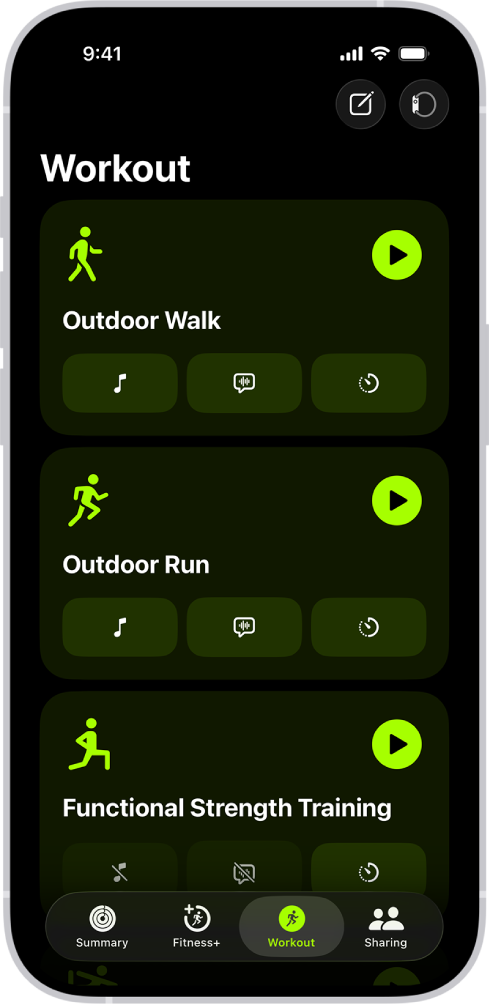
Simply logging a workout isn’t enough—you must enter the right data to ensure your Activity rings update properly.
Select Workout Type and Accurate Time
After tapping Add Data, the first step is selecting:
- Workout Type: Choose from over 20 options like Running, Cycling, HIIT, Yoga, or Swimming.
- Start Date & Time: Set the actual start time of your workout.
- Duration or End Time: Enter how long it lasted—this directly affects your Exercise ring.
💡 Pro Tip: For unlisted activities like rock climbing or fencing, pick the closest match (e.g., “Other” or “Circuit Training”) to preserve fitness trends.
Input Active Calories for Move Ring Credit
- Calories burned (active): This field is required to earn credit in your Move ring.
- You can estimate calories using gym equipment, heart rate monitors, or third-party apps like MyFitnessPal or Strava.
- Optional fields: Distance, average heart rate (if known).
❗ Never skip calories—without this, your Move ring won’t increase, even if you logged time and type.
Tap Add when done. The workout syncs instantly across your iPhone, Apple Watch, and iPad via iCloud.
Add a Workout Directly from Your Apple Watch
No iPhone nearby? You can still log a missed workout right from your wrist.
Navigate to the Add Workout Option
- Open the Workout app on your Apple Watch.
- Scroll all the way down the list of workout types.
- Tap “Add Workout” at the bottom.
🕒 This is perfect for quick logging—say, after remembering you forgot your watch during a morning jog.
Choose Activity and Save Details
- Select the correct workout type.
- Adjust:
– Duration (start/end time or total minutes)
– Calories burned - Tap Add or Save.
✅ Result: The workout appears in your Health and Activity apps and counts toward both Move and Exercise rings.
💬 Note: Unlike live workouts, there’s no closing animation or haptic tap when saving manually. You’ll just see a confirmation screen before returning to the home view.
Ensure Your Activity Rings Update Correctly
Adding a workout doesn’t guarantee ring credit—Apple applies specific rules.
Move Ring: Active Calories Are Key
- The Move ring increases by the number of active calories you enter.
- Only active calories count—total calories (if entered) are ignored.
- Example: Enter 250 active calories → Move ring increases by 250.
🔄 If your ring doesn’t update immediately, wait 1–2 minutes, then pull down in the Activity app on your Apple Watch to refresh.
Exercise Ring: Valid Duration and Timing Required
- Must have a start and end time (minimum 1 minute).
- The duration you enter adds directly to your Exercise ring.
- Example: A 30-minute yoga session = +30 minutes to your Exercise ring.
❌ Entering calories without correct timing may not count. Always set accurate start and end times.
Stand Ring: Not Affected by Manual Entries
- Manual workouts do not add Stand hours.
- You still need to stand and move for at least 1 minute in 12 different hours of the day.
🔍 The Stand ring relies on motion detection, not logged workouts—so manual entries won’t help close it.
Supported Workout Types for Manual Entry
You can manually log any activity available in the Apple Watch system.
Common Supported Types Include:
- Running (Outdoor/Indoor)
- Cycling (Outdoor/Indoor)
- Swimming (Pool/Open Water)
- Walking, Hiking, Stair Climbing
- Elliptical, Rowing, Functional Strength Training
- HIIT, Dance, Yoga, Tai Chi
- Core Training, Flexibility, Mixed Cardio
- “Other” (custom placeholder)
🎯 Best Practice: Avoid overusing “Other.” Pick the most accurate type so your Fitness app trends stay meaningful.
❗ For niche activities (e.g., paddleboarding, fencing), choose the closest match or use “Other” and label it clearly in notes or via third-party apps.
Edit or Delete a Manual Workout
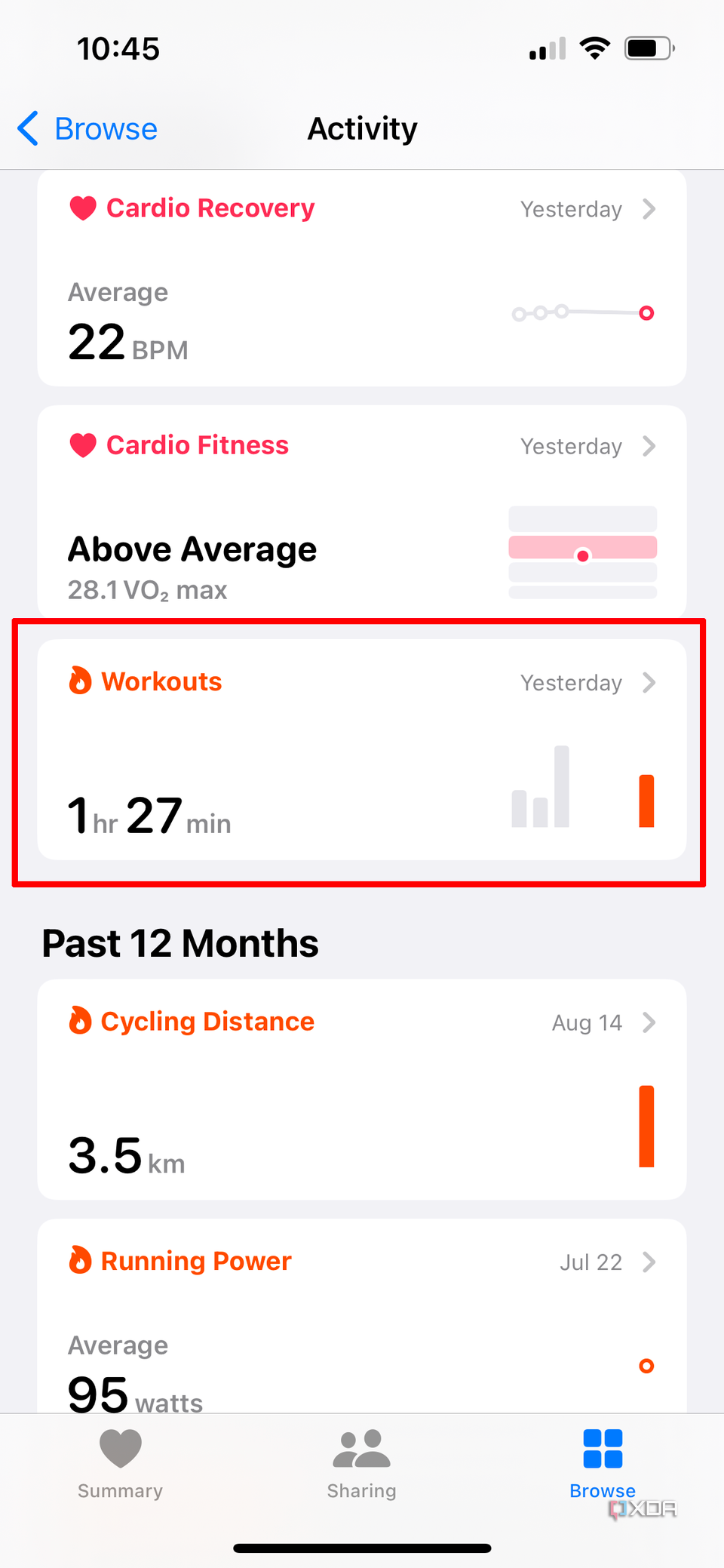
Made a mistake? You can fix it—or remove the entry entirely.
How to Edit a Workout
- Open the Fitness app on iPhone (or Activity app).
- Go to History.
- Find the workout by date.
- Tap to open details.
- Tap Edit (top-right).
- Change:
– Workout type
– Duration
– Start/end time
– Calories (in most versions)
⚠️ Some iOS 18.5 users report the calorie field is locked after saving. If so, delete and re-add the workout.
How to Delete a Workout
- Open the workout details.
- Tap Edit.
- Scroll down and tap Delete.
- Confirm.
🔄 Changes sync automatically across all your Apple devices via iCloud.
Troubleshoot Common Issues

Sometimes entries don’t show up right away. Here’s how to fix it.
Rings Not Updating?
Wait 1–2 minutes, then:
- Open Activity app on Apple Watch.
- Pull down to force-refresh.
- Check that iCloud Health sync is enabled.
Go to Settings > [Your Name] > iCloud > Health and ensure the toggle is on.
Can’t Find the Add Button?
Try these fixes:
- Restart the Health app.
- Reboot your iPhone.
- Use Summary > Workouts > Add Data instead of Search.
- Update to the latest iOS and watchOS versions.
🛠️ The Search function in the Health app is often broken. Always scroll manually.
Best Practices for Accurate Logging
Keep your fitness data reliable with these tips.
Log Workouts the Same Day
Memory fades fast. Add workouts on the day they happen to avoid incorrect estimates.
Use Equipment or App Data
Refer to:
– Treadmill, bike, or elliptical displays
– Gym class summaries
– Third-party apps like Strava or MyFitnessPal
These provide accurate calorie and time data.
Be Specific with Types
Avoid overusing “Other.” Choose precise categories so Apple Fitness trends stay useful.
Check Timezone Settings
Ensure your iPhone’s clock is correct. Wrong time zones can skew timestamps and affect daily logging.
Try Siri Shortcuts
Say:
“Hey Siri, add a workout”
or
“Start a run workout”
Siri may open manual entry or live tracking, depending on context.
📢 Note: Siri support for full manual input varies—best for starting live sessions.
Understand the Limitations
Manual entry is powerful—but not magic.
No Real-Time Biometrics
- Cannot add actual heart rate zones, cadence, or GPS route.
- You can enter average heart rate, but it won’t reflect zones or variability.
No Batch Entry
- Each workout must be added one at a time.
- No way to import multiple workouts in bulk.
No Built-In Calorie Calculator
- Apple doesn’t estimate calories based on weight, duration, or intensity.
- You must know or estimate them yourself.
💡 Use online calculators or fitness machine readouts for better estimates.
No Haptic Feedback
- No tap on the wrist or closing chime.
- You won’t see the “Good Job” screen on your watch.
Final Note
Manually adding exercise to Apple Watch keeps your Activity rings honest—even when life gets in the way. Whether you forgot your watch, tried a new sport, or used gym equipment without it, you can still get credit.
Use the Health app on iPhone for full control or the Workout app on Apple Watch for quick logging. Always include correct start/end times and active calories to ensure Move and Exercise ring updates.
With consistent manual entries, your weekly trends, monthly summaries, and long-term fitness progress stay accurate and motivating. Don’t let a missed session break your streak—just add it back in.
Leave a Reply