
You just finished an intense boxing session, powered through a 45-minute HIIT class, or swam 20 laps—but your Apple Watch wasn’t tracking. Maybe the battery died, you forgot to start the workout, or the activity wasn’t compatible with real-time monitoring. Whatever the reason, your effort still counts. Thanks to Apple’s seamless integration between the Health app and Fitness app, you can add a missing workout to Apple Watch manually and ensure your Activity rings, streaks, and fitness goals stay on track.
The good news? Even if you weren’t wearing your watch, the workout will sync across your devices and contribute fully to your daily progress. No credit lost. No streak broken. In this detailed guide, you’ll learn how to add a workout using both the Health app and Fitness app, what data is required for full ring credit, how to estimate calories accurately, and how to troubleshoot common syncing issues.
Add Missing Workout Using the Health App
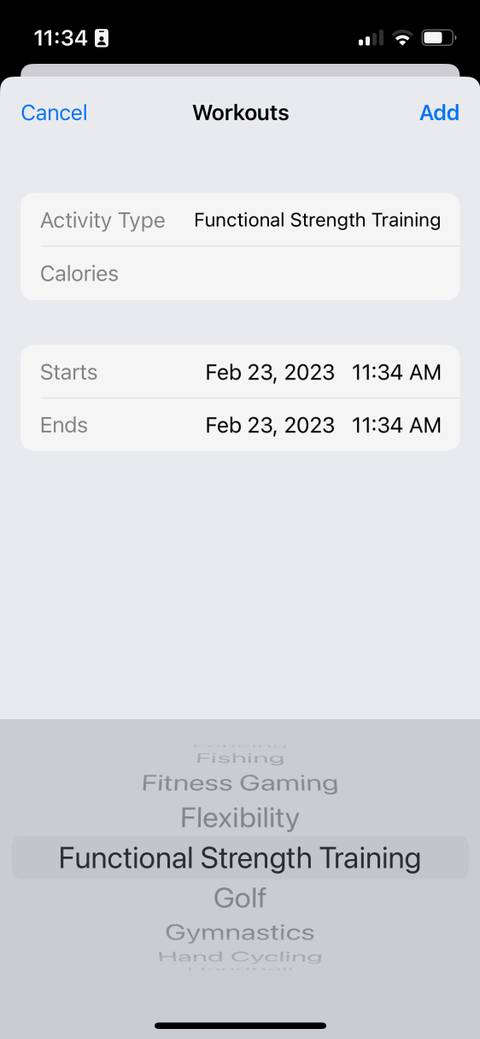
The Health app is the most comprehensive way to manually log a workout. It gives you full control over timing, calories, and activity type, making it ideal for backdating sessions or logging high-contact sports that aren’t wearable-friendly.
Open Health and Navigate to Workouts
- Launch the Health app on your iPhone.
- Tap the Browse tab at the bottom.
- Scroll down and select Activity.
- Choose Workouts.
- Tap the + (Add Data) button in the top-right corner.
This brings up the manual entry screen, where you can input all the details of your missed workout.
Enter Accurate Workout Details
To ensure the workout counts toward your Activity rings, you must fill in the following fields:
- Activity Type: Pick the closest match—e.g., “Functional Training” for boxing, “Swimming” for laps, “Indoor Run” for treadmill.
- Start & End Time: Set the exact time the workout occurred, even if it was yesterday.
- Calories Burned: This is required for Move ring credit.
- Distance: Optional, but useful for runs, cycles, or swims.
- Heart Rate: Only include if you have a reliable measurement (e.g., from a gym machine).
- Effort Level: Choose Low, Medium, or High based on intensity.
💡 Pro Tip: For Exercise minutes (green ring), both start and end time must be set. For Move ring (red ring), calories burned is mandatory. Skip either, and your rings won’t update.
Once all details are entered, tap Add. The workout will sync to your Apple Watch within seconds and appear in your Activity history.
Add Workout via the Fitness App (Faster Alternative)
If you prefer a clean, fitness-focused interface—especially as an Apple Fitness+ subscriber—the Fitness app offers a quicker and more intuitive way to log manual workouts.
Start a New Manual Workout
- Open the Fitness app on your iPhone.
- Tap the Workout tab at the bottom.
- Tap the New icon (a pen over a document) in the top-right corner.
- Select your Workout Type—options include HIIT, Indoor Cycling, Swimming, Yoga, Rowing, and more.
This method supports niche activities that may not be easily tracked in real time, such as martial arts or dance-based workouts.
Input Time, Duration, and Calories
Fill in:
– Date and Time: Adjust to the correct day and start time.
– Duration: For example, 30 minutes.
– Distance: If applicable (e.g., 5 km run).
– Lengths: For swimming (e.g., 20 laps).
– Calories Burned: Use a gym machine reading or estimate.
– Effort Level: Set manually—don’t rely on auto-filled heart rate.
Tap Done. The workout syncs automatically to your Apple Watch and appears in your Activity app.
⚠️ Warning: The Fitness app may auto-fill heart rate from a recent period when the watch was worn. If you weren’t wearing it during the actual workout, this data is inaccurate. Always manually set effort level to reflect real exertion.
Ensure Full Activity Ring Credit
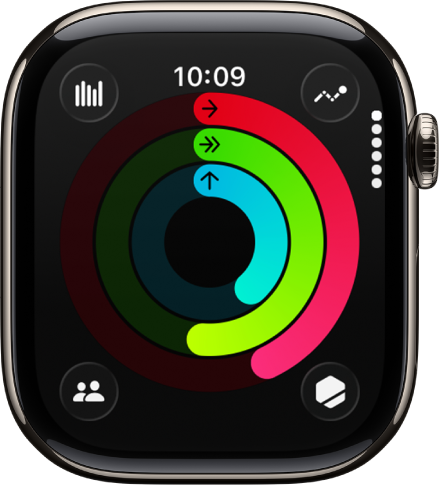
Manually added workouts do count toward your Activity rings—but only if you enter the correct data.
Unlock Exercise and Move Goals
- ✅ Exercise Ring (Green): Requires valid start and end time.
- ✅ Move Ring (Red): Requires calories burned.
- ✅ Stand Ring (Blue): Not affected—earned by standing and moving for at least 1 minute per hour.
❗ If your rings didn’t update, check that both time and calories were entered. One missing field means no credit.
View Workout on Apple Watch
After syncing:
– Open the Activity app on your Apple Watch.
– Swipe to History or Weekly view.
– Confirm the workout appears and rings reflect the update.
If it’s not visible immediately, wait 1–2 minutes. A weak Bluetooth or Wi-Fi connection can delay syncing.
Choose the Correct Activity Type
Selecting the right category ensures accurate data tracking and meaningful insights over time.
Match Your Workout Accurately
| Your Activity | Best Apple Category |
|---|---|
| Boxing, MMA, Wrestling | Functional Training or Other |
| Pool Swimming | Swimming |
| Treadmill Run | Indoor Run |
| Spin Class | Indoor Cycling |
| Yoga or Pilates | Yoga |
| Hiking | Outdoor Walk or Hiking |
| Elliptical | Elliptical |
| HIIT or Circuit Training | HIIT |
🔍 Why it matters: Using “Other” limits historical analysis. Choose the closest supported type for better trend tracking and workout summaries.
Estimate Calories Burned Accurately
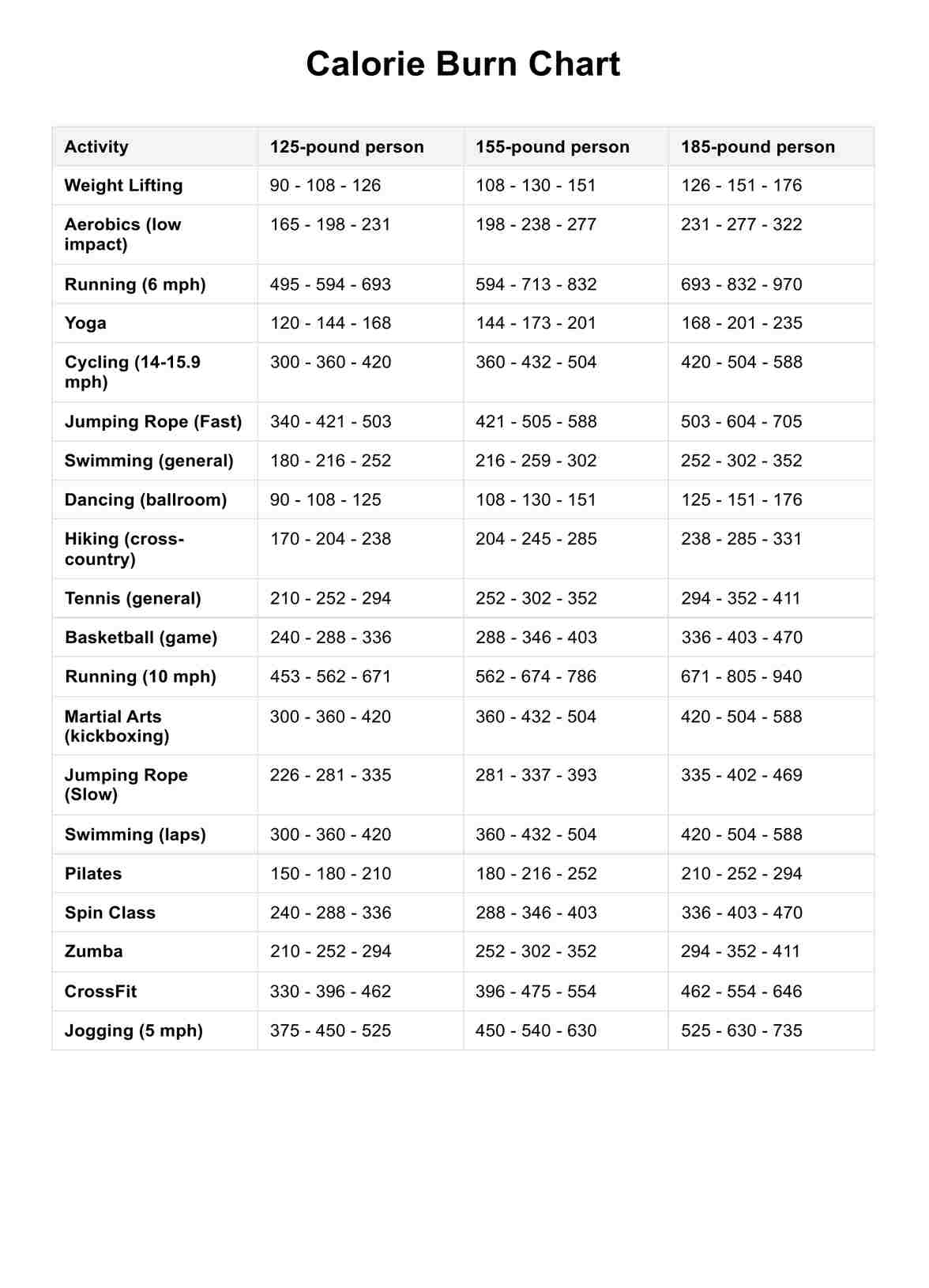
Since the Apple Watch can’t measure calories retroactively, you’ll need to estimate based on your effort.
Use Trusted Calorie Calculators
Input:
– Your weight
– Activity type
– Duration
Examples:
– 45-minute run (150 lbs): ~400–500 calories
– 30-minute HIIT: ~300–400 calories
– 60-minute swim: ~500–600 calories
💡 Tip: Gym machines often overestimate by 20–30%. Use the ACE Fitness Calorie Calculator or similar tools for more realistic numbers.
Avoid inflating calories—this can skew your daily Move goal and make future targets harder to hit.
Fix Common Sync Issues
Sometimes the workout doesn’t appear right away or doesn’t update your rings.
Workout Not Showing on Apple Watch?
Try these steps:
1. Wait 1–2 minutes—syncing happens automatically.
2. Ensure Bluetooth is on and your iPhone is nearby.
3. Force restart the Activity app on Apple Watch (press and hold the side button, then swipe to close).
4. Open the Fitness app and confirm the workout is listed.
If still missing, re-enter the workout and check your internet connection.
Rings Didn’t Update?
Most likely causes:
– ❌ Forgot to enter calories burned
– ❌ Skipped start or end time
– ❌ Entered time outside the current day
Go back to the Health app, edit the workout, and correct the fields.
Duplicate Workout Appeared?
If auto-detection and manual entry both logged the same session:
1. Open Health app > Workouts.
2. Find the duplicate.
3. Tap and hold, then select Delete.
Keep only one entry to avoid inflated stats.
When to Use Manual Logging
Manual workouts are essential in real-world scenarios where tracking fails.
Common Use Cases
- High-contact sports: Boxing, wrestling, martial arts
- Water activities: Swimming, surfing (watch not worn)
- Gym machines: Treadmill, elliptical, bike—forgot to start
- Travel or charging: Watch was off or left behind
- Low-impact sessions: Yoga, stretching, mobility work
🎯 Pro Tip: Even a 10-minute walk can be logged to preserve your streak during illness or travel.
Avoid These Common Mistakes
Small errors can prevent ring credit or distort your fitness data.
Don’t Skip Calories or Time
Leaving either blank means:
– No Move ring progress
– No Exercise minutes
Always fill both fields.
Don’t Rely on Auto Heart Rate
If the watch wasn’t worn, any heart rate pulled from nearby periods is not accurate. Manually set effort level instead.
Don’t Use Wrong Dates
Backdating is fine, but ensure the correct day is selected. A workout on Monday won’t help your Tuesday rings.
Advanced Tips for Better Tracking
Go beyond basics and make manual logging work smarter.
Log Workouts Immediately
Add the session the same day. It’s easier to recall duration and effort level.
Keep a Workout Journal
Use Notes or a fitness app to record:
– Start/end time
– Estimated calories
– Type and intensity
This speeds up manual entry later.
Combine with Third-Party Apps
If you use Strava, MyFitnessPal, or Garmin:
1. Ensure they sync to the Health app.
2. Check that workouts appear in Workouts list.
3. If not, manually add to avoid gaps.
🔗 Manual entry fills the gap when integration fails.
Frequently Asked Questions
Can I add a workout if I wasn’t wearing the Apple Watch?
Yes. Use the Health or Fitness app on iPhone to log it. It will sync and count toward your Activity rings.
Why didn’t my rings update after adding a workout?
You likely missed calories burned or start/end time. Edit the workout and ensure both are entered.
Do manual workouts count in competitions?
Yes. Manually added workouts contribute fully to Activity competitions with friends.
Can I edit or delete a manual workout?
Yes. In the Health app > Workouts, tap the entry, then Edit or Delete.
Does Apple Fitness+ track manual workouts?
Not directly—but they appear in your Fitness app history and contribute to overall activity trends.
Final Note: Manually adding a missing workout to Apple Watch is simple, powerful, and essential for accurate fitness tracking. Whether you forgot to start the app, left your watch behind, or did a workout it can’t track, this feature ensures your effort isn’t lost. Use the Health or Fitness app, enter time and calories, and keep your streaks, rings, and motivation strong—no matter the circumstances.





