
You’ve been on your feet all day—working at a standing desk, caring for a child, or pacing during phone calls—but your Apple Watch still shows a red gap in the Stand ring. You’re not imagining it. The watch doesn’t just track posture; it requires arm movement that mimics walking to register a stand hour. If your wrist stays still, even hours of standing go uncredited. But here’s the good news: you can add stand hours manually, even if the watch missed them.
The Stand ring (blue) fills when you stand and move for at least one minute during 12 separate hours of the day. While Apple doesn’t let you edit Stand hours directly, you can use indirect workarounds—like adding a minimal workout—to trick the system into giving you credit. This method works on iOS 16 through iOS 18 and watchOS 9+, and has been tested by thousands of users to recover lost progress, maintain streaks, or correct tracking gaps.
In this guide, you’ll learn four proven methods to add stand hours—manually, automatically, and ethically—plus troubleshooting tips, privacy tricks, and how to adjust your goal instead of forcing data.
How Stand Hours Actually Work

Why Your Watch Misses Standing Time
The Apple Watch uses its accelerometer and gyroscope to detect when you transition from sitting to standing and move your arm. But it doesn’t just track posture—it looks for motion that mimics walking. If you’re upright but your arm is still (e.g., holding a baby, typing, or resting on a desk), the watch may not register the hour.
- ✅ Counts: Standing + arm swing (like walking)
- ❌ Doesn’t count: Standing still, arms idle
Even full-day standing desk use can go uncredited. That’s why Apple includes stand reminders—to prompt movement, not just posture.
You Can Customize Your Stand Goal
Introduced in watchOS 7, you can lower your Stand goal from 12 to as few as 1 hour per day:
- Open Activity on Apple Watch.
- Scroll to Change Goals.
- Adjust Stand Hours with the Digital Crown.
- Tap OK.
This is ideal for rest days, travel, or chronic conditions—no manual entry needed.
Add Stand Hour via Health App
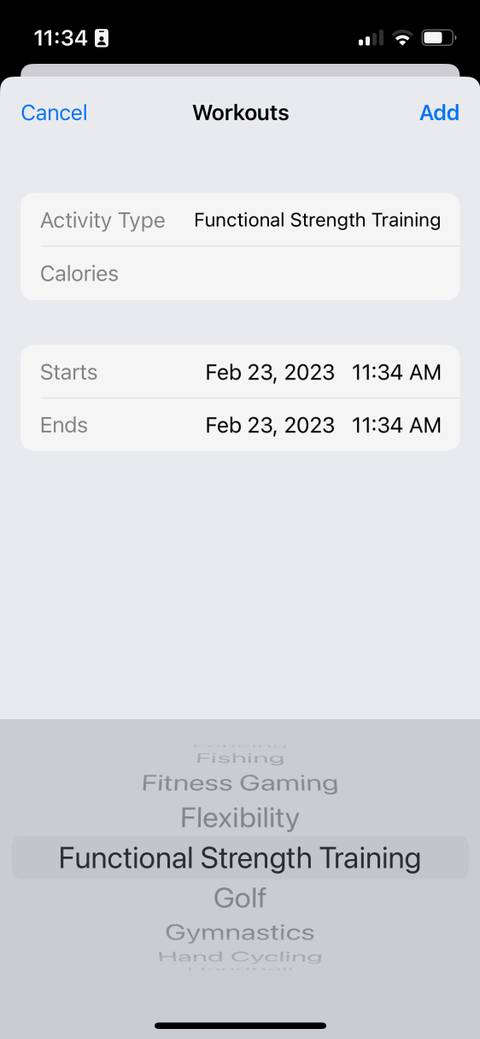
Manually Log a Stand-Friendly Workout
Since Apple doesn’t let you edit Stand hours directly, you’ll use a workaround: log a minimal workout that automatically counts as a stand hour.
Step-by-Step Instructions
- Open the Health app on iPhone.
- Tap Browse > Activity > Workouts.
- Tap the + in the top-right to add data.
Enter These Details
| Field | Value |
|---|---|
| Activity Type | Other (or Walking) |
| Start Time | Any time within the missing hour (e.g., 2:30 PM) |
| End Time | Same as start, or 1 minute later |
| Calories | 0 (or 3 if 0 fails) |
| Distance | Leave blank |
| Date | Select the correct day |
- Tap Add.
✅ Pro Tip: A 1-minute, 3-calorie “Walking” workout has the highest success rate. Some users report 0-minute entries don’t always register.
Final Steps
- Close and reopen the Activity app on iPhone and Apple Watch.
- Wait 5–10 minutes—syncing can be delayed.
- Check your Stand ring. The missing hour should now fill.
This method works for today and yesterday, though success drops for older dates.
Automate With Shortcuts App
Use a Pre-Made Shortcut
Save time with automation. A popular shortcut called “Add Stand Hour” logs the workout with one tap.
How to Install
- Open this link on your iPhone:
Add Stand Hours Shortcut - Tap Get Shortcut > Add Shortcut.
It now appears in your Shortcuts app.
How to Use
- Open Shortcuts.
- Tap Add Stand Hour.
- Choose date and time (e.g., “Yesterday at 11 AM”).
- Tap Done.
The shortcut logs a 1-minute, 0-calorie “Other” workout at your specified time.
💡 Bonus: Add the shortcut to Siri or Today View for instant access. Just say, “Hey Siri, add a stand hour.”
Create Your Own Shortcut
Want full control? Build it yourself:
- Open Shortcuts app.
- Tap + to create new shortcut.
- Add action: Log Workout.
- Set:
– Workout Type: Other
– Duration: 1 minute
– Calories: 0
– Date: “Ask Each Time” - Tap Next > Done.
- Name it: “Add Stand Hour”.
Now run it anytime—perfect for recurring fixes.
Use Third-Party Apps Like LastStand

Try LastStand for Ethical Ring Closure
LastStand is a dedicated App Store tool designed to help users honestly close their Stand ring after real standing.
- Guides you through a 60-second stretch routine (arms moving).
- Logs a workout to Apple Health.
- Encourages actual movement, not deception.
It’s ideal if you:
– Stand all day but get no credit
– Want to preserve a streak without misleading data
– Prefer a polished, user-friendly interface
The app helps you move naturally, then logs it—so you’re not “cheating,” just correcting tracking flaws.
Sync From MyFitnessPal or Fitness Apps
Backfill via Connected Apps
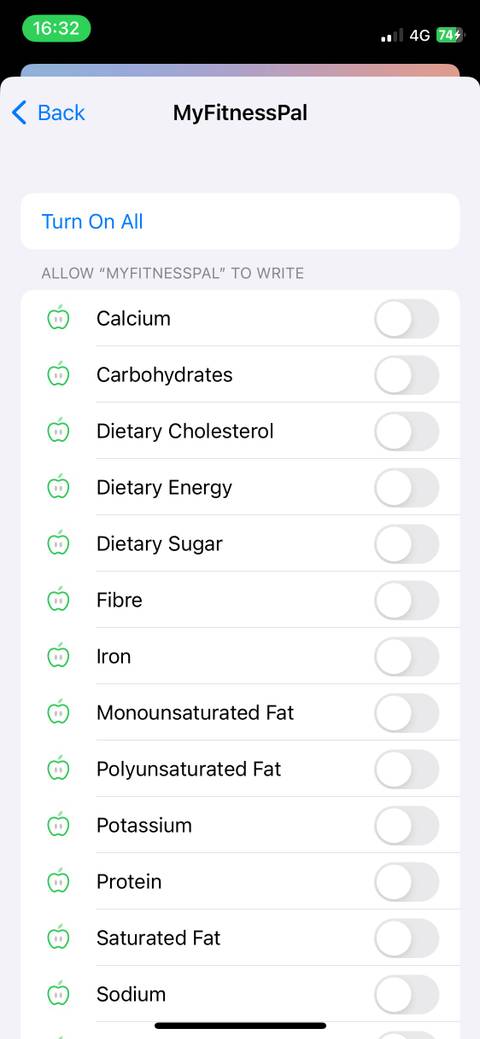
If you use MyFitnessPal, Strava, or similar apps, you can log a stand hour there and sync it to Apple Health.
Steps
- Open MyFitnessPal.
- Tap Add Exercise.
- Create a custom activity: “Standing”.
- Set:
– Duration: 1 minute
– Calories: 0–3 - Save and sync with Apple Health.
✅ Ensure Health permissions are enabled in MyFitnessPal settings.
Within minutes, the workout appears in Apple Health and credits a stand hour.
This method is best for users already tracking activity or nutrition in third-party apps.
Delete the Workout After Adding
Keep the Credit, Lose the Trace
Here’s a little-known trick: you can delete the workout entry after it credits the stand hour—and the Stand ring stays full.
How to Do It
- After the ring fills, open Health app.
- Go to Browse > Activity > Workouts.
- Find your manually added workout.
- Tap it > Delete.
✅ The stand hour remains.
❌ The workout log is gone.
This is useful if you:
– Don’t want to inflate your workout history
– Want to maintain privacy
– Use manual entry only for correction
Many long-term streak holders use this to clean up logs while keeping their progress intact.
Fix Common Issues
“Add Data” Button Missing?
If you don’t see the + button in Workouts:
- Cause: Apple requires at least one real workout to unlock manual entry.
- Fix: Go for a 5-minute walk with your watch. Sync to Health. The Add Data option should appear.
Shortcut Fails: “Couldn’t Access Health Data”
- Cause: Shortcuts lacks Health permissions.
- Fix:
1. Go to Settings > Privacy & Security > Health.
2. Tap Workouts and Activity.
3. Enable access for Shortcuts.
4. Retry the shortcut.
Rings Don’t Update After Entry
- Solutions:
- Force quit and reopen Activity and Health apps.
- Restart iPhone and Apple Watch.
- Wait 5–10 minutes—sync delays are common.
Entry Doesn’t Count as Stand Hour
Try these fixes:
– Use 1-minute duration (not 0).
– Enter 3 calories instead of 0.
– Choose Walking instead of “Other.”
– Pick a time before midnight—backdating too far may fail.
Add Stand Hours for Yesterday
Yes, You Can Backdate
You can add stand hours for previous days, but success varies:
- ✅ Yesterday: High success rate.
- ⚠️ Earlier days: Mixed results—some users report entries not registering.
- Best practice: Add missing hours before midnight to ensure credit.
Use the Health app or Shortcuts and set the date field to the day you need.
💡 Pro Tip: If you’re recovering a streak after a device change or sync error, act fast—older entries are less reliable.
Maximize Natural Detection
Improve Accuracy Without Manual Entry
Before resorting to workarounds, try improving detection:
Wrist Movement Tips
- Let your arm hang loose at your side.
- Gently swing your arm forward and back for 30–60 seconds.
- Avoid holding your phone, coffee, or bag with your watch hand.
- Test detection: Sit down, then stand and swing your arm—watch for the tap or haptic.
Optimal Wearing Position
- Wear the watch snug but not tight.
- Position it higher on the wrist (closer to ulna bone) for better motion sensing.
- Avoid wearing it upside-down or too loose.
Even a 10-second arm swing during stand reminders can be enough.
Stay Honest With Yourself
Is This Cheating?
Some users debate the ethics. But for many, this isn’t about faking fitness—it’s about correcting flawed data.
Consider:
– You stood for 3 hours holding a sick child—but no arm motion.
– You work a standing job but type all day.
– You’re in a wheelchair—Apple tracks pushes, but stand detection lags.
Shortcuts like “Did you actually stand?” add accountability:
“Did you move during this hour?”
— If No, the shortcut cancels.
Use these tools to fix errors, not fabricate activity.
Summary: Best Methods Compared
| Method | Works for Past Days? | Speed | Best For |
|---|---|---|---|
| Health App Entry | Yes (limited) | Medium | One-off fixes, full control |
| Shortcuts Automation | Yes | Fast | Frequent users, bulk entries |
| LastStand App | Yes | Fast | Ethical users, clean UI |
| MyFitnessPal Sync | Yes | Medium | Existing fitness app users |
| Lower Stand Goal | N/A | Instant | Rest days, chronic conditions |
Final Tips
- Apple hasn’t blocked these methods as of 2024—they rely on legitimate Health app features.
- Manual workout entry is a design feature, not a hack.
- Use it to recover streaks, correct tracking errors, or accommodate physical limitations.
- For long-term fixes, adjust your goal or improve arm motion during stand hours.
Whether you’re a 300-day streak holder, a caregiver, or a desk worker, you now have the tools to close your Stand ring—fairly and reliably.
“This trick saved my streak after a hospital visit. I was upright for hours, but the watch saw nothing. Manual entry fixed it in seconds.”
— User, Reddit
Your Apple Watch tracks movement—not intent. When it misses the mark, these methods help you set the record straight.




