
Tired of staring at the same default watch face every day? You’re not alone—millions of Apple Watch users unlock a more personalized experience by customizing their watch faces to match their mood, activity, or style. The good news is that adding watch faces to Apple Watch is simple, fast, and fully supported across all models from Series 1 to the latest Series 11. Whether you want a sleek minimalist design, a photo-filled memory gallery, or a data-packed dashboard for workouts, Apple—and third-party developers—make it easy to switch things up in seconds.
In this guide, you’ll learn exactly how to add, customize, manage, and share watch faces like a pro. We’ll cover everything from built-in options in the Watch app to powerful third-party platforms like Clockology and Facer. You’ll also discover tips to optimize battery life, troubleshoot common issues, and create purpose-built faces for work, fitness, and travel. No fluff—just clear, actionable steps that work right now.
Browse and Install Watch Faces Using the iPhone App
The easiest and most powerful way to add watch faces to Apple Watch is through the Face Gallery in the Apple Watch app on your iPhone.
Explore the Full Range of Built-In Faces
- Open the Watch app on your iPhone.
- Tap Face Gallery at the bottom.
- Scroll through curated categories:
– Featured
– Health & Fitness
– Photos
– Data Rich
– New - Tap See All Watch Faces to view every available option.
Each face includes a live preview. Tap any design—like Infograph, Modular, or Chronograph—to explore its variants and customization options before installing.
Customize and Add a Face from Your iPhone
- Tap a watch face (e.g., Solar, California, Astronomy).
- Choose a style variant (e.g., color, layout).
- Tap Add (or Get on older models).
- Customize:
– Color/Style: Adjust dial colors, hand styles, numerals, and gradients.
– Complications: Tap positions (Top, Bottom, Corner) to assign data like:- Heart rate
- Weather
- Calendar events
- Activity rings
- Battery percentage
- To remove a complication: Select Off at the top of the list.
- Tap Add to Watch to save and activate.
Pro Tip: Create multiple versions of the same base face—one with fitness data for workouts, another with calendar and email for work. All saved faces appear in your collection.
Add a Watch Face Directly on Your Apple Watch
No iPhone nearby? You can still add new watch faces directly on your wrist, though with fewer customization tools.
Steps to Install On-Device
- Press and hold the current watch face.
- Swipe left until you see the “+” icon.
- Tap “+”.
- Choose a category or tap All Watch Faces.
- Tap Get next to a design, then Add.
- Tap elements to adjust color or complications.
Note: On-watch editing is limited. For full control—especially over complications—use the iPhone app.
Personalize Colors, Styles, and Complications

A great watch face doesn’t just look good—it delivers the right information at a glance. Use customization to build faces that serve your daily life.
Adjust Visual Design
- Change dial color, hand style, numerals, and background gradients.
- Some faces, like Meridian, animate text updates: “Next Meeting in 15 Min.”
- Use dual-tone effects on Chronograph or Modular faces for a premium look.
Optimize Complication Layouts
Most faces support 3–9 complications. Common options include:
- Calendar
- Heart Rate
- Weather
- Stopwatch
- Music
- ECG (Series 4+)
- Blood Oxygen (Series 6+)
- Air Quality
- World Clock
Example: For a gym session, set:
– Top-left: Heart Rate
– Top-right: Workout
– Bottom: Stopwatch
On supported faces like Infograph or Modular, you can drag complications to reorder or resize them.
Create a Photo-Based Watch Face

Turn your favorite memories into a rotating slideshow on your wrist.
Set Up a Photos Watch Face
- Open Watch app > Face Gallery > Photos.
- Choose a style: Carousel, Shuffle, or Album.
- Select image source:
– Album: Sync a specific photo album.
– Photos: Manually pick images.
– Dynamic: Auto-updates with recent photos.
– Favorites: Shows only your favorite-liked images. - Set photo limit: 25, 100, 250, or 500.
- Tap Add.
Check Sync Settings: Go to Settings > Photos > Sync to Apple Watch and ensure syncing is enabled.
Use Portrait Mode with 3D Depth Effects
Bring your photos to life with parallax and zoom effects using Portrait mode.
How to Set Up the Portrait Watch Face
- Take Portrait mode photos on an iPhone 7 Plus or later.
- Open Face Gallery > Portraits.
- Tap Choose Photos.
- Select up to 24 portrait images.
- Tap Add.
Experience the 3D Effect
- Tilt your wrist to see parallax depth.
- Turn the Digital Crown to zoom in/out.
Requirement: Apple Watch Series 4 or later with watchOS 8 or higher.
Install Custom Third-Party Watch Faces
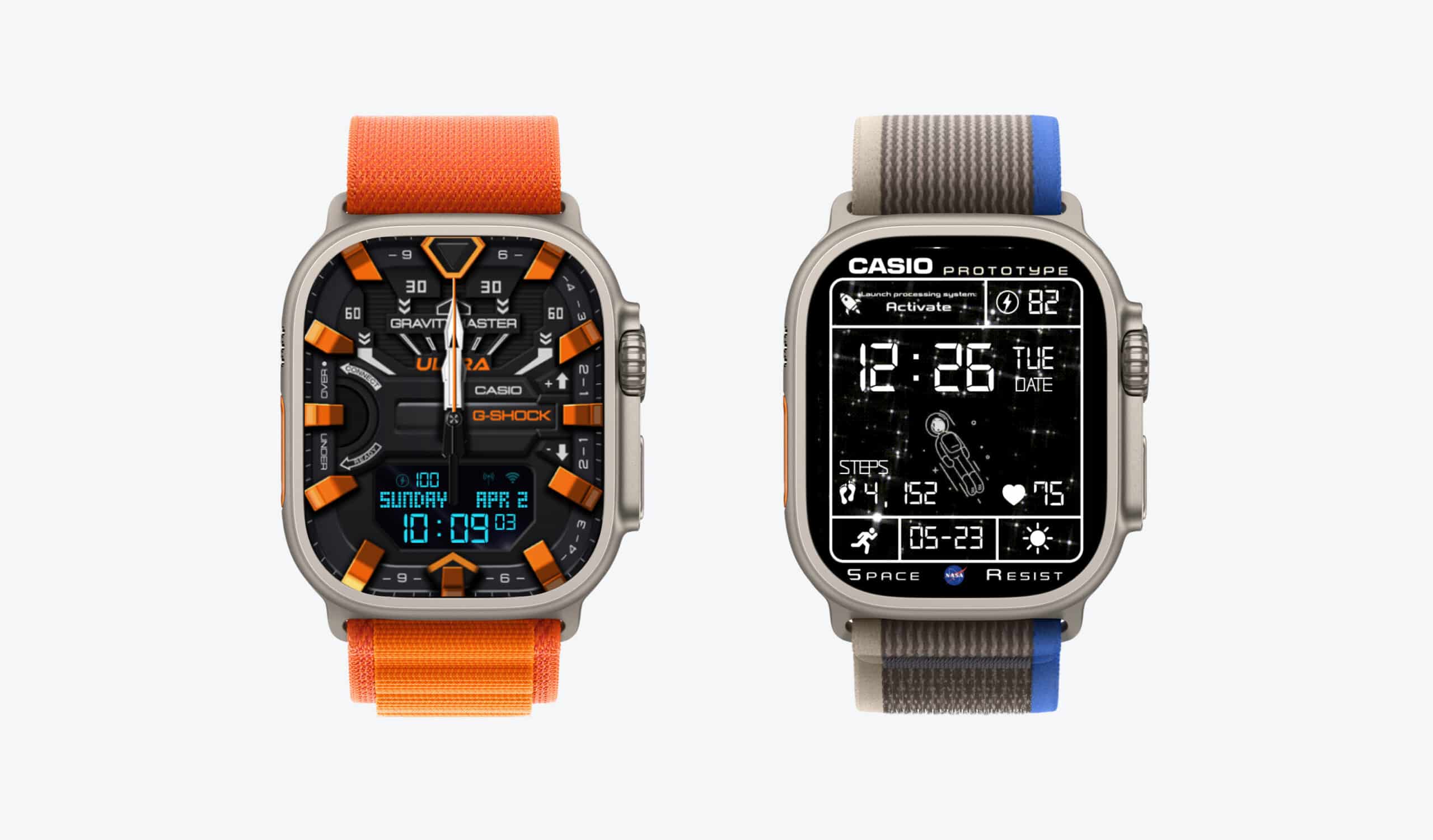
Since watchOS 7, you can install custom watch faces from third-party apps—unlocking thousands of new designs.
Top Third-Party Platforms
Clockology
- Thousands of free and paid faces.
- Deep customization: animations, fonts, layouts.
- User-created designs shared via Reddit and Telegram.
- Runs as a background app—may revert if force-closed.
Facer
- One of the most popular platforms.
- Massive library of community-designed faces.
- Offers Facer Premium (subscription or one-time purchase).
- Faces appear in your regular carousel.
Important: These are not native Apple faces. They run as apps and may impact battery life.
How to Install a Third-Party Face
- Open the App Store on iPhone or Apple Watch.
- Search for “Clockology” or “Facer”.
- Download the app.
- Open it and browse faces.
- Tap Add to Watch.
- The face appears in your collection.
Warning: If the app crashes or updates fail, the face may temporarily disappear.
Organize and Manage Your Watch Faces
Keep your favorite faces accessible and clutter-free.
View All Saved Faces
- On iPhone: Open Watch app > My Watch > My Faces.
- On Apple Watch: Press and hold the display, then swipe through.
Reorder Faces for Faster Access
- In My Watch > My Faces, tap Edit.
- Drag the hamburger icon (≡) to rearrange.
- Tap Done.
Pro Tip: Place your workout, sleep, and travel faces at the front for instant access.
Delete Unused Faces
-
On Apple Watch:
1. Press and hold display.
2. Swipe to the face.
3. Swipe up, then tap Remove. -
On iPhone:
1. Open My Watch > My Faces.
2. Tap Edit.
3. Tap minus (-), then Remove.
Note: Removing a face doesn’t delete it permanently—you can re-add it anytime.
Switch Between Faces Instantly
Change your look in seconds based on your activity.
Enable Swipe-to-Switch Mode
- Open Watch app > My Watch > Clock.
- Turn on Swipe to Switch Watch Face.
- Now, just swipe left/right on the watch face—no press-and-hold needed.
Benefit: Faster access during workouts, meetings, or travel.
Share Your Custom Watch Face with Others
Send your perfectly tuned face to friends with one tap.
How to Share a Face
- On Apple Watch, press and hold the current face.
- Tap the Share icon (square with arrow).
- Select a contact via Messages.
- Tap Send.
What the Recipient Gets
- A preview of your exact face.
- Full configuration: colors, complications, layout.
- One-tap Add to install.
Limitation: Shared complications only work if the recipient has the same apps installed.
Improve Battery Life with Smart Face Choices
Some watch faces consume more power—especially animated or third-party ones.
Reduce Power Drain
- Avoid animated or bright third-party faces.
- Use Simple, Activity Digital, or Solar for low power use.
- Disable Always-On Display if needed:
- Settings > Display & Brightness > Always On → Off.
- Limit GPS/weather complications when not in use.
Keep watchOS Updated
New faces and features arrive with updates.
- On iPhone: Settings > General > Software Update.
- In Watch app > General > Software Update.
Recent Additions: Flow, Exactograph, and Lunar faces launched in recent updates.
Fix Common Watch Face Issues Fast
Photos Not Showing?
- Go to Watch app > My Watch > Photos.
- Tap Album and select which album to sync.
- Ensure Settings > Photos > Sync to Apple Watch is enabled.
Third-Party Face Missing?
- Restart Apple Watch.
- Open the app (e.g., Clockology) and re-add the face.
- Check for app updates.
Complication Says “Not Available”?
- Open the associated app on iPhone.
- In Watch app > My Watch, ensure it’s enabled.
Face Reverts to Default?
- Common with Clockology or Facer when app is backgrounded.
- Use native faces for reliability.
Can’t Add New Face?
- Check Apple Watch storage.
- Delete unused apps or faces to free space.
Adding watch faces to Apple Watch is one of the fastest ways to personalize your device—and it takes just seconds. From built-in designs to photo memories and third-party masterpieces, the options are endless. Use the Face Gallery on iPhone for full control, install Clockology or Facer for unique styles, and share your favorites with friends.
Pro Strategy: Build dedicated faces:
– Work: Calendar, Email, Weather
– Gym: Heart Rate, Workout, Timer
– Travel: World Clock, Battery, Air Quality
– Casual: Photos, Simple, Infograph
With over 50+ native faces and thousands more from developers, your Apple Watch can look—and function—exactly how you want. Now go make it yours.





