You glance at your wrist, and something feels off—your Apple Watch face just doesn’t match your mood, outfit, or workout. The good news? Changing your watch face on Apple Watch is fast, free, and fully customizable. Whether you’re using an older model or the latest Apple Watch Series 11, personalizing your display takes seconds and transforms how you interact with your device.
With every major watchOS update, Apple has expanded the ways you can tweak, switch, and share watch faces. You’re no longer limited to static designs—now you can use live photos, 3D portraits, animated third-party dials, or data-packed layouts that adapt to your day. Best of all, you can manage everything from your wrist or iPhone without installing extra software.
In this guide, you’ll learn how to change watch face on Apple Watch, customize complications, install third-party designs, organize your collection, and troubleshoot common issues. By the end, you’ll be switching faces like a pro—whether for style, function, or fun.
Enable Fast Face Switching on Apple Watch
Before changing faces, make sure you can swipe between them quickly.
Turn On Swipe to Switch Watch Face
By default, you must press and hold the screen to enter edit mode before switching. But enabling swipe navigation saves time:
- Open the Watch app on your iPhone.
- Tap My Watch > Clock.
- Toggle on Swipe to Switch Watch Face.
Important (watchOS 10.2+): Swiping now starts from the edge of the screen, not the center. If swiping stops working after an update, revisit this setting.
Once enabled, swipe left or right from the edge of your watch face to cycle through saved faces instantly—no long-press needed. This small change makes switching between workout, travel, or minimalist faces effortless.
Change Watch Face Directly on Your Apple Watch
Switching faces on your wrist is the fastest method when you’re on the go.
Quick Switch Method in Seconds
Use this to browse and activate any saved face:
- Press and hold the current watch face.
- Swipe left or right to preview other faces in your collection.
- Tap the one you want to use.
This enters Edit Mode and displays all your saved faces as a carousel. The selected face becomes active immediately.
Shortcut: If Swipe to Switch is enabled, simply swipe from the edge—no tap required. This lets you flip between faces mid-run or during meetings without fumbling.
Set a New Watch Face Using the iPhone App
Prefer managing from your phone? The Apple Watch app gives you full control.
Select and Activate a Face from iPhone
- Open the Apple Watch app on your iPhone.
- Tap My Watch > My Faces.
- Scroll through your saved faces.
- Tap the face you want.
- Tap Set as Current Watch Face.
The new face appears instantly on your Apple Watch—even if it’s out of reach or low on battery.
Tip: This method is ideal for pre-setting a face before heading to the gym, office, or vacation.
Add New Watch Faces from Apple’s Face Gallery
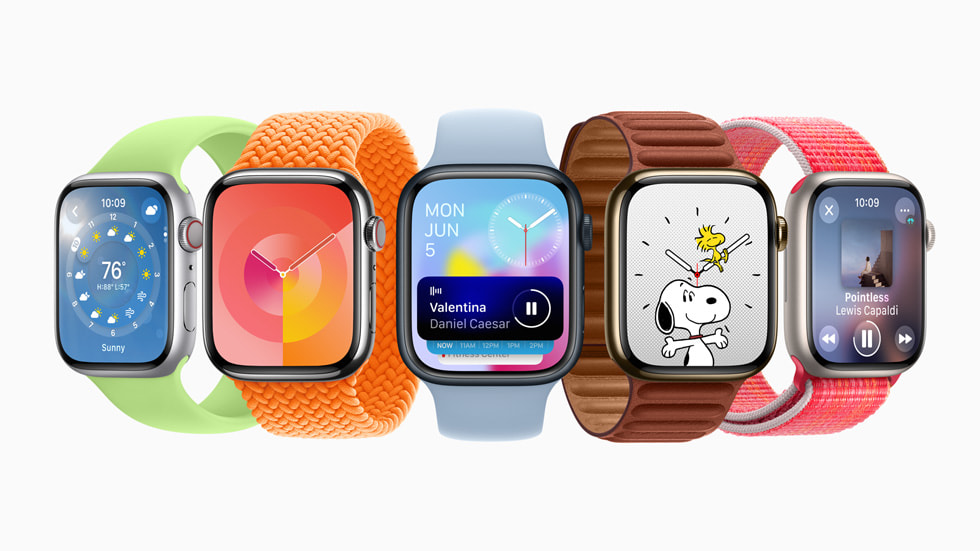
Apple offers dozens of built-in designs across categories like fitness, travel, and art.
Browse and Install Built-in Watch Faces
The Face Gallery includes styles like Infograph, Modular, Nike, Solar, and newer ones like Flow, Exactograph, and Portraits (available on compatible models).
On iPhone (Recommended for Full Customization):
- Open Apple Watch app.
- Tap Face Gallery.
- Explore categories: Photos, Health & Fitness, Data Rich, New, etc.
- Tap See All Watch Faces.
- Tap Get under a design.
- Customize colors, style, and complications.
- Tap Add or Add to Watch.
The new face becomes active and saves to your collection.
On Apple Watch (Quick Add):
- Press and hold the current face.
- Swipe to the end and tap the + icon.
- Choose a face.
- Tap Add.
Note: On-device customization is limited. For full editing, use the iPhone app.
Install Third-Party Watch Faces via App Store
Want animated dials, retro designs, or unique layouts? Third-party faces expand your options.
Download and Use Custom Faces
Starting with watchOS 7, Apple allows third-party developers to create watch faces.
Steps:
- Open App Store on iPhone or Apple Watch.
- Search for “watch faces”.
- Install a provider app like Facer, WatchFacely, Graffiti, or Golgi.
- Open the app and pick a design.
- Tap Add to Watch.
Some apps offer free faces; others require one-time purchases or subscriptions.
Troubleshooting Tip: If a third-party face doesn’t appear, open the app and check sync settings. Ensure the app has permission in Watch app > Privacy.
Customize Watch Face Design and Complications
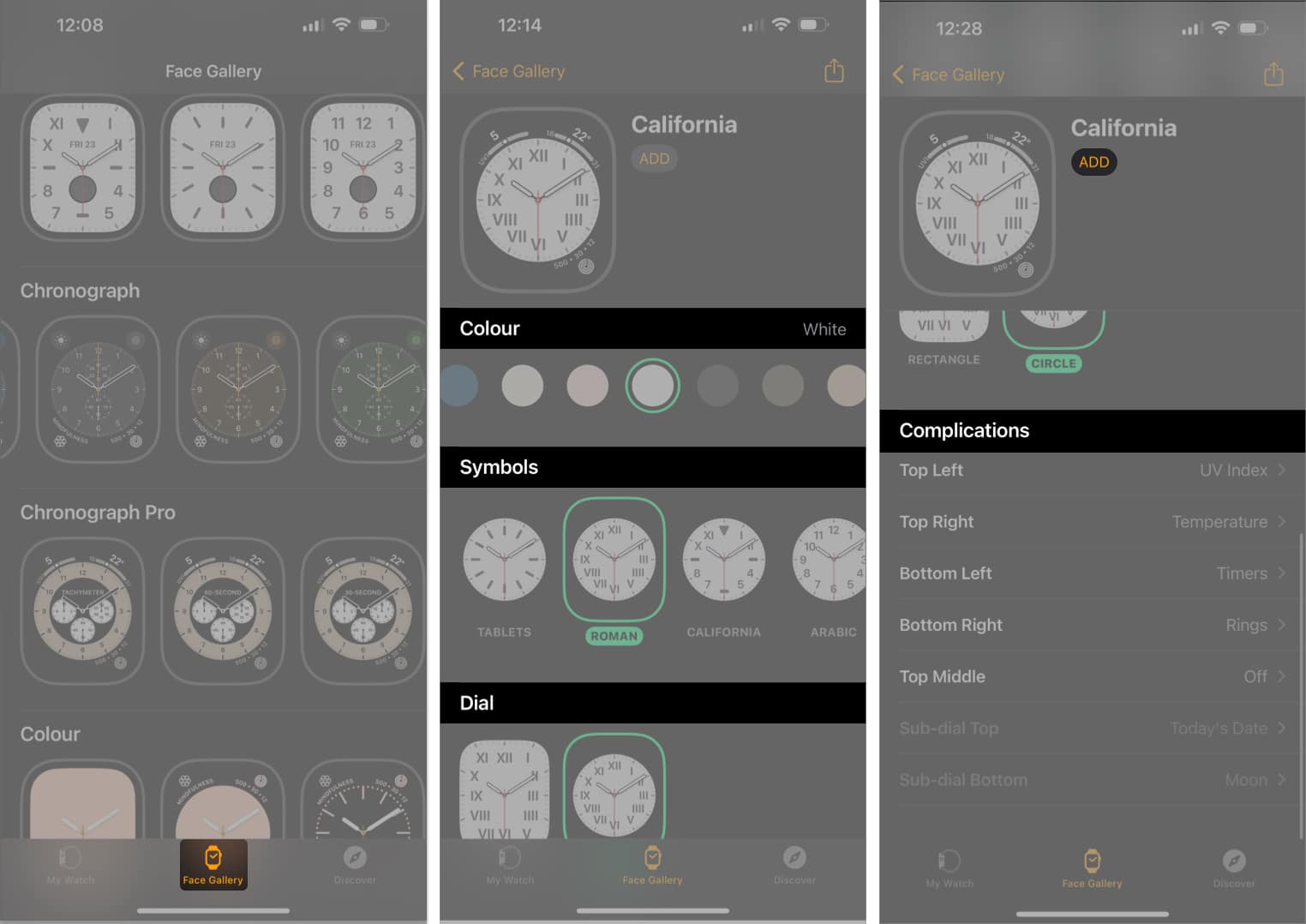
A great face isn’t just pretty—it shows what matters most.
Customize via iPhone (Full Control)
For deep editing:
- Open Apple Watch app > My Watch > My Faces.
- Tap the face to edit.
- Adjust:
Change Colors and Style
- Pick dial colors, gradients, or custom palettes.
- Modify font weight, digit size, or analog hands.
- Enable 24-hour time or hide the second hand.
Edit Complications
Complications are mini-widgets that display live data.
- Tap a position (e.g., Top Left, Bottom).
- Choose apps: Heart Rate, Weather, Calendar, Battery, Timer, Music, etc.
- Rearrange or resize (on modular faces).
Example: At the gym, add Heart Rate, Workout, and Elapsed Time.
Note: Not all positions support all complications—depends on face design.
Customize on Apple Watch (Quick Tweaks)
- Press and hold the face.
- Tap Edit.
- Swipe to cycle options in each position.
- Turn the Digital Crown to confirm.
- Tap Done.
Limitation: Fewer options than iPhone editing.
Use Personal Photos in Your Watch Face
Make your watch truly yours with photo-based faces.
Create a Photo Face
- Open Apple Watch app > My Watch > Photos.
- Choose source:
– Favorites: Auto-updates with favorite photos.
– Album: Sync a specific album (e.g., “Beach Trip”).
– Dynamic: Rotates recent photos and Memories.
– Choose Photos: Manually select up to 500 images. - Set photo limit: 25, 100, 250, or 500.
- Tap Sync.
Photos rotate automatically on your watch.
Tip: Use high-contrast images for better readability.
Use Portraits Face (3D Depth Effect)
Showcase portrait-mode photos with parallax depth:
- Take Portrait mode photos on iPhone (7 Plus or later).
- Open Apple Watch app > Face Gallery > Portraits.
- Tap Choose Photos.
- Select up to 24 photos.
- Tap Add.
On your watch:
– Tilt your wrist to see depth effect.
– Turn Digital Crown to zoom in/out.
Requirement: watchOS 8+ and Apple Watch Series 4 or later.
Organize and Manage Your Watch Face Collection
Too many faces? Keep them tidy for faster access.
Reorder Faces for Quick Access
On iPhone:
- Open Apple Watch app > My Watch > My Faces.
- Tap Edit.
- Drag the ☰ icon to rearrange.
- Tap Done.
On Apple Watch:
- Press and hold the current face.
- Touch and hold again if prompted.
- Drag the face left or right to reposition.
Pro Tip: Place workout, travel, or minimalist faces at the front.
Delete Unused Watch Faces to Reduce Clutter
Free up space and streamline your experience.
Remove from Apple Watch
- Press and hold the current face.
- Swipe left to the face to delete.
- Swipe up and tap Remove.
Remove from iPhone
- Open Apple Watch app > My Watch > My Faces.
- Tap Edit.
- Tap the red minus (-) button.
- Tap Remove.
Note: Removing a face doesn’t delete it permanently—you can re-add it later.
Share Custom Watch Faces with Friends
Love your setup? Share it with one tap.
Send via Messages
- Press and hold the current face.
- Tap the Share icon (📤).
- Choose a contact.
- Add a message and tap Send.
The recipient gets a link to install the exact configuration, including colors and complications.
Caveat: Shared faces may not work perfectly if the recipient lacks the same apps or watch model.
Advanced Tips and Features to Enhance Your Watch Face
Boost functionality with these smart tricks.
Set Time Ahead (Time Travel)
Preview future alarms or calendar events:
- On Apple Watch: Settings > Clock > +0 min.
- Turn Digital Crown to set time ahead (up to +59 minutes).
Note: Only changes display time—system time stays accurate.
Preview All Faces at Once
Audit your collection:
- Open Apple Watch app > My Watch.
- Swipe horizontally under My Faces to see thumbnails.
Use this to delete, edit, or reorder.
Best Watch Faces for Every Situation
Match your face to your activity.
Workout Mode
- Face: Nike or Activity
- Complications: Heart Rate, Workout, Timer
Travel
- Face: World Time or Infograph
- Complications: Multiple time zones, Weather, Calendar
Minimalist Look
- Face: Simple, Solar, or Time Travel
- Complications: None or just date
Professional Style
- Face: California, Grand Central, Numerals
- Complications: Calendar, Battery, Weather
Creative Expression
- Face: Photo, Portraits, or third-party animated face
- Complications: Music, Activity Rings, Stopwatch
Fix Common Watch Face Issues
Running into problems? Try these fixes.
Can’t Swipe to Switch
- Fix: Go to Watch app > Clock and turn on Swipe to Switch Watch Face.
- Reminder: On watchOS 10.2+, swipe from the edge, not center.
Face Missing After Update
- Check: Open My Faces in Watch app.
- Solution: Re-add from Face Gallery if deleted.
Customizations Not Syncing
- Ensure iPhone and Apple Watch are connected (Bluetooth/Wi-Fi).
- Restart both devices.
- Re-edit the face if changes don’t apply.
Third-Party Face Not Appearing
- Open the provider app and check sync status.
- Ensure app has permission in Watch app > Privacy.
- Reinstall the app if needed.
Compatibility and Performance Notes
Not all features work on every device.
watchOS Requirements
- watchOS 7+: Third-party faces
- watchOS 8+: Portraits face with 3D effect
- watchOS 9+: Advanced health complications
- watchOS 10+: Redesigned interface, edge-swipe navigation
Device Support
- Portraits Face: iPhone 7 Plus+ with Portrait mode, Apple Watch Series 4+
- Flow & Exactograph: Series 6, SE 2, or newer
- Animations: May slightly reduce battery life
Tip: Update both devices to latest software for full access.
Summary: How to Change Watch Face on Apple Watch – Quick Reference
| Action | How to Do It |
|---|---|
| Change current face | Press & hold → Swipe → Tap |
| Enable swipe switch | Watch app > Clock > Toggle on |
| Add new face | Face Gallery > Get > Customize > Add |
| Customize complications | Edit face > Tap position > Choose data |
| Use photo face | Watch app > Photos > Choose source |
| Enable Portraits face | Requires Portrait photos + watchOS 8+ |
| Install third-party face | App Store > Download app > Add to Watch |
| Reorder faces | Edit in My Faces > Drag to reorder |
| Delete a face | Swipe up on face or tap Remove |
| Share a face | Press & hold > Share icon > Send |
Changing your watch face is one of the fastest ways to refresh your Apple Watch experience. Whether you want a sleek professional look, a vibrant photo background, or a data-packed workout dial, you can set it up in under a minute. Use this guide to master customization, avoid common issues, and make your Apple Watch truly yours.
Leave a Reply