
Is your Apple Watch Series 3 frozen, unresponsive, or running slower than usual? Before you assume it’s a serious hardware problem, try a simple restart. A quick reboot can fix common issues like app crashes, lag, or a non-responsive touchscreen—often in under a minute. Whether your watch is glitching slightly or completely frozen, knowing how to restart Apple Watch Series 3 properly is the first line of defense. In this guide, you’ll learn the correct steps for both a standard restart and a force restart, what to do if your watch won’t turn back on, and how to maintain peak performance over time. No data is lost during any restart, and all methods are safe when performed correctly.
How to Perform a Standard Restart (Soft Reboot)
A standard restart shuts down your Apple Watch Series 3 normally and boots it back up—just like restarting a phone or computer. Use this method if your watch responds to touch but feels sluggish or apps aren’t working right.
Restart Using the Side Button
This is the fastest and most commonly used method:
- Press and hold the side button (located directly below the Digital Crown).
- After a few seconds, the Power Off slider will appear on-screen.
- Swipe the red slider to the right to shut down the device.
- Wait until the screen goes completely black—this may take 10–15 seconds.
- Press and hold the side button again until the glowing Apple logo appears.
⚠️ You cannot restart while charging. Unplug your watch from the magnetic charger before attempting a restart.
Restart Through the Settings App
If your watch is responsive and you prefer using menus:
- Tap the Digital Crown to open the Home screen.
- Open the Settings app (gear icon).
- Scroll down and select General.
- Tap Shut Down.
- Tap the red power icon and drag the slider to power off.
- Once off, press and hold the side button to turn it back on.
✅ Both methods are safe and preserve all your data, apps, and settings.
Force Restart When Your Watch Is Frozen
If your Apple Watch Series 3 won’t respond to taps, the screen is stuck, or it’s frozen on the Apple logo, a force restart is required. This hard reboot bypasses the normal shutdown process and forces the system to reboot.
When Should You Force Restart?
Do a force restart if:
– The screen is unresponsive to touch
– The watch is stuck on the Apple logo during startup
– Apps crash repeatedly
– The device won’t wake up from sleep
– The Digital Crown or side button isn’t registering input
🔁 A force restart does not delete any data—it’s a safe emergency reset for unresponsive devices.
Step-by-Step: Force Restart Instructions
- Press and hold both the side button and the Digital Crown at the same time.
- Keep holding for at least 10 seconds—do not let go early.
- Continue holding until the screen goes black and the Apple logo appears.
- Release both buttons as soon as the logo shows up.
🕒 The full reboot can take up to 60 seconds, especially after a force restart. Be patient and avoid repeated attempts too quickly.
✅ You’ll know it worked when the screen flashes, vibrates slightly, and displays the glowing Apple logo.
Standard vs. Force Restart: What’s the Difference?

| Feature | Standard Restart | Force Restart |
|---|---|---|
| How to Trigger | Side button or Settings app | Side button + Digital Crown |
| Best For | Minor lag, app issues, routine maintenance | Frozen screen, unresponsive touch, boot loops |
| Data Loss? | No | No |
| Frequency | Safe weekly use | Only when necessary |
💡 Pro Tip: Restart your Apple Watch Series 3 once a week to clear background processes and prevent performance slowdowns—just like rebooting a computer.
What to Do If Restart Fails
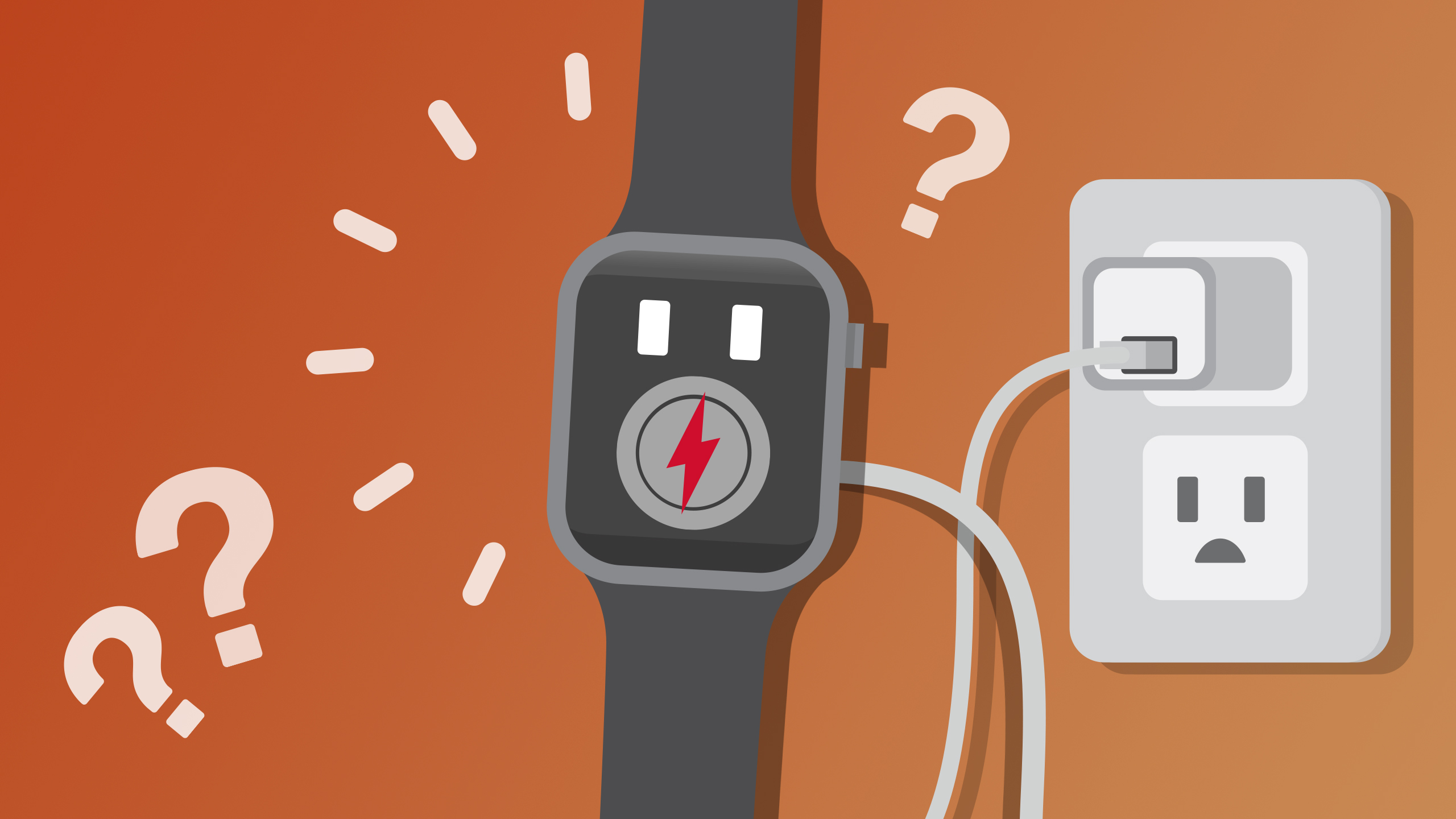
Sometimes, even a force restart doesn’t work. Your watch may remain unresponsive or stuck. Here’s how to troubleshoot.
Retry the Force Restart Properly
- Hold both buttons for 10–15 seconds without interruption.
- Ensure your fingers are pressing firmly and evenly on both the side button and Digital Crown.
- Try 2–3 times if needed—occasional failure is often due to inconsistent pressure.
Charge Before Trying Again
A low battery can prevent successful restarts.
- Place your Apple Watch on its magnetic charger.
- Wait at least 10 minutes—don’t rush this step.
- Look for a low battery warning (red lightning bolt or empty battery icon).
- After charging, attempt the force restart again.
🔋 If the screen flashes red or shows a battery icon, charging is essential before any restart.
Fix a Stuck Apple Logo: Unpair and Re-pair

If your watch keeps showing the Apple logo but never fully boots, the issue may be deeper than a simple freeze.
How to Unpair and Re-pair Your Watch
- On your iPhone, open the Apple Watch app.
- Go to My Watch > All Watches.
- Tap the (i) next to your Apple Watch Series 3.
- Select Unpair Apple Watch.
- Confirm and enter your Apple ID password.
📦 Your iPhone automatically backs up health data, settings, and app preferences.
Re-pair with Restore Option
- After unpairing, tap Start Pairing.
- Follow the setup prompts on your phone and watch.
- When prompted, choose Restore from Backup to recover your data.
✅ This process often resolves persistent boot loops without permanent data loss.
Keep Your WatchOS Updated
Outdated software is a common cause of freezing, crashes, and failed restarts.
How to Update watchOS
- Open the Apple Watch app on your iPhone.
- Tap My Watch > General > Software Update.
- If an update is available, tap Download and Install.
- Ensure your watch is charged above 50% and on the charger.
🔄 Updates fix bugs, improve stability, and enhance security—don’t ignore them.
💬 Avoid beta versions unless you’re testing. They can cause instability on daily-use devices.
Post-Restart Checklist
After a successful restart, verify everything is working:
- Enter your passcode when prompted
- Check that the time and watch face complications load
- Open key apps: Messages, Heart, Workout
- Confirm notifications sync from your iPhone
- Test touch response and Digital Crown scrolling
✅ If all functions work, your restart was successful.
Best Practices for Long-Term Performance
Keep your Apple Watch Series 3 running smoothly with these habits:
- Restart weekly to clear memory and background tasks
- Update watchOS and iOS regularly
- Avoid excessive complications on your watch face—too many can slow performance
- Use the original Apple charger—cheap alternatives may cause boot issues
- Back up frequently—automatic backups are enabled by default in the Apple Watch app
💡 Think of restarting as a “digital tune-up”—quick, painless, and highly effective.
Signs of Hardware Issues
Sometimes, the problem isn’t software at all.
Red Flags That Indicate Hardware Failure
- Buttons don’t respond even after multiple restarts
- Screen stays black with no Apple logo
- Device overheats during or after restart
- Charging fails consistently
- Water damage indicators are active (visible during inspection)
🛠️ If you notice any of these, contact Apple for professional repair.
When to Contact Apple Support
Seek help if:
– Your watch won’t restart after 3 attempts
– The screen remains black or stuck on Apple logo
– Charging doesn’t work after reboot
– You suspect physical or water damage
– Performance issues persist after update and restore
How to Get Help
- Use the Apple Support app on your iPhone
- Visit apple.com/support for live chat or phone support
- Schedule a Genius Bar appointment at an Apple Store
🔍 Apple technicians can run diagnostics, repair hardware, and resolve complex software issues.
Quick Troubleshooting Reference
| Symptom | Recommended Action |
|---|---|
| Slow performance | Standard restart |
| Frozen screen | Force restart |
| Won’t turn on | Charge 10+ minutes, then force restart |
| Stuck on Apple logo | Force restart > Unpair/Re-pair |
| Repeated app crashes | Update watchOS or restore from backup |
| No response at all | Check charge, retry force restart, contact Apple |
✅ Always try a restart first—it resolves most software glitches instantly.
Final Tips for Reliable Performance
Your Apple Watch Series 3 is built to last, but regular care keeps it responsive. Make restarting part of your routine maintenance. Avoid extreme temperatures, use genuine accessories, and don’t ignore update alerts. A one-minute reboot can save you hours of frustration.
💬 Remember: Restarting is safe, fast, and the most effective first step for nearly every software issue. Whether you’re fixing a frozen screen or just refreshing your device, now you know exactly how to restart Apple Watch Series 3—no matter the situation.




