
If your Apple Watch activity isn’t tracking steps, closing rings, or syncing workouts, you’re not alone. Hundreds of users across Apple Watch Ultra, Series 11, Series 10, and older models report the “Apple Watch activity not working” issue—especially after updating to watchOS 26 and iOS 26. The problem often shows up as frozen rings, missing exercise minutes, unresponsive heart rate sensors, or failed third-party app connections (like Peloton). Even more confusing: your Health app may show steps, but the Activity app displays zero. This guide delivers proven fixes—from simple restarts to advanced resets—based on real user reports, Apple Support data, and technical diagnostics. You’ll learn how to restore full tracking fast, avoid recurring crashes, and determine if hardware replacement is necessary.
Force Restart Apple Watch and iPhone
When your Activity app freezes or won’t load, a force restart clears temporary glitches that block data tracking.
Force Restart Apple Watch
If the Activity rings are stuck or the app won’t open:
1. Press and hold the side button and Digital Crown at the same time.
2. Keep holding for 10–15 seconds until the Apple logo appears.
3. Wait for the watch to fully reboot before checking the Activity app.
This clears frozen processes and reinitializes sensors. Users like mbranan86 found this restored function after Peloton crashes. If the screen is black or frozen, this step is essential.
Restart Your Paired iPhone
Your iPhone manages all Health and Activity syncing. If it’s overloaded, data won’t update:
– Face ID models: Press and hold the side button + volume down until the power slider appears.
– Home button models: Press and hold the side (or top) button until the slider shows.
Slide to power off, wait 30 seconds, then turn it back on. After both devices restart, give them 2–3 minutes to resync. Check if your rings update or workouts now start normally.
Fix Sync & Permission Issues

Many tracking failures stem from broken permissions—not hardware faults.
Enable Fitness Tracking Permissions
Without access, your Apple Watch can’t read motion or heart rate:
1. On iPhone: Go to Settings > Privacy & Security > Motion & Fitness.
2. Turn Fitness Tracking ON.
3. Open the Watch app > My Watch > Privacy > Motion & Fitness.
4. Ensure both Fitness Tracking and Heart Rate are enabled.
Warning: Disabling these—even via third-party apps—stops all ring progress and workout logging.
Fix iCloud Health Sync
Activity data relies on iCloud to sync across devices:
1. Go to Settings > [Your Name] > iCloud > Show All > Health.
2. Toggle Health ON.
3. Wait several minutes for data to refresh.
If this was off, you might see a delay: old step counts appear first, then current data. User JohnDavidge noted delays of over a minute before real-time tracking resumed.
Disable Screen Time Sharing
A hidden iOS setting disrupts multiple Apple apps:
1. Open Settings > Screen Time > Share Across Devices.
2. Turn it OFF.
User Serendip8185 confirmed this fixed Activity, Fitness, and Mail app syncing. Re-enable only after confirming stability.
Reset Third-Party App Conflicts
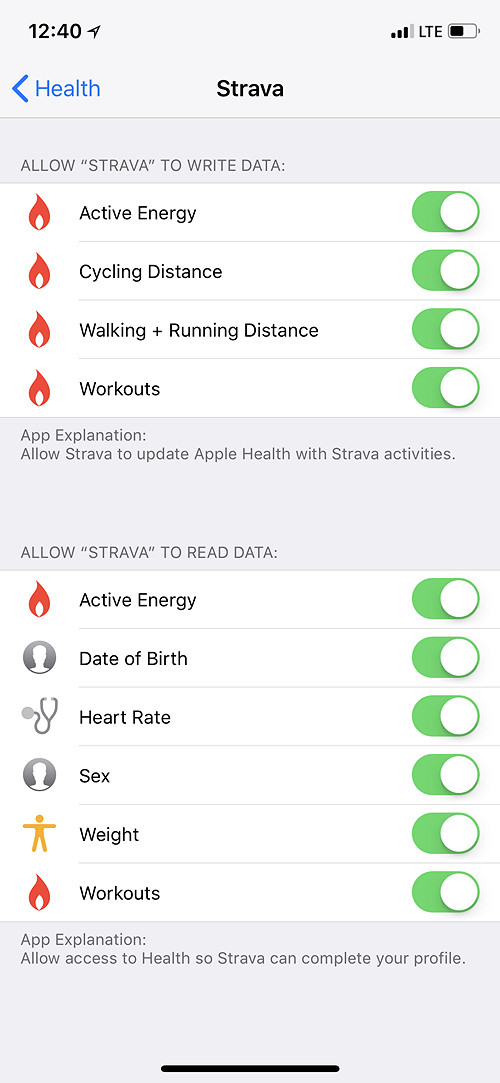
Apps like Peloton, Strava, or fitness trackers with Health access can freeze syncing.
Revoke and Re-grant App Permissions
Corrupted Health permissions cause crashes:
1. On iPhone: Settings > Privacy & Security > Health > [App Name].
2. Turn all permissions OFF (e.g., Heart Rate, Steps).
3. Go to Settings > Privacy & Security > Bluetooth and disable app access.
4. Restart both devices.
5. Re-enable permissions one at a time.
User azaksalmarzur28 used this to fix Peloton heart rate detection issues after watchOS 26 updates.
Check for Interfering Background Apps
VPNs, ad blockers, or security tools may block iCloud:
– LD150 (Apple contributor) advises disabling any VPN apps temporarily.
– Test activity tracking with no background apps running.
If tracking resumes, identify the conflicting app and update or remove it.
Recalibrate Motion Sensors
Even with correct permissions, outdated calibration breaks tracking accuracy.
Perform Outdoor Walk Calibration
Recalibrate motion sensors with real-world movement:
1. Put iPhone in pocket or carry it.
2. Start an Outdoor Walk workout on Apple Watch.
3. Walk briskly for at least 20 minutes on flat terrain.
4. Repeat with Outdoor Run if possible.
This teaches the watch your stride length and improves step, distance, and calorie accuracy.
Reset Fitness Calibration Data
Clear corrupted calibration history:
1. On iPhone: Open Watch app > Privacy > Reset Fitness Calibration Data.
2. Confirm reset.
3. Complete the outdoor walk again to rebuild data.
Note: This won’t delete historical activity—only recalibration metrics. Ideal after software updates or unexplained tracking drops.
Test Heart Rate Sensor Function

No heart rate data? The sensor may be blocked or disabled.
Check for Green LED Activation
During a workout:
1. Start a Walk or Outdoor Run.
2. Look at the back of the watch.
You should see green lights pulsing. If not:
– Ensure the watch is snug on top of your wrist.
– Clean the sensor with a soft, dry cloth.
– Remove thick wrist hair or tattoos that may block light.
If LEDs still don’t activate after restarts, suspect a deeper software or hardware issue.
Unpair and Re-pair Apple Watch
Apple Support’s most recommended fix—especially for recurring problems.
Standard Unpair (With Backup)
Safely clears system cache without losing data:
1. Open Watch app > General > Reset > Unpair Apple Watch.
2. Wait for backup completion (shows in iCloud or locally).
3. Set up the watch again and restore from backup.
This often resolves sync hangs and frozen Activity apps. User nextseason saw temporary improvement after this step.
Advanced Fix: Pair as New (No Backup)
If issues return within days, the backup itself may be corrupted:
1. Unpair as above.
2. During setup, choose “Set Up as New Apple Watch”.
3. Do not restore from backup.
4. Manually re-add watch faces, apps, and payment cards.
Ingo2711 and LD150 confirm: This is the most effective fix for persistent tracking failure. It eliminates hidden software conflicts carried over in backups.
Investigate Charging-Related Freezes
Some users report activity tracking fails after full charging cycles.
Avoid Full 100% Charges
Users SisyphusSummit and Western_Insect_7580 noticed:
– Charging beyond 80–90% triggers app freezes.
– 30-minute partial charges do not cause issues.
Workaround: Unplug at 80–90%, or force restart immediately after full charge.
Reset After Charging
If tracking stops post-charge:
1. Force restart the watch.
2. Open Activity app to test.
3. If it works, the issue is firmware-level, likely tied to battery state signaling in watchOS 26.
Determine If Hardware Is Faulty
If all software fixes fail, hardware or account-level issues may be to blame.
Try a Different iPhone
Test your Apple Watch with another iPhone:
– Pair it as a new device (don’t restore).
– Check if activity tracking works.
If yes, the problem is with your original iPhone’s software or settings.
Test a Different Apple Watch
User in Article 9 replaced their watch with a new Series 11—same issue persisted. This confirms the problem lies in:
– The iCloud account
– The paired iPhone
– Or watchOS/iOS software bugs
Visit Apple Support
Visit the Genius Bar if:
– Green LEDs never activate during workouts.
– Multiple watches fail with the same iPhone.
– All resets provide only temporary relief.
Even after hardware replacement, some users (like SisyphusSummit) had the same issue—pointing to systemic software flaws, not faulty devices.
Last Resort: Factory Reset iPhone
Only use this if nothing else works and you can back up safely.
Steps to Reset iPhone
- Connect to computer and create an unencrypted iTunes backup.
- On iPhone: Settings > General > Transfer or Reset iPhone > Erase All Content and Settings.
- Set up iPhone as new.
- Pair Apple Watch without restoring from backup.
Warning: This deletes all data. Only proceed if you have a verified backup. Article 7 notes this fixed syncing for users with deeply corrupted Health databases.
Final Note: The “Apple Watch activity not working” issue is widespread across models and often tied to watchOS 26 updates, iCloud sync failures, or corrupted backups—not hardware. Start with a force restart and permission checks. If problems persist, unpair and set up as new (no backup) for the cleanest fix. Disable Screen Time sharing and third-party app access to prevent recurrence. Report the issue via Apple’s feedback portal to push for a permanent software patch. Until then, a clean setup offers the most reliable tracking.





