
You crushed a 45-minute spin class, but your Apple Watch was charging. You aced a pick-up basketball game, but forgot to wear your device. Now your Activity rings are incomplete—and your streak is at risk. Don’t panic. You can add activity to your Apple Watch manually, even after the fact, using your iPhone’s Health app. No third-party tools required. The workout you missed tracking? It can still count toward your Exercise, Move, and Stand rings.
Apple doesn’t let you add workouts directly on the watch, but the Health app on iPhone serves as the central control center for all your fitness data. When you input a past workout there, it syncs to your Apple Watch and fills your rings—just like a real-time session. This feature has been fully supported since watchOS 3, and it works seamlessly across iOS 18.5 and later. Whether you forgot your watch, used another fitness tracker, or just want to log a non-wearable workout, this guide shows you exactly how to do it right.
You’ll learn the step-by-step process to add workouts manually, fix missing buttons, troubleshoot rings that won’t update, and avoid data errors. We’ll also cover what does and doesn’t sync—like why steps and distance stay locked to your watch’s sensors. Plus, you’ll discover how manual entries affect fitness awards, streaks, and monthly challenges. Let’s get your rings closed—officially and accurately.
Add Workout via Health App Summary (iOS 18.5+)
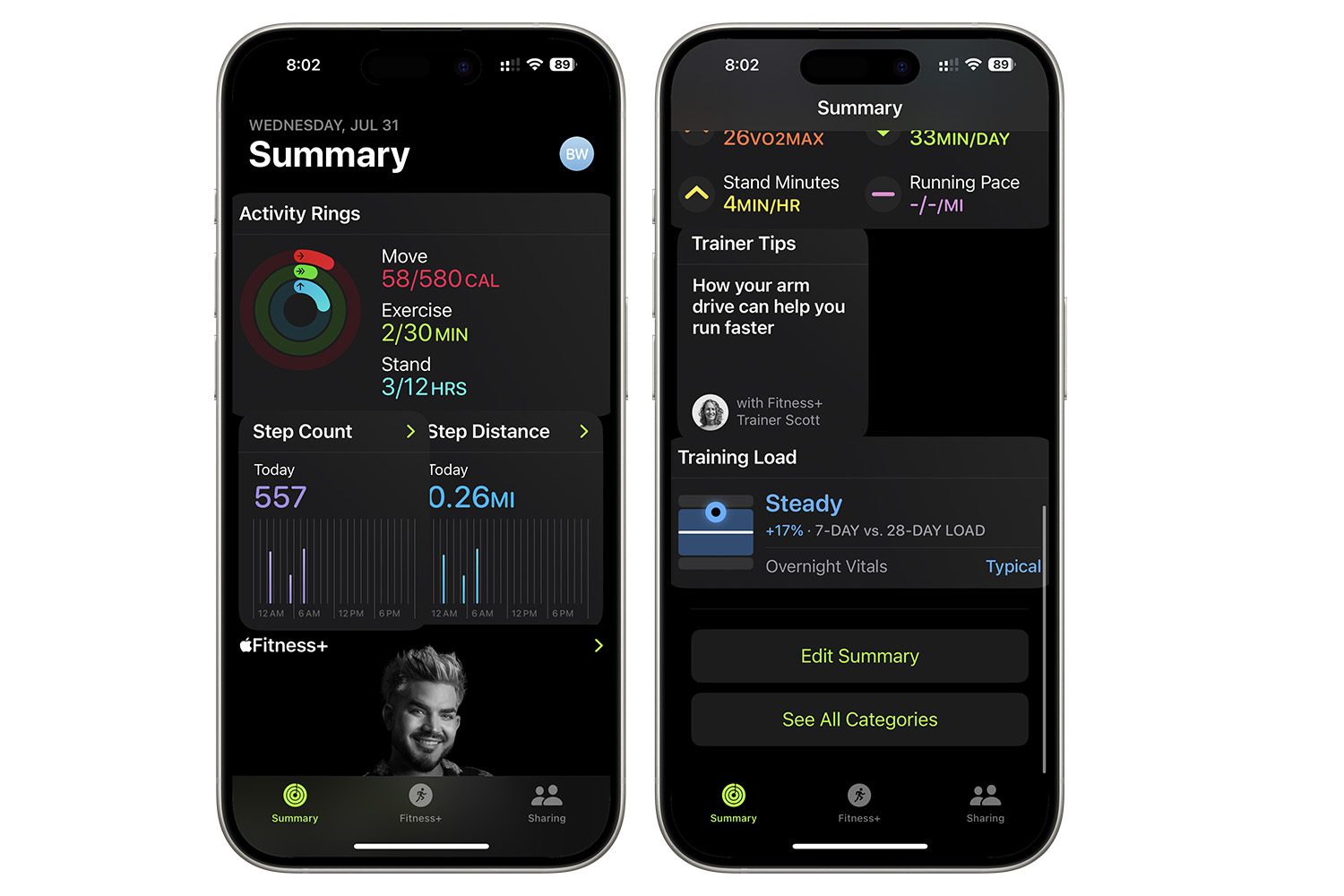
If you’re running iOS 18.5 or later, Apple moved the manual workout entry point to the Summary tab in the Health app. This change makes it less obvious—but once you know where to look, it’s fast and reliable.
Open Health App Summary Tab
Launch the Health app on your iPhone and tap the Summary tab at the bottom. This screen displays your health metrics at a glance. Scroll down until you see the Workouts section, usually located just below “Highlights.” If you’ve never recorded a workout before, this section might be missing—don’t worry, we’ll address that in troubleshooting.
Tap Add Data to Log Workout
In the top-right corner of the Workouts section, you’ll see a + (plus) icon labeled “Add Data.” Tap it. This opens the manual workout entry form. You’re now ready to log your activity with full control over type, duration, and calories burned.
Enter Workout Details Correctly
Fill in the following fields:
– Workout Type: Choose from over 20 options—Running, Cycling, Basketball, Swimming, Yoga, etc.
– Start and End Time: Set the actual time you worked out. Accuracy matters for syncing and Stand ring updates.
– Calories Burned: Enter active calories only. This value directly affects your Move ring.
– Distance (Optional): Add if relevant, though it won’t appear on your Apple Watch.
✅ Pro Tip: Use a trusted fitness calculator (like MyFitnessPal or ACE’s calorie estimator) to estimate active calories based on your weight, duration, and intensity. For example, a 155-lb person burns about 300 calories in 45 minutes of vigorous basketball.
Tap Add to save. The workout will sync to your Apple Watch—often instantly. Open the Activity app on your watch to confirm the rings have updated.
Alternative: Add Activity via Browse Tab (All iOS Versions)
If the Workouts section is missing from Summary—or you’re on an older iOS version—use the Browse tab. This method works universally and bypasses known bugs in iOS 18.5.
Navigate to Activity in Browse
Open the Health app, go to the Browse tab, then tap Activity. Now, scroll down manually through the list. Do not use the search bar—many users report that “Workouts” doesn’t appear when searched, even though it exists.
Find Workouts and Add Manually
Look for Workouts under the Activity list (it may be near the bottom). Tap it, then tap the + (Add Data) button in the top-right. Enter the same details: workout type, start/end time, active calories, and optional distance.
⚠️ Avoid Search Bug: The iOS 18.5 search function sometimes fails to show the Workouts category. Manually scrolling ensures you find it every time.
Once saved, the data appears in your iPhone’s Health app and syncs to your Apple Watch, updating your Exercise and Move rings accordingly.
What Activity Rings Are Updated?
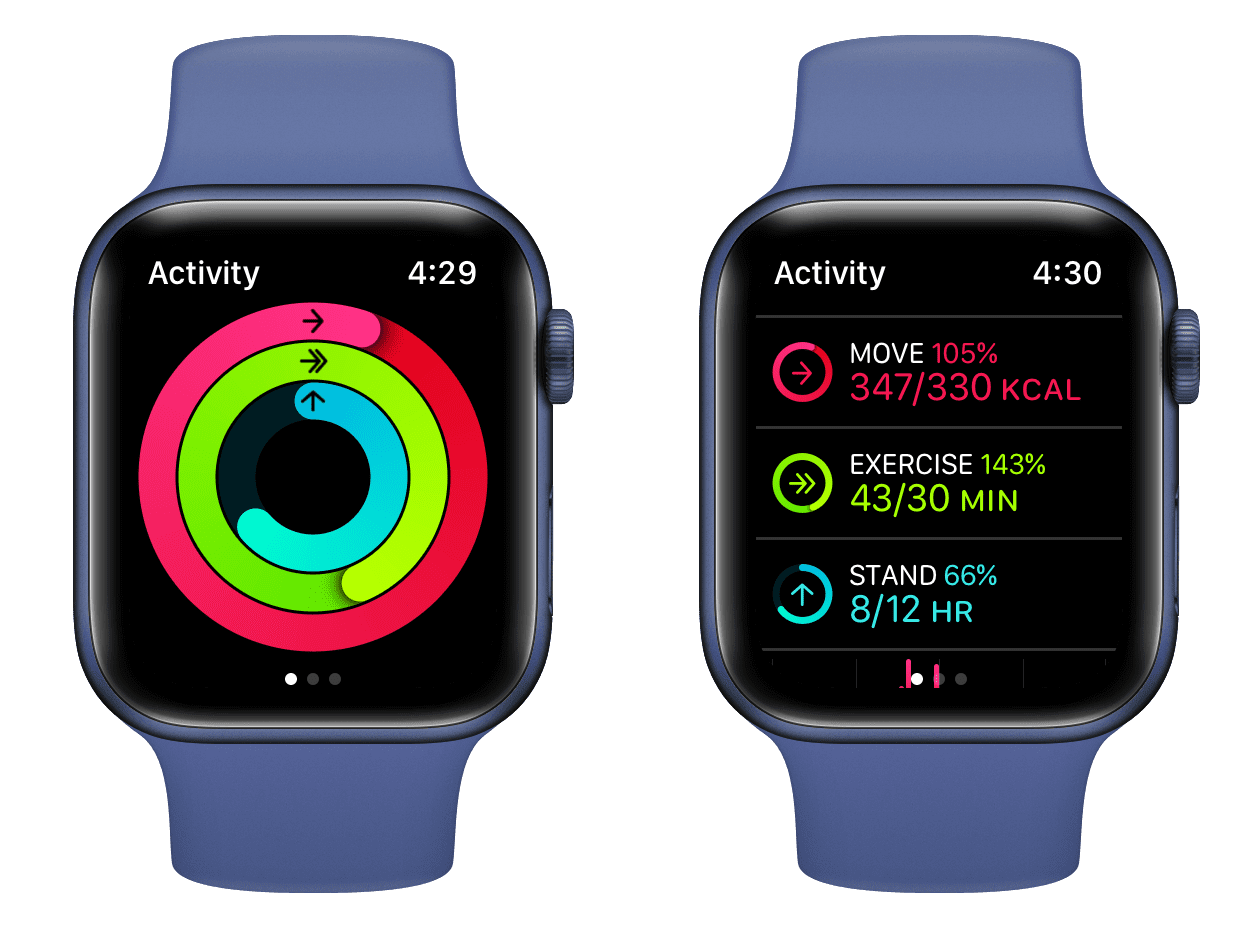
Manually added workouts affect three rings—but not equally. Here’s what changes and what doesn’t.
Move Ring: Calories Count Toward Goal
The Move ring updates based on the active calories you enter. If your goal is 600 and you log a 300-calorie workout, your ring will reflect that progress. But—and this is critical—you must enter Active Energy Burned, not total or resting calories.
✅ Key: Entering total calories (e.g., 500) when only 300 were active will inflate your data and may not sync properly. Always estimate active burn.
Exercise Ring: Minutes Added Automatically
The Exercise ring fills based on duration. A 40-minute run adds 40 minutes of exercise time—no extra input needed. This happens automatically when you save the workout.
Stand Ring: Hours Count if Workout Spans Clock Hours
The Stand ring only updates if your workout crosses multiple clock hours. For example, a session from 2:30 PM to 4:00 PM counts for two standing hours (2 PM and 3 PM). Short workouts under one hour won’t impact this ring.
Steps and Distance: Not Updated on Apple Watch
Steps and distance do not sync from manual entries. These metrics are sensor-locked to the Apple Watch’s accelerometer and gyroscope. Even if you manually add steps in the Health app, they won’t appear on your watch face or Activity app.
❌ User Confirmed: “I could add steps in the Health app, but they didn’t show on the watch.” — JackieInCo
This limitation ensures data integrity—Apple won’t let you fake step counts.
Fix Missing Add Button in Workouts
No + button? Common—but fixable. The Workouts section may be hidden if no past workouts exist.
Workaround: Use a Past Workout Date
- Open the Health app and go to a previous day where a workout was recorded.
- Tap Workouts, then Add Data.
- Enter your new workout.
- Before saving, change the date to the day you want it logged.
✅ User Confirmed: “It will show up anyway… The only requirement is that your watch has to have been worn during the time you’re adding.” — JackieInCo
This trick forces the system to accept the entry, even on days with no prior activity.
Troubleshoot Move Ring Not Updating
You added a workout, but the Move ring didn’t budge. Frustrating—but usually fixable.
Check Calorie Entry Type
The most common cause: entering total calories instead of active calories. The Move ring only counts Active Energy Burned. If you logged 500 total calories but only 300 were active, only 300 count.
✅ Fix: Delete the workout and re-add it, ensuring you enter only active calories.
Force Sync Devices
Sometimes data lags. To force a refresh:
– Restart your iPhone and Apple Watch.
– Open the Activity app on the watch.
– Ensure both devices are on the same Wi-Fi or within Bluetooth range.
✅ User Confirmed: “After restarting both, the rings updated.” — Loriltx
Delete Incorrect Workouts Completely
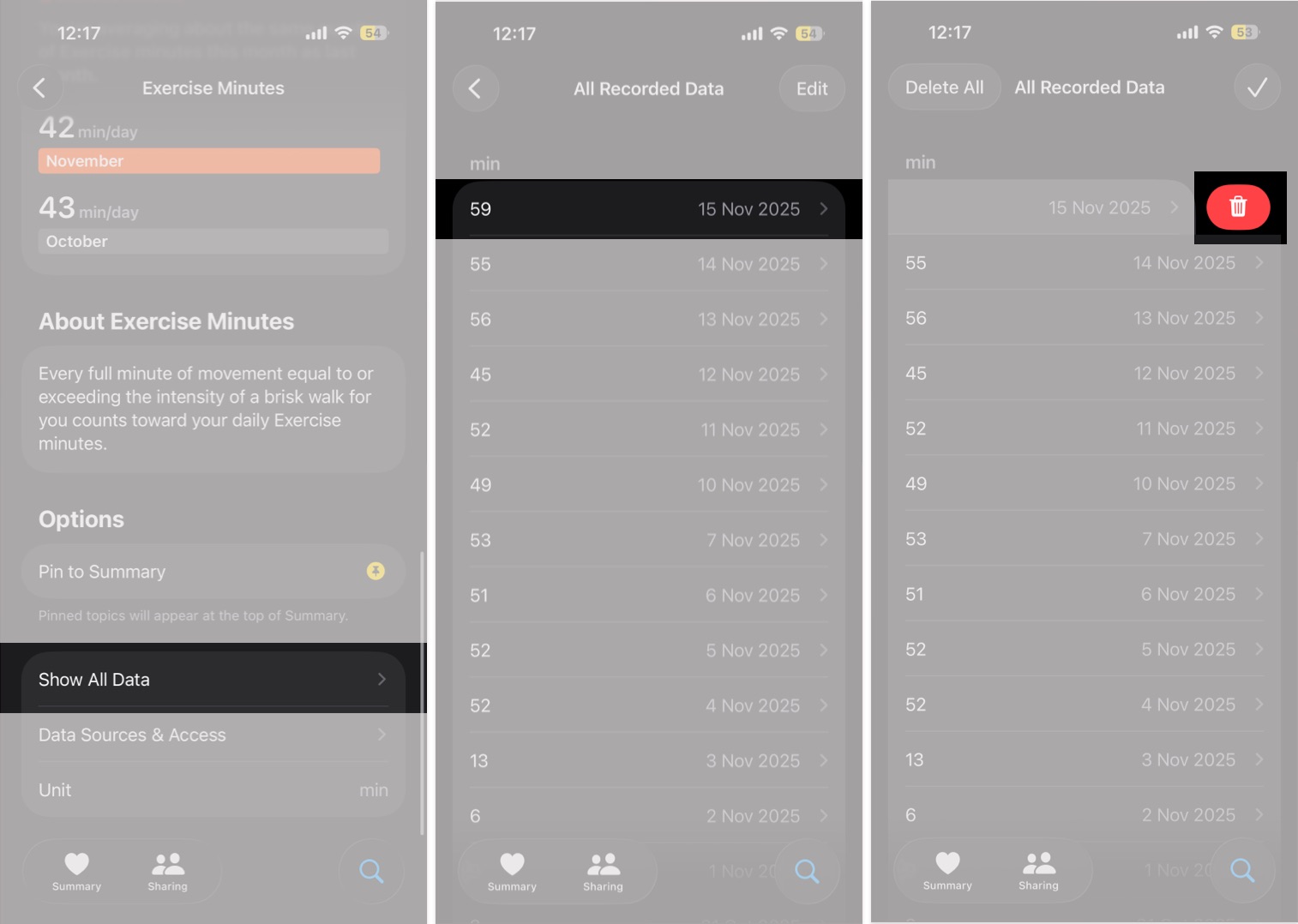
Deleting just the workout entry isn’t enough. The Exercise Minutes or Active Calories may still count.
Remove Workout and Associated Data
To fully erase:
1. Go to Health App > Browse > Workouts.
2. Delete the workout.
3. Go to Health Data > Activity > Exercise Minutes and delete the matching minutes.
4. Or delete Active Energy Burned under Activity if the Move ring is still inflated.
✅ User Advice: “Delete the workout AND the exercise minutes.” — ckurt25
This prevents double-counting and keeps your stats accurate.
Can You Use Third-Party Apps?
Yes, but with risks. Apps like ManualActivity let you input workouts faster, but some users report data loss or reset activity.
⚠️ Recommendation: Stick to the native Health app method. It’s safer, reliable, and fully supported by Apple.
Does Manual Activity Count for Awards?
Yes. Apple counts manually added workouts toward:
– Activity Streaks
– Monthly Challenges
– Fitness Awards (like 365-day rings closed)
As long as the Exercise and Move rings close using valid data, your milestones are preserved.
✅ User Confirmed: “It works great… I closed my rings and kept my streak.” — ckurt25
Apple doesn’t distinguish between sensor-recorded and manually added workouts for achievements.
Limitations You Must Know
Manual entry is powerful—but has hard limits.
No Steps or Distance on Watch
You cannot add steps or distance that appear on the Apple Watch. The watch only displays data from its built-in sensors.
No Heart Rate or Real-Time Metrics
Manually added workouts lack:
– Heart rate
– Pace
– Elevation
– Route
They appear as static entries—no graphs or live feedback.
Can’t Add Future-Dated Workouts
The Health app only allows entries for today or past dates. You can’t pre-log a workout for tomorrow.
Final Note: You now know how to add activity to your Apple Watch—officially, safely, and effectively. Use the Health app on iPhone, enter active calories, and avoid third-party risks. While steps and distance stay sensor-locked, your Move, Exercise, and Stand rings can reflect every effort, even when your watch wasn’t on your wrist. Keep your streak alive, close your rings, and stay motivated—every workout counts.




