
You’re miles from an outlet, mid-hike, or stuck on a long flight—your Apple Watch Ultra 2 battery is dwindling, and the official wall charger is back at home. Panic? Not yet. You don’t need Apple’s wall adapter to charge your Apple Watch Ultra 2. As long as you have the magnetic charging puck and USB-C cable, you can power up using everyday devices you already carry. From laptops to power banks, cars to your iPhone 15 or 16, there are multiple safe, tested ways to keep your Ultra 2 alive off-grid.
But here’s the catch: you cannot charge the Ultra 2 without the magnetic charging puck. Apple’s proprietary charging system blocks standard wireless pads, hidden ports, and DIY hacks. This guide reveals every working method—plus the dangerous myths you should avoid. You’ll learn how to use alternative power sources, compare charging speeds, and choose certified accessories that won’t damage your watch. Whether you’re traveling, camping, or just forgot your charger, this is your complete roadmap to emergency Apple Watch charging.
Use a Laptop or Desktop Computer to Charge Your Watch
If you’re near a computer, you already have a viable charging station.
Plug the USB-C end of your Apple Watch charging cable into a powered USB port on your Mac, Windows PC, or Chromebook, then attach the magnetic puck to the back of your Ultra 2. Charging begins instantly with the familiar green lightning bolt on the screen.
- ✅ Works reliably with USB-C and Thunderbolt ports
- ⏱️ Full charge time: ~2 hours 15 minutes
- 🔌 Best results with high-output USB-C (5V/3A or higher)
💡 Pro Tip: Keep your computer awake. Many systems disable USB power during sleep mode, interrupting the charge. Adjust your settings to prevent automatic sleep.
Avoid older USB-A ports on unpowered hubs—they often deliver insufficient current. If the watch flashes green but stops charging, try a different port or restart your computer. For fastest performance, use a Thunderbolt 4 or USB-C 3.1 port on newer machines.
Power Banks: Portable Charging Anywhere
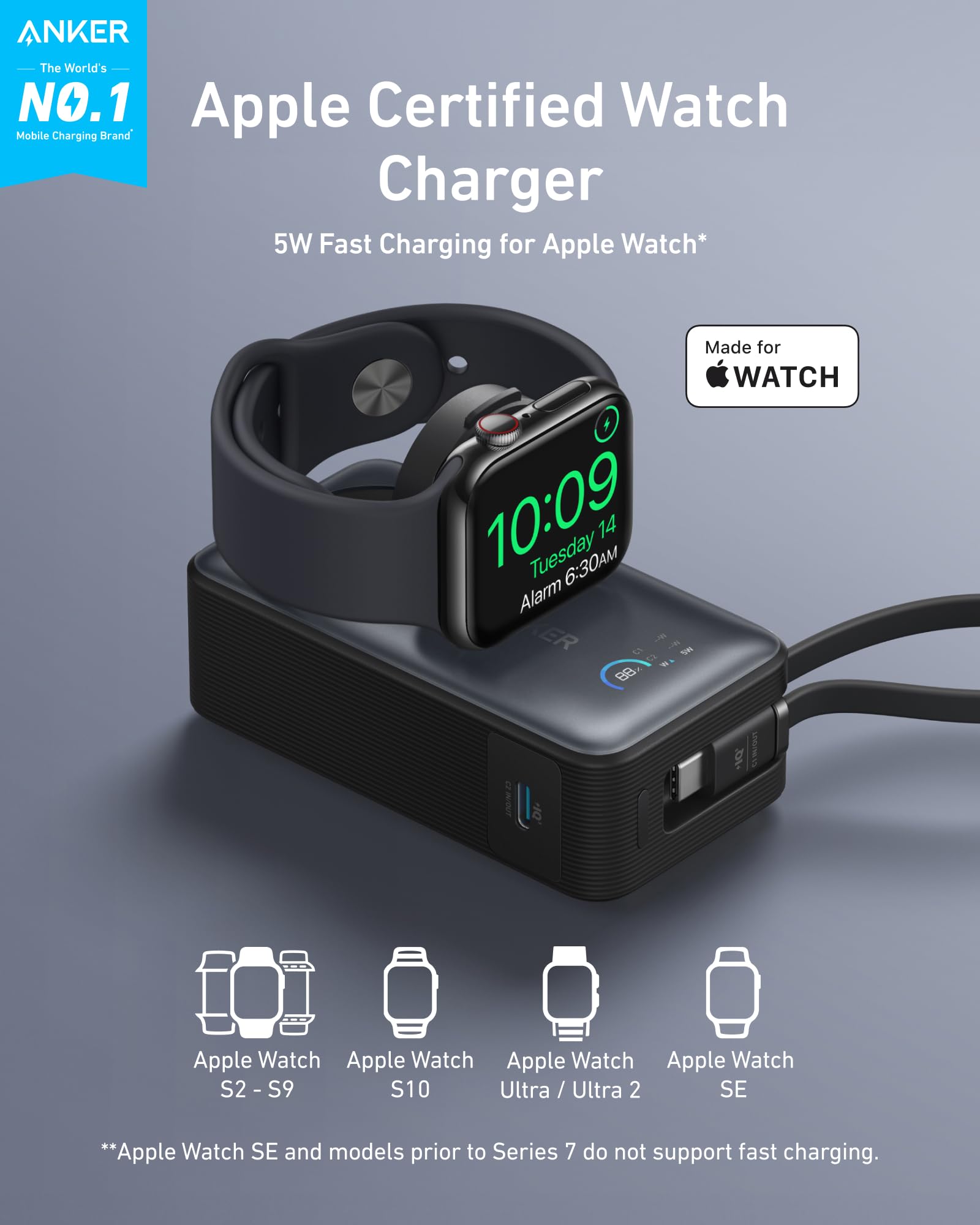
A power bank is one of the most practical solutions for charging your Apple Watch Ultra 2 on the go.
What You Need:
- A power bank with USB-A or USB-C output
- Minimum 5V/1A power delivery
- MFi-certified USB-C cable (recommended for safety)
With a standard 10,000mAh power bank, expect a full charge in about 2 hours 15 minutes. One full Ultra 2 charge consumes roughly 26% of an iPhone 16 Pro’s battery, so plan accordingly.
🛠️ Upgrade Smart: Use a magnetic power bank with a built-in charging puck, like the Anker MagGo 10K. Just snap your watch on—no cables required. These compact units are ideal for travel and emergencies.
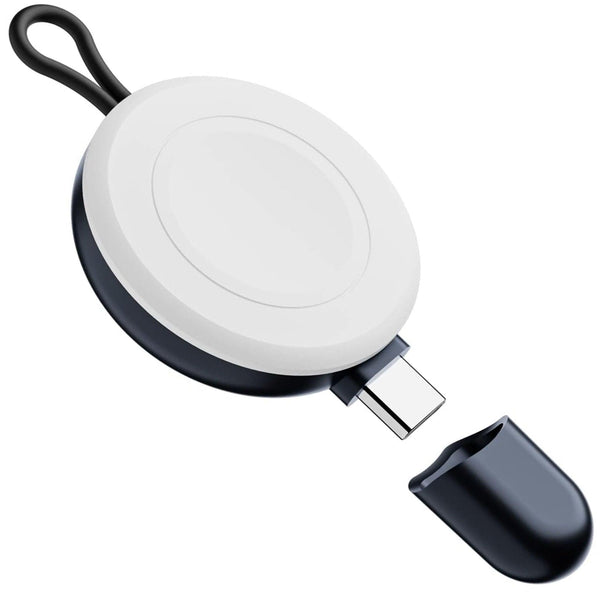
Even tiny keychain-style magnetic chargers offer one emergency boost. While not suitable for daily charging, they’re perfect for slipping into your wallet or backpack.
Charge Your Watch in the Car
Keep your Ultra 2 powered during road trips using your vehicle’s USB port or 12V adapter.
Requirements:
- Car with 5V/2.1A USB output (or better)
- USB-C cable + magnetic puck
-
Or a USB-C car charger with at least 10W output
-
⚠️ Caution: Some older vehicles have low-power USB ports that charge slowly or cut out mid-charge
- 🚗 Ideal for: Commuters, road-trippers, outdoor adventurers
🔍 Check the Label: Look for at least 10W (5V/2A) on your car charger. Avoid cheap, no-name adapters—they may lack surge protection.
Some newer cars now include built-in magnetic charging pads in the console. Confirm they support Apple Watch before relying on them. If not, a simple USB-C car charger with your existing cable works just as well.
iPhone Reverse Charging: Use iPhone 15 or 16 as a Power Source

If you own an iPhone 15, 15 Pro, 16, or 16 Pro, you can reverse-charge your Apple Watch Ultra 2.
How It Works:
- Plug the USB-C end of the Watch charger into your iPhone
- Attach the magnetic puck to the back of your Ultra 2
- Wait for the green lightning bolt to appear
- ✅ Emergency-ready: No outlet? No problem
- ⚠️ Battery cost: Uses ~26% of your iPhone’s battery per full charge
- 🔋 Minimum iPhone battery: Must be above 20%
📱 Adapter Note: If using an older USB-A Watch cable, pair it with Apple’s USB-C to USB Adapter for compatibility.
This feature only works with USB-C iPhones (2023 and later). Older models cannot supply power via cable. While convenient, avoid overuse—it drains your phone quickly and isn’t ideal for daily reliance.
Smart Hubs and Multi-Port Charging Stations
USB-C docks, monitor hubs, and multi-port wall outlets can double as Apple Watch charging stations.
Top Options:
- Belkin USB-C Hub with Apple Watch pad
- Anker 6-in-1 Hub with magnetic charger
-
Dell UltraSharp monitors with built-in charging
-
✅ Benefits:
- Reduces desk clutter
- Charges Watch, phone, and laptop simultaneously
- Secure magnetic alignment
⚠️ Verify Compatibility: Not all hubs include an Apple Watch-ready puck. Check product specs before buying.
These are ideal for remote workers, digital nomads, or anyone with a dedicated workspace.
Public Charging Stations: Convenient But Risky
Some airports, hotels, and cafes offer dedicated Apple Watch charging spots.
Common Locations:
- Airports: Delta Sky Club, United Club
- Hotels: Marriott, Hilton Honors lounges
- Coffee shops: Select Starbucks locations
-
Co-working spaces: WeWork, Regus
-
⚠️ Security Risk: Public USB ports can be tampered with—never leave your device unattended
- 🧼 Hygiene Tip: Wipe the charging surface with an alcohol wipe before use
While convenient, treat public stations as a last resort due to data theft and hygiene concerns.
Solar and Off-Grid Power Solutions

For camping, hiking, or emergencies, solar-powered setups can keep your Ultra 2 running.
Compatible Devices:
- BLUETTI AC180 Portable Power Station
- BLUETTI AC500 Home Backup System
| Feature | BLUETTI AC180 | BLUETTI AC500 |
|---|---|---|
| Best For | Travel, camping | Home backup, long-term use |
| Battery Capacity | 1152Wh | Up to 16,588.8Wh |
| Wireless Pads | 1x 15W | 2x 15W |
| Output Ports | 11 (incl. 100W USB-C) | 16 (incl. 2x 100W USB-C) |
| Portability | High | Low |
☀️ Important: You still need the magnetic puck. Place it on the wireless pad or plug into a USB port. Solar panels alone cannot charge the Watch directly—they must feed into a battery station first.
Certified Third-Party Accessories That Work
Apple restricts charging methods, but MFi (Made for iPhone) and MFW (Made for Apple Watch) accessories offer safe alternatives.
1. Magnetic Keychain Chargers
- Tiny, keyring-sized with built-in pucks
- ✅ Ultra-portable, emergency-ready
- ❌ Limited to one charge unless externally powered
- Top brands: Anker, Belkin, Native Union
2. 3-in-1 Wireless Charging Stations
- Charge Ultra 2, iPhone, and AirPods together
- Example: Anker MagGo Foldable 3-in-1
- MFW-certified
- Charges Watch to 47% in 30 minutes
- ✅ Best for nightstands, travel, minimalists
3. Battery-Integrated Watch Straps
- Add 10–20% extra charge
- ❌ Bulky, unreliable, short lifespan
- Use only as a last-ditch backup
4. USB-C Hubs with Built-In Watch Charging
- Ideal for remote workers
- No more hunting for cables—just dock and charge
- Examples: CalDigit TS4, OWC Dock
What Doesn’t Work (Despite Viral Hacks)
Many online “tricks” are dangerous myths.
❌ Standard Qi or MagSafe Chargers
- Will not charge on iPhone backs, MagSafe pads, or generic chargers
- Apple Watch uses a proprietary magnetic system, not Qi
📱 Myth: “Place it on the back of an iPhone 15.” False. Only works if the charger cable is plugged into the phone.
❌ Direct USB Port on the Watch
- No user-accessible charging port exists
- The hidden diagnostic port is not for charging and requires Apple tools
❌ DIY Wire Charging
- Stripping cables and touching wires risks short circuits, overheating, or fire
- Apple’s system blocks unauthorized power sources
🔥 Never attempt this. It voids warranties and is extremely dangerous.
Charging Speed Comparison

| Method | Full Charge Time |
|---|---|
| Apple 20W USB-C Adapter | ~1h 3m |
| Laptop USB-C Port | ~2h 15m |
| Power Bank (10,000mAh) | ~2h 15m |
| iPhone Reverse Charging | ~2h 20m |
| Low-Power Car USB Port | 3+ hours (or fails) |
⚖️ Battery Health Tip: Enable Optimized Battery Charging in Settings > Battery > Battery Health & Charging to reduce long-term wear.
Troubleshooting: Watch Won’t Charge?
Try these steps:
1. Restart the watch (hold side button + Digital Crown)
2. Test the power source with another device
3. Clean contacts with a dry microfiber cloth
4. Swap cables to rule out failure
5. Update watchOS
6. Contact Apple Support if unresolved
Final Verdict: You Need the Puck—But Not the Wall Charger
You must have the magnetic charging puck. But you don’t need Apple’s wall adapter. With the right power source—laptop, power bank, car, or iPhone 15/16—you can charge your Ultra 2 anywhere.
Pro Tips:
- Always carry a portable magnetic charger
- Use MFi/MFW-certified accessories
- Keep contacts clean and dry
- Enable Optimized Battery Charging
If you’ve lost both puck and cable, replace them from Apple, Anker, Belkin, or Native Union—only buy certified versions.
Charging your Apple Watch Ultra 2 without the wall charger isn’t just possible—it’s smart, safe, and totally doable.





