
You’re boarding a flight, trying to sleep, or simply need a digital detox—but your Apple Watch keeps buzzing with notifications. The solution? Airplane Mode. This powerful feature disables wireless signals like cellular, Wi-Fi, and Bluetooth, helping you comply with airline rules, extend battery life, reduce EMF exposure, and stay distraction-free. But here’s the catch: starting with watchOS 6, Bluetooth often stays on even when Airplane Mode is enabled—meaning your iPhone may still connect, and notifications keep coming. In this guide, you’ll learn how to properly turn on Airplane Mode, customize its behavior, fix Bluetooth issues, and achieve true disconnection when it matters most.
Access Control Center to Enable Airplane Mode Instantly
The fastest way to activate Airplane Mode is through the Control Center—but the method differs slightly depending on your Apple Watch model.
For Apple Watch Series 6 and Newer (Including Ultra, Series 9)
Starting with Series 6, the side button doubles as a power button, so timing matters.
- Press and hold the side button—but don’t hold it too long.
- Release as soon as the Control Center appears (if you keep pressing, it enters shutdown mode).
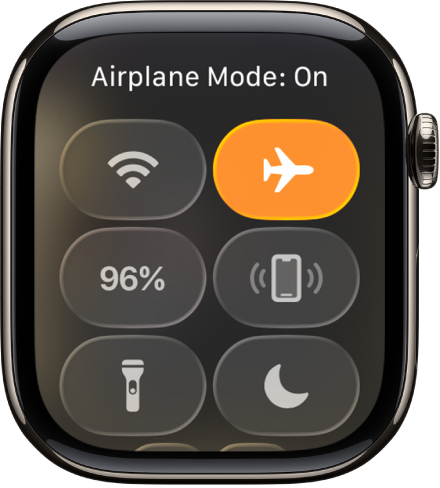
- Scroll down and tap the airplane icon.
– When active, the icon turns blue or orange. - Confirm by checking the top status bar for the airplane symbol.
Pro Tip: If your watch starts powering off, you held the button too long. Try a lighter, quicker press-and-release motion.
For Older Models (Series 1–5, pre-watchOS 6)
On earlier models, accessing Control Center is simpler:
- Swipe up from the watch face.
- Tap the airplane icon in the Control Center.
- The icon turns blue when enabled.
After activation, always verify the airplane icon appears in the status bar—this confirms Airplane Mode is active.
Use the Settings App for Reliable Control
If Control Center isn’t responding or you want more control, use the Settings app—a foolproof method that works on all models.
Open and Toggle Airplane Mode
- Press the Digital Crown to return to the home screen.
- Tap the Settings app (gear icon).
- Scroll down and select Airplane Mode.
- Tap the toggle:
– Green/blue = On
– Gray = Off
This method is slightly slower but gives you access to customization options, which are essential if you want to disable Bluetooth or manage Wi-Fi independently.
Activate Airplane Mode Hands-Free with Siri
When your hands are full—during travel, workouts, or while wearing gloves—Siri lets you toggle Airplane Mode without touching your watch.
Use Voice Commands Anytime
- Say: “Hey Siri, turn on airplane mode.”
- Siri will confirm and immediately enable the setting.
- To disable: Say “Hey Siri, turn off airplane mode.”
Best for: Quick toggling during flights, runs, or busy mornings.
Siri works across all Apple Watch models running watchOS 1 or later, provided “Hey Siri” is enabled in settings.
Sync Airplane Mode with Your iPhone
Want both devices to switch together? You can set your Apple Watch to mirror your iPhone’s Airplane Mode status.
Set Up Mirroring in the Watch App
- Open the Apple Watch app on your iPhone.
- Tap the My Watch tab.
- Go to General > Airplane Mode.
- Turn on Mirror iPhone.
Note: Both devices must be within 10 meters (33 feet) for mirroring to work.
Important: Even with mirroring enabled, you must manually disable Airplane Mode on each device. The setting only ensures that turning it on one triggers it on the other.
Customize Airplane Mode: Control Wi-Fi and Bluetooth
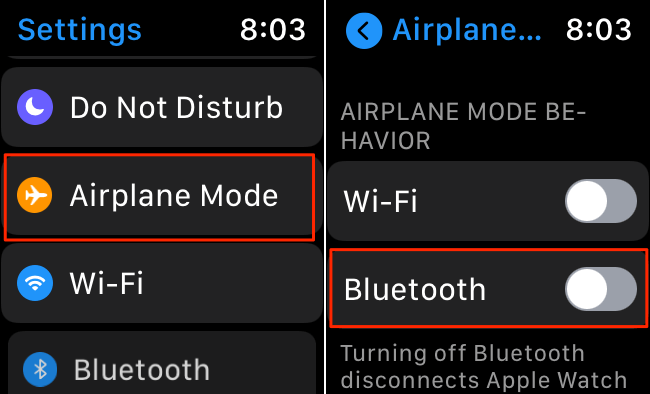
By default, Airplane Mode disables cellular and Wi-Fi, but Bluetooth often stays on—especially on watchOS 6 and later. This can defeat the purpose if you’re trying to disconnect completely.
Adjust Settings for Full Control
- On your Apple Watch, open Settings.
- Tap Airplane Mode.
- Toggle:
– Wi-Fi: Keep on for in-flight networks
– Bluetooth: Turn off to stop phone pairing and alerts
Use Case: Keep Bluetooth on to use AirPods with downloaded music, but turn it off for full isolation during sleep.
You can also manually re-enable Wi-Fi while in Airplane Mode if your airline allows internet access.
Why Bluetooth Stays On (And Why It’s a Problem)
Many users report that after enabling Airplane Mode, Bluetooth reconnects automatically, the phone icon turns green, and notifications continue. This is not user error—it’s a known behavior change in watchOS 6+.
What Happens After watchOS 6
- Airplane Mode disables cellular and Wi-Fi.
- But Bluetooth remains active, maintaining connection to your iPhone and accessories.
- Result: You still get calls, messages, and app alerts.
- AirPods continue streaming audio.
- EMF exposure is not reduced.
This contradicts the expected function of Airplane Mode and has been widely reported as a bug, not a feature.
Proven Fixes to Fully Disable Bluetooth
If you need true disconnection—for sleep, focus, or EMF reduction—here are verified workarounds.
1. Manually Turn Off Bluetooth After Enabling Airplane Mode
- Enable Airplane Mode via Control Center or Settings.
- Open Settings > Bluetooth on your watch.
- Tap the toggle to turn Bluetooth off.
- On your iPhone, re-enable Bluetooth if needed.
This breaks the connection and stops all notifications.
2. “Train” Your Watch to Remember the Setting
This long-term fix teaches your watch to disable Bluetooth automatically next time.
- Enable Airplane Mode.
- Go to Settings > Bluetooth and turn it off.
- Disable Airplane Mode.
- Re-enable Airplane Mode.
Result: The watch remembers your preference and disables Bluetooth automatically in future.
User Confirmed: Mavickx, Hankie83, and others report this works across Series 5–9.
3. Re-pair Your Apple Watch
If the issue persists:
- Unpair your Apple Watch in the iPhone’s Watch app.
- Set it up again—either as new or from backup.
Some users found this restored expected Airplane Mode behavior.
Report the Bluetooth Bug to Apple
Help Apple fix this inconsistent behavior by submitting official feedback.
How to Submit a Bug Report
- Open the Feedback app on your Apple Watch or iPhone.
- Select: Feedback → Apple Watch → Bug Report
- Include:
– Your Apple Watch model (e.g., Series 9)
– watchOS version
– Clear description: “Airplane Mode does not disable Bluetooth”
– Video evidence (if possible)
More reports increase the chance Apple addresses this in a future update.
Best Use Cases and Practical Tips
During Air Travel
- Enable Airplane Mode before boarding.
- If in-flight Wi-Fi is allowed, manually re-enable Wi-Fi after turning on Airplane Mode.
- Keep Bluetooth on to use wireless headphones.
Pro Tip: Combine with Do Not Disturb to silence alerts while staying reachable in emergencies.
Maximize Battery Life
Airplane Mode cuts power drain from radios.
- Use during long hikes, flights, or events.
- Pair with Low Power Mode (on Apple Watch Ultra) for extended use.
- Expect up to 2x longer battery life depending on usage.
Sleep with Less EMF Exposure
Goal: Minimize wireless signals while sleeping.
- Standard Airplane Mode may not be enough due to Bluetooth.
- Recommended: Use the “train the watch” method or manually disable Bluetooth.
- Schedule a routine: enable Airplane Mode + Bluetooth off at night, disable in the morning.
Stay Focused Without Distractions
Use Airplane Mode during:
– Meditation
– Deep work sessions
– Meetings
You’ll still have access to:
– Alarms
– Workout tracking
– Offline music
– Heart rate and health sensors
Confirm Airplane Mode Is Truly Active
Don’t assume it’s working—verify visually.
Key Indicators to Check
- Status Bar: A small airplane icon appears at the top.
- Control Center: Airplane icon is blue/orange.
- Phone Connection Icon: Should be red (disconnected).
Warning: If the phone icon turns green after enabling Airplane Mode, Bluetooth has reconnected.
Fix: Manually disable Bluetooth in Settings > Bluetooth.
Model and OS Compatibility Overview
| Feature | Supported On |
|---|---|
| Control Center access | All Apple Watch models |
| Cellular disable | Cellular models (Series 3 and later with LTE/5G) |
| Bluetooth customization | watchOS 5 and later |
| Siri voice control | watchOS 1+, “Hey Siri” enabled |
| Mirror iPhone setting | iOS 10+ and paired iPhone |
Check your watchOS version in Settings > General > About to confirm compatibility.
Summary: Key Facts at a Glance
- Disables: Cellular, Wi-Fi, Bluetooth (in theory), GPS
- Default quirk: Bluetooth stays on after watchOS 6
- Activation methods: Control Center (fastest), Settings, Siri
- Mirroring: Syncs with iPhone via Watch app (range-limited)
- Customization: Control Wi-Fi and Bluetooth independently
- Known issue: Bluetooth reconnection breaks isolation
- Best fix: “Train the watch” or manually disable Bluetooth
- Top uses: Flying, battery saving, sleep, focus
Final Recommendations
- For quick use: Use Control Center or Siri.
- For flights: Enable Airplane Mode, then re-enable Wi-Fi if allowed.
- For sleep: Enable Airplane Mode and disable Bluetooth—or use the “train” method.
- For full disconnect: Combine Airplane Mode + Do Not Disturb + manual Bluetooth off.
- If it’s not working: Submit feedback to Apple—your report helps drive change.
Airplane Mode is a powerful tool for managing connectivity on your Apple Watch. Despite software quirks in recent versions, with the right setup and a few smart workarounds, you can take full control—whether you’re soaring at 30,000 feet or just trying to get a better night’s rest.




