
If your Apple Watch suddenly displays a faint message saying “Turn Digital Crown to unlock watch” and won’t respond to taps or presses, don’t panic—this isn’t a malfunction. The Digital Crown, one of the most essential controls on your Apple Watch, has multiple functions: pressing, turning, and even unlocking after sleep mode. But when it stops working as expected or demands a twist you weren’t prepared for, confusion sets in.
Many users assume this prompt is triggered by water exposure, but more often than not, it’s caused by Sleep Mode—not moisture. Whether you’re using an Apple Watch Series 9, SE, or Ultra, understanding how to turn the Digital Crown on Apple Watch correctly can prevent frustration and restore smooth navigation. This guide covers everything: how to use the crown properly, why you might need to rotate it to unlock, what to do when it feels stiff or unresponsive, and how to adjust settings so you’re no longer caught off guard.
You’ll also learn how newer gestures reduce reliance on the crown, how to clean and maintain it, and how software updates can improve responsiveness. Mastering the Digital Crown means faster access, fewer misfires, and a better overall experience.
Press the Digital Crown to Return Home
The primary function of the Digital Crown is to return to the App List (Home Screen) from any app or screen.
Use a Firm, Straight-Down Press
To navigate home, apply a firm, straight-down press without twisting. This action should instantly exit whatever app you’re in and bring you back to the grid of icons.
However, many users—especially on Series 7 and later models—report needing multiple presses or accidentally triggering animations instead. This often happens because:
– You’re pressing at an angle, which registers as a turn
– Your finger is wet or sweaty, reducing grip
– You’re using a dynamic watch face (like Galaxy or Solar) that responds to rotation with time animations
For best results:
– Keep your finger dry and centered on the crown
– Avoid lateral pressure
– Press decisively but gently—no need to force it
Why the Press Might Not Work
Apple does not allow adjustment of Digital Crown press sensitivity in settings. If your press isn’t registering:
– Restart your Apple Watch
– Ensure watchOS is up to date
– Clean around the base with a soft, dry brush
If problems persist, run diagnostics via Settings > Privacy & Security > Analytics & Improvements > Watch Diagnostics to check for hardware issues.
Turn the Crown to Scroll, Zoom, and Adjust
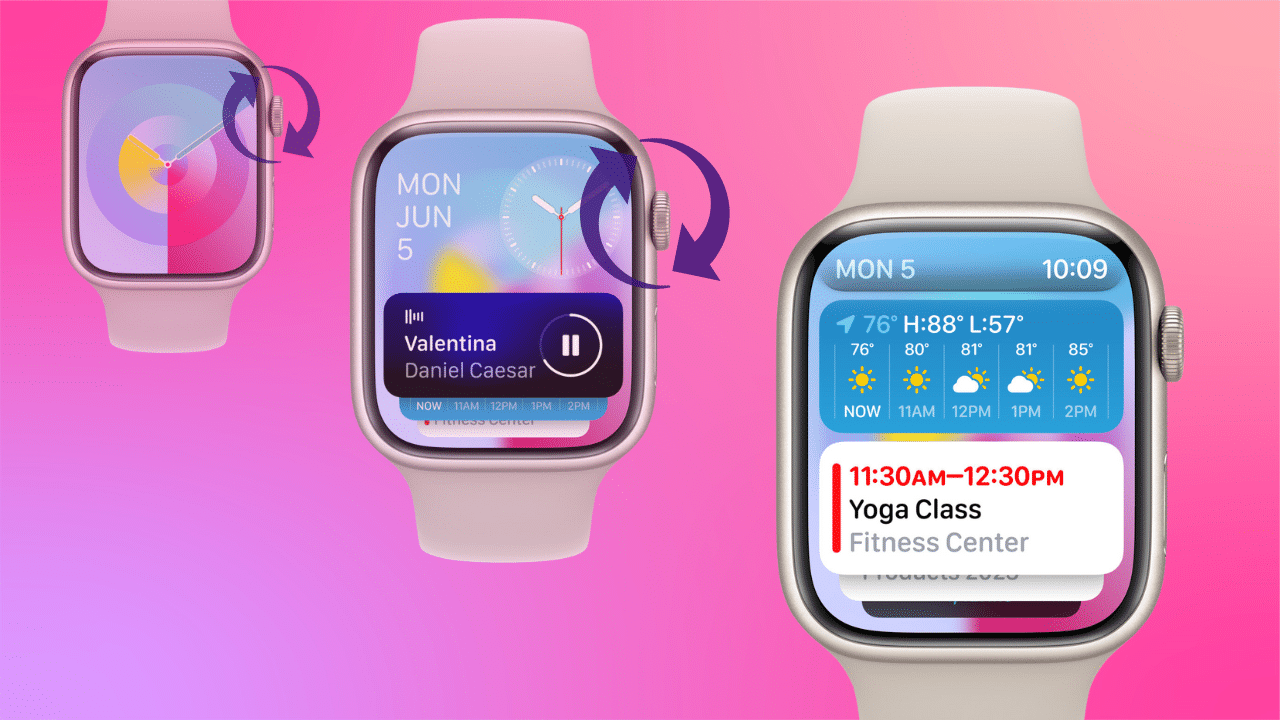
Rotating the Digital Crown gives you precise control over content and settings.
When to Rotate the Digital Crown
Use the turn function in these situations:
– Scrolling through messages, emails, or long lists
– Zooming in and out on maps
– Adjusting volume during calls or media playback
– Setting timers, alarms, or workout goals
– Changing heart rate thresholds or brightness levels
Each notch provides tactile feedback, making fine adjustments easy—even on a small screen.
What Proper Rotation Feels Like
When turning the crown:
– You should feel a subtle “click” with each increment
– On-screen values change smoothly and proportionally
– There’s no lag, stutter, or screen flicker under normal conditions
If scrolling jumps erratically or doesn’t respond:
– Check for moisture or debris
– Restart the watch
– Try rotating slowly and fully
Unlock After Sleep Mode by Turning the Crown
One of the most confusing experiences is waking your Apple Watch to see a dim screen with the prompt: “Turn Digital Crown to unlock watch.”
This Isn’t Water Lock—It’s Sleep Mode
Despite common assumptions, this prompt does not mean your watch is wet. Instead, it’s triggered by Sleep Mode, which activates during your Wind Down or Sleep Schedule.
During Sleep Mode:
– The screen dims to near-black
– Do Not Disturb turns on
– Touch input is disabled to prevent accidental taps
– You must physically turn the Digital Crown to confirm you’re awake and interacting
This acts as a presence check, ensuring the device only unlocks when you’re actually using it.
How to Stop the Turn-to-Unlock Prompt
If you don’t want to twist the crown every morning:
1. Open the Sleep app on your Apple Watch
2. Tap Full Schedule
3. Modify Bedtime, Wake Up, or Wind Down times
4. Or go to Settings > Sleep > Sleep Mode and toggle it off
Disabling automatic Sleep Mode stops the dimming and eliminates the need to turn the crown upon waking. You can still enable Sleep Mode manually via the Control Center when needed.
Fix an Unresponsive Digital Crown
Sometimes the Digital Crown stops responding to both pressing and turning.
Common Issues and Solutions
| Issue | Solution |
|---|---|
| Crown won’t press | Restart watch; clean debris; avoid angled presses |
| Turning does nothing | Check for software lag; restart; update watchOS |
| “Turn to unlock” doesn’t respond | Rotate slowly and fully; ensure finger covers sensor area |
| Crown feels sticky or stiff | Rinse under fresh water (if WR50 model); rotate while wet; dry thoroughly |
For all Apple Watch models rated WR50 (Series 2 and later), you can safely rinse the crown under lukewarm freshwater for 10–15 seconds to remove sweat, salt, or soap buildup.
After rinsing:
– Rotate the crown several times to flush out residue
– Wait for the ejection chime (a series of tones)
– If no chime, let it air dry naturally for several hours
Never force the crown if it feels jammed. If cleaning doesn’t help, contact Apple Support.
Adjust Sleep Settings to Prevent Unlock Prompts
Frequent turn-to-unlock messages are usually tied to active Sleep Schedules.
Disable Automatic Sleep Mode
To stop the unlock requirement:
1. Go to Settings > Sleep
2. Tap Sleep Mode
3. Toggle it off
Alternatively, keep Sleep Mode but shorten or remove the Wind Down period, which triggers the low-light lock.
You can still manually activate Sleep Mode through the Control Center—giving you flexibility without surprise prompts.
Set Bedtime Using the Digital Crown
Even with Sleep Mode enabled, you can use the crown to adjust your schedule:
1. Open the Sleep app
2. Tap Full Schedule
3. Select Bedtime
4. Turn the Digital Crown to set the time
5. Tap Set
This reinforces the crown’s role as both a navigation tool and input dial.
Reduce Crown Use with Gestures
Newer Apple Watch models (Series 9, SE 3, Ultra 2) support touchless gestures that reduce physical interaction.
Enable Double Tap
The Double Tap gesture lets you perform actions by tapping your thumb and index finger together twice.
To set it up:
– Open Settings > Gestures > Double Tap
– Choose an action: Answer call, Pause timer, Take screenshot, etc.
Once enabled, you can:
– Answer calls without touching the watch
– Stop a timer mid-workout with a hand motion
– Capture screenshots discreetly
This reduces wear on the crown and speeds up common tasks.
Try Wrist Flick to Dismiss Alerts
Another helpful gesture—Wrist Flick—lets you dismiss notifications, calls, or timers by quickly flicking your wrist away and back.
Available on the same models as Double Tap, it complements rather than replaces crown functions.
These gestures don’t eliminate the need to press or turn the Digital Crown, but they help preserve its longevity and improve accessibility.
Know the Difference: Crown vs Side Button vs Action Button
Understanding each control prevents confusion.
Digital Crown
- Press: Return to App List
- Turn: Scroll, zoom, adjust values, unlock after sleep
- Long press: Not used
Side Button
- Press: Open Control Center or Power Down menu
- Hold: Activate Emergency SOS
- Double press: Launch Walkie-Talkie (if enabled)
Action Button (Ultra Models Only)
- Press: Triggers customizable shortcut (e.g., Siren, Compass Backtrack)
- Hold: Activate Emergency SOS or flashlight
- Located on the left side, separate from the Digital Crown
Knowing the difference ensures you’re using the right button—especially in emergencies.
Troubleshoot Faint or Missing Unlock Messages
The “Turn Digital Crown to unlock watch” message is intentionally dim—but often too hard to read.
Why the Message Is So Hard to See
Apple designed the prompt to appear at minimal brightness to avoid disturbing sleep. As a result:
– Text is small and brief
– Appears only momentarily
– Difficult to read in dark rooms, especially without glasses
Users report tapping the screen repeatedly just to catch the instruction.
What to Do If You Miss the Prompt
Even if you can’t read the message:
– Simply rotate the Digital Crown slowly
– The screen will brighten and unlock once motion is detected
– No need to press or tap first
Think of it as a physical CAPTCHA—proof you’re awake and interacting.
While Apple hasn’t added an option to increase brightness for this prompt, disabling Sleep Mode removes the need entirely.
Maintain Your Digital Crown for Long-Term Use
Like any mechanical part, the Digital Crown benefits from regular care.
Clean It Regularly
Clean every few weeks or after:
– Intense workouts
– Swimming or showering
– Exposure to dust, sand, or salt
Steps:
1. Rinse under lukewarm fresh water (for WR50 models)
2. Gently rotate the crown while rinsing
3. Dry by rotating until ejection chime sounds
4. Wipe with a soft, lint-free cloth
Avoid alcohol, cleaners, or compressed air.
Prevent Stiffness
To keep the crown moving smoothly:
– Rotate it daily, even briefly
– Don’t leave it idle for long periods
– Update watchOS regularly—Apple improves haptic and sensor calibration over time
If the crown feels stiff after water exposure, let it dry naturally—do not force movement.
Update watchOS for Better Performance
Software updates often fix bugs and improve Digital Crown responsiveness.
Why Updates Matter
- Fix misregistered presses
- Improve scrolling smoothness
- Refine sleep mode logic
- Enhance gesture integration
To update:
1. Open the Watch app on your iPhone
2. Go to General > Software Update
3. Install the latest version (ensure at least 50% battery and connection to charger and Wi-Fi)
After updating, test the crown in various apps to confirm improved behavior.
Final Note: The Digital Crown is central to Apple Watch navigation—press to return home, turn to scroll or unlock after sleep. Mastering its use prevents frustration and unlocks faster, more intuitive control. Adjust sleep settings to stop unwanted unlock prompts, enable Double Tap to reduce physical input, and clean the crown regularly to maintain performance. With proper technique and maintenance, your Digital Crown will remain responsive for years.




