
You’re glancing at your Apple Watch after using a navigation app, only to notice it’s still active in the background—draining battery or causing glitches. You try closing it, but nothing seems to work. You’re not alone. Many users struggle with how to turn off Apple Watch apps because of misleading advice and confusing interface cues. Unlike iPhones, the Apple Watch doesn’t have a visible “close” button, and common myths—like swiping apps away from the dock—can actually make things worse.
Here’s the reality: Apple Watch apps can’t be closed like desktop programs, but they can be stopped when frozen, misbehaving, or consuming too much power. The correct method involves using the app switcher—not the dock—and understanding how watchOS manages app states. This guide delivers the only proven ways to close or force quit apps, debunks dangerous misconceptions, and shows you how to prevent unnecessary battery drain. By the end, you’ll know exactly when and how to stop an app—without accidentally removing your favorite shortcuts.
Use the App Switcher to Close Apps

This is the only proper way to close a running app on Apple Watch. It removes the app from recent use and halts background processes without affecting your favorites.
Press and Hold the Digital Crown
- Wake your Apple Watch by raising your wrist or tapping the screen.
- Press and hold the Digital Crown until small preview cards of your recently used apps appear.
- These cards show the apps you’ve opened in the last few minutes.
- Swipe the app card upward to close it.
What happens: The app is removed from memory and stops all background activity. It remains installed and accessible from your home screen.
Pro Tip: This method works for every app—whether it’s Apple’s Workout, Messages, or a third-party app like Strava. Use this routinely if you want to ensure an app isn’t lingering.
This technique is fast, safe, and doesn’t risk losing quick-access apps. Think of it as the Apple Watch’s version of “Alt + Tab” on a computer—clean, efficient, and built into the system.
Force Quit Unresponsive Apps
When an app freezes or becomes unresponsive, the app switcher might not open. That’s when you need the emergency force-quit method.
Use Side Button + Digital Crown
- Stay in the frozen app (don’t navigate away).
- Press and hold the side button until the power-off slider appears.
- Do not slide to shut down—just release the side button.
- Immediately press and hold the Digital Crown.
- Keep holding until the app closes and you return to the watch face.
Why it works: This combo forces the system to terminate the app’s process without restarting the entire watch.
Note: This method is especially useful for third-party apps like Spotify or fitness trackers that sometimes hang during sync.
Unlike older advice, this does not remove the app from your dock or favorites. It’s a targeted fix for frozen apps—use it only when necessary.
Don’t Swipe Apps from the Dock
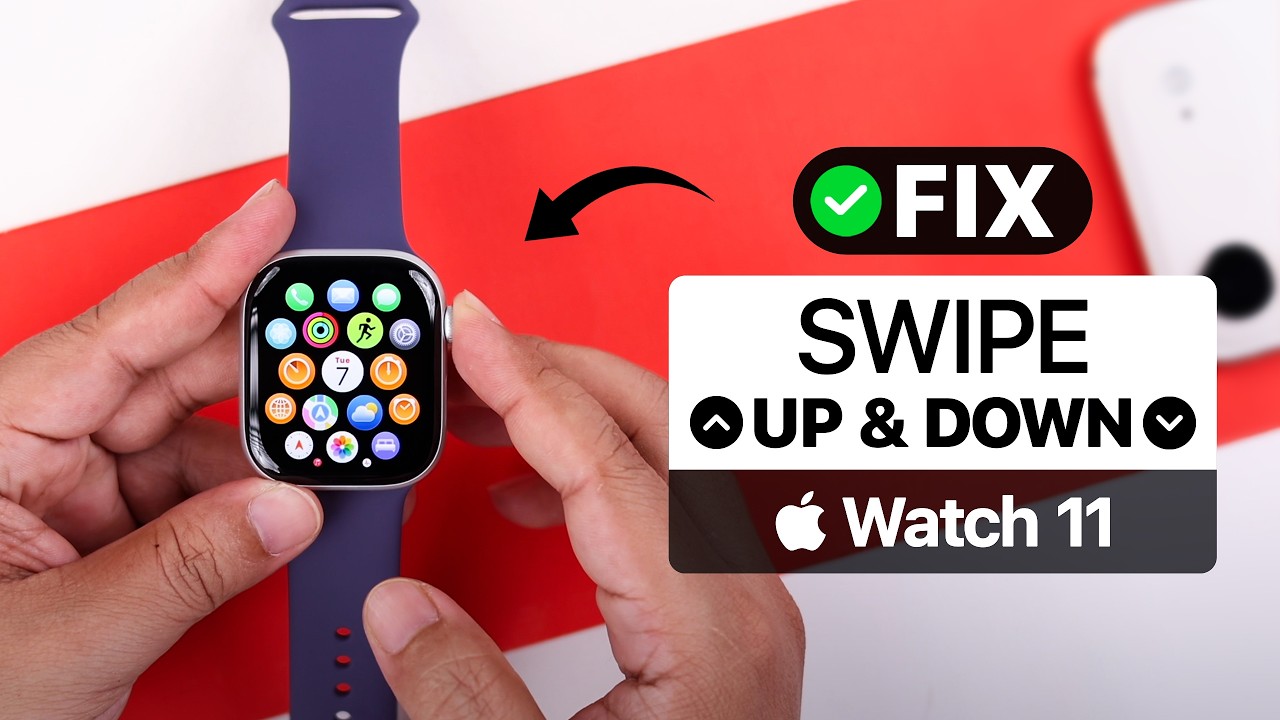
A persistent myth claims that swiping up on an app in the dock with a red “X” closes it. This is false—and harmful.
Why Swiping from the Dock Is a Mistake
- Removes apps from favorites: The dock is not a task manager. It’s a customizable list of quick-access apps. Swiping away deletes it from this list.
- No performance benefit: watchOS automatically suspends apps. Manually “closing” them via the dock doesn’t speed up your watch or save battery.
- Creates frustration: Users lose access to essential apps and must re-add them manually through the iPhone Watch app.
Real-world consequence: One user accidentally removed their heart rate monitor from the dock, thinking they were “freeing memory,” only to realize they couldn’t access it during workouts.
Fix if you’ve done it: Open the Watch app on iPhone > My Watch > Dock > re-add the missing app.
Save yourself the hassle—never swipe apps from the dock unless you want to remove them from quick access.
Change Dock to Show Recent Apps
If you frequently need to close apps, switching your dock to show recently used apps instead of favorites can help—but with a trade-off.
Switch from Favorites to Recent
- Open the Watch app on your iPhone.
- Tap My Watch > General > Dock.
- Select Recent instead of Favorites.
Benefit: Now, swiping an app from the dock removes it from the recent list—and may help terminate lingering background activity.
Trade-off: You lose fixed shortcuts. But if you multitask across many apps, this setting gives you better visibility into what’s been running.
Best for: Power users who switch between apps often and want more control.
With this setting, swiping from the dock can have a minor impact on app state—though the app switcher is still the preferred method for closure.
Stop Background App Drain

Even after closing, some apps continue refreshing in the background, hurting battery life.
Disable Background App Refresh
- On Apple Watch, open Settings.
- Go to General > Background App Refresh.
- Toggle it off completely, or disable it per app.
Apps to watch: Spotify, iHeartRadio, Google Maps, Strava—anything that streams or syncs data.
Case study: A user noticed their battery dropped 40% overnight. After disabling background refresh for music apps, drain dropped to 15%.
Recommendation: Turn it off for non-essential apps. Keep it on only for navigation or fitness tools you actively use.
This setting is crucial for preventing silent battery drain—especially with audio and location-based apps.
Restart Apple Watch to Clear All Apps
When multiple apps freeze or the system feels sluggish, a full restart clears everything.
How to Restart
- Press and hold the side button until the power-off slider appears.
- Slide to power off.
- Wait 10 seconds.
- Press and hold the side button again until the Apple logo appears.
Result: All apps are terminated, caches cleared, and temporary glitches resolved.
When to do it: Weekly maintenance, after software updates, or when apps freeze repeatedly.
Time required: Less than a minute.
A restart is the most effective way to reset all app states—use it when other fixes fail.
Update watchOS to Fix App Bugs
Outdated software can cause apps to hang, refuse closure, or drain power.
Check for Updates
- Open Settings on Apple Watch.
- Tap General > Software Update.
- Install any available update.
Requirements: At least 50% battery, Wi-Fi connection, and on charger.
Why it matters: Apple regularly patches bugs related to app crashes, background leaks, and force-quit failures.
Pro tip: Enable Automatic Updates in the Watch app on iPhone to stay protected.
Keeping your watchOS current prevents many app issues before they start.
Reset All Settings (Last Resort)
If apps consistently crash or won’t close, reset system preferences—without losing data.
Perform a Full Reset
- On Apple Watch, go to Settings > General > Reset > Reset All Settings.
- Confirm.
What’s erased: Wallpaper, sounds, privacy settings, Dock configuration.
What’s safe: Apps, health data, messages, photos.Use only when: Other fixes fail and multiple apps are affected.
After reset: Reconfigure your Dock and re-enable key settings.
This is a nuclear option—but safe and effective when system-wide issues persist.
App-Specific Fixes
Some third-party apps are notorious for staying active.
Spotify Keeps Running?
- Even after exit, Spotify may continue syncing or playing audio.
- Fix: Close via app switcher, then disable Background App Refresh.
- If frozen: Use side button + Digital Crown to force quit.
- Restart the app after closure to fix connection issues.
iHeartRadio Draining Battery?
- Streaming apps often maintain background connections.
- Solution: Close app + disable background refresh + avoid dock swipes.
- Test: Monitor battery usage in Settings > Battery > check 24-hour usage.
Targeted fixes like these stop the worst offenders.
How watchOS Manages Apps
Understanding Apple’s design helps avoid unnecessary closures.
Apps Are Suspended, Not Running
- When you leave an app, watchOS suspends it in memory.
- It uses almost zero CPU or battery.
- Reopening is faster because it resumes, not reloads.
Apple’s philosophy: Like iPhone, Apple Watch optimizes memory automatically. Manual closure isn’t needed for performance.
Warning: Force-closing apps too often slows down your watch by forcing full reloads.
Trust the system—only intervene when an app misbehaves.
Digital Crown vs. Side Button: What Does What?
| Button | Action | Purpose |
|---|---|---|
| Digital Crown (hold) | Opens app switcher | Close apps properly |
| Side button (short press) | Opens dock | Quick access to favorites |
| Side button (long press) | Power menu | Restart or shut down |
| Side + Digital Crown | Force quit | Kill frozen apps |
Key takeaway: The Digital Crown is your main tool for closing apps—not the side button alone.
Best Practices Summary
| Action | When to Use | Benefit |
|---|---|---|
| Swipe up in app switcher | Normal closure | Safest, preserves favorites |
| Side button + Digital Crown | App frozen | Force quits without data loss |
| Change dock to Recent | Frequent closures | Easier app management |
| Disable background refresh | Battery drain | Stops silent app activity |
| Restart watch | System lag | Clears all app states |
| Update watchOS | Recurring bugs | Fixes known issues |
| Reset all settings | Last resort | Restores default behavior |
Final Note: You don’t need to close Apple Watch apps every time you use them. watchOS handles background tasks efficiently. Only intervene when an app misbehaves or drains battery. Use the app switcher with the Digital Crown as your primary tool, avoid swiping from the dock, and adjust settings to prevent future issues.
Now you know the right way to turn off Apple Watch apps—quickly, safely, and without losing your favorites.





