

Your Apple Watch lies flat on the charger—no light, no logo, no response. Press the side button. Nothing. Try the Digital Crown. Still black. That familiar panic sets in: Is it dead? You’re not alone. “Apple Watch does not turn on” is one of the most common issues across all models, from the Series 1 to the latest Ultra 2. But here’s the truth: in most cases, it’s not dead.
Whether your watch is stuck in a software freeze, suffering from a drained battery, or blocked by lint in the charging port, there’s a fix—and it’s likely within reach. This guide delivers a clear, step-by-step recovery plan based on real user experiences, technical insights, and methods used even by former Apple QA engineers. No guesswork. No fluff. Just proven strategies to bring your Apple Watch back to life.
Verify Your Charging Setup
Before assuming hardware failure, confirm your Apple Watch is actually receiving power. Many “dead” watches simply aren’t charging due to overlooked setup issues.
Use Genuine Apple Charging Accessories
Third-party chargers may look identical, but they often fail to deliver the correct voltage or magnetic alignment. Start with an Apple Magnetic Charging Cable, USB-C Fast Charging Cable, or Magnetic Charging Dock. If you’re using a MagSafe Duo, ensure your model supports it—Series 7 and later only.
Avoid WPT-compliant chargers sold in regions like China or Indonesia. These are region-locked and display:
“Unable to charge. This is a country-specific charger.”
They won’t work outside designated markets.
Plug Into a Wall Adapter, Not a Computer
A laptop’s USB port may provide inconsistent power, especially for recovery. Always use a 5W or higher Apple wall adapter for stable voltage. This is critical for deeply drained batteries that need a strong initial charge.
Test Power Source and Cable
Try different outlets and USB adapters. If possible, test the cable with another Apple Watch. Misalignment is common with larger models (44mm, 45mm, 49mm)—lay the charger flat and adjust the angle. For Apple Watch Ultra, remove the band during charging to improve contact.
Clean the Charging Contacts

Lint, sweat, and grime can block the five metal pins on the back of your Apple Watch or the magnetic charger, breaking the electrical connection—even if they look clean.
Safe Cleaning Steps
- Power off the watch if possible.
- Use a dry cotton swab or soft, lint-free cloth.
- Gently wipe the metal contacts on the watch and the magnetic surface of the charger.
- Do not use liquids, alcohol, or compressed air—these can push debris deeper or damage water seals.
User Insight: Many users report restored charging after cleaning contacts that appeared spotless. Lint is often invisible but highly conductive when damp.
Force Restart Your Apple Watch
A frozen operating system can mimic a dead battery. A force restart resets the processor and bypasses software locks.
How to Force Restart (All Models)
- Press and hold both the Side button and Digital Crown.
- Hold for 10 to 30 seconds—do not stop if the screen stays black.
- Release when the Apple logo appears.
Note: Newer models like the Series 8 and Ultra may take the full 30 seconds to respond. Patience is key.
If the Apple logo shows, your watch is alive. Let it boot fully before interacting.
Charge for an Extended Period
A completely drained lithium-ion battery may not respond immediately. Don’t give up after 5 minutes.
Deep Discharge Recovery Protocol
- Connect to Apple charger and wall adapter.
- Charge for at least 30 minutes without touching the watch.
- For long-unused devices, wait up to 4 hours.
Look for these signs of life:
– Green lightning bolt = charging
– Red lightning + time = minimal power
– Vibration or chime = internal activity
Pro Tip: If no symbol appears after 30 minutes, unplug and reconnect the charger. This often triggers detection.
Remove and Reattach the Band
An unusual but surprisingly effective fix: removing and reinstalling the band.
Why This Works
Loose or misaligned bands—especially Sport Bands—can interfere with grounding circuits or sensor connections, preventing proper power delivery.
Steps to Try
- Press the band release buttons and slide it out.
- Inspect and clean the attachment slots.
- Reinsert the band until it clicks.
- Attempt a force restart.
User Report: Multiple forum users cite this as the final step that revived their unresponsive watch.
Restart Your Paired iPhone
Your Apple Watch depends on its iPhone for firmware stability. A frozen iPhone can disrupt recovery efforts.
How to Restart iPhone
- iPhone 8 and later: Press and hold Side + Volume Down until Apple logo.
- iPhone 7/7 Plus: Hold Side + Volume Down.
- iPhone 6s and earlier: Hold Sleep/Wake + Home.
After restart, open the Watch app and check My Watch > General > Usage for battery or device status.
Change Watch Face Remotely via iPhone
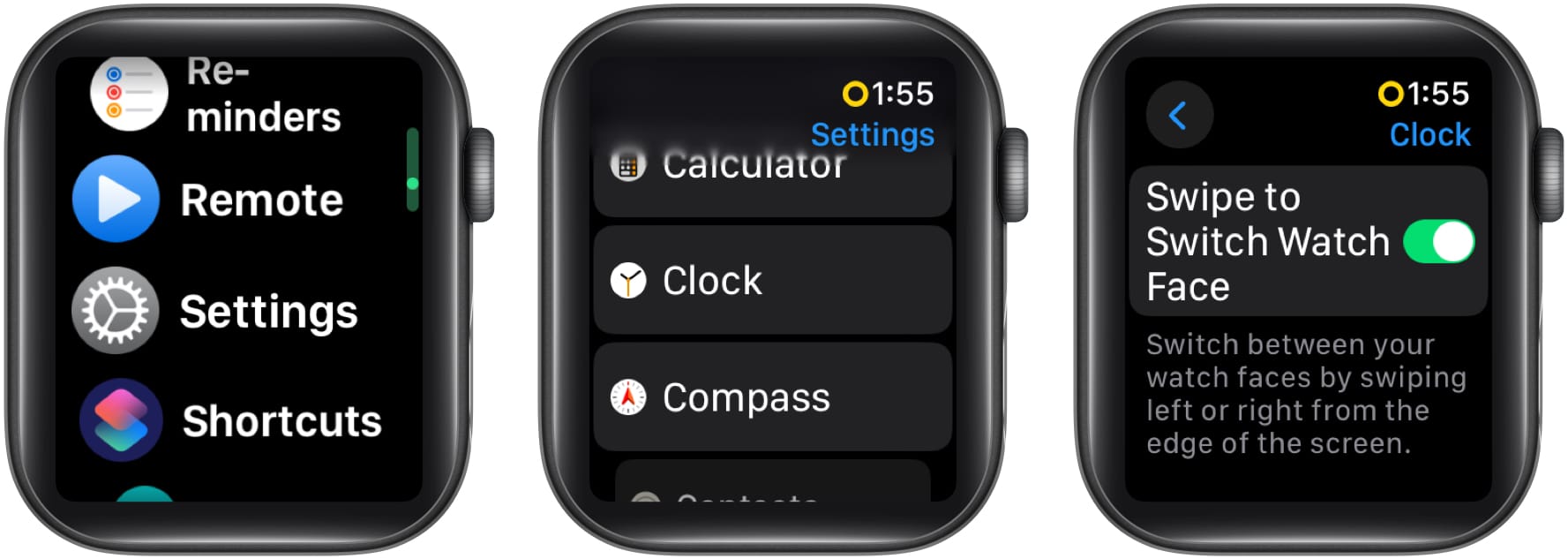
If the watch might be on but the screen is frozen, test it remotely.
Remote Diagnostic Steps
- Open Watch app on iPhone.
- Go to My Watch > Face Gallery.
- Select and apply a new watch face.
- Watch the Apple Watch screen.
If the display updates, the watch is powered but stuck. A force restart should now work.
Clean the Side Button and Digital Crown
Dust or moisture can jam the physical buttons, making them unresponsive.
Button Maintenance Routine
- Remove the band.
- Tap the Side button rapidly 30–45 times on a flat surface.
- Rotate the Digital Crown back and forth while tapping.
- Avoid tools or liquids.
Warning: If the Digital Crown feels gritty or stiff, stop immediately—internal damage may be present.
Apply Gentle Pressure and Tapping (Use with Caution)
Some users report success by gently stimulating the device to reseat internal connections.
Safe Technique
- Press gently on all edges and the back of the watch for 1–2 minutes.
- On a soft surface, tap each corner lightly.
- Focus on the charging side.
Caution: Use minimal force. Never press hard enough to risk screen damage.
This may help with micro-fractures or loose connections—but it’s not a guaranteed fix.
Try the Fridge Method (Last Resort)
Cold can slightly contract internal components, potentially resetting a stuck battery circuit.
Step-by-Step
- Remove the band.
- Seal the watch in a plastic bag (prevent condensation).
- Place in refrigerator (not freezer) for 10 minutes.
- Remove and let warm to room temperature (15–20 minutes).
- Charge and attempt force restart.
Note: Apple Watch operates safely between 0°C and 35°C. Brief refrigeration is within range and considered safe by some experts.
Never freeze the device—ice can cause irreversible damage.
Perform a Full Battery Drain (Festivus Miracle)
If your watch shows red lightning + time but won’t boot, it may be in “limbo”—too low to start, not low enough to reset.
How to Fully Drain
- Leave the watch unused for 3–7 days.
- Goal: Reach true zero (no response when pressing buttons).
- After complete drain, connect to charger.
Many users report the watch immediately shows green lightning and boots.
Accelerate the Drain: Perform 2–3 force restart attempts per day to speed up battery depletion.
Rationale: Lithium-ion systems can get stuck in hibernation. A full reset clears the firmware state.
Wait for Spontaneous Recovery
Sometimes, patience is the best fix.
Real-World Case
A user with a 4-year-old Series 6 (71% battery health) reported no response for days. After 5 days, the watch rebooted on its own at 13% battery.
Conclusion: Severely degraded batteries may enter extended hibernation and recover when internal voltage stabilizes.
But if there’s no warmth, vibration, or charging symbol after 4+ hours, hardware failure is likely.
Recognize Hardware Failure Signs
When all software fixes fail, hardware may be the culprit.
Red Flags
- No response after 4+ hours of charging
- No vibration, chime, or warmth
- Cracks, swelling, or liquid damage
- Charging symbol appears but won’t boot
- Force restart fails repeatedly
Common Hardware Issues
- Failed charging coil
- Swollen or dead battery
- Damaged logic board
- Corroded internal contacts (from sweat or saltwater)
Note: Apple does not offer standalone battery replacements at retail for all models. If hardware is faulty, expect a paid replacement (~$79–$99 USD).
When to Contact Apple Support
If every step fails, it’s time for professional help.
Seek Support If
- All troubleshooting fails
- Device is under warranty or AppleCare+
- Battery health is below 80%
- Physical or water damage is present
- Stored uncharged for months
What to Expect
- Diagnostic testing with Apple internal tools
- Possible out-of-warranty replacement
- Data recovery not guaranteed—always sync regularly
Prevent Future Issues
The best fix is prevention.
Best Practices
| Action | Benefit |
|---|---|
| Charge nightly | Prevents deep discharge |
| Use genuine Apple chargers | Ensures safe, stable power |
| Clean contacts weekly | Stops debris buildup |
| Avoid 0% battery | Reduces battery stress |
| Update watchOS | Fixes power bugs |
| Store at 50% charge | Ideal for long-term storage |
| Avoid extreme temps | Protects battery and internals |
Pro Tip: Treat your Apple Watch like a high-performance device—charge it, clean it, protect it.
Final Note: Most Apple Watches that “won’t turn on” aren’t dead. Start with the basics: verify charging, clean contacts, charge longer, and force restart. If those fail, try deeper methods like full drain or refrigeration. Age matters—watches over 3–4 years are more prone to battery failure. But even older models can come back to life with the right steps. Stay patient. Stay persistent. Your Apple Watch might just surprise you.




