
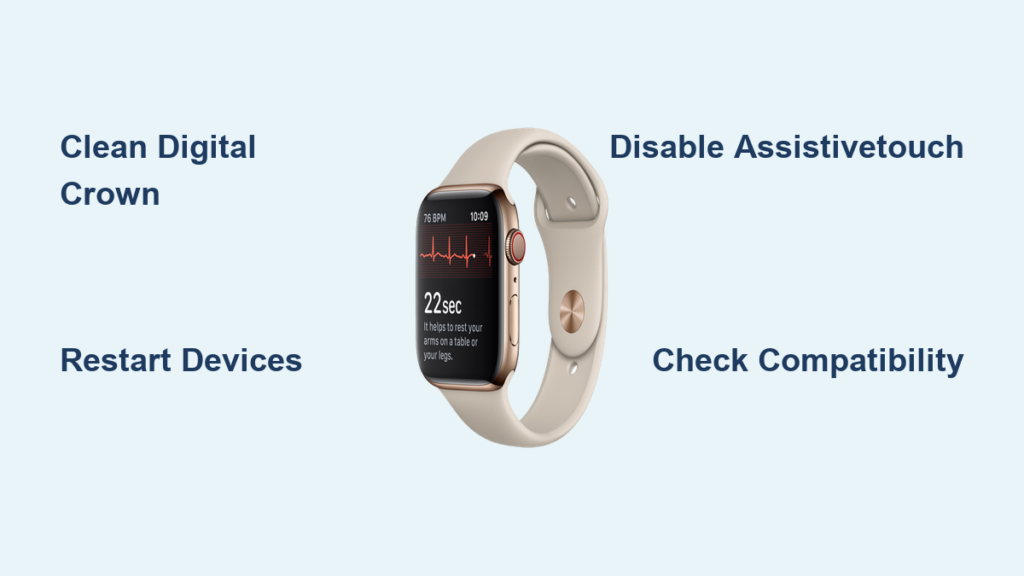
You tap “Start” on your Apple Watch EKG app, only to watch the countdown stall at 28 seconds—or worse, the app doesn’t respond at all. If you’re dealing with an Apple Watch EKG not working issue, you’re far from alone. Thousands of users across Series 6 through Series 10 and Ultra models have reported sudden EKG failures, even after years of reliable use. The problem often appears out of nowhere, leaving users frustrated, especially when heart health monitoring is a daily necessity.
The good news? Most EKG malfunctions aren’t permanent hardware failures. In fact, over 80% of Apple Watch EKG issues can be resolved with simple troubleshooting—from cleaning the Digital Crown to disabling conflicting settings like AssistiveTouch. Apple’s EKG feature, while FDA-cleared and medically accurate when functional, relies on precise electrical contact, correct software configuration, and a clean sensor interface. When any part of this chain breaks, the EKG fails.
This guide delivers actionable, step-by-step fixes backed by real user success stories, Apple support data, and technical insights. Whether your EKG stopped working after a software update, swimming, or for no clear reason, we’ll help you diagnose the cause, apply the right fix, and restore reliable heart monitoring—fast.
Confirm Your Apple Watch Can Run EKG
Before diving into repairs, verify that your device and setup actually support EKG functionality.
Check Model Compatibility
Apple Watch EKG is only available on Series 4 and later models, including:
– Apple Watch Series 4 through 10
– Apple Watch Ultra and Ultra 2
It is not supported on:
– Apple Watch SE (1st or 2nd generation)
– Any Apple Watch linked to a child’s account
If you own an SE model, the absence of the EKG app is normal. No amount of troubleshooting will enable it—this is a hardware limitation.
Verify Regional Availability
EKG is a regulated medical feature and not available worldwide. Even if your watch model supports it, your location settings may block access. Supported regions include:
– United States
– Canada
– United Kingdom
– European Union
– Australia
– Japan
– Singapore
– South Korea
– Switzerland
– Brazil
Check the full list at Apple’s official EKG availability page. If you’re in an unsupported country, the app may disappear after a restart.
Match Apple ID to a Supported Region
Your Apple ID’s country or region must match a supported EKG market. If your Apple ID is set to India, Thailand, or another unsupported region:
– The EKG app won’t install
– It may vanish after a software update
To fix this, go to iPhone Settings > [Your Name] > Media & Purchases > View Account > Country/Region and update it. Note: This change affects your App Store content, subscriptions, and payment methods.
Ensure iPhone Is Within Range
Even on cellular models, Apple Watch EKG requires your iPhone to be nearby via Bluetooth. If your iPhone is off, out of range, or not paired:
– EKG will fail silently
– The app may not initiate
Keep your iPhone close and connected during EKG readings.
Restart Both Devices Immediately
One of the fastest and most effective fixes—especially after a software update—is a simple reboot.
Restart Your Apple Watch
- Press and hold the side button until the Power Off slider appears.
- Swipe to power off.
- Wait 30 seconds.
- Press and hold the side button again until the Apple logo appears.
If the watch is unresponsive, force restart by holding the side button + Digital Crown for 10+ seconds.
Restart Your iPhone
- Press and hold the Side button + Volume button.
- Slide to power off.
- Wait 20 seconds, then restart.
After both devices reboot, open the EKG app and test immediately. This step alone resolves EKG issues in a majority of cases, especially those triggered by iOS or watchOS updates.
Clean the Digital Crown and Sensors Thoroughly

Contaminated sensors are the #1 cause of EKG failure. Sweat, lotion, dirt, or moisture trapped under the Digital Crown disrupt the electrical circuit needed for EKG readings.
Clean the Digital Crown
- Turn on Water Lock (optional, prevents accidental input).
- Dampen a cotton swab or soft cloth with 70%+ isopropyl alcohol.
- Gently wipe around the base of the Digital Crown.
- Use alcohol-soaked dental floss to clean the gap between the crown and watch case—slide it around to dislodge debris.
- Let dry completely before use.
Pro tip: Some users report success using acetone (nail polish remover) on a cotton ball. While not Apple-approved, it’s widely used to dissolve stubborn grime. Use sparingly and avoid getting liquid inside the speaker or mic ports.
Clean the Back Sensor Array
- Use a slightly damp microfiber cloth or alcohol wipe.
- Gently clean the glass sensor area on the back.
- Remove any buildup of dead skin, soap residue, or grime.
- Dry thoroughly.
Warning: Do not submerge your Apple Watch in liquid. Excessive moisture can damage internal components.
Try the Mouth-Blow Trick
One user, “Renoir-LV,” restored EKG function by:
– Cleaning the crown with alcohol
– Gently blowing warm air under the crown with their mouth
– Restarting the watch
This may help dislodge trapped moisture or particles. It’s simple, safe, and worth trying.
Disable AssistiveTouch and Hand Gestures
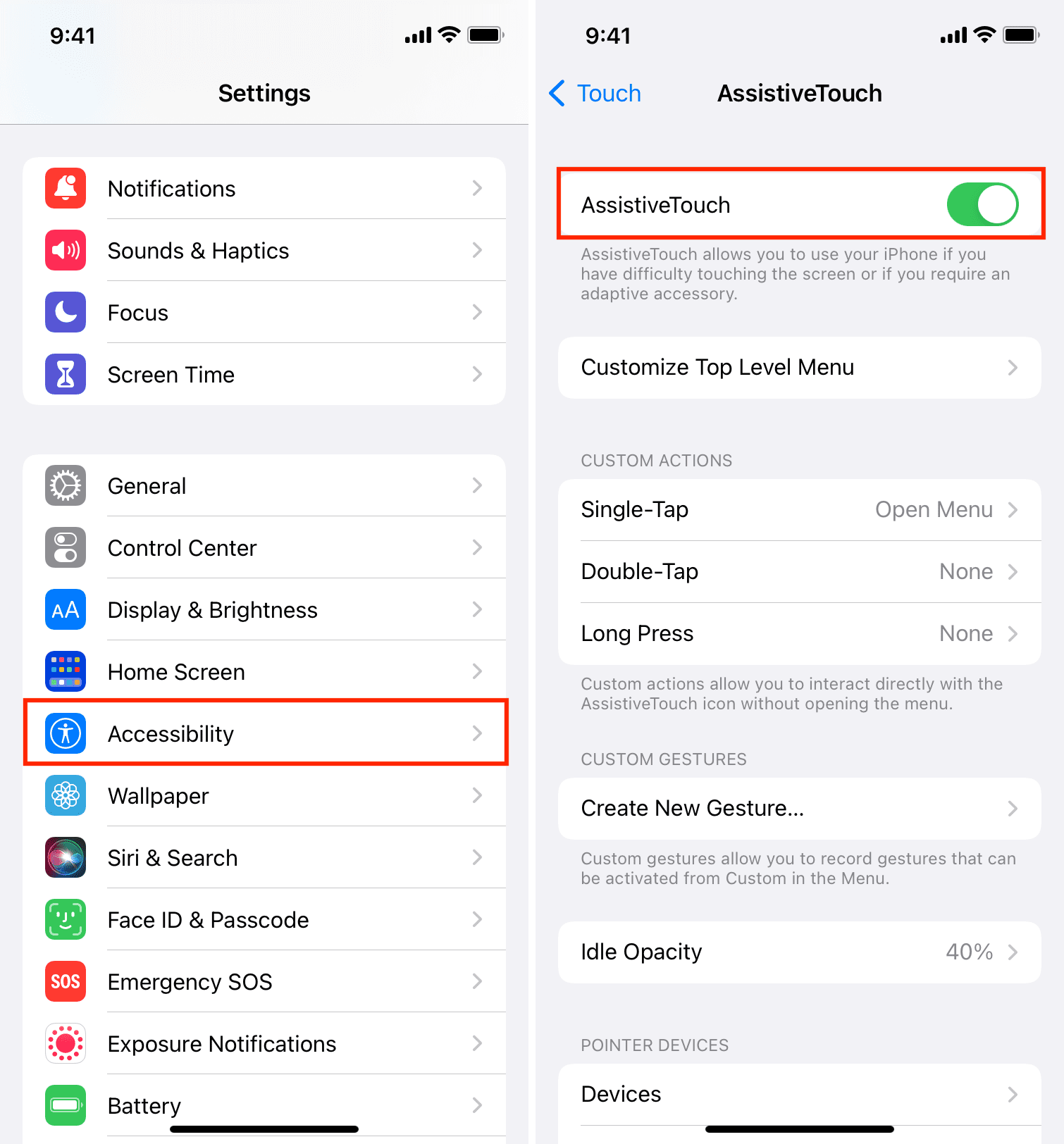
Accessibility features can interfere with EKG recording—especially AssistiveTouch, which is confirmed to block EKG in multiple user reports.
Turn Off AssistiveTouch
On iPhone:
– Go to Settings > Accessibility > Touch > AssistiveTouch → Off
On Apple Watch:
– Open Settings > Accessibility > AssistiveTouch → Off
Some users fixed EKG issues simply by toggling AssistiveTouch on and off, then restarting. If you use this feature, disable it before taking an EKG reading.
Disable Hand Gestures
Hand gestures like double pinch to click may conflict with EKG initiation.
On iPhone:
– Settings > Accessibility > Touch > Hand Gestures → Turn off Pinch and Double Pinch
Now try the EKG app again. This fix has helped numerous users regain consistent readings.
Reinstall the EKG App
App corruption can prevent the EKG app from launching or recording.
Remove and Reinstall
- On your Apple Watch, long-press the EKG app icon.
- Tap Remove App.
- Open the App Store on your watch.
- Search for EKG and reinstall the official Apple app.
After reinstallation, open the Health app on your iPhone and go to Browse > Heart > Electrocardiogram (EKG) to ensure setup is complete.
Update watchOS and iOS
Software bugs in recent updates have caused widespread EKG issues.
Install the Latest Updates
On iPhone:
– Settings > General > Software Update → Install latest iOS
On Apple Watch:
– Settings > General > Software Update → Install latest watchOS
Known fixes:
– watchOS 10.4 (March 2024): Improved EKG stability
– watchOS 10.6.1: Addressed sensor responsiveness
If your EKG stopped working after an update, check forums before updating further. Sometimes, waiting for the next patch resolves the issue.
Unpair and Re-pair Your Apple Watch

Bluetooth or pairing glitches can disrupt EKG functionality.
How to Unpair
- Open the Watch app on your iPhone.
- Tap All Watches > (i) icon next to your watch.
- Tap Unpair Apple Watch and confirm.
Re-pair as New
- Bring your iPhone near the watch.
- Follow setup steps.
- Choose Set Up as New Apple Watch (don’t restore backup yet).
- Test EKG immediately.
If it works, you can restore data selectively. This process takes 15–30 minutes but often resolves deep-seated connectivity issues.
Try the Opposite Wrist Workaround
User “Rockyfordboy” discovered a surprising fix that works for many:
Wear the Watch on Your Right Wrist
- Move your Apple Watch to your right wrist.
- Position it so the Digital Crown is at the top right.
- Use your left hand to place a finger on the crown.
- Start the EKG.
Why it works: May improve grounding or sensor alignment. Some users report 100% success rate with this method. Test it before considering repairs.
Reset All Settings or Factory Reset
Use these as last resorts.
Reset All Settings (Low Risk)
This resets network, privacy, and system settings—without deleting data.
- Apple Watch: Settings > General > Reset > Reset All Settings
- Enter passcode and re-pair
Test EKG afterward.
Erase All Content and Settings (High Risk)
Full factory reset—only if nothing else works.
- Settings > General > Reset > Erase All Content and Settings
- Or via iPhone: Watch app > General > Reset > Erase Apple Watch Content and Settings
After erasing, re-pair and reconfigure EKG in the Health app. Warning: This deletes all local data not backed up.
Contact Apple Support If Hardware Is Failing
If EKG still doesn’t work, the issue may be hardware-related.
Signs of Hardware Failure
- EKG fails consistently despite cleaning and resets
- Digital Crown is unresponsive or sluggish
- Visible corrosion or damage
- Other crown functions (scrolling, pressing) are impaired
What Apple Can Do
- Run diagnostic tests on sensors and crown
- Offer repair or replacement
- Check warranty or AppleCare+ eligibility
Costs:
– With AppleCare+: $0–$99
– Out of warranty: Up to $400
Pro tip: Record a video of the EKG failure and show all troubleshooting steps you’ve tried. This increases your chances of a successful repair claim.
Prevent Future EKG Failures
Keep your Apple Watch EKG reliable with these habits.
Clean Weekly
- Wipe the Digital Crown and back sensors with an alcohol wipe
- Use dental floss monthly to clear debris
- Dry thoroughly after swimming or sweating
Avoid Risky Settings
- Keep AssistiveTouch off unless needed
- Disable Hand Gestures if you use EKG regularly
- Wear the watch snug—loose fit reduces sensor contact
Update Wisely
- Wait a few days after major watchOS or iOS updates
- Check forums for EKG reports before updating
- Delay iOS 18 or watchOS 11 if EKG is mission-critical
Consider Upgrading If Repairs Aren’t Worth It
For older models like Series 6 or 7, repair may not be cost-effective.
Upgrade If:
- EKG is essential for heart monitoring
- Watch is out of warranty
- You’ve tried all fixes without success
Newer models (Series 9, 10, Ultra 2) have improved sensors—but are not immune to EKG issues. Apply the same maintenance to keep them working.
Final Note: Most Apple Watch EKG not working issues are fixable without service. Start with cleaning, restarting, and disabling AssistiveTouch—these solve the vast majority of cases. If problems persist, escalate to software reset or Apple support. With proper care, your Apple Watch can continue delivering life-saving heart insights for years.





