You glance at your wrist and realize your Apple Watch feels outdated—same face, same layout, same routine. What if you could transform it in seconds? Whether you want a sleek new look, real-time health stats, or a slideshow of your favorite memories, learning how to change watch face Apple Watch unlocks a world of personalization. It’s fast, free, and completely customizable.
No tech expertise needed. Whether you’re on an Apple Watch SE, Series 10, or Ultra, you can switch, edit, organize, and share faces with just a few taps—right from your wrist or iPhone. This guide walks you through every method, model-specific feature, pro tip, and troubleshooting fix. From enabling 3D Portrait effects to mastering edge-swipe navigation and installing third-party designs, you’ll learn how to make your Apple Watch truly yours.
Add a New Watch Face
Adding a new face is the first step to personalizing your Apple Watch. With dozens of styles—from minimalist analogs to photo-driven designs—you can tailor your watch to match your mood, activity, or aesthetic.
Use Face Gallery on iPhone (Best for Customization)
For full control, use the Face Gallery in the Apple Watch app on your iPhone.
Steps:
1. Open the Apple Watch app.
2. Tap Face Gallery at the bottom.
3. Browse categories like Photos, Health & Fitness, or New Watch Faces, or tap See All Watch Faces.
4. Select a face to preview it.
5. Tap Get to add it as-is, or customize:
– Change colors, fonts, numerals, or background
– Tap a complication position (Top Left, Bottom, etc.) to assign functions like Heart Rate, Weather, or Calendar
– To remove a complication: Scroll to Off
6. Tap Add to Watch.
✅ The new face appears instantly on your Apple Watch.
💡 Pro Tip: Customize before adding—this gives more options than editing later.
Add Directly on Apple Watch (Quick & On-the-Go)
No iPhone nearby? You can still add faces from your wrist.
Steps:
1. Touch and hold the current face.
2. Swipe left until you see the + icon.
3. Tap +, then browse categories or tap All Watch Faces.
4. Tap Get next to a design, then Add.
5. Tap Edit to customize it immediately.
🕒 Takes under 30 seconds—perfect for trying new styles on the fly.
Use Digital Crown on Series 10 (New Shortcut)
On Apple Watch Series 10 and newer:
– Press the Digital Crown to open the app grid.
– Scroll to the Watch Face gallery icon.
– Tap to browse and add a face.
📝 Note: Full customization still requires the Apple Watch app on iPhone.
Switch Between Watch Faces Instantly
Once you’ve added multiple faces, switching between them is effortless.
Default Method: Touch and Hold
- Touch and hold the screen.
- Swipe left or right to scroll through saved faces.
- Tap your preferred face to activate it.
This works on all models and watchOS versions.
Enable Edge Swipe (Faster Navigation)
With watchOS 10.2+, Apple restored edge-swipe navigation—no long press needed.
Turn It On:
– On Apple Watch: Go to Settings > Clock > Swipe to Switch Watch Face → Toggle on
– Or via iPhone: Open Apple Watch app > My Watch > Clock → Turn on Swipe to Switch
🔄 After enabling, swipe from the edge of the screen to cycle faces instantly.
❗ If it doesn’t work: Ensure your watch is updated to watchOS 10.2 or later.
Customize Any Watch Face
Make your face uniquely yours by adjusting colors, fonts, and complications.
Edit via Apple Watch App (Recommended)
For full control:
1. Open the Apple Watch app on iPhone.
2. Tap My Watch > My Faces.
3. Tap the face you want to edit.
4. Adjust:
– Color, style, numerals, or background
– Tap any complication to change its function (e.g., switch Weather to Calendar)
5. Changes sync automatically.
✅ You can edit faces even after adding them.
Customize on the Watch (Limited Options)
You can make basic changes directly:
1. Touch and hold the face.
2. Tap Edit.
3. Turn the Digital Crown to change colors or styles.
4. Tap a complication to replace it.
⚠️ Not all faces support on-watch editing—use iPhone for full features.
Set Up Special Watch Faces
Some faces offer unique visuals and interactivity.
Use Photos Watch Face with Albums

Turn memories into a dynamic slideshow.
Steps:
1. In Apple Watch app, go to Face Gallery > Photos.
2. Choose a layout.
3. Select:
– A synced album (e.g., Favorites)
– Or a collection like People, Pets, or Places
4. Tap Add.
📁 To manage synced photos:
– Open Apple Watch app > My Watch > Photos
– Set album and photo limit (25 to 500 images)
Enable 3D Portraits Watch Face
Bring portrait photos to life with depth.
Requirements:
– watchOS 8+
– iPhone with Portrait mode (iPhone 7 Plus or newer)
– Photos taken in Portrait mode with depth data
Setup:
1. In Face Gallery, tap Portraits.
2. Tap Choose Photos.
3. Select up to 24 portrait-mode images.
4. Tap Add.
🌀 On your watch: Tilt your wrist or turn the Digital Crown to see the 3D effect.
Try Kaleidoscope with Custom Patterns
Turn one photo into an evolving art piece.
Steps:
1. In Face Gallery, select Kaleidoscope.
2. Pick a photo.
3. Choose a style: Facet, Radial, or Rosette.
4. Tap Add.
🌀 Interact: Tap the face and turn the Digital Crown to shift the pattern.
Use Timelapse for Dynamic Backgrounds
Watch real-world scenes loop in the background.
Available Locations:
– Mack Lake (Montana)
– New York City
– Hong Kong
– London
– Paris
– Shanghai
Customize:
– Pick a location
– Add complications like Activity rings or Weather
🌆 Automatically adjusts brightness based on time of day.
Unlock Modular Ultra (Apple Watch Ultra Only)
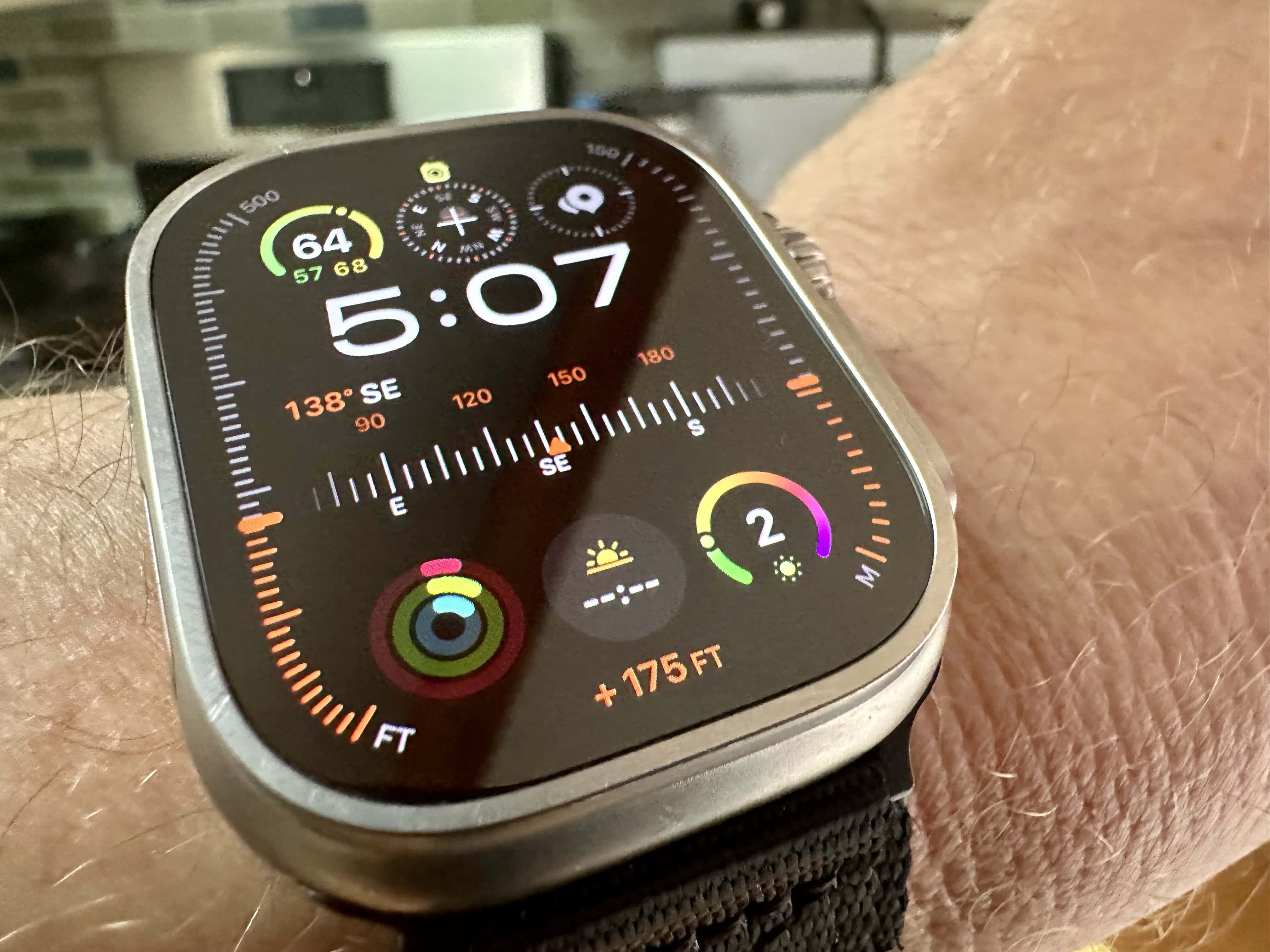
Built for adventurers with advanced bezel functions.
Features:
– Seven complication slots
– Bezel options: Elevation, Depth, Training Load
– Night Mode: Red display preserves night vision
Enable Night Mode:
1. Touch and hold face > Tap Edit
2. Swipe to Night Mode
3. Choose Auto (activates in low light) or On
🏕️ Ideal for diving, hiking, or nighttime navigation.
Organize Your Watch Face Collection
Keep your favorites within easy reach.
Reorder Faces on iPhone
- Open Apple Watch app > My Watch > My Faces
- Tap Edit
- Drag the ≡ icon next to any face to move it
- Tap Done
✅ Place most-used faces first for quick access.
Reorder on Apple Watch
- Touch and hold the current face.
- Touch and hold again until edit mode starts.
- Drag a face left or right to reposition it.
🔄 Changes sync across devices.
Delete Unused Watch Faces
Free up space and reduce clutter.
Remove from Apple Watch
- Touch and hold the current face.
- Swipe to the face you want to delete.
- Swipe up on it.
- Tap Remove.
Delete via iPhone App
- Open Apple Watch app > My Watch > My Faces
- Tap Edit
- Tap the minus (-) button next to a face
- Tap Remove
🔁 You can always re-add deleted faces from the Face Gallery.
Share Your Custom Watch Face
Send your perfect setup to friends—they’ll get the exact layout, colors, and complications.
Steps:
1. On Apple Watch, press and hold the current face.
2. Tap the Share icon (square with arrow).
3. Choose Messages, Mail, or other app.
4. Send the link.
📬 Recipient taps the link and installs the face with one tap—no setup needed.
Use Third-Party Watch Faces
Expand beyond Apple’s designs with creative options.
Install from App Store
- Open App Store on iPhone or Apple Watch.
- Search “watch faces”.
- Download apps like Facer, WatchFace.ly, or Clockology.
- Open the app and pick a design.
- Tap Add to Watch.
💳 Some require in-app purchases or subscriptions.
⚠️ Third-party faces may:
– Use more battery
– Have limited complication support
– Not update with new watchOS versions
Fix Common Watch Face Issues
Can’t Swipe to Switch Faces?
Solution:
1. On Apple Watch: Go to Settings > Clock
2. Turn on Swipe to Switch Watch Face
3. Try swiping from the edge of the screen
❓ If faces are missing: Check My Watch > My Faces in the Apple Watch app.
Photos Not Showing on Photos Face?
Fix:
– Open Apple Watch app > My Watch > Photos
– Confirm you’ve selected an album
– Sync manually if needed
– Ensure your watch has enough storage
Portrait 3D Effect Not Working?
Check:
– You’re using the Portraits face (not Photos)
– Photos were taken in Portrait mode with depth data
– Your iPhone supports Portrait mode
– watchOS 8 or later is installed
Maximize Watch Face Functionality
Add Useful Complications
Turn your face into a productivity hub:
– Heart Rate
– Activity Rings
– Weather
– Calendar
– Timer / Stopwatch
– Battery Level
– Music Control
💡 Pro Tip: Use Infograph or Modular faces for up to 8 complications.
Set Time Display Offset (For Early Awareness)
Show time up to +59 minutes ahead—helpful for knowing when a meeting starts.
Steps:
1. On Apple Watch: Open Settings > Clock > +0 min
2. Turn Digital Crown to set offset (e.g., +10 min)
3. Tap to confirm
⚠️ This only changes the displayed time—alarms and notifications stay on real time.
Compatible Models and watchOS Tips
Watch Face Availability by Model
| Face | Available On |
|---|---|
| Modular Ultra | Apple Watch Ultra only |
| Contour, Modular Duo, Reflections | Not on SE or Series 6 |
| Portraits (3D) | Requires watchOS 8+, compatible iPhone |
| Edge Swipe | Requires watchOS 10.2+ |
Update Software for Full Access
To use the latest faces and features:
– On iPhone: Settings > General > Software Update
– On Apple Watch: Settings > General > Software Update
✅ Recommended: Use iOS 16+ and watchOS 8+ for full compatibility.
Summary: Key Actions at a Glance
| Action | How To | Device |
|---|---|---|
| Add Face | Face Gallery > Get > Add | iPhone |
| Add Face | Touch & hold > + > Select | Apple Watch |
| Switch Face | Touch & hold > Swipe | Apple Watch |
| Switch Fast | Enable swipe > Edge swipe | Apple Watch |
| Customize | Edit in My Watch | iPhone |
| Reorder | Edit > Drag faces | iPhone or Watch |
| Delete | Swipe up > Remove | Watch |
| Share | Press face > Share icon | Apple Watch |
| Set Time Ahead | Settings > Clock > +0 min | Apple Watch |
Final Tips for Mastering Your Apple Watch Face
- Use the iPhone app for deep customization—it’s more powerful than on-watch editing.
- Organize your collection so your go-to faces are front and center.
- Try Photos, Portraits, or Kaleidoscope for personal, emotional touches.
- Add complications that match your daily needs—fitness, weather, or calendar.
- Share your designs with family or friends for instant style upgrades.
- Explore third-party apps if you want unique, artistic, or retro styles.
Changing your watch face isn’t just about looks—it’s about making your Apple Watch work better for you. With just a few taps, you can go from basic to brilliant. So go ahead: change watch face Apple Watch today and make every glance meaningful.