Yes, Spotify works on Apple Watch — but only if you meet the right hardware, software, and subscription criteria. With a Spotify Premium account and an Apple Watch Series 4 or later, you can stream music, play downloaded playlists offline, and control playback directly from your wrist. However, the experience is far from seamless: no search, no playlist editing, and a stubborn 100-song download limit per playlist make it feel outdated compared to Apple Music.
Many users report frustrating issues — playback failures, audio unexpectedly routing to the iPhone, and sluggish performance. While cellular and Wi-Fi streaming are supported on compatible models, all downloads must be initiated from your iPhone. And critically, Spotify does not support Apple Watch Family Setup, meaning kids without their own iPhone cannot use Spotify on their watch — a dealbreaker for many families.
In this guide, you’ll learn exactly which Apple Watch models support Spotify, how to install and download music, how to fix common problems, and whether it’s worth using over Apple Music.
Apple Watch Models That Support Spotify

Apple Watch Series 4 and Newer
Spotify officially supports Apple Watch Series 4 and above. However, performance varies significantly by model. While Series 4 and 5 can run the app, their limited storage and slower processors often result in lag and unreliable playback.
For a smoother experience, Series 6 or newer is strongly recommended. These models offer better processing power, more storage, and improved battery life — essential for standalone music use.
Note: Apple Watch Series 3 is no longer supported. After updating the Spotify app on your iPhone, the Apple Watch app will disappear and cannot be reinstalled.
Cellular vs GPS-Only Models: What’s the Difference?
The type of Apple Watch you own determines how independent you can be from your iPhone:
- Cellular models allow full standalone use: stream Spotify over LTE or Wi-Fi without your iPhone nearby.
- GPS-only models can only stream when connected to Wi-Fi or via Bluetooth to your iPhone.
- For true freedom — like running or commuting without your phone — a cellular Apple Watch is essential.
Even with a GPS-only model, you can still enjoy offline playback of downloaded playlists, but you won’t be able to stream new music unless your iPhone is in range.
Why Apple Watch Ultra 3 Is Ideal for Spotify
The Apple Watch Ultra 3 stands out for music lovers with up to ~1,000 songs of local storage — perfect for long hikes, workouts, or travel. Its larger battery also supports extended playback, making it the best Apple Watch for offline listening.
For runners, swimmers, or outdoor enthusiasts who want reliable music without carrying a phone, the Ultra 3 is the top choice — especially when paired with Bluetooth headphones.
Required Software and App Versions
watchOS 10 or Higher Required
Spotify requires watchOS 10 or later to function. If your Apple Watch is running watchOS 9 or below, the app won’t install or launch.
To update:
1. Open the Watch app on your iPhone.
2. Go to General > Software Update.
3. Connect your watch to power and Wi-Fi, then install the update.
Without the latest OS, you’ll be locked out of Spotify’s Apple Watch features.
Must Have: Latest Spotify App Update
A critical Spotify app update released in November 2024 enables playback through the Apple Watch Series 10’s built-in speaker. Without this update, audio defaults to your iPhone even when playing on the watch.
To ensure you’re up to date:
– Open the App Store on your iPhone.
– Search for “Spotify” and tap Update.
– Wait for the Apple Watch app to refresh automatically.
This update also improves stability and fixes long-standing sync issues.
Spotify Premium Is Mandatory for Full Use
Free Tier Users Can’t Play Music on Watch
If you’re on Spotify Free, you cannot play music directly on your Apple Watch. The only function available is remote playback control — meaning you can pause, play, or skip tracks on your iPhone from your wrist.
To use standalone features — offline listening, streaming, or downloading music — you must have Spotify Premium.
Family Plan Users: Kids Can’t Use Spotify Without an iPhone
Even if you’re on a Spotify Family plan, each user must have their own iPhone to activate Spotify on an Apple Watch.
This breaks compatibility with Apple’s Family Setup, which allows children to use an Apple Watch without owning a phone. As a result:
– Kids cannot install or use Spotify on their watch.
– Many families are forced to switch to Apple Music, which supports standalone use on child watches.
“Long time Spotify Family users and may have to switch to Apple Music because of this issue.” – Madvillain11
Until Spotify adds support for standalone watch accounts, this limitation will continue to drive families away.
How to Install Spotify on Apple Watch
Install via iPhone Watch App (Recommended)
The most reliable method:
1. Open the Watch app on your iPhone.
2. Tap Available Apps.
3. Find Spotify and tap Install.
4. Wait for the app to appear on your Apple Watch.
If Spotify doesn’t show up:
– Ensure both devices are updated.
– Restart your iPhone and Apple Watch.
– Try re-pairing the watch in the Watch app.
Install from Apple Watch App Store (Limited Availability)
On supported models:
1. Open the App Store on your Apple Watch.
2. Search for Spotify.
3. Tap Get to download.
Note: The app may not appear if your watchOS is outdated or your iPhone isn’t logged into Spotify.
How to Download Music to Apple Watch
Download From iPhone (Primary Method)
- Open Spotify on your iPhone.
- Go to a playlist, album, or podcast.
- Tap ••• (More).
- Select Download to Other Devices.
- Choose your Apple Watch.
- Keep both devices charged and nearby.
Pro Tip: Turn off Bluetooth on your iPhone to force the transfer over Wi-Fi — this speeds up downloads significantly.
Download From Apple Watch (Limited)
You can start downloads directly on the watch:
1. Swipe to the home screen.
2. Open a playlist.
3. Tap the download icon (↓).
You cannot download individual songs — only full playlists or albums.
Where to Find Your Downloads
After syncing, access offline music by:
– Swiping left on the home screen → Your Library → Downloads folder.
If downloads are missing, re-download the playlist or check storage space.
Offline Listening: Limits and Storage

100-Song Limit Per Playlist
Spotify enforces a hard cap: only the first 100 songs of any playlist will download, even if the playlist has 200+ tracks.
“Unfortunately, that limit still exists.” – DarthSidiousPT
Workaround: Split large playlists into smaller ones on your iPhone before downloading.
Storage Capacity by Model
| Model | Estimated Max Songs |
|---|---|
| Series 6–9 | 200–300 songs |
| Ultra 3 | Up to 1,000 songs |
| Series 10 | ~300–400 songs |
Actual capacity depends on audio quality and available storage.
Stream Spotify Without Your iPhone
Over Wi-Fi
Any Apple Watch connected to a known Wi-Fi network can:
– Stream music
– Play podcasts
– Access saved playlists
No iPhone required.
Over Cellular (Cellular Models Only)
With an active LTE plan, cellular Apple Watch models can stream Spotify anywhere — perfect for runs, commutes, or travel.
GPS-Only Model Limitation
Without Wi-Fi or iPhone Bluetooth, GPS-only watches cannot stream. You’re limited to offline playback only.
Audio Output: How to Play Spotify on Your Watch
Built-in Speaker (Series 10 and Newer)
Apple Watch Series 10 supports Spotify playback through its built-in speaker — but only with the latest app update.
To test:
1. Update Spotify on your iPhone.
2. Open Spotify on your watch.
3. Play a song — sound should come from the watch.
If it plays on your iPhone:
– Turn off Bluetooth on your iPhone.
– On your watch, open Control Center → long-press audio tile → select Apple Watch.
Bluetooth Headphones: Full Compatibility
Spotify works seamlessly with:
– AirPods (all models)
– Bose, Jabra, Sony, and other Bluetooth headphones
To pair:
1. Put headphones in pairing mode.
2. On Apple Watch: Settings > Bluetooth.
3. Tap the device name.
“My Apple Watch syncs with my B+O Bluetooth headphones with no issues.” – Apkef77
Playback Control and Spotify Connect
Basic Controls
- Play/Pause: Tap the icon
- Skip: Swipe left/right
- Volume: Rotate the Digital Crown
- Voice Commands: Say “Hey Siri, play [song] on Spotify”
Switch Devices with Spotify Connect
Start playback on your Apple Watch, then seamlessly move it to:
– Your iPhone
– Home speaker
– Car audio system
Use the Connect button in the Spotify app to switch.
Missing Features: What You Can’t Do
No Search on Apple Watch
You cannot search for songs, artists, or playlists directly on the watch. All discovery must happen on your iPhone first.
No Playlist Editing
You cannot:
– Create new playlists
– Add or remove songs
– Rename or reorder tracks
All editing must be done on iPhone or desktop.
No Individual Song Downloads
You can only download entire playlists or albums — not single tracks.
Troubleshooting Common Spotify Issues
Spotify Won’t Install
Fix:
– Update to watchOS 10+
– Restart both devices
– Reinstall via Watch app > Available Apps
Music Plays on iPhone Instead of Watch
Fix:
– Turn off Bluetooth on iPhone
– Or: On watch, open Control Center → select Apple Watch as audio output
Download Stalls or Fails
Fix:
– Turn off Bluetooth on iPhone
– Keep both devices on Wi-Fi
– Leave Apple Watch on charger
App Crashes or Lags
Fix:
– Update Spotify app
– Restart Apple Watch
– Delete and reinstall Spotify
Child Watch Can’t Use Spotify
No workaround. Each user needs their own iPhone.
Result: Many families switch to Apple Music, which supports child watches via Family Setup.
Spotify vs Apple Music on Apple Watch
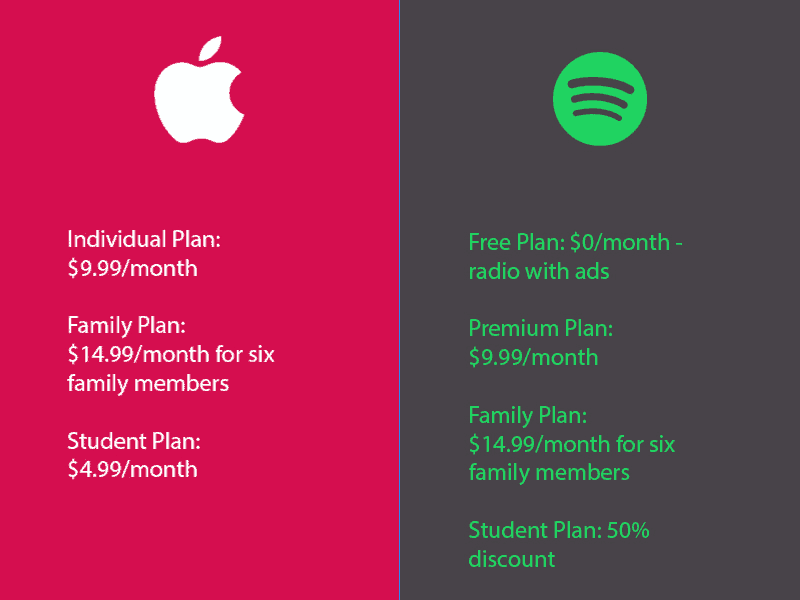
| Feature | Spotify | Apple Music |
|---|---|---|
| Offline Playback | Yes (limited) | Yes (full) |
| Download Limits | 100 songs/playlist | No limits |
| Search on Watch | ❌ | ✅ |
| Playlist Editing | ❌ | ✅ |
| Child Watch Support | ❌ | ✅ |
| App Stability | Mixed reports | Consistently stable |
| Speaker Playback | Yes (Series 10+, updated app) | Yes |
| User Sentiment | Negative to mixed | Strongly positive |
“Spotify on the Watch sucks. Cannot recommend this combo to anyone.” – SurvivorsGuilt23
“Apple Music works perfectly.” – Mundane_Anybody2374
Final Verdict: Should You Use Spotify on Apple Watch?
Yes — If You’re a Dedicated Spotify User
Spotify works on Apple Watch for Premium users on Series 6 or newer. You can:
– Stream over Wi-Fi or cellular
– Play downloaded music offline
– Use Siri and Bluetooth headphones
But it’s not ideal. The lack of search, editing, and child support makes it frustrating compared to Apple Music.
Who Should Avoid It?
- Families with child watches
- Runners or gym-goers needing reliability
- Anyone annoyed by app crashes or sync issues
Until Spotify fixes the 100-song cap and adds standalone support for Family Setup, many users will find Apple Music a better fit.
But if you love Spotify and accept the limits, it’s usable — just not flawless.