You glance at your Apple Watch and see only the time—no apps, no home screen, no response—just a red lightning bolt inside a red circle. Your heart skips a beat. Is it broken? Did something go wrong? Before you panic, take a breath: this is not a hardware failure. The red lightning bolt with circle is Apple’s way of telling you that your watch is charging but has too little power to turn on. It’s a normal state when the battery is completely drained, especially after long storage or extended use without charging.
Thousands of users encounter this every year, often mistaking it for a dead or malfunctioning device. But in over 95% of cases, the solution is simple and requires no technical expertise. Whether your Apple Watch is brand new, years old, or has been sitting in a drawer for weeks, understanding what this icon means—and how to fix it—can save you time, money, and stress. Here’s everything you need to know about the red lightning bolt with circle: what it means, why it happens, and how to get your watch back up and running.
What the Red Lightning Bolt with Circle Means
The red lightning bolt inside a red circle is a clear signal: your Apple Watch is charging, but its battery is so low that it can’t power up yet. This screen appears when your watch enters Power Reserve mode, a protective state triggered when the battery hits 0%. Unlike regular low battery warnings, Power Reserve shuts down nearly all functions—apps, notifications, and even touch response—to conserve the minimal charge needed to restart.
Charging vs. Not Charging: Key Difference
It’s crucial to distinguish between two similar icons:
– ✅ Red lightning bolt + red circle = The watch is charging successfully. You just need to wait.
– ❌ Red lightning bolt alone (no circle) = Not charging—likely due to a dirty connector, damaged cable, or faulty power source.
This dual-icon system helps you quickly assess the situation. If you see the red ring, your watch is receiving power. Don’t force a restart—let it charge.
Power Reserve Mode Explained
Power Reserve mode is a built-in safety feature designed to protect your Apple Watch’s lithium-ion battery during deep discharge. When the battery reaches 0%, the watch automatically disables all non-essential systems to preserve just enough energy to reboot once charging begins.
When It Triggers
Power Reserve activates under several conditions:
– Battery fully drained from daily use
– Watch left uncharged for days or weeks
– New Apple Watch out of the box (often shipped at partial charge)
– Failed restart attempt on a critically low battery
During this mode, pressing the side button or Digital Crown does nothing. The screen shows only the time and the charging icon. This isn’t a frozen device—it’s working exactly as designed.
What You’ll See on Screen
The display is intentionally minimal:
– Current time
– Red lightning bolt (with red circle if charging)
– No apps, complications, or interaction
Don’t try to force a reboot yet. First, confirm charging is active and give it time.
How to Fix the Red Lightning Bolt with Circle

Most cases resolve within 30 minutes using these proven steps.
Connect to the Right Charger
Use only the original Apple Magnetic Charging Cable or USB-C Fast Charging Cable. Third-party cables, especially non-MFi-certified ones, often fail to deliver stable power.
Optimize Your Setup
- Plug into a wall adapter (5V/1A or higher)—not a computer USB port
- For faster recovery, use an iPad charger (12W+) to jump-start a deeply drained battery
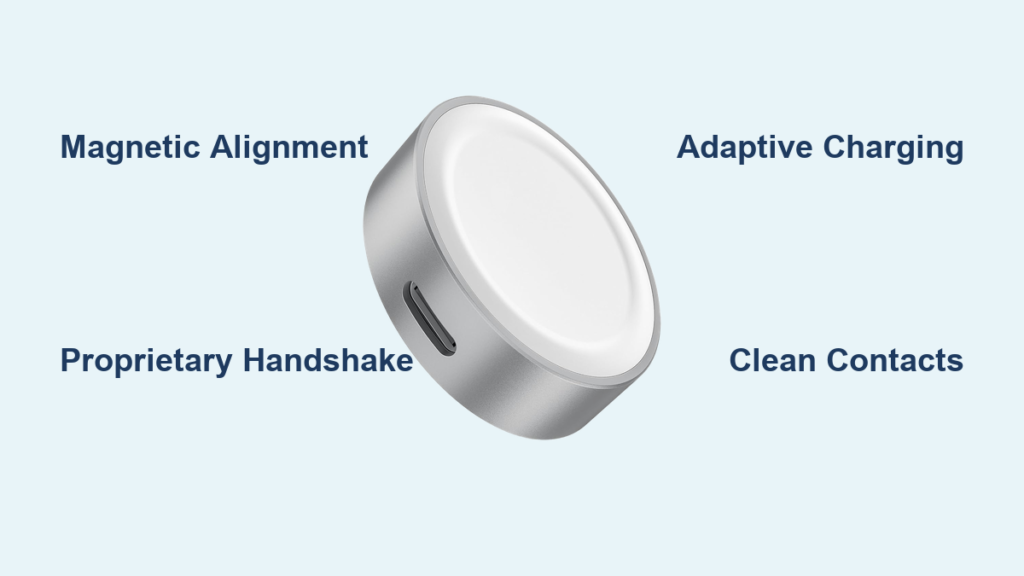
- Place the back of the watch flush against the magnetic puck
Pro Tip: If you own an Apple Watch Ultra, remove the band before charging. The thicker case can interfere with magnetic alignment.
Charge for 10–30 Minutes Without Interruption
After connecting, do not press any buttons. Let the watch charge undisturbed.
What to Expect
| Time | Status |
|---|---|
| 0–10 min | Red lightning bolt with red circle (charging) |
| 10–30 min | Should shift to green lightning bolt + green ring |
| 30+ min | Apple logo appears → watch boots normally |
If the icon remains red after 30 minutes, keep charging. Some watches take 6–8 hours or even overnight to recover from deep discharge, especially if stored for weeks.
Real User Experience: “Left it on my MacBook overnight—woke up to the Apple logo.” – 木兰, Aug 2024
Perform a Hard Reset If Still Unresponsive
If the watch still won’t boot after an hour:
Force Restart Steps
- Press and hold the side button + Digital Crown together
- Hold for 10–15 seconds (up to 2.5 minutes if completely unresponsive)
- Release when the Apple logo appears
This clears temporary software glitches. No data is lost—it’s just like restarting a frozen phone.
⚠️ Warning: This is not a factory reset. A hard reset only reboots the system.
Troubleshoot If Still Not Charging

Even with the red circle visible, issues can persist. Here’s how to fix them.
Clean the Charging Contacts
Dirt, sweat, and oil are the #1 cause of charging problems—accounting for 90% of cases.
Cleaning Steps
- Power off the watch if possible
- Wipe the back of the watch with a dry microfiber cloth
- Clean the charging puck with a cotton swab
- For stubborn grime, use:
– A drop of high-alcohol aftershave on a cloth (not directly on device)
– Or plastic-safe cleaner like Amber Seals - Let all parts dry completely before reconnecting
✅ Do: Use gentle, lint-free materials
❌ Don’t: Use water, compressed air, or abrasive cleaners
Test with a Different Charger and Cable
Faulty accessories are a common culprit.
What to Check
- Bent or corroded USB prongs
- Frayed or kinked cable
- Non-MFi certified chargers (avoid cheap knockoffs)
Best Alternatives
- Try a different Apple-certified charger
- Plug into a MacBook USB-C port for stable, slow charging
- Use a wall outlet, not a power strip or USB hub
Expert Insight: Charging via MacBook has worked for users when wall chargers failed—likely due to smoother, more consistent power delivery.
Handle Deep Discharge Cases
If the watch sat unused for weeks, the battery may be in deep discharge protection.
Recovery Strategy
- Leave on charger for 6–8 hours or overnight
- Use a higher-amperage adapter (iPad charger: 12W+)
- Try connecting to a MacBook for gradual, steady charge
Some users report success after 24 hours of continuous charging.
Low Power Mode vs. Power Reserve Mode
Don’t confuse these two states—they’re very different.
| Feature | Low Power Mode | Power Reserve Mode |
|---|---|---|
| Activation | Manual or at 20% battery | Automatic at 0% battery |
| Functionality | Apps, notifications, and most features work | Only time and charging status |
| Interaction | Full use allowed | No touch response |
| Exit Method | Toggle off in Settings | Charge and restart |
| Icon | Red lightning bolt (no circle) | Red/green bolt with ring |
How to Turn Off Low Power Mode
1. Open Settings
2. Tap Battery
3. Toggle off Low Power Mode
Even with Low Power Mode on, the watch will enter Power Reserve if the battery drops to zero.
New Apple Watch: Why the Red Lightning Bolt Appears
It’s completely normal for a brand-new Apple Watch to show only the red lightning bolt and time.
Why This Happens
- Apple ships watches at 20–50% charge to preserve battery health
- During shipping or storage, the battery can drain to 0%
- The red circle means it’s in charging protection mode
First-Time Setup Fix
- Plug into the original Apple charger
- Wait 30 minutes without touching buttons
- Watch should show:
– Red → green lightning bolt → Apple logo → setup screen - Pair with iPhone as prompted
Key Tip: Do not press the side button repeatedly. Let it charge.
User Feedback: “Okay… it is working now. Thanks.” — Satisfied customer after proper charging
Model-Specific Tips and Firmware Notes

All Apple Watch models (Series 1 to Ultra 2) show the red lightning bolt with circle when charging from 0%.
Apple Watch Ultra 2
- Requires precise magnetic alignment
- Remove the band for better contact
- Use USB-C Fast Charging Cable for optimal results
Apple Watch Series 7 (watchOS 10)
- Some users report red bolt after 1 hour of charging
- Resolved with extended MacBook charging
- Ensure watchOS is up to date for best power management
Apple Watch SE
- Rare reports of green snake-like artifact during failed charging
- Indicates firmware or display issue—seek Apple Support
watchOS Behavior
- watchOS 9+: Introduced user-accessible Low Power Mode
- Earlier versions: Only Power Reserve (no toggle)
- Red lightning in top-left of active screen = Low Power Mode active (not a charging issue)
When to Contact Apple Support
If the red lightning bolt persists after 8+ hours on multiple chargers, it may be hardware failure.
Signs of Hardware Issues
- No charging light change (stays red or dark)
- Charger flickers or disconnects repeatedly
- Watch heats up abnormally
- Physical damage to charging port
Possible Internal Failures
- Damaged charging coil
- Battery degradation (common in 3+ year old watches)
- Moisture corrosion
Recommended Actions
- Contact Apple Support for diagnostics
- Visit Apple Store or authorized provider
- Request battery service if capacity < 80%
Apple offers battery replacement under warranty or AppleCare+. Out-of-warranty replacements cost $79–$99.
Prevent Future Red Lightning Bolt Issues
Avoid this situation with simple habits.
Daily Charging Routine
- Charge every night
- Use only Apple or MFi-certified chargers
- Clean contacts weekly
- Avoid extreme temperatures
Long-Term Storage Tips
- Charge to 50% before turning off
- Store in cool, dry place
- Recharge every 6 months
- Remove silicone bands to prevent moisture trapping
Charging Environment Best Practices
- Don’t charge in humid areas (like bathrooms)
- Avoid plastic screen protectors on the charger puck
- Never use wet hands or damp watch
Final Tips: Expert Advice
- The red lightning bolt with circle is a safety feature, not a defect.
- Always check if the charger is plugged in—many users panic only to find the dock was unplugged.
- Patience is key: Let it charge. Forcing restarts too early delays recovery.
- Use genuine Apple accessories: They’re more reliable and protect your investment.
With proper care, your Apple Watch can last for years. The red lightning bolt with circle is just a temporary pause—not the end of the road.