
If you’re using your Apple Watch to log weight lifting sessions, you’ve probably noticed it doesn’t count your bicep curls or deadlift reps like a personal trainer would. That’s because the Apple Watch wasn’t built primarily for strength training—it thrives on continuous, aerobic activities like running and cycling. But that doesn’t mean it’s useless in the weight room. With the right approach, your Apple Watch can become a valuable ally in tracking effort, monitoring recovery, and staying consistent with your lifting routine.
The key lies in understanding how the Apple Watch actually tracks weight lifting: not by automatically detecting every rep, but through a combination of heart rate monitoring, motion sensors, and integration with third-party apps. While it won’t replace a detailed workout journal, it can still provide meaningful insights—especially when you know how to work around its limitations. In this guide, you’ll learn exactly how the Apple Watch handles strength training, what it gets right, where it falls short, and how to maximize its potential whether you’re lifting for fitness or performance.
Start with the Right Workout Mode
Choosing the correct workout type is the first step to accurate tracking.
Select “Strength Training” for Accurate Logging
When you begin your session, open the Workout app on your Apple Watch and tap “Strength Training”—not “Other” or “Circuit Training” unless your workout fits those categories. This mode is optimized for resistance exercises and captures:
- Total workout duration
- Real-time heart rate
- Estimated active calories burned
- Intensity based on movement patterns
How to find it: Open Workout → Scroll down → Tap “Add a Workout” → Choose “Strength Training.”
Apple has significantly improved this mode in recent watchOS updates, making it more reliable for logging and syncing data to the Health app. Older versions were inconsistent, but today, “Strength Training” is the best native option for most lifters using free weights or machines.
Match the Mode to Your Routine
Not all strength workouts are the same. Use these guidelines:
- Circuit Training: Ideal for fast-paced, minimal-rest routines (e.g., HIIT with weights).
- Bodyweight Workout: Best for push-ups, planks, or lunges without equipment.
- Other: Use only as a last resort—be sure to rename it post-workout to maintain data accuracy.
Despite the alternatives, “Strength Training” remains the top choice for traditional weightlifting sessions.
How Sensors Track Your Lifting Effort

The Apple Watch uses three core technologies to estimate your effort during strength training.
Heart Rate Monitoring: The Core of Calorie Estimation
The optical sensor on the back of the watch uses photoplethysmography—flashing green LEDs to detect blood flow—and tracks your heart rate throughout the workout.
- Compound lifts like squats and deadlifts elevate heart rate significantly, leading to better calorie estimates.
- Isolation moves like bicep curls or triceps extensions often don’t spike heart rate enough, so they may appear as low-effort activity.
- Accuracy depends on skin contact—a loose band can cause erratic readings.
Pro Tip: Wear the watch slightly tighter during lifting (but not uncomfortably) to maintain sensor stability.
Motion Detection via Accelerometer and Gyro
The built-in accelerometer and gyroscope detect motion, orientation, and repetition tempo.
- These sensors help distinguish active lifting from rest periods.
- They enable automatic rep counting for bodyweight exercises like squats and push-ups—if “Time to Move” is enabled.
- For free weights, native detection is limited—you’ll need third-party apps for reliable rep and set logging.
Calorie Burn and the Move Ring: Why Lifting Often Feels Undercounted
Calories burned are calculated using heart rate, movement, and personal data (age, weight, gender). But here’s the catch:
Why Weight Lifting Underreports on the Move Ring
- The Move ring prioritizes continuous aerobic activity.
- Lifting involves short bursts of effort with rest—hard to capture as “movement.”
- EPOC (excess post-exercise oxygen consumption), which increases total calorie burn, isn’t tracked.
- Result: A 45-minute heavy session may only credit 50–100 active calories.
Workaround to Boost Move Ring Credit
- Start your workout as “Other” in the Workout app
- After finishing, rename it to “Strength Training”
- This triggers more frequent heart rate sampling and better categorization in Apple Health
Note: Only workouts started in the native Workout app affect Activity rings—third-party apps can’t contribute directly.
Know the Built-in Limitations
Even with improvements, the Apple Watch has clear gaps in strength tracking.
| Limitation | Real-World Effect |
|---|---|
| No Auto Rep/Set Logging | Must manually log reps and weight via app |
| Poor Calorie Accuracy | Underestimates true energy cost of lifting |
| No Rest Timer Automation | Requires manual use or third-party tools |
| Limited Exercise Recognition | Only detects bodyweight moves reliably |
| No EPOC Tracking | Misses afterburn effect critical to metabolism |
Recognizing these limits helps you set realistic expectations—and highlights where third-party apps come in.
Boost Tracking With Third-Party Apps
Third-party apps fill the gaps Apple leaves open, turning your watch into a full gym companion.
Hevy: Simple, Full-Featured Logging
Hevy is one of the most popular free strength tracking apps with native Apple Watch support.
- Log sets, reps, weight, rest times directly from the wrist
- Create custom templates for regular routines
- Built-in timer with haptic alerts
- Syncs with Apple Fitness and Health
- Optional RPE (Rate of Perceived Exertion) tracking
Ideal for lifters who want simplicity without subscriptions.
Strong: Offline Ownership Model
Strong stands out by offering full functionality without a subscription.
- Track progression with detailed graphs
- Supports periodization and progressive overload
- Integrates with MacroFactor for nutrition alignment
- Watch app allows logging without phone access
Perfect for long-term planners and data-driven athletes.
Train: AI-Powered Auto Detection
Train uses motion sensors to auto-detect exercises and count reps.
- Recognizes movements like bench press, curls, rows
- Estimates weight based on speed and resistance
- Learns your form over time
- Minimizes phone use—great for crowded gyms
Users report: “It knew I was doing hammer curls before I even tapped anything.”
GymBook: One-Time Purchase Power
GymBook offers deep customization with a single upfront cost.
- Edit exercises, routines, and progression rules
- Watch app lets you mark sets complete mid-set
- No recurring fees—fully offline capable
Best for users who dislike subscriptions.
Bevel AI: Smart Programming
Bevel AI combines lifting logs with recovery data to build adaptive programs.
- Pulls HRV, sleep, and stress from Apple Health
- Adjusts workout intensity based on readiness
- Builds personalized plans using AI
A top pick for holistic performance tracking.
All these apps sync with HealthKit, ensuring your data stays unified in Apple Health.
Optimize Watch Settings for Lifting
Small tweaks can dramatically improve usability and accuracy.
Enable Strength Training in Workout List
Go to Watch app (iPhone) → Workout → Workout Settings → Make sure “Strength Training” is visible.
This ensures quick access during your session.
Customize Rest Timers
Use the Custom mode in the Workout app to define set and rest durations.
- Set a 45-second work interval followed by 90-second rest
- Enable haptic alerts to feel the end of rest without looking
- Use Rest Timer to pause and resume easily
No need to fumble with your phone between sets.
Turn On “Time to Move” for Rep Detection
Under Workout Settings, enable “Time to Move”.
This helps the watch identify active phases during bodyweight workouts, improving rep detection.
Disable Stand Reminders During Workouts
Stand alerts can interrupt seated lifts like bench press or seated rows.
- Open Activity app on Apple Watch → Settings → Turn off Stand reminders
Avoid unnecessary distractions mid-set.
Assign Action Button for Quick Timer Access
On Apple Watch Ultra, Series 9, or later:
- Assign the Action Button to launch a preset rest timer
- Get one-tap access to 60-, 90-, or 120-second countdowns
Caution: Some users report bugs after watchOS 10—test before relying in critical sessions.
Maximize Haptic Feedback
Go to Settings > Sounds & Haptics → Increase Haptic Strength.
Stronger vibrations ensure you feel rest timers even in loud gyms.
Pre-Load Workouts
Before hitting the gym:
- Build your routine in Hevy, Strong, or GymBook on your iPhone or desktop
- Sync to Apple Watch
- Start lifting without pausing to enter data
Saves time and keeps focus on performance.
Track Recovery and Readiness
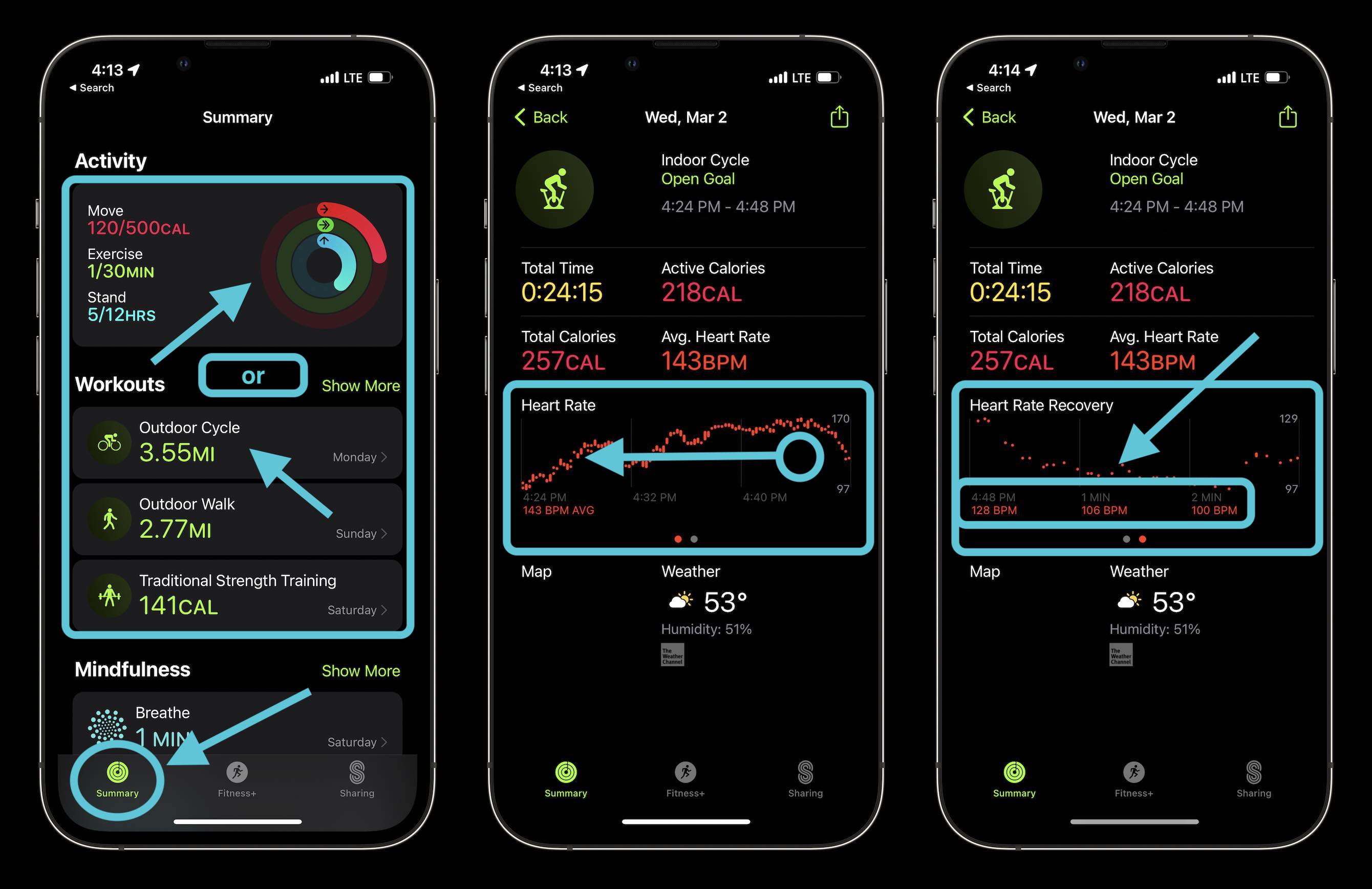
Where the Apple Watch truly shines is in monitoring recovery—key for consistent progress.
Key Health Metrics for Lifters
| Metric | How It Helps |
|---|---|
| Resting Heart Rate (RHR) | Lower = better cardiovascular fitness and recovery |
| Heart Rate Variability (HRV) | Higher = ready to train; low = potential overtraining |
| Cardio Fitness Score (VO₂ max) | Indicates aerobic base, which supports inter-set recovery |
| Sleep Duration & Quality | Poor sleep = impaired muscle repair and hormone balance |
These are all tracked automatically and stored in Apple Health.
Use Recovery Apps for Insights
Third-party apps analyze Apple Health data to guide training decisions.
- Athlytic: Daily readiness score using HRV and RHR
- Livity: Tracks stress, energy, and fatigue trends
- BodyState: Combines biometrics with subjective feedback
- FitIV: Offers deep HRV analytics and trend visualization
Expert Tip: Skip heavy lifting if HRV drops significantly or RHR spikes—your body may not be ready.
Practical Tips for Gym Use
Make your Apple Watch work for you—not against you.
Keep Phone in Pocket
Use apps like Hevy, Train, or GymBook that let you log entire workouts from the watch.
No need to pull out your phone—reduces distraction and keeps focus on form.
Play Music or Podcasts Wirelessly
Stream Spotify, Apple Music, or podcasts directly from the watch.
Pair Bluetooth headphones and control playback without touching your phone.
Remove Watch During Max Effort Lifts
Heavy pulls (deadlifts, cleans) or overhead lifts can damage the watch:
- Risk of dropping or slamming the case
- Bands—especially sport loops—can stretch or tear
- Titanium models are durable, but caution is wise
Consider removing it during 1RM attempts or Olympic lifts.
Rotate Digital Crown Orientation
In Settings > Digital Crown, switch to left-handed mode if you wear gloves or grip barbells tightly.
Prevents accidental presses that could stop your workout or change volume.
Manage Battery Life
Expect about 10% battery drain per hour of continuous Workout use.
- Reduce screen brightness
- Use haptics instead of visual checks
- Avoid frequent app switching
Charge before long sessions—especially if using GPS or music.
Future of Weight Lifting Tracking on Apple Watch
Apple continues to expand fitness capabilities through software updates.
watchOS Evolution
Since watchOS 2, developers gained deeper access to sensor data, enabling advanced third-party features.
Future possibilities include:
- Native rep/set detection for free weights using AI and motion modeling
- EPOC estimation to improve calorie accuracy
- Auto-detection of exercise type via gyroscope patterns
- Adaptive workout suggestions based on recovery and performance
Apple Fitness+ Integration
Guided strength workouts in Apple Fitness+ now sync with Activity data.
- Follow along with trainers
- Track effort via heart rate
- Review performance trends over time
A growing library supports various goals—from muscle building to endurance.
Coming: Nutrition + Training Synergy
With MacroFactor’s upcoming app and tighter HealthKit integration, expect:
- Combined analysis of intake vs. output
- Volume recommendations based on recovery
- Personalized adjustments for plateaus
The future points toward smarter, adaptive strength tracking—even if native features lag behind third-party innovation.
Summary: What You Need to Know
The Apple Watch doesn’t replace a notebook or a coach—but when used strategically, it becomes a powerful ally. For casual lifters, it boosts motivation and accountability. For serious athletes, it provides valuable recovery insights and long-term trend data. Combine it with the right app, and you’ve got a seamless, phone-free gym experience that tracks more than just reps: it tracks progress.





