
You’re at a coffee shop, your phone is tucked away, and someone hands you their number—but your Apple Watch won’t let you save it. It’s a common frustration: the device on your wrist feels powerful, yet adding a new contact isn’t always straightforward. While Apple Watch doesn’t offer full contact management like the iPhone, you can add, edit, share, and sync contacts directly from your wrist—if you know where to look and what settings to adjust.
The ability to manage contacts depends on your Apple Watch model, watchOS version, and whether your watch is set up independently or through Family Setup. Some users can create contacts on the fly; others—especially parents managing a child’s watch—must add them remotely. Features like NameDrop make sharing contacts effortless, but only if your devices support it and your settings are correct.
In this guide, you’ll learn how to add contacts to Apple Watch, whether manually, via sync, or through instant sharing. You’ll also discover how to fix missing options, use NameDrop effectively, and keep your contacts consistent across devices. Let’s unlock your Apple Watch’s full communication potential—no phone required.
Access the Contacts App on Apple Watch
Before you can add or edit a contact, you need to open the Contacts app on your Apple Watch.
Open Contacts from the Home Screen
- Press the Digital Crown to return to the app grid.
- Scroll through the icons and tap the Contacts app (blue silhouette icon).
- If you don’t see it, swipe left or right to browse additional screens, or open the App Library (swipe left past your last app page).
Tip: If the app is missing, re-enable it via your iPhone:
Open the Apple Watch app → My Watch → Installed Apps → Toggle Contacts on.
Once open, you’ll see a list of contacts—either all your iPhone contacts, your favorites, or a custom list—depending on your sync settings. This list is your go-to hub for calling, messaging, or sharing info from your wrist.
Add a New Contact Directly on Apple Watch
On most Apple Watch models, you can create a new contact right from the watch—no iPhone needed.
Start Adding a Contact
- Open the Contacts app.
- Tap the + (Add) button at the top.
- Select “+ New Contact”.
- Enter:
– First name
– Last name
– Phone number
– Email (optional) - Tap the ✓ (Checkmark) to save.
What happens next?
The contact is saved locally on the watch and automatically synced to your paired iPhone when both devices are within range.Limitation: This option may be missing if your watch is restricted—especially with Family Setup. See troubleshooting below.
This feature is ideal for saving numbers on the go, like a new gym buddy or a coworker you met at a conference. Just remember: if your iPhone is off or out of range, the contact stays on the watch until syncing resumes.
Fix Missing “+ New Contact” Button

No “+” button in the Contacts app? You’re not alone. Many users—especially those managing a child’s Apple Watch—can’t add contacts directly.
Why the Add Button Is Missing
- Family Setup restrictions: Watches set up for children via Family Setup block direct contact creation.
- Sync settings: If your watch only displays Favorites or Recent contacts, local additions may be disabled.
- Software version: Older watchOS versions may not support direct entry.
Restore the Add Option
For Family Setup (Parent-Managed Watches)
- On the parent’s iPhone, open the Apple Watch app.
- Tap the Family tab.
- Select the child’s Apple Watch.
- Tap Contacts.
- Choose:
– All Contacts – Full access to parent’s contacts
– Only Contacts in My Family – Limited to family members
– Custom – Add specific approved contacts manually
Note: Even with these settings, the child cannot add new contacts directly on the watch. Parents must add contacts remotely.
Remote Add via iPhone
- On the parent iPhone, open the Apple Watch app.
- Go to Family → select child’s watch → Contacts.
- Tap Add Contact.
- Enter details and save.
The contact will sync to the child’s Apple Watch automatically.
This remote method ensures safety while still allowing essential contacts—like coaches or relatives—to be added when needed.
Edit or Delete Contacts on Apple Watch
Need to update a number or remove an old contact? You can do both right from your wrist.
Edit a Contact
- Open Contacts.
- Tap the contact to view.
- Swipe up to reveal options.
- Tap the pencil (Edit) icon.
- Change any field (name, number, email).
- Tap ✓ to save.
Sync behavior: Edits sync to your iPhone unless the contact was created only on the watch and never synced.
Delete a Contact
- Open Contacts.
- Tap the contact.
- Swipe up.
- Scroll down and tap Delete Contact.
- Confirm by tapping Delete Contact again.
Warning: If the contact is synced from iPhone, it will be deleted there too. If it was created only on the watch, it’s removed locally.
These tools give you full control over your contact list—perfect for cleaning up duplicates or correcting typos on the go.
Share Contacts with NameDrop
Want to exchange info fast? NameDrop lets you share your contact card by simply bringing two Apple devices close together.
Is Your Watch Compatible?
NameDrop works on:
– Apple Watch Series 7 or later
– Apple Watch SE (2nd generation)
– Any Apple Watch Ultra
– Paired with iPhone 11 or later running iOS 17+
Not supported on Series 6 or earlier.
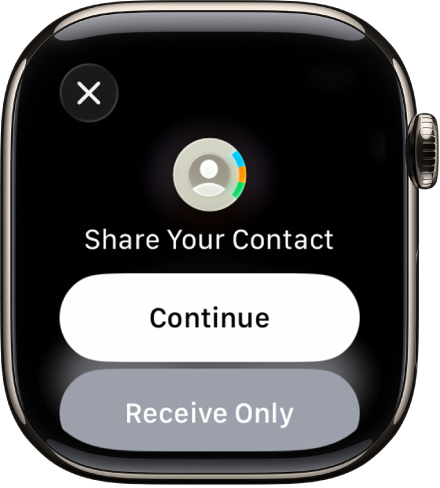
Use NameDrop to Share
- Ensure Bluetooth, Wi-Fi, and Location are on.
- Bring your Apple Watch close to the other person’s iPhone or Apple Watch.
- A glowing animation appears on both screens.
- Choose:
– Send & Receive: Share and accept their contact
– Receive Only: Accept theirs without sending yours - Select which details to share:
– Phone number
– Email(s)
– Contact Poster (your custom emoji or photo) - Tap Continue.
Result: Their contact is saved to your Apple Watch. Yours is saved to their device.
Prerequisite: You must set up My Card on your iPhone first.
This is ideal for networking events, meetups, or just swapping numbers with a new friend—no typing required.
Set Up My Card for NameDrop
Without My Card, NameDrop won’t work.
Assign Your Contact Card
- On your iPhone, open Settings.
- Go to Contacts → My Card.
- Select your personal contact (e.g., “John Doe”).
- Exit settings.
Now, when you use NameDrop, it pulls info from this card.
Pro tip: Update your Contact Poster in the Contacts app on iPhone for a personalized look during sharing.
This step is essential—without it, NameDrop won’t know which contact to share.
Sync Contacts from iPhone to Apple Watch
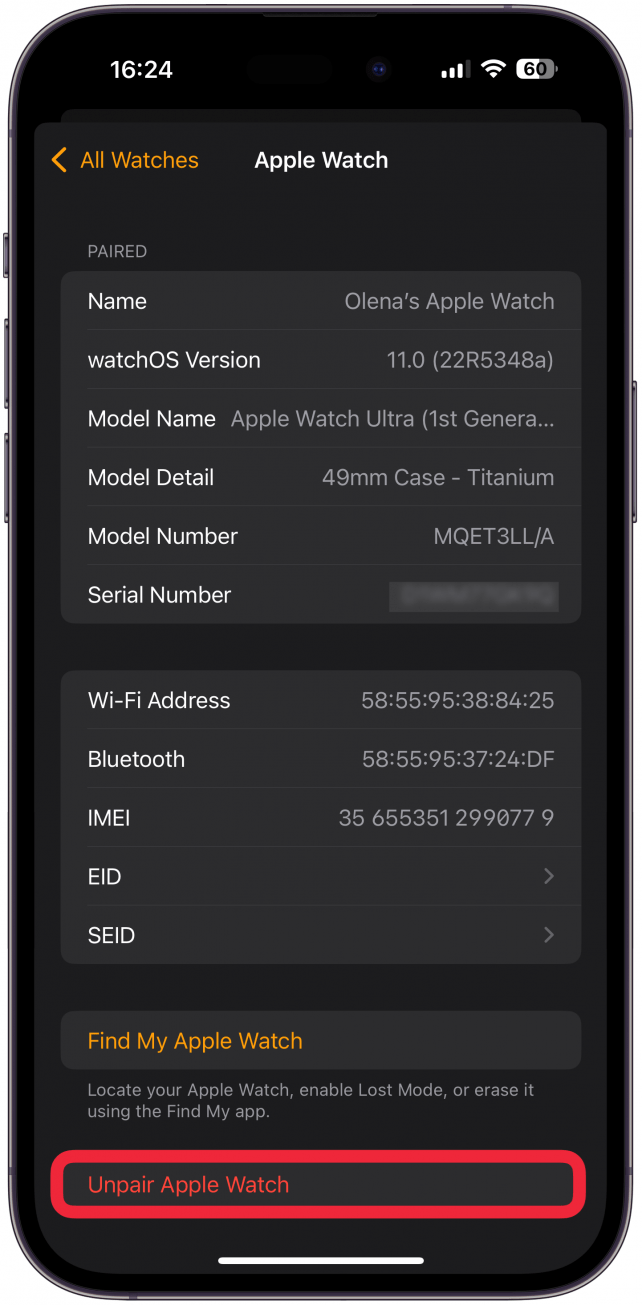
Most users don’t add contacts on the watch—they sync them from the iPhone. This ensures consistency and avoids duplicates.
Choose Your Sync Method
- On iPhone, open the Apple Watch app.
- Tap My Watch.
- Go to Contacts.
- Select one of four options:
– All Contacts: Full list (best for most users)
– Favorites: Only starred contacts
– Recent: Last 100 called/messaged contacts
– Custom List: Pick specific contacts manually
Time to sync: Changes appear on the watch within seconds when both devices are near each other.
Offline note: If your iPhone is off or out of range, the watch uses the last synced list.
This is the most reliable way to keep your wrist contacts up to date—especially if you manage your list primarily on your phone.
Troubleshoot Sync Issues
Contacts not updating? Try these fixes.
Force a Sync
- Bring iPhone and Apple Watch within 1 foot.
- Wait 30 seconds.
- Open Contacts on the watch.
Restart Both Devices
- iPhone: Hold side + volume button → slide to power off → restart.
- Apple Watch: Press and hold side button → slide to power off → restart.
Wait for reconnection—contacts should sync.
Re-enable Contacts App
- On iPhone, open Apple Watch app.
- Go to My Watch → Contacts.
- Toggle Show App on Apple Watch off, then on.
This refreshes the sync connection and often resolves missing or outdated contacts.
Best Practices for Contact Management
Keep your Apple Watch contacts reliable and easy to use.
Mark Favorites for Quick Access
On iPhone:
1. Open Phone or Contacts app.
2. Tap a contact.
3. Tap Add to Favorites.
4. Choose Call, Text, or FaceTime.
Favorites sync automatically to Apple Watch under Favorites view.
Use Siri for Hands-Free Access
Say:
– “Call Mom”
– “Send a message to Alex”
– “Show John’s number”
Siri pulls from your Contacts—ensure names are labeled correctly (e.g., “Mom,” “Dad”).
Test NameDrop Before You Need It
Try NameDrop with a friend to:
– Confirm My Card is set
– Verify software versions (iOS 17+, watchOS 10+)
– Check Bluetooth/Wi-Fi permissions
Saves time when networking or meeting new people.
Avoid Local-Only Contacts
Contacts created on the watch without syncing may be lost if:
– The watch is unpaired
– It’s reset without backup
Best practice: Add contacts on iPhone when possible, or ensure immediate syncing.
Final Tip: Always keep iOS and watchOS updated. Apple frequently improves contact sync, NameDrop reliability, and privacy controls with new software. If you’re missing features, check for updates first.
Now you’re equipped to add, edit, share, and manage contacts on Apple Watch—whether you’re at a gym, conference, or just out of phone range. Your wrist just got a lot smarter.





