
You glance at your wrist expecting a quick update—your next meeting, current heart rate, or the weather outside—but all you see is the time. That’s the problem: your Apple Watch face is underutilized. The secret to transforming it from a simple clock into a powerful personal dashboard lies in complications.
Contrary to what the name suggests, complications aren’t problems—they’re smart, interactive widgets that display real-time data directly on your watch face. Whether it’s your activity rings, battery level, weather forecast, or a one-tap shortcut, complications give you instant access to the information you care about—no app opening required.
This guide walks you through how to add complications on Apple Watch, customize them for different needs, and use smart workarounds to maximize your data access. From selecting the best watch faces to troubleshooting missing complications, you’ll learn how to turn your wrist into a fully optimized command center.
Enter Edit Mode to Customize Your Watch Face
Before you can add complications, you need to access the customization interface directly on your Apple Watch.
Press and Hold the Watch Face
To begin, press and hold anywhere on your current watch face. After a brief vibration, the screen will shift into editing mode. You’ll see the “Customize” label appear at the bottom, signaling you’re ready to make changes.
Swipe Left to Access the Complication Editor
Once in edit mode, swipe left. This brings you to the complication configuration screen, where all available slots for your chosen watch face are displayed. Each slot is labeled—top, bottom, left, right, or corner—depending on its position.
⚠️ Note: If you don’t see any slots, your current watch face may not support complications. Minimalist designs like Time, Solar, or Gradient offer limited or no complication support. Switch to faces like Infograph, Modular, or Explorer for full functionality.
Assign Complications to Each Slot
Now that you’re in the editor, it’s time to choose what each slot displays.
Tap a Complication Slot to Begin
Touch any slot on the screen. A list of apps that support complications will appear. Turn the Digital Crown to scroll through the options. As you scroll, the preview updates in real time, so you can see exactly how the complication will look.
Choose the Right Data Type for Your Needs
Many apps offer multiple data views. For example:
– Weather: Choose between temperature, humidity, UV index, or wind speed
– Activity: Display full rings or timeline progress
– Calendar: Show today’s date or your next scheduled event
– Shortcuts: Run a specific automation with a single tap
Tap to confirm your selection. Repeat for each slot until your face is fully customized.
✅ Pro Tip: For easier navigation, use the Watch app on your iPhone. Go to My Watch > Face Gallery, select a face, and tap Customize. The larger screen makes it simpler to fine-tune each complication.
Choose the Best Watch Faces for Maximum Complications

The number of complications you can add depends entirely on your watch face. Some support many; others offer very few.
Use Infograph for Up to 8 Complications
The Infograph face supports up to 8 complications—the highest of any standard face. It features:
– Four large slots (top, bottom, left, right)
– Four smaller corner slots
– A central time display
This makes it ideal for users who track multiple metrics—fitness enthusiasts, travelers, or anyone who wants a data-rich experience.
Try Modular or Infograph Modular for Flexibility
The Modular and Infograph Modular faces let you mix large and small modules. You can place:
– A large Calendar module at the top
– A Heart Rate complication in the center
– Smaller Battery, Timer, or World Clock modules on the sides
These faces offer excellent customization for users who want both visual hierarchy and functional depth.
Opt for Explorer for a Clean, Balanced Layout
The Explorer face provides a modern, readable design with 5–6 complications. It includes:
– Two side panels (left and right)
– Top and bottom indicators
– A central time display
Perfect for travelers or professionals who want clarity without clutter.
❌ Avoid minimalist faces like Time or Solar if you rely on complications—they offer little to no support.
Full List of Native Complications by App

Apple includes a wide range of built-in complications across its native apps:
Health & Fitness
- Activity: Rings, Timeline
- Heart Rate: Current BPM, resting rate
- Sleep: Sleep duration, bedtime schedule
- Mindfulness: Session timer, state of mind
- Blood Oxygen: SpO2 percentage (Series 6 and later)
Time & Location
- World Clock: Multiple time zones, sunrise/sunset
- Compass: Direction, elevation, level
- Compass Waypoints: Saved locations, parked car
- Calendar: Today’s schedule, next event
Weather & Environment
- Weather: Temperature, air quality, wind, rain, UV index
- Astronomy: Moon phase, solar position
- Tides: High/low tide times
- Depth: Water depth, temperature (Apple Watch Ultra only)
Productivity & Tools
- Shortcuts: One-tap automations (e.g., “Start Workout”)
- Reminders: Tasks due today
- Notes: Latest note or create new
- Timers: Active or saved timers
- Stocks: Price changes for followed stocks
🔄 Third-party apps like WaterMinder, Battery+, or Carrot Weather also add powerful complications—install them from the App Store and enable in the Watch app.
Duplicate Watch Faces to Multiply Your Data Access
You can’t add more than 8 complications to one face—but you can duplicate a face and customize it for different purposes.
Why Duplicate a Watch Face?
Each face has fixed slots, but by creating copies with different complications, you can:
– Switch between Fitness, Work, and Travel modes
– Keep the same design while changing the data
– Access dozens of data points across multiple faces
For example:
– Face 1: Heart Rate, Activity Rings, Elevation
– Face 2: World Clock, Weather, Flight Status
– Face 3: Calendar, Reminders, Battery Level
Switch between them with a simple swipe.
How to Duplicate a Watch Face
Save the Face to Files
- Open the Watch app on iPhone
- Go to My Faces
- Press and hold the face you want to copy
- Tap Share Watch Face
- Select Save to Files
- Save to a folder like “Watch Faces”
Import the Duplicate
- Open the Files app
- Navigate to your saved file
- Tap it → Add to My Faces
A new copy now appears in your list.
Customize the New Face
- Tap the duplicated face in My Faces
- Tap Customize
- Change the complications to match a new purpose
- Exit and sync to your watch
✅ Now you have two faces with the same look but different data. Swipe left/right on your watch to switch instantly.
Optimize Complication Layouts for Real-World Use
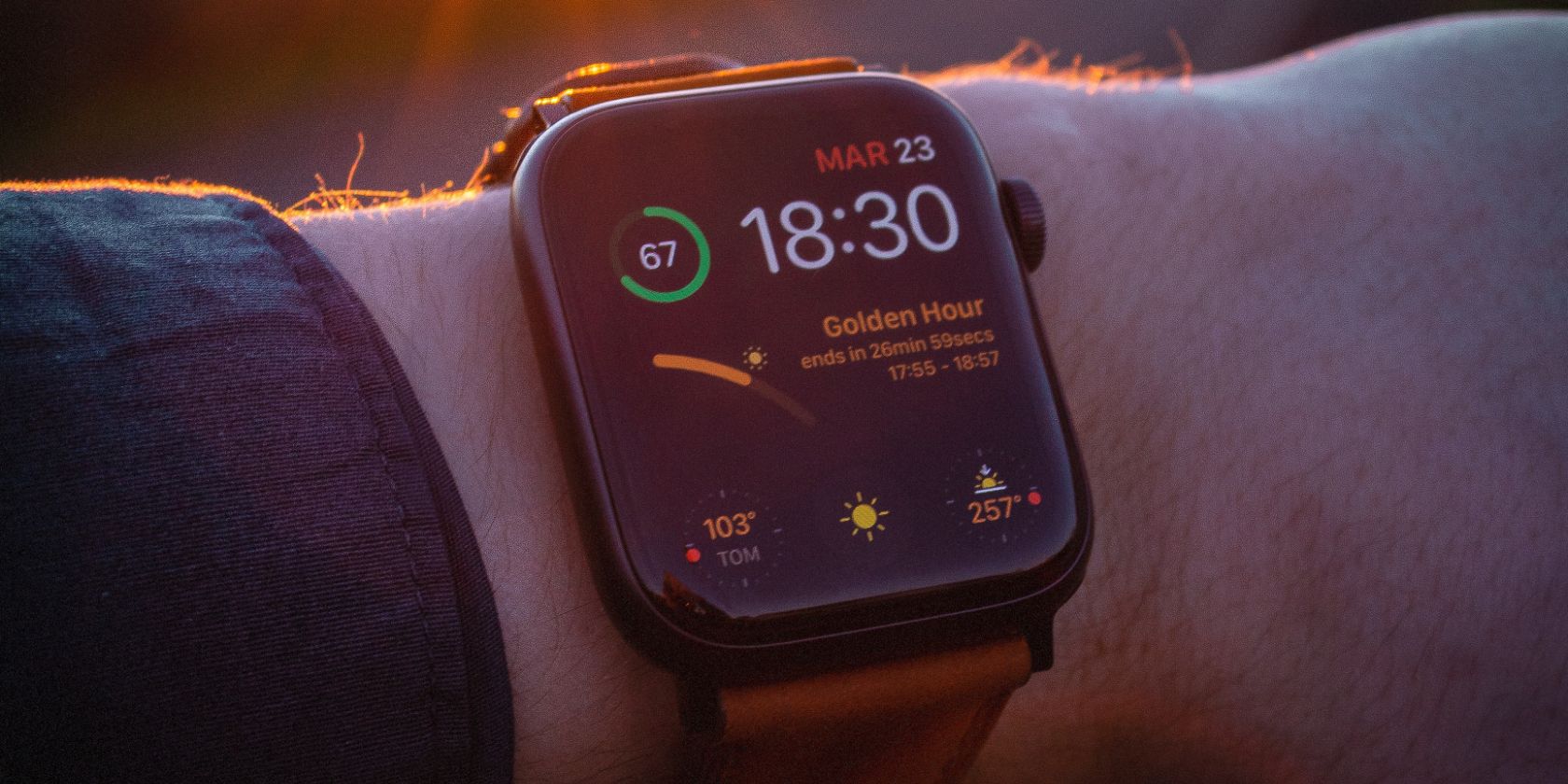
Don’t just add random complications—organize them around your daily routines.
Create a Fitness Face
Ideal for workouts:
– Top: Heart Rate
– Bottom: Active Calories
– Left: Workout Timer
– Right: Elevation
– Corners: Steps, Distance, Floors, Pace
Use during runs, gym sessions, or hikes.
Build a Travel Face
Perfect for trips:
– Top: Departure City Weather
– Bottom: Destination Time Zone
– Left: Flight Status (via third-party app)
– Right: Currency Converter
– Center: Moon phase or compass
Switch to this before boarding.
Design a Productivity Face
For work and focus:
– Top: Next Calendar Event
– Bottom: Reminders Due Today
– Left: iPhone Battery Level
– Right: AirPods Battery
– Corners: Focus Mode shortcut, Wi-Fi status
Use during meetings or deep work.
⏱️ Time-Saving Tip: Name your faces in the Watch app (e.g., “Gym,” “Work”) so you can identify them quickly when swiping.
Troubleshoot Missing Complications
Sometimes a complication doesn’t appear. Here’s how to fix common issues.
App Not Installed or Disabled
Ensure the app is enabled in the Watch app > My Watch > [App Name] > Show App on Apple Watch.
Location Services Off
Weather, Maps, and Sunrise/Sunset need location access:
iPhone Settings > Privacy & Security > Location Services > Enable for relevant apps
Background App Refresh Disabled
Complications need background updates:
Settings > General > Background App Refresh > Enable for key apps
Sensor or Model Limitations
Some features require specific hardware:
– Depth: Apple Watch Ultra only
– Blood Oxygen: Series 6+
– ECG: Series 4+
Check compatibility if a feature is missing.
Advanced Tips for Power Users
- Use Shortcuts for one-tap actions: “Start Meditation,” “Log Water,” “Toggle Do Not Disturb”
- Sync via iCloud: Changes made on iPhone or Apple Watch sync automatically
- Avoid clutter: Stick to 5–7 key metrics per face for readability
- Prioritize glanceable data: Frequent checks, time-sensitive info, actionable tools
Limitations to Know
- No extra slots: You can’t exceed a face’s built-in limits
- Fixed sizes: Complication dimensions depend on the face
- Third-party support varies: Not all apps offer complications
Maximize Complications: Key Strategies
| Strategy | Benefit |
|---|---|
| Use Infograph or Modular | Up to 8 complications |
| Duplicate and customize | Multiply accessible data |
| Use context-specific layouts | Better focus and usability |
| Add third-party complications | Expand functionality |
| Name faces clearly | Quick identification |
| Sync via iCloud | Seamless updates |
Complications are the key to unlocking your Apple Watch’s full potential. Instead of tapping through apps, get critical info with a glance. Start by editing your current face, explore high-density designs like Infograph, and use face duplication to build a system that moves with your life. Whether you’re tracking fitness, managing time, or traveling the world, the right complications put control on your wrist—literally.




