
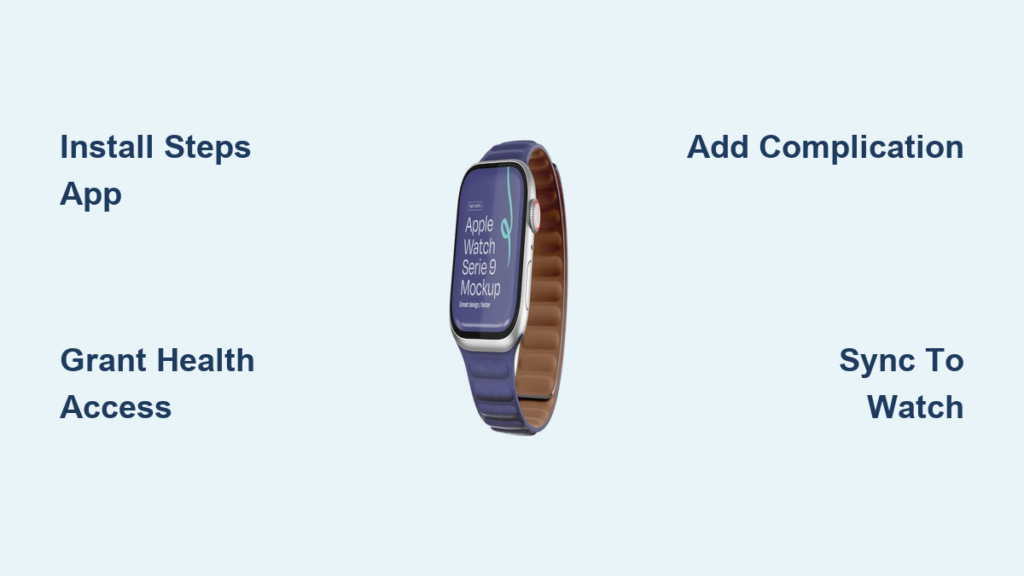
If you glance at your Apple Watch and think, “Why can’t I see my step count right here?” — you’re not imagining things. Despite tracking every step with precision, Apple does not allow step count to be displayed as a native complication on any watch face. This omission frustrates fitness enthusiasts, workplace step challengers, and anyone who wants immediate access to their daily movement stats.
Unlike Fitbit, Garmin, or Samsung watches — where step count is front and center — Apple pushes users toward its Activity Rings (Move, Exercise, Stand) as the primary fitness metric. But for many, steps remain a key motivator. The good news? You can display your step count directly on your Apple Watch face — just not through Apple’s built-in tools.
By using trusted third-party apps that pull data from Apple Health, you can add real-time step tracking to your watch face in minutes. These apps are free, accurate, and have minimal impact on battery life. In this guide, you’ll learn exactly how to do it, which apps work best, and how to troubleshoot common issues.
By the end, you’ll have a fully customized watch face showing your daily step count at a glance — turning your Apple Watch into a true step-tracking powerhouse.
Why Apple Blocks Step Count on the Watch Face
Apple’s decision to exclude step count from native complications isn’t a technical limitation — it’s intentional. The company believes steps alone don’t reflect meaningful activity.
Apple’s Activity-Centric Philosophy
- Rings over numbers: Apple promotes the Activity Rings as a more balanced view of fitness, encouraging calorie burn, sustained exercise, and standing throughout the day.
- No native step complication: Even though the Apple Watch records steps with high accuracy, Apple does not expose this data as a built-in complication option.
- Official messaging: On Apple’s Close Your Rings page, the focus is on closing rings — not hitting step goals.
User frustration is real:
“It tracks the data — why hide it?”
“I just want to see my steps without tapping three times.”
“Feels like Apple is gatekeeping my own health data.”
Despite years of user demand and forum discussions, Apple has not added native step count support — even in watchOS 10 and later versions.
Best Apps to Show Step Count on Watch Face
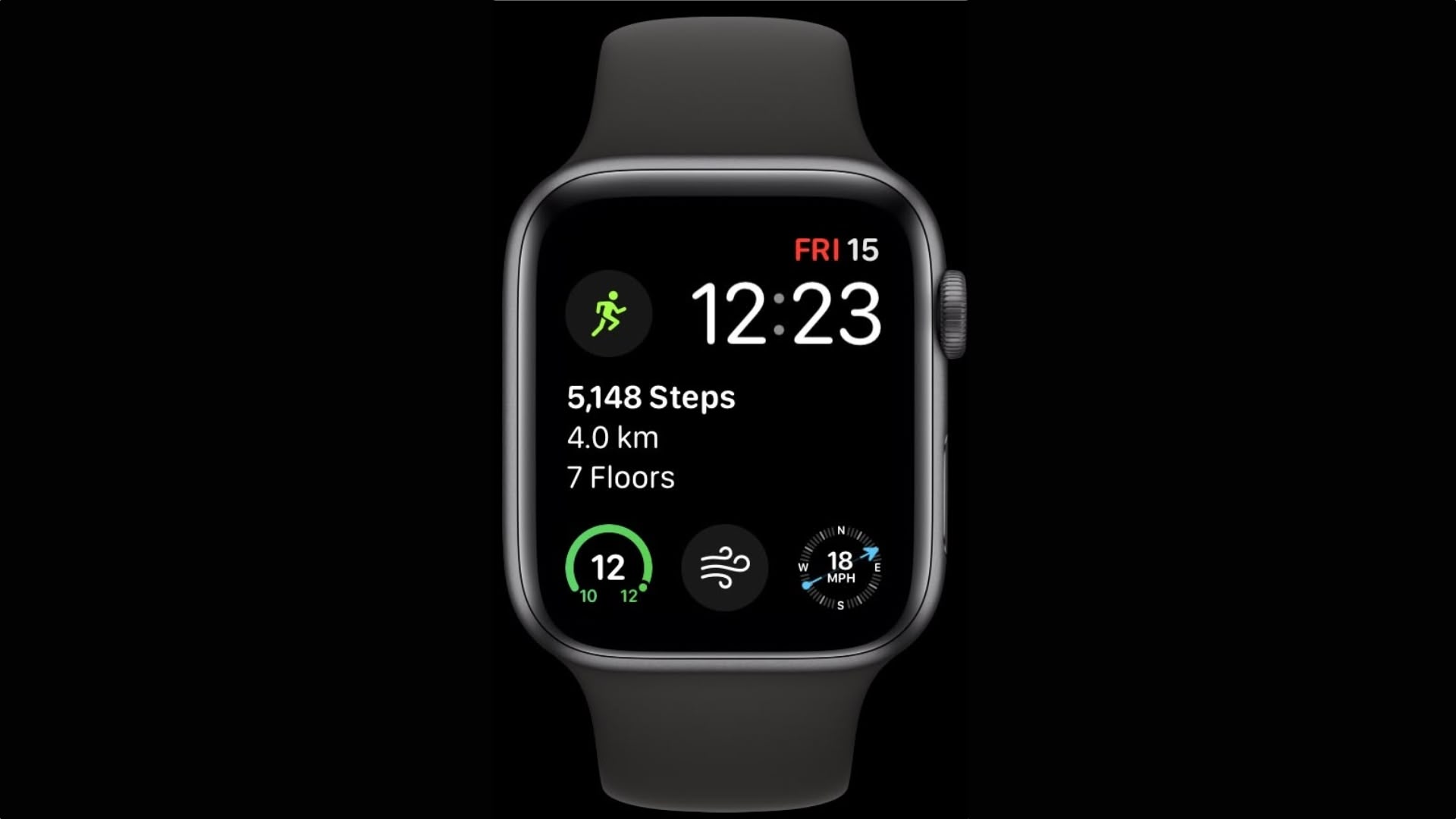
Since Apple won’t provide the feature, third-party developers have stepped in. These apps pull step data from Apple Health and display it directly on your watch face via complications.
Top 5 Step Count Apps
| App | Free? | Real-Time? | Best For |
|---|---|---|---|
| Steps App | ✅ Yes | ✅ Every 5 min | Simplicity, no account needed |
| Pedometer++ | ✅ Yes (Pro optional) | ⚠️ Manual refresh | Long-time users, reliability |
| Duffy | ✅ Basic (Pro upgrade) | ✅ With tap | Clean design, minimal UI |
| Livity | ✅ Basic (Premium) | ✅ Yes | Multiple health metrics |
| HealthFace | ✅ Yes (Pro) | ✅ Yes | Custom Health data display |
✅ Top Pick: Steps App — free, no subscription, no ads, and updates automatically every 5–10 minutes.
How to Add Step Count: Steps App (Easiest Method)
Install Steps App on iPhone
- Open the App Store on your iPhone.
- Search for “Steps App” and download it.
- Open the app and tap Continue.
- Skip account creation if you prefer.
- When prompted, allow Motion & Fitness access.
Grant Apple Health Permissions
- Open the Health app on your iPhone.
- Tap your profile (top right) > Apps > Steps App.
- Enable these permissions:
– Steps (Read & Write)
– Walking + Running Distance
– Active Energy Burned
– Flights Climbed - Tap Allow.
Sync to Apple Watch
- Open the Watch app on iPhone.
- Go to My Watch > Apps.
- Confirm Steps App is installed on your watch.
- Wait 30–60 seconds for data to sync.
Add Complication to Watch Face
- Press and hold your current watch face on the Apple Watch.
- Tap Edit.
- Tap any complication slot.
- Scroll to Steps App.
- Choose your display style:
– Steps
– Steps + Distance
– Steps + Calories
– Steps + Walking Minutes - Press the Digital Crown to save.
✅ Done: Your step count now appears on the watch face, updating automatically every 5–10 minutes.
Alternative: Use Pedometer++ (Most Popular)
Pedometer++ is a veteran app with a loyal following. It’s reliable but may require a manual refresh.
Install on Apple Watch
- Press Digital Crown to open app grid.
- Open App Store.
- Search for Pedometer++.
- Tap Get and install.
- Open the app and allow Fitness Data access.
Or install via iPhone: Watch app > Search > Pedometer++ > Install on Watch.
Add Pedometer++ Complication
- Press and hold watch face > Edit.
- Tap a complication slot.
- Scroll to Pedometer++.
- Select Steps or Steps and Distance.
- Press Digital Crown.
⚠️ Tip: Tap the complication to force an update from Apple Health.
Use Duffy for a Sleek Step Display
Duffy offers a modern, minimalist interface perfect for clean watch faces.
Setup Steps
- Download Duffy from iPhone or Watch App Store.
- Open the app and grant Motion & Fitness access.
- Confirm Duffy is installed on your Apple Watch (via Watch app).
- Press and hold watch face > Edit.
- Tap a complication > Select Duffy > Steps.
- Save with Digital Crown.
✅ Pro tip: Tap the complication to refresh data instantly.
Best Watch Faces for Step Count
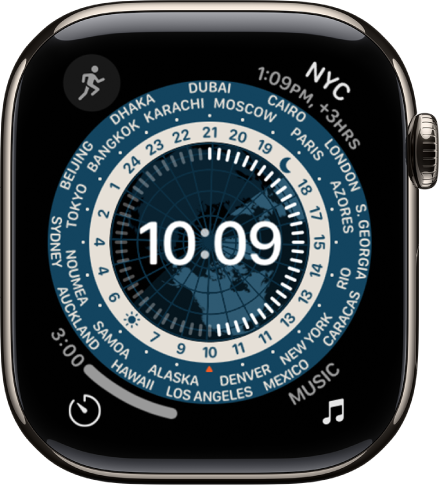
Not all watch faces support third-party complications. Use these for optimal step visibility:
Modular (Best for Stats)
- Large center or corner modules
- Supports multiple data points
- Ideal for steps, distance, and calories
Infograph (Max Complications)
- Up to 8 complication slots
- Perfect for fitness-focused users
- Use lower corners for step count
Utility (Simple & Clean)
- Central complication with large text
- Minimalist design
- Great for step-only display
Circular (Modern Minimalism)
- Central data ring
- Elegant step display
- Works well with Duffy or Livity
✅ Pro move: Use Modular or Infograph to show steps, heart rate, and weather together.
No Third-Party App? Use These Workarounds
If you prefer not to install extra apps, you can still access step count — just not at a glance.
Activity Complication (Tap to View)
- Edit your watch face.
- Add the Activity complication.
- Tap it to open the Activity app.
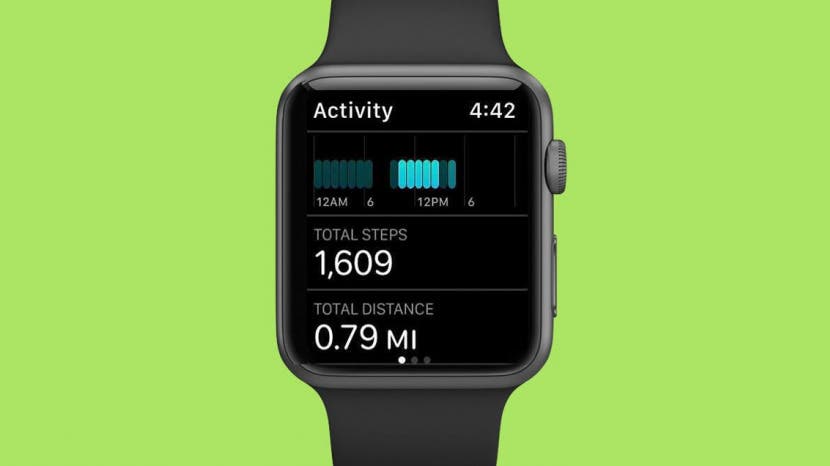
- Scroll down to see steps, distance, flights climbed.
⚠️ Not glanceable — requires multiple taps.
Activity Widget (Swipe Up)
- Swipe up from watch face to open Control Center.
- Scroll to Activity widget.
- Tap and scroll to view step count.
⚠️ Slower than a complication.
Ask Siri
Say:
“Hey Siri, how many steps have I taken today?”
Siri will respond instantly with your current count.
⚠️ Not ideal for frequent checks.
How Often Do Step Counts Update?
Third-party apps don’t update continuously due to Apple’s background refresh limits.
Update Frequency by App
| App | Auto-Update | Manual Refresh |
|---|---|---|
| Steps App | Every 5–10 min | No tap needed |
| Pedometer++ | Varies (often delayed) | Tap to refresh |
| Duffy | Every 5–10 min | Tap to force update |
| Livity | Every 5 min | Tap to refresh |
✅ Best for real-time: Steps App — updates automatically with no interaction.
Data Accuracy: Are Third-Party Apps Reliable?
Yes. All recommended apps pull data directly from Apple Health, which syncs with your Apple Watch’s motion sensors.
Key Facts:
- No double-counting: Apps read, not write, step data.
- 100% accurate: Matches Activity app exactly when permissions are granted.
- No drift or lag: Once synced, numbers are consistent.
✅ Tip: Always grant full Health access to avoid blank or outdated displays.
Battery Impact: Do These Apps Drain Power?
No. Third-party step apps have minimal to zero impact on battery life.
Why?
- They don’t run continuously.
- They sync with Apple Health on a schedule.
- No GPS, heart rate, or background tracking.
✅ User reports: No noticeable battery drain after weeks of use.
Troubleshooting Common Issues
Step Count Not Updating
Fix:
– Tap the complication (Pedometer++, Duffy).
– Ensure iPhone and Watch are connected.
– Restart both devices.
App Missing from Complications List
Fix:
– Reinstall the app.
– Ensure it’s installed on the Apple Watch, not just iPhone.
– Restart the Watch.
No Steps Showing (Blank Complication)
Fix:
– Open Health app > Apps > [Your App] > Grant full access to Steps.
– Open the app once on iPhone to trigger sync.
App Crashes or Freezes
Fix:
– Update to latest watchOS.
– Delete and reinstall the app.
– Restart Apple Watch.
Battery Draining Faster
Fix:
– Disable background refresh for other apps.
– Third-party pedometers should not cause drain — check other apps.
Native vs. Third-Party: Feature Comparison
| Feature | Native (Activity Rings) | Third-Party (e.g., Steps App) |
|---|---|---|
| Step Count on Face | ❌ No | ✅ Yes |
| Glanceable Access | ❌ Requires tap | ✅ Instant visibility |
| Setup Required | ❌ None | ✅ One-time install |
| Cost | ✅ Free | ✅ Mostly free |
| Data Accuracy | ✅ High | ✅ Matches Apple Health |
| Update Speed | ✅ Real-time in app | ⚠️ Every 5–10 min (auto), ✅ Manual |
| Customization | ❌ Limited | ✅ Multiple styles |
✅ Clear winner for step tracking: Third-party apps.
Final Recommendation: Best Way to Show Steps
If you want step count on your Apple Watch face, here’s the fastest, most reliable method:
Step-by-Step Best Practice
- Install Steps App (free, no account, no ads).
- Grant Health permissions (Steps, Distance, Flights, Calories).
- Sync to Apple Watch via Watch app.
- Edit your watch face (Modular or Infograph recommended).
- Add Steps App complication with your preferred display.
- Save and enjoy.
✅ Result: You now have glanceable, accurate step tracking — just like a Fitbit or Garmin.
Bottom Line: Apple’s Missing Feature, Fixed
Apple may believe steps aren’t the full story, but for many users, step count is essential — whether for fitness goals, workplace challenges, or personal motivation. Until Apple adds native support, third-party apps are the only way to get true at-a-glance step visibility.
With Steps App, the process takes under 3 minutes and costs nothing. You gain full access to your own data, with no battery hit and perfect accuracy.
Don’t settle for tapping and scrolling. Add step count to your Apple Watch face today and make your watch work for you — not just Apple’s design philosophy.





