
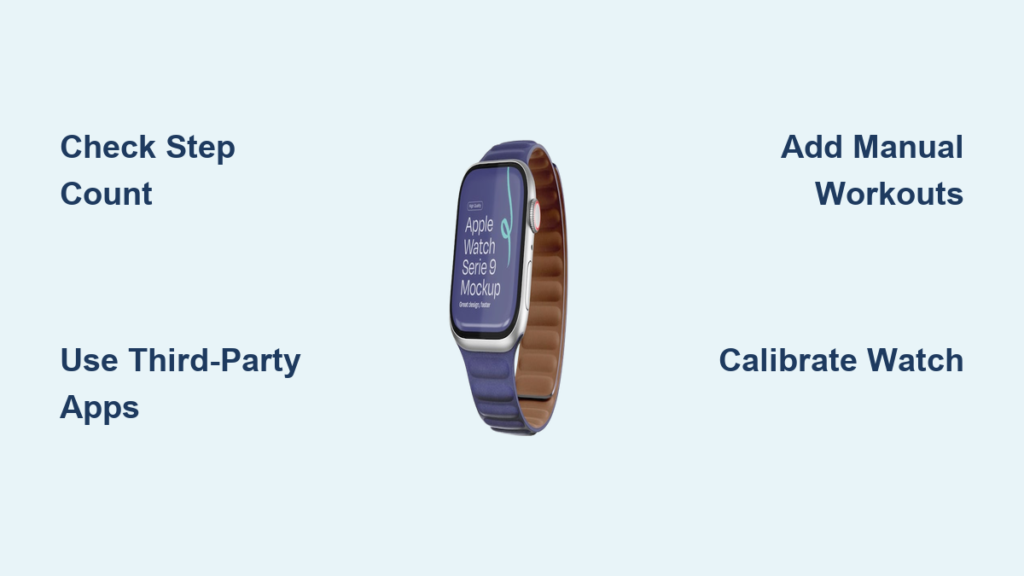
You’ve walked 8,000 steps, crushed your 10K goal, or finally finished that long hike—but your Apple Watch Activity rings don’t reflect it. You’re not imagining things. You can’t manually add steps to Apple Watch Activity rings. Unlike other fitness trackers, Apple doesn’t allow direct step input or custom step goals in the Activity app. But that doesn’t mean you’re out of options.
The Activity rings—Move (calories), Exercise (minutes), and Stand (hours)—are designed to measure effort, not steps. Yet most users equate walking with steps, making the lack of step tracking feel like a missing piece. While Apple automatically logs your steps using the watch’s motion sensors, the system offers no way to add or edit them retroactively.
But here’s the good news: You can still track, influence, and optimize your step-related progress—even within Apple’s limits. In this guide, you’ll learn how to:
– Find your real step count on Apple Watch and iPhone
– Set 10,000-step goals using free third-party apps
– Manually add workouts that boost your rings
– Track activity when you forget your watch
– And what won’t work (so you don’t waste time)
Let’s get your steps recognized—without breaking Apple’s rules.
Find Your Step Count on Apple Watch
Even though the Activity rings don’t show steps, your Apple Watch is recording them behind the scenes.
View Steps in the Activity App
- Open the Activity app on your Apple Watch.
- Turn the Digital Crown to scroll through your daily stats.
- Look for:
– Total steps
– Distance walked
– Flights climbed
– Active calories
Your step count appears directly below the rings. This number comes from your watch’s accelerometer and gyroscope, making it the most accurate source available.
Tip: If steps aren’t showing, go to the Watch app on your iPhone → My Watch → Privacy → Fitness Tracking and make sure it’s turned on.
The Activity app updates in real time as you walk. No manual input needed—just wear the watch.
Check Past Step Data on iPhone
To see your historical step count:
– Open the Fitness app → Tap Summary → Scroll to the Activity section.
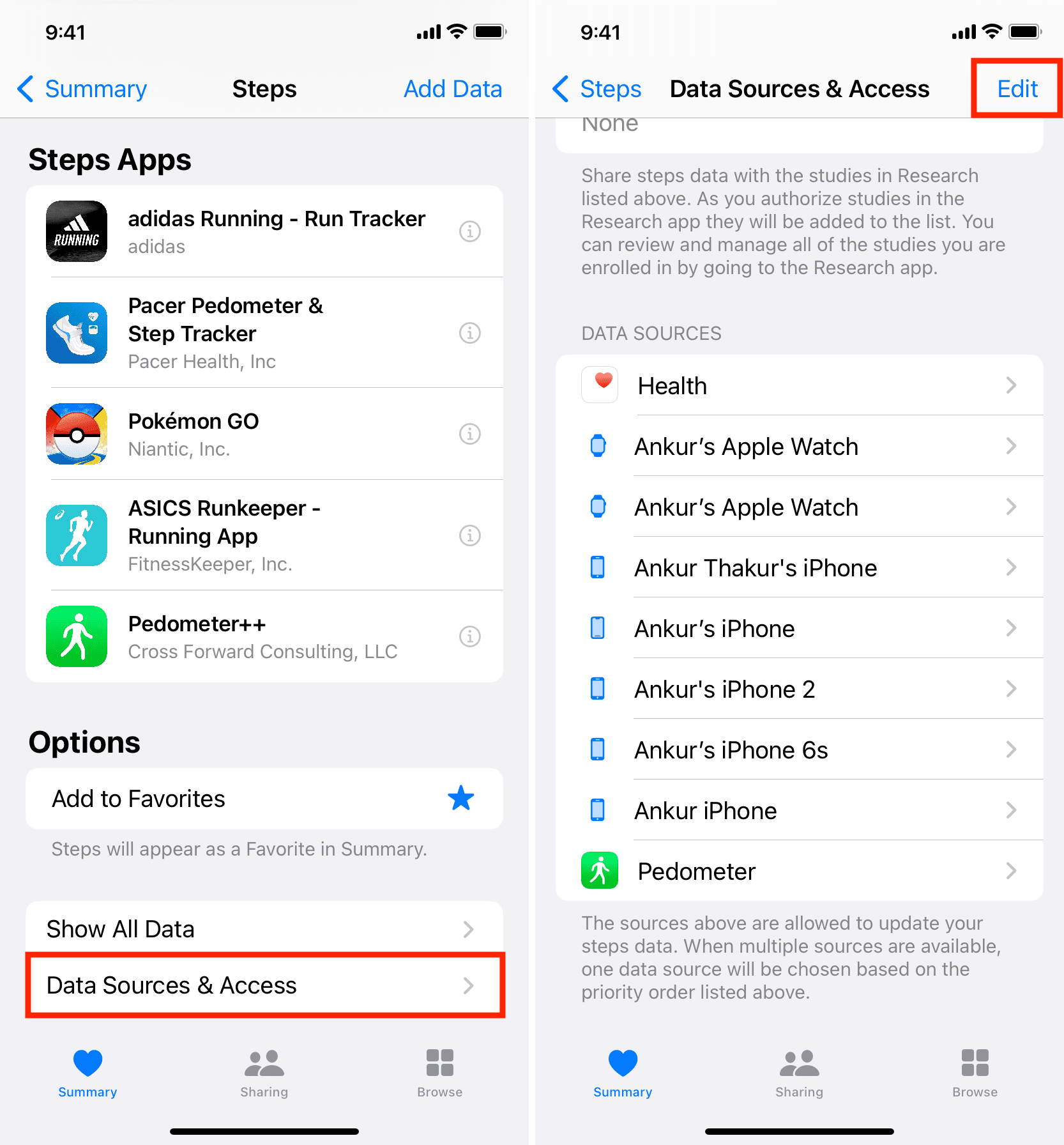
– Or, open the Health app → Browse → Activity → Steps → Tap “Show All Data.”
Here, you can filter by source—Apple Watch or iPhone—to see exactly where your steps were recorded.
Pro Tip: Use the Health app to spot gaps. If your step count drops on days you forget your watch, that’s normal. The iPhone tracks some steps too—but with less accuracy.
Set Step Goals with Free Third-Party Apps
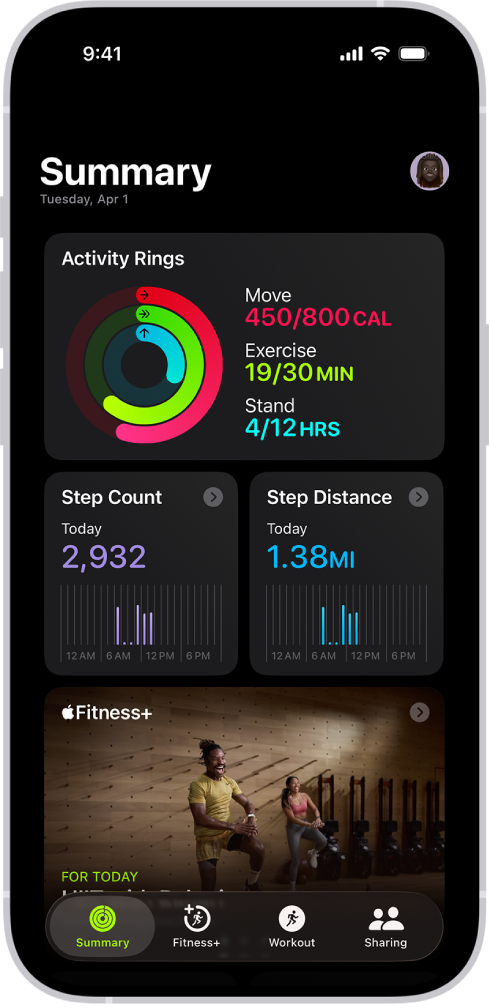
Apple doesn’t let you set a step goal, but you don’t have to go without one.
Use Fitness Stats for 10,000-Step Tracking
Fitness Stats is a free, highly-rated app that syncs with Apple Health and turns your step count into a visual goal.
How to Set Up:
- Download Fitness Stats from the App Store.
- Open it and grant access to Health data.
- Tap Goals → Select Steps → Enter your target (e.g., 10,000).
- Add the complication to your Apple Watch face for on-wrist tracking.
The app shows a ring that fills as you approach your goal—just like Apple’s design, but for steps.
Note: This won’t update your Activity rings, but it gives you the motivation and visibility you’re missing.
Try Zones for Real-Time Step Alerts
Zones is another excellent free app that offers step tracking with goal notifications.
Key Features:
- Set daily step targets
- Get alerts when you’re close to your goal
- View progress on iPhone widgets or Apple Watch app
Like Fitness Stats, Zones pulls data directly from Apple Health and runs in the background—no need to open it daily.
Expert Insight: These apps don’t “add” steps to Apple’s system. They simply help you monitor and stay accountable.
Manually Add Workouts to Boost Your Rings
You can’t add steps, but you can add workouts that close your Exercise and Move rings.
Add a Workout in the Health App
This is essential if you exercised without your watch—like a gym session, outdoor run, or treadmill walk.
Step-by-Step:
- On your iPhone, open the Health app.
- Tap Browse → Activity → Workouts.
- Tap the + icon in the top-right.
- Fill in:
– Activity Type: Choose “Indoor Walk,” “Running,” or “Elliptical.”
– Duration: Match your actual workout time.
– Calories Burned: Estimate using online calculators (e.g., 300 for a 30-minute run).
– Distance: Optional, but improves data quality.
– Date & Time: Set to when you actually worked out. - Tap Add.
What Happens:
- ✅ Exercise Ring: Closes minutes based on workout length.
- ✅ Move Ring: Increases if you added calories.
- ❌ Steps: Still shows zero—Apple doesn’t retroactively assign steps.
Example: A 45-minute indoor walk adds 45 minutes to your Exercise ring and ~250 calories to Move—but your step count remains unchanged.
Fix Common Sync Issues
Sometimes, the Move ring doesn’t update after adding a workout.
Quick Fixes:
- Wait 5–10 minutes—data syncs slowly.
- Restart both devices—clears glitches.
- Check permissions—ensure Health has access to Fitness Tracking.
- Delete and re-add the workout if it didn’t register.
Warning: Deleting a workout from Health may also remove related data from Apple Watch. Always double-check before removing.
Track Activity When You Forget Your Apple Watch
Left your watch at home? Your iPhone still captures some movement.
iPhone Step Tracking
Your iPhone has an accelerometer and can log steps when carried.
How to View:
- Open Health app → Browse → Activity → Steps.
- Tap “Show All Data.”
- Look for entries labeled “iPhone” as the source.
Accuracy: Lower than Apple Watch, especially if your phone is on a desk or in a bag.
Limitations:
- ❌ Steps from iPhone don’t appear in the Apple Watch Activity app.
- ❌ They won’t affect your rings.
- ✅ But they’re stored in Health and visible in third-party apps.
Use Case: If you walked 9,000 steps without your watch, you’ll see them in Health—but your Apple Watch will show 0.
Why Apple Blocks Manual Step Entry
Apple doesn’t allow manual step input for a reason.
Sensor-Only Data Policy
- Steps are a read-only metric in the Health app.
- Only devices with motion sensors (Apple Watch, iPhone) can contribute.
- Third-party apps can read steps—but cannot write fake data.
This design prevents users from inflating their activity and ensures data integrity.
User Report: “I added 10,000 steps in Health, but my Apple Watch still showed 0.” – JackieInCo
Even if you find a workaround, manually entered steps won’t appear in the Activity app or influence the rings.
Bottom Line: Apple prioritizes accuracy over flexibility.
Use Siri to Check Activity Progress
Get quick updates—no step input, but great for tracking.
Ask Siri:
- “How are my Activity rings?”
- “Did I close my Exercise ring?”
- “How many calories left to close Move?”
Siri responds with your current status—hands-free.
Works on: Apple Watch, iPhone, and AirPods. Available in English and select languages.
Limitation: Siri can’t tell you your step count or accept step input.
Pro Tip: Use Siri Shortcuts with third-party apps like Fitness Stats to create custom voice commands for step updates.
Monitor Walking Trends in the Fitness App
Apple doesn’t track step goals—but it does track walking trends.
View Trends:
- Open Fitness app → Tap Trends.
- Scroll to:
– Walk Distance
– Walking Pace
– Cardio Fitness
These metrics reflect your step activity over time.
Example: If your walk distance drops over 90 days, Apple may suggest:
“Walk an extra quarter mile each day.”
This is Apple’s subtle way of encouraging more steps—without calling them “steps.”
Use this feedback to adjust your routine and indirectly close rings through more movement.
Stay Motivated with Challenges and Awards
No step goals? No problem. Apple still rewards consistency.
Join Activity Competitions
- Invite friends via Activity app → Compete.
- Compete for 7-day streaks in Move, Exercise, and Stand.
- Winners get fun message effects and awards.
More walking helps close Exercise and Move rings—even if steps aren’t the focus.
Earn Badges
- Milestones: 7-day streak, 365-day year, personal records.
- Seasonal: Holiday challenges, Earth Day events.
- Hidden: Complete rare workouts or hit calorie goals.
Open the Awards tab in the Fitness app to see all achievements.
These rewards keep you active—without needing a step counter.
Request Step Goals from Apple
Want native support? Tell Apple.
How to Submit Feedback:
- Visit apple.com/feedback
- Select Apple Watch.
- Request:
– “Add step goal option in Activity app”
– “Allow manual step entry”
– “Sync iPhone steps to Apple Watch rings”
Thousands have made similar requests. More feedback increases the chance of future updates.
Apple has added features before based on demand—like Menstrual Cycle tracking and the Noise app.
Best Practices for Accurate Step Tracking

Maximize what Apple does offer—with smart habits.
Wear Your Watch Consistently
- Always wear it during walks, runs, and workouts.
- Loosen the strap slightly if skin moves too much—can affect sensor accuracy.
Calibrate for Better Accuracy
- Go outdoors with GPS.
- Use Workout app → Outdoor Walk or Run.
- Walk or run for at least 20 minutes at a steady pace.
- Repeat 2–3 times.
After calibration, indoor step and distance tracking improve significantly.
Enable All Tracking Permissions
- Fitness Tracking: ON (Watch app → Privacy)
- Location Services: ON for Apple Watch
- Health App: Toggle all Apple Watch permissions ON
Use the Workout App for Structured Activities
Even indoor walks:
– Open Workout app → Start “Indoor Walk”
– Let it run during treadmill or gym session
Ensures full data capture—steps, distance, calories.
Final Note: You can’t manually add steps to Apple Watch Activity rings—but you can track, influence, and optimize within the system. Use third-party apps like Fitness Stats or Zones for step goals, manually add workouts to boost your rings, and rely on Apple’s automatic tracking for accuracy. The key is working with Apple’s design, not against it. Keep moving, keep tracking, and keep pushing for better features—your steps matter, even if the rings don’t say so.





