
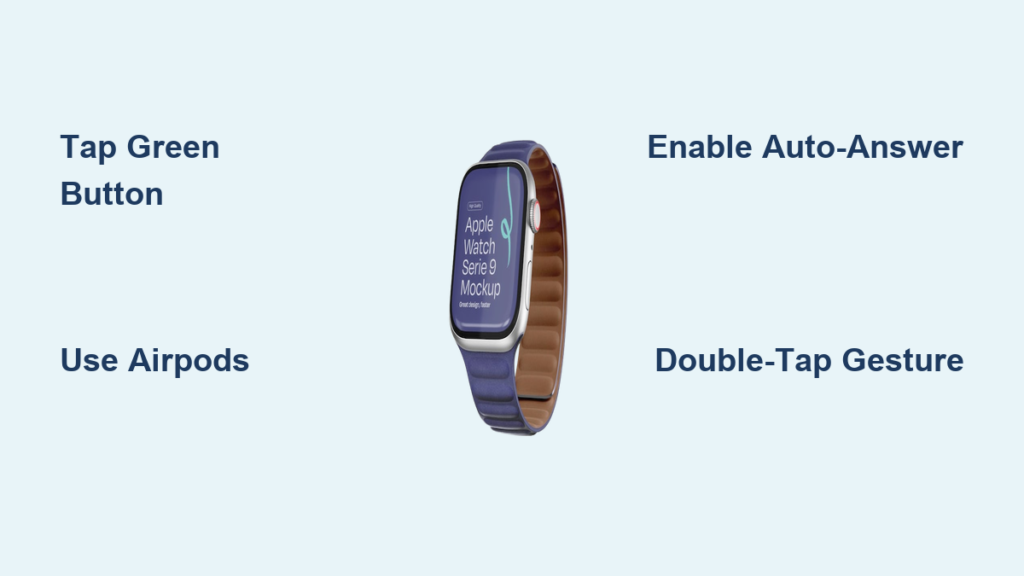
You’re out for a morning run, your hands are full with groceries, or your phone is buried at the bottom of your bag — and suddenly, your wrist buzzes. It’s an incoming call. The good news? You don’t need to scramble for your iPhone. With the right setup, you can answer a call on Apple Watch in seconds — whether by tapping, gesturing, or even letting it answer automatically.
Knowing how to answer a call on Apple Watch isn’t just convenient — it’s a game-changer for staying connected during workouts, commutes, or busy days. But with multiple models, watchOS updates, and accessory options, the process isn’t always as straightforward as it seems. Some users report missing answer buttons, Bluetooth audio that won’t switch, or calls routing unexpectedly to their iPhone.
This guide covers every method to answer a call on Apple Watch — from the standard green button to hands-free gestures and voice-enabled accessories. You’ll learn how to troubleshoot common issues, optimize Bluetooth audio routing, and use accessibility features like Auto-Answer and AssistiveTouch. Whether you own an Apple Watch Ultra 2, Series 9, or SE, this is your complete playbook for seamless call handling.
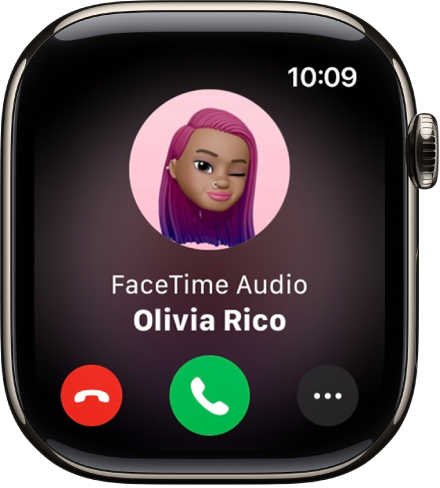
Answer Call Using Green Button
The most intuitive way to take a call is tapping the on-screen answer button.
Standard Answer Process
When a call comes in:
– Wake your Apple Watch by raising your wrist or tapping the screen.
– Look for the green phone icon labeled “Answer.”
– Tap it to connect the call using the watch’s built-in speaker and microphone.
This method works across all Apple Watch models running watchOS 1 or later. It’s ideal for quick conversations when your phone isn’t accessible.
Pro Tip: If you’re in a noisy environment, hold the watch slightly away from your face to reduce echo — the microphone is located on the side opposite the speaker.
Audio Routing Behavior
If AirPods or other Bluetooth headphones are connected and actively used (e.g., listening to music), the call may automatically route to your earbuds when you tap the green button.
- A small AirPods icon may appear next to the answer button, indicating audio will go to your earbuds.
- This seamless switching works best with Apple-branded devices like AirPods Pro or AirPods Max.
Note: Third-party Bluetooth earbuds often don’t support automatic audio routing, so the call may default to the watch speaker even if your earbuds are connected.
Answer Call on Paired iPhone
Sometimes, you’d prefer to take the call on your iPhone — especially for longer conversations or better call quality.
Transfer Ring to iPhone
During an incoming call:
– Tap “Answer on iPhone” on the Apple Watch screen.
– Your iPhone will begin ringing — even if it’s on silent or Do Not Disturb.
– Unlock and answer the call on your iPhone as usual.
This feature requires your iPhone to be within Bluetooth range (about 30 feet). The call is held briefly while your phone rings.
Find Your iPhone Fast
Can’t locate your phone? Tap the bell icon (labeled “Find iPhone”) during the call alert.
Your iPhone will play a loud ring — even in silent mode — helping you track it down quickly.
Use Case: Perfect when you’re at home or in the office and your phone is just out of reach.
Use AirPods to Answer Without Touching Watch

If you’re already wearing AirPods, you can answer without touching your wrist.
Built-in Earbud Controls
To answer a call:
– Double-tap one AirPod (if tap controls are enabled).
– Or squeeze the stem on AirPods Pro (force sensor).
– The call connects directly through your AirPods — no watch interaction needed.
This works only if your AirPods are connected to your iPhone and within range of your Apple Watch.
Why Third-Party Earbuds Struggle
Many users report issues with Jabra, Samsung Galaxy Buds, or Beats earbuds:
– Calls don’t auto-route from the Apple Watch.
– Tap-to-answer functions may not register during watch alerts.
Workaround: Use your earbuds’ physical control (e.g., double-press) to accept the call. Even if the watch doesn’t reflect the change instantly, the call should connect through the earbuds.
Expert Note: Apple optimizes call routing for its own ecosystem. For the smoothest experience, stick with AirPods.
Enable Auto-Answer Calls (watchOS 11+)
Need true hands-free operation? Auto-Answer does the work for you.
Turn On Auto-Answer
- Press the Digital Crown.
- Open Settings > Accessibility > Auto-Answer Calls.
- Toggle Auto-Answer Calls ON.
- Set the delay: Choose 3 to 10 seconds before auto-answering.
Now, incoming calls will answer automatically after your chosen delay — no taps required.
Best For:
– Users with limited mobility
– Situations where gloves prevent touch input
– Frequent family or work calls
Note: The call uses the watch speaker unless AirPods are connected and actively paired.
Use Double-Tap Gesture (Ultra 2, Series 6+)
Some users — especially on Apple Watch Ultra 2 — report that the green answer button doesn’t appear.
Answer with Double-Tap
Instead of tapping:
– Double-tap the screen with two fingers (index and middle).
– Or perform a pinch gesture (thumb to index finger).
This activates AssistiveTouch, a built-in accessibility feature that replaces physical interactions.
Even if you haven’t enabled AssistiveTouch, some models now default to this gesture for answering.
Enable AssistiveTouch for Reliability
To ensure double-tap works:
1. On Apple Watch: Open Settings > Accessibility > Touch > AssistiveTouch.
2. Turn it ON.
3. Customize gestures under Gesture settings.
Now, double-tap becomes a reliable way to answer — even with gloves or wet hands.
Ideal for outdoor use: The Ultra 2 is designed for rugged conditions, and this gesture makes answering calls possible in challenging environments.
Send to Voicemail or Decline Call
Not every call needs an answer. You can silence or dismiss it instantly.
Quick Decline Options
- Tap the red phone button (“Decline”).
- Cover the screen with your palm (uses proximity sensor).
- Flick your wrist downward (on supported models).
All methods send the call to voicemail immediately.
Send a Text Instead
Tap “Send Message” to reply with a preset text:
– “I’m on my way.”
– “I’ll call you back.”
– “I’m busy right now.”
The message sends from your iPhone — no typing required.
Privacy Benefit: Lets you respond without revealing you’re available.
Screen Unknown Callers (iPhone Required)
Worried about spam or robocalls? Use Call Screening to see who’s calling — without answering.
Set Up Call Screening
On your iPhone:
1. Go to Settings > Phone.
2. Tap Silence Unknown Callers or Screen Incoming Calls.
3. Enable Call Screening.
View Caller Info on Watch
When an unknown number calls:
– Tap “View” on the Apple Watch.
– See a live text transcription of the caller stating their name and purpose.
– Choose to Accept, Decline, or Send to Voicemail.
Requires iPhone to be nearby and supported language (e.g., English, Spanish, French, Mandarin).
Manage Active Calls on Apple Watch
Once you’ve answered, your Apple Watch becomes a mini phone.
On-Call Controls
While on a call:
– Mute/Unmute: Tap the microphone icon.
– Adjust Volume: Turn the Digital Crown or tap +/- buttons.
– Switch Audio Device: Tap the Phone icon and select:
– Call on iPhone
– Call on Apple Watch
– Call on AirPods
Example: Start a call on your watch while walking, then transfer it to your iPhone when you sit down.
Troubleshoot Missing Answer Button
If the green “Answer” button doesn’t appear, try these fixes.
| Issue | Solution |
|---|---|
| No answer button on Ultra 2 | Try double-tapping the screen (AssistiveTouch gesture) |
| Call routes to iPhone automatically | Check Bluetooth; ensure watch is not in Do Not Disturb |
| Third-party earbuds won’t answer | Use earbud’s physical control (e.g., double-press) |
| Audio stays on watch speaker | Reconnect AirPods directly to watch via Bluetooth settings |
| Auto-answer not working | Verify Accessibility > Auto-Answer Calls is enabled and delay set |
Restart both devices if issues persist.
Listen to Voicemail on Apple Watch
Missed a call? Check voicemail right from your wrist.
Access Voicemail
- Open the Phone app on Apple Watch.
- Tap Voicemail.
- Select a message to:
– Play the recording
– Read transcription (if available)
– Call back or delete
Tap Play in a voicemail notification to start playback instantly.
Model-Specific Tips
Apple Watch Series 9
- Full support for all answering methods.
- Reliable AirPods auto-routing.
- Use AssistiveTouch for glove-friendly operation.
Apple Watch Ultra 2
- May hide on-screen buttons in favor of gestures.
- Double-tap is often the primary way to answer.
- Designed for outdoor use — works with gloves and wet hands.
Apple Watch SE
- Supports standard tap-to-answer.
- AirPods integration works, but less consistently than on newer models.
- Limited gesture support (no AssistiveTouch on older SE models).
Optimize Bluetooth Audio Routing
Want calls to go straight to your earbuds — not the watch speaker?
Best Practices
- Pair AirPods to iPhone, not directly to watch (they auto-switch).
- For third-party earbuds: Try pairing directly to Apple Watch:
1. Open Settings > Bluetooth on watch.
2. Connect earbuds from there.
3. Test call routing.
Warning: Pairing earbuds only to watch may limit music playback or app functionality.
Final Tips for Seamless Call Handling
-
Use AirPods for Best Experience
They offer one-tap answering, automatic switching, and high-quality audio. -
Enable Auto-Answer for Hands-Free Use
Especially useful when driving, cooking, or wearing gloves. -
Learn the Double-Tap Gesture
Critical for Apple Watch Ultra 2 and Series 6+ users who can’t find the answer button. -
Keep Software Updated
Install the latest watchOS and iOS versions to fix bugs and improve compatibility. -
Test Your Setup Regularly
Make a test call to verify:
– Answer button appears
– Audio routes correctly
– Gestures work
Final Note: Answering a call on Apple Watch should be fast and intuitive — whether you tap, gesture, or let it answer itself. With the right settings and accessories, your wrist becomes a powerful communication hub. Focus on using Apple’s ecosystem (especially AirPods), enable accessibility tools, and master the double-tap trick — and you’ll never miss a call again.





