
Is your Apple Watch screen feeling outdated or hard to read at a glance? You’re not stuck with it. The display on your Apple Watch isn’t fixed—it’s fully customizable. With just a few taps, you can switch from an analog clock with moving hands to a bold digital time display, change colors, add useful data widgets (called complications), or even make the time appear ahead to help you stay punctual. Whether you want a sleek minimalist look or a dashboard packed with info, your watch face controls everything you see.
The secret to changing your Apple Watch display lies in customizing the watch face—the main screen that shows the time. Unlike traditional watches, you can have multiple faces saved and switch between them instantly. Want a digital clock? You’ll need to pick a digital face—there’s no system-wide setting to toggle between analog and digital independently. Your chosen face determines not only the main screen but also how the Wake Screen, Widgets, and Live Activities appear.
In this guide, you’ll learn how to change and customize your Apple Watch display directly from your wrist or via the iPhone app, switch between analog and digital time formats, manage complications, and use advanced tricks like making the clock run ahead or achieving a clean white aesthetic.
Change Watch Face Using the iPhone App
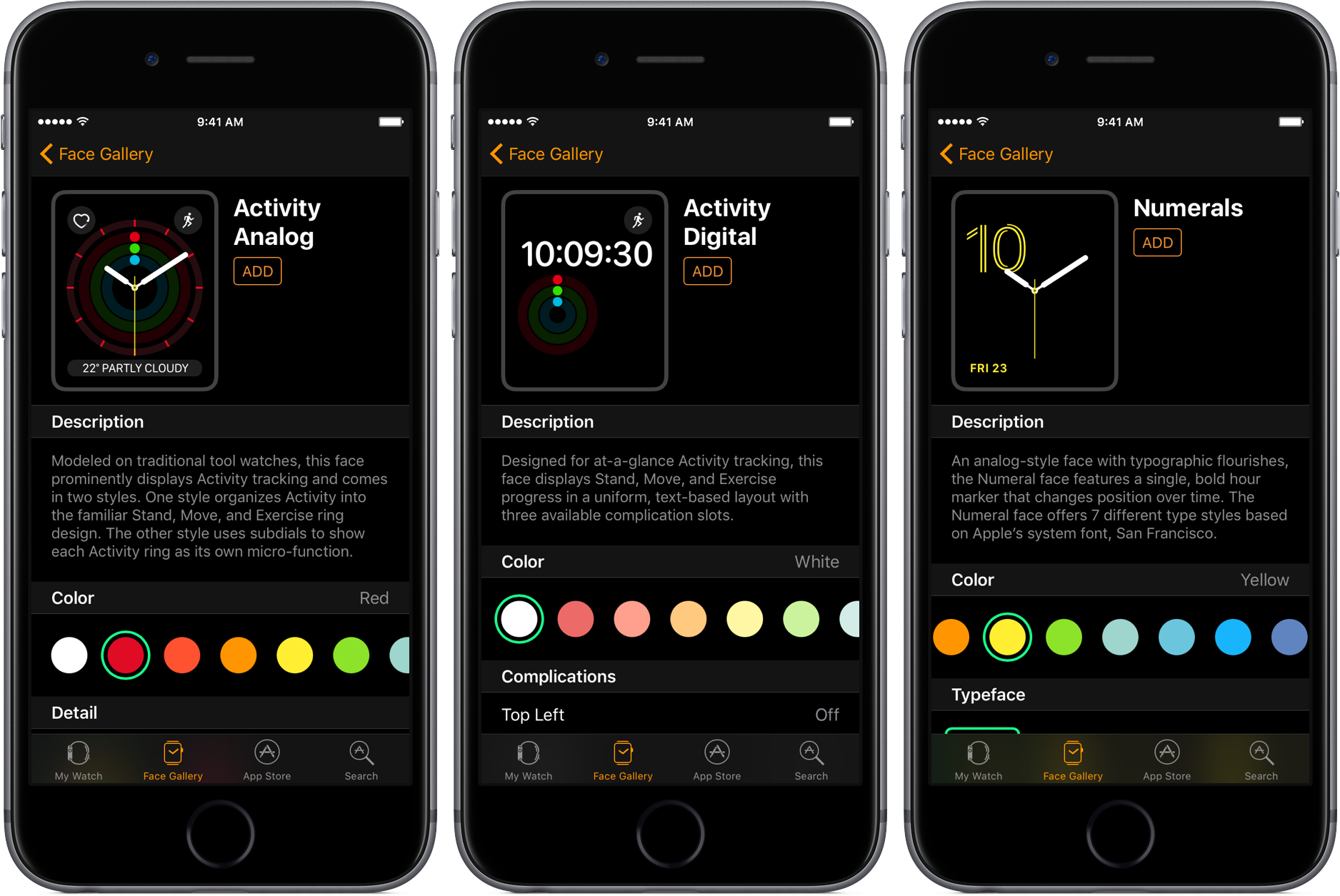
The most intuitive way to explore and personalize watch faces is through the Watch app on your iPhone. It offers a larger preview and more precise editing tools than the watch itself.
Browse and Preview All Available Faces
- Open the Watch app on your iPhone.
- Tap Face Gallery at the bottom.
- Scroll through curated collections like:
– X-Large (giant digital numbers)
– Infograph (data-rich analog design)
– Modular (grid-style complications)
– Solar (sun and moon position tracker)
– Typograph (elegant digital typography)
Tap any face to preview it. Swipe up to access customization options for color, style, and complications.
Customize and Save a New Face
After selecting a face:
1. Tap a complication position (e.g., top right).
2. Choose a function: Calendar, Weather, Heart Rate, Battery, or Timer.
3. To remove a complication, scroll to Off.
4. Adjust colors using the palette or Digital Crown.
5. Tap Add to save it to your watch.
Your new face syncs instantly and appears in your collection.
Pro Tip: Use the iPhone method when setting up a new face for the first time—it gives you the clearest view of all design options.
Customize and Add Faces Directly on Apple Watch
You don’t need your iPhone to change your display. Everything can be done right from your wrist.
Add a New Watch Face
- Press and hold the current watch face.
- Swipe left until you see the (+) icon, then tap it.
- Scroll through templates and tap one to try it.
- Turn the Digital Crown to adjust color, font, or background style.
- Swipe left to enter Complication mode:
– Tap each zone to assign data (e.g., Activity Rings, Music, Weather).
– Swipe to Off to leave a spot blank. - Press the Digital Crown or tap Set to activate it.
Now you’re running a fresh, fully customized display.
Note: Faces like X-Large and Numerals are digital by design. Others like Classic and Infograph default to analog.
Switch Between Saved Watch Faces Instantly
Once you’ve saved multiple faces, switching between them is fast and gesture-based.
Cycle Through Faces
From the current display:
1. Touch and hold the screen.
2. Swipe left or right to browse your saved faces.
3. Tap the one you want to use.
They appear as thumbnails, so you can jump to your workout face, travel time, or bedtime mode in one tap.
Enable Swipe to Switch for Faster Navigation
Speed up access:
1. On Apple Watch, go to Settings > Clock.
2. Turn on Swipe to Switch Watch Face.
3. Now, just swipe left or right from the watch face—no need to press and hold.
Why it helps: Perfect for quick context changes, like switching to a timer face while cooking.
Organize Your Watch Face Collection
Keep your most-used faces within easy reach by reordering them.
Reorder Faces on iPhone
- Open the Watch app.
- Tap My Watch > My Faces.
- Tap Edit.
- Drag faces up or down to change their sequence.
The order matches the swipe order on your wrist.
Reorder on Apple Watch
- Touch and hold the current face.
- Touch and hold again after the edit menu appears.
- Drag face thumbnails left or right.
Tip: Place your daily driver face first. Put specialty faces (like Alarm or Workout) toward the end.
Delete Unused Watch Faces to Reduce Clutter
Clean up faces you no longer use—without losing them permanently.
Remove from Apple Watch
- Press and hold the screen.
- Swipe to the face you want to delete.
- Swipe up, then tap Remove.
Remove via iPhone
- Open Watch app.
- Go to My Watch > My Faces.
- Tap Edit.
- Tap Remove next to the face.
Important: Deleting a face doesn’t erase it permanently. You can re-add it anytime from the Face Gallery.
Switch from Analog to Digital Time Display
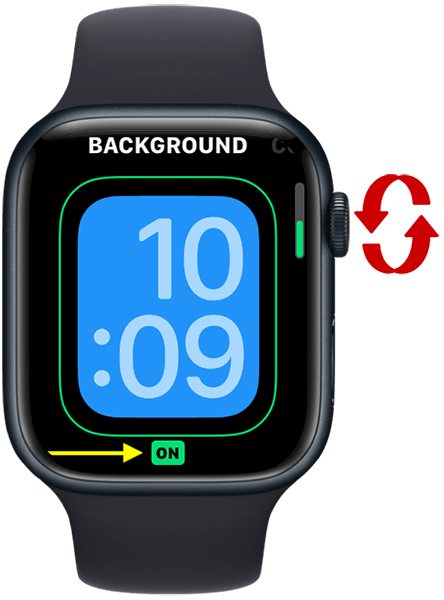
Want a digital clock instead of hands? You must choose a digital watch face—there’s no system setting to show digital time independently on an analog face.
Best Digital Watch Faces
- X-Large: Huge numbers, perfect for quick glances.
- Numerals: Clean black-and-white digital display.
- Typograph: Stylish fonts with modern typography.
- Time Travel: Animated globe and time zones.
- Toy Story: Fun character animations with digital time.
- Solar: Hybrid showing both digital time and sun position.
User Insight: “Main watch face digital? Widgets face digital. Main analog? Widgets analog.” – AwDuck
This means the Wake Screen, Widgets, and Live Activities all mirror your current face’s style.
Workaround: Show Digital Time Temporarily
On Apple Watch Series 9 and later, use the double-tap gesture:
– Double-tap the screen with your index finger and thumb.
– A small digital clock appears in the top-right corner—even on analog faces.
Pro Tip: Great for quick time checks without switching faces.
Add and Customize Complications for Real-Time Info
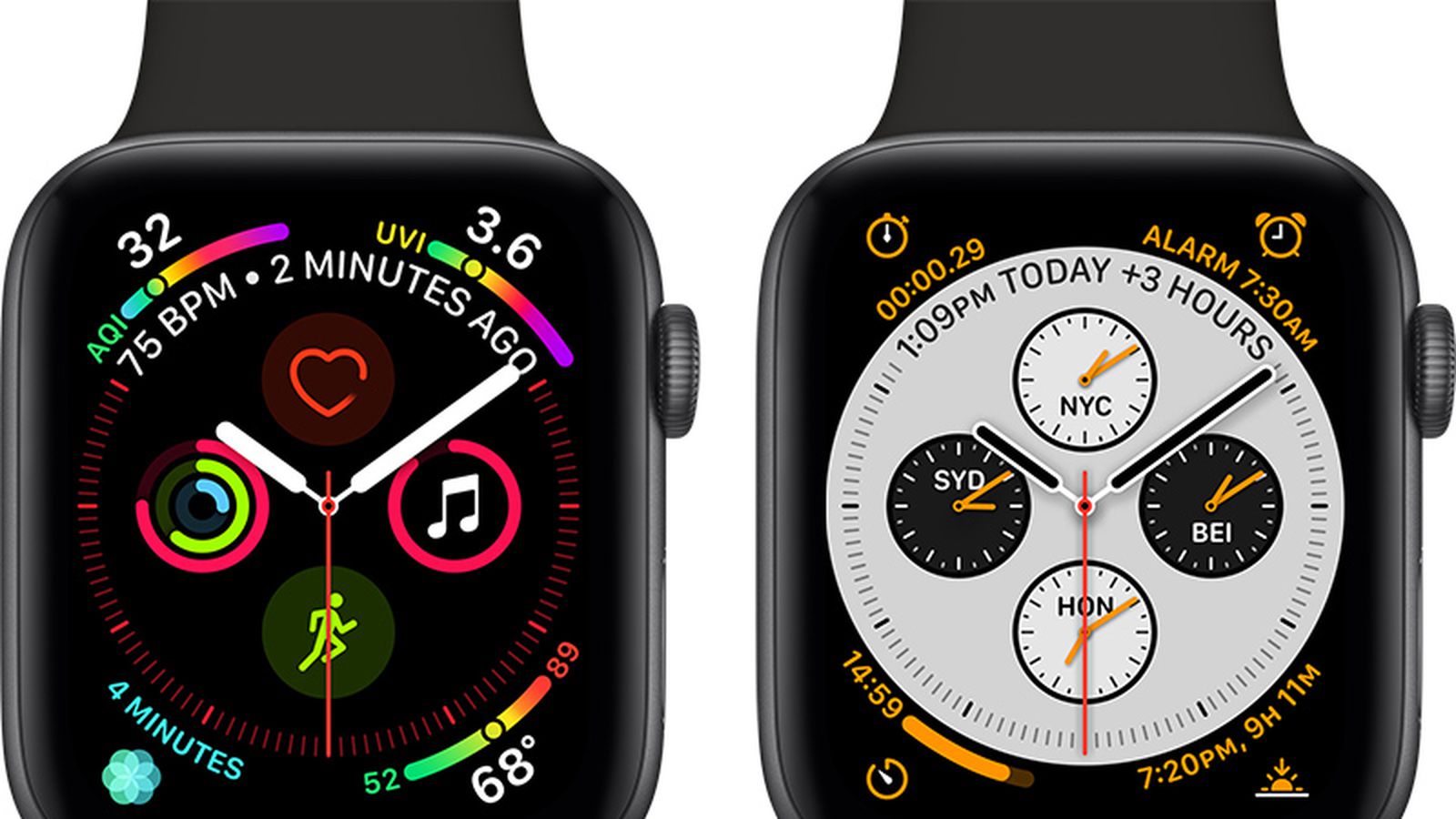
Complications are mini-widgets that show live data directly on your watch face.
Add or Change Complications
While customizing a face:
1. Tap a position (e.g., bottom center).
2. Scroll through options:
– Activity Rings
– Calendar
– Heart Rate
– Weather
– Battery
– Stopwatch
– Music
– World Clock
– Sunrise/Sunset
– Noise Level
3. Tap Off to remove.
Note: Not all complications work on every face. For example, X-Large only supports center complications.
Choose the Right Face for Your Needs
- Modular: Best for maximum complications (up to 8).
- Infograph: Balanced layout with 5–6 spots.
- Circular: Clean analog with limited widget space.
Avoid clutter: Too many complications make the face hard to read. Stick to what you check most.
Make Time Run Ahead (Up to +59 Minutes) for Better Punctuality
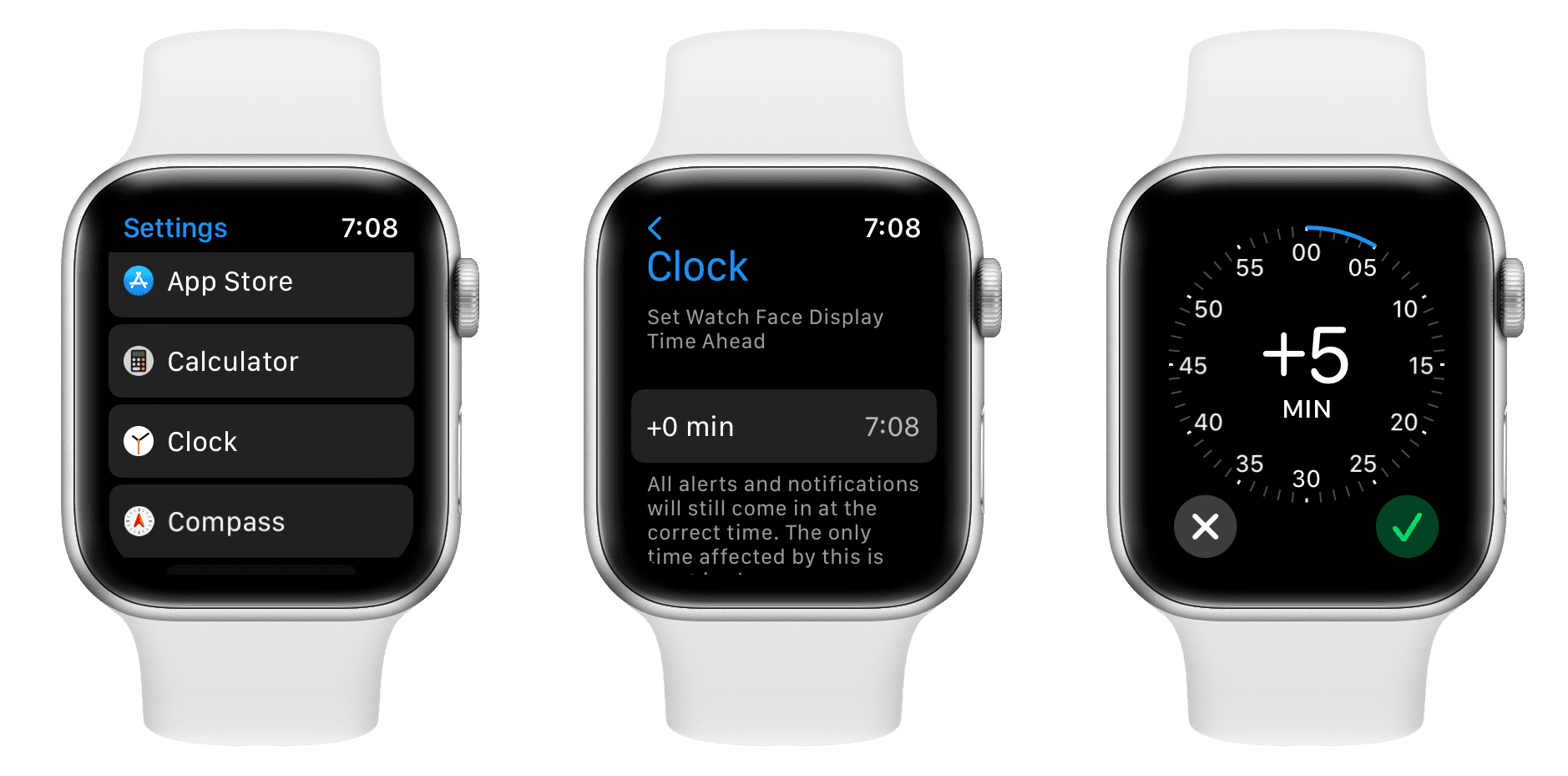
Trick yourself into being on time by making the watch face display time ahead.
Set Clock Offset
- On Apple Watch, open Settings.
- Tap Clock.
- Tap +0 min.
- Turn the Digital Crown to set offset: +10, +30, or up to +59 minutes.
Now your watch shows a future time—but only visually.
Important: This does not affect:
– Alarms
– Calendar alerts
– Timer countdowns
– System logs or sync timesUser Hack: “Set it +15 minutes so you think it’s later than it is. Forces punctuality.” – [deleted comment]
Achieve a Clean White Display for a Minimalist Look
Want a bright, minimalist, or “clean” aesthetic? Pick a white-themed face.
Recommended Faces for a White Display
- Snoopy Face with Newspaper White color.
- Stripes Face with all stripes set to white (appears light gray).
- X-Large or Numerals with white background.
User Feedback: “Selected white watch face like Snoopy and then you get it, the mind-bending clean look.” – Moist_Suggestion7825
Note: The Widgets screen and minute indexing style often match the main face. A clean face usually means a cleaner overall interface.
Understand How Display Sync Affects Other Screens
Your watch face doesn’t just control the main screen—it influences other interfaces too.
Wake Screen and Widgets Match Face Type
- Use a digital face → Wake Screen shows digital time.
- Use an analog face → Wake Screen shows analog clock.
There’s no independent setting to decouple this behavior.
User Frustration: “I really wish this was a setting you could choose instead of having it locked.” – ProdesseQuamConspici
But for now, face choice = system-wide display style.
Design Elements Are Linked
If your main face lacks minute markers or indexing, the Widgets screen may omit them too.
Fix: Switch to a face with clear indexing (like Infograph) if you rely on precise time tracking.
Troubleshoot Common Display Issues
Why Isn’t the Time Digital?
If you’re seeing analog hands but want digits:
– You’re using an analog face.
– Solution: Switch to X-Large, Numerals, or Typograph.
Why Are Widgets Screen Elements Gray?
- Caused by face design choices.
- Some minimalist faces suppress indexing and color.
- Fix: Try a more detailed face or accept the aesthetic trade-off.
Can I Have Digital Time Without Changing Face?
Only on Series 9 and later:
– Use double-tap gesture to briefly show digital time overlay.
– Otherwise, no—face type controls all time displays.
Final Note: Your Apple Watch display is fully under your control. Whether you want a digital clock, a clutter-free face, or a data-packed dashboard, the power is in the watch face. Explore the Face Gallery, experiment with complications, and use smart features like time offset and swipe navigation to make your watch work better for you. Once you master face management, you’ll never look at your wrist the same way again.




