
Your Apple Watch clock is more than a timepiece—it’s a dynamic canvas for personal expression. Whether you want a sleek digital display, a vintage analog look, or a photo-powered face that shifts with your wrist movement, you can fully customize your Apple Watch clock to reflect your style, routine, or mood. The key to unlocking this personalization lies in understanding that the clock’s appearance is tied directly to your watch face, not a standalone setting. Choose an analog face, and you get hands. Pick digital, and the time appears in bold numbers. But with dozens of built-in faces, hundreds of complications, customizable colors, and even third-party designs, the real magic is in the details. In this guide, you’ll learn how to switch between analog and digital clocks, personalize complications, use your favorite photos with 3D effects, install custom watch faces, and master advanced tricks like time-ahead settings and face-swiping gestures—all from your wrist or iPhone.
Switch Between Analog and Digital Clocks
The fastest way to change your Apple Watch clock from analog to digital (or vice versa) is by selecting a different watch face—there’s no independent setting to mix and match.
Important: You cannot display a digital clock on an analog face. The time format is locked to the face type.
Choose a Digital Watch Face
To get a digital time display, pick any digital-based face:
- Flux: Animated background that shifts with the time of day
- Standard Clock: Clean, bold digital numerals
- Activity Digital: Digital time with fitness rings
- Numerals: Retro-styled digital numbers with vintage charm
How to Apply:
- Press and hold your current watch face.
- Swipe left or tap Add to browse new options.
- Select a digital face, customize it, then press the Digital Crown to set it.
Now your clock shows time in digital format—perfect for quick glances or modern aesthetics.
Need Digital Time on an Analog Face? Use the Double-Tap Trick
If you love your analog face but want a fast digital readout, use the double-tap gesture:
- Place your thumb and index finger together on the screen.
- A digital time overlay appears in the top-right corner.
- Lift your fingers to return to normal.
This temporary workaround is ideal for checking exact time without switching faces—great for meetings or workouts.
Customize Watch Face on Apple Watch

You can personalize your clock directly from your wrist—no iPhone required.
Enter Edit Mode
- Wake your Apple Watch.
- Press and hold the screen.
- Tap Customize.
Now you’re in full control.
Change Clock Style (Dial)
- Turn the Digital Crown to cycle through dial styles.
- On faces like Chronograph or Infographic, you can switch hand designs, fonts, or subdial functions.
Adjust Colors
- Tap Color to change:
- Background tint
- Accent color for hands, numbers, or rings
- Highlights for complications
For example, make your Flux face shift from deep blue at night to warm orange at sunrise.
Edit Complications
- Tap a complication (e.g., top left or bottom center).
- Scroll with the crown to choose a new function:
- Weather, Heart Rate, Calendar, Stopwatch, Music
- Tap Remove to clear a slot.
Pro Tip: Avoid clutter—only add complications you check daily.
Rearrange Layout (Face-Dependent)
- On Modular or Infographic, tap and drag complications to reposition.
- Not all faces support this—Simple and Solar have fixed layouts.
When done, press the side button to save.
Note: Limited screen space means fewer options than on iPhone—use the watch for quick tweaks, the phone for deep edits.
Customize via iPhone for Full Control
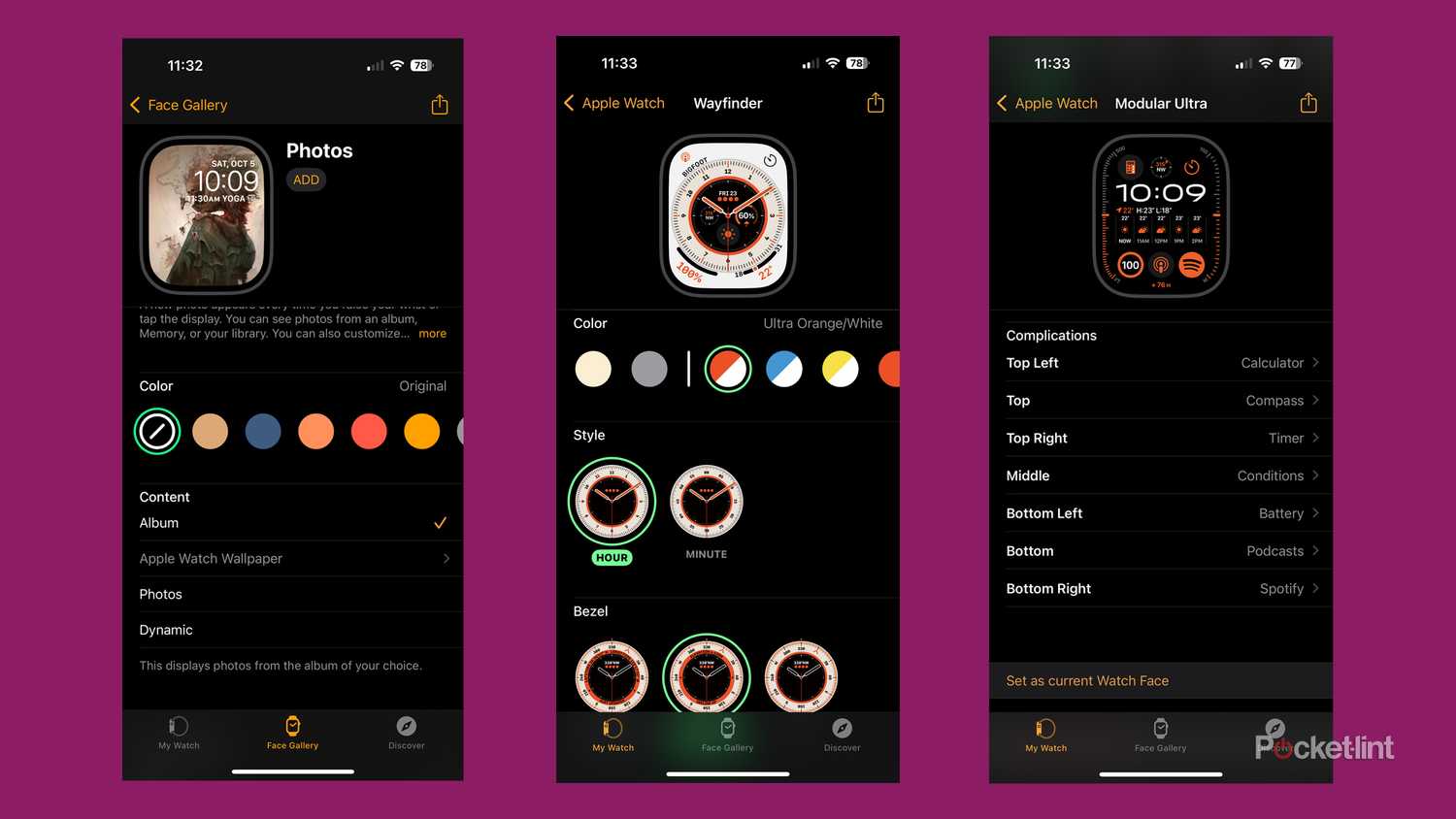
For precision editing, use the Apple Watch app on iPhone—it offers better previews, more options, and easier navigation.
Access the Face Gallery
- Open the Apple Watch app.
- Tap Face Gallery.
- Browse categories:
– Health & Fitness
– Photos
– Data Rich
– New & Seasonal
Tap any face to preview it in real time.
Deep Customization Steps
After selecting a face:
Pick Colors and Styles
- Tap color swatches to change:
- Background
- Text
- Accent tones
- Adjust intensity (e.g., light/dark gradient on Flux)
Add or Replace Complications
- Tap a position (e.g., Top Left).
- Swipe to see available apps:
– Weather, Calendar, Activity, Heart
– Third-party apps like Podcasts, Sleep, or Reminders - Tap Off to remove a complication.
Pro Tip: Use the Search bar to find faces like “Minimalist,” “Chronograph,” or “Weather.”
Set Band Color (Some Faces)
- Faces like Nike or Hermès let you match the band color to the face.
Enable 3D and Motion Effects
- For Portraits face, turn on motion and depth.
- Photos zoom slightly when you move your wrist—great for family or pet portraits.
When finished, tap Add to Watch. The face syncs instantly.
Best Watch Faces for Clock Customization
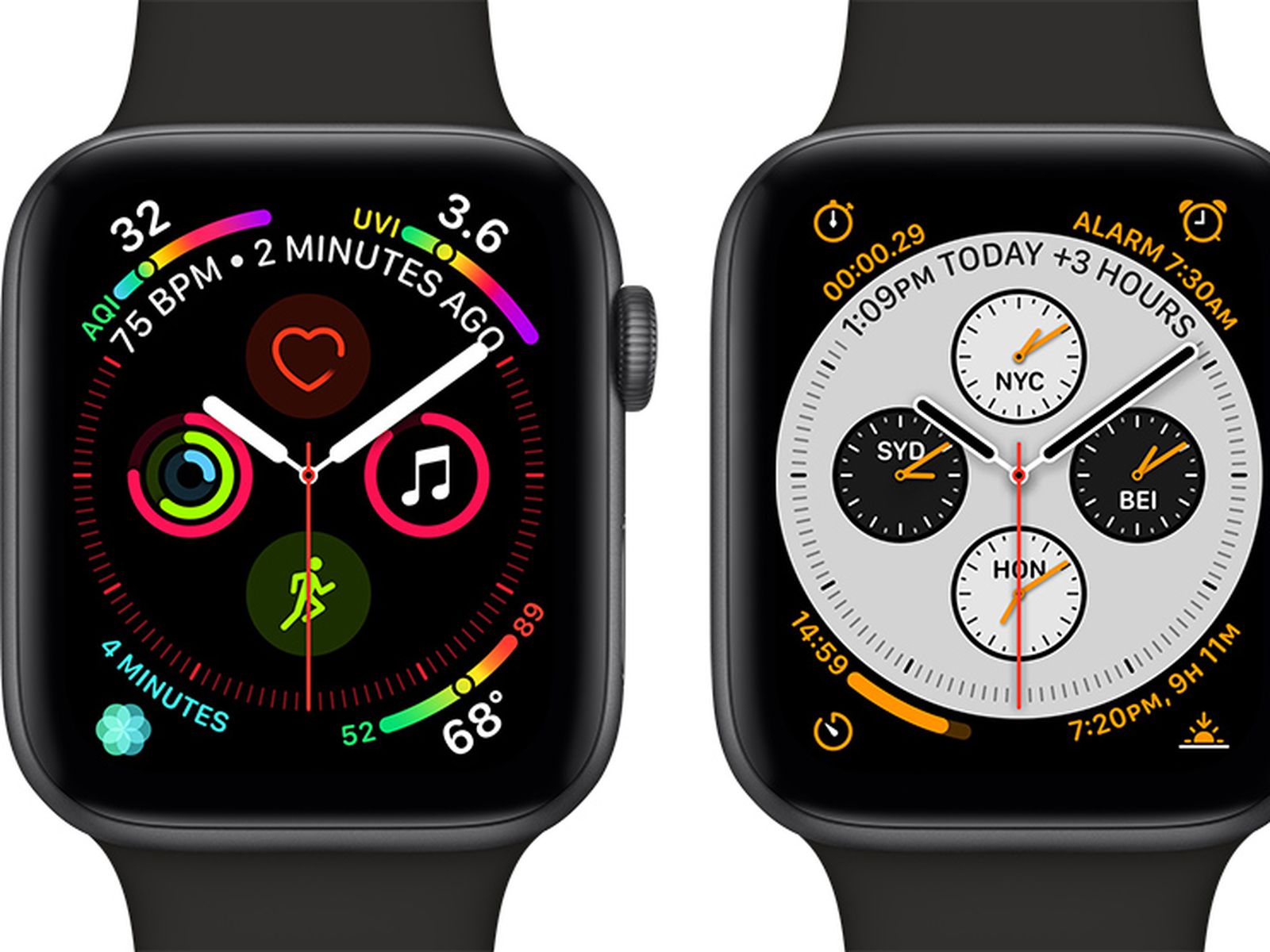
Each face offers unique clock styles and personalization levels.
Chronograph – Classic Analog with Function
- Features stopwatch subdials
- Customize:
- Subdial functions (timer, date, moon phase)
- Hand color and bezel style
- Ideal for users who love traditional watches
Modular – Max Complication Space
- Grid layout with up to 8 slots
- Choose large center module (e.g., calendar, music)
- Swap modules freely
- Great for staying informed at a glance
Infographic – Bold and Dynamic
- Designed for Apple Watch Ultra but works on all models
- Large outer ring shows activity or battery
- Central complication displays weather, heart rate, or stopwatch
- High customization for data lovers
Solar – Celestial Theme
- Shows sun and moon position
- Background changes with time of day
- Customize colors and celestial details
- Perfect for astronomy fans
Flux – Animated Digital Background
- Digital clock with animated gradient
- Background shifts based on time (e.g., sunrise to sunset)
- Adjust color and animation intensity
- One of the most visually striking digital options
Photos & Portraits – Personalize with Images
- Display your own photos as the background
- Portraits face adds 3D depth with Portrait mode photos
- Turn Digital Crown to zoom in/out
- Move wrist to see parallax effect
User Tip: “I made all stripes white on Stripes face—it turned the widgets screen into a soft gray. Looks clean.”
Add Personal Photos to Your Clock
Make your Apple Watch truly yours with favorite memories.
Steps (via iPhone):
- Open Apple Watch app.
- Go to My Watch > Photos.
- Choose source:
– Favorites
– Album (sync a specific one)
– Dynamic (rotates recent photos)
– Choose Photos (manual selection) - Set photo limit: 25 to 500 images.
- Tap Sync.
Now apply the Photos face to see your images.
Use Portrait Mode for 3D Effect (watchOS 8+)
- Take or select Portrait mode photos (up to 24).
- In Face Gallery, choose Portraits.
- Tap Choose Photos, select images, then Add.
- Tap Add to Watch.
When worn, the photo responds to wrist movement with a 3D parallax effect.
Note: Requires iPhone with Portrait mode and watchOS 8 or later.
Install Third-Party Watch Faces

Since watchOS 7, you can download custom faces from the App Store.
How to Add:
- Open App Store on iPhone or Apple Watch.
- Search for “watch faces”.
- Download apps like:
– Facer
– Watch Facely
– FaceKit - Open the app and browse designs.
- Tap Add to Watch.
Many offer free and premium options—some require subscriptions.
Warning: Third-party faces may have fewer complications or slower performance than Apple’s built-in ones.
Manage Your Watch Face Collection
Keep your favorites organized and easy to access.
Reorder Faces
On iPhone:
- Open Apple Watch app.
- Tap My Watch > My Faces.
- Tap Edit.
- Drag faces using the ≡ icon.
- Tap Done.
On Apple Watch:
- Press and hold current face.
- Touch and hold again.
- Drag faces left or right to reorder.
Delete a Face
On Apple Watch:
- Press and hold face.
- Swipe to the one you want to remove.
- Swipe up, then tap Remove.
On iPhone:
- Open Apple Watch app.
- Tap My Watch > My Faces.
- Tap Edit, then – next to the face.
- Tap Remove.
You can re-add deleted faces anytime.
Enable Swipe to Switch Faces
Skip the long press—switch faces with a simple swipe.
Turn On Swipe Gesture:
- Open Apple Watch app on iPhone.
- Tap My Watch > Clock.
- Toggle on Swipe to Switch Watch Face.
Now, just swipe left or right on your watch face to change it instantly.
User Feedback: “I love being able to swipe instead of pressing down every time.”
Set Clock to Display Time Ahead
Trick yourself into being on time by making your watch run fast.
Steps:
- On Apple Watch, open Settings.
- Tap Clock.
- Tap +0 min.
- Turn the Digital Crown to set ahead (e.g., +15, +30, +59 minutes).
Now your clock shows a future time.
Important: This only changes the displayed time. Alarms, notifications, and system functions stay accurate.
Pro Tip: Set it +10 minutes to build better punctuality habits.
Troubleshoot Customization Issues
If your changes don’t appear, try these fixes.
Restart Your Apple Watch
- Press and hold the side button.
- Slide to power off.
- Press and hold again to restart.
This often resolves sync issues.
Update Software
Ensure you’re on the latest OS:
- iPhone: Settings > General > Software Update
- Apple Watch: Settings > General > Software Update
New faces (e.g., Flow, Exactograph) require iOS 17+ and latest watchOS.
Enable Always-On Display
To see your clock clearly without raising your wrist:
- Go to Settings > Display & Brightness > Always On → Turn On
Now your face stays visible at a glance.
Share Custom Watch Faces
Send your personalized design to friends or family.
How to Share:
- Press and hold your current face.
- Tap the Share icon (box with arrow).
- Choose a contact.
- Send via Messages.
Recipient gets a preview and can add it with one tap.
Use Case: Share a workout-ready face with heart rate and timer for gym buddies.
Final Tips for the Best Custom Clock Experience
- Match face to activity: Use Activity Digital during workouts, Simple for formal events.
- Go minimalist: Try Snoopy in Newspaper White or Stripes in monochrome for clean elegance.
- Stay updated: New watch faces drop with iOS updates—check regularly.
- Use iPhone for precision: Better for photo selection, complication layout, and color tuning.
- Rotate faces: Change daily to keep your watch feeling fresh.
With full control over style, color, data, and motion, your Apple Watch clock can be as functional or artistic as you want. Whether you’re chasing fitness goals, making a fashion statement, or just love seeing your dog’s face in 3D, customizing your Apple Watch clock turns your wrist into a dynamic extension of you.





