
You’ve been crushing your daily Move goal for weeks—hitting 500 active calories like clockwork. But life changes: you start a new job with longer hours, take up yoga instead of weightlifting, or maybe you’re recovering from an injury. Suddenly, your Apple Watch feels more like a critic than a coach. The good news? You can change fitness goals on Apple Watch to better match your current routine and energy levels.
The Activity app uses three colorful rings—Move (red), Exercise (green), and Stand (blue)—to track your daily progress. While only the Move goal is customizable, adjusting it gives you meaningful control over your fitness tracking. Whether you’re using watchOS 11 or an earlier version, you can fine-tune your goals directly from your wrist or via the iPhone’s Fitness app. In this guide, you’ll learn how to adjust your Move goal, set different targets for each day, pause activity tracking without losing streaks, and avoid common pitfalls along the way.
Adjust Your Move Goal
Only the Move goal—the red ring representing active calories burned—can be manually changed. This is the core of your personalized fitness target. The Exercise and Stand goals are automatically set by Apple based on your age, sex, height, weight, and historical activity data. They cannot be edited, but your Move goal can be tailored precisely to your lifestyle.
Change Move Goal on Apple Watch
For quick adjustments, your Apple Watch is the fastest tool.
- Open the Activity app.
- Tap the Summary icon (three horizontal lines in the top-left).
- Scroll to the bottom and tap Change Goals.
- Use the Digital Crown to spin up or down your calorie target.
- Tap Set to confirm.
Pro Tip: Skip the scroll by using Force Press (a firm, deep press) anywhere in the Activity app. This shortcut brings up “Change Move Goal” instantly—perfect when you’re on the go.
This method works on all Apple Watch models with watchOS 6 and later, though the interface is most intuitive in watchOS 11.
Change Move Goal via iPhone
If you prefer a larger screen or want to make precise edits, use the Fitness app on your iPhone.
- Open the Fitness app.
- Tap the Activity Rings tab at the top.
- Scroll down and tap Change Goals.
- Adjust your Move goal using the + and – buttons.
- Tap Set Move Goal.
The iPhone method is especially helpful if you wear gloves, have vision challenges, or just want to avoid fumbling with small touch targets on your wrist. It also makes scheduling weekly variations much easier.
Set Weekly Goal Schedule
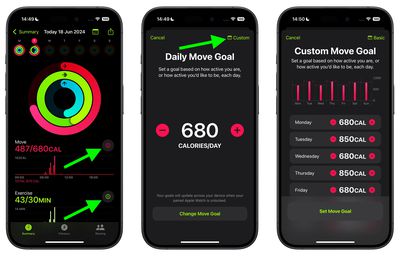
Life isn’t the same every day—so why should your fitness goals be? You can now schedule different Move goals for different days of the week, aligning with your real-world routine.
On iPhone (Recommended)
- In the Fitness app, go to Activity Rings > Change Goals.
- Tap Schedule in the top-right corner.
- For each day, adjust the calorie target:
– Weekdays (Mon–Fri): 400 cal (moderate activity)
– Saturday: 600 cal (long workout day)
– Sunday: 300 cal (rest or recovery) - Tap Set Move Goal Schedule.
Your Apple Watch will automatically apply the correct goal each day.
On Apple Watch
- From the Change Goals screen, tap the Calendar icon.
- Tap Schedule.
- Select each day and adjust the goal using the Digital Crown.
- Tap Set Schedule.
Every Monday, your Apple Watch analyzes your progress and may suggest increasing your goal. Review this suggestion before accepting—especially if you’ve had a busy or low-energy week.
Customize Exercise & Stand Goals
Many users assume all three rings are adjustable—but this isn’t the case.
Can You Change Exercise Goal?
❌ No. The green Exercise ring requires 30 minutes of moderate to intense activity daily. This goal is locked and calculated automatically. Even if the Fitness app shows edit options, changes won’t stick.
Why? Apple uses this consistency to standardize health metrics across users. Advanced athletes may find this limiting, but it ensures broad usability.
Can You Change Stand Goal?
❌ No. The blue Stand ring requires standing and moving for at least one minute during 12 different hours of the day. This cannot be reduced or disabled.
Users with mobility issues often find this frustrating. However, you can pause the rings temporarily (see below) to stop reminders without losing streaks.
Pause Activity Rings Temporarily
Injuries, vacations, illness—sometimes you need a break. The Apple Watch lets you pause activity tracking without losing awards or breaking streaks.
How to Pause on Apple Watch
- Open the Activity app.
- Tap the Summary icon.
- Scroll down and tap Pause Rings.
- Choose duration:
– Today
– Until next week
– Until next month
– Custom (up to 90 days) - Tap Set.
How to Pause on iPhone
- Open the Fitness app.
- Go to Activity Rings.
- Tap Pause Rings.
- Select your preferred end date.
- Tap Set.
During the pause, your rings freeze, but your streaks are preserved. This is ideal for recovery, travel, or mental health breaks.
Resume Rings Early
Changed your mind? You can resume anytime:
– Open the Activity app (watch or iPhone).
– Tap Resume Rings.
– Tracking restarts immediately.
Edit Pause Duration
Need to extend or shorten your break?
– Tap Edit Pause.
– Adjust the number of days using the Digital Crown (watch) or on-screen controls (iPhone).
– Tap Done.
Maximum pause: 90 consecutive days—plenty of time for surgery recovery or extended trips.
Fix Common Goal-Setting Issues

“Change Goals” Option Missing
Cause: You’re in the wrong app or haven’t scrolled far enough.
Fix:
– On Apple Watch: Open Activity app, tap Summary, scroll to bottom.
– On iPhone: Use Fitness app, not Health. Go to Activity Rings > Change Goals.
Exercise or Stand Goal Won’t Change
Cause: These goals are not user-editable.
Fix: Only the Move goal can be changed. Ignore misleading interface elements—Apple doesn’t allow manual overrides.
Weekly Schedule Not Saving
Cause: Software outdated or sync issue.
Fix:
– Update to watchOS 11 or later.
– Open Watch app on iPhone > General > Software Update.
– Restart both devices to force sync.
Force Press Not Working
Cause: 3D Touch disabled or unsupported (e.g., on Apple Watch Series 6 and later with Haptic Touch).
Fix:
– Press firmly and hold for 1–2 seconds.
– If no response, use menu navigation instead.
– Check Settings > Accessibility > Touch > 3D & Haptic Touch.
Best Practices for Goal Management

Use iPhone for Setup
The Fitness app on iPhone offers better visibility and control. Always set up weekly schedules here first.
Review Monday Suggestions
Every Monday, Apple Watch may prompt:
– “Keep current goal”
– “Increase to [X] calories”
Use this data to decide—don’t blindly accept increases.
Set Realistic, Gradual Increases
Avoid burnout:
– Increase Move goal by 50–100 calories per week.
– Match increases to actual habit changes (e.g., add 100 cal after starting daily walks).
Schedule Rest Days
Use Custom Schedule to:
– Lower goals post-workout (e.g., 300 cal on recovery days)
– Reduce targets during travel
– Boost them on high-activity days
Pause After Injury or Illness
Use the 90-day pause to protect streaks during:
– Physical rehab
– Mental health breaks
– Extended travel
Your achievements stay intact—no guilt, no pressure.
Limitations to Know
| Feature | Editable? | Notes |
|---|---|---|
| Move Goal | ✅ Yes | Fully customizable in calories |
| Exercise Goal | ❌ No | Fixed at 30 min/day |
| Stand Goal | ❌ No | Requires 12 standing hours |
| Hide Rings | ❌ No | Can only pause |
| Auto-Rest Day | ❌ No | Must schedule manually |
| All-Day Tracking | ✅ Yes | Runs midnight to midnight |
For full metric control, consider third-party apps like Strava or Workoutdoors, though they won’t sync with Activity rings.
Pro Tips for Power Users
- Sync with Training Plans: Increase Move goal during peak training weeks; lower it during taper phases.
- Combine Pause + Schedule: Pause for vacation, then resume with a lower goal to ease back in.
- Use Siri for Quick Checks: Ask, “Hey Siri, how many calories left to close my Move ring?” (Siri can’t change goals, but it checks status).
- Monitor Streak Protection: Pausing preserves 7-day challenges, monthly awards, and year-long achievements.
While Apple Watch doesn’t let you tweak every fitness goal, the ability to customize your Move target, schedule weekly variations, and pause without penalty gives you real control. Use the iPhone for setup, leverage scheduling for balance, and pause when needed—your health journey should adapt to you, not the other way around.




