
You can’t set a traditional wallpaper on your Apple Watch like you would on an iPhone. Instead, Apple integrates background images directly into watch faces—fully customizable interface designs that include your photo (the “wallpaper”), time style, and functional complications. The good news? You can easily personalize your Apple Watch with any image from your iPhone, apply filters, adjust layout, and switch between faces in seconds. Whether you want a family picture, scenic landscape, or artistic animation as your backdrop, this guide shows you how to change your Apple Watch wallpaper using built-in tools—no third-party apps needed.
All customization starts on your iPhone or directly on the watch, with the most powerful options available in the Apple Watch app. From one-tap photo faces to fully tailored layouts, here’s everything you need to know to make your Apple Watch uniquely yours.
Use Photos to Create a Watch Face
The fastest way to turn any image into a wallpaper-style background is using the “Create Watch Face” shortcut in the iPhone’s Photos app.
Select Photo and Share
- Open the Photos app on your iPhone.
- Choose a high-quality image—ideal ones are bright, centered, and well-lit.
- Tap the Share button (square with an upward arrow).
- Scroll down and tap “Create Watch Face.”
A preview appears showing how your photo will look on the watch face with the time overlaid.
This method instantly turns your favorite memory into a functional watch face. It’s perfect for users who want a quick, seamless way to personalize their Apple Watch without diving into menus.
Customize Time and Color
After selecting your photo:
– Drag the time display to position it at the top or bottom of the screen. Placing it at the bottom often improves readability, especially over busy parts of the image.
– Swipe left or right to cycle through color tints—these subtly enhance your photo with warm, cool, or vibrant tones. You can also keep the original colors for a natural look.
– Preview changes in real time on a simulated Apple Watch display to ensure clarity and style.
When satisfied, tap Add. Your new watch face syncs automatically to your Apple Watch within seconds.
Pro Tip: Favorite your photo in the Photos app before using it—this helps ensure it syncs correctly if your watch is set to use the Favorites album.
Customize via Apple Watch App
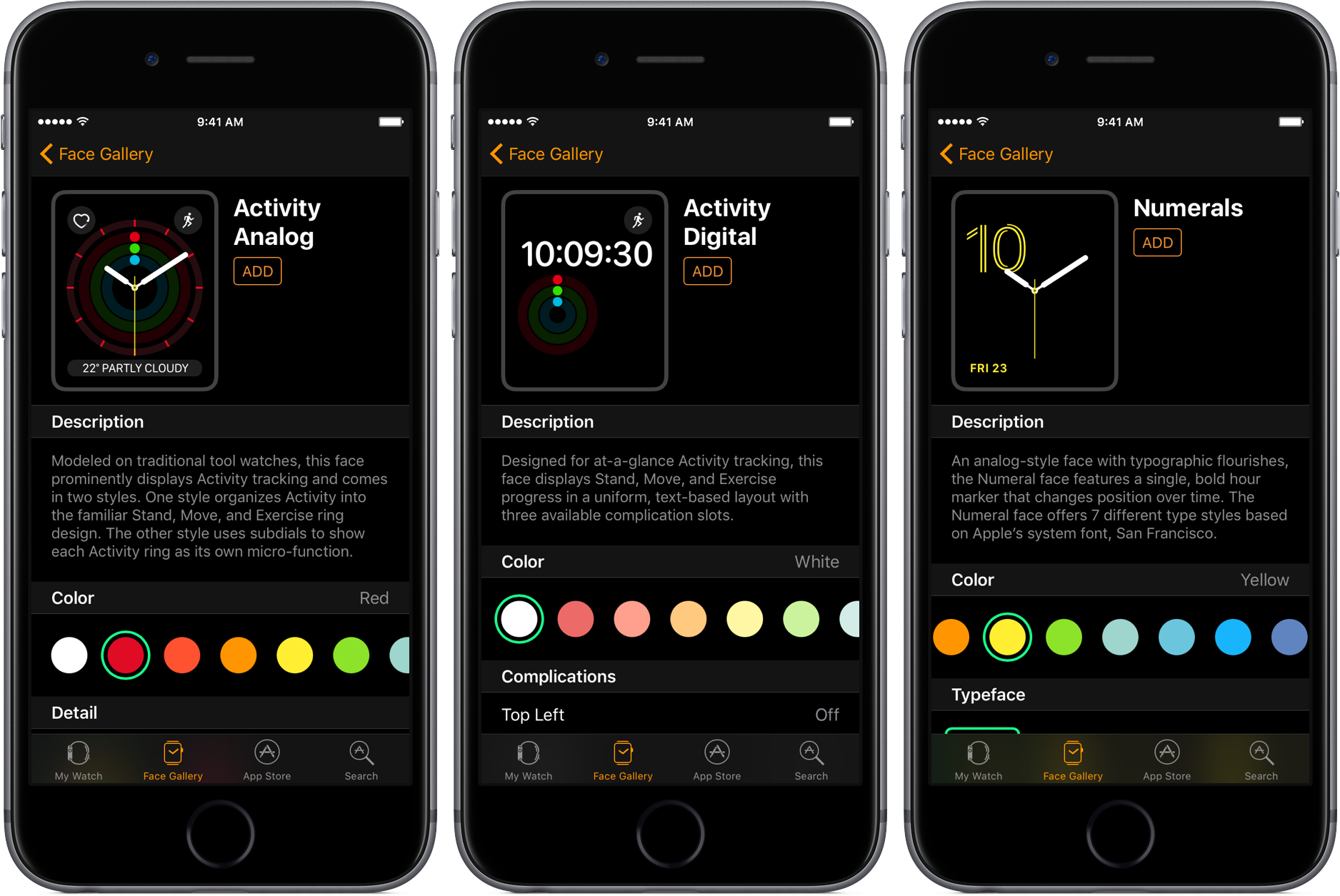
For full control over design, layout, and widgets, use the Face Gallery in the Apple Watch app.
Open Face Gallery
- Launch the Apple Watch app on your iPhone.
- Tap Face Gallery at the bottom.
- Scroll to the Photos section and tap Add.
Unlike the Photos app shortcut, this method lets you browse your entire library—not just the image currently open. You can select from Recents, Favorites, Albums, or even create a dedicated folder for watch backgrounds.
Pick and Position Your Image
- Tap Photo Library to access all your albums.
- Choose your desired image.
- Use pinch and drag gestures to zoom in or reposition the photo so the main subject stays centered on the round watch display.
Because the Apple Watch has a circular screen, rectangular photos are automatically cropped at the edges. Repositioning ensures key details—like a face or horizon—stay visible.
Style Time and Complications
Now customize the interface:
– Change the font and color of the time display to match your photo’s mood.
– Add up to six complications—small data widgets such as:
– Activity rings
– Heart rate
– Weather
– Calendar
– Battery level
– Place complications above or below the time for balanced design.
– Match colors to your image’s dominant tones for a polished, cohesive look.
Tap Add when done. Your new face appears in your collection and becomes active immediately.
Set Sync Source for Rotating Photos
By default, the Photos face pulls from your Favorite photos. To change this:
1. In the Apple Watch app, go to My Watch > Photos.
2. Tap Synced Album.
3. Choose:
– Favorites
– Recents
– A custom album
Want only one static image? Put just that photo in a new album and sync that. Want rotating images? Favorite multiple photos.
This setting controls which images appear when using the Photos or Kaleidoscope watch faces.
Change Face on Apple Watch
You can switch between saved watch faces directly on your wrist—even if you can’t add new photos from the watch.
Swipe to Switch Faces
- With the watch face displayed, touch and hold the screen.
- Swipe left or right to browse your collection.
- Tap the face you want to activate.
To speed things up:
– Go to Settings > Clock on your Apple Watch.
– Turn on Swipe to Switch Watch Face.
– Now, swipe left or right from the face without holding—ideal for quick changes.
This is great for cycling through different moods: a motivational quote in the morning, a workout-ready face during exercise, and a calming nature scene at night.
Add a New Face from the Watch
- Touch and hold the display.
- Swipe to the end and tap the + icon.
- Browse styles like Photos, Infograph, or Solar.
- Tap Get, then Add.
Note: You can’t pick a specific photo from your iPhone’s library here—only use pre-synced or built-in options.
You can later customize complications and colors via the Watch app on your iPhone.
Choose the Right Watch Face Style
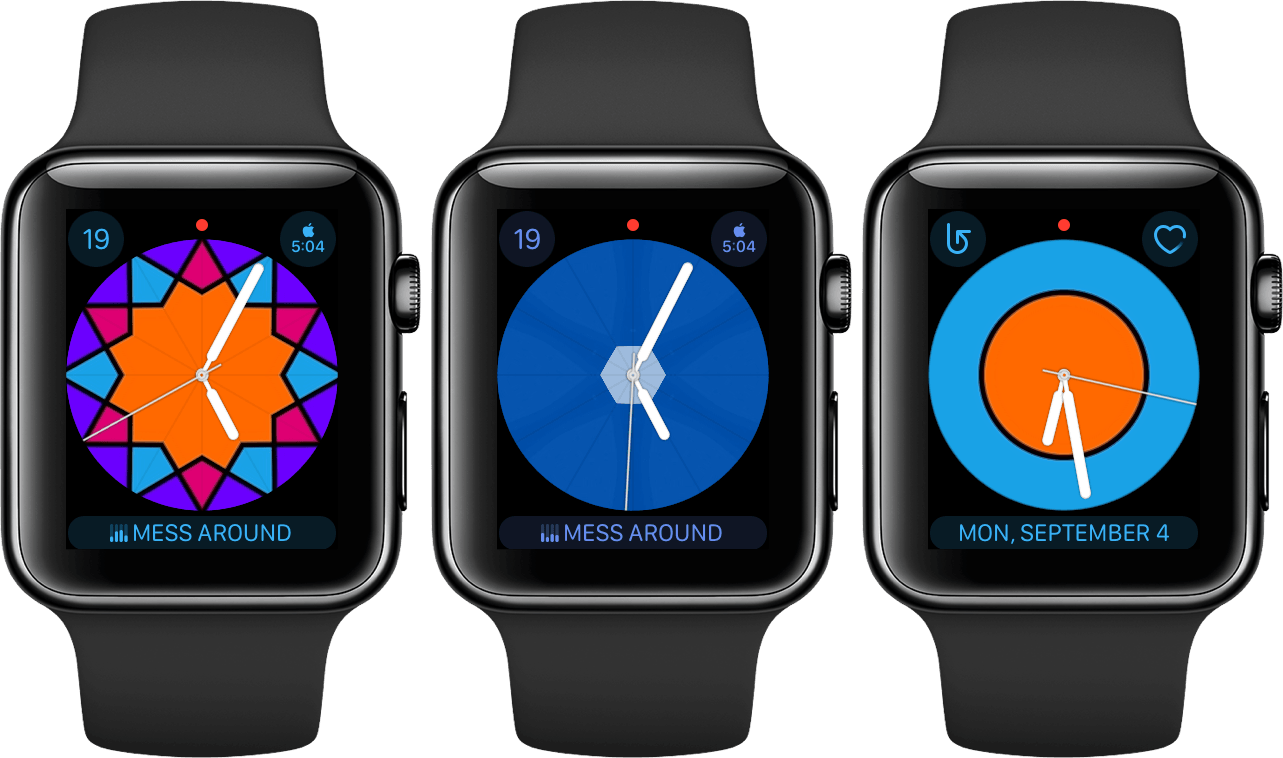
Not all watch faces treat photos the same. Pick the best one for your wallpaper goal.
Use Photos Face for Static Backgrounds
- Displays one or multiple rotating photos as a clean backdrop.
- Time and complications overlay the image.
- Best for personal memories, portraits, or landscapes.
- Highly customizable on iPhone.
✅ Recommended for most users wanting a true wallpaper experience.
The Photos face gives you maximum control and readability, making it ideal for everyday use.
Try Kaleidoscope for Animated Effects
- Turns your photo into a moving, abstract pattern.
- Creates a dynamic background that shifts subtly with motion.
- Time appears in the center with animated edges.
- Supports multiple favorite photos that blend together.
⚠️ Less readable in sunlight or low light—ideal for style over function.
Use Kaleidoscope when you want a unique, artistic look—perfect for fashion, art lovers, or special occasions.
Rearrange and Manage Watch Faces
Once you’ve created several custom faces, organize them for easy access.
Reorder Faces on iPhone
- Open Apple Watch app > Tap My Watch.
- Go to My Faces.
- Tap Edit, then drag faces into your preferred order.
The first face becomes your default.
Reorder on Apple Watch
- Touch and hold the display.
- Touch and hold again until icons wiggle.
- Drag a face left or right to reposition.
Delete Unused Faces
- On Apple Watch: Swipe up on a face > Tap Remove.
- On iPhone: In Apple Watch app > Edit > Tap red minus > Remove.
You can always recreate deleted faces later—Apple doesn’t delete your photos or data.
Fix Common Wallpaper Issues
Even with the right steps, problems can occur. Here’s how to fix them fast.
Photo Not Showing on Watch
Cause: Sync delay or wrong album selected.
Fix:
– Open Apple Watch app > Photos > Synced Album.
– Confirm it matches where your photo is stored (e.g., Favorites).
– Restart both devices if needed.
Image Looks Cropped or Off-Center
Cause: Apple Watch’s round screen crops rectangular photos.
Fix:
– After selecting the photo, adjust positioning in the editor.
– Focus the important part (like a face) in the center.
– Use square or circular crops when possible.
Screen Freezes When Loading
Cause: Low-resolution or corrupted image.
Fix:
– Use JPEG or HEIC files with at least 1024×1024 pixels.
– Avoid heavily compressed or edited images.
– Restart your iPhone and Apple Watch.
Too Many Photos Rotating
Cause: Multiple favorites syncing to the Photos face.
Fix:
– Deselect unwanted favorites in the Photos app.
– Or switch to a custom album with only the images you want.
Optimize Your Wallpaper Design
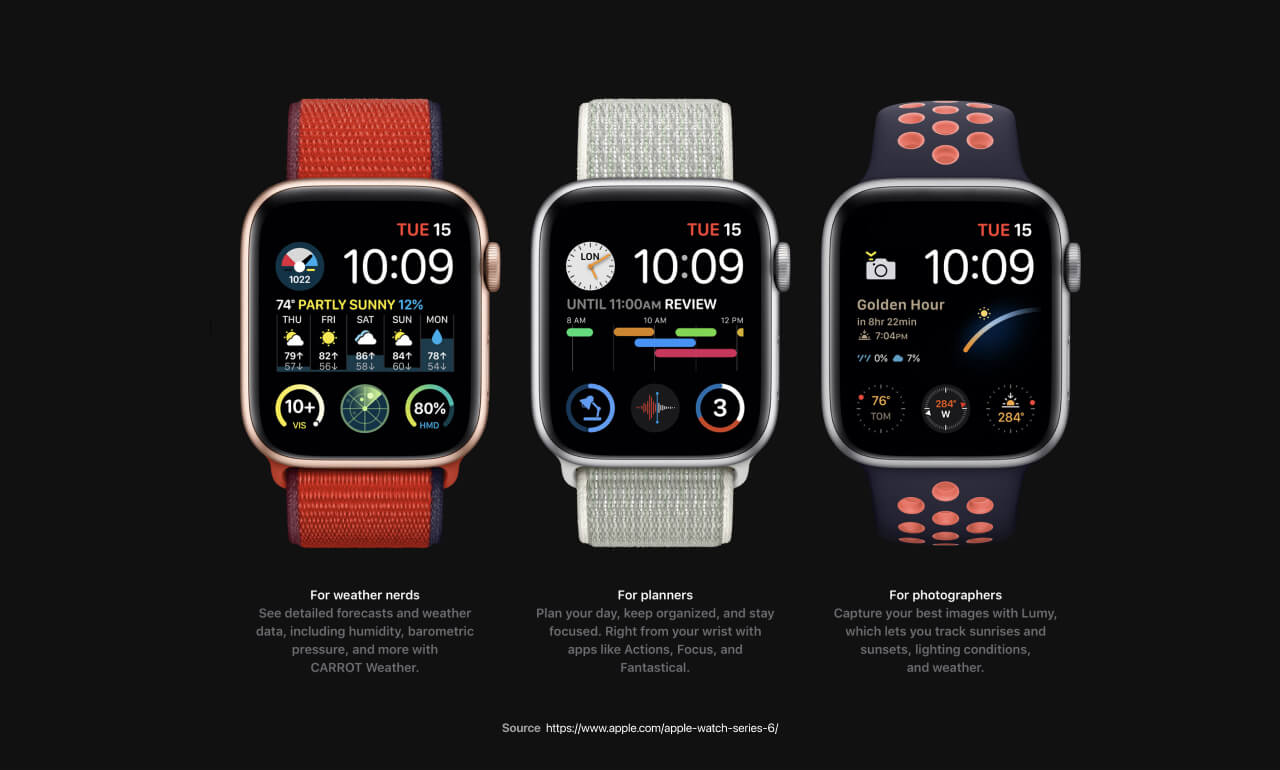
Make your custom face both beautiful and functional with these pro tips.
Pick the Best Photos
- High resolution: Ensures sharpness on Retina display.
- Simple composition: Avoid clutter so time and complications stay readable.
- Bright lighting: Dark photos make the screen hard to read.
- Centered subject: Prevents key details from being cut off.
Design for Readability
- Place time at the bottom—less likely to overlap busy parts of the image.
- Limit complications to 4–6 to avoid clutter.
- Use light-colored fonts on dark images (and vice versa).
- Match complication colors to dominant tones in your photo.
Test in Real Conditions
- Check how the face looks:
- In sunlight
- At night
- With wrist raised vs. tap-to-wake
- Make adjustments if text blends into the background.
Advanced Tips and Features
Go beyond basic wallpapers with these bonus features.
Set Display Time Ahead
- On Apple Watch: Settings > Clock > +0 min.
- Use Digital Crown to set time up to 59 minutes ahead.
- Only changes displayed time—alarms and notifications stay accurate.
- Great for people who want to “trick” themselves into being early.
Use Downloaded Wallpapers
- Download high-res Apple Watch backgrounds from sites like POP LOOP or tech blogs.
- Save to iPhone first.
- Apply using Create Watch Face or Face Gallery.
- Look for 1024×1024 or higher resolutions optimized for Apple Watch.
These often mimic watch bands, cityscapes, or abstract art—perfect for unique styles.
Final Note: Your Apple Watch face is more than a background—it’s a daily companion that reflects your personality and priorities. With just a few taps, you can showcase cherished memories, boost motivation with vibrant designs, or stay informed with smart complications. Change your wallpaper as often as you like, and let your wrist tell your story.





