
Your Apple Watch is showing the wrong time — maybe it’s five minutes fast, stuck in a different time zone, or hasn’t updated after a restart. You tap through settings, but there’s no obvious “Change Time” button. That’s because the Apple Watch doesn’t let you set the system time manually like a traditional watch. Instead, it’s designed to sync automatically with your iPhone for perfect accuracy.
But don’t worry — you can fix incorrect time, adjust how it appears on your screen, and even apply a time offset to help you stay punctual. In this complete guide, you’ll learn how to correct the time, make your watch display a different time for personal use, and troubleshoot when the watch refuses to sync. Whether you just traveled across zones, restarted your device, or noticed a glitch, we’ll walk you through every method step by step.
Sync Apple Watch Time Automatically from iPhone
The fastest and most reliable way to ensure your Apple Watch shows the correct time is to use automatic syncing with your iPhone. This method pulls precise time from network servers and adjusts for daylight saving and time zones.
Enable Set Automatically on iPhone
The real control point for Apple Watch time is your iPhone. Here’s how to make sure it’s set up correctly:
- Open Settings on your iPhone.
- Tap General, then Date & Time.
- Toggle Set Automatically to ON.
– This uses GPS, Wi-Fi, or cellular data to fetch the exact local time.
– Automatically updates for daylight saving changes and travel. - Make sure your iPhone is connected to Wi-Fi or cellular data.
Once enabled, your Apple Watch will update within seconds if it’s nearby or on the same network.
✅ Expert Tip: Never disable this setting unless troubleshooting. Turning it off can cause missed alarms, delayed notifications, and calendar confusion.
Confirm Auto-Set in Watch App
Even if your iPhone is correct, the Apple Watch might not be syncing. To double-check:
- Open the Watch app on your iPhone.
- Go to My Watch > General > Date & Time.
- Ensure Set Automatically is toggled on.
If it’s off, turn it on now. Your watch face should refresh immediately. If not, give it 10–15 seconds — especially if Bluetooth is weak or the watch is updating.
⚠️ Warning: If either device has auto-set disabled, the time may drift or fail to update during travel. Always keep both set to automatic.
Make Apple Watch Show a Different Time (Manual Offset)
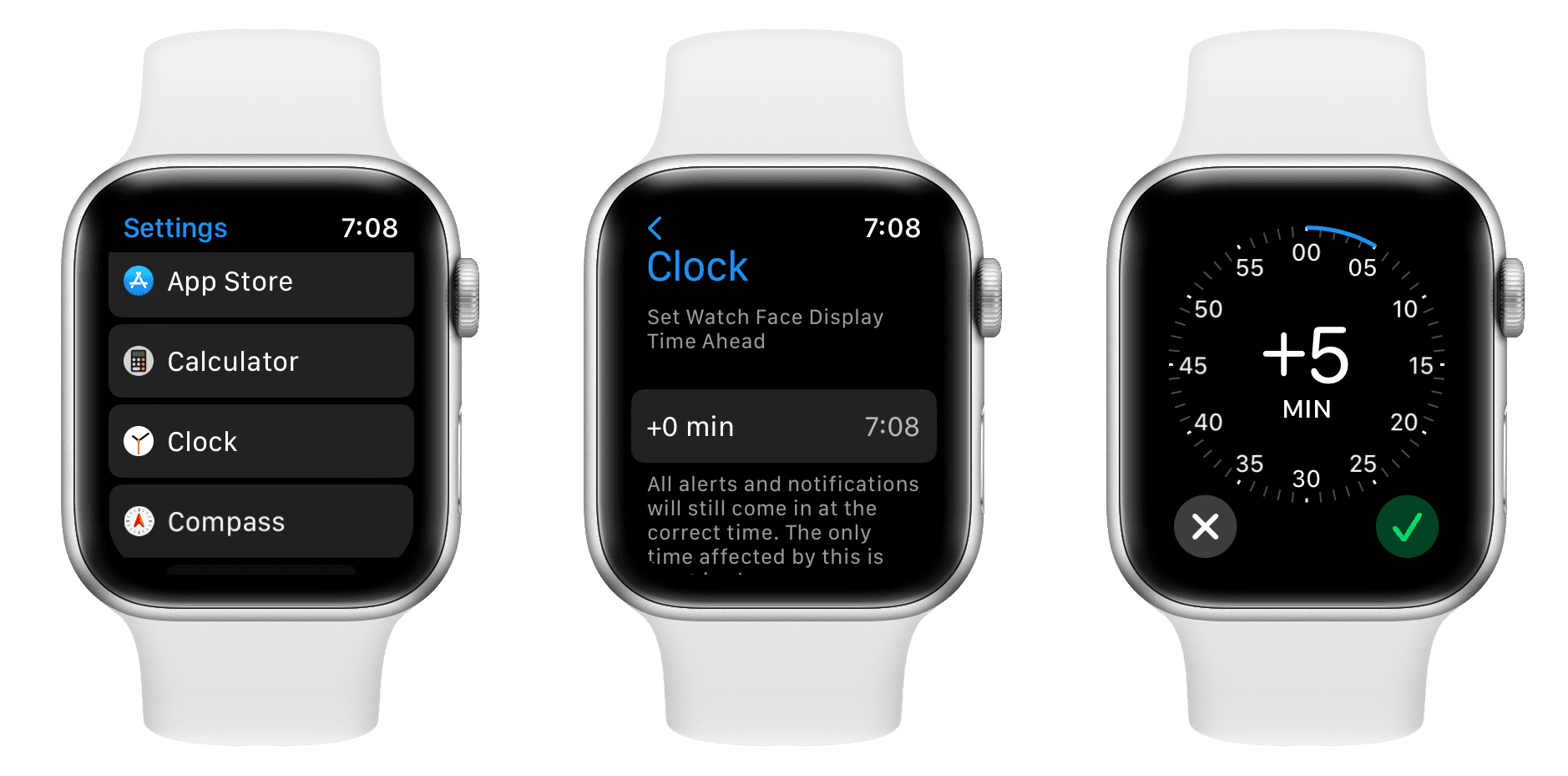
You can’t change the actual system time on Apple Watch — but you can make the clock face show a time up to 59 minutes ahead or behind. This is ideal if you want to trick yourself into being on time.
Why Use a Manual Time Offset?
- Helps chronic latecomers feel like they’re running behind (when they’re actually on time).
- Keeps you visually “ahead” of meetings without affecting real alarms.
- Works only on the display — does not alter system functions.
❗ Important: Your alarm will still ring at 7:00 AM real time, even if your watch shows 7:10. Calendar events, timers, and notifications all follow the true synced time.
Apply Offset via iPhone (Recommended)
For a more precise adjustment, use the Watch app:
- Open the Apple Watch app on your iPhone.
- Tap My Watch, then go to General > Date & Time.
- Tap Manual.
- Turn the Digital Crown or use the on-screen dial to add minutes (e.g., +10).
- Tap Done.
The change applies instantly to your watch face.
Adjust Offset Directly on Apple Watch
You can also tweak the offset on the go:
- On your watch, open Settings.
- Scroll down and tap Clock.
- Tap Adjust Time.
- Turn the Digital Crown to increase or decrease the offset.
- Press the Digital Crown again to exit.
🔄 Note: This setting may reset after a restart, software update, or if the watch loses connection to your iPhone for several hours. You may need to reapply it regularly.
Fix Apple Watch Not Updating Time
If your watch still shows the wrong time despite correct settings, follow these steps to restore sync.
First, Check iPhone Time
Your Apple Watch can only be as accurate as your iPhone. Before troubleshooting:
- Go to Settings > General > Date & Time on iPhone.
- Confirm Set Automatically is ON.
- Verify the correct city is selected under Time Zone.
If the iPhone shows Los Angeles time while you’re in New York, your watch will too.
Restart Both Devices
A simple reboot often fixes sync issues.
Restart iPhone:
– Press and hold the side button + volume down (iPhone 8 or later).
– Slide to power off.
– Wait 30 seconds, then turn back on.
Restart Apple Watch:
1. Hold the side button and Digital Crown together.
2. Release when the Apple logo appears.
After both restart, allow them to reconnect. The watch should sync time within a minute.
Test Bluetooth and Wi-Fi Connection
Your watch needs a stable link to your iPhone to stay synced.
Ensure:
– Bluetooth is on (iPhone Settings > Bluetooth).
– Watch is within 30 feet of iPhone.
– Both devices are signed in with the same Apple ID.
– They’re on the same Wi-Fi network (if not using Bluetooth).
📍 Hint: If you leave your iPhone at home, your Apple Watch will keep the last known time until reconnected.
Update iOS and watchOS
Outdated software can break time synchronization.
Update iPhone:
1. Go to Settings > General > Software Update.
2. Install any available updates.
Update Apple Watch:
1. Open Watch app > My Watch > General > Software Update.
2. Follow prompts to install.
After updating, restart both devices and check the time.
Handle Time Zone Changes When Traveling
Frequent travelers rely on accurate local time. The Apple Watch handles this — but only if settings are right.
Automatic Time Zone Detection
With Set Automatically enabled:
– iPhone detects your location via GPS, Wi-Fi, or cellular.
– Updates time zone instantly.
– Apple Watch reflects the change once connected.
✈️ Pro Travel Tip: Enable Location Services > System Services > Setting Time Zone on iPhone for seamless switching.
Manual Time Zone Override (Use with Caution)
You can lock your iPhone to a specific time zone, but this can cause confusion.
To do so:
1. On iPhone: Settings > General > Date & Time > Time Zone.
2. Enter a city (e.g., “London”) to fix the time zone.
Only use this if you work remotely and need consistency — otherwise, stick with automatic detection.
Reset Sync by Unpairing Apple Watch (Last Resort)
If nothing else works, unpairing and re-pairing can resolve deep sync errors.
⚠️ Warning: This erases all data on the watch. Back up first.
- Open Watch app > My Watch > [Your Watch] > Info.
- Tap Unpair Apple Watch.
- Wait for the backup to complete.
- Set up the watch again — either as new or from backup.
After pairing, time sync resumes automatically with your iPhone settings.
💡 This often fixes persistent issues with time, notifications, and calendar sync.
Common Time Sync Issues and Quick Fixes
| Problem | Solution |
|---|---|
| Watch shows old time after restart | Re-enable Set Automatically or reapply offset |
| Time lags behind iPhone | Restart both devices; check Bluetooth |
| Manual offset disappears | Reapply after updates or disconnections |
| Wrong time zone after travel | Confirm iPhone location services are on |
| No change despite correct settings | Update iOS and watchOS |
🔍 Quick Check: If your iPhone shows correct time but the watch doesn’t, the issue is sync-related, not time source.
Customize Watch Face (Don’t Confuse with Time Settings)
Some users think changing the watch face changes the time. It doesn’t.
To personalize appearance:
1. Press and hold the watch face.
2. Swipe to choose a new design.
3. Tap Edit, then adjust complications, colors, and layout.
These changes are visual only. The time remains synced from your iPhone.
✅ Use this to improve readability — not to fix incorrect time.
Best Practices for Accurate Time
Follow these expert tips to avoid time-related problems.
✅ Do This:
- Keep Set Automatically enabled on both devices.
- Update to the latest iOS and watchOS versions.
- Use manual offset only for short-term punctuality training.
- Verify time after travel, restarts, or software updates.
❌ Avoid These:
- Turning off automatic time unless troubleshooting.
- Relying on manual offset long-term.
- Expecting alarms to trigger based on displayed (offset) time.
- Assuming the Apple Watch can get time without the iPhone.
🔄 Pro Reminder: Each Apple Watch you own must be paired to the same iPhone to inherit its time settings.
Summary: Key Takeaways
- Apple Watch syncs time from iPhone — no independent time source.
- Set Automatically must be ON for accurate, self-updating time.
- Manual offset lets you display time up to 59 minutes fast — useful for staying punctual.
- Offsets don’t affect alarms, calendar events, or system functions.
- Sync issues? Restart devices, check connections, and update software.
- Travelers benefit from automatic time zone detection.
- Unpairing and re-pairing fixes persistent sync failures.
For most users, keeping auto-sync enabled is the best strategy. Only use manual adjustments if you need a psychological nudge to stay on schedule. The system is designed for precision — work with it, not against it.
With the right settings, your Apple Watch will always show the right time — whether you want to see it early or right on the dot.





