
You just got a new Apple Watch, or maybe you’ve been staring at the same watch face since day one and are ready for a change. Whether you want a sleek digital display, a fitness-focused layout with activity rings, or a fun animated design, changing your Apple Watch face is fast, easy, and completely customizable. The best part? You can switch faces in seconds right from your wrist—or dive deep into personalization using your iPhone.
This guide shows you how to change, add, customize, and manage Apple Watch faces using both the watch and iPhone app. You’ll learn how to pick the perfect look, organize your favorites, and tweak settings like time display and complications. Plus, we’ll cover common questions—like why your widgets show an analog clock when you want digital—and how to work around system limitations.
Let’s get your watch looking exactly how you want it.
Switch Faces on Apple Watch
Change your watch face instantly without touching your iPhone.
Swipe to Change Face
- Wake your Apple Watch by raising your wrist or tapping the screen.
- Press and hold the screen until the face enters edit mode (you’ll see color palettes or complication options appear).
- Swipe left or right to preview all your saved faces.
- Tap the face you want to activate it.
- Press the Digital Crown to exit and return to normal view.
✅ Pro Tip: Enable Swipe to Switch in Settings > Clock to skip the long-press—just swipe directly from the watch face.
This method is ideal for quickly cycling through your favorite designs during the day. For example, switch to a minimalist face for work, then swap to a colorful, animated one for weekends.
Use Double-Tap for Digital Readout
Even with an analog face, get a quick digital time overlay:
– Double-tap the screen (using one or two fingers, depending on your settings).
– A small digital clock appears in the top-right corner.
– Great for fast readability, especially during workouts or meetings.
⚠️ This doesn’t change the actual face—just shows a temporary digital readout. The main display stays analog.
Add New Faces via iPhone
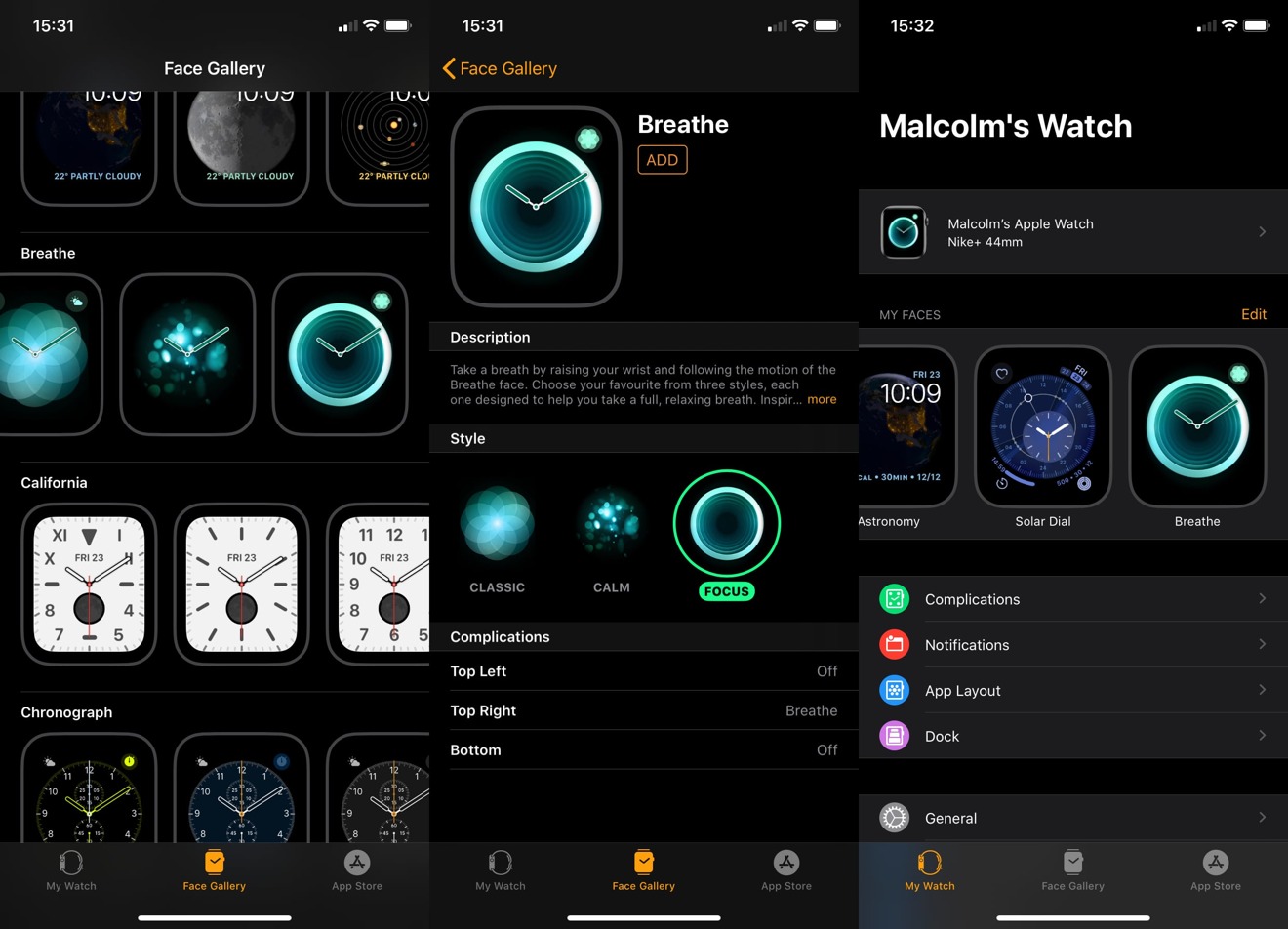
Access the full library and customize before syncing.
Browse the Face Gallery
- Open the Apple Watch app on your iPhone.
- Tap Face Gallery at the bottom.
- Scroll through 40+ built-in designs, including:
– X-Large – Giant digital numbers
– Infograph – Watch-dial style with subdials
– Astronomy – Earth and planetary views
– Photos – Personal images or albums
– California – Mixed analog/digital numerals
– Toy Story & Snoopy – Animated, playful themes
– Nike and Hermès – Premium, brand-exclusive styles
Some faces are model-exclusive—e.g., Hermès requires pairing with a Hermès band.
The Face Gallery is your gateway to discovery. Tap any design to see its variations and customization options.
Install a New Face
- Tap a face in the gallery.
- Choose a style variant (e.g., color, numeral type).
- Customize complications (data widgets) in each position:
– Tap a slot (top left, bottom, etc.).
– Pick from apps like Weather, Heart Rate, Calendar, or Shortcuts. - Tap Add to Watch.
The new face becomes active immediately and appears on your watch.
For example, adding the Infograph face lets you place calendar, weather, and activity rings in dedicated subdials—perfect for staying on top of your day at a glance.
Customize Watch Face Design
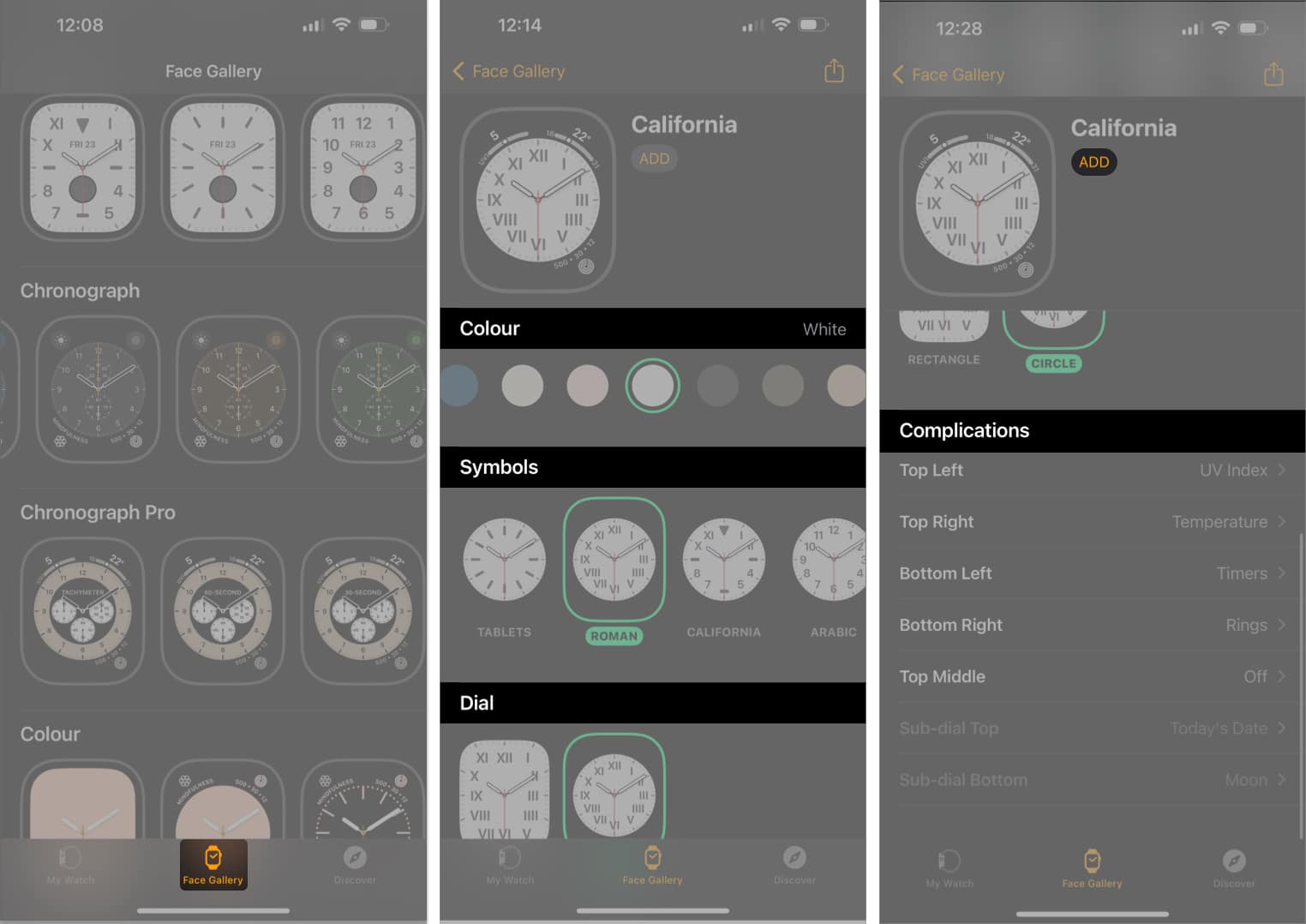
Make your face work for you—not just look good.
Edit Colors and Style
After selecting a face:
– On watch: Press and hold > Tap color palette icon.
– On iPhone: Edit directly in the Watch app.
Adjust:
– Hand color (analog)
– Background tint
– Numerals (bold, light, vintage, etc.)
– Complication colors (if supported)
Example: Use Snoopy face with Newspaper White for a clean, near-pure white display.
You can even match your face to your outfit or mood—switch to red for game day or green for St. Patrick’s.
Manage Complications
Add real-time data to your face:
– Activity Rings – Track daily goals
– Heart Rate – View live BPM
– Weather – Check local conditions
– Calendar – See next event
– Battery – Monitor phone and watch
– Timer/Stopwatch – Start from wrist
– ECG/Blood Oxygen – If available
Not all positions support all complications—Infograph and Modular offer the most options.
Remove a Complication
- Tap the complication slot during edit.
- Scroll to Off at the top of the list.
- Tap Off.
Saves space for minimalist designs.
Rearrange and Organize Faces
Control the order you swipe through.
Change Face Order on iPhone
- Open Apple Watch app.
- Tap My Watch > My Faces.
- Tap Edit.
- Drag faces using the ☰ handle to reorder.
The first face in the list is your default.
Reorder Directly on Watch
- Press and hold current face.
- Press and hold again on the face you want to move.
- Drag it left or right in the carousel.
Swiping order matches this sequence—place frequently used faces up front.
Put your fitness face first if you work out daily, or your digital face at the front if you need clarity at a glance.
Delete Unused Watch Faces
Free up space and reduce clutter.
Remove from Apple Watch
- Press and hold the screen.
- Swipe to the face you want to delete.
- Swipe up on the preview.
- Tap Remove.
Delete via iPhone App
- Open Apple Watch app.
- Go to My Watch > My Faces.
- Tap Edit.
- Tap the red minus (–) next to the face.
- Tap Remove.
❗ Removing a face doesn’t delete it permanently—you can always re-add it from the Face Gallery.
Digital vs. Analog: What You Need to Know
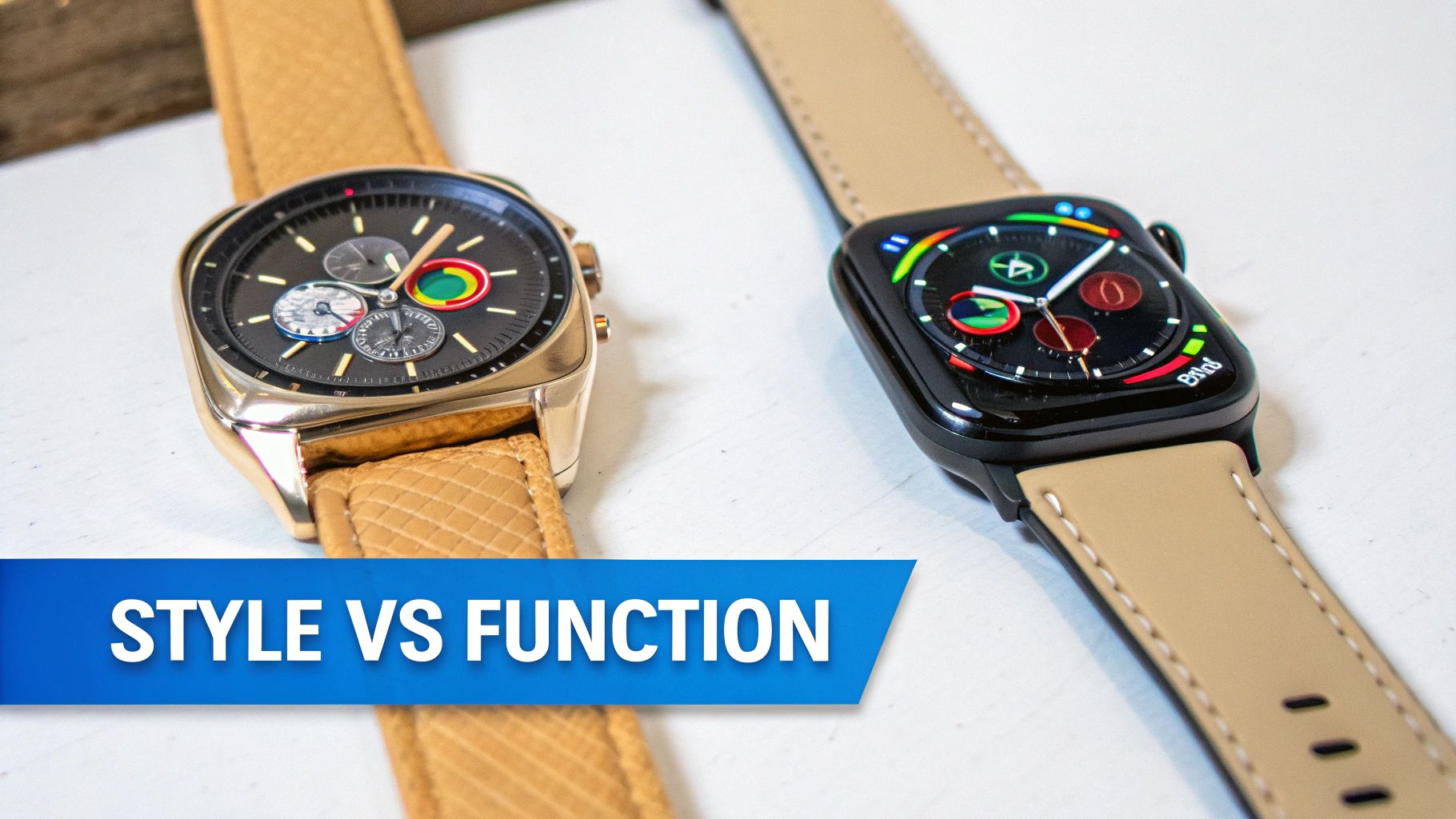
Your choice affects more than just the main screen.
Digital Faces for Clarity
Best for:
– Easy time reading
– Accessibility needs
– Large text displays
Popular digital options:
– X-Large – Giant numbers, minimal distractions
– Simple – Clean, centered time
– Color – Bold digits with custom hues
– Time Travel – Animated clock with date scroll
Use X-Large with Seconds complication to show real-time seconds—most digital faces don’t by default.
Analog Faces for Style
Best for:
– Classic look
– Detailed complications
– Aesthetic variety
Examples:
– Infograph – Watch-dial style with subdials
– GMT – Dual time zones
– Solar Analog – Sun and moon position tracker
Some analog faces lack minute markers—can make time reading harder.
System Clock Sync Limitation
Apple links all time displays to your active face:
| Feature | Follows Main Face? |
|——–|——————-|
| Live Activities screen | ✅ Yes |
| Widgets screen | ✅ Yes |
| Double-tap overlay | ❌ No (always digital) |
❌ You cannot set an analog face but have digital clocks in widgets. The system forces consistency.
✅ Workaround: Set a digital face as primary if you rely on digital time in apps and widgets.
Set Time Ahead for Punctuality
Trick your brain into being on time.
Steps to Adjust Displayed Time
- On Apple Watch, open Settings.
- Tap Clock.
- Tap +0 min.
- Turn the Digital Crown to set time up to +59 minutes ahead.
Example: Set +10 minutes so when it shows 9:00, it’s actually 8:50.
🔒 Important: This only changes the display—alarms, notifications, and calendar events still trigger on real time.
💡 Great for people who are chronically late—creates urgency without missing alerts.
Achieve Specific Looks
Get the exact style you want.
Create a Minimalist White Face
Want a clean, bright display?
– Use Snoopy face > Select “Newspaper White”.
– Or try Stripes > Set all stripes to white (may appear light gray).
– Add no complications or just a small date.
Works best on Apple Watch Series 9 and later with higher brightness.
Add Teal or Accent Colors
- Choose a face with color options (e.g., Color, Infograph).
- Tap the color picker.
- Select teal, turquoise, or custom shade.
- Apply to hands, rings, or complications.
Use Mindful app complication for a colored breathing ring that stands out.
Use High-Contrast for Readability
For older users or low-light conditions:
– X-Large with black text on white background
– Modular with bold complications
– Enable Bold Text in iPhone Settings > Accessibility > Display & Text Size
Use Third-Party and Seasonal Faces
Go beyond Apple’s defaults.
Install Third-Party Faces
- Open Apple Watch app on iPhone.
- Tap Face Gallery > Additional Apps.
- Browse App Store for watch face apps (e.g., Facer, Watchsmith).
- Download and open the app.
- Follow prompts to add custom faces.
These appear in your My Faces list alongside native ones.
Access Limited-Edition Faces
Apple releases special faces for:
– Pride Month – Rainbow-themed
– Earth Day – Nature animations
– Holidays – Snow, lights, Santa
– Sporting Events – NBA, Olympics
Usually found in Face Gallery during event periods.
Can be re-downloaded later if removed.
Troubleshooting Common Issues
Fix face-related problems fast.
Widgets Show Analog Clock? Here’s Why
- Cause: Your active face is analog.
- Solution: Set a digital face (like X-Large) as your primary to make widgets digital.
No setting allows mixed styles—widgets always mirror the main face.
Can’t See All Faces on Watch?
- The swipe carousel only shows already-added faces.
- Full library is in the Face Gallery on iPhone.
- Tap See All Watch Faces to browse everything.
Face Not Syncing to Watch?
Try this:
1. Open Apple Watch app.
2. Tap My Watch.
3. Ensure Sync All Watch Faces is turned on.
4. Restart both devices if needed.
If a face disappears, re-add it from Face Gallery.
Seconds Not Showing on Digital Face?
Most digital faces don’t show seconds by default.
– Fix: Use X-Large and add a Timer or Stopwatch complication set to “Elapsed.”
– Or pick a face with a seconds hand (like Chronograph).
Summary: Full Control at Your Fingertips
You now know how to:
– ✅ Switch faces instantly on your wrist
– ✅ Add and customize any design via iPhone
– ✅ Rearrange, delete, and organize your collection
– ✅ Use complications to track fitness, weather, and more
– ✅ Set time ahead for better punctuality
– ✅ Work around system limits (e.g., digital in widgets)
– ✅ Install third-party and seasonal faces
While you can’t decouple the clock style across interfaces, smart choices—like using X-Large for digital clarity or double-tap for quick readouts—give you strong control.
Final Tip: For best results:
– Use the iPhone app for discovery and deep customization.
– Use the watch for daily switching.
– Keep 3–5 favorite faces in rotation: one digital, one analog, one fitness-focused, one fun.
With over 40 built-in options and hundreds more from developers, your Apple Watch face is one of the most personal and powerful features—so make it yours.





