
You’ve just upgraded to a new iPhone, lost your old one, or need to pair your Apple Watch with a different device—now you’re wondering: can you connect an Apple Watch to a different iPhone? The answer is yes, but the process isn’t as simple as turning on Bluetooth and tapping “pair.” Apple’s tightly integrated ecosystem means your watch is locked not just to your phone, but to your Apple ID, protected by Activation Lock, and dependent on proper backups for data recovery.
If you skip critical steps, you risk losing months of fitness data, custom watch faces, app settings, and even the ability to use the watch at all. But if you follow the right procedure—whether you still have your old iPhone or not—you can successfully transfer your Apple Watch and get it fully functional on a new phone with minimal downtime.
This guide walks you through every scenario: how to preserve all your data when switching phones, what to do if your old iPhone is gone, how to avoid Activation Lock traps, and how to fix common pairing errors. You’ll learn how to restore your watch exactly as it was—or start fresh the right way.
Transfer Apple Watch With Old iPhone Still Available

If you still have your original iPhone, this is the ideal path. You’ll keep all your data—activity rings, health metrics, apps, watch faces, and settings—without a hitch.
Update Both Devices Before Starting
Before transferring, ensure both devices run the latest software:
- On your old iPhone, go to Settings > General > Software Update and install the latest iOS.
- On your Apple Watch, open the Watch app on your iPhone, go to My Watch > General > Software Update, and install any pending watchOS updates.
⚠️ Why it matters: Outdated software can cause pairing failures or prevent successful backup restores. Updates may take up to an hour—do this overnight if needed.
Enable iCloud Health Backup
Health and Activity data won’t back up unless you manually enable it:
- On your old iPhone: Settings > [Your Name] > iCloud > Show All Apps
- Scroll down and toggle Health to ON
- Wait for the sync icon to disappear in the iCloud settings
✅ Pro Tip: If using a computer (Finder or iTunes), always enable encrypted backups—this is the only way to back up Health and Activity data without iCloud.
Back Up Your Old iPhone
Choose one of two methods:
- iCloud Backup:
Go to Settings > [Your Name] > iCloud > iCloud Backup > Back Up Now - Computer Backup (Recommended):
Connect to Mac or PC > Open Finder/iTunes > Check “Encrypt local backup” > Back Up
🔍 Verify the Backup: After completion, go to Settings > [Your Name] > iCloud > Manage Storage > Backups and confirm your old iPhone appears with a recent timestamp.
Restore New iPhone From Backup
Set up your new iPhone:
- Power it on and follow the initial setup steps
- When prompted, choose “Restore from iCloud Backup” or “Restore from Mac/PC Backup”
- Sign in with the same Apple ID and select the most recent backup
⏱️ Time Estimate: This can take 10–60 minutes depending on data size and Wi-Fi speed. Don’t skip this—your Apple Watch data depends on it.
Pair Apple Watch to New iPhone
Once your new iPhone finishes setup:
- Keep your Apple Watch charged and unlocked
- Open the Apple Watch app on your new iPhone
- Tap Continue when the “Use Your Apple Watch?” prompt appears
- Follow the on-screen instructions to pair
If no prompt appears:
– Tap Start Pairing in the Watch app
– Hold your iPhone near the Apple Watch until the camera scans the animated pairing code
Restore Apple Watch From Backup
During setup, you’ll be given two options:
- Restore from Backup (recommended)
- Set Up as New Apple Watch
Select Restore from Backup to bring back:
– All installed apps and settings
– Custom watch faces and complications
– Full Activity and workout history
– Emergency SOS, fall detection, and medical ID
✅ Success Signal: When complete, your Apple Watch will look and function exactly as it did on the old phone.
Connect Apple Watch Without the Old iPhone
No access to your original iPhone? You can still pair—but only if you know the Apple ID and passcode. This method erases all data unless a compatible iCloud backup exists.
Erase Apple Watch Completely
You must factory reset the watch before pairing with a new phone.
Option 1: Reset Using Passcode (Recommended)
- On Apple Watch: Settings > General > Reset
- Tap Erase All Content and Settings
- Enter your passcode and confirm with Erase All
✅ Best choice: Fast, clean, and preserves the ability to restore from iCloud later.
Option 2: Force Reset (No Passcode)
Only if you forgot the passcode:
- Place Apple Watch on charger
- Press and hold the Side Button until the Power Off slider appears
- While holding the Side Button, press and hold the Digital Crown
- When “Erase all content and settings” appears, tap Reset
- Confirm
⚠️ Warning: This can take longer and may require multiple attempts. Ensure battery is above 50%.
Start Pairing With New iPhone
After reset:
- Bring your new iPhone close to the Apple Watch
- Open the Apple Watch app
- Tap Start Pairing
- Choose Set Up for Myself
- Use your iPhone’s camera to scan the animated pairing code on the watch
If scanning fails:
– Tap Pair Apple Watch Manually
– Enter the code shown on the watch into your iPhone
Choose Setup Option
You’ll see:
- Restore from Backup – Only appears if an iCloud backup exists under the same Apple ID
- Set Up as New Apple Watch – Starts from scratch
🔍 Check for Backup First:
On new iPhone: Settings > [Your Name] > iCloud > Manage Storage > Backups
Look for an entry like “Apple Watch – [Model]” under your device list.
Fix Common Pairing Issues
Even with the right steps, things can go wrong. Here’s how to troubleshoot.
No Pairing Prompt Appears
Causes: Bluetooth off, watch not in pairing mode, app glitch
Solutions:
– Turn on Bluetooth and Wi-Fi on iPhone
– Restart both devices
– Open Watch app manually > Tap Start Pairing
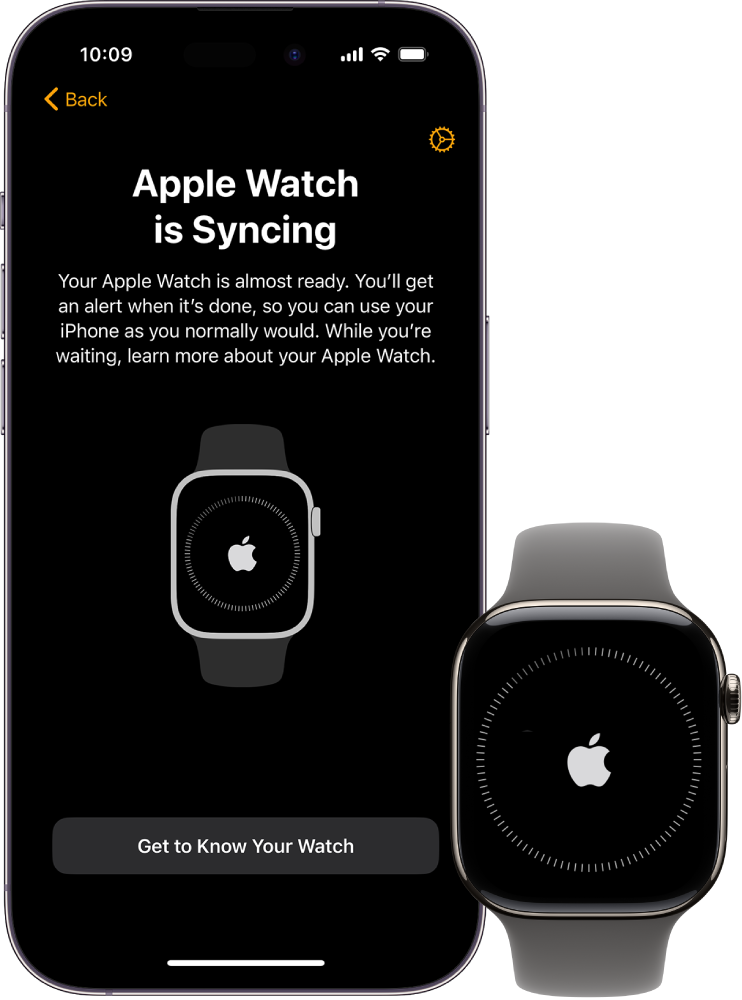
– Ensure Apple Watch shows Apple logo or pairing animation
✅ Visual Cue: If the watch shows the time, it’s not in pairing mode. Restart by holding the Side Button until the Apple logo appears.
Pairing Fails Midway
Symptoms: Connection drops, spinning wheel, error messages
Fixes:
– Keep devices within 6 inches
– Disable Low Power Mode on iPhone
– Don’t let either device sleep
– Try manual pairing instead of camera scan
⏳ Patience Tip: Large restores can take over an hour. Let it run uninterrupted.
Activation Lock Is Blocking Setup
Error: “This Apple Watch is linked to an Apple ID”
Cause: The watch wasn’t unpaired from the previous iPhone
Solution:
– You must enter the original Apple ID and password
– No bypass exists—even Apple Support requires proof of ownership
– If buying used: Never accept a watch with Activation Lock active
🛑 Red Flag: If the seller can’t unpair it first, walk away.
Health Data Missing After Restore
Problem: Activity history gone, Health app empty
Cause: Health wasn’t enabled in iCloud or backup wasn’t encrypted
Prevention:
– Always enable Health in iCloud
– Always use encrypted computer backups
❌ No Recovery: Without an encrypted backup, health and fitness data is permanently lost.
Reconfigure Settings After Transfer
Even with a successful restore, some features may need manual attention.
Reinstall Missing Apps
If set up as new:
– Open Apple Watch app > My Watch > Available Apps
– Tap Install next to each app
⏱️ Time Saver: Prioritize essential apps first.
Re-enable Notifications
By default, notifications are off:
– In Watch app: My Watch > Notifications
– Choose Mirror iPhone Alerts or Custom
– Toggle on per-app alerts
✅ Pro Tip: Customize which apps play sounds or show banners on your wrist.
Reset Fitness & Sharing Settings
Activity sharing circles and competitions won’t restore without backup:
– Open Activity app > Sharing tab
– Re-add friends and rejoin challenges
– Check Health app > Health Data > Activity to verify sync
🔄 Sync Delay: It may take hours for historical data to reappear.
Rebuild Watch Faces
Custom faces are lost without backup:
– Press Digital Crown > Long-press screen
– Tap + to add new face
– Customize complications
💡 Save Favorites: Swipe left on a face and tap ★ to pin it.
Activate Cellular (If Applicable)
For GPS + Cellular models:
– During setup, follow prompts to add cellular plan
– Or later: Watch app > My Watch > Cellular > Set Up Cellular
– Contact carrier if activation fails
✅ Requirement: Your new iPhone must be on a plan that supports Apple Watch cellular sharing.
Protect Data in Future Transfers
Avoid future headaches with these best practices.
Back Up Regularly
Enable automatic iCloud backups:
– iPhone: Settings > [Your Name] > iCloud > iCloud Backup > ON
– Computer: Plug in weekly > Encrypt backup > Sync
📅 Ideal: Weekly encrypted backups + daily iCloud sync.
Never Sell Without Unpairing
To protect privacy:
1. On iPhone: Watch app > My Watch > [Your Watch] > Info (i)
2. Tap Unpair Apple Watch
3. Wait for backup creation
🔐 Security Benefit: Removes Activation Lock and erases all personal data.
Stick to One Apple ID
Switching Apple IDs breaks continuity. Always use the same Apple ID across devices to:
– Access backups
– Remove Activation Lock
– Sync Health and Activity data
❌ Never log out of Apple ID on new iPhone before unpairing the watch.
Final Checklist Before You Begin
| Task | Why It Matters |
|---|---|
| ✅ Update old iPhone and Apple Watch | Prevents compatibility errors |
| ✅ Enable Health in iCloud | Saves activity and medical data |
| ✅ Create encrypted backup | Only way to save Health without iCloud |
| ✅ Know Apple ID and password | Required for unpairing and Activation Lock |
| ✅ Charge both devices | Prevents timeout during long sync |
| ✅ Reset watch only if no old phone | Erases data—last resort |
| ✅ Keep devices close during pairing | Ensures stable Bluetooth connection |
Summary: Can You Connect Apple Watch to a Different Phone?
Yes—but only under specific conditions:
- ✅ Same Apple ID required
- ✅ Old iPhone available = full data transfer
- ❌ No old phone + no backup = fresh start only
- 🔒 Activation Lock blocks unauthorized use
- 💾 Health data lost without encrypted backup
The key to success? Preparation: update, back up, and verify. Once paired, your Apple Watch will work exactly as before—track workouts, receive calls, monitor heart rate, and sync seamlessly.
Now go ahead—your watch is ready for its next chapter.




