
If you’re preparing to sell, gift, or trade in your Apple Watch, removing your Apple ID is a must. Unlike a simple factory reset, this process fully disengages your device from your iCloud account and disables Activation Lock, Apple’s built-in anti-theft feature. Without proper removal, the Apple Watch remains unusable to anyone else—even after being wiped. This guide walks you through every official method to remove your Apple ID, avoid common mistakes, and troubleshoot locked devices. Whether you still have your iPhone, lost the watch, or bought a used model stuck on someone else’s account, you’ll find clear, actionable steps here.
Unpair Your Apple Watch Using the Paired iPhone (Best & Most Complete Method)
The most reliable way to remove your Apple ID and disable Activation Lock is through the Watch app on your iPhone. This method ensures a full data wipe, creates a backup, and automatically removes the device from your iCloud account.
How to Unpair via the Watch App
Follow these steps to safely unpair and erase your Apple Watch:
- Keep your Apple Watch and iPhone close together to maintain Bluetooth connection.
- Open the Watch app on your iPhone.
- Tap “My Watch”, then select “All Watches” in the top-left corner.
- Tap the info button (i) next to your Apple Watch.
- Scroll down and tap “Unpair Apple Watch”.
- Confirm the action when prompted.
- For cellular models, choose “Remove Plan” if you’re selling or gifting the watch.
- Enter your Apple ID password to disable Activation Lock.
The unpairing process takes a few minutes. Your Apple Watch will restart and display the “Hello” screen—indicating it’s ready for a new owner.
✅ Pro Tip: This method automatically backs up your watch settings to iCloud or your iPhone, which is helpful if you’re switching to a new Apple Watch.
⚠️ Critical Warning: Skipping this step and only resetting the watch does not disable Activation Lock. The device will still require your Apple ID and password during setup.
What Happens After Unpairing?
- All personal data (apps, health info, messages) is erased.
- Activation Lock is disabled.
- The watch is removed from your iCloud device list.
- Cellular service (if applicable) is canceled—contact your carrier to confirm.
To verify removal, sign into iCloud.com, go to Find My > All Devices, and ensure your Apple Watch no longer appears.
Remotely Remove Apple ID via iCloud.com (No iPhone or Watch Access)
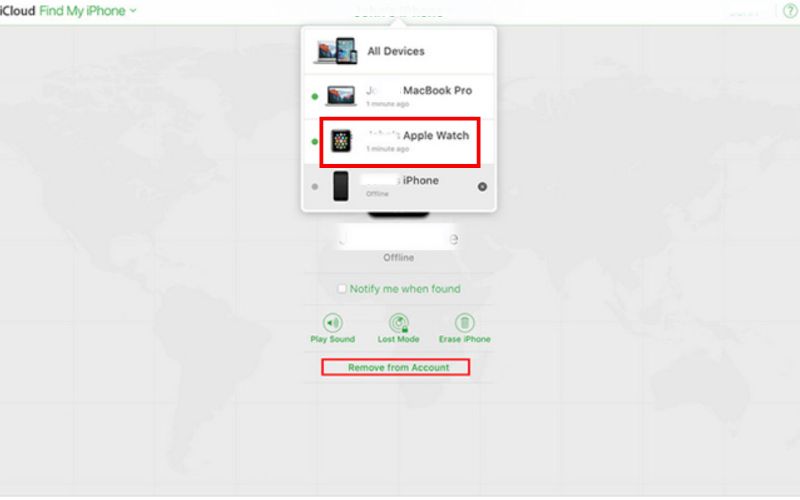
If you’ve already given away or lost your Apple Watch but forgot to unpair, you can still remove it remotely using iCloud.com.
How to Erase and Remove from iCloud
- Visit iCloud.com on any device (Mac, PC, or iOS device).
- Sign in with the original Apple ID used on the Apple Watch.
- Click Find My (or Find iPhone on older interfaces).
- Select All Devices at the top.
- Find your Apple Watch in the list.
- Click Erase Apple Watch and wait for the process to complete.
- Once erased, click the X next to the device name and confirm Remove from Account.
✅ Result: Activation Lock is disabled, and the device can now be set up by a new user.
📌 Important: This method does not create a backup. Use it only when the device is no longer in your possession.
Factory Reset the Apple Watch (No iPhone Required)
You can erase your Apple Watch directly from the device, but this does not remove Activation Lock unless the watch was previously unpaired.
Steps to Reset on the Device
- On your Apple Watch, open the Settings app.
- Tap General > Reset.
- Select Erase All Content and Settings.
- Enter your passcode if prompted.
- For cellular models, choose Remove Plan if you’re not reusing the watch.
- Tap Erase All to confirm.
The watch will reset and return to factory settings.
⚠️ Critical Limitation: Activation Lock remains active. During setup, the device will still ask for the original Apple ID and password.
✅ Best Use Case: This method is ideal if you’re reusing the watch yourself and don’t need to transfer ownership.
💡 Alternative: You can also initiate a reset from your iPhone via:
Watch app > My Watch > General > Reset > Erase Apple Watch Content and Settings
Remove Apple Watch from Apple ID in iPhone Settings (Account-Level Removal)
If the watch is already erased or unreachable, you can remove it directly from your Apple ID settings on your iPhone.
How to Disconnect at the Account Level
- Open Settings on your iPhone.
- Tap your Apple ID profile at the top.
- Scroll down and tap Apple Watch under “Devices”.
- Tap the Apple Watch listed.
- Tap Remove from Account and confirm.
✅ Result: The device is removed from your iCloud account, and Activation Lock is disabled.
🔁 Best Practice: Use this method after erasing the watch or if unpairing failed.
Troubleshooting: Apple Watch Asks for Previous Owner’s Apple ID
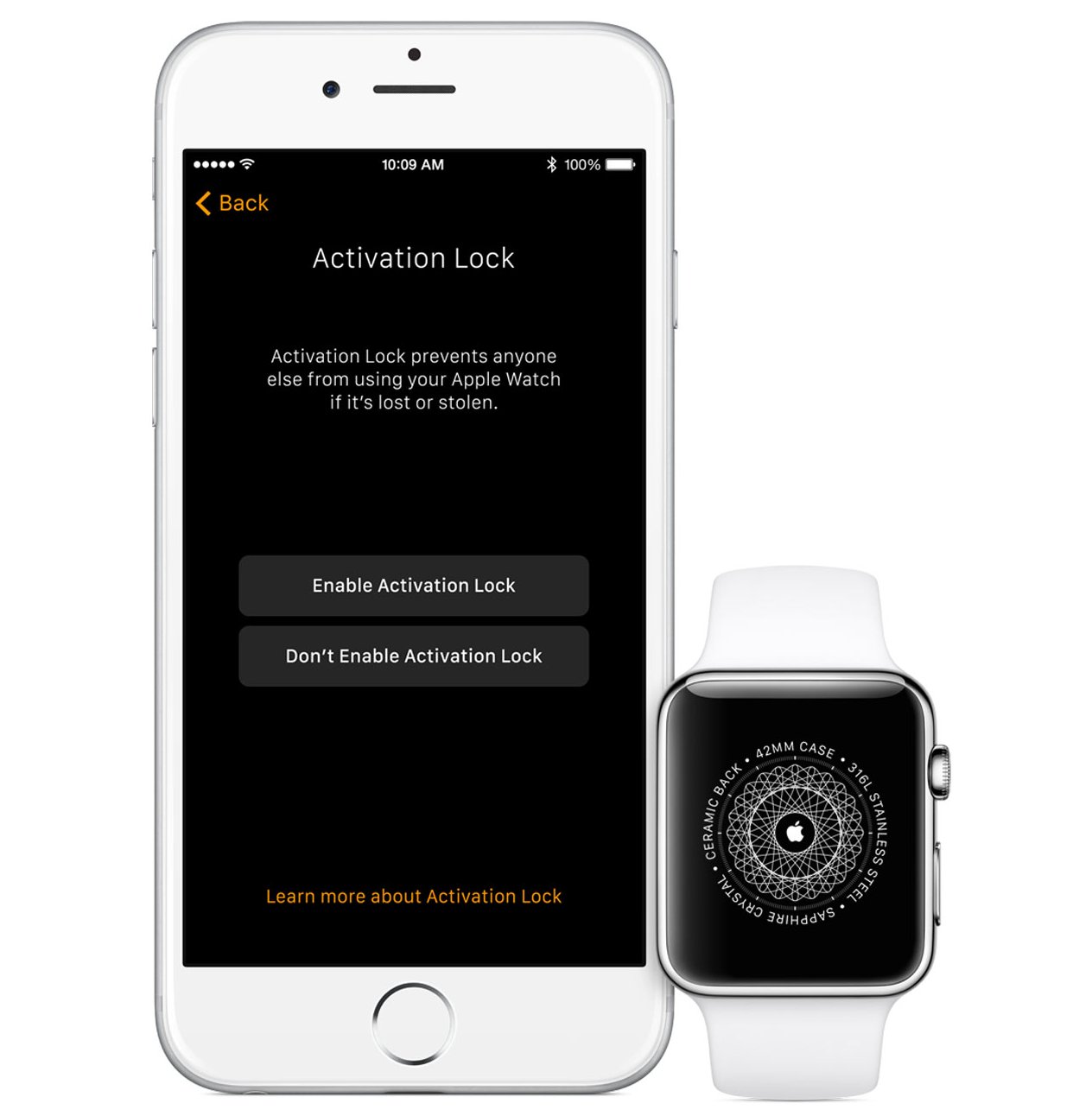
If a used Apple Watch prompts for an Apple ID during setup, Activation Lock is still active. This means the original owner didn’t properly unpair the device.
How to Confirm Activation Lock Is Active
- During pairing, you may see:
“This Apple Watch is linked to an Apple ID. Enter the Apple ID and password used to set up this Apple Watch.” - The screen may display a lock icon.
- Setup cannot proceed without the correct credentials.
⚠️ Avoid Buying Locked Devices: Never purchase a used Apple Watch that shows this screen unless the seller can prove they can remove it.
How to Fix It: Get Help from the Previous Owner
The only guaranteed solution is for the original owner to:
- Go to iCloud.com
- Sign in with their Apple ID
- Open Find My > All Devices
- Select the Apple Watch
- Click Erase Apple Watch, then Remove from Account
Once done, restart the setup process—the watch should now accept your Apple ID.
No Contact with Seller? Try Apple Support
Apple may remove Activation Lock only if you provide:
- Proof of purchase (original receipt or invoice)
- Matching serial number (verify at checkcoverage.apple.com)
- Confirmation the device is not reported lost or stolen
How to Request Removal:
- Visit support.apple.com
- Call Apple Support (e.g., 1-800-APL-CARE)
- Visit an Apple Store with the device and documentation
🛑 Reality Check: Apple rarely removes Activation Lock without full proof of purchase. Many users report that locked watches end up as unusable “paperweights.”
Special Scenarios and Edge Cases
Forgot Your Apple ID or Password?
If you can’t sign in to remove the watch:
- Go to iforgot.apple.com to recover your Apple ID.
- Reset your password using trusted devices or recovery key.
- Once signed in, use iCloud.com to erase and remove the device.
📞 Contact Apple Support with identity verification if recovery fails.
Was the Watch in Lost Mode?
Activation Lock cannot be removed until Lost Mode is disabled:
- Sign in to iCloud.com with the original Apple ID.
- Go to Find My > Devices.
- Select the Apple Watch.
- Tap Stop Lost Mode or Remove from Account.
- Then erase and remove the device.
Family Setup Watch (e.g., Child’s Device)
Only the managing adult can unpair a Family Setup Apple Watch:
- Open the Watch app on the adult’s iPhone.
- Tap All Watches > Select the child’s watch.
- Tap Unpair Apple Watch.
- Enter the Apple ID password to disable Activation Lock.
This fully removes the device from the family account.
Key Tips Before Selling or Gifting
Final Checklist Before Transfer
- [ ] Unpaired via Watch app on iPhone
- [ ] Entered Apple ID password to disable Activation Lock
- [ ] Verified the watch no longer appears in iCloud account
- [ ] Removed cellular plan (if applicable)
- [ ] Backed up data (optional but recommended)
✅ Test It: After unpairing, the watch should show the “Hello” screen with no Apple ID prompt.
Never Buy a Used Apple Watch Without Checking
Before purchasing:
- Ask the seller to unpair in front of you
- Confirm the watch shows the setup screen, not an Apple ID prompt
- Check the serial number at checkcoverage.apple.com
❌ If it asks for a password during setup and the seller can’t remove it, walk away—it may be stolen.
Avoid These Common Mistakes
Mistake 1: Only Resetting the Watch
Resetting via Settings > General > Reset does not disable Activation Lock.
✅ Fix: Always unpair via iPhone or iCloud before resetting.
Mistake 2: Using Third-Party Unlock Tools
Many websites claim to bypass Activation Lock. These are scams or malware.
❌ Never use “Apple ID unlock” services—they violate Apple’s terms and may brick your device.
🔐 Activation Lock is designed to be unbreakable without the original credentials.
Mistake 3: Forgetting to Remove Cellular Plan
Leaving the plan active can lead to unexpected charges.
✅ During unpairing, always select Remove Plan.
📞 Contact your carrier to cancel the line after removal.
Summary: Apple ID Removal Methods Compared

| Method | iPhone Needed? | Removes Activation Lock? | Creates Backup? | Remote Access? | Best For |
|---|---|---|---|---|---|
| Unpair via Watch App | ✅ Yes | ✅ Yes | ✅ Yes | ❌ No | Selling or gifting |
| Erase via iCloud.com | ❌ No | ✅ Yes | ❌ No | ✅ Yes | Lost or already given away |
| Reset on Watch | ❌ No | ❌ No | ❌ No | ❌ No | Reusing device only |
| Remove via iPhone Settings | ❌ No | ✅ Yes | ❌ No | ✅ Yes | Account cleanup |
Final Recommendations
- Always unpair via iPhone—it’s the only method that fully removes Activation Lock and backs up data.
- Verify removal by checking iCloud.com > Find My > All Devices.
- Remove cellular plan during unpairing and contact your carrier.
- Never buy a used Apple Watch that’s locked—assume it’s stolen.
- Keep proof of purchase if you ever need Apple to unlock a device.
- Contact Apple Support only as a last resort, and have documentation ready.
Activation Lock protects your privacy and deters theft. When transferring ownership, proper removal ensures the new user can enjoy the device—while you maintain peace of mind. Follow these steps, and your Apple Watch will be cleanly and securely disassociated from your Apple ID.




