
Is your Apple Watch dying by midday—even after a full charge? You’re not alone. From the Series 9 to the Ultra 2 and SE (2nd generation), users across models report worsening battery life, sometimes dropping from 100% to 30% overnight or failing to survive a single workout. The good news? Most battery drain issues are fixable with the right steps—no repair or replacement needed.
Whether the problem started after a software update, crept in gradually over time, or hit suddenly out of nowhere, this guide delivers proven, step-by-step solutions based on Apple’s official recommendations, real user experiences, and deep system diagnostics. You’ll learn how to pinpoint whether the issue is software-related, setting-driven, or due to hardware wear—and exactly what to do next.
Let’s fix your Apple Watch battery drain for good.
Check Battery Health Before Making Changes
Before tweaking settings, confirm your battery can still hold a charge.
View Maximum Capacity on Your Watch
Open Settings > Battery > Battery Health & Charging on your Apple Watch. Look for Maximum Capacity, which shows your current battery strength compared to when it was new.
- 90–100%: Battery is in great shape
- 80–89%: Normal aging—still usable but monitor closely
- Below 80%: Apple recommends service
- “Battery Needs Service”: Immediate hardware issue
If your capacity is under 80%, software fixes may help slightly—but won’t restore full longevity. At that point, a battery replacement is the only real fix.
Turn On Optimized Battery Charging
This feature slows battery aging by delaying full charges past 80% when you’re charging overnight.
Go to Settings > Battery > Battery Health & Charging > Optimized Battery Charging and enable it. It learns your routine and reduces chemical stress on the battery—ideal for long-term health.
Analyze What’s Draining Your Battery

You can’t fix what you can’t see. Use built-in tools to identify the real culprits.
Review Battery Usage in the Watch App
Open the Watch app on iPhone > Battery. Choose “Last 24 Hours” or “Last 10 Days” to spot trends.
Look for:
– Apps using over 30% without frequent use
– High System usage (could indicate a bug)
– Watch Face consuming power (especially with live complications)
Tap any app to see background activity. A third-party weather or fitness app running silently could be the hidden drain.
Identify When the Drain Happens
Timing tells a story:
– Overnight drain? Likely background apps or poor iPhone pairing.
– Drains during workouts? GPS, heart rate, or music streaming.
– Drops fast after an update? Stuck indexing or corrupted data.
– Drops even when idle? App loop or failed software update.
This helps you target the right fix fast.
Stop Always-On Display From Killing Your Battery

The #1 power hog on modern Apple Watches? The screen.
Disable Always-On Display
This keeps your watch dimly lit when your wrist is down—but can cut battery life by up to 30%.
Go to Settings > Display & Brightness > Always On and toggle it off.
Pro Tip: It disables automatically in Low Power Mode, so turn that on when you’re running low.
Shorten Screen Wake Duration
Reduce how long the display stays on after waking.
On iPhone: Open Watch app > My Watch > Display & Brightness > Wake Duration → Select 15 seconds (down from default 70).
This prevents the screen from staying on due to minor arm movements.
Manually Lower Brightness
Swipe up to Control Center and drag the brightness slider to 40–50%.
Avoid auto-brightness if you’re in mixed lighting—it can spike brightness unexpectedly and drain power fast.
Optimize Connectivity to Save Power
Wireless radios are major battery users. Use them wisely.
Keep Bluetooth Active, Disable Cellular
When your iPhone is nearby, Bluetooth uses the least power.
If you have a cellular model:
– Keep Apple Watch near iPhone whenever possible
– Turn off cellular when not needed: Settings > Cellular > Cellular → Toggle off
Use Wi-Fi Instead of Cellular When iPhone Is Away
When your phone is out of range, Wi-Fi uses less power than cellular.
Ensure your watch joins known networks:
– Go to Settings > Wi-Fi and connect to saved networks
– Avoid areas with weak signals—poor connectivity increases drain
Activate Airplane Mode Strategically
Turn on Airplane Mode to disable all radios and save power.
Swipe up to Control Center and tap the airplane icon.
You can manually re-enable Bluetooth or Wi-Fi while Airplane Mode is on—perfect for workouts where you only need music or heart rate.
Best uses:
– Long hikes
– Airplane flights
– Overnight sleep tracking (if not using respiratory rate)
Stop Apps From Draining Power in the Background
Some apps run constantly—even when you’re not using them.
Limit Background App Refresh
Apps that refresh data in the background can silently kill battery life.
On iPhone: Open Watch app > My Watch > General > Background App Refresh → Turn off globally or per app.
Keep it on only for essential apps like:
– Messaging
– Fitness trackers
– Music players
Uninstall Problematic Third-Party Apps
Apps like Strava, AccuWeather, or outdated sleep trackers often overuse location or refresh too often.
Try this:
1. Delete one suspect app
2. Monitor battery for 24 hours
3. Repeat until drain improves
Common offenders: fitness apps with constant GPS, weather widgets, or notification spammers.
Disable Automatic App Install
Prevent unnecessary apps from syncing from your iPhone.
Go to Watch app > General > Automatic App Install → Toggle OFF.
This stops apps from appearing and running in the background without your knowledge.
Reduce Notifications and Haptics
Every alert wakes the screen and triggers a vibration—adding up fast.
Limit Which Apps Send Notifications
On iPhone: Watch app > Notifications → Select only apps that truly need alerts.
Disable for:
– Social media
– Email (except priority)
– Promotions
Fewer notifications = fewer screen wake-ups + less haptic use = longer battery life.
Turn Off Prominent Haptic
Prominent haptics use stronger vibrations, which draw more power.
Go to Settings > Sounds & Haptics > Prominent Haptic → Toggle off.
Also consider reducing Taptic Engine strength slightly in Accessibility settings.
Manage Workout and Sensor Power Use
GPS, heart rate, and workout tracking are essential—but battery-heavy.
Enable Fewer Sensor Readings
On Series 8 and later (including Ultra and SE 2nd gen):
Go to Settings > Workout > Fewer GPS and Heart Rate Readings → Turn on.
This reduces how often sensors check data during outdoor walks, runs, or hikes—extending battery significantly.
Activates automatically in Low Power Mode.
Pair a Bluetooth Chest Strap
The optical heart rate sensor uses continuous LED lighting—draining power fast.
Pair a chest strap (like Polar H10 or Wahoo Tickr):
- Put strap in pairing mode
- On Apple Watch: Settings > Bluetooth > Select under Health Devices
Chest straps are more accurate and use far less battery than wrist-based HR.
Use Low Power Mode to Double Battery Life

One toggle disables multiple power-hungry features.
Enable Low Power Mode Instantly
Swipe up to Control Center → Tap the battery percentage icon → Tap Low Power Mode.
What it turns off:
– Always-On Display
– Background app refresh
– Some animations and haptics
– Wrist Raise (in some versions)
Battery life can double—especially on Ultra models (up to 72 hours).
Automatically turns off when charge exceeds 80%.
Restart and Reset the System
When settings aren’t enough, system-level resets often resolve hidden bugs.
Soft Restart Both Devices
A simple reboot clears temporary glitches.
Apple Watch: Press and hold Side Button → Slide to power off → Wait 30 seconds → Turn back on.
iPhone: Press and hold Side + Volume button → Slide to power off → Restart.
Do both together for best results.
Hard Reset Apple Watch
For unresponsive or stuck devices.
Press and hold Digital Crown + Side Button until Apple logo appears (~10 seconds).
Use if:
– Watch feels sluggish
– Battery drops rapidly
– Update is stuck
Many users report instant improvement after a hard reset post-update.
Fix Stuck Software Updates Causing Drain
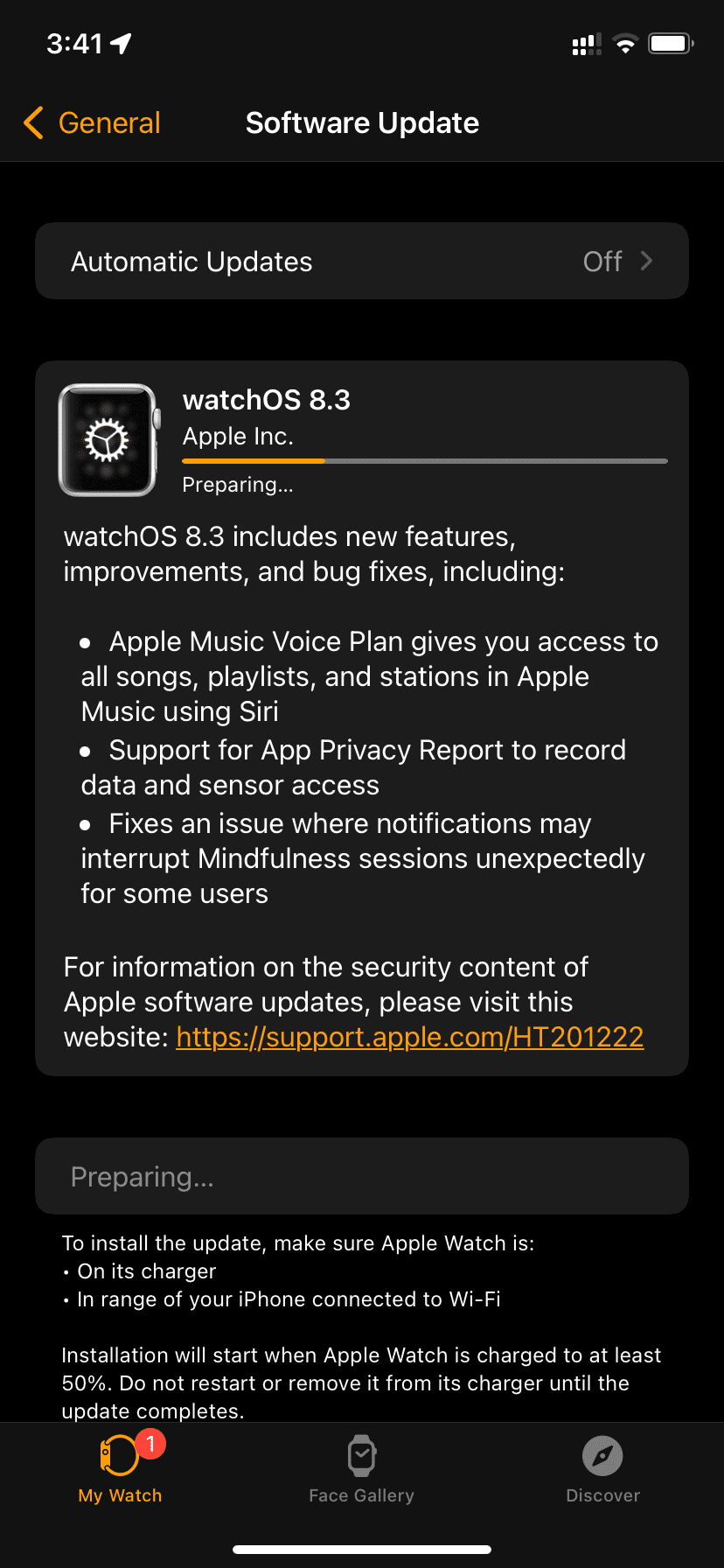
Stuck updates are a top cause of phantom battery drain.
Delete a Pending Update
If your watch shows “Preparing…” for hours:
- On Apple Watch: Settings > General > Usage > Software Update
- Tap Delete Update
- Restart both devices
This stops background processes consuming CPU and battery.
Disable Automatic Updates
Prevent future stuck updates.
On iPhone: Watch app > General > Software Update > Automatic Updates → Toggle OFF.
Manually update only when convenient and fully charged.
Reset Sync and Network Data
Corrupted sync states between iPhone and Apple Watch cause hidden drain.
Reset Sync Data
Clears message, health, and app sync errors.
On iPhone: Watch app > General > Reset > Reset Sync Data
Wait 24–48 hours for data to fully re-sync. Battery drain often resolves during this period.
Don’t panic if apps disappear temporarily—they’ll return.
Reset Network Settings
Fixes Wi-Fi, Bluetooth, and cellular misbehavior.
On Apple Watch: Settings > General > Reset > Reset Network Settings
You’ll need to:
– Rejoin Wi-Fi networks
– Re-pair Bluetooth devices
– Re-enable cellular
But it can stop connection loops that drain battery.
Factory Reset and Re-pair as New
For persistent, unexplained drain—start fresh.
Erase All Content and Settings
On Apple Watch: Settings > General > Reset > Erase All Content and Settings
Enter passcode → Confirm.
This wipes all data but keeps activation lock.
Re-pair Without Restoring Backup
After erase:
1. Fully restart iPhone
2. Re-pair Apple Watch
3. Choose Set Up as New Apple Watch
Do not restore from backup—old corrupted data may return.
Then:
– Manually install only essential apps
– Gradually add others while monitoring battery
This method has the highest success rate for chronic drain.
Recalibrate the Battery Gauge
If your watch shows fast drain but works fine after a reboot, the battery reading might be wrong.
Perform a Battery Calibration
This user-verified method fixes phantom drain:
- Power off Apple Watch completely
- Leave it off overnight (6–8 hours)
- Charge to 100% while powered off
- Use normally—expect fast initial drain
- Charge again to 100%
- Battery behavior usually normalizes after cycle #2
Reported effective on Series 4 through Ultra 2—even with 85% health.
Works when Apple Support offers no fix.
Replace the Battery When All Else Fails
If software fixes don’t help, it’s likely hardware.
Signs You Need a Battery Replacement
- Shuts down at 20–30%
- Drops 50% in under 2 hours with light use
- Takes hours longer to charge
- Gets warm during normal use
- “Battery Needs Service” message
Get It Replaced Safely
- Apple Store: $99 (U.S.) for out-of-warranty service
- AppleCare+: Covers one battery replacement per year if capacity <80%
- Third-party shops: Cheaper but may break water seals
DIY not recommended—battery is glued and soldered.
Prevent Future Battery Drain
Keep your Apple Watch running strong for years.
Adopt Smart Charging Habits
- Charge nightly—lithium-ion likes regular top-ups
- Avoid 0% discharges—don’t let it die daily
- Use Optimized Charging to delay full charge
- Don’t charge in hot environments (car, sunlight)
Maintain Software Health
- Update watchOS and iOS regularly
- Reboot both devices weekly
- Review battery usage monthly
- Delete unused apps
Optimize Daily Use
- Use Low Power Mode on heavy-use days
- Turn off Raise to Wake if not needed
- Use simple watch faces (Utility, Activity Analog)
- Stream music via Bluetooth headphones, not cellular
Final Note: Apple Watch battery drain is rarely one single issue—it’s usually a mix of settings, app behavior, and system state. Start with diagnostics, apply quick fixes, then escalate to resets if needed. Most users resolve the problem without spending a dime. But if your battery health is below 80%, replacement is the only long-term fix. With the right habits, your Apple Watch can last all day, every day.





