
If your Apple Watch isn’t vibrating when you get a text, you’re not alone—and it’s not a flaw. The issue usually isn’t broken hardware or a defective setting; it’s how Apple’s ecosystem is designed to avoid alerting you on multiple devices at once. When your iPhone is unlocked and nearby, notifications tend to stay on the phone, leaving your wrist silent even if you’re not looking at your screen. But with the right configuration, your Apple Watch can and will vibrate reliably for every incoming message.
The key to making your Apple Watch vibrate for texts lies in understanding Apple’s notification logic and overriding it strategically. You need to ensure haptics are enabled, customize your Messages alerts independently from your iPhone, and make sure your phone is locked when not in use. This guide walks you through every necessary step, common pitfalls, and expert tips to guarantee you feel every text on your wrist—no matter where your phone is.
Enable Haptic Alerts on Apple Watch
Without haptic feedback turned on globally, no app—including Messages—can make your watch vibrate.
Turn On Haptic Alerts
- Press the Digital Crown to open the app grid.
- Tap Settings.
- Scroll to Sounds & Haptics.
- Toggle Haptic Alert to on.
- Adjust Haptic Strength to Prominent for stronger, more noticeable taps.
Why Prominent? This setting adds a light pre-tap before the main vibration, making alerts easier to detect under clothing or during physical activity. It’s especially helpful if you often miss notifications.
You can also manage this from your iPhone:
– Open the Watch app → My Watch tab → Sounds & Haptics → Turn on Haptic and select Prominent.
Pro Tip: Ensure the back of your watch maintains skin contact. A loose band or thick sweater sleeve can dampen or block vibrations entirely.
Customize Messages Notification Settings
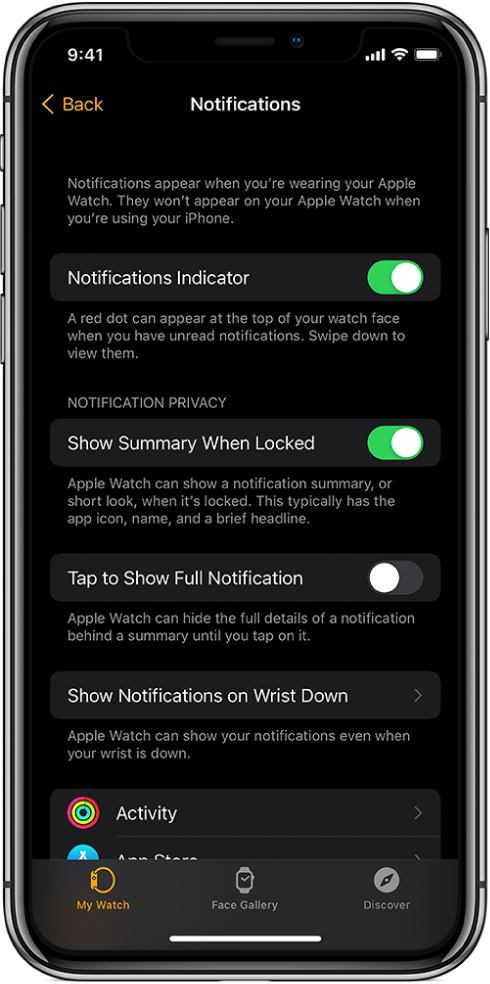
If your Apple Watch is set to “Mirror iPhone,” it follows your phone’s alert rules—even when the phone is silenced or face down. To ensure your watch vibrates every time, you need to break that dependency.
Switch Messages to Custom Mode
- Open the Watch app on your iPhone.
- Tap My Watch.
- Go to Notifications.
- Scroll down and tap Messages.
- Change the setting from Mirror iPhone to Custom.
- Under Alerts, verify:
– Show Alerts: On
– Sound: Loud
– Haptic: Enabled (green toggle)
Why This Works: By switching to Custom, your Apple Watch no longer waits for your iPhone’s permission to alert you. Even if your phone is locked or silenced, your watch will still vibrate.
User Confirmed: “I changed Messages to Custom and turned on Haptic—now my watch vibrates every time, even when my phone is in my pocket.” – mjv45
Use Silent Mode for Vibration-Only Alerts

Silent Mode disables sound alerts but keeps haptics active—ideal for meetings, movies, or bedtime.
Activate Silent Mode
- Method 1: Press and hold the Side Button → Tap the bell with a slash in Control Center.
- Method 2: Rest your palm over the display for 3+ seconds (if Cover to Mute is enabled).
Note: Alarms will still vibrate in Silent Mode. Only incoming notifications are muted.
Check Cover to Mute Setting
- On Apple Watch: Settings → Gestures → Ensure Cover to Mute is on (optional, but useful for silencing calls or alerts quickly).
Warning: If Cover to Mute is enabled, accidentally placing your hand over the watch during a text alert could silence it—potentially causing you to miss messages.
Fix Connection Issues Preventing Alerts
Even perfect settings won’t work if your Apple Watch isn’t communicating with your iPhone.
Check Connection Status
- Swipe up from the watch face to open Control Center.
- Look for the phone icon:
– Green: Connected and syncing alerts
– Red or missing: Disconnected
Ensure Both Devices Are Paired
- On iPhone: Settings → Bluetooth → Confirm your Apple Watch is connected.
- Make sure Wi-Fi and Bluetooth are on for both devices.
- Keep both on the same Wi-Fi network for extended range.
Quick Fix: Restart both devices. This clears temporary sync glitches and often restores notification flow within minutes.
Disable Modes That Block Vibrations
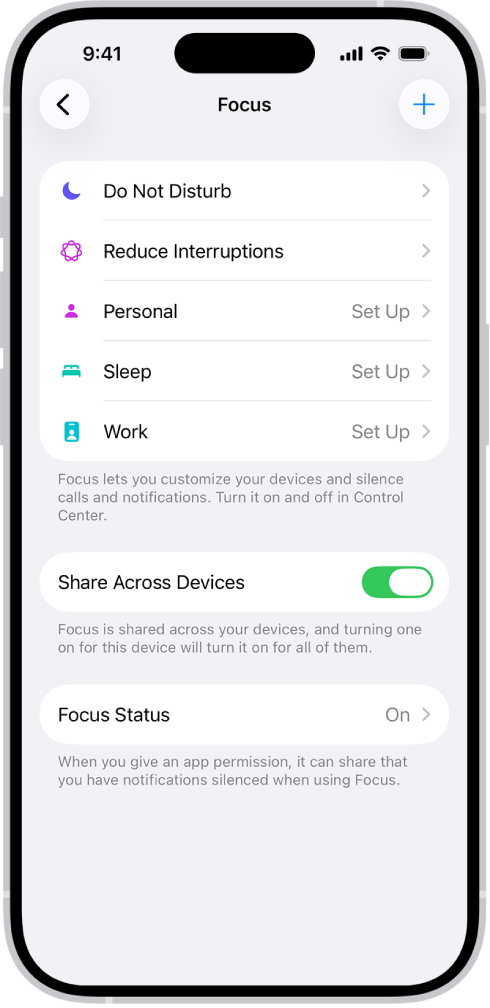
Silent Mode, Do Not Disturb, and Focus Modes can override haptic alerts—even if they’re enabled in settings.
Turn Off Do Not Disturb
- Swipe up to open Control Center.
- Tap the crescent moon icon to disable.
To allow exceptions:
– On iPhone: Settings → Focus → Do Not Disturb → Allowed Notifications → Add Messages or specific contacts.
Edit Focus Modes
Focus Modes (e.g., Sleep, Work, Personal) can block Messages alerts unless explicitly allowed.
To ensure text vibrations:
1. On iPhone: Settings → Focus.
2. Select the active mode (e.g., Sleep).
3. Tap Allowed Notifications.
4. Add Messages or important contacts.
Critical: If Messages isn’t on the allowed list, your watch won’t vibrate—even if haptics are enabled. Always check which Focus mode is active.
Adjust Haptic Feedback Strength
A weak vibration is easy to miss—especially if you’re active or wearing the watch under clothing.
Set Haptic Strength to Prominent
- On Apple Watch: Settings → Sounds & Haptics → Haptic Strength → Prominent
- On iPhone: Watch app → My Watch → Sounds & Haptics → Haptic Strength → Prominent
Best for: Users with reduced sensitivity, those wearing the watch under sleeves, or anyone who misses alerts.
Battery Note: Prominent haptics use slightly more power, but the impact is minimal—usually under 1% per day.
Troubleshoot When Watch Still Doesn’t Vibrate
If your Apple Watch still isn’t vibrating after following all steps, use this systematic troubleshooting checklist.
Verify Alert Modes Are Off
- Check Silent Mode, Do Not Disturb, and Focus Modes.
- Disable any that might be blocking Messages.
Test Connection and Sync
- On Apple Watch: Open Control Center → Confirm phone icon is green.
- On iPhone: Open Watch app → Check connection status.
Update Software
Outdated software can break notification delivery.
- On iPhone: Settings → General → Software Update
- On Apple Watch: Settings → General → Software Update
Fact: Apple frequently releases updates that fix bugs related to haptic feedback and alert routing.
Test Haptic Motor
If no app vibrates—even alarms—your Taptic Engine may be faulty.
Test It:
1. Set an alarm on your watch.
2. Enable Prominent Haptics.
3. Trigger the alarm while wearing the watch.
Failure Sign: No vibration during alarm = possible hardware issue.
Solution: Visit an Apple Store or authorized service provider for a Taptic Engine diagnostic.
Unpair and Re-Pair Watch (Last Resort)
This resets the connection and often fixes stuck notifications.
Steps:
1. On iPhone: Open Watch app → Tap your watch → i icon → Unpair Apple Watch.
2. Wait for backup to complete.
3. Re-pair as new device (data will restore from backup).
Note: This does not erase your data if you let the backup finish.
Real-World Tips for Better Vibration Reliability
Keep iPhone Locked
Apple routes notifications to the active device. If your iPhone is unlocked—even if idle—texts go there, not your watch.
Fix: Lock your iPhone screen to force alerts to your wrist.
User Insight: “I started locking my phone after use. Now my watch vibrates for every text—even in meetings.” – wpmason
Wear Watch Snugly
The haptic engine works best with skin contact.
- Use a band that fits snugly.
- Avoid wearing over thick jackets or sleeves.
- Clean the back sensors regularly.
Beware of AirPods Interference
When AirPods are connected, Apple may skip haptics to avoid redundant alerts.
Why? Audio output takes priority, and the system assumes you’ve already heard the notification.
Workaround: Disable sound in Messages on AirPods, or use Custom alert settings to force haptics.
Summary: Checklist for Text Vibration Success
✅ Lock iPhone when not in use
✅ Enable Haptic Alerts (Prominent recommended)
✅ Set Messages to Custom (not Mirror iPhone)
✅ Enable Haptic in Messages alert settings
✅ Turn off Silent, Do Not Disturb, or restrictive Focus Modes
✅ Check phone icon in Control Center (must be green)
✅ Update iOS and watchOS to latest version
✅ Test Taptic Engine if no vibration occurs
With these settings in place, your Apple Watch will vibrate reliably for every incoming text—keeping you connected without needing to look at your phone. The secret isn’t magic; it’s mastering Apple’s notification logic. Lock your phone, customize Messages, and boost haptics. Do that, and your wrist will never miss a beat.





