
You’re out for a run, in back-to-back meetings, or simply enjoying some screen-free time—but you still need to know when an important message comes through on WhatsApp. Thanks to the official WhatsApp app for Apple Watch, released in November 2025, you no longer have to rely on clunky workarounds or third-party apps. Now, you can receive, read, reply, and even answer calls directly from your wrist—securely and seamlessly.
This native companion app brings core WhatsApp functionality to your Apple Watch with full end-to-end encryption, real-time syncing, and intuitive controls. Whether you’re tapping out a quick reply, dictating a voice message, or reacting to a friend’s photo, everything happens right on your wrist—without needing to pull out your iPhone every time.
In this guide, you’ll learn how to install WhatsApp on your Apple Watch, enable notifications, customize alerts, troubleshoot issues, and use the app like a pro—so you never miss a critical message again.
Install WhatsApp on Apple Watch

Before you start getting WhatsApp alerts on your wrist, the app must be installed. For most users, this happens automatically—but if not, manual setup is quick and easy.
Automatic Installation (Default)
If you’ve updated WhatsApp on your iPhone recently, the Apple Watch version may install itself—provided automatic app syncing is enabled:
- Open the Watch app on your iPhone.
- Tap the “My Watch” tab.
- Go to General > Apps > Automatic App Install.
- Ensure the toggle is ON.
✅ When enabled, compatible apps like WhatsApp will appear on your Apple Watch home screen within minutes of updating the iPhone app.
Manual Installation Steps
If the app doesn’t show up automatically:
- Open the Watch app on iPhone.
- Navigate to My Watch > Available Apps.
- Scroll down and locate WhatsApp.
- Tap “Install”.
- Wait for the sync to complete (usually under 30 seconds).
🔐 No login required. The app uses your existing WhatsApp session on the iPhone and syncs contacts and recent chats instantly.
Enable WhatsApp Notifications
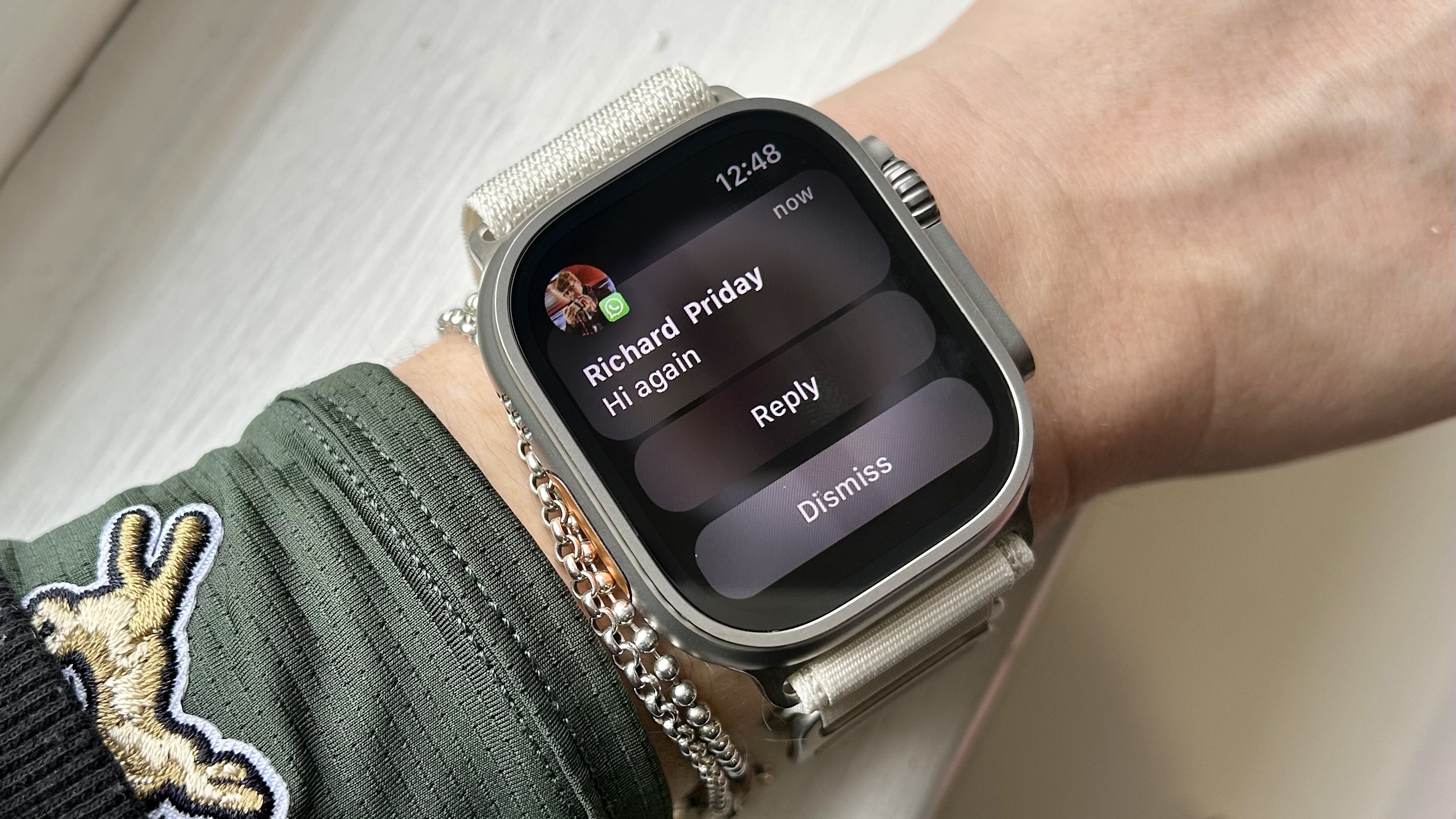
Just installing the app isn’t enough—notifications must be explicitly turned on to appear on your Apple Watch.
Turn On Notification Mirroring
- Open the Watch app on your iPhone.
- Tap “My Watch”.
- Scroll down to Notifications.
- Find WhatsApp and tap it.
- Set Alerts to Mirror iPhone.
🔔 This ensures all WhatsApp alerts that appear on your iPhone also show up on your Apple Watch with full previews and sounds.
Check iPhone Notification Settings
Even with correct watch settings, notifications won’t come through if they’re disabled at the source:
- On your iPhone, go to Settings > Notifications > WhatsApp.
- Confirm the following:
– Allow Notifications: ON
– Sounds & Banners: Enabled
– Show Previews: Set to “Always” or “When Unlocked”
– Badge App Icon: ON
❗ If notifications are blocked on the iPhone, they won’t reach the Apple Watch—no matter how perfect your watch settings look.
Use WhatsApp on Apple Watch
Once set up, interacting with WhatsApp is fast and fluid. Here’s how to make the most of it.
Open and Read Messages
- Press the Digital Crown to return to the home screen.
- Tap the WhatsApp icon (green bubble with a phone).
- Scroll through recent chats using the Digital Crown or finger swipe.
- Tap any chat to view the full message history.
💡 You can also see recent WhatsApp alerts by swiping up from the watch face to access Glances.
Reply to Messages
You have multiple ways to respond—choose what’s fastest for the moment.
1. On-Screen Keyboard
- Tap the text field.
- Use predictive typing and auto-correct to type quickly.
- Supports multiple languages and emoji input.
2. Voice Dictation
- Tap the microphone icon.
- Speak your message clearly.
- The watch converts speech to text in real time.
3. Quick Replies
- Tap the “…” button to access predefined responses like:
- “Got it”
- “Thanks”
- “On my way”
- Some replies can be customized per contact.
4. Send Voice Messages
- Hold the microphone button.
- Record up to 100 seconds of audio.
- Release to send instantly.
🎤 Voice messages play directly on the watch speaker—ideal for quick check-ins or hands-free replies.
React and Manage Chats
Stay engaged without touching your phone.
React to Messages
- Tap and hold any message bubble.
- Choose from reactions like:
- 😊 Smile
- ❤️ Heart
- 🔥 Fire
- Reaction syncs to iPhone and chat instantly.
Call Management
When a WhatsApp audio or video call comes in:
- Notification shows contact name and profile picture.
- Tap Answer or Decline directly on the watch.
- Audio quality is clear via watch speaker or connected Bluetooth headphones.
📞 You don’t need your iPhone nearby—just within Bluetooth range (~30 feet).
What You Can and Can’t Do on Apple Watch

While powerful, the Apple Watch app has limitations. Here’s a clear breakdown:
| Feature | Supported? | Details |
|---|---|---|
| Text Messages | ✅ Yes | Full read and reply |
| Quick Replies | ✅ Yes | Customizable |
| Voice Dictation | ✅ Yes | Real-time speech-to-text |
| Voice Messages | ✅ Yes | Record and play |
| Photos | ✅ Yes | View and zoom |
| Videos | ❌ No | Static preview only |
| Stickers | ✅ Yes | Animated ones play fully |
| Documents | ✅ View only | Open on iPhone to access |
| Group Chats | ✅ Yes | Same as individual chats |
| Status Updates | ❌ No | Not viewable or reply-able |
| Message Edit/Delete | ❌ No | Must use iPhone |
⚠️ Videos appear with a label: “Unsupported. View on phone.” Future updates may add video playback.
Fix Missing WhatsApp Notifications
If alerts aren’t showing up, follow these steps to restore them quickly.
Verify Notification Settings
- On iPhone, open Watch app > My Watch > Notifications.
- Find WhatsApp and ensure the toggle is green (ON).
- Tap it and confirm Alerts = Mirror iPhone.
Check Do Not Disturb & Focus Modes
- On Apple Watch: Open Settings > Focus.
- Disable Do Not Disturb, Sleep, or Work modes if active.
Disable Low Power Mode
- On iPhone: Go to Settings > Battery > Low Power Mode → Turn OFF.
- On Apple Watch: Open Settings > Battery → Disable Low Power Mode.
🔋 Low Power Mode suppresses background syncing, including notifications.
Restart Both Devices
A simple reboot often fixes sync glitches:
- Restart Apple Watch:
– Press and hold side button + Digital Crown until Apple logo appears. - Restart iPhone:
– Hold side button + volume down → Slide to power off → Turn back on.
🛠️ One verified user reported that only a device restart fixed missing notifications after checking all settings.
Reinstall WhatsApp on Watch
As a last resort:
- Open Watch app on iPhone.
- Go to My Watch > Installed Apps.
- Swipe left on WhatsApp → Uninstall.
- Go to Available Apps → Tap Install.
✅ Forces a fresh sync and often restores notification flow.
Optimize for Best Performance
Maximize speed, reliability, and convenience with these pro tips.
Keep Software Updated
- Ensure iPhone runs iOS 15 or later.
- Update Apple Watch to watchOS 8 or higher.
- Always use the latest WhatsApp version from the App Store.
🔄 Updates include bug fixes and new features like future video support.
Use Voice for Faster Replies
Typing on a small screen takes time. For speed:
- Use voice dictation for long messages.
- Set up custom quick replies for frequent responses.
Customize Notification Preferences
Avoid alert overload:
- In Watch app > My Watch > Notifications > WhatsApp.
- Adjust:
– Grouping: By app or automatically
– Alert Style: Banners or Alerts
– Sound: Choose a distinct tone
🔕 Mute less important chats directly from the watch by swiping left and tapping Mute.
Avoid These Common Mistakes
Don’t sabotage your setup with these avoidable errors.
❌ Using Third-Party Apps
Before the official release, apps like WatchChat 2 were popular—but they:
- Lack end-to-end encryption
- Require QR code logins
- Often crash or lag
✅ Uninstall third-party WhatsApp clients—they’re obsolete and pose privacy risks.
❌ Assuming Standalone Use
WhatsApp on Apple Watch requires your iPhone:
- Must be powered on
- Within Bluetooth range (~30 feet)
- Connected to same Wi-Fi if out of range
📱 Unlike some Android Wear OS apps, this is not a standalone app.
❌ Ignoring Connection Status
Check connection health:
- Open Watch app > General > Usage on iPhone.
- Confirm both devices show Connected status.
🔌 If connection drops, notifications will stop until reconnected.
What’s Coming Next?
Meta is actively improving the Apple Watch app. Upcoming updates may include:
- Video message playback
- Edit or delete messages
- Status update viewing and reactions
- Watch face complications (e.g., unread count)
- Richer media handling
These will roll out via standard app updates—no new setup required.
Final Tips for Seamless Use
To keep WhatsApp running smoothly on your Apple Watch:
✅ Do:
– Enable automatic app installation
– Use voice messages for quick replies
– Restart devices weekly
– Keep both iOS and watchOS updated
❌ Don’t:
– Rely on third-party apps
– Disable Bluetooth or Wi-Fi
– Assume independence from iPhone
– Ignore Focus or Low Power Mode settings
With the official WhatsApp Apple Watch app, staying connected has never been easier. You can now handle most messaging tasks from your wrist—quickly, securely, and without constantly reaching for your phone.
Follow this guide to install, enable, and optimize WhatsApp notifications, and enjoy a smarter, more efficient way to stay in touch—right from your wrist.





