
Is your Apple Watch Ultra 2 frozen, unresponsive, or locked due to a forgotten passcode? A hard reset—also known as a factory reset—can fully restore your device by wiping all data, settings, and apps, returning it to its original out-of-box condition. Whether you’re troubleshooting stubborn software glitches, preparing to sell the watch, or locked out after too many failed passcode attempts, this guide delivers every verified method to hard reset your Apple Watch Ultra 2 safely and effectively.
Unlike a simple restart, a hard reset permanently deletes everything: health metrics, messages, watch faces, Wi-Fi connections, and even your passcode. But not all reset methods are equal. Some leave Activation Lock active, rendering the device unusable for new owners. Others require your iPhone, while a few can be done entirely on the watch—even without a passcode. We’ll break down each method, when to use it, what to expect, and how to avoid common pitfalls.
When to Hard Reset Your Apple Watch Ultra 2
Fix a Frozen or Unresponsive Device
If your Apple Watch Ultra 2 freezes, crashes repeatedly, or stops responding to taps and swipes, a hard reset can clear corrupted software and force a complete reboot. This is especially helpful after problematic watchOS updates (like 10.4) or conflicts from third-party apps.
Prepare for Resale or Gifting
Before selling or giving away your watch, a full factory reset is essential. It erases personal data and, if done correctly, removes Activation Lock—a security feature that otherwise ties the device to your Apple ID. Without removing it, the new user won’t be able to activate the watch.
Recover from a Forgotten Passcode
Entered the wrong passcode too many times? If your watch shows “Try Again in X Minutes” or is completely locked, you can bypass the screen using a forced button reset. This method erases all content and clears the passcode—no iPhone or Apple ID needed.
Charge the Watch Before Resetting
Connect to Power to Avoid Failure
Before attempting any hard reset, plug your Apple Watch Ultra 2 into the official magnetic charger. Even if the battery shows 80%, many reset sequences only trigger when the watch detects a power source.
❗ Critical Tip: Several forced reset methods will not work on battery alone. The system requires stable charging to initiate the erase process. A dying watch mid-reset can cause boot issues or incomplete wipes.
Use iPhone to Unpair and Erase (Best for Resale)
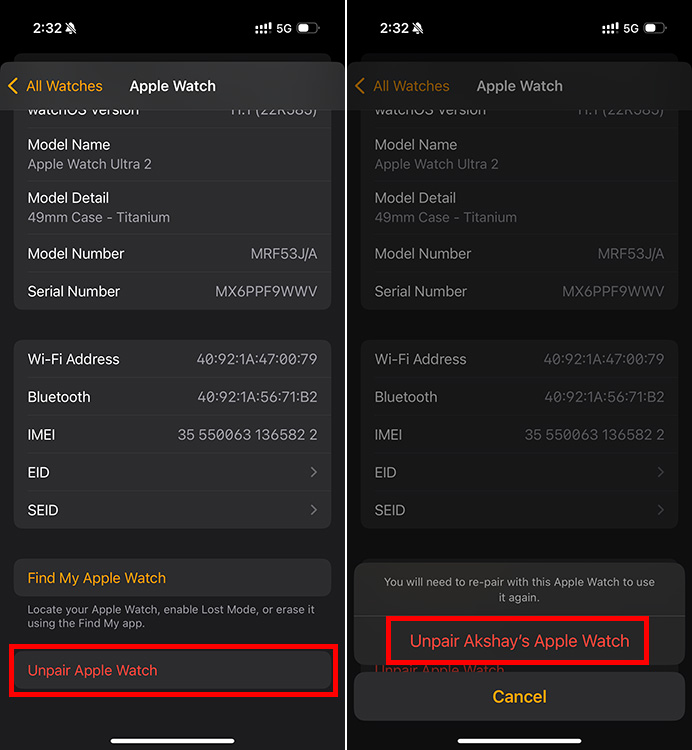
Unpair via the Apple Watch App
This is the most complete and secure method, especially when transferring ownership.
Steps:
- Open the Apple Watch app on your paired iPhone.
- Tap My Watch > All Watches.
- Select the (i) icon next to your Apple Watch Ultra 2.
- Tap Unpair Apple Watch.
- Confirm and enter your Apple ID password.
- Choose whether to keep or remove your cellular plan (recommended: Remove if selling).
The iPhone will unpair the watch, back up your settings, and trigger a full factory reset.
Why This Method Is Superior
- ✅ Removes Activation Lock — allows new users to activate the device
- ✅ Automatically backs up apps, watch faces, and preferences
- ✅ Erases cellular configuration
- ✅ Returns the watch to a clean, like-new state
💡 Pro Tip: If gifting or selling, ensure the buyer sees the watch pair successfully to their iPhone—this confirms Activation Lock is truly off.
Reset Directly on the Apple Watch (No iPhone Needed)
Erase from Watch Settings
Use this if your watch works normally but your iPhone isn’t available.
Steps:
- On the Apple Watch, open Settings.
- Go to General > Reset.
- Tap Erase All Content and Settings.
- Enter your passcode.
- Confirm by tapping Erase All.
What You Gain—and What You Don’t
- ✅ Full wipe of data, apps, and settings
- ✅ Watch restarts as if new
- ❌ Activation Lock remains active
⚠️ Warning: If someone else tries to pair the watch later, they’ll still need your Apple ID and password. Only use this method if you plan to reuse the device yourself.
Force Reset Without Passcode (Fix Locked or Bricked Devices)
Button Combo to Bypass Lock Screen
This is the go-to fix when your Apple Watch Ultra 2 is frozen or locked after too many passcode attempts.
Standard Method:
- Press and hold both the Side Button and Digital Crown for 10 seconds.
- Release when the Apple logo appears.
- Immediately press and hold only the Side Button—do not tap the Digital Crown.
- Hold for 20–30 seconds until “Erase All Content and Settings” appears.
- Tap Reset, then confirm with the green checkmark.
✅ User Verified:
“I held the side button forever—almost gave up. Then the reset screen popped up. Fixed!” — MandoKawasaki, Oct 2024
Charger-Assisted Method (If First Try Fails)
If the above doesn’t work:
- Press and hold the Side Button until the Power Off slider appears.
- While the slider is visible, press and hold the Digital Crown.
- Keep holding both until “Connect to a power source to proceed” appears.
- Unplug and reattach the charger.
- Tap Reset > Erase All.
⚠️ Must be charging—this variation won’t work without power.
What Happens After the Reset?

Watch Restarts Like New
After erasing:
– The Apple logo appears, followed by the setup screen.
– All local data is permanently deleted.
– The watch behaves as if it were fresh out of the box.
Health and Activity Data?
- If you backed up via iPhone, health data syncs from iCloud during setup.
- Without a backup, historical steps, heart rate, and workout logs are lost forever.
💡 Smart Move: When re-pairing, try setting up as new first if you’re troubleshooting battery drain. Then selectively restore apps to find the culprit.
Activation Lock: The Hidden Obstacle
Why It Matters
Even after erasing, Activation Lock can block activation. The watch will demand the original Apple ID and password during pairing—making it unusable for new owners.
How to Remove It
Only the original owner can disable Activation Lock:
– On iPhone: Open Find My > Devices > Select Watch > Remove from Account
– On iCloud.com: Sign in > Find My > Devices > Select Watch > Remove
❗ Buyer Alert: Never buy a used Apple Watch Ultra 2 without verifying Activation Lock is off. Otherwise, you may end up with a $800 paperweight.
Re-Pair and Restore Your Watch
Step 1: Start Pairing
- Turn on the Apple Watch.
- Bring it close to your iPhone.
- Wait for the pairing animation on the iPhone.
- Tap Continue or scan the code.
Step 2: Restore from Backup
During setup:
– Choose Restore from Backup.
– Pick the most recent backup (created during unpairing).
– Wait for apps and settings to reload.
✅ Time-Saving Tip: If issues persist, set up as new first—then add apps one by one to isolate problems.
Step 3: Reconfigure Essentials
- Set a new passcode
- Re-add Apple Pay cards
- Customize watch faces
- Re-enable health sharing and notifications
Troubleshooting Tips That Work
Hold the Side Button Longer
Many users quit too soon. After the Apple logo, hold the Side Button for up to 30 seconds—the erase prompt takes time to appear.
Don’t Press the Digital Crown Again
After the initial force restart, pressing the crown may trigger SOS instead of the erase screen. Use Side Button only in step 2.
Try Multiple Times
If the reset option doesn’t appear, repeat the process. Persistence pays off—some users report success on the third or fourth attempt.
Avoid Third-Party Tools
Apple doesn’t support external reset software. Stick to built-in methods—no jailbreaks, no hacks.
✅ “Only Method 3 worked. Key was holding the side button and ignoring the SOS screen.” — valeriefrommiami, Jul 2024
Common Mistakes to Avoid
Confusing Restart with Reset
- Force restart (hold Side + Crown): Reboots the watch—does not erase data.
- Hard reset: Fully wipes the device.
Assuming All Resets Remove Activation Lock
Only unpairing via iPhone removes Activation Lock. Other methods do not—the watch remains tied to your Apple ID.
Skipping the Charger
Most forced resets require charging, even with a full battery. Don’t risk failure—plug it in.
Method Comparison at a Glance
| Method | iPhone Needed? | Removes Activation Lock? | Passcode Required? | Charger Needed? | Best Use Case |
|---|---|---|---|---|---|
| Unpair via iPhone | ✅ Yes | ✅ Yes | ✅ Yes | ❌ No | Selling or gifting |
| Reset on Watch | ❌ No | ❌ No | ✅ Yes | ❌ No | Quick wipe, same owner |
| Forced Reset (Buttons) | ❌ No | ❌ No | ❌ No | ✅ Yes | Forgotten passcode, locked device |
Still Not Working? Contact Apple
When to Seek Help
If none of the methods succeed:
– The device may have hardware failure
– It could be permanently locked by Apple
– A logic board issue might prevent erasing
Get Support
Visit Apple Support or an Apple Store. If under warranty or AppleCare+, you may qualify for a replacement.
⚠️ For second-hand watches, Apple may require proof of purchase or original owner assistance.
Final Checklist Before Resetting
- [ ] Charge the watch
- [ ] Back up data (if possible)
- [ ] Know your Apple ID and passcode
- [ ] Decide whether to keep or remove cellular plan
- [ ] Confirm if Activation Lock needs removal
A hard reset is the ultimate fix for software issues and the essential step before transferring ownership. Use the iPhone unpair method for complete cleanup, or the forced button reset when locked out. With the right steps, your Apple Watch Ultra 2 will return to like-new condition—ready to perform flawlessly again.





