
You charge your Apple Watch every night. It starts the day at 100%, but by dinnertime, it’s already dipping below 30%—or worse, dies before you even get home. If this sounds familiar, you’re not alone. Despite Apple’s claim of “all-day battery life,” real-world usage often falls short, especially with GPS tracking, constant notifications, and health monitoring enabled. But here’s the good news: you don’t have to charge daily. With the right adjustments, you can stretch your Apple Watch battery to 48–72 hours—even with calls, workouts, and sleep tracking active.
This guide delivers proven, step-by-step strategies to reduce battery drain without sacrificing the features you rely on. Based on user testing, Apple’s documentation, and technical insights, these tweaks target the biggest power drains while preserving your daily routine. Whether you own a Series 10 or an older model, you’ll learn how to disable silent battery killers, automate power-saving modes, and protect long-term battery health.
Turn Off Always On Display to Save Up to 26% Daily

Disabling Always On Display (AOD) is the single most effective way to extend battery life—especially on Series 6 and later models. When enabled, AOD keeps the screen active at a low brightness, constantly refreshing complications and sensors, which can drain up to 26% of your battery per day.
Why Always On Drains So Much
Even when dimmed, the screen never fully sleeps. The more complications on your watch face—like weather, heart rate, or activity rings—the harder your watch works to keep them updated. Brightness settings and animated faces make it worse.
How to Disable Always On Display
- On Apple Watch:
Settings > Display & Brightness > Always On→ Toggle off - On iPhone:
Watch app > My Watch > Display & Brightness > Always On→ Toggle off
If You Want to Keep AOD, Optimize It
If you can’t give up Always On, reduce its impact:
– Use dark, minimal watch faces like Black Modular or Minimal
– Limit complications to static ones (date, battery level)
– Disable “Show Complications” during AOD:
– Settings > Display & Brightness > Always On > Show Complications → Off
💡 Real-World Result: One user jumped from under 24 hours of battery life to over 50 hours after turning off AOD and simplifying their face.
Disable Background App Refresh to Stop Silent Draining
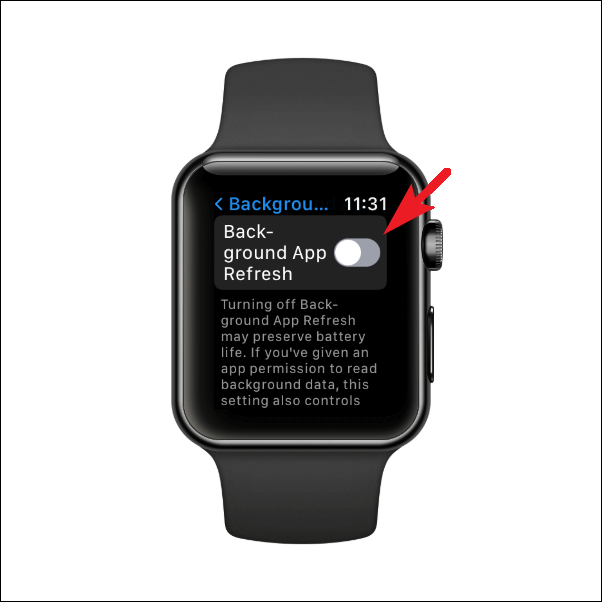
Apps refreshing in the background are a hidden battery drain. Even when you’re not using them, apps like weather, stocks, or news fetch data periodically, waking up the processor and updating complications.
How Background Refresh Hurts Battery
Each refresh uses CPU power and network connectivity. Over a day, dozens of background updates can cost you hours of battery life—especially if apps have live complications on your watch face.
How to Turn It Off
- On Apple Watch:
Settings > General > Background App Refresh→ Off - On iPhone:
Watch app > My Watch > General > Background App Refresh→ Off or set per app
⚠️ Important: Apps with active complications on your current watch face will still refresh, even if this setting is off. Remove live complications to fully stop updates.
Cut Unnecessary Notifications to Reduce Screen Wake-Ups
Every alert—whether it’s a social media ping, game notification, or promotional email—wakes the screen, triggers haptics, and uses sensors. Too many notifications add up fast.
Which Notifications to Remove
- Social media (Instagram, TikTok)
- Games and shopping apps
- Email newsletters and spammy apps
How to Manage Notifications
- On iPhone:
Watch app > My Watch > Notifications
Disable non-essential apps. Keep only: - Messages
- Phone
- Calendar
- Reminders
- Health alerts
Pro Tip: Use Grouped Notifications
For apps that send frequent alerts (like email or Slack), enable grouping. This reduces the number of screen wake-ups and saves power over time.
💬 User Test: One tester cut notifications from 50+ per day to under 10 and saw a noticeable improvement in battery endurance.
Turn Off “Hey Siri” and Use Raise to Speak Instead
“Hey Siri” keeps the microphone active 24/7, listening for your voice. That constant monitoring uses power—even when you’re not using Siri.
How to Disable “Hey Siri”
- On Apple Watch:
Settings > Siri > Listen for "Hey Siri"→ Off - Keep “Raise to Speak” enabled for quick access without passive listening
Why This Works
You lose a bit of convenience but gain meaningful battery savings. Raising your wrist to speak is nearly as fast and eliminates the always-on microphone drain.
Disable High-Drain Health Features You Don’t Need

Some health sensors are useful—but not all are worth the battery cost. Disable the ones you rarely use.
| Feature | Turn Off? | Why |
|---|---|---|
| Sleep Apnea Detection | ✅ Yes | Drains up to 20% nightly |
| Noise App (Sound Monitoring) | ✅ Yes | Rarely used; constant mic use |
| Irregular Rhythm Notifications | ✅ If not medically needed | Requires continuous heart analysis |
| Handwashing Timer | ✅ Yes | Auto-triggers; rarely needed |
| Blood Oxygen (SpO2) | ❌ Keep On | Minimal drain; useful for health |
| Heart Rate Monitoring | ❌ Keep On | Core function for fitness |
| Workout Tracking | ❌ Keep On | Primary use case for most users |
🔍 Trade-off: You’ll lose some health insights, but gain significant battery—especially overnight.
Reduce Haptics and Sounds for Smaller but Steady Gains
Frequent vibrations and beeps add up. Reducing haptic intensity and disabling sounds can save power over time.
How to Adjust Haptics
- On Apple Watch:
Settings > Sounds & Haptics - Actions:
- Lower Haptic Strength
- Turn off Prominent Haptic
- Disable Sound for alerts (if silent mode is fine)
- Use Default haptic feedback
📳 Bonus: This also makes your watch less distracting during meetings or sleep.
Use Low Power Mode When Battery Drops Below 40%
Low Power Mode disables several power-hungry features—use it when you need extra juice.
What It Turns Off
- Always On Display
- Background heart rate and SpO2 checks
- Heart rate notifications
- Some cellular/Wi-Fi connections
- Delays non-critical notifications
- Reduces animations
When to Enable It
- Battery drops below 40% midday
- Long workouts or travel
- Overnight (if not sleep tracking)
How to Turn It On
- Swipe up → Control Center → Tap battery icon → Turn on Low Power Mode
- Can be scheduled for 1–3 days
📌 Apple Tip: The watch prompts you at 10%, but don’t wait that long—activate it earlier for better results.
Turn Off Cellular When Near Your iPhone
If your Apple Watch has cellular, it constantly searches for LTE—especially in weak signal areas. This is a major drain.
Best Times to Disable Cellular
- At home or office
- When iPhone is nearby (Bluetooth/Wi-Fi sufficient)
- While sleeping
How to Disable
Settings > Cellular > Cellular→ Toggle off
You still get calls, texts, and alerts via iPhone Bluetooth. Only standalone LTE is disabled.
Alternative: Airplane Mode + Wi-Fi
If you need Wi-Fi but not cellular:
– Enable Airplane Mode
– Turn Wi-Fi back on
This stops cellular searching while keeping internet access.
Optimize Display and Wake Settings
Small tweaks to brightness and wake behavior can yield real battery gains.
Reduce Screen Brightness
Settings > Display & Brightness→ Lower the slider- Even a 10–20% reduction helps, especially outdoors
Change Wake Behavior
- Turn off Wake on Wrist Raise if AOD is off
- Use Wake on Tap instead:
Settings > Display & Brightness > Wake on Wrist Raise→ Off
This prevents accidental screen wakes.
Disable Nightstand Mode
If you don’t use it as a bedside clock:
– Settings > Nightstand Mode → Off
– It drains battery while charging
Limit Complications to Stop Background Polling
Complications are stealth battery killers—they trigger background updates every few seconds.
Best Practices
- Use 3–4 complications max
- Choose static types:
- Date
- Battery level
- Calendar
- Avoid live-updating ones:
- Weather
- Stocks
- Heart rate
- Activity rings
- Third-party widgets
Pick Low-Power Watch Faces
- ✅ Best: Minimal, Numerals Duo, Solar
- ❌ Avoid: Modular, Infograph, Explorer (too many complication slots)
🔋 Pro Tip: Even with AOD off, complications still update when you wake the screen. Fewer = less drain.
Automate Power Savings with iPhone Shortcuts
Use automations to toggle settings at night or during workouts—no manual work needed.
Example: Nighttime Automation
Trigger: At bedtime (e.g., 10 PM)
Actions:
– Turn off Always On Display
– Disable Raise to Wake
– Enable Do Not Disturb
– Lower brightness
Reverse at 7 AM
How to Set It Up
- Open Shortcuts app on iPhone
- Tap Automation → Create Personal Automation
- Choose Time of Day (e.g., 10 PM)
- Add actions using Watch commands
- Repeat for morning reversal
🔄 This mimics Low Power Mode at night—automatically.
Restart Weekly to Clear Hidden Glitches
Over time, background processes and cached data can cause hidden battery drain.
How Often to Restart
- Weekly is ideal
- Twice weekly if you notice sluggishness or fast drain
How to Restart
- Press and hold side button
- Slide to power off
- Wait 10 seconds
- Press side button again to turn back on
🧹 One user reported improved efficiency after restarting—proving software bloat exists.
Final Tips: Real-World Results and Long-Term Health
- Without optimization: Most watches last 18–36 hours
- With optimization: 48–72 hours is achievable (Series 10 users confirm)
- Battery degradation: After 2+ years, capacity drops. Check
Battery Healthif life shortens
🏁 Bottom Line: You don’t have to choose between battery life and functionality. With smart settings, you can keep calls, GPS, health tracking, and notifications—and still go two to three days between charges.





