
You’re halfway through a brisk walk, enjoying the fresh air and your favorite podcast, when suddenly—tap—your wrist vibrates. A quiet alert appears: “It looks like you’re working out. Start tracking?” That moment is the Apple Watch’s automatic workout detection in action, quietly observing your movement, heart rate, and rhythm to recognize when you’ve started exercising—even if you forgot to press “Start.”
This smart feature ensures you don’t miss credit for your effort. Once you confirm the prompt, your Apple Watch backfills data from the very beginning of your activity, accurately logging your Exercise Minutes (green ring), calories burned, and even GPS-tracked distance. It’s one of the most useful—but sometimes inconsistent—features on the device.
In this guide, you’ll learn exactly how to enable, optimize, and troubleshoot automatic workout detection on your Apple Watch. Whether you’re missing prompts, getting false alerts while driving, or wondering why yoga isn’t detected, we’ll walk you through every setting, calibration tip, and workaround to make your watch work with your lifestyle—not against it.
Enable Auto Workout Detection on Apple Watch
Automatic workout detection doesn’t require a separate toggle labeled “auto-detect.” Instead, it’s controlled by Workout Reminders, which activate the sensors and algorithms that monitor your motion.
Turn On Start, Resume, and End Workout Reminders
These three settings are the foundation of auto-detection. Without them, your watch won’t prompt you—even if it senses activity.
On Apple Watch:
- Press the Digital Crown to return to the Home screen.
- Open Settings.
- Scroll down and tap Workout.
- Toggle on:
– Start Workout Reminder
– Resume Workout Reminder
– End Workout Reminder
These toggles allow the watch to detect when you begin moving, pause during interruptions, and recognize when you’ve stopped.
On iPhone (Watch App):
- Open the Watch app.
- Go to My Watch > Workout.
- Ensure all three reminders are enabled.
These settings sync automatically between devices. If you don’t see them (e.g., on older models like Apple Watch SE), check for a watchOS update—you may be running an outdated version.
Grant Required Permissions
Even with reminders enabled, your Apple Watch needs access to motion, fitness, and location data to detect workouts.
On iPhone:
- Open Settings > Privacy & Security > Motion & Fitness.
- Enable:
- ✅ Fitness Tracking
- ✅ Health
- Go to Location Services > System Services.
- Turn on Motion Calibration & Distance.
On Apple Watch:
- Open Watch app > Privacy.
- Confirm both Fitness Tracking and Heart Rate are toggled ON.
Also ensure Wrist Detection is enabled (Watch app > General > Wrist Detection). This confirms the watch knows it’s being worn, preventing accidental locks and enabling continuous heart rate monitoring.
Which Workouts Can Apple Watch Auto Detect?
Not all exercises trigger automatic detection. The system relies on consistent arm motion and elevated heart rate to distinguish workouts from daily movement.
Supported Activities
The Apple Watch can automatically detect:
– Outdoor Walk
– Run
– Outdoor Cycle
– Elliptical
– Rowing Machine
– Swim (requires manual confirmation after detection)
Detection usually begins after 10 minutes of sustained activity, especially at a brisk pace.
Not Supported for Auto-Detection
The following do not trigger automatic prompts:
– Yoga
– Pilates
– Strength Training
– Core Workouts
– Functional Training
For these, manually start a workout to earn Exercise Minutes. The watch lacks the motion signature to confidently identify low-arm-movement activities.
Why the Limitation?
Auto-detection uses machine learning to compare your movement patterns to known workout signatures. Activities like lifting weights or stretching produce irregular arm swings, making them hard to differentiate from normal gestures.
Improve Detection Accuracy with Calibration
If your Apple Watch frequently misses prompts or detects workouts late, calibration can dramatically improve performance.
How to Calibrate Your Apple Watch
Calibration helps your watch fine-tune pace, distance, and effort estimates—especially in areas with weak GPS.
Steps:
- Wear your watch snugly, about 1–2 inches above your wrist bone.
- Go to an open outdoor area with clear sky visibility.
- Open the Workout app.
- Start an Outdoor Walk or Outdoor Run.
- Maintain a steady pace for at least 20 minutes.
- Include variations: walk, jog, run.
Repeat this process over 3–5 days to build a robust motion profile.
Reset Calibration Data (If Needed)
If tracking becomes inaccurate:
– Unpair your Apple Watch via iPhone (Settings > Bluetooth > i icon > Forget This Device).
– Re-pair it—this clears corrupted sensor data and resets motion algorithms.
Advanced users can delete
HKWorkoutConfigurationentries in Analytics Data (Settings > Privacy > Analytics & Improvements), but unpairing is safer and more effective.
Optimize Wear and Movement Habits
Even perfect settings won’t help if your watch isn’t worn or used correctly.
Wear It Right
- Position the watch snug but comfortable—not too loose.
- Use a secure band (avoid stretchy or sliding bands).
- Ensure skin contact for heart rate and motion sensors.
A loose fit dampens arm swing signals, delaying or preventing detection.
Move Naturally
- Let your arms swing freely during walks and runs.
- Avoid pushing strollers, shopping carts, or using hiking poles—these restrict motion cues.
Many users report no detection during dog walks or errands because arm movement is suppressed.
Fix Common Auto-Detection Problems

Even with everything set up, issues happen. Here’s how to solve the most frequent complaints.
No Prompt During Exercise
If you’re walking or running but get no alert:
Quick Fix Checklist:
- ✅ Confirm Start Workout Reminder is ON.
- ✅ Enable Motion & Fitness access on iPhone.
- ✅ Turn on Wrist Detection.
- ✅ Calibrate with a 20-minute outdoor run.
- ✅ Update your health profile (height, weight, age, gender) in the Health app.
- ✅ Install the latest iOS and watchOS updates.
If all else fails, unpair and re-pair your watch to reset sensor data.
False Positives While Driving
Many users report the watch continues logging a workout after getting into a car.
Why It Happens:
- The watch detects motion but doesn’t always recognize car travel.
- GPS speed may not trigger the “End Workout” prompt reliably.
Solutions:
- Manually end workouts before driving.
- Create a Driving Focus Mode with a shortcut to end workouts.
- Disable End Workout Reminder if prompts are inconsistent.
Some users get an end prompt; others don’t—this inconsistency is widely reported.
Premature End Prompts During Hikes or Breaks
Getting asked to stop mid-workout?
Causes:
- Heart rate drops during steep climbs (counterintuitively).
- No arm motion during rest stops or wildlife watching.
Workarounds:
- Tap Continue when prompted.
- Cover the screen with your palm to dismiss the alert (a trick shared by user bobbybino).
- Turn off End Workout Reminder if it disrupts longer sessions.
Apple has yet to refine logic for variable-intensity activities like hiking.
Delayed Start Detection
Some users walk over a mile before getting a prompt.
Fixes:
- Calibrate outdoors with strong GPS.
- Swing arms more deliberately.
- Start manually if your activity is short (<15 minutes).
Good news: once you confirm, the watch backfills Exercise Minutes from when you began moving.
Auto-Pause and End Workout Features
Beyond starting, your Apple Watch helps manage ongoing workouts.
Auto-Pause for Runs and Rides
Stops timing when you stop moving (e.g., at traffic lights).
Enable:
- Go to Settings > Workout > Auto-Pause > ON.
- Resumes automatically when you start moving.
Only available for Outdoor Run and Outdoor Cycle.
End Workout Reminder
Prompts you to stop if inactivity follows a workout.
How It Works:
- Triggers after several minutes of no motion post-exercise.
- Helps prevent logging a walk as a 2-hour session while driving.
Effectiveness varies—some users see it immediately; others never do.
Comparison with Other Fitness Trackers

Many users compare Apple Watch to competitors with more aggressive auto-detection.
Devices With Better Automation
- Fitbit (Luxe, Charge, Versa): Automatically starts and stops workouts.
- Samsung Galaxy Watch: Detects workouts without confirmation.
- Oura Ring: Fully automatic workout logging.
- Moves App (discontinued): Seamlessly tracked walks, runs, and drives.
Many users want Apple to adopt true hands-free start/stop.
Why Apple Requires Confirmation
Apple prioritizes data accuracy and user control. Auto-starting could lead to false logs from driving, emotional moments, or bathroom use.
But the trade-off is missed convenience—especially for forgetful users.
Pro Tips and Workarounds
Until Apple improves automation, use these strategies.
Use Manual Start for Short or Low-Motion Workouts
For walks under 15 minutes or yoga:
– Open Workout app > Start manually.
– Ensures full credit and accurate data.
Leverage Backfilling
Even if you start late, the watch backfills Exercise Minutes from the beginning of detected activity.
This is a major advantage—don’t skip confirming prompts!
Try Third-Party Apps
Some apps offer better walk detection:
– Pedometer++, StepsApp, or Argus may detect movement more reliably.
– Syncs with Health app for unified data.
Note: These don’t replace native workout logging.
Customize Focus Modes
Create a Workout Focus:
– Turns on Do Not Disturb.
– Launches Workout app via automation.
– Activate with a tap or voice command.
Use Shortcuts app to add a “Start Workout” button to your watch face.
Final Settings Checklist
Ensure these are ON for reliable auto-detection:
| Setting | Location | Status |
|---|---|---|
| Start Workout Reminder | Watch > Settings > Workout | ✅ ON |
| Resume Workout Reminder | Same | ✅ ON |
| End Workout Reminder | Same | ✅ ON (or OFF if disruptive) |
| Wrist Detection | Watch app > General | ✅ ON |
| Motion & Fitness Access | iPhone Settings > Privacy | ✅ ON |
| Fitness Tracking | Watch app > Privacy | ✅ ON |
| Heart Rate | Watch app > Privacy | ✅ ON |
| Location Services | iPhone Settings > Privacy | ✅ ON |
| Motion Calibration & Distance | iPhone Settings > System Services | ✅ ON |
Summary: Maximize Auto Workout Detection
The Apple Watch can automatically detect workouts like walking, running, and cycling—but only if properly configured. While it doesn’t start workouts silently like some rivals, its backfilling feature ensures accurate Exercise Minutes even with delayed confirmation.
To make it work reliably:
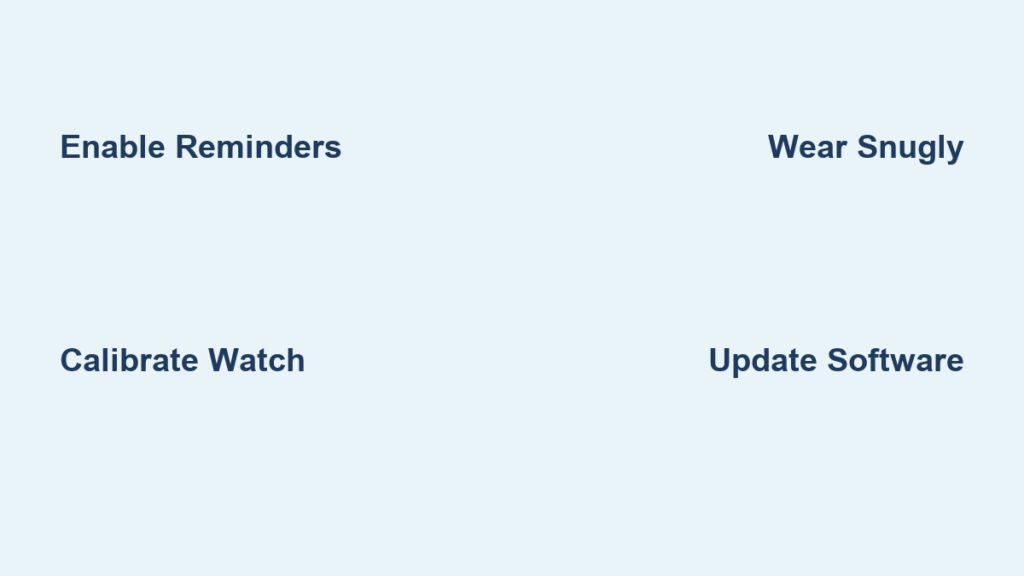
– ✅ Enable Start, Resume, and End Workout Reminders.
– ✅ Calibrate with a 20-minute outdoor workout.
– ✅ Wear the watch snugly with natural arm motion.
– ✅ Keep iOS and watchOS updated.
– ✅ Use manual start for yoga, strength, or short walks.
Until Apple adds fully automatic start/stop, the best strategy is a mix of smart settings, calibration, and habit. With a little setup, your Apple Watch becomes a powerful, proactive fitness partner—reminding you when you move, so you never miss credit again.




