
You glance at your Apple Watch, expecting to see your step count front and center—just like on your old Fitbit or Garmin—but it’s nowhere to be found. That number you’ve been chasing all day, the one that tells you how close you are to 10,000, isn’t visible at a glance. Frustrating? Absolutely. Despite tracking steps accurately in the background using its advanced motion sensors, Apple does not offer a built-in step count complication on any of its watch faces. Instead, Apple pushes users toward its Activity Rings—Move, Exercise, and Stand—as a more holistic measure of daily movement.
But if you’re like millions of health-conscious users who want real-time step visibility, good news: you can get it. You don’t need jailbreaking, special hacks, or expensive subscriptions. With a free third-party app and a few quick taps, you can add your step count directly to your Apple Watch face in under five minutes. This guide walks you through the best apps, step-by-step setup, troubleshooting tips, and expert-recommended watch faces—so you can finally see your steps without opening an app or asking Siri.
Why Apple Doesn’t Show Step Count on the Watch Face
Apple’s wellness strategy focuses on activity quality over raw metrics. The Activity Rings system is designed to promote consistent, meaningful movement throughout the day—not just step chasing. Closing your rings encourages calorie burn, sustained exercise, and hourly standing, which Apple believes leads to better long-term health outcomes than fixating on step numbers alone.
However, this design philosophy leaves a gap for users who rely on step tracking for motivation, fitness goals, or friendly competition. While your Apple Watch tracks every step using its accelerometer and gyroscope, that data is stored in the Health app and not exposed as a default complication on the watch face.
You’ll find options for distance walked, active calories, and flights climbed, but no native step count. This omission has sparked consistent user frustration, especially among those switching from Fitbit, Samsung, or Garmin devices where step count is a default, glanceable metric.
“It’s my device. It tracks steps. Why can’t I see them?”
— A common sentiment across Apple support forums
The answer? Apple doesn’t want to encourage obsessive step counting—but that doesn’t mean you’re locked out. You can display steps. You just need the right app.
Best Apps to Display Steps on Apple Watch Face

Since Apple doesn’t provide native support, third-party apps are your gateway to step visibility. The best ones sync with Apple Health, require no subscription, and offer clean, customizable complications. Here are the top choices—all free, reliable, and tested across Apple Watch models (SE, Series 1–9, Ultra).
Steps App (Free, No Login Required)
- ✅ Syncs automatically with Apple Health
- ✅ No account, no ads, no tracking
- ✅ Clean, bold complication with step count
- ✅ Works offline and respects privacy
Best for: Users who want simplicity and privacy. This is the top recommendation for most people.
Pedometer++ (Free, Goal Tracking)
- ✅ Shows progress toward daily goal (e.g., 7,200/10,000)
- ✅ Can be installed directly on Apple Watch
- ⚠️ May require a tap to refresh steps
Best for: Motivation-driven users who want visual goal tracking.
Duffy (Minimalist, Fitbit-Style)
- ✅ Simple, glanceable step display
- ✅ Pulls data directly from Apple Health
- ✅ Tap-to-refresh for instant updates
Best for: Fitbit switchers who miss the instant step visibility.
HealthFace & Livity (Multi-Metric Dashboards)
- ✅ Display steps + heart rate, sleep, weather
- ✅ Highly customizable complications
- ⚠️ Some advanced features require a subscription
Best for: Power users who want multiple health stats on one face.
❌ Avoid Facer for Apple Watch—despite its popularity on Android, it’s overkill here. Most premium features require a subscription, and it doesn’t offer better step tracking than free alternatives.
How to Add Step Count to Apple Watch Face (Step-by-Step)
Follow this universal process to add steps to your watch face using Steps App (works the same for Pedometer++, Duffy, etc.).
1. Install the App on iPhone
- Open the App Store on your iPhone.
- Search for “Steps App” (or your preferred app).
- Tap Get and install.
- Open the app and go to Health permissions.
- Grant access to:
– Steps
– Walking + Running Distance
– Active Energy Burned
– Flights Climbed
🔒 Don’t skip this step—without Health access, the app can’t read your step data.
2. Install the App on Apple Watch
- Open the Watch app on your iPhone.
- Tap My Watch > App Store.
- Search for “Steps App”.
- Tap Install.
Wait 10–30 seconds. The app will appear on your Apple Watch home screen.
3. Customize Your Watch Face
- On your Apple Watch, press and hold the watch face.
- Swipe left and tap Edit.
- Tap an empty complication slot (top, bottom, or side).
- Scroll down and select Steps App.
- Choose Steps, Steps + Distance, or Steps + Goal.
- Tap Add.
4. Save and Verify
- Press the Digital Crown to exit.
- Wait 1–2 minutes for data to sync.
- Tap the complication—your step count should match the Health app on iPhone.
⚠️ If it doesn’t update, restart your Apple Watch and recheck Health permissions.
Best Watch Faces for Step Complications
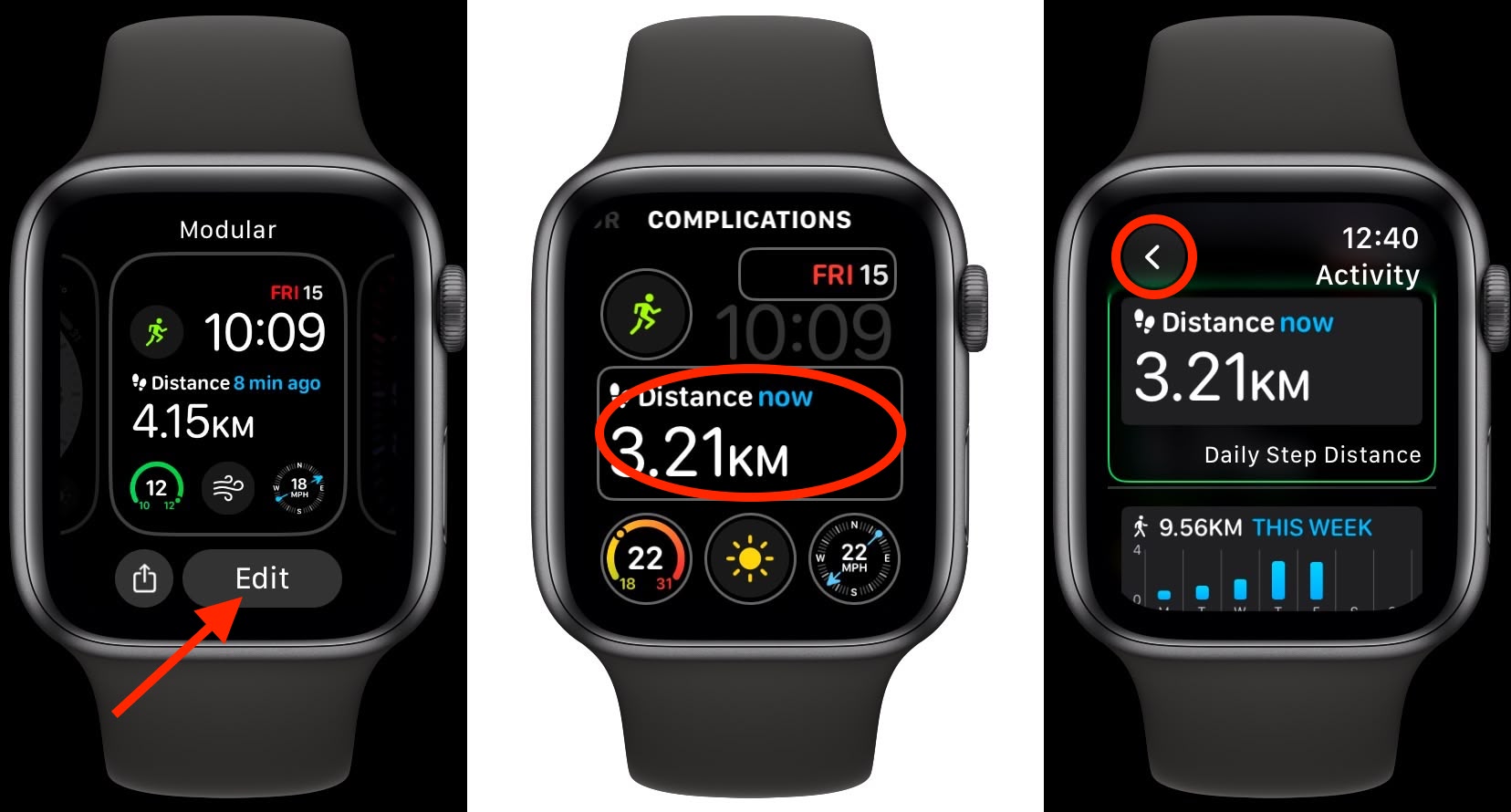
Not all watch faces support large or customizable complications. Use these to ensure maximum readability:
Modular
- Offers top and bottom rectangular slots
- Ideal for steps + distance or steps + heart rate
- Clean, bold text—perfect for quick glances
Infograph
- Supports up to 8 small complications
- Great for combining steps, weather, battery, and more
- Best for users who want multiple data points
Utility
- Simple circular or square layout
- Minimalist design with clear text
- Ideal for users who want one key metric visible
Timeline
- Shows complications in a vertical scroll
- Great for steps, calendar, and weather in sequence
❌ Avoid Activity Analog if you want steps on the face—steps are only visible one tap away, not at a glance.
Fix Common Step Display Issues
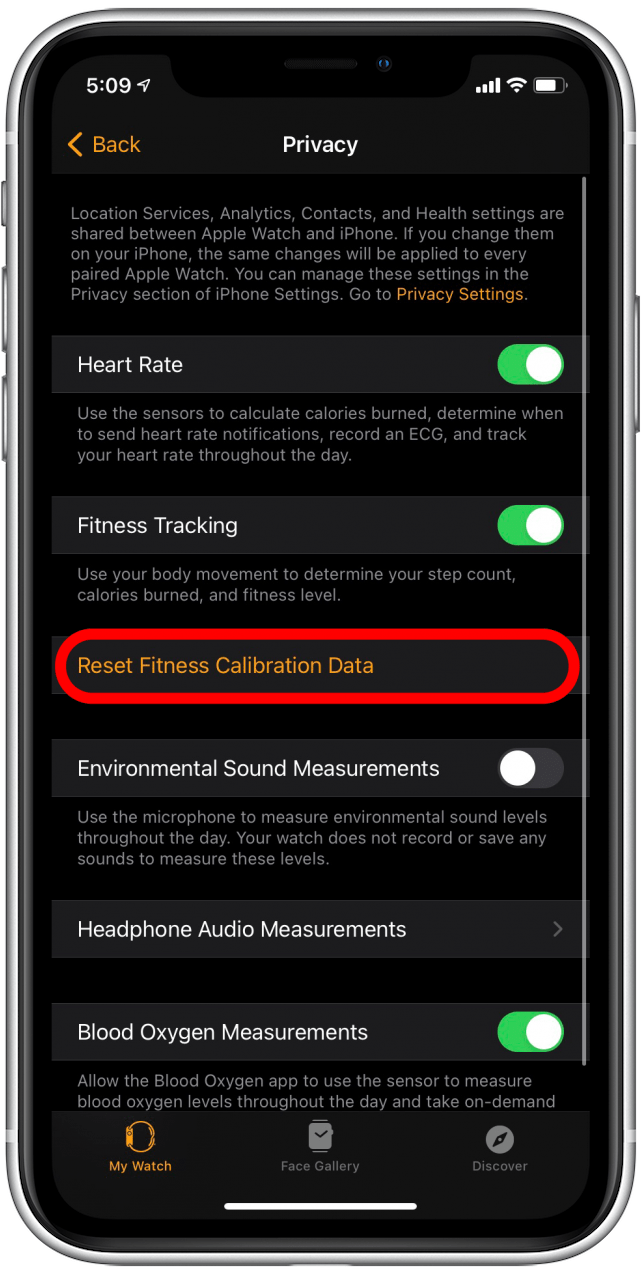
Even the best apps can glitch. Here’s how to troubleshoot:
Step Count Not Updating?
- Tap the complication—many apps only refresh on tap.
- Enable Background App Refresh:
- iPhone Settings > General > Background App Refresh > Turn on for your step app.
- Restart your Apple Watch—resets sync processes.
Wrong Step Number?
- Wait 5 minutes—sync delays are normal.
- Compare with the Health app on iPhone.
- If mismatch persists, delete and reinstall the app, then re-grant Health access.
App Not Showing in Complications?
- Confirm the app is installed on the Apple Watch.
- Open the Watch app > My Watch > check if the app appears.
- If not, reinstall via iPhone App Store or Apple Watch App Store.
Pro Tips for Better Step Tracking
Maximize accuracy and convenience with these expert tips:
Tap to Refresh
Most third-party apps don’t auto-refresh every second. Tap the step complication to force an immediate update from Apple Health.
Use Modular + Steps App Combo
- Modular face with Steps App in the top slot
- Large, bold text
- Glanceable from across the room
Set a Step Goal
Use Pedometer++ to set a daily goal (e.g., 8,000 or 10,000 steps). The complication shows progress like “6,400/10,000”—great for motivation.
Keep iPhone Nearby
Apple Watch syncs step data to iPhone via Bluetooth. If your phone is out of range, sync delays may occur.
Avoid Subscription Traps
Many apps offer “free trials” that turn into $3/month charges. Stick with Steps App or Pedometer++—both are truly free for step display.
Why Steps App Is the Best Choice
| Feature | Steps App | Pedometer++ | Duffy |
|---|---|---|---|
| Free | ✅ Yes | ✅ Yes | ✅ Yes |
| No Account | ✅ Yes | ✅ Yes | ✅ Yes |
| Real-Time Sync | ⚠️ ~5 min delay | ⚠️ Tap to refresh | ✅ Tap to refresh |
| Custom Complication | ✅ Yes | ✅ Yes | ✅ Yes |
| Goal Tracking | ❌ No | ✅ Yes | ❌ No |
Winner: Steps App—simple, private, and no strings attached.
Final Thoughts: Steps on Apple Watch Are Possible
Apple may not want you staring at step numbers all day, but you control your data. With a free app and a 3-minute setup, you can put your step count front and center—just like on any other fitness tracker.
Whether you’re training for a 5K, competing with friends, or just hitting 10,000 steps a day, having that number visible at a glance makes a difference. And the best part? You don’t need to pay a dime or sacrifice privacy.
Final Note: You get the best of both worlds—Apple’s elegant Activity Rings and a real-time step counter—right on your wrist. Use Steps App + Modular face for the cleanest, most reliable setup. Now go take those steps.




