
If you’ve ever asked, “How to get pedometer on Apple Watch?” you’re not alone. While the Apple Watch tracks steps automatically, it doesn’t display them directly on the watch face like Fitbit or Garmin devices. Instead, Apple pushes users toward its Activity Rings—Move, Exercise, and Stand—as a more holistic fitness metric. But for many, step count remains a core motivator. The good news? You can get real-time step tracking on your wrist—no hacks required, just a few smart setup steps.
This guide walks you through every way to view, track, and display your daily steps on Apple Watch—using free built-in tools, third-party apps, and clever automation. Whether you’re training for a 10K, aiming for 10,000 steps a day, or just want quick access to your total, you’ll learn how to make your Apple Watch function just like a dedicated pedometer.
Apple Watch Already Tracks Steps—No Setup Needed
The moment you pair your Apple Watch, it starts counting steps. Using its built-in accelerometer and gyroscope, the watch detects motion patterns and logs every stride. This data syncs with the Health app on your iPhone, forming the foundation for all fitness tracking.
You don’t need to open an app or press a button—step tracking is always on. As long as your watch is snug on your wrist and paired to your iPhone, it’s working silently in the background.
✅ Pro Tip: For best accuracy, wear your watch a finger’s width above your wrist bone and keep Wrist Detection enabled in Settings.
Even though Apple doesn’t spotlight step count, the data is accurate and widely used across its ecosystem—just hidden behind a few extra taps.
View Your Step Count in the Activity App
The most reliable place to check your steps is right on your wrist—in the Activity app.
How to Access Steps on Apple Watch
- Press the Digital Crown to return to the Home screen.
- Tap the Activity app (red, green, and blue rings).
- Scroll down using the Digital Crown or touchscreen.
You’ll see:
– Steps: Today’s total
– Distance: Walked or run (in miles or kilometers)
– Flights Climbed: Estimated floors ascended
The numbers update in real time as you move. This is the gold standard for step data—it pulls directly from Apple Health and reflects the same count synced to your iPhone.
✅ Note: While this method requires opening an app, it’s 100% accurate and doesn’t rely on third-party tools.
Check Step History and Trends on iPhone
Want to see your progress over time? Use the Fitness app on your iPhone.
How to View Past Step Data
- Open the Fitness app.
- Tap Summary.
- Tap your Activity Rings to expand details.
- Scroll up to reveal:
– Steps
– Distance
– Flights Climbed
Swipe left or right to navigate daily totals. Tap the calendar icon to jump to a specific date. You can even compare weekly or monthly averages.
For deeper insights, go to Trends in the Fitness app. While steps aren’t listed directly, walking distance and pace serve as strong proxies. If your trend shows a downward arrow, Apple may suggest, “Walk an extra quarter-mile today.”
All data syncs automatically—no manual input needed.
Why Apple Doesn’t Show Steps on the Watch Face
Despite tracking steps, Apple does not offer a native step complication for watch faces. This isn’t an oversight—it’s intentional.
Apple believes step count alone is a misleading fitness metric. You could walk 10,000 steps slowly without burning significant calories or improving cardiovascular health. Instead, they promote:
– Move Ring: Active calories burned
– Exercise Ring: 30+ minutes of moderate activity
– Stand Ring: 12+ hours with brief movement (or Roll ring for wheelchair users)
💬 “Apple thinks steps are not a good measurement of fitness. Their approach is more complicated and represented by the three rings.” — User feedback
While this philosophy has merit, many users still want direct access to their step data—especially those transitioning from Fitbit or Garmin.
Display Steps on Watch Face (Free & Easy Method)
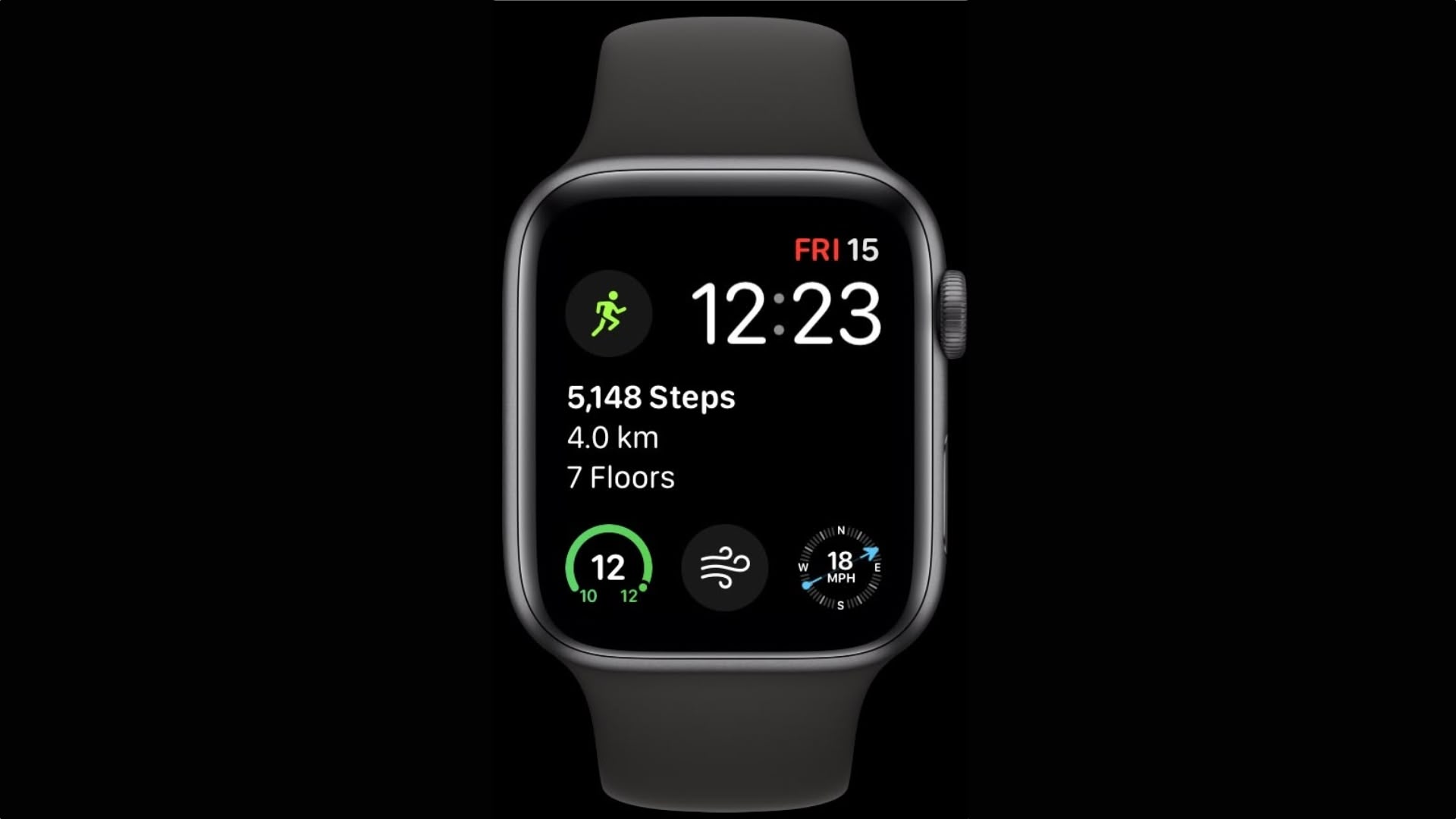
The best way to get a pedometer-like display on your Apple Watch is with the Steps App, a free third-party solution.
How to Install and Set Up Steps App
- On your iPhone, open the App Store.
- Search for Steps App and install it.
- Open the app and tap Continue.
- Grant access to:
– Steps
– Walking & Running Distance
– Flights Climbed - You’ll be redirected to the Health app—tap Allow to confirm.
No account is required. All data stays on your device.
Install on Apple Watch
- Open the Watch app on iPhone.
- Scroll to Available Apps.
- Find Steps App and tap Install.
Wait a moment for it to appear on your watch.
Add a Step Complication to Your Watch Face
Now that the app is installed, add steps to your watch face.
How to Customize Your Watch Face
- Long-press your watch face to enter edit mode.
- Swipe left and tap Edit.
- Tap any complication slot.
- Scroll to S and select:
– Steps
– Steps & Distance
– Steps, Distance, and Floors - Press the Digital Crown to save.
Your step count now appears front and center—no taps needed. The number updates every few seconds, giving you a real-time pedometer experience.
✅ Bonus: This method uses minimal battery and pulls data directly from Apple Health.
Best Watch Faces for Step Tracking
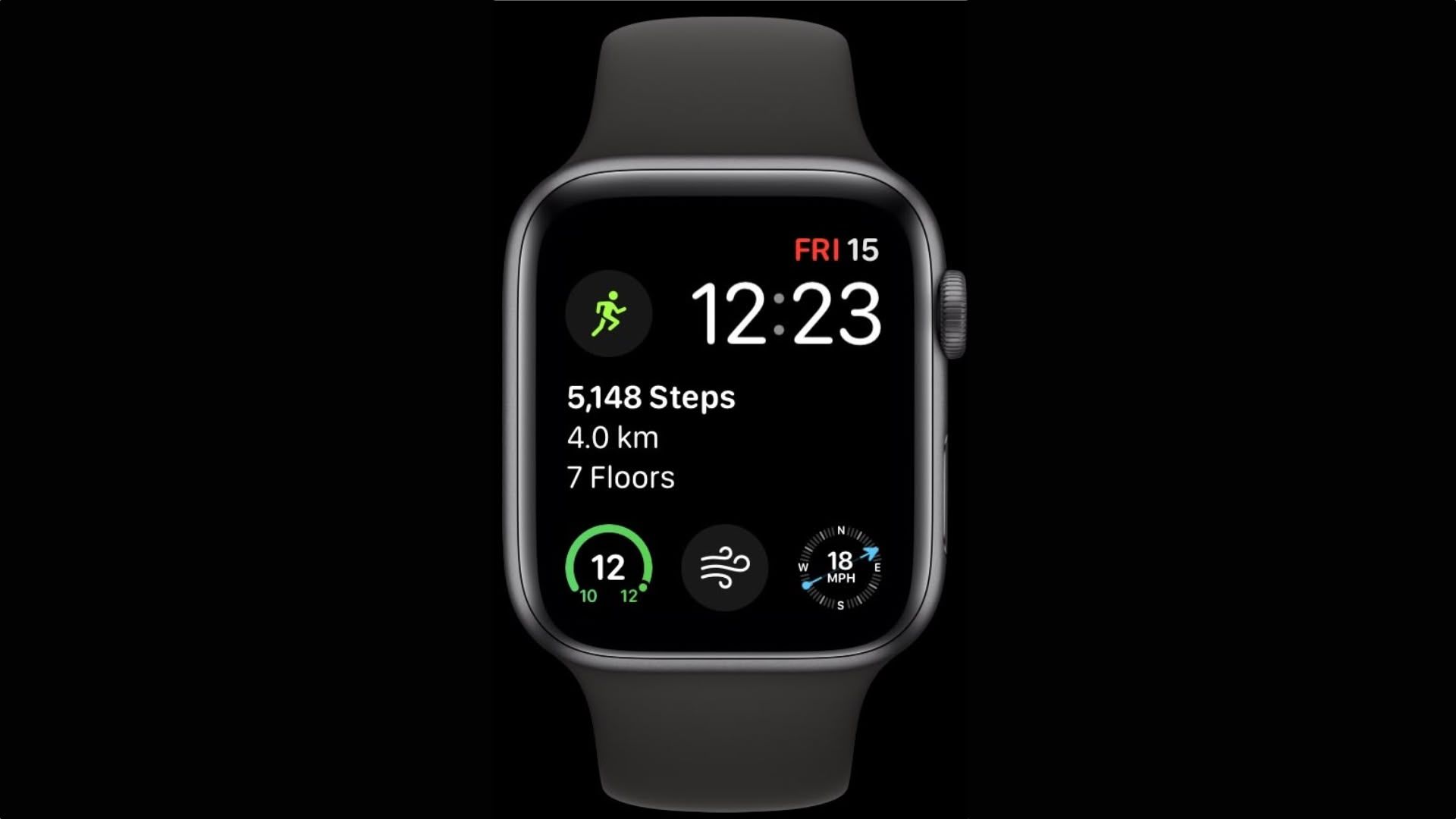
Not all watch faces support large complications. For maximum visibility, use:
| Watch Face | Why It Works |
|---|---|
| Modular | Big center module—perfect for steps |
| Infograph | Multiple small slots for steps, heart rate, weather |
| Contour | Clean, modern look with central space |
| Numerals | Minimalist—ideal for one key metric |
✅ Pro Tip: Use Modular with the large center complication for the clearest, most visible step display.
Alternative Third-Party Apps for Advanced Users
Pedometer++
One of the earliest step-tracking apps for Apple Watch, Pedometer++ offers complications for steps, distance, and floors.
- Free with optional Pro upgrade
- Some users report syncing delays
- May require a restart to sync properly
💬 “Had to restart my watch after installing to get it working.” — User review
Livity
Ideal if you want more than just steps. Livity displays:
– Steps
– Heart rate
– Sleep duration
– Mindfulness minutes
Highly customizable, but subscription-based (free trial available).
HealthFace
The most powerful option. HealthFace lets you display any Health app metric as a complication—including steps, blood oxygen, and custom data.
- One-time purchase or subscription
- Advanced setup, but maximum flexibility
- Perfect for data-driven users
💬 “You can literally put any health stat on your watch face.” — User feedback
Workarounds Without Installing Apps
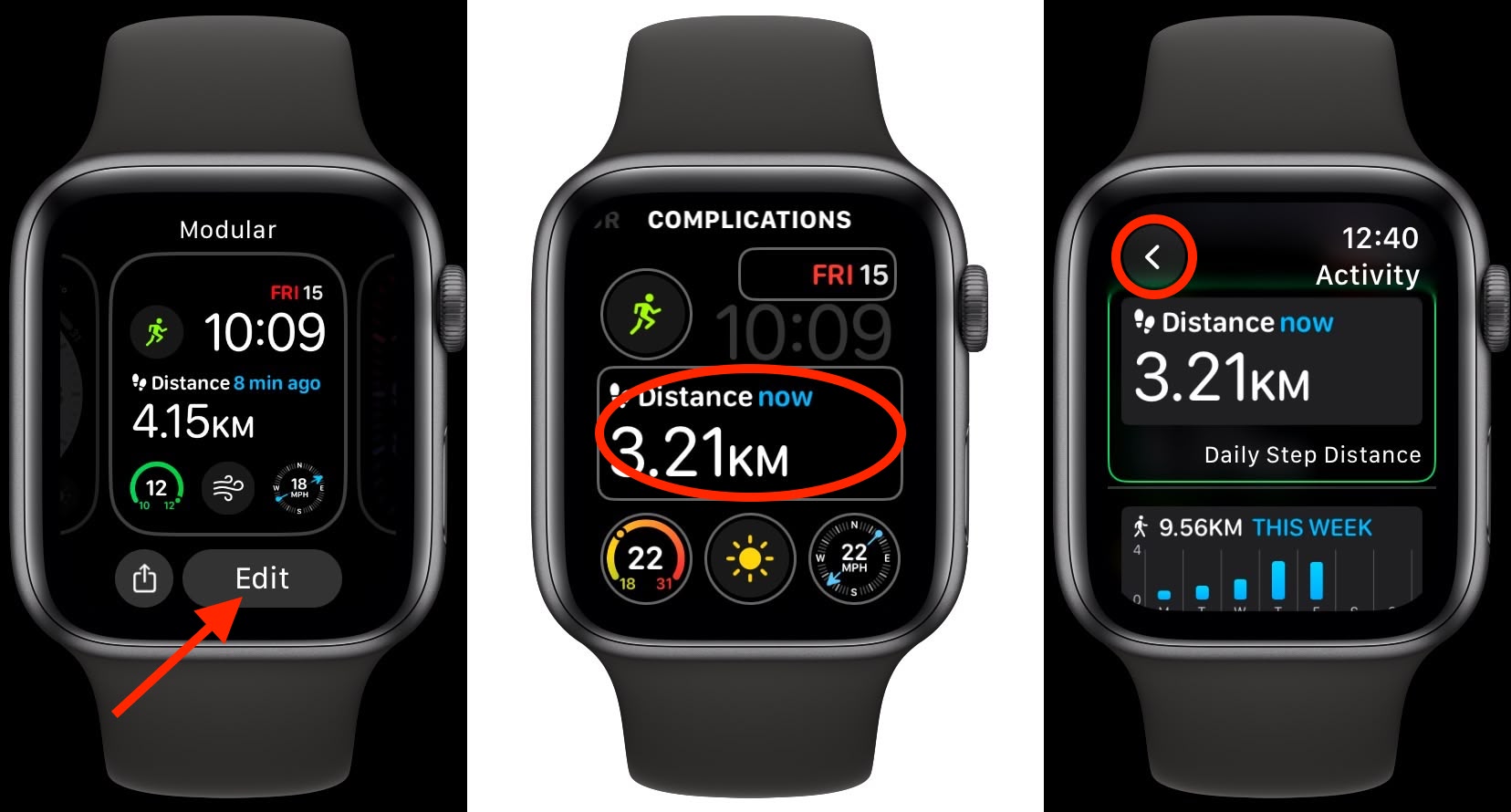
Use the Activity Rings Complication
You can access steps without third-party apps.
- Add the Activity Rings complication to your watch face.
- Tap it.
- Scroll down to see step count, distance, and floors.
⚠️ Drawback: Requires two taps and scrolling—slower than a direct display.
But it’s built-in, accurate, and always available.
Ask Siri for Your Step Count
For hands-free access, use Siri.
- Raise your wrist or say “Hey Siri”.
- Ask:
- “How many steps have I taken today?”
- “What’s my step count?”
Siri pulls from Apple Health—so it’s accurate.
❌ Note: Siri step access isn’t available in all languages or regions.
Still, it’s a quick way to get your total without opening apps.
Use Shortcuts with the Action Button (Apple Watch Ultra)
The fastest way to check steps? Automation.
Create a Step Count Shortcut
- Open the Shortcuts app on iPhone.
- Tap Automation → + → Create Personal Automation.
- Choose Action Button (for Apple Watch Ultra).
- Add action: Get Steps (Today).
- Add Speak Text: “You’ve taken [number] steps today.”
- Save and sync to watch.
Now press the Action Button—your watch speaks your step count instantly.
✅ Best for Ultra users: One press, no screen touch, no app switch.
You can also assign the shortcut to a watch face complication and tap it.
Are Third-Party Apps Accurate?
Yes—but with caveats.
Apple Watch step tracking is highly accurate, using motion sensors and machine learning. Third-party apps pull data from Apple Health, so they don’t count steps independently.
⚠️ Sync Issues Possible: Some apps (like Pedometer++) may show outdated totals if not refreshed.
To fix:
– Force-close and reopen the app
– Restart your Apple Watch
– Ensure watchOS is up to date
For the most accurate count, always cross-check with the Activity app.
Common User Complaints
Many users switching from Fitbit or Garmin express frustration:
💬 “It’s what I miss most about my Garmin.”
💬 “Crazy that I had to download an app just to see steps.”
💬 “This should be built in. It’s my data!”
Despite feedback, Apple has not added native step complications—even in watchOS 11.
But you can get full functionality—with a little setup.
Final Tips for Step Tracking Success
- Use Steps App + Modular Face: Best free combo for real-time display.
- Enable Daily Coaching: Go to Settings → Activity → Daily Coaching for personalized goals.
- Update Software: Keep watchOS and iOS current for best sensor performance.
- Wear Watch Snugly: A loose fit can undercount steps.
- Calibrate for Accuracy: Walk 20 minutes outdoors with iPhone to help Apple Watch learn your stride.
You Can Get a Pedometer on Apple Watch
Despite Apple’s minimalist design, you’re not locked out of step data. With the Steps App, you can add a real-time pedometer to your watch face—free, fast, and reliable. Or, use Siri, Shortcuts, or the Activity Rings complication for quick access without downloads.
The key is knowing where to look—and how to customize. Once set up, your Apple Watch becomes a full-featured step counter, just like any other fitness tracker.
🚶♂️ “Here’s to more walking—and finally seeing your steps!”





