
You lift your wrist to check your progress—only to realize your step count isn’t front and center like it was on your old Fitbit or Garmin. Despite tracking every step you take, Apple does not display steps directly on the Apple Watch face by default. It’s a common frustration: your watch collects the data, yet there’s no built-in way to see your daily step total with just a glance.
But don’t worry—you can still see your steps on your Apple Watch face, thanks to third-party apps that pull data from Apple Health. These apps integrate seamlessly and allow you to add a step counter as a customizable complication on nearly any watch face. Whether you’re training for a 10K, trying to hit 10,000 steps a day, or just want quick access to your activity stats, this guide will show you how to get your step count right where you want it—on your wrist.
You’ll discover the best free and paid apps, step-by-step setup instructions, alternative methods if you’d rather avoid extra apps, and tips to avoid common issues. By the end, you’ll have everything you need to make your Apple Watch work the way you want it to.
Why Apple Watch Doesn’t Show Steps on the Face
Despite being a leader in health tracking, Apple chooses not to include a native step count complication. Here’s why.
Apple Prioritizes Activity Rings Over Step Count
Instead of focusing on raw numbers, Apple promotes its Move, Exercise, and Stand rings as a more balanced measure of daily movement. The company believes that tracking effort, intensity, and consistency throughout the day is more meaningful than fixating on steps alone. This philosophy shapes how data is presented—and what’s left out.
Design Philosophy: Steps Aren’t the Full Picture
Apple argues that step count doesn’t reflect workout intensity, posture, or overall health. A thousand slow steps in the house may technically count, but they don’t equate to fitness. While this makes sense from a wellness standpoint, many users still prefer the simplicity and motivation of seeing their step number climb.
Health Data Isn’t Available in Native Complications
Even though your Apple Watch uses its motion coprocessor to track steps and sync them to the Health app, Apple restricts access to this data in watch face complications. This limitation has remained unchanged through watchOS 10 and 11, despite growing user demand.
“Apple thinks steps are not a good measurement of fitness. Their approach is more complicated and represented by the three rings.” — Reddit user gewappnet
Best Apps to Display Steps on Apple Watch Face
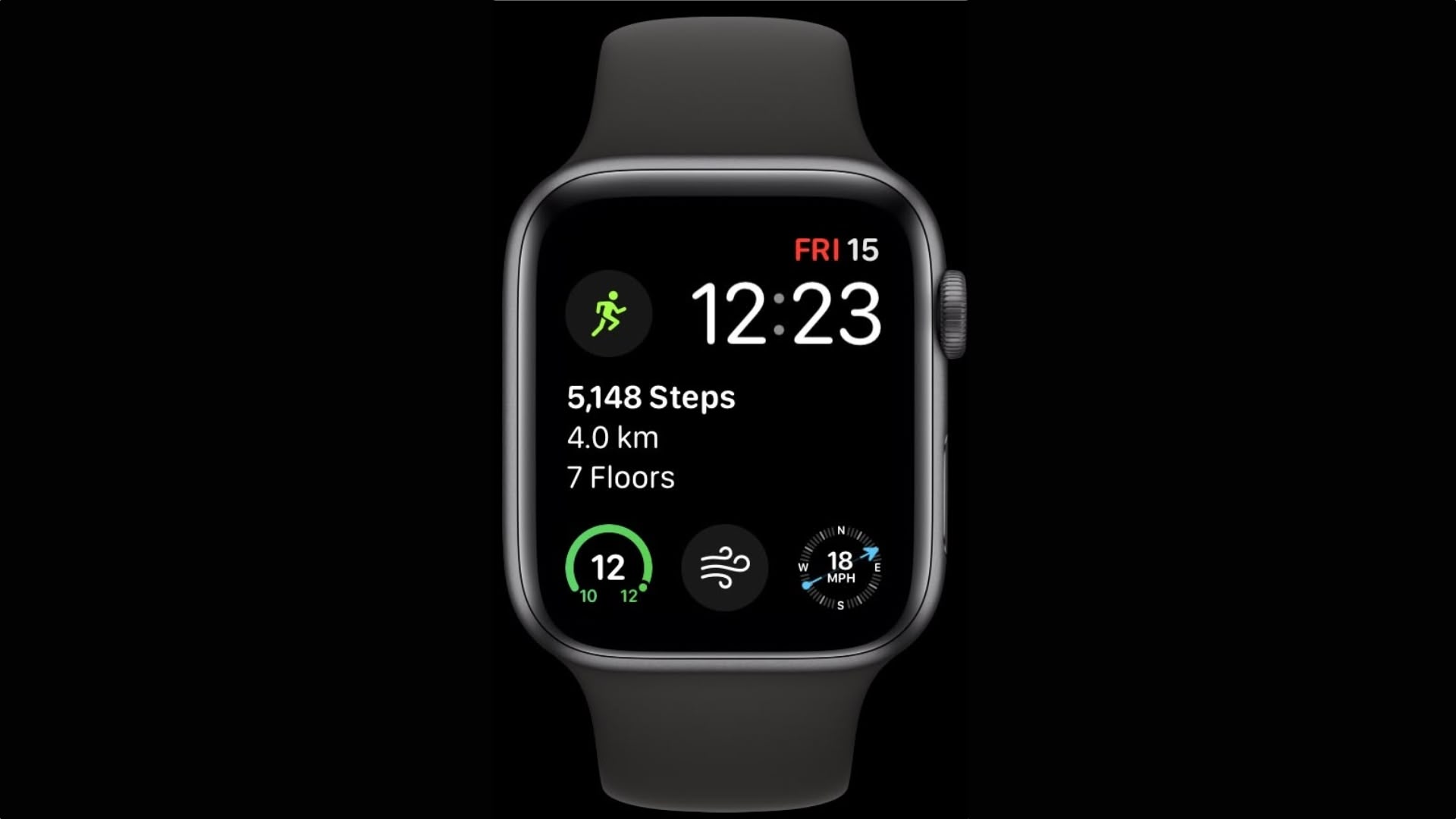
Since Apple won’t do it natively, third-party apps fill the gap. Here are the top options.
Pedometer++ (Free)
Pedometer++ is the most widely used free app for step tracking. It syncs with Apple Health and offers multiple complication styles across all Apple Watch models.
- Real-time step count
- Customizable daily goals
- Works without an iPhone nearby
- Simple, reliable interface
“Just grab a third party pedometer app. I use Pedometer++ — it’s free and has multiple complications.” — Reddit user Guyincognito1972
Steps App (Free)
The Steps App delivers a clean, lightweight experience with accurate step, distance, and floor tracking. It’s perfect for users who want a no-frills solution.
- Minimalist design
- Full Apple Health integration
- No ads or subscriptions
- Easy setup process
Duffy (Free with Optional Premium)
Duffy pulls step data from Apple Health and displays it in a tap-to-refresh format. Ideal for users who want a simple, Fitbit-like experience.
- Sleek, minimalist look
- Background refresh support
- Tap the complication to update
- Lightweight on battery
“Duffy allows you to display your step totals from the Apple Health app directly on your watch face.” — Article 5
Livity (Subscription)
Livity goes beyond steps, letting you display heart rate, sleep, water intake, and more. It’s ideal for users who want a full health dashboard.
- Multiple health metrics
- Highly customizable
- Subscription-based (free trial available)
- Great for power users
HealthFace (Premium)
HealthFace is the most flexible option, allowing you to display any Apple Health data as a complication—including steps, blood oxygen, weight, and hydration.
- Unlimited Health data access
- Works with any watch face
- Premium features require payment
- Called “the best complication support” by users
“Try HealthFace. You can practically put ANY data point stored in Apple Health including steps on watch faces.” — Reddit user watchawatch
How to Add Steps to Your Apple Watch Face
Follow these step-by-step instructions to get your step count visible.
Use Steps App (Free and Easy)
Download and Allow Permissions
- Open the App Store on your iPhone.
- Search for “Steps App” and install it.
- Open the app and allow access to:
– Steps
– Walking & Running Distance
– Flights Climbed
– Active Energy - Tap Allow.
Install on Apple Watch
- Open the Watch app on your iPhone.
- Go to My Watch > Available Apps.
- Find Steps App and tap Install.
Add to Watch Face
- On your Apple Watch, press the Digital Crown.
- Long-press your watch face and tap Edit.
- Tap a complication slot (top or bottom).
- Scroll to S and select Steps App.
- Choose Steps, Distance, and Floors.
- Press Digital Crown to save.
Pro Tip: Use Modular, Utility, or Infograph faces for best visibility.
Use Pedometer++ (Most Popular Free Option)
Install on Apple Watch
- Open the App Store directly on your Apple Watch.
- Search for Pedometer++ and install it.
Set Daily Goal (Optional)
- Open the app on your watch.
- Tap Settings.
- Adjust your step goal.
Add Complication
- Press Digital Crown > long-press face > Edit.
- Tap a complication slot.
- Scroll to Pedometer++.
- Select Steps (usually second option).
- Tap Add.
Troubleshooting: If it doesn’t appear, go to Watch app > My Watch > Apps and ensure installation is enabled. Restart your watch if needed.
Use Duffy (Minimalist Design)
Install and Enable Health Access
- Download Duffy from the iPhone App Store.
- Open the app and allow Motion & Fitness access.
- Grant permissions for steps, distance, and energy.
Install on Watch and Add Complication
- Open Watch app on iPhone.
- Go to My Watch > Available Apps.
- Install Duffy.
- Edit your watch face.
- Select a slot > choose Duffy > Steps > tap Add.
Refresh Steps
- Tap the complication to open Duffy.
- Data updates from Apple Health on launch.
- Background refresh keeps it current.
“I had to ensure it installed on the Watch… and then restart my Watch. Thanks 😊” — Reddit user areHorus
Use Livity or HealthFace (Advanced Users)
These apps let you display multiple health metrics on your face.
- Livity: Steps, heart rate, sleep, and more.
- HealthFace: Any Health app metric, including steps, blood oxygen, and water intake.
“Ended up using Livity because it lets you put a bunch of different health stats on the watch face, not just steps.” — Reddit user Apprehensive-Ad-1919
Alternative: Check Steps Without Third-Party Apps
Prefer not to install extra apps? You can still access your step count—just not directly on the face.
Use the Activity Widget
- On your Apple Watch, swipe up from the watch face.
- Tap the Activity widget.
- Scroll down to see your step count.
Note: Ensure the widget is enabled in Today View settings.
Open the Activity App
- Press the Digital Crown.
- Open the Activity app.
- Scroll down to view your daily step count.
“The fastest way to see steps is to tap the three rings widget and scroll down a bit.” — Reddit user kaeegos
Common User Complaints and Feedback
Many users are vocal about Apple’s decision:
- “It’s my device, and it is measuring that data already. Give me access to my own data.” — Adskii
- “This is the stupidest thing ever. No constant HR or steps.” — djlord7
- “I had Samsung and Garmin before—I can instantly see steps. Crazy that I had to download Pedometer++.” — regoR-7
- “The app literally gives you the info, but won’t let you put it on the home screen.” — stevengarrigus74
Some speculate Apple limits access to encourage third-party app usage, though no official reason has been given.
Compatibility and Requirements
Works With All Models
- Apple Watch Series 1 to Series 11
- All materials (aluminum, stainless steel, Hermès)
- All case sizes (38mm to 49mm)
Software Requirements
- watchOS 4.3.2 or later (including watchOS 10 and 11)
- iPhone 6s or later running iOS 13+
All recommended apps are compatible with current and recent OS versions.
Troubleshooting Common Issues
Delayed Step Updates
- Fix: Tap the complication to force a refresh.
- Enable Background App Refresh in iPhone Settings > General.
Inconsistent Step Count
- Fix: Recheck Health permissions.
- Restart your Apple Watch.
- Ensure the app is up to date.
Subscription Traps
- Fix: Stick with Pedometer++ or Steps App for free, no-strings-attached step tracking.
Battery Drain
- Fix: Disable unnecessary background refresh.
- Use apps that update only when opened.
“Unfortunately it doesn’t show the same value as in the Health app…” — Reddit user Nebucatnetzer
Pro Tips for Best Results
- Choose the right face: Modular for large numbers, Utility for small, centered displays.
- Position matters: Place the step complication at the top or bottom center for easy viewing.
- Check permissions: If steps stop updating, revisit the app’s Health access settings.
- Restart when stuck: A simple reboot fixes most sync issues.
- Test multiple apps: Try Pedometer++, Steps App, and Duffy to find your favorite.
Summary: Best Ways to See Steps on Apple Watch Face

| Method | App Required | Real-Time | Free | Best For |
|---|---|---|---|---|
| Pedometer++ | Yes | Near real-time | ✅ | Most popular, reliable |
| Steps App | Yes | Real-time | ✅ | Clean, easy setup |
| Duffy | Yes | Tap to refresh | ✅ | Minimalist users |
| Livity | Yes | Real-time | ❌ | Multiple health stats |
| HealthFace | Yes | Varies | ❌ | Full Health data access |
| Activity Widget | No | Manual check | ✅ | No app installation |
| Activity App | No | Manual check | ✅ | Most accurate data |
Final Thoughts
While the Apple Watch tracks every step you take, seeing that number on your watch face isn’t built-in. It’s a missing feature that frustrates many, especially those coming from Fitbit, Garmin, or Samsung watches.
But with third-party apps like Pedometer++, Steps App, or Duffy, you can easily add a step counter to your watch face. They pull data from Apple Health and display it right where you want it—front and center.
Until Apple changes its mind, these apps are your best bet for real-time, glanceable step tracking. Set one up today, and take control of your fitness data—right from your wrist.





