
You raise your wrist expecting to see your daily step count—just like on a Fitbit—but there’s no number in sight. You’re not imagining it: Apple Watch doesn’t show steps on the watch face by default. But here’s the truth—your Apple Watch is tracking every step you take. The data is accurate, reliable, and already stored. It’s just buried under layers of menus and Apple’s unique fitness philosophy.
If you’ve ever asked, how to see steps on Apple Watch, you’re not alone. Millions of users struggle with this same gap between tracking and visibility. The good news? You can fix it in under five minutes. This guide reveals every method—native and third-party—to bring your step count front and center. From using the built-in Activity app to adding real-time complications with free apps like Duffy and DailySteps, you’ll learn how to get Fitbit-style step visibility on your wrist—without paying a dime.
Whether you’re tracking for health, rehab, or personal goals, this guide delivers tested, step-by-step solutions that work across all Apple Watch models and watchOS versions.
Access Steps in Activity App
The most reliable native way to see steps is through the built-in Activity app. While it doesn’t show steps instantly, it provides accurate, real-time data with just a few taps.
Open Activity App from Home Screen
- Press the Digital Crown to go to your app grid.
- Tap the Activity app icon—it looks like three colored rings (red, green, blue).
- Wait for the rings to animate—this confirms the app is loading.
Tip: If you see “Get Started,” tap it once. This activates the full summary page where step data appears.
Scroll to View Step Count
Once inside:
– Use a two-finger swipe up or slowly turn the Digital Crown upward.
– Keep scrolling until you reach the Summary page.
– Here, you’ll see:
– Total steps today
– Distance walked or run
– Flights climbed
– Active calories burned
– Exercise minutes
– Stand hours
Pro Tip: The two-finger flick is faster than using the Digital Crown. With practice, you can view your steps in under 3 seconds.
Return to Watch Face Quickly
After checking your progress:
– Press the Digital Crown once to return to the home screen.
– Or press the side button, then tap your watch face to go back instantly.
Warning: Don’t force-close the app—this can delay data syncing.
Use Activity Complication on Watch Face
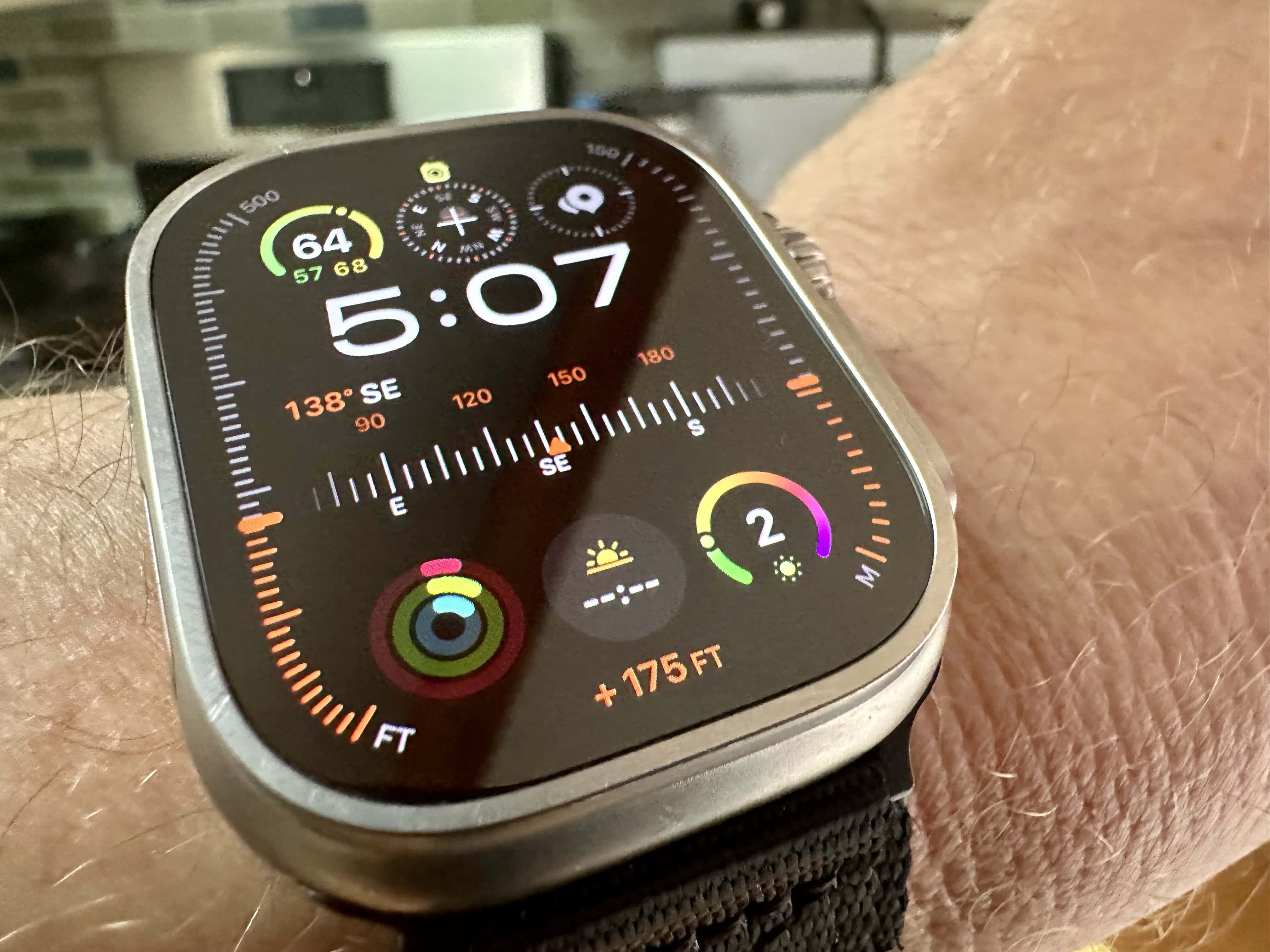
Even without a native step counter, you can get one-tap access to your step data using the Activity app’s complication.
Add Activity Complication to Watch Face
- Press and hold your current watch face.
- Tap “Customize”.
- Select a complication slot (e.g., bottom center).
- Scroll to find the Activity complication (three rings).
- Assign it to your chosen position.
- Press the Digital Crown to save.
Tap to Open Step Summary
With the complication in place:
– Tap the three-ring icon on your watch face.
– Swipe up to reveal steps, distance, and flights climbed.
Best Watch Faces: Modular, Infograph, and X-Large offer large, readable complication spaces—perfect for quick data checks.
Troubleshoot Blank or Stuck Data
If the complication shows “0” steps:
– Open the Activity app manually to force a refresh.
– Ensure your watch is worn snugly—loose fit can pause motion detection.
Enable Activity Glance for Fast Access
Glances let you swipe up from any watch face to see key info. The Activity Glance is ideal for users who want instant access without opening apps.
Activate Activity Glance
- On your iPhone, open the Watch app.
- Go to My Watch > Glances.
- Ensure Activity is enabled and near the top.
- On your Apple Watch, swipe up from the bottom of the screen.
Use Glance to Open Activity
- Swipe left/right to find the Activity Glance.
- Tap it to jump directly into the Activity app.
- Swipe up to view step count.
Note: Glances are being phased out in newer watchOS versions. Use this method only if available on your device.
Install Third-Party Step Apps for Instant Visibility
If you want steps visible every time you raise your wrist, third-party apps are the solution. These apps pull step data from Apple Health and display it directly on your watch face.
Why Use a Third-Party App?
- See steps at a glance—no tapping or scrolling
- Mimic Fitbit-style tracking
- Work independently of iPhone
- Free, no ads, no subscriptions
Key Insight: Apple doesn’t block step tracking—it just doesn’t prioritize it. Third-party apps fill that gap perfectly.
Add Step Complication to Watch Face
This is the best method for real-time step visibility. Once set up, your step count appears every time you raise your wrist.
Choose a Compatible Watch Face
Not all faces support third-party complications. Best options:
– Modular – Large center or bottom module for big numbers
– Chronograph – Subdial can show step count
– Infograph – Multiple slots for data
– X-Large – Maximum readability
Steps to Add a Step Complication
- Press and hold your watch face to enter Edit mode.
- Swipe to select a face (e.g., Modular).
- Tap “Customize”.
- Select a complication position.
- Scroll to the “S” section.
- Choose your step app (e.g., Duffy, StepsApp, DailySteps).
- Pick “Steps” as the display type.
- Press Digital Crown to save.
Pro Tip: Use Modular with a large bottom complication for the clearest readout.
Top Free Apps for Step Visibility
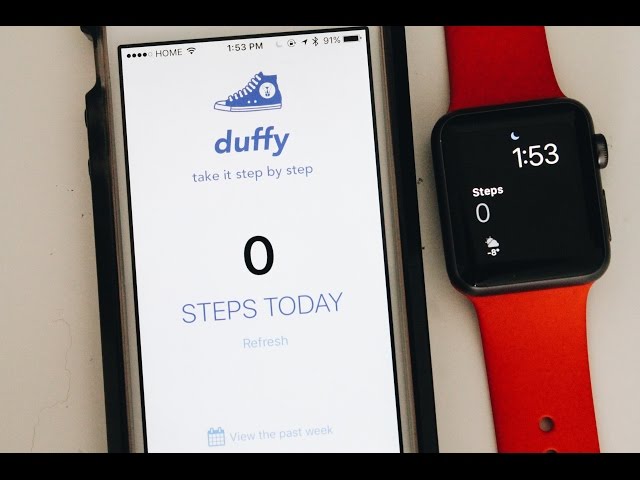
These apps are trusted, free, and reliable—pulling accurate step data from Apple Health and displaying it on your watch face.
Duffy – Best Overall Step App
- Free, no ads, no subscription
- Pulls data directly from Apple Health
- Works standalone on watch—no iPhone needed
- Complication updates every 10–15 minutes
- Clean, minimalist design
User Verdict: “It’s like having a Fitbit on my Apple Watch.”
DailySteps – Simplest Option
- Designed for one purpose: show steps
- No extra features, no bloat
- Real-time complication on watch face
- Free and open-source
- Download on App Store
Ideal For: Seniors, beginners, ex-Fitbit users
StepsApp – Most Customizable
- Free core features
- Choose what to display: steps, distance, or floors
- Works with Modular, Chronograph, Infograph
- Syncs via HealthKit
- Highly rated for reliability
Setup StepsApp
- Install StepsApp from iPhone App Store.
- Open app, grant access to:
– Steps
– Walking & Running Distance
– Flights Climbed - Open Watch app on iPhone.
- Go to My Watch > Apps > StepsApp > Install.
- Customize watch face and add complication.
Tip: Use “Steps” format for largest, clearest number.
Pedometer++ – For Advanced Users
- Popular among tech-savvy users
- Real-time step tracking
- Includes Sleep++ for sleep monitoring
- Complication available
Limitations
- May show sync delays (up to hours)
- Some users report blank complications until app is opened
- Still reliable, but less instant than Duffy or DailySteps
Best For: Users already in David Smith’s app ecosystem
Pedometer by Substantial-Pain1199 – Standalone Tracker
- Runs entirely on Apple Watch
- No iPhone required
- Tracks steps even when phone is off
- Minimal UI, high accuracy
- Verified to work offline
Use Case: Hiking, running, or anytime you leave your phone behind
Understand Apple’s Step Tracking Limits
Apple doesn’t hide steps to frustrate you—it reflects a different fitness philosophy.
Why No Native Step Complication?
- Apple focuses on active calories (Move ring), exercise minutes, and heart health
- CDC guidelines emphasize 150 mins/week of activity, not 10,000 steps
- Steps are seen as less reliable than energy burn for measuring effort
- Goal: Encourage sustained movement, not step counting
Reality Check: 10,000 steps is a marketing myth, not a medical standard.
Steps Are Still Tracked Accurately
- Apple Watch uses accelerometer + gyroscope to detect arm swing
- Data synced to Health app on iPhone
- Accurate within 2–5% under normal conditions
- Worn snugly, it outperforms most pedometers
Pro Tip: Wear watch 1–2 finger widths above wrist bone for best sensor contact.
Fix Delayed Step Updates
Third-party complications often show 10–15 minute delays—not because of the app, but due to Apple’s HealthKit API limits.
Why Delays Happen
- Apple restricts how often apps can pull Health data
- To save battery, updates are batched and delayed
- Most apps sync every 10–15 minutes
- Pedometer++ may lag hours if background refresh is throttled
Force a Manual Sync
To see real-time steps:
– Open the step app directly on your watch
– Wait 2–3 seconds—the number should update
– Return to watch face to see refreshed complication
Workaround: Make it a habit to open the app after a walk or run.
View Step History and Trends
Want to track progress over time? Apple makes it easy to review your step patterns—just not in the way you might expect.
Check Weekly Summary on Apple Watch
- Open Activity app
- Tap the graph icon (top right)
- View:
– Daily average steps
– Weekly total steps
– Ring closure rate
– Exercise consistency
Use Case: Great for weekly check-ins or sharing with your doctor.
Analyze Trends in Fitness App (iPhone)
- Open Fitness app on iPhone
- Tap Trends
- View 90-day trends for:
– Active calories
– Exercise minutes
– Stand hours
– Walking distance (proxy for steps)
Note: Steps aren’t labeled directly, but walking distance correlates strongly with step count.
Explore Step History in Health App
- Open Health app on iPhone
- Go to Health Data > Activity > Steps
- View:
– Daily, weekly, monthly charts
– Averages and peaks
– Export data (for doctors or fitness coaches)
Bonus: Tap “Show on Dashboard” to pin steps for quick access.
Compare Native vs Third-Party Access
| Feature | Native (Activity App) | Third-Party (Duffy, DailySteps) |
|---|---|---|
| See steps on watch face | ❌ No | ✅ Yes (with complication) |
| Real-time glance | ❌ Requires tap + scroll | ✅ Instant visibility |
| iPhone required? | ✅ For sync | ❌ Most work standalone |
| Update speed | ✅ Immediate in app | ⚠️ 10–15 min delay |
| Cost | Free | Free (no subscriptions) |
| Setup effort | Low | Medium (install + customize) |
| Accuracy | ✅ High | ✅ High (uses Apple Health) |
| Best for | General users | Step-focused users |
Verdict: Use third-party apps if you want Fitbit-style convenience.
Final Recommendations
✅ Best Solution: Use Duffy or DailySteps
For most users, the fastest path to step visibility is:
1. Install Duffy or DailySteps from App Store
2. Grant Health permissions (Steps, Distance, Flights)
3. Add complication to Modular or X-Large watch face
4. Wear watch snugly for accurate tracking
Result: Step count visible every time you raise your wrist—no tap, no scroll.
Bottom Line: Apple Watch tracks steps accurately—it just doesn’t show them easily. With Duffy or DailySteps, you can fix that in under 5 minutes. Install, customize, and start seeing your steps at a glance.





