
You’ve just unboxed your new Apple Watch, or maybe you found one tucked away in a drawer after months of inactivity. Now you’re pressing buttons, but the screen stays black. Don’t panic—knowing how to turn on an Apple Watch properly is the first step to getting it working again. Whether it’s a fresh setup or a revival after a long battery drain, the process is simple once you know what to do.
Unlike iPhones, Apple Watches don’t have a traditional power switch. Instead, they rely on a single side button and smart charging logic. If your watch isn’t responding, the culprit is almost always a low battery, not a hardware flaw. This guide walks you through the exact steps to power on any Apple Watch model—from the Apple Watch SE (1st and 2nd gen) to Series 9 and Ultra 2—and troubleshoot when it won’t wake up. You’ll also learn how to interpret charging symbols, avoid common mistakes, and keep your display active once it’s on.
Power On Your Apple Watch: The Standard Method
Turning on your Apple Watch is straightforward—if the battery has enough charge.
Press and Hold the Side Button Until the Apple Logo Appears
- Locate the side button on the right edge of the watch, just below the Digital Crown.
- Press and hold it firmly for 5 to 10 seconds.
- Keep holding until you see the white Apple logo appear on the screen.
- Once it shows, release the button and wait for the watch face to load.
This method works for all Apple Watch models, regardless of generation. Even if the screen is completely black, don’t assume it’s broken. A deeply drained battery may take time to respond, so patience is key.
✅ Pro Tip: If your watch has been off for weeks, charge it for at least 15 minutes before attempting to power it on. A full shutdown often means the battery is near zero.
Apple Watch Won’t Turn On? Try These Fixes

If nothing happens when you press the side button, don’t give up. Most “dead” Apple Watches are simply out of power or frozen.
Charge Before Attempting to Power On
A completely drained battery is the most common reason an Apple Watch won’t turn on.
- Connect your watch to its magnetic charging cable.
- Plug the cable into a reliable power source—preferably a wall adapter, not a laptop USB port.
- Wait 15 to 30 minutes before trying to turn it on again.
Look for these visual cues on the screen:
– Green lightning bolt = charging normally.
– Red lightning bolt = battery is critically low; charging has started but may take minutes to register.
– No symbol? Check alignment—make sure the back of the watch is flush with the charger.
⚠️ Warning: Don’t stop charging after 10 seconds. Some users report no response for several minutes, especially after long storage.
Try a Different Charger or Cable
Faulty charging equipment is often mistaken for device failure.
- Swap in a different Apple-certified magnetic charger.
- Use a USB-C power adapter instead of USB-A—many users report more consistent power delivery.
- Test the cable with another Apple Watch or device to confirm it works.
🔄 Real-World Insight: One user received a replacement Apple Watch that wouldn’t turn on. After switching to a USB-C charger and leaving it overnight, the device powered up successfully.
Force Restart While Charging
If the screen remains black, a forced restart can revive a frozen system.
Hold Side Button + Digital Crown for 10+ Seconds
- Keep the Apple Watch on the charger.
- Press and hold both the side button and the Digital Crown at the same time.
- Hold for at least 10 seconds, even if nothing appears.
- Release when the Apple logo shows up.
This combination resets the operating system and can jump-start a device that seems unresponsive—even with a low battery.
✅ Expert Note: This works even if the watch appears “dead.” Never stop holding before 10 seconds—many users quit too early.
Why Your Apple Watch Might Still Not Power On
Even after following the correct steps, some factors can block startup.
Insufficient Charge
A green lightning bolt means charging has started, but the battery may still lack enough power to boot. A fully drained battery can take 30+ minutes to reach startup level.
🕒 Time Tip: If you’re in a hurry, charge for at least 30 minutes before retrying the power-on process.
Damaged or Non-Certified Charger
Third-party or frayed cables may deliver inconsistent power. Always use Apple-certified chargers for reliable performance.
❌ Avoid cheap magnetic chargers—they may connect but fail to deliver proper voltage.
Extreme Temperatures
Apple Watches are sensitive to temperature extremes:
– Below 32°F (0°C): Battery efficiency drops sharply.
– Above 95°F (35°C): The device may enter thermal shutdown.
🧊 If your watch was stored in a cold car or hot garage, bring it indoors and let it stabilize for an hour before charging.
Hardware Failure (Rare)
If:
– Multiple chargers fail,
– Force restart doesn’t work,
– And no charging symbols appear,
the issue may be internal—such as a failed battery or logic board. In this case, contact Apple Support for diagnostics or repair.
Understand Charging Indicators at a Glance
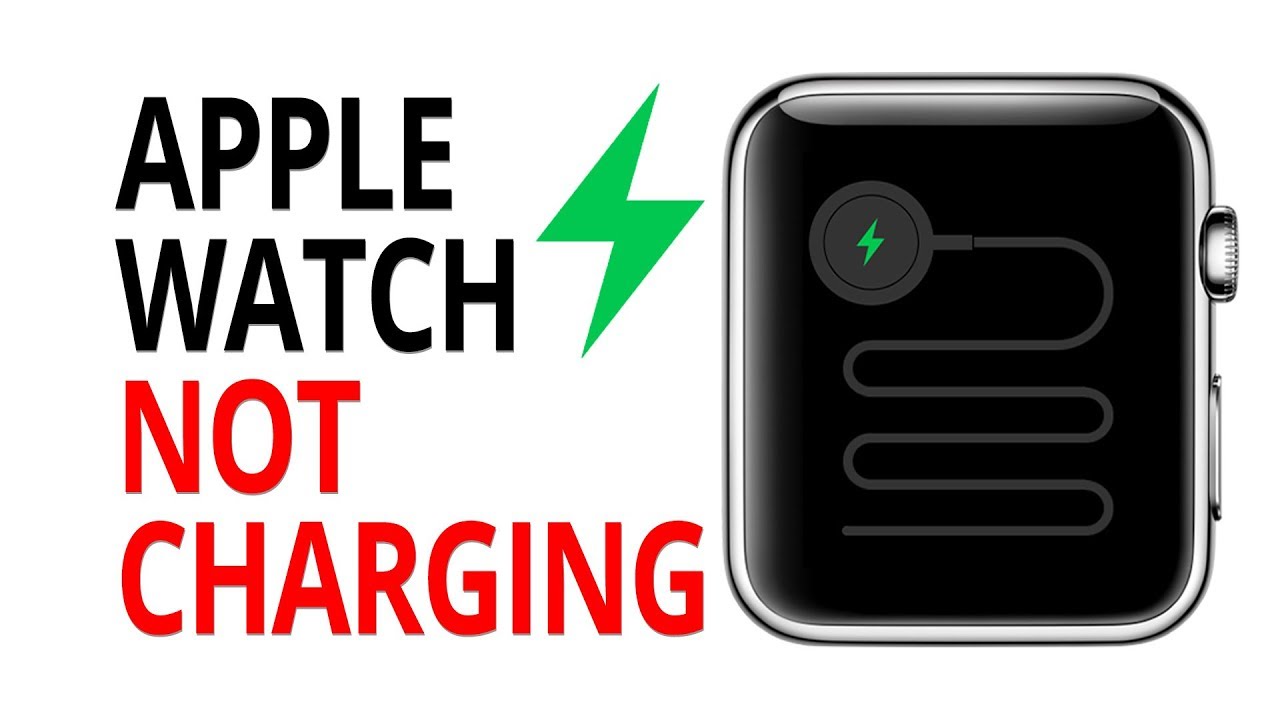
Knowing what the screen symbols mean helps you troubleshoot faster.
| Symbol | Meaning |
|---|---|
| Green lightning bolt | Charging normally—good sign |
| Red lightning bolt | Battery empty—wait a few minutes for green |
| No light or symbol | Not charging—check alignment, cable, or power source |
🔍 Visual Check: Ensure the magnets on the charger are fully connected to the back of the watch. A small gap can prevent charging.
Wake the Display After Powering On
Once your Apple Watch is on, you need to wake the screen to interact with it.
How to Wake the Screen
- Raise your wrist (default setting)
- Tap the display
- Press the Digital Crown
- Rotate the Digital Crown
If the screen doesn’t wake, check:
– Battery level (could be draining fast)
– Theater Mode (disables wrist raise)
💡 Theater Mode Tip: If you see a purple theater masks icon at the top of the screen, swipe up and tap the mask to disable it.
Adjust How Long the Screen Stays On
Control display duration to balance usability and battery life.
- Open Settings on the watch.
- Go to Display & Brightness > Wake Duration.
- Choose:
– Shorter (default)
– Wake for 70 Seconds
Use the longer option when reading messages, tracking workouts, or navigating.
Disable Automatic Wake Features
To save battery or prevent accidental wakes:
- Turn off Wake on Wrist Raise in Settings > Display & Brightness
- Disable Wake on Crown Rotation in the same menu
You can still manually wake the screen by tapping or pressing the Crown.
Enable Always On Display (If Supported)

On most models, the Always On feature keeps the watch face visible even when your wrist is down.
❌ Not available on Apple Watch SE (2nd generation)
To turn it on:
- Open Settings
- Tap Display & Brightness > Always On
- Toggle it on
You can also set it to dim when wrist is down for better battery life.
⚡ Battery Note: Always On turns off automatically in Low Power Mode
Return to App or Clock After Inactivity
After the screen sleeps, decide what appears when you wake it.
Return to Last Used App
Supported apps include:
– Music
– Workout
– Maps
– Stopwatch
– Podcasts
– Timers
To enable:
– Go to Settings > General > Return to Clock
– Select the app
– Choose Return to App
Return to Clock Face Automatically
Set a delay:
– Always
– After 2 minutes
– After 1 hour
Or customize per app under Custom settings.
🏃♂️ Pro Tip: Set Workout app to return after 1 hour, but Music to return immediately.
Press the Digital Crown anytime to jump back to the home screen.
Turn Off Apple Watch (When Needed)
Unlike turning on, powering down requires a slider.
Power Down Steps
- Press and hold the side button until sliders appear.
- Tap the Power Off slider at the top right.
- Swipe right to confirm.
⚠️ You cannot turn off the Apple Watch while it’s charging.
💡 Fun Fact: Even when powered off, pressing and holding the Digital Crown will temporarily show the time.
Summary: Key Actions at a Glance
| Action | How to Do It |
|---|---|
| Turn On | Hold side button until Apple logo appears |
| Force Restart | Hold side button + Digital Crown for 10+ seconds |
| Check Charging | Look for green (charging) or red (low battery) lightning bolt |
| Wake Screen | Raise wrist, tap display, or press Digital Crown |
| Fix No Power | Charge 30 min, try new cable, force restart |
| Enable Always On | Settings > Display & Brightness > Always On (excludes SE 2nd gen) |
Real-World Tips from Users
- Some users couldn’t power on their watch after a full night of charging—switching to a USB-C charger solved the issue.
- Others revived “dead” watches by leaving them on a strong charger overnight, even though Apple Watch only uses 5W.
- A few reported success only after trying multiple cables, proving that charger quality matters.
- In rare cases, Apple replaced the device after confirming internal battery or logic board failure.
Final Recommendations
To ensure your Apple Watch turns on reliably:
✅ Always use Apple-certified charging accessories
✅ Charge for at least 30 minutes if battery is drained
✅ Try a force restart (side button + Digital Crown) if unresponsive
✅ Test with different cables and power adapters
✅ Avoid extreme temperatures during storage and charging
✅ Visit Apple Support if all else fails
With the right steps, nearly every Apple Watch can be powered on—even after long periods of inactivity. The key is patience, proper charging, and knowing when to force a restart. Now that you know exactly how to switch on an Apple Watch, you’re ready to get back to tracking, calling, and staying connected.





