
You’re mid-workout, meditating, or trying to sleep — and suddenly your Apple Watch lights up with a full-screen call alert. Even if you’ve silenced it, the “Answer” and “Decline” buttons still pop up, exposing the caller’s name to anyone nearby. You’ve turned off sounds, vibrations, and notifications — but the visual interruption remains. If you’re wondering how to stop getting calls on Apple Watch, you’re not alone.
The frustrating truth: Apple does not allow users to fully disable incoming call displays through standard settings. This isn’t a bug — it’s by design. No matter how many notification toggles you switch off, the watch will still wake up and show who’s calling. But that doesn’t mean you’re powerless. While there’s no perfect built-in solution, several tested workarounds can silence calls completely — audio, vibration, and screen alerts alike.
In this guide, you’ll learn exactly how to stop call interruptions using Do Not Disturb, Bluetooth disablement, and cellular toggles. You’ll also discover what actually works (and what doesn’t), how newer watchOS versions are making it harder, and how to transform your Apple Watch into a private health tracker without communication distractions.
Silence Call Alerts: Stop Sound and Vibration Only
If you’re okay with the call screen appearing but want to eliminate noise and buzz, this method will help — but it won’t solve the core problem.
Disable Sound and Haptics in the Watch App
- On your iPhone, open the Watch app.
- Tap My Watch > Phone.
- Select Custom (do not use “Mirror my iPhone”).
- Under Notifications, toggle Notifications to Off.
- In Alerts, disable both Sound and Haptic.
- In Ringtone, turn off both Sound and Haptic.
✅ Stops: Ringtone, haptic feedback
❌ Still shows: Full incoming call screen with caller ID and answer buttons
Reality check: This is the most common fix shared online — but it fails to stop the visual alert. Your watch still wakes up, potentially exposing private caller information. If you’re using your watch during meetings, workouts, or in public, this isn’t enough.
This setup may reduce disturbance, but the call screen will still appear every time your iPhone rings. Apple treats call handling as non-negotiable, so even with all alerts off, the interface remains active.
Use Do Not Disturb to Block All Call Alerts (Best Workaround)
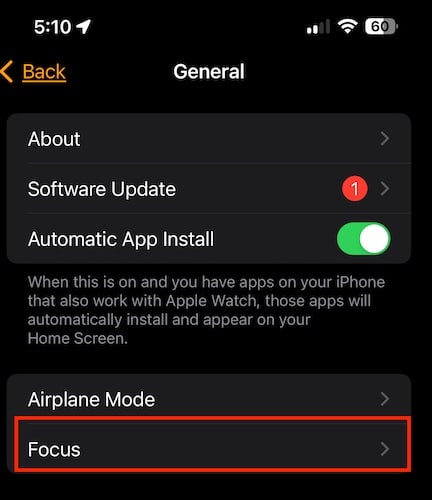
This is the most effective method to prevent the call screen from appearing at all — but it requires careful setup.
Enable Watch-Only Do Not Disturb
- On your Apple Watch, open Settings.
- Tap Focus.
- Scroll down and turn off “Mirror my iPhone”.
– This keeps your iPhone fully functional while silencing the watch. - Press the Digital Crown to return to the watch face.
- Swipe up to open Control Center.
- Tap the purple crescent moon icon and select Do Not Disturb.
✅ Stops: Sound, haptics, and visual call screen
✅ iPhone continues to ring normally
⚠️ Also silences: Texts, emails, and all other notifications
Pro Tip: Create a custom Focus mode called “Fitness” or “Silent Mode” that blocks calls and messages but allows health alerts like heart rate notifications.
Warning: On watchOS 11 (Series 10/11), some users report this method works inconsistently. One tester noted: “They definitely do [show calls] on my Series 11. They didn’t on my Series 7.” Apple may be weakening Do Not Disturb’s ability to block calls in newer firmware.
Despite the inconsistency, Do Not Disturb remains the closest thing to a true fix — as long as you disable iPhone mirroring. If “Mirror my iPhone” is on, your watch will still display calls when your phone is set to ring.
Cut the Connection: Disable Bluetooth to Stop All Calls
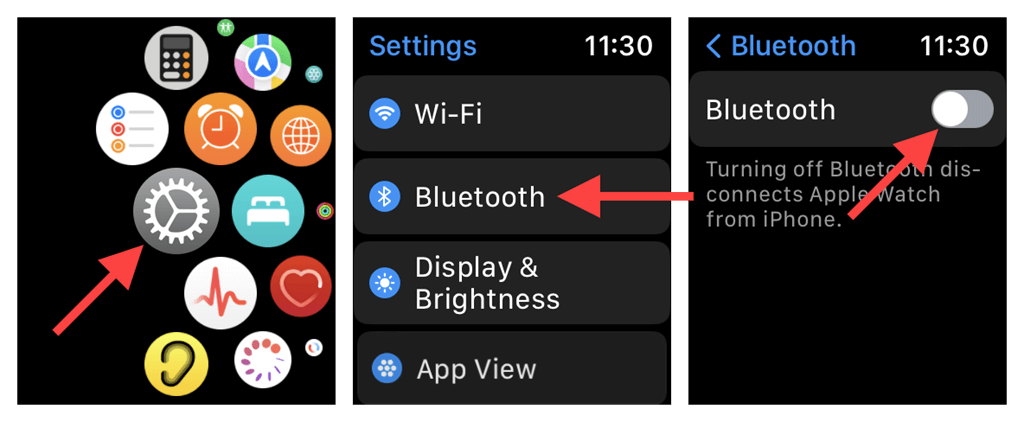
If you want to use your Apple Watch purely for health tracking, this method breaks the link between your iPhone and watch.
Turn Off Bluetooth
- On iPhone: Go to Settings > Bluetooth → Toggle off
- On Apple Watch: Open Settings > Bluetooth → Toggle off
✅ Stops: All mirrored calls, texts, and iPhone alerts
✅ Watch still works for: Time, heart rate, workouts, sleep tracking
⚠️ Loses: Real-time syncing, remote camera, Apple Pay (if iPhone is out of range)
Best for: Gym sessions, meditation, or sleep — when you don’t need connectivity
With Bluetooth off, your Apple Watch becomes a standalone device. No incoming calls will appear — not even from your iPhone. However, you won’t see missed calls or messages until the connection is restored.
User Benefit: Total call silence without relying on software workarounds
Trade-off: You sacrifice convenience for privacy and focus
Turn Off Cellular on Cellular Models
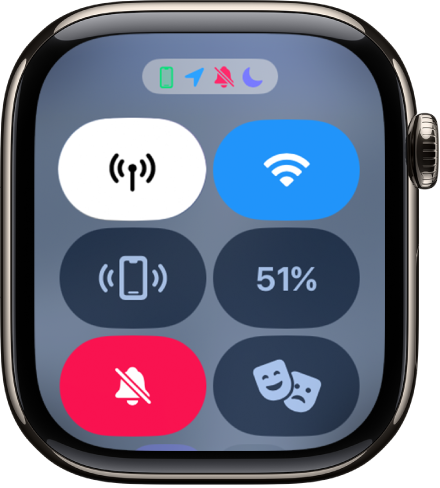
If you own a cellular Apple Watch, calls can come in even when your iPhone is off or out of range.
Disable Cellular Calls
- On Apple Watch, swipe up from the watch face to open Control Center.
- Tap the LTE/Cellular icon to disable it.
– Or go to Settings > Cellular → Toggle off
✅ Stops: Standalone calls via cellular network
⚠️ Doesn’t stop: iPhone-mirrored calls if Bluetooth is active
For full silence: Combine with Bluetooth off or Do Not Disturb
With both Bluetooth and Cellular disabled, your Apple Watch becomes a fully isolated device — no calls, no texts, no alerts. It functions like a premium fitness band with full health monitoring but zero interruptions.
Hide Lingering Call UI: Disable Live Activities
Even after a call ends, a floating “Phone” card may linger in your app switcher, visible when you double-click the Digital Crown.
Disable Live Activities for Phone
- On iPhone, open Watch app.
- Go to My Watch > Smart Stack.
- Find Phone in the list.
- Toggle “Allow Live Activities” to Off.
✅ Result: The floating call card disappears from recent apps
❌ Does not stop incoming call screen during a live call
User Observation: “Once I did this, the tab/floaty square for the Phone disappeared.”
Limitation: This is purely cosmetic — it doesn’t affect real-time call behavior
Still, removing post-call clutter improves the user experience, especially if you want a clean, minimal interface.
Can You Use Apple Watch for Fitness Only?
Many users want to use the Apple Watch only for health and fitness — not as a communication device.
Recommended Setup for Health-Only Mode
| Goal | How to Achieve It |
|---|---|
| Stop calls | Use Do Not Disturb (watch-only) or disable Bluetooth |
| Stop texts | Watch app > Messages > Custom > Notifications Off |
| Stop emails & apps | Disable notifications individually in Watch app |
| Keep health features | All sensors work independently |
| Maintain privacy | Caller ID never appears on screen |
Ideal for: Seniors, fitness enthusiasts, mindfulness users
Trade-off: You must manually toggle settings when you want alerts back
This setup turns your Apple Watch into a near-pure health tracker, though it requires discipline to manage connectivity and Focus modes.
Why Apple Won’t Let You Disable Call Screens
This isn’t an oversight — it’s intentional design.
- Apple views call answering as a primary smartwatch function
- The incoming call screen appears even when all alerts are off
- No setting exists to hide it completely
- Consistent across all models (Series 7, 10, 11) and watchOS versions
User Frustration:
“Such a simple freaking problem, but such a shit job from Apple.”
“I don’t want people seeing my business.”
Apple offers granular control over apps, complications, and notifications — but not for calls. Until a future update adds a “Hide Incoming Calls” toggle, users must rely on workarounds, not solutions.
What Doesn’t Work (Save Yourself the Time)
Don’t waste time trying these — they don’t stop the call screen:
- Setting Phone to Custom with notifications off
- Turning off Mirror my iPhone
- Disabling Ringtone and Haptics
- Using Silent Mode (side switch) — this only mutes sound, not visuals
Myth: “If I turn off notifications, the call won’t show.”
Truth: It still appears. Always.
No amount of notification tweaking will stop the visual call interface. The screen will still light up with the caller’s name and answer buttons.
watchOS 11 Changes: Getting Worse?
Early reports suggest Do Not Disturb is less reliable in blocking call screens on newer systems.
- Tested on Series 10 with watchOS 11: Call screen appeared despite Do Not Disturb being active
- User report: “They definitely do [show calls] on my Series 11. They didn’t on my Series 7.”
Apple may be tightening call visibility — possibly to promote seamless connectivity. This makes workarounds less consistent over time.
Best Long-Term Strategy: Tiered Approach
No single method is perfect. Use this tiered approach based on your needs:
For Occasional Silence (Meetings, Sleep)
- ✅ Enable Do Not Disturb on Apple Watch
- ✅ Keep “Mirror my iPhone” off
- ✅ Disable when done
For Full Isolation (Workouts, Travel)
- ✅ Turn off Bluetooth on iPhone or watch
- ✅ Turn off Cellular (if applicable)
- ✅ Re-enable when back in range
For Permanent Health-Only Use
- ✅ Disable all app notifications
- ✅ Use Do Not Disturb as default mode
- ✅ Accept manual toggling as trade-off
Final Verdict: No Perfect Fix — Yet
You cannot fully disable incoming call screens on Apple Watch through standard settings. Apple’s ecosystem design prioritizes accessibility over privacy or minimalism. But you can stop calls from appearing using:
- Do Not Disturb (watch-only) → Best for temporary silence
- Bluetooth off → Most reliable for full isolation
- Cellular off → Essential for cellular model users
Until Apple adds a true “Disable Call Alerts” toggle — similar to app notification controls — these workarounds are your only options.
Pro Tip: If you’re buying a new Apple Watch just for fitness, consider turning off cellular and using Do Not Disturb by default. It’s the closest you’ll get to a pure health tracker.
Stay updated — if Apple ever introduces granular call control, it will likely arrive in a watchOS update under Settings > Phone > Incoming Calls. Until then, take control manually.





